
If you play Valorant on Windows 11, you may have run into a frustrating message that prevents the game from launching properly or causes sudden crashes mid-match. Many players report that after a system update or security change, Valorant refuses to start and throws a VAN error related to HVCI. This issue can be confusing because it is not caused by hardware failure or corrupted game files, but by a Windows security feature that conflicts with Riot Vanguard. Understanding why the HVCI enabled VAN error appears in Valorant is the first step toward fixing it without breaking system stability.

- ✅ Reduce Lag and High Ping.
✅ Boost FPS at the Same Time.
✅ Support 2000+ Online Games
✅ Change Server Without Latency.
✅ Multiplatform: PC, Console, Mobile.
✅ End Connection & Crashing Issue
✅ Get Valorant Easier Server
Part 1: What Is an “HVCI Enabled” VAN Error in Valorant & Why Does It Appear?
Part 2: How to Fix “HVCI Enabled” VAN Error in Valorant — Top Solutions
Part 1: What Is an “HVCI Enabled” VAN Error in Valorant & Why Does It Appear?
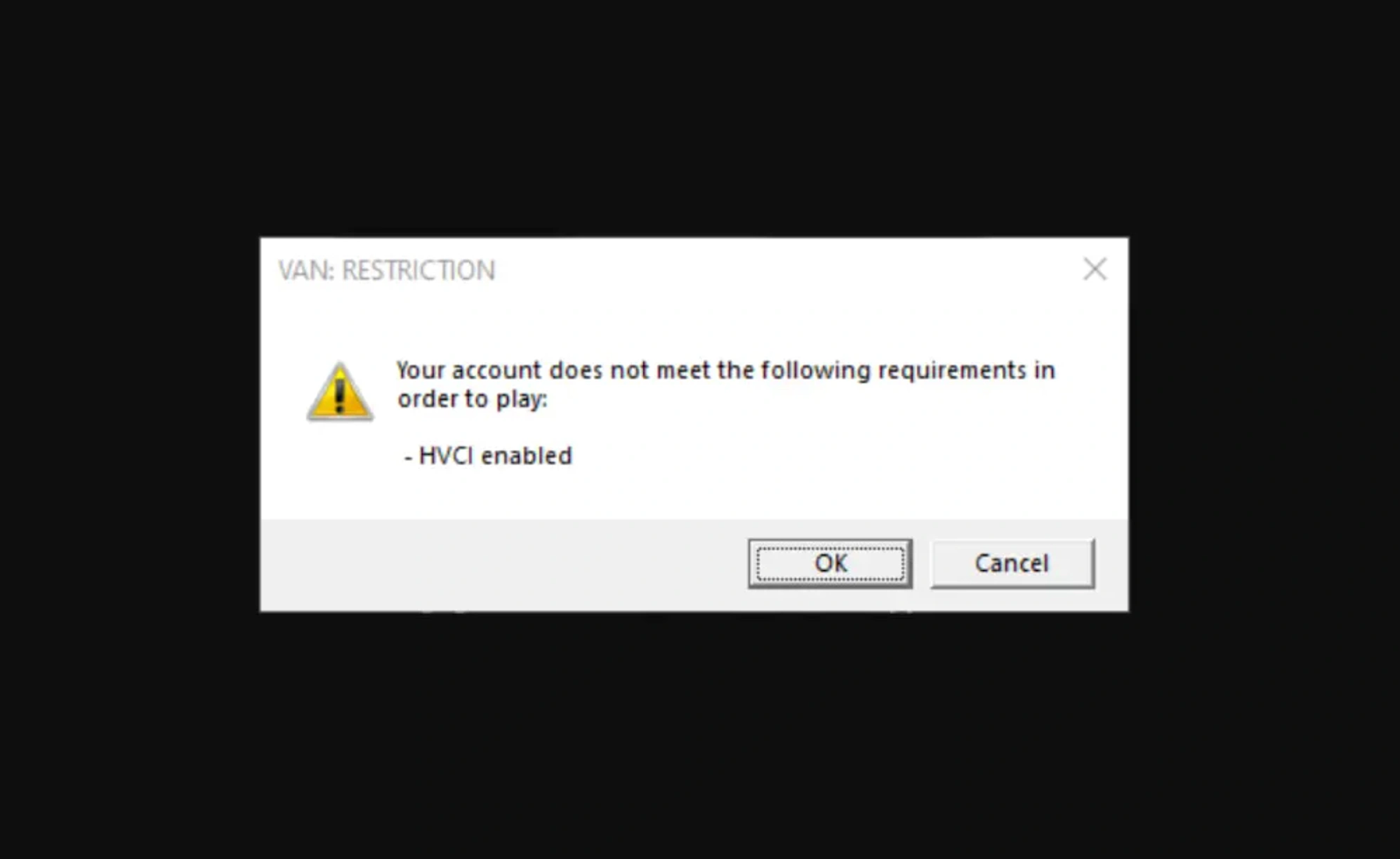
The “HVCI enabled” VAN error in Valorant is triggered when Windows 11’s Hypervisor-Protected Code Integrity conflicts with Riot Vanguard, Valorant’s anti-cheat system. HVCI is designed to protect your system by isolating critical processes, but Vanguard requires low-level access to function correctly. When both try to control the same system layer, Valorant may crash, fail to launch, or display a VAN error.
Common reasons this error appears include:
- HVCI being automatically enabled after a Windows 11 update
- Incompatible drivers running under memory integrity protection
- Conflicts between Riot Vanguard and Windows virtualization features
- BIOS virtualization settings interfering with Vanguard
- System security policies blocking Vanguard’s kernel-level access
This is why many players describe the problem as HVCI making their PC crash Valorant, even when their hardware meets all requirements.
Part 2: How to Fix “HVCI Enabled” VAN Error in Valorant — Top Solutions
Solution 1: Fix the “HVCI Enabled” VAN Error Using LagoFast
The most stable and player-friendly way to deal with the HVCI enabled Valorant issue is to avoid risky system-level changes altogether. Instead of disabling core Windows protections manually, many players rely on LagoFast, a professional game booster that resolves various errors by optimizing network routing, system calls, and launch environments in the background.
LagoFast works as a smart layer between your system and the game, reducing conflicts that cause VAN errors, crashes, or failed launches. It is widely used not only for fixing the VALORANT “HVCI enabled” VAN error, but also for improving ping, reducing packet loss, and stabilizing gameplay sessions.
Key features that make LagoFast stand out:
- Automatically bypasses Vanguard-related launch conflicts
- Optimizes system and network resources without disabling security features
- Reduces crashes caused by HVCI and memory integrity conflicts
- Improves connection stability for competitive Valorant matches
- Requires no manual registry edits or BIOS changes
Compared to manual fixes, LagoFast is safer, faster, and far more reliable for long-term play.
Tutorial to use LagoFast to Fix HVCI Enabled VAN Erroron PC:
Step 1: Click the Free Trial button to download and install LagoFast.
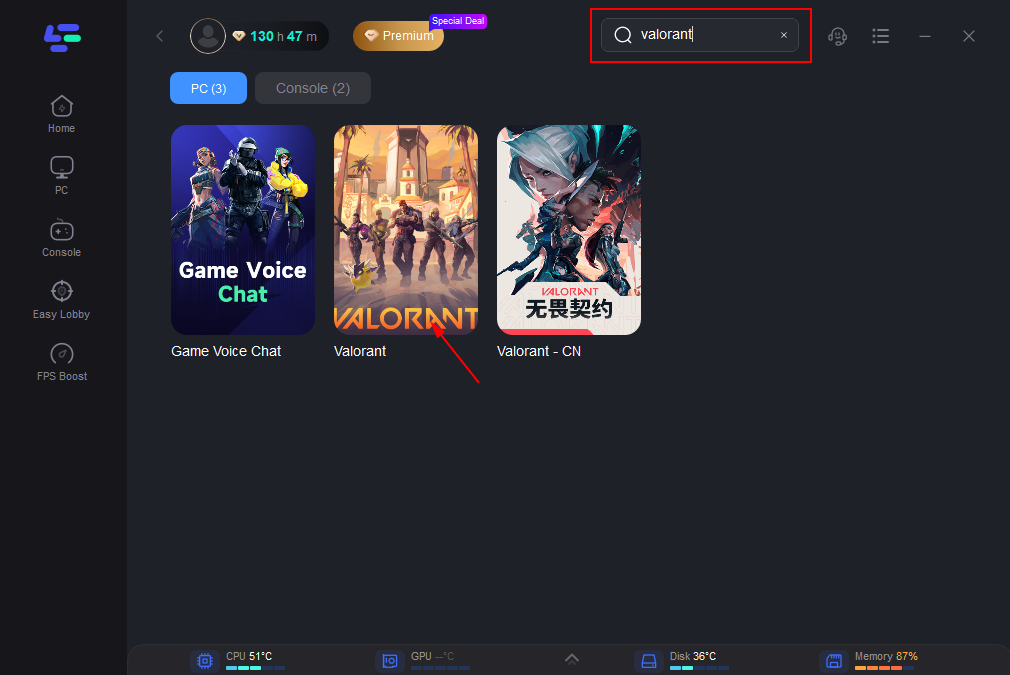
Step 2: Open LagoFast, then click the PC button on the left and search for Valorant in the search bar, and click it after it appears.
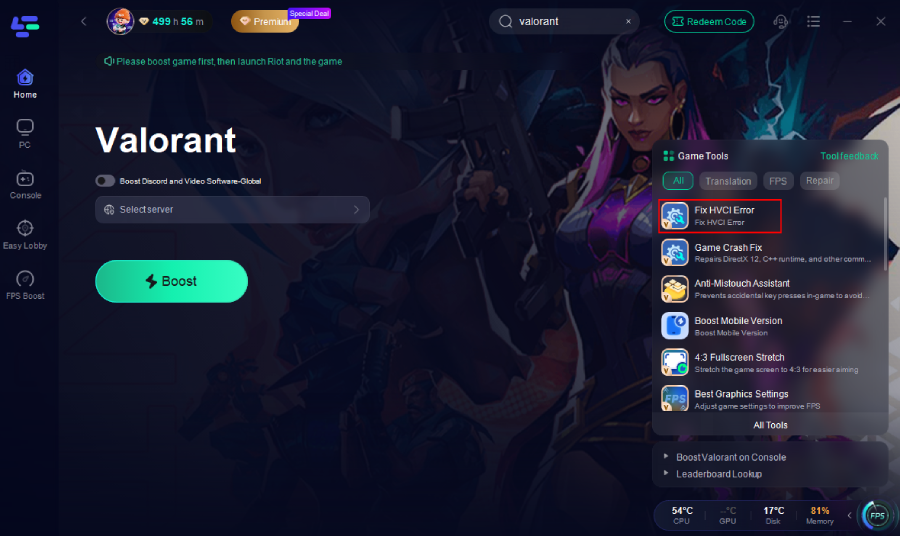
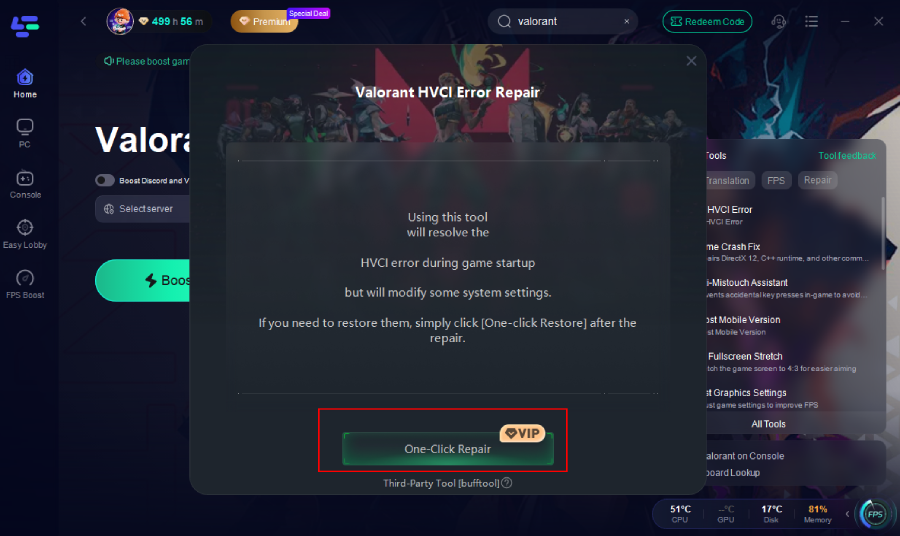
Step 3. Select the Fix HVCI Enabled Error option on the right side and click One-Click Fix to apply the repair.
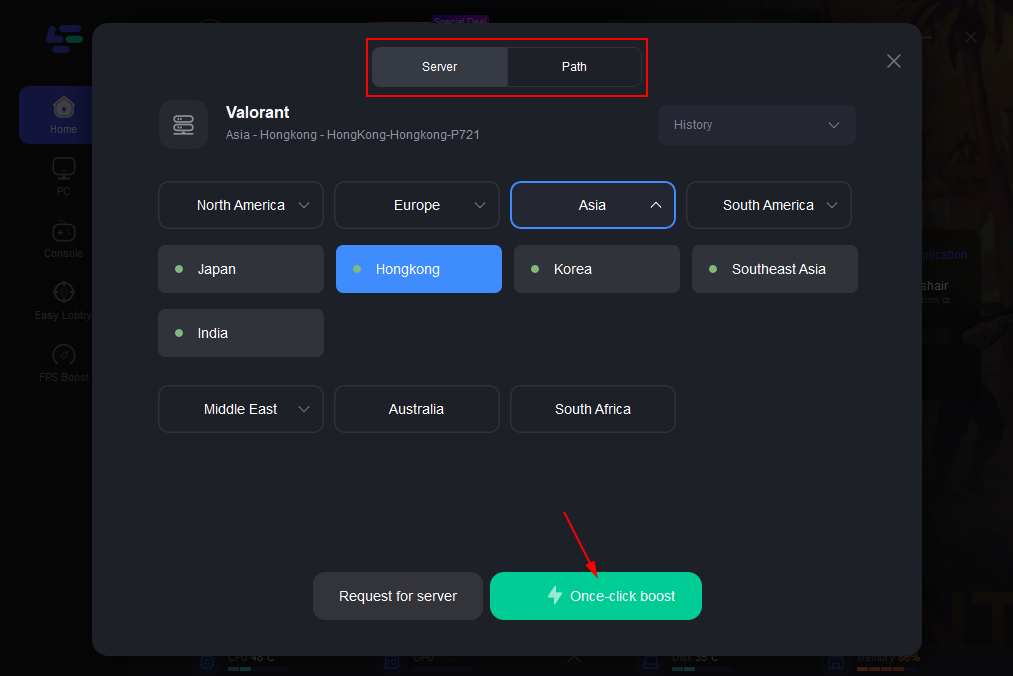
Step 4: Click on “Server” to change to a better server that optimizes the gaming experience, then click on “Smart Boost”.
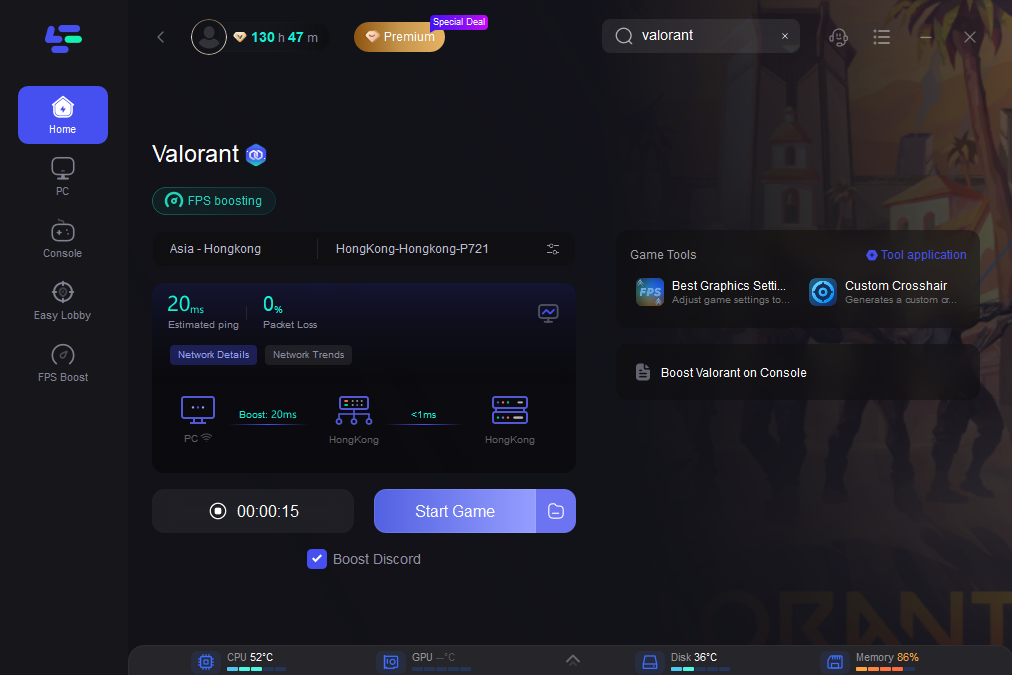
Step 5: Check the specific game ping, packet loss, and multiple path connections on the right side. Finally, click the “Start Game” to play the game.
Solution 2: Disable Memory Integrity (HVCI) in Windows Security
Disabling HVCI is the most commonly suggested fix, but it lowers system protection.
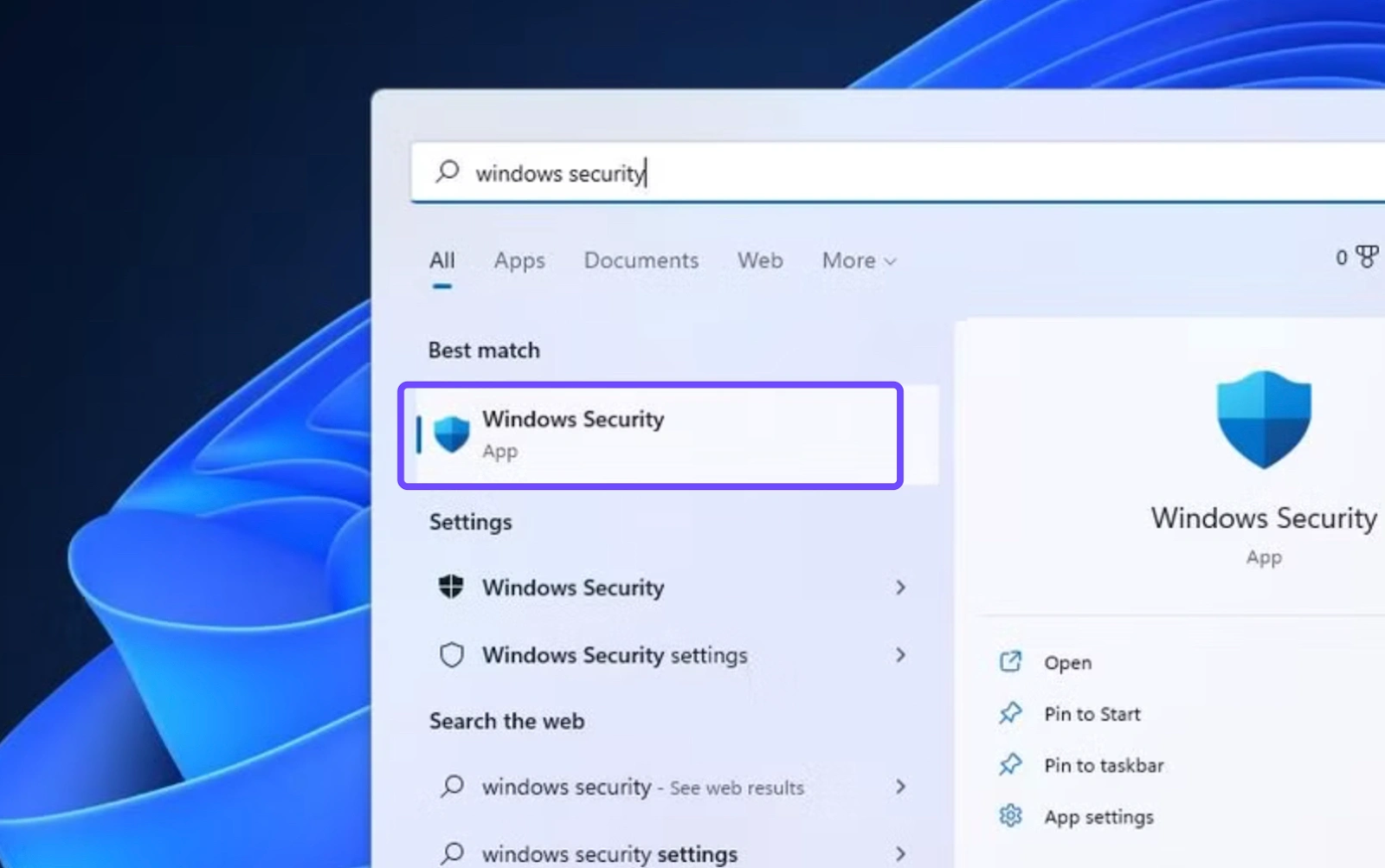
Step 1. Open Windows Security
Step 2. Go to Device Security
Step 3. Click Core Isolation details
Step 4. Turn off Memory Integrity
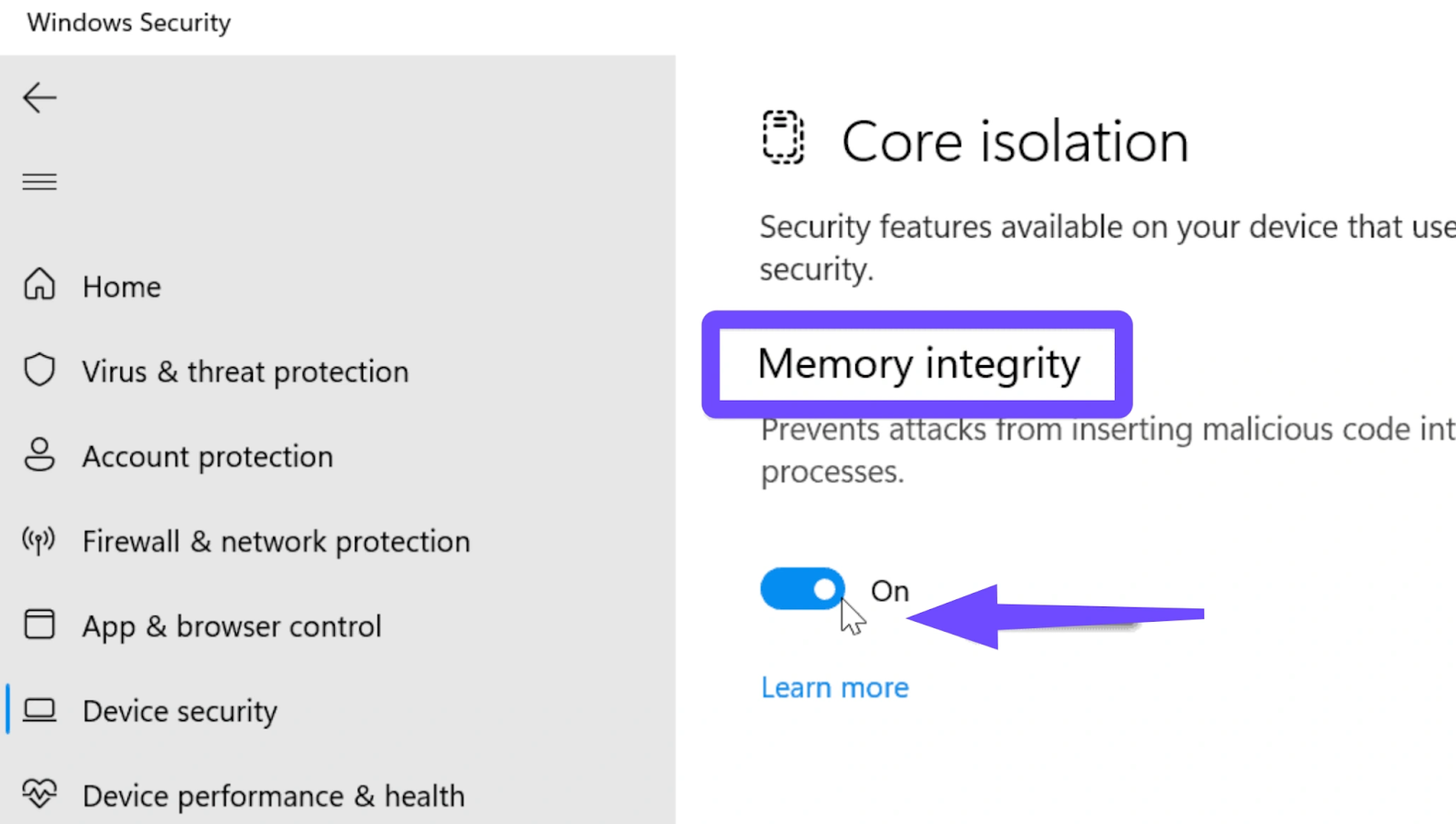
Step 5. Restart your PC
Solution 3: Disable Virtualization-Based Security via Group Policy
Some players attempt to turn off virtualization features entirely.
Step 1. Press Win + R and type gpedit.msc
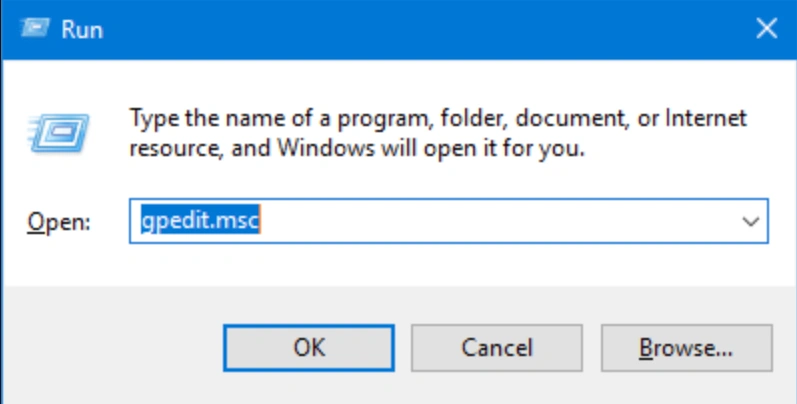
Step 2. Navigate to Device Guard settings
Step 3. Disable Virtualization-Based Security
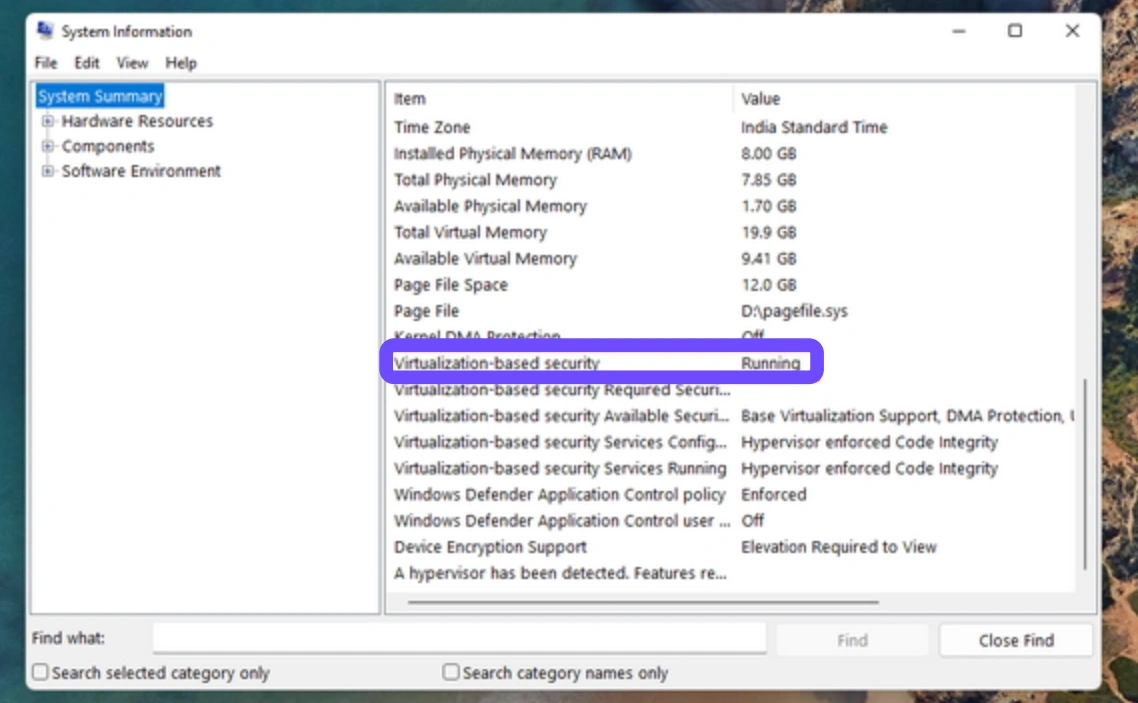
Step 4. Apply changes and restart
Step 5. Relaunch Valorant
Solution 4: Update or Roll Back Problematic Drivers
Outdated or incompatible drivers can trigger HVCI conflicts.
Step 1. Open Device Manager
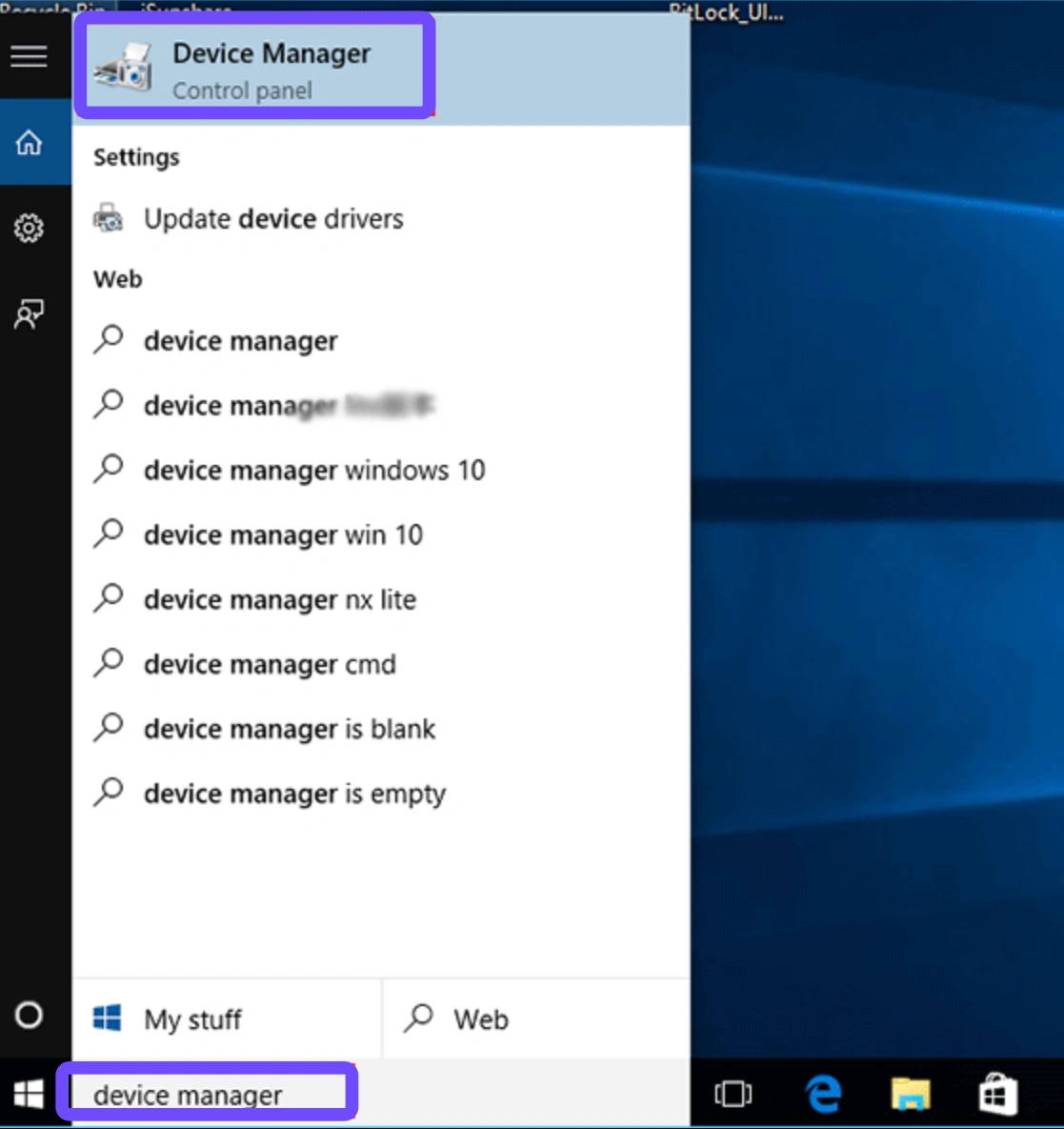
Step 2. Check for drivers marked as incompatible
Step 3. Update or roll back those drivers
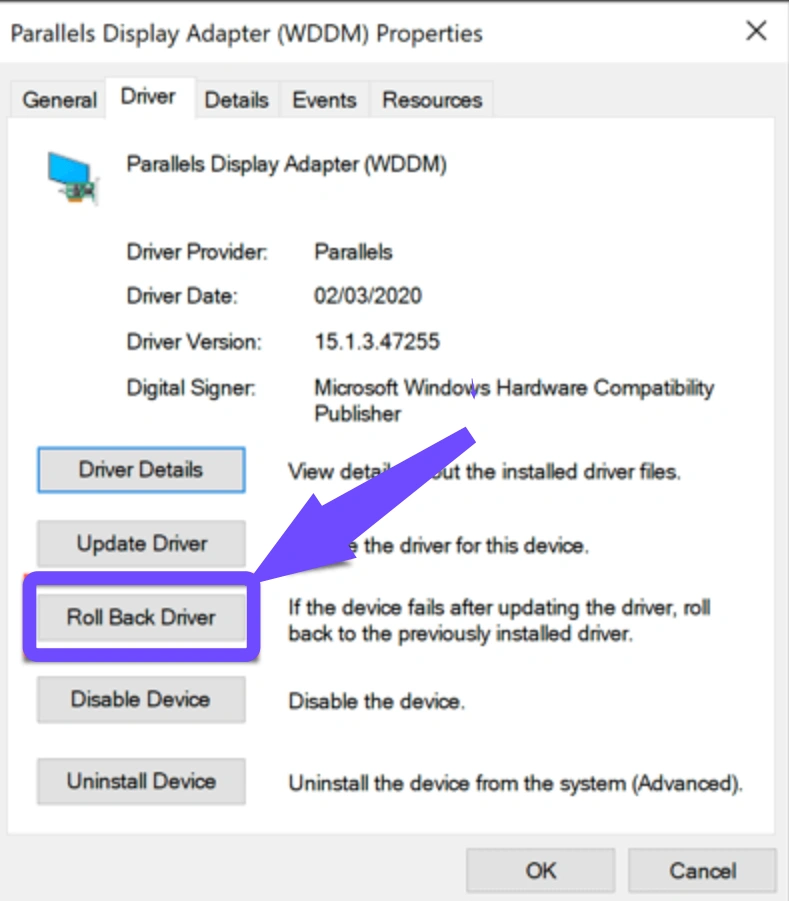
Step 4. Reboot your system
Step 5. Test Valorant again
Solution 5: Modify BIOS Virtualization Settings
Some players try to resolve the issue at the firmware level.
Step 1. Restart and enter BIOS
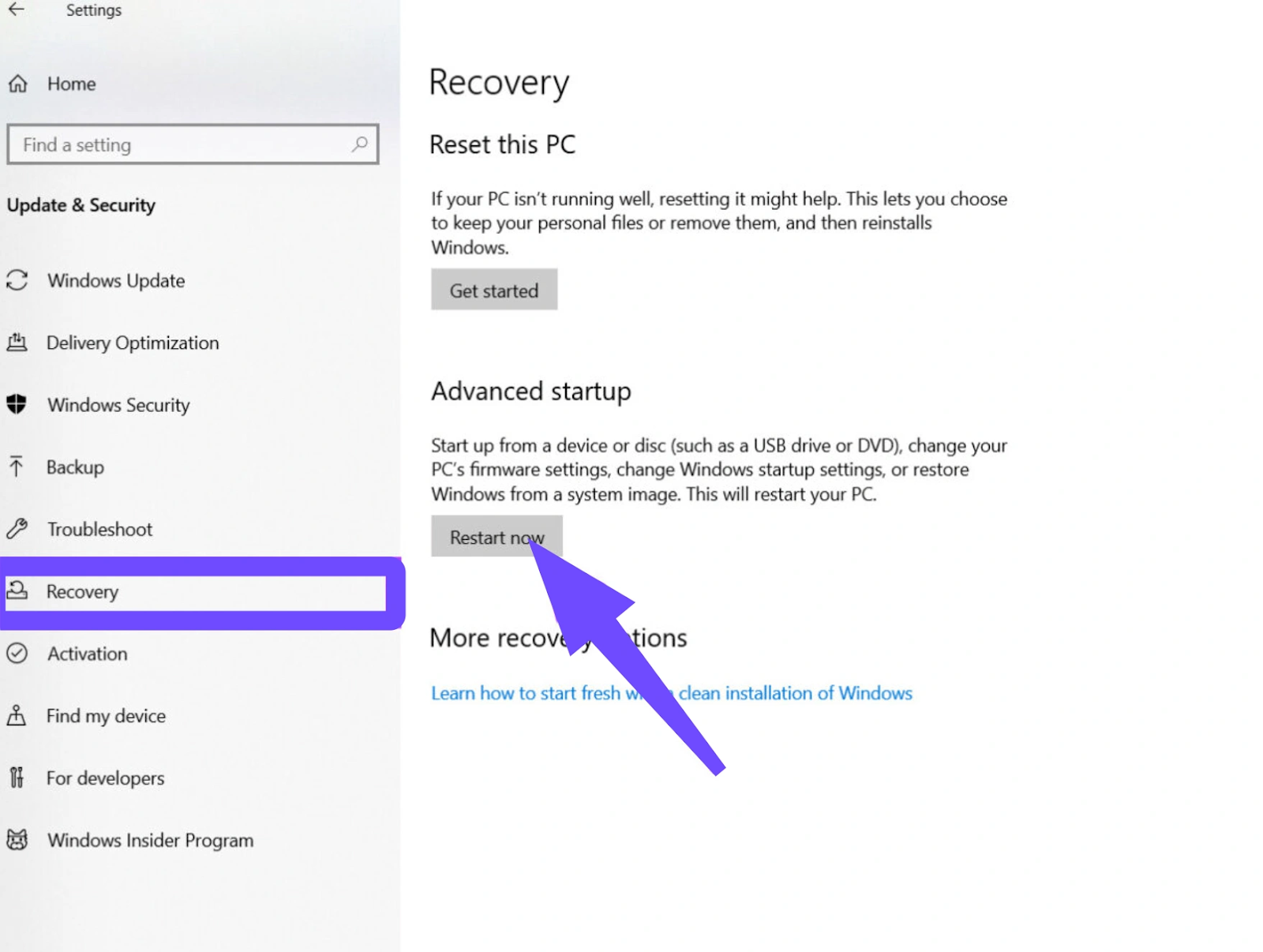
Step 2. Locate CPU virtualization settings
Step 3. Disable virtualization support
Step 4. Save changes and reboot
Step 5. Launch Valorant
Solution 6: Reinstall Riot Vanguard Completely
In some cases, the HVCI enabled VAN error in Valorant is caused by a corrupted or outdated Riot Vanguard installation that no longer aligns with current Windows 11 security settings. A clean reinstallation can sometimes reset the conflict, although it does not prevent HVCI-related issues from returning after system updates.
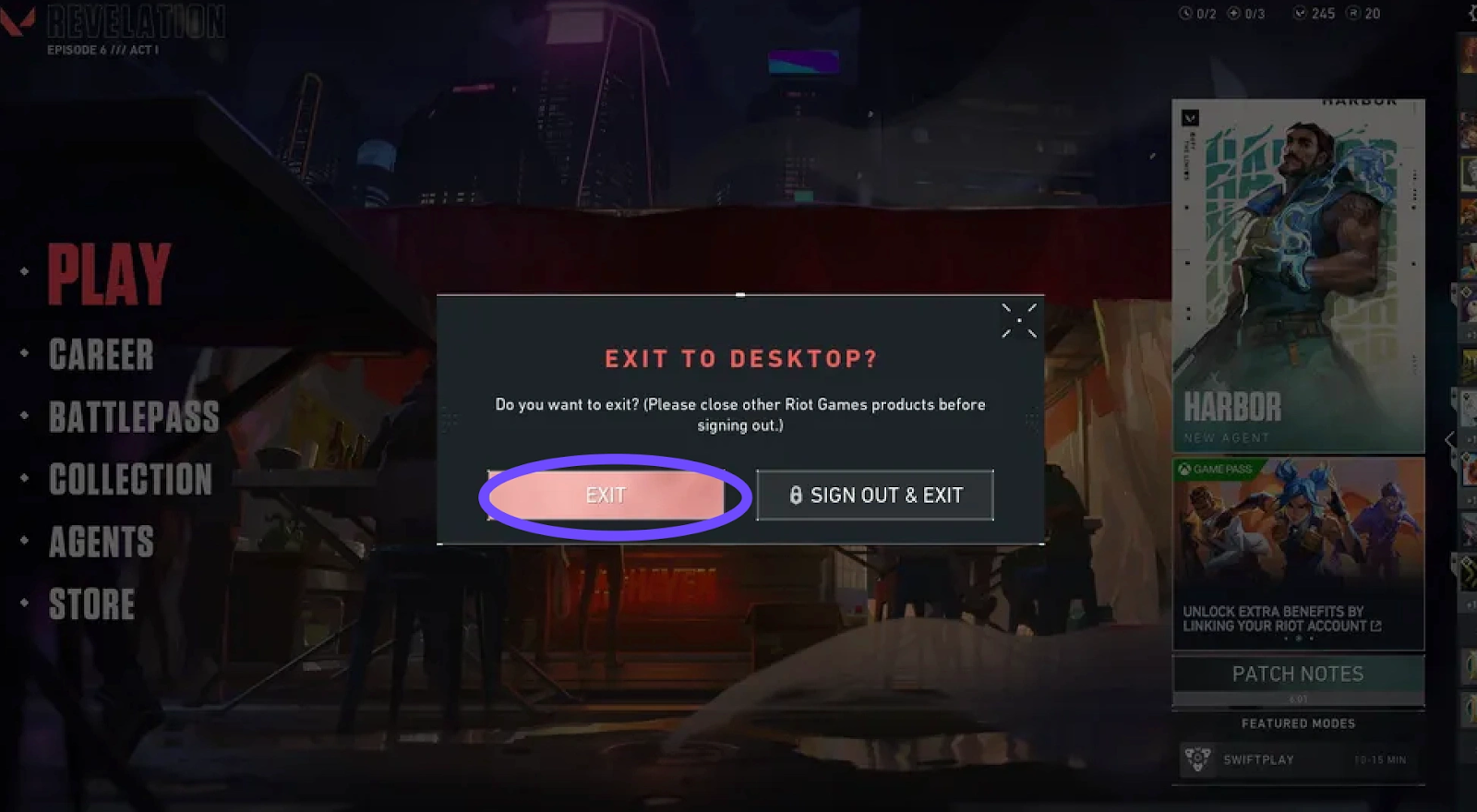
Step 1. Close Valorant and exit Riot Client completely
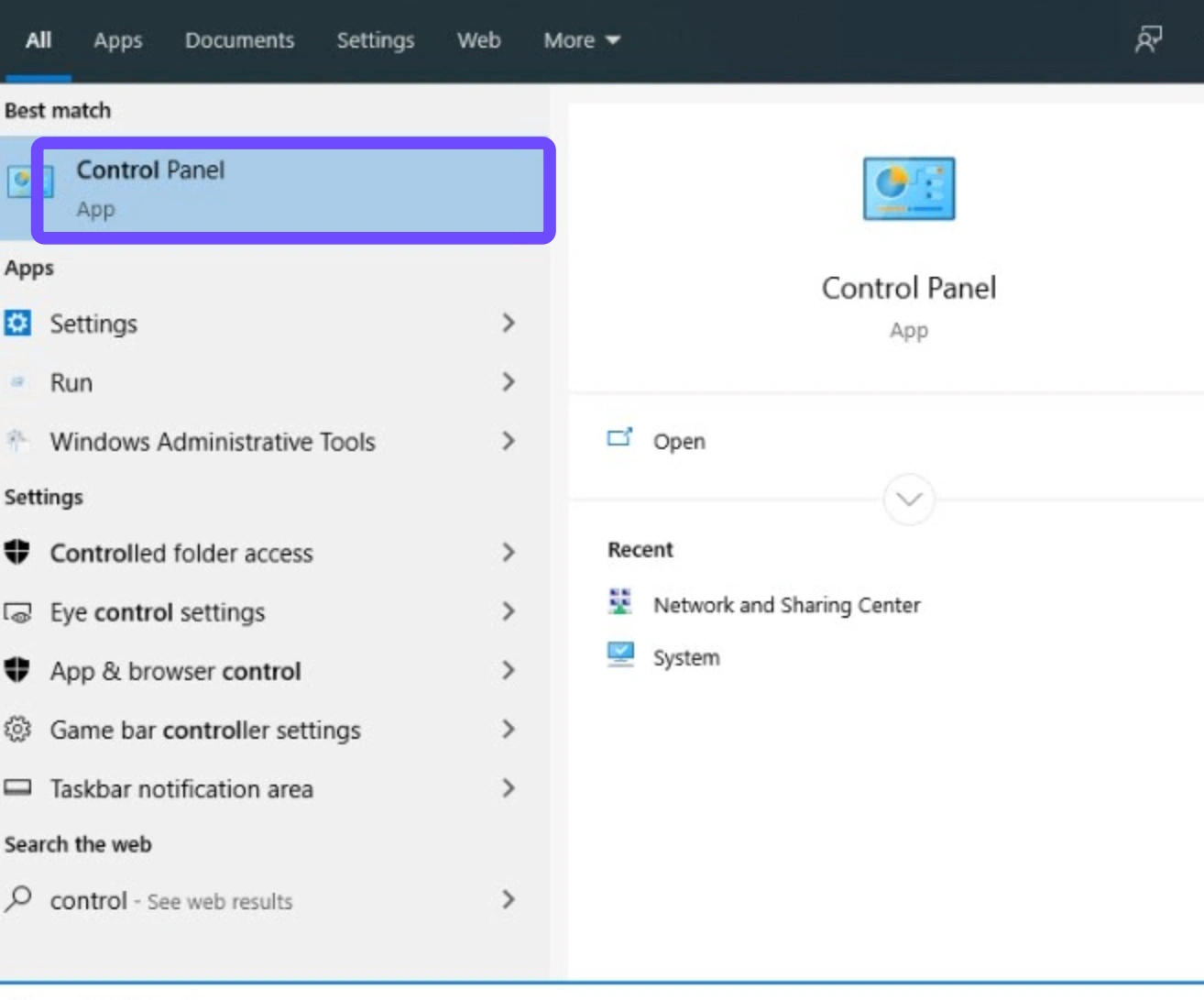
Step 2. Open Control Panel and uninstall Riot Vanguard
Step 3. Restart your PC to fully remove Vanguard services
Step 4. Launch Valorant to trigger automatic Vanguard reinstallation
Step 5. Restart again and test if the VAN error is resolved
Conclusion
The HVCI enabled VAN error in Valorant on Windows 11 is not a simple bug, but a conflict between modern Windows security architecture and Riot Vanguard’s anti-cheat system. While disabling HVCI or changing system settings can temporarily fix the issue, these solutions often introduce new risks or stop working after updates. For players who want a safer, long-term solution, LagoFast offers a smarter approach by resolving conflicts without compromising system security. If HVCI is making your PC crash Valorant or preventing the game from launching, choosing a dedicated game booster is the most stable way to get back into competitive play without frustration.

Boost Your Game with LagoFast for Epic Speed
Play harder, faster. LagoFast game booster eliminates stutter and lags on PC, mobile, or Mac—win every match!
Quickly Reduce Game Lag and Ping!
Boost FPS for Smoother Gameplay!