
Online multiplayer games thrive on stable connectivity, and nothing breaks immersion faster than a sudden disconnect. Players jumping into ARC Raiders sometimes encounter frustrating connection errors that prevent matchmaking, disrupt sessions, or stop the game from launching entirely. These issues can stem from unstable networks, server congestion, or system conflicts. This guide explains the most common connection errors and offers practical solutions to help you return to smooth, uninterrupted gameplay as quickly as possible.

- ✅ Reduce Lag and High Ping.
- ✅ Boost FPS at the Same Time.
- ✅ Support 2000+ Popular Online Games.
- ✅ Fix High Ping Easily
- ✅ Change Server without Latency
Part 1: ARC Raiders Online Connection Errors Overview
Part 2: How to Fix All ARC Raiders Online Connection Errors - 100% Working
Part 1: ARC Raiders Online Connection Errors Overview
Navigating the various error codes in ARC Raiders can be confusing. Here is a breakdown of the most common issues players encounter:
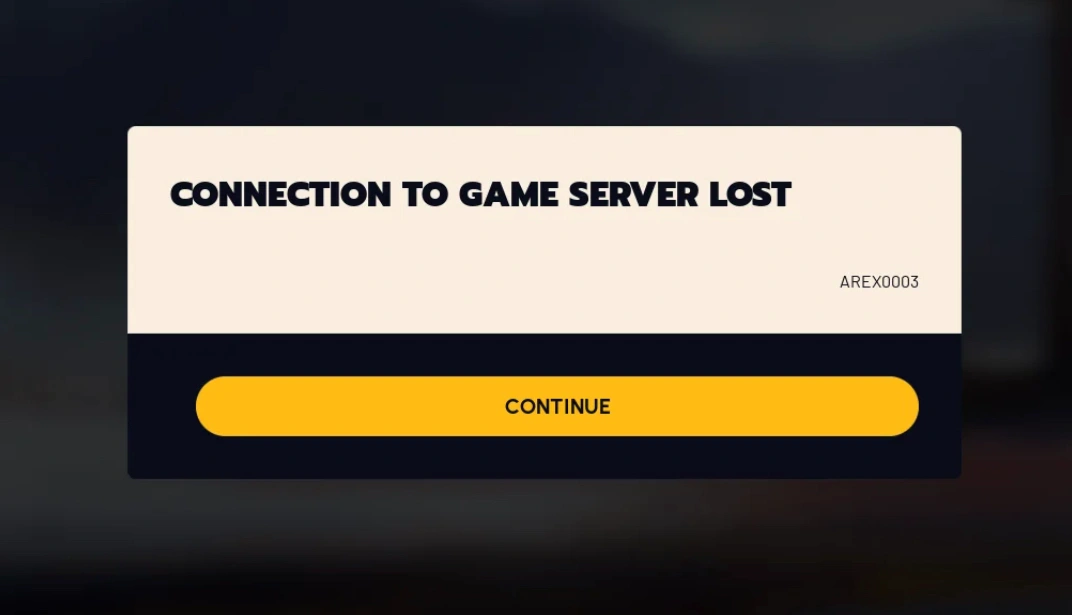
Error AREX0003 / AREX003 (Connection to Game Server Lost)
This is the most frequent error, typically indicating a total loss of communication between your client and the game servers. It often occurs mid-raid, leading to lost loot and progress due to unstable network routing.
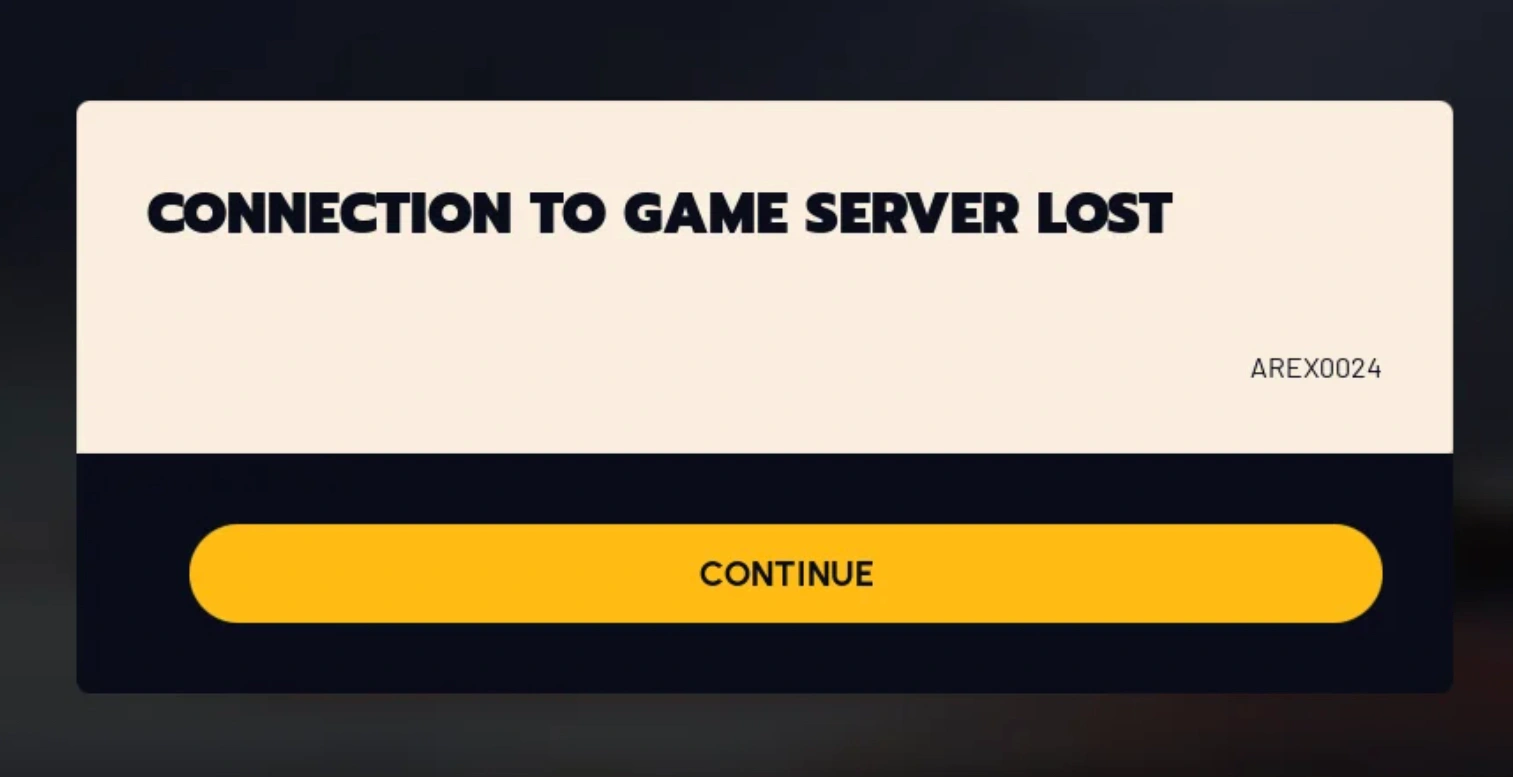
Error AREX0024 (Continuous Disconnect Loop)
Similar to 0003, this error is often categorized as a "heartbeat" failure. Players report being able to move for a few seconds before being kicked back to the menu in an endless, frustrating cycle.
Error ARAU0137 (Xbox/Cloud Connection Issue)
Specifically targeting console and cloud players, this error involves a failed handshake during the initial login. It often points to a mismatch between the console's OS version and the game’s required network security protocols.
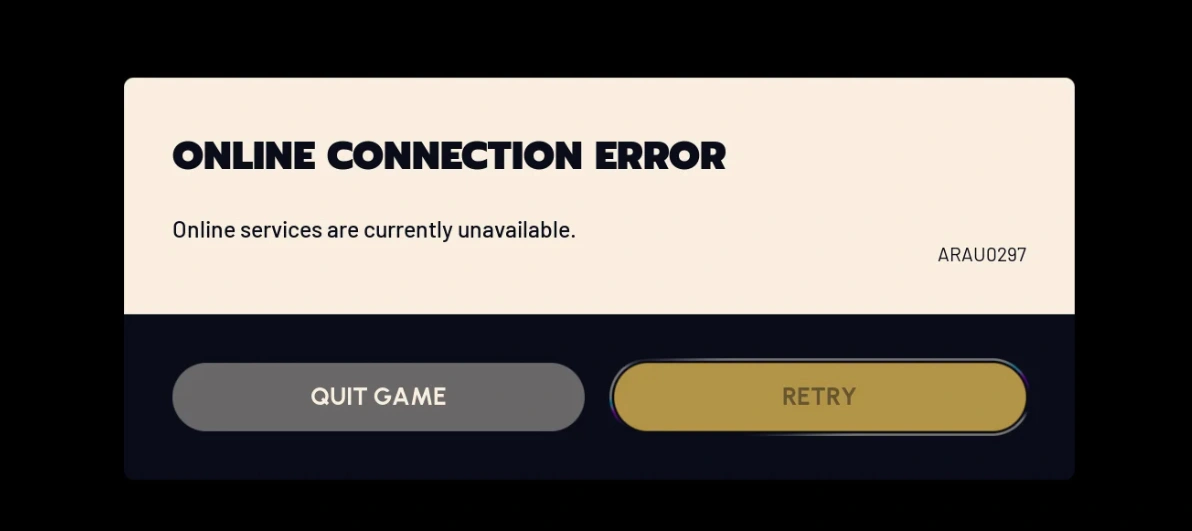
Error ARAU0297 (Online Services Currently Unavailable)
This broad error code usually triggers when the game cannot reach the authentication servers. While sometimes caused by massive regional outages, it frequently stems from local DNS conflicts or incorrect system time settings.
Error ARRT0003 (Server Overload/Authentication)
Typically seen during peak hours or right after a new patch, ARRT0003 suggests the server-side queue is full or your account credentials failed to validate. It prevents players from even reaching the lobby.
Error ARRT0024 (Network Timeout)
This error occurs when the game client waits too long for a response from the server during a transition (like loading into a map). It is usually a sign of high packet loss or severe latency.
ARC Raiders Not Launching/Crashing
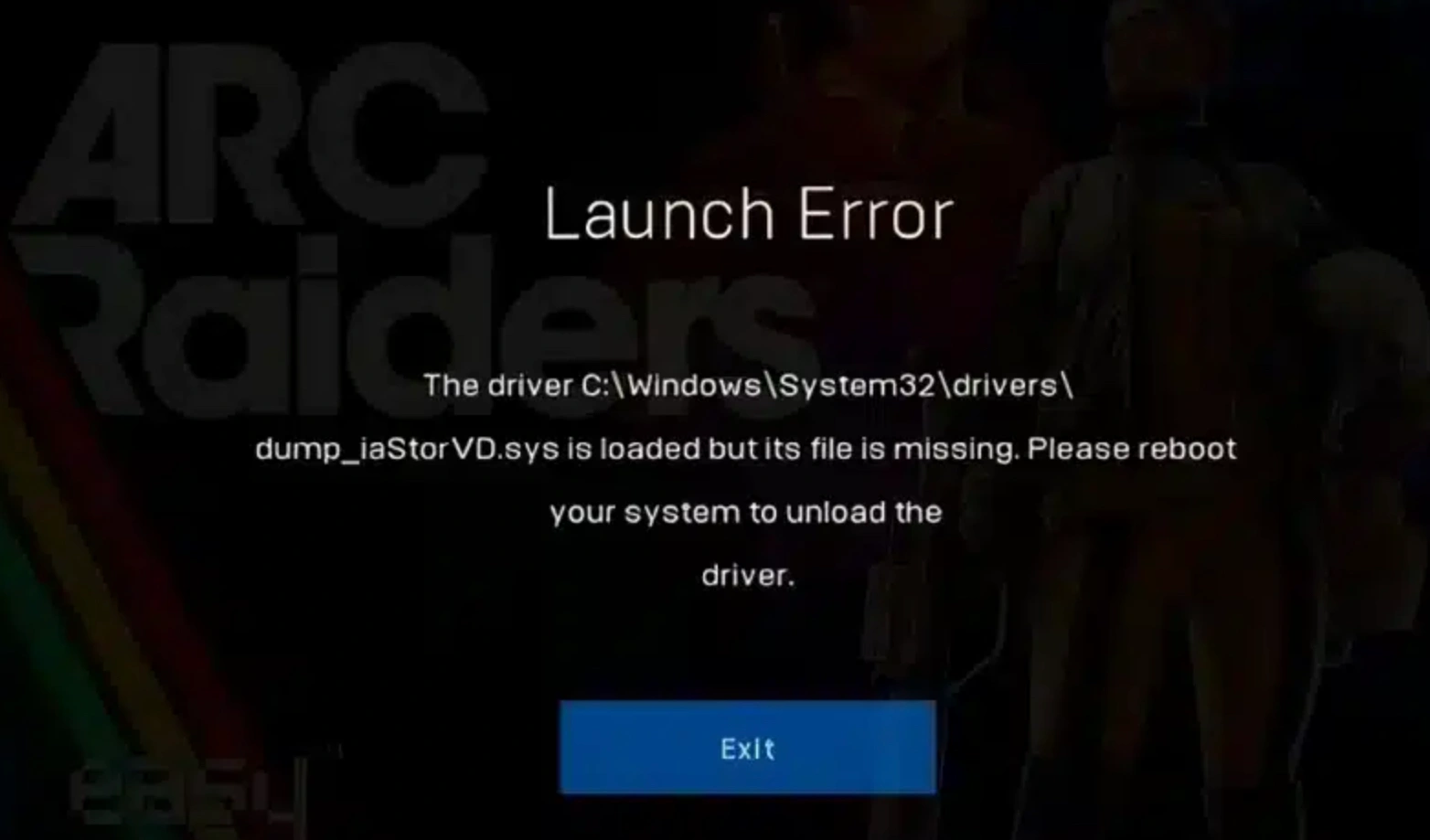
While not always tied to a code, crashes at startup or during intense combat are often linked to GPU driver conflicts, corrupted shader caches, or background processes interfering with the game’s anti-cheat system.
Part 2: How to Fix All ARC Raiders Online Connection Errors - 100% Working
All-In-One Solution: LagoFast Game Booster
When you’re tired of manual troubleshooting that only works half the time, LagoFast stands out as the premium, all-in-one solution for every ARC Raiders connectivity hurdle. Designed specifically for gamers, LagoFast isn't just a simple proxy; it is a sophisticated game booster that optimizes your entire data path. It effectively eliminates the root causes of AREX0003 and ARRT0003 by providing stable, dedicated routes that standard ISPs can’t offer.
Key Features of LagoFast:
- Fix ARC Raiders Crashing & Not Launching: Includes a built-in specialized crash fix tool to repair game environment issues and optimize system resources.
- Multipath Connection Technology: Dynamically finds the fastest, most stable route to ARC Raiders servers to prevent packet loss.
- Global Server Coverage: Easily switch between regions to bypass local congestion or server-specific outages.
- One-Click Optimization: No complex configurations, simply search for the game and boost.
- Real-Time FPS Boost: Reduces background resource consumption to ensure your hardware is focused entirely on the raid.
Tutorial to Use LagoFast to Fix ARC Raiders Online Connection Errors Quickly:
Step 1: Click the Free Trial button to download and install LagoFast.
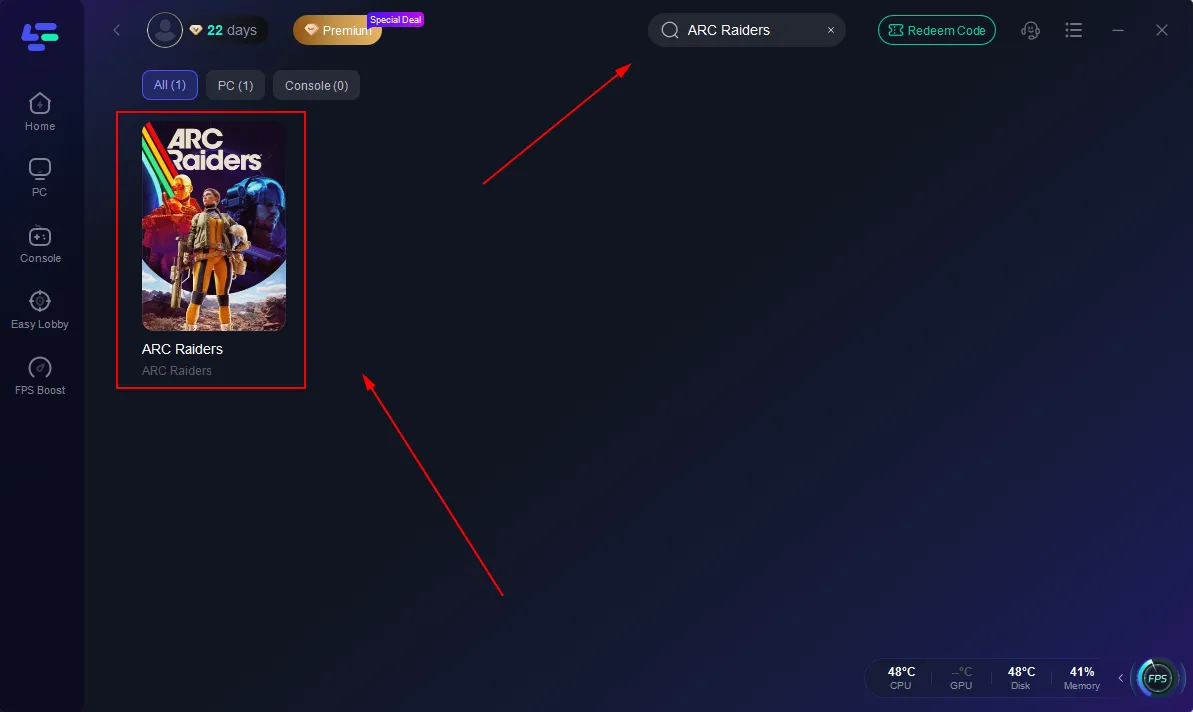
Step 2: Open LagoFast, then click the PC button on the left and search for ARC Raiders in the search bar, and click it after it appears.
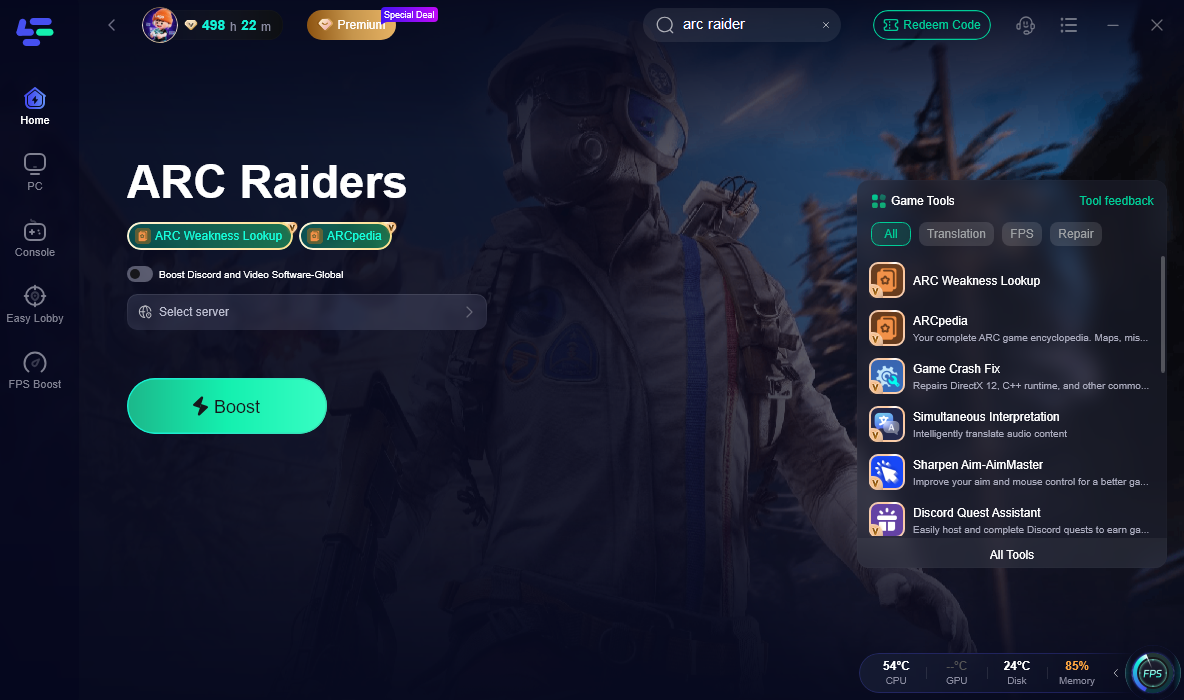
Step 3: Click the Game Crash Fix Tool on the right.
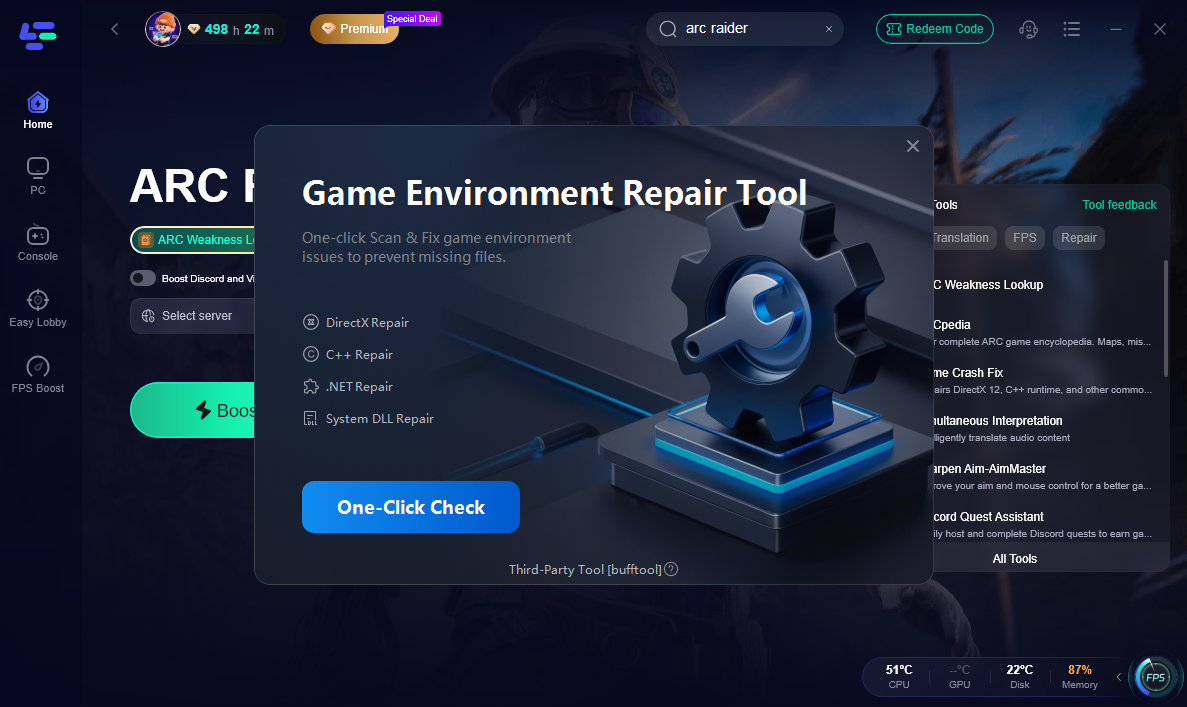
Step 4: Click “One- Click Check."
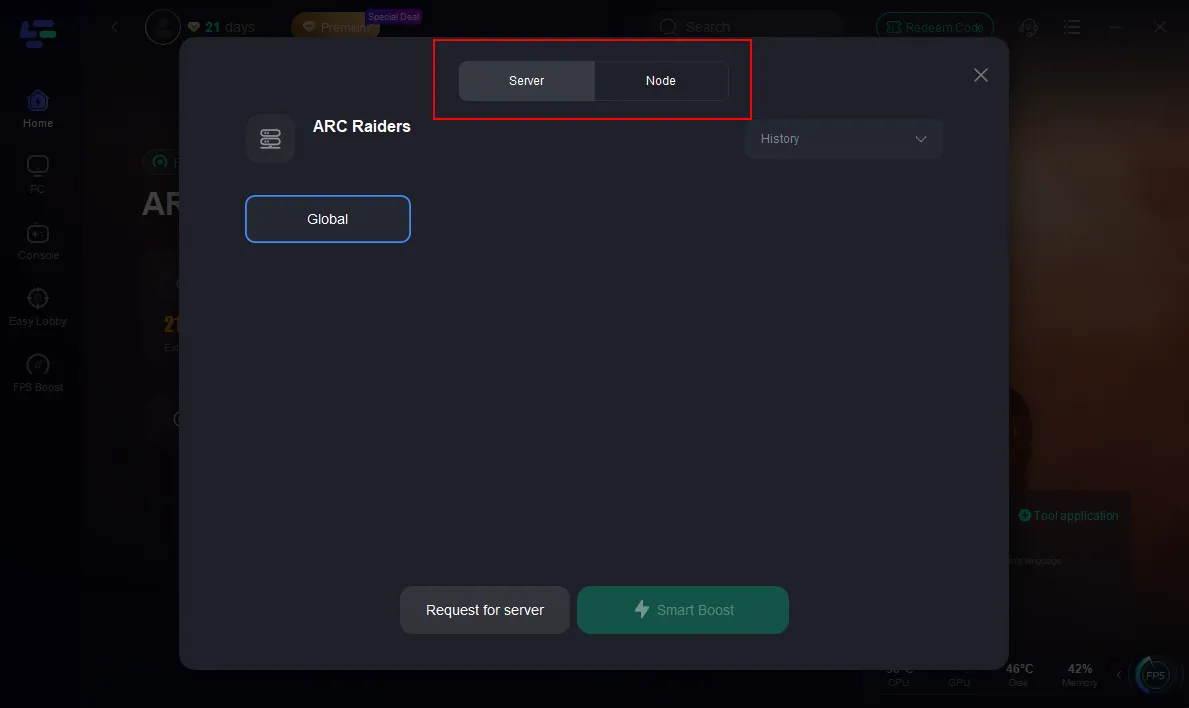
Step 5: Click on “Server” to change to a better server that ensures a better gaming experience, then click on “Smart Boost” to fix the online connection Errors.
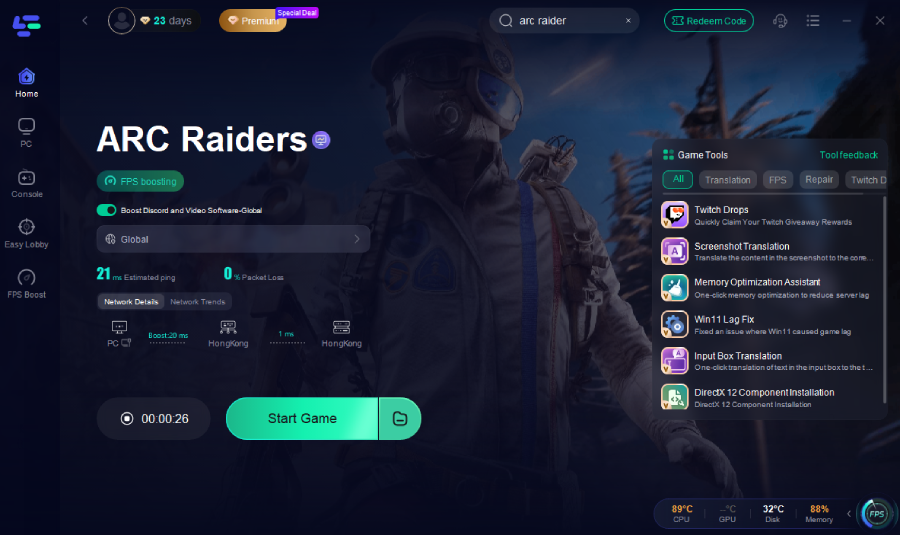
Step 6: Check the specific game ping, packet loss, and multiple path connections on the right side. Finally, click the “Start Game” to play the game.
While the following methods can provide temporary relief, they are often tedious and do not offer the permanent stability provided by a dedicated tool like LagoFast.
Fix AREX0003 / AREX0024 (Network Routing)
This issue is usually caused by poor routing from your ISP to the Amazon servers used by the game.
Step 1. Open the Command Prompt as an Administrator.
Step 2. Type ipconfig /flushdns and press Enter.
Step 3. Type netsh int ip reset and press Enter.
Step 4. Restart your PC and your router.
Step 5. Launch the game and attempt to reconnect.
Fix ARAU0137 / ARAU0287 (Xbox/Cloud)
These codes usually indicate an authentication failure with the Xbox network.
Step 1. Navigate to your Xbox Settings.
Step 2. Go to System and select Updates.
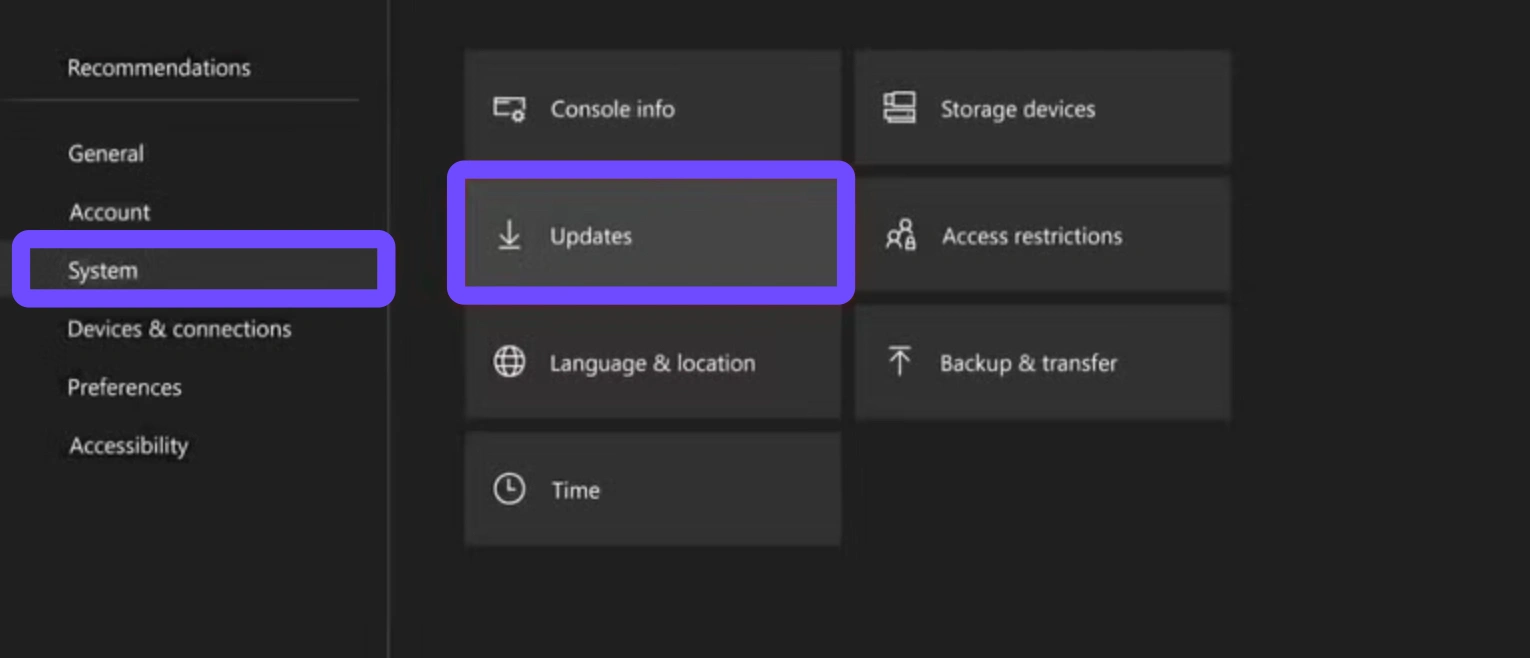
Step 3. Ensure your console is on the latest build (some users must join the Xbox Insider "Omega" ring to force a newer network handshake).
Step 4. Perform a "Hard Reset" by holding the power button for 10 seconds.
Step 5. Unplug the power cable for 30 seconds before restarting.
Fix ARAU0297 (Services Unavailable)
This is frequently tied to system clock desynchronization.
Step 1. Right-click the Date and Time on your Taskbar.
Step 2. Select Adjust date and time.
Step 4. Click the Sync now button under "Synchronize your clock."
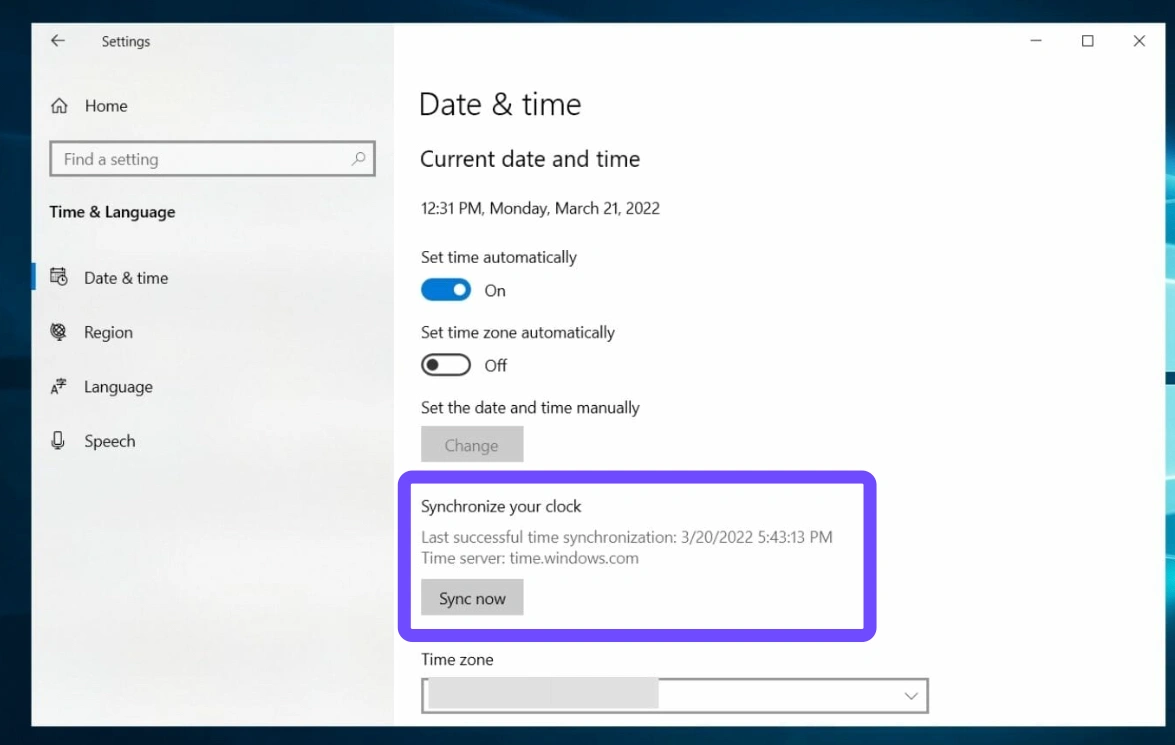
Step 5. Ensure "Set time automatically" is toggled ON.
Step 6. Restart your game launcher (Steam/Epic).
Fix ARRT0003 / ARRT0024 (Authentication Errors)
These errors often result from corrupted login data or temporary server blocks.
Step 1. Log out of your Steam or Epic Games account entirely.
Step 2. Close the launcher and end all related processes in the Task Manager.
Step 3. Delete the "Webcache" folder in your launcher's local app data.
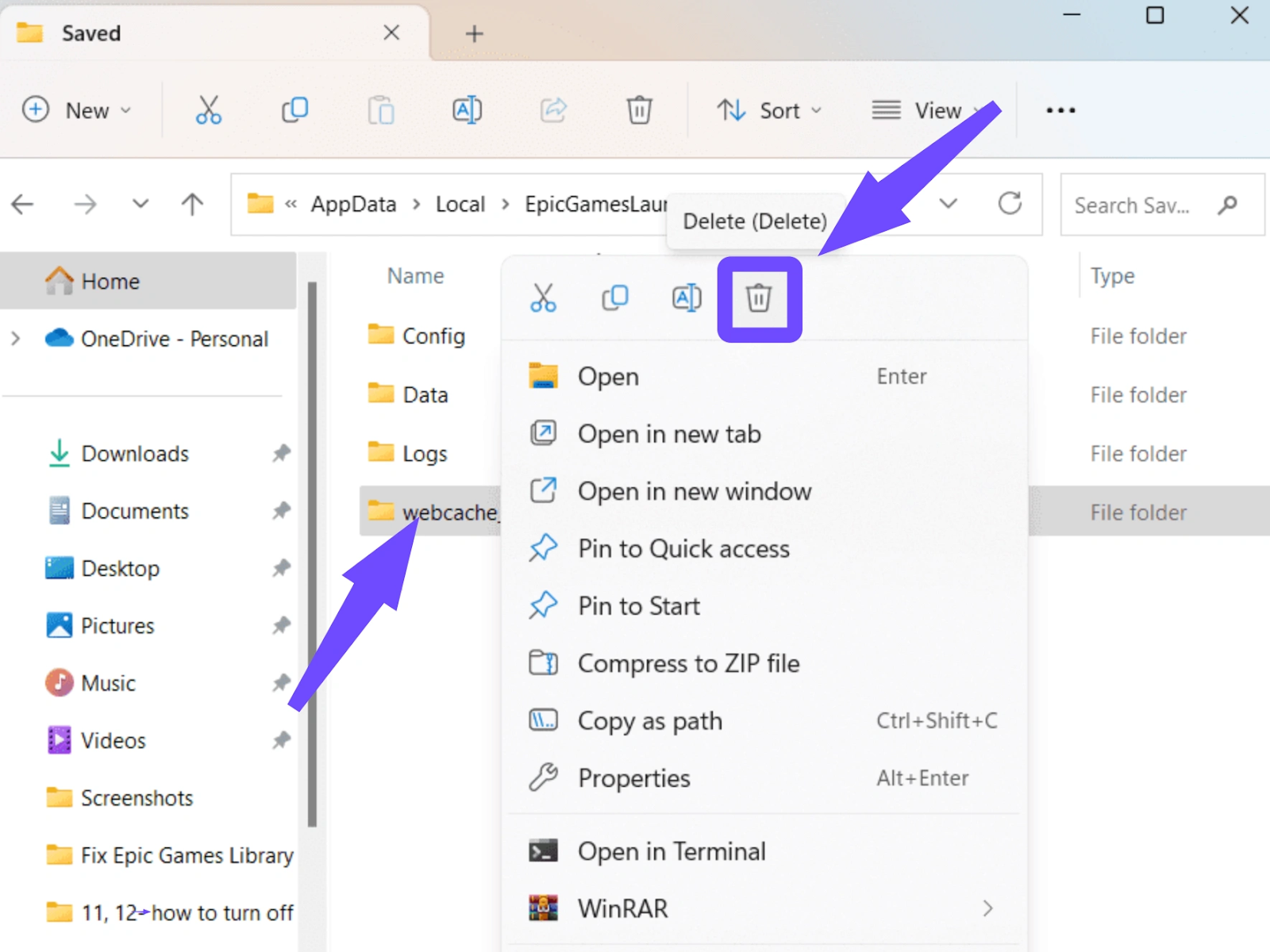
Step 4. Restart the launcher and log back in.
Step 6. Verify the integrity of game files through the game’s properties menu.
Fix ARC Raiders Crashing/Not Launching
Crashes are usually hardware-related or due to software conflicts.
Step 1. Update your GPU drivers to the latest version (NVIDIA/AMD).
Step 2. Disable all overlays (Discord, Steam, RivaTuner).
Step 3. Search for %localappdata% and delete the ArcRaiders shader cache folder.
Step 4. Set the game to "Windowed Borderless" in the settings menu.
Step 5. Run the game executable as an Administrator.
Conclusion
Connection errors can turn an exciting multiplayer session into a frustrating experience, especially when they appear repeatedly without a clear explanation. From AREX003 disconnections to launch crashes, most problems stem from unstable routing, network congestion, or system conflicts. While manual fixes may provide temporary relief, consistent performance is far easier to achieve with an all-in-one game booster fixing all connection issues like LagoFast, which stabilizes connectivity, reduces latency, and resolves crash-related issues in one streamlined process. With the right optimization approach, players can focus less on troubleshooting and more on enjoying seamless cooperative gameplay without interruptions.
Boost Your Game with LagoFast for Epic Speed
Play harder, faster. LagoFast game booster eliminates stutter and lags on PC, mobile, or Mac—win every match!
Quickly Reduce Game Lag and Ping!
Boost FPS for Smoother Gameplay!