
Multiplayer is the heartbeat of ARC Raiders. Teaming up, coordinating strategies, and surviving together is what makes every session feel alive. But nothing kills the mood faster than connection errors, failed invites, or endless loading screens. Many players report they can’t join friends, especially after updates or during peak hours. If you’re searching for ways to fix ARC Raiders connection issues with friends, you’re not alone. This guide walks through why the problem happens and how to fix it on PC and consoles.

- ✅ Reduce Lag and High Ping.
- ✅ Boost FPS at the Same Time.
- ✅ Support 2000+ Popular Online Games.
- ✅ Fix High Ping Easily
- ✅ Change Server without Latency
Part 1: What’s ARC Raiders Connection Issues with Friends?
Part 2: Why do ARC Raiders Connection Issues with Friends happen?
Part 3: How to Fix ARC Raiders Connection Issue with Friends?
Part 1: What’s ARC Raiders Connection Issues with Friends?
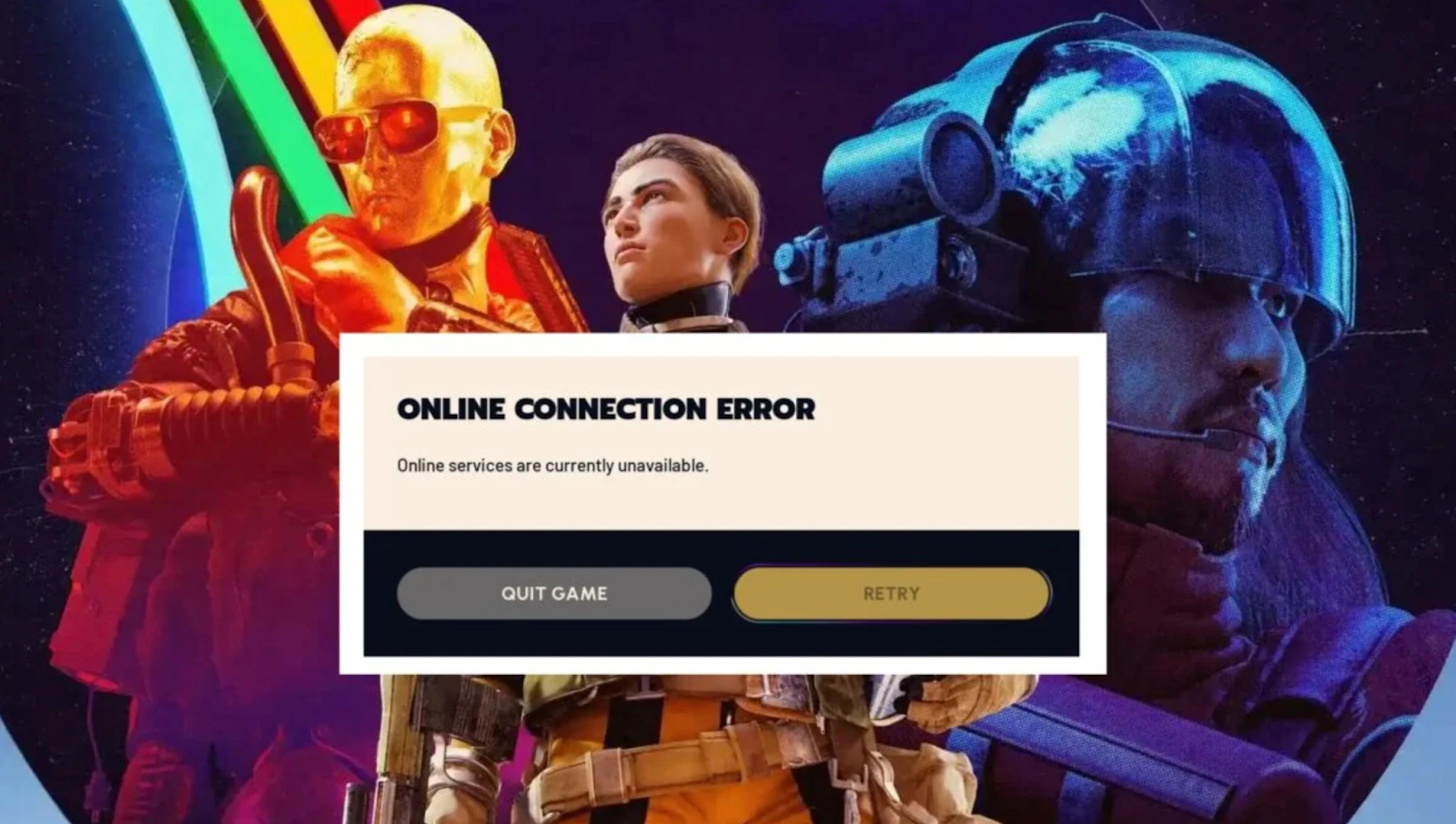
ARC Raiders connection issues with friends refer to situations where players cannot join each other’s sessions, fail to receive invites, or experience sudden disconnections during cooperative play. Some users report errors like “cannot connect to server,” while others can launch the game but can’t enter a party. These issues can appear across PC, Xbox, and PS5 platforms and may occur after patches, during high server load, or due to local network instability. In simple terms, the game runs, but multiplayer doesn’t.
Part 2: Why do ARC Raiders Connection Issues with Friends happen?
Several factors can cause your squad to desync. Since ARC Raiders is an online-only extraction shooter, it relies on precise handshakes between your hardware, the Embark ID servers, and your friends' clients. Common causes include:
- Version Mismatch: After a new patch, if one player hasn't updated their client, the game will block the connection.
- NAT Type Restrictions: A "Strict" or "Type 3" NAT often prevents consoles from "talking" to each other.
- Crossplay Settings: If one friend has crossplay disabled while others have it on, the party system breaks.
- ISP Routing: Your internet provider might be taking a "scenic route" to the game servers, causing timeouts.
- Embark ID Sync Errors: Since the game uses a proprietary ID system, a de-synced account can make you appear offline.
Part 3: How to Fix ARC Raiders Connection Issues with Friends?
All-in-One Solution for PC and Consoles: LagoFast
LagoFast works as a comprehensive game booster designed specifically for online games. It stabilizes routes, reduces packet loss, and improves server communication across PC, Xbox, and PS5. Unlike manual fixes, it directly optimizes game data transmission in real time, helping players fix ARC Raiders connection issues both on console and PC without a complicated setup.
Key Features of LagoFast:
- Multipath Optimization: Automatically switches to the fastest route to avoid server congestion.
- Console Support: Specialized boosting for Xbox and PS5 via the LagoFast Box or router settings.
- Real-Time Latency Reduction: Significantly lowers ping and eliminates packet loss.
- One-Click Fix: No need for complex port forwarding; it stabilizes your connection with a single tap.
- Game-Specific Routing: Tailored specifically for ARC Raiders to ensure the Embark ID handshake never fails.
While the following methods can sometimes help, they are often temporary band-aids. Unlike LagoFast, which provides a permanent, automated fix, these manual steps require constant monitoring and can be reset by your ISP or a new game update.
Tutorial to Use LagoFast to Fix ARC Raiders Connection Issues:
Step 1: Click the "Free Trial" button below to download and install LagoFast for free.
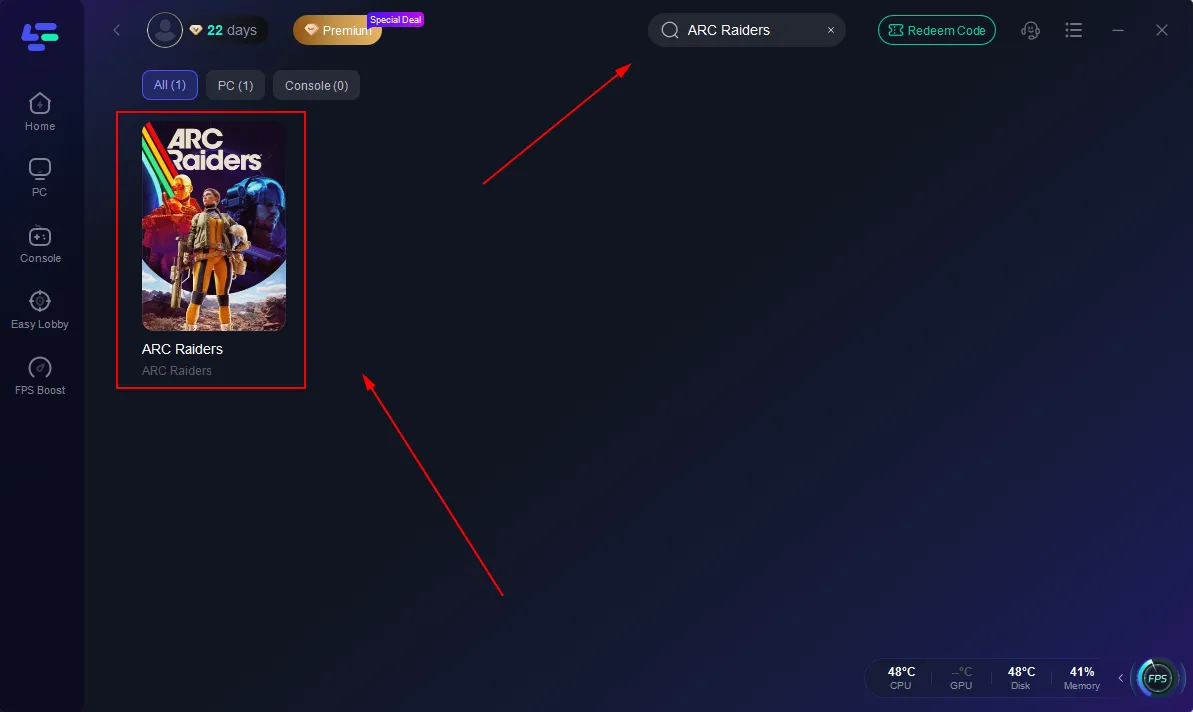
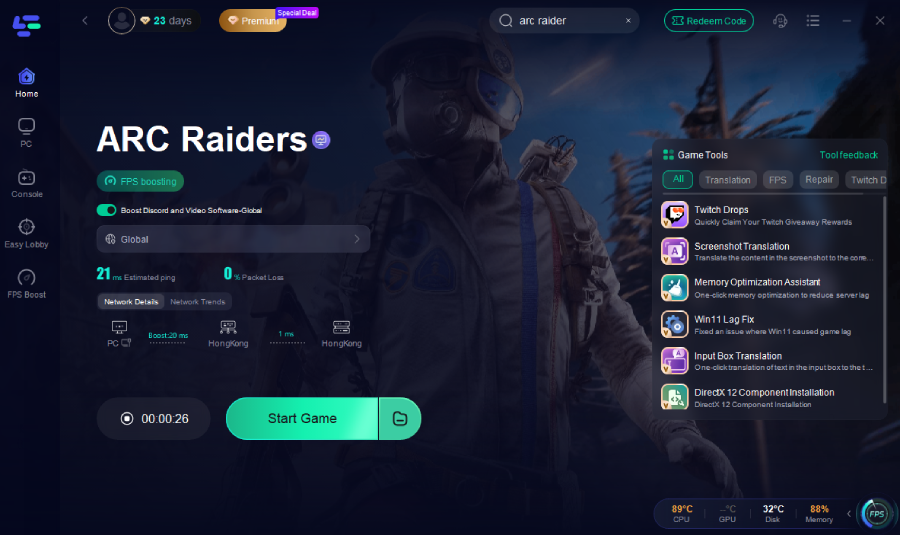
Step 2: Launch LagoFast, search for "ARC Raiders" in the search bar, and select the game.
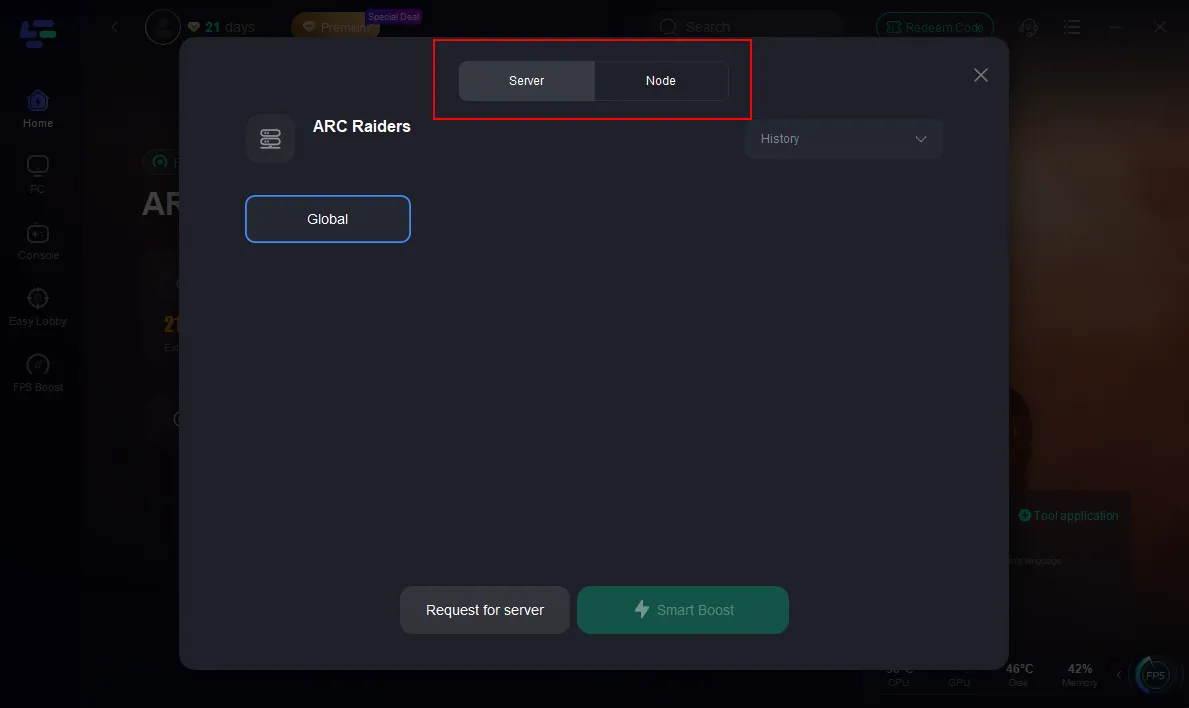
Step 3: Click the "Select Server" button to connect to a stable server node, then activate optimization via "Smart Boost".
Step 4: After enabling real-time optimization, check the live ping and packet loss rates, then click "Start Game" to begin playing.
Tutorial to Use LagoFast Box to Fix ARC Raiders Connection Issues on Consoles:
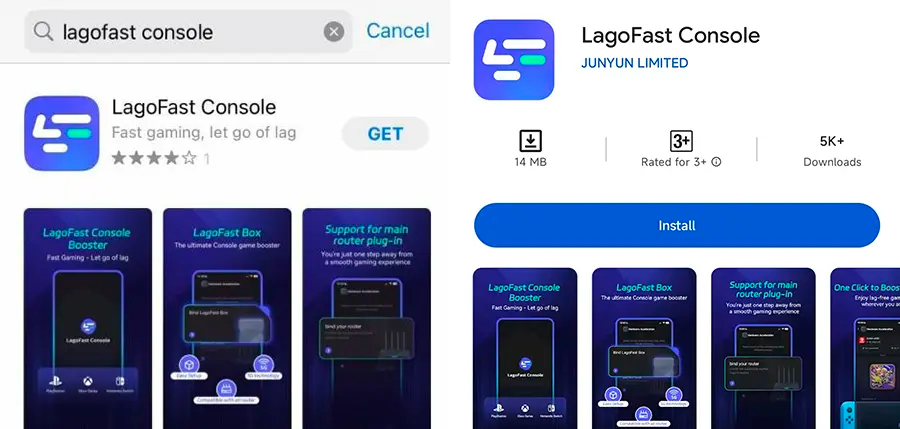
Step 1: Get the LagoFast Console App on your phone to manage the LagoFast Box.
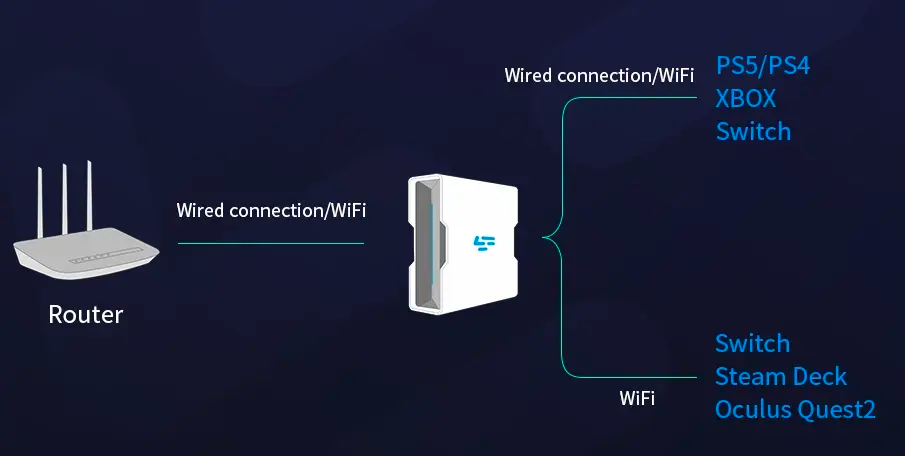
Step 2: Connect your LagoFast Box to your router and console PS5 or Xbox, selecting either a wired or wireless connection.
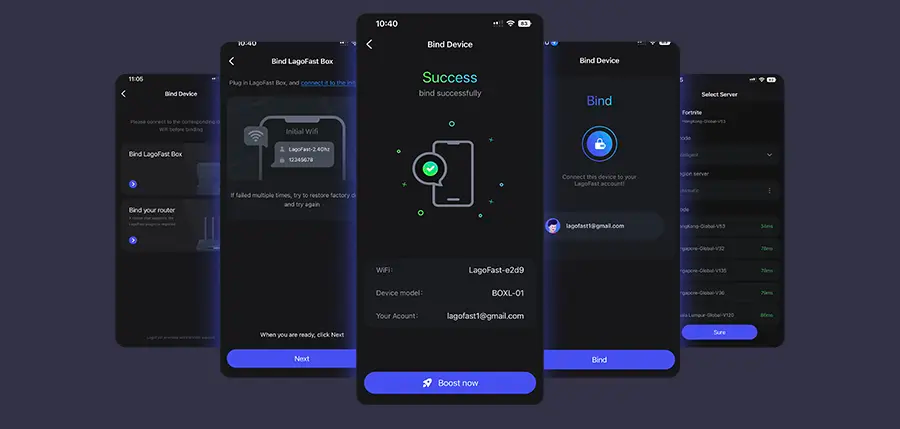
Step 3: Open the LagoFast Console App. After completing the binding process with the LagoFast Box, proceed to boost ARC Raiders and fix the connection issue within the app.
PC Solution 1: Verify Steam Game Files
This ensures your game hasn't been corrupted by a recent patch, which is a common reason why players can't join a friend via Steam join game after a patch.
Step 1. Open your Steam Library.
Step 2. Right-click ARC Raiders and select Properties.
Step 3. Navigate to the Installed Files tab.
Step 4. Click Verify integrity of game files.
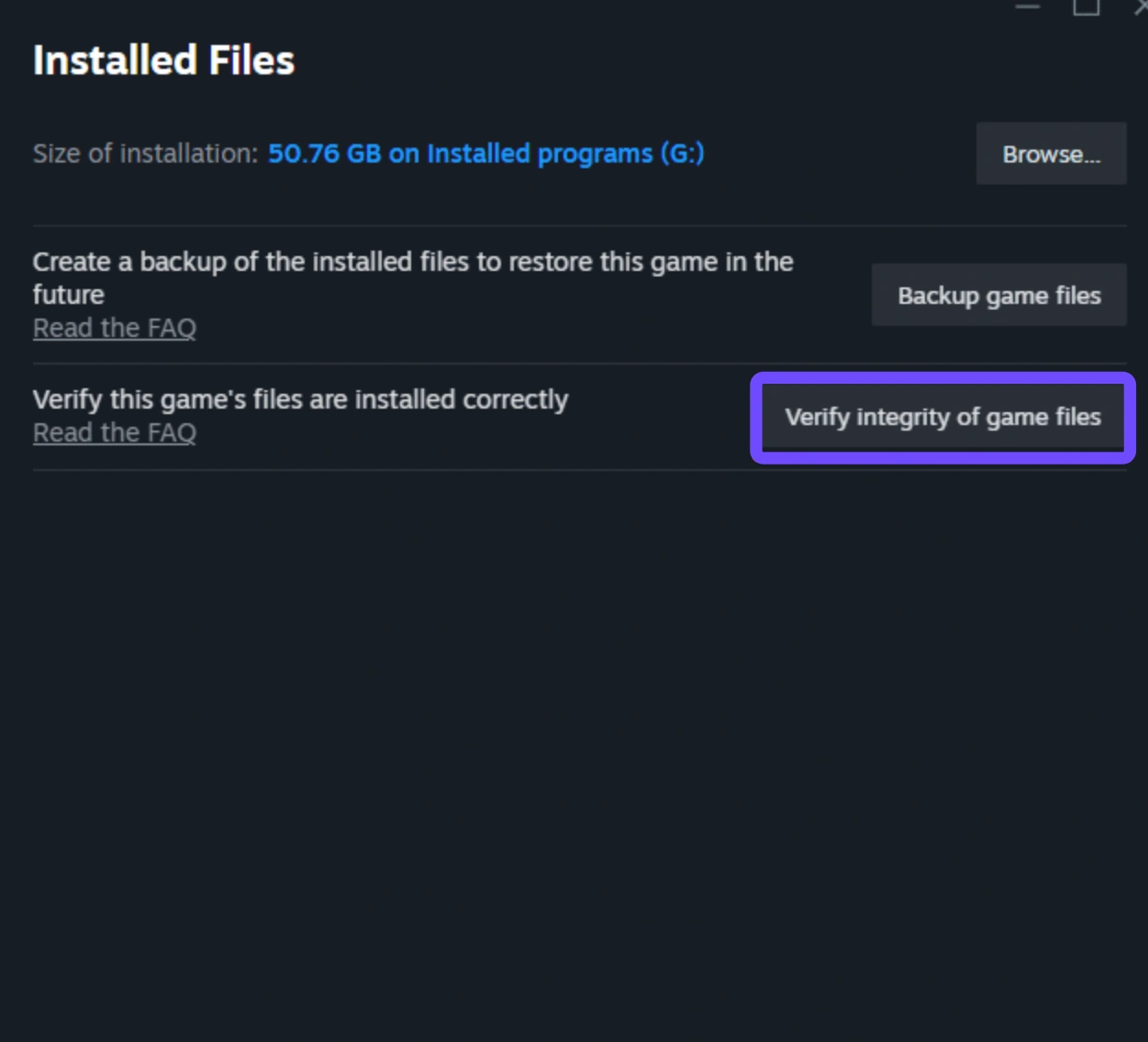
Step 5. Wait for the process to complete and restart Steam.
PC Solution 2: Flush DNS and Reset IP
Clearing your network cache can remove "stale" routing data that prevents you from seeing your friends list.
Step 1. Press the Windows Key and type cmd, then run as Administrator.
Step 2. Type ipconfig /flushdns and press Enter.
Step 3. Type ipconfig /release and press Enter.
Step 4. Type ipconfig /renew and press Enter.
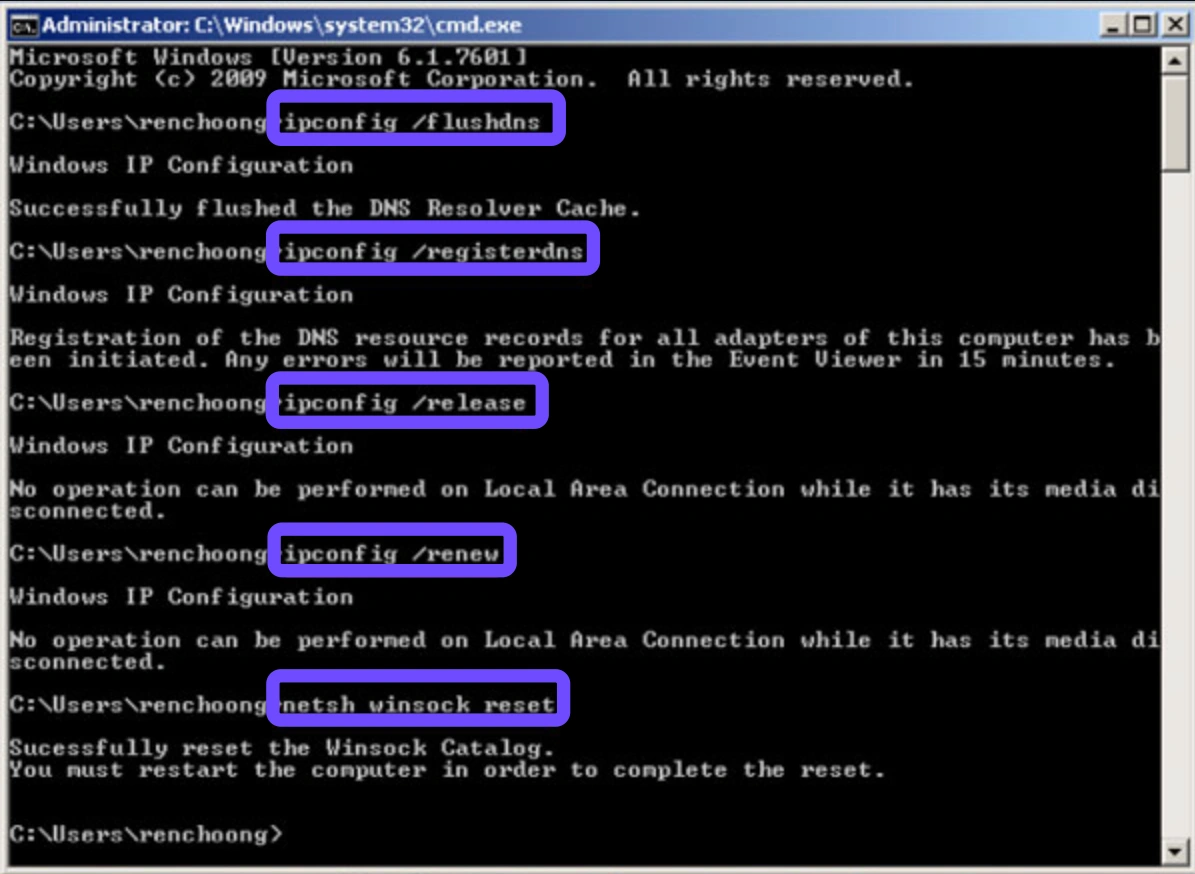
Step 5. Restart your computer and try to send an invite.
PC Solution 3: Synchronize System Clock
ARC Raiders' security and anti-cheat systems require your PC clock to be perfectly synced with the server time, or it will reject your connection.
Step 1. Right-click the time/date in your taskbar and select Adjust date and time.
Step 2. Ensure Set time automatically is toggled ON.
Step 3. Click the Sync now button under "Synchronize your clock."
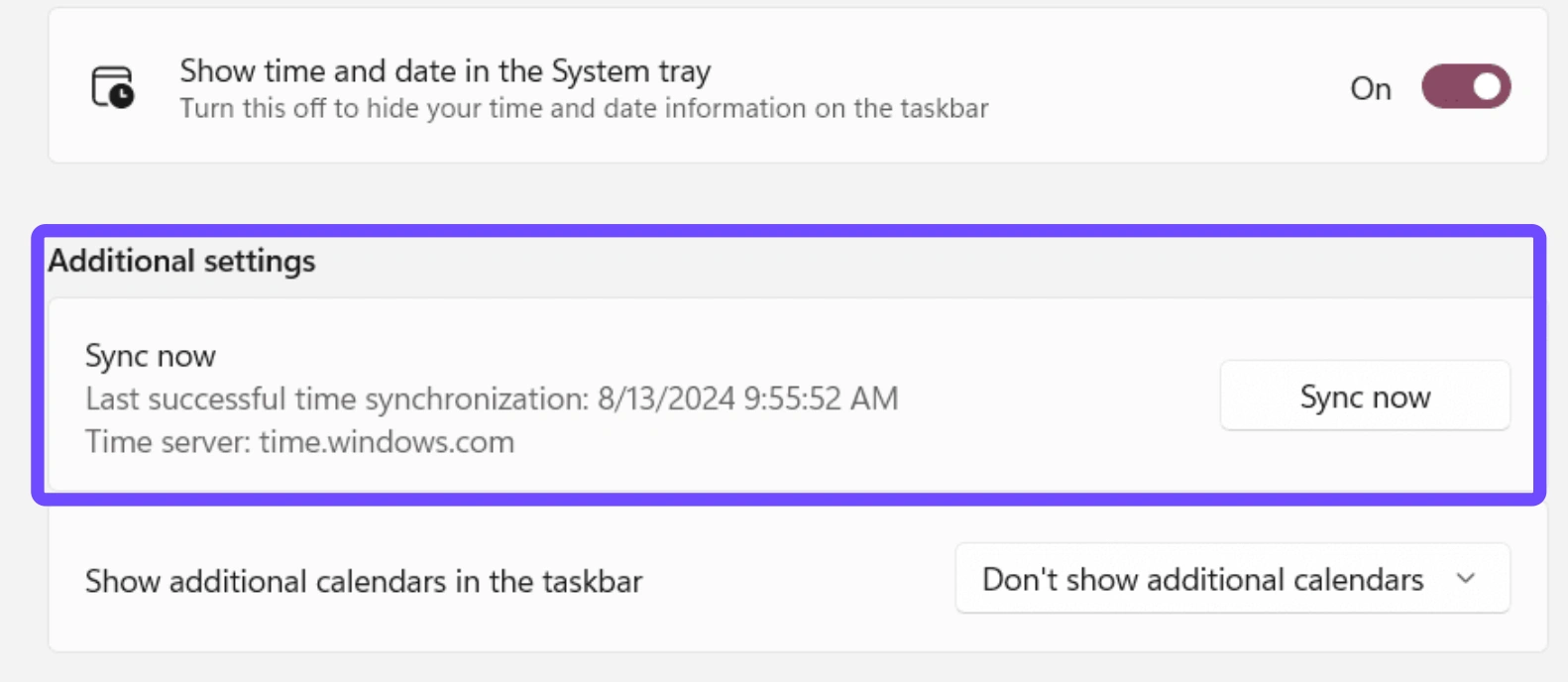
Step 4. Close the window and launch the game.
Step 5. Check if your friends now appear online in the Social tab.
Console Solution 1: Enable UPnP on Your Router
A "Strict NAT" is the number one reason why you can't join friends on Xbox/PS5. Enabling UPnP allows the console to open the necessary ports automatically.
Step 1. Log into your router’s web interface via a browser on your phone or PC.
Step 2. Look for the Advanced or Network settings tab.
Step 3. Find the UPnP (Universal Plug and Play) setting.
Step 4. Toggle it to Enabled and save the changes.
Step 5. Restart both your router and your console.
Console Solution 2: Switch to Public DNS
Default ISP DNS servers are often slow and unreliable for gaming, leading to ARC Raiders server connection issues.
Step 1. Go to your console's Network Settings and select Set Up Internet Connection.
Step 2. Choose Manual or Advanced Settings.
Step 3. Set Primary DNS to 8.8.8.8 or 1.1.1.1.
Step 4. Set Secondary DNS to 8.8.4.4 or 1.0.0.1.
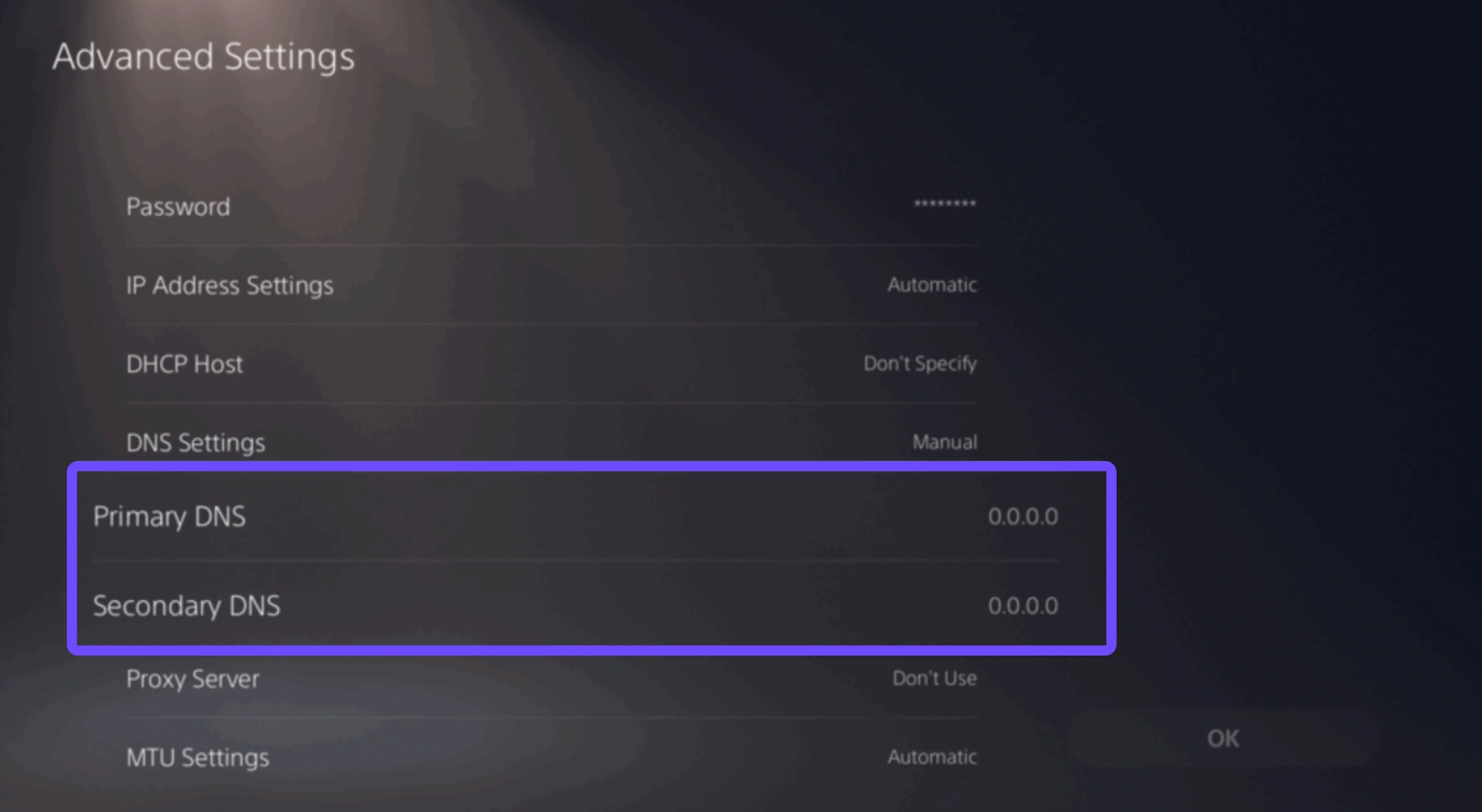
Step 5. Test your connection and relaunch the game.
Console Solution 3: Re-link Your Embark ID
Sometimes the link between your PSN/Xbox account and your Embark ID breaks, causing "Failed to Join" errors.
Step 1. Visit the official Embark ID website on a browser.
Step 2. Log in with your console credentials.
Step 3. Go to Connected Platforms and unlink your console account.
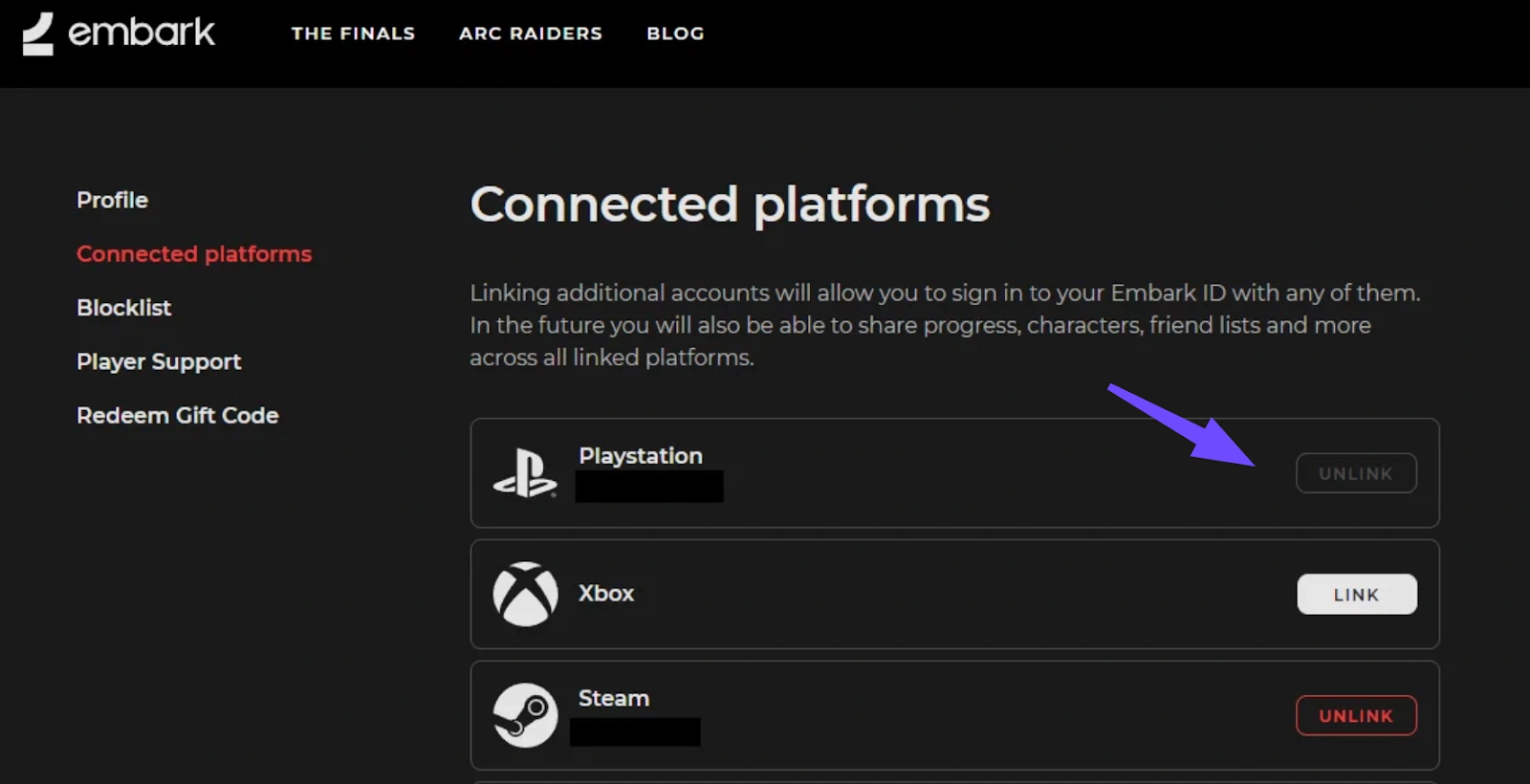
Step 4. Restart your console and launch ARC Raiders.
Step 5. Follow the in-game prompts to re-link your account via the QR code.
Conclusion
Learning how to play with friends in ARC Raiders shouldn't feel like a chore. While manual fixes like flushing your DNS or toggling UPnP can solve minor glitches, they don't address the underlying routing issues that cause lag and disconnects. For a seamless experience across all platforms, using a dedicated tool like LagoFast is the most effective way to bypass these errors entirely. Don't let a "connection lost" message ruin your next big extraction.
Boost Your Game with LagoFast for Epic Speed
Play harder, faster. LagoFast game booster eliminates stutter and lags on PC, mobile, or Mac—win every match!
Quickly Reduce Game Lag and Ping!
Boost FPS for Smoother Gameplay!