
“When I start it from the launcher, the loading screen appears, but when I get to the start of the anti-cheat, it goes back to the launcher and closes, or when I start it, it says ‘preparing the game’ and then does nothing.”
If that sounds familiar, FC 26 launch failures on PC are usually tied to EA Anti-Cheat, corrupted files, EA App or Steam handoff problems, driver or Windows conflicts, overlays, background apps, or security software blocking the game. Before you start digging into local fixes, first check whether this is already part of a broader issue that EA has addressed.

- ✅ Lower ping and fewer disconnects.
- ✅ More FPS and better PC performance.
- ✅ Support for 3000+ games.
- ✅ Stable connections and region switching.
Why FC 26 is not launching right now
For most PC players, the biggest trouble spot is the startup chain itself: launcher, anti-cheat, integrity check, then the game executable. If any part of that handoff fails, FC 26 may never fully open.
The most common causes are:
EA Anti-Cheat conflict during startup
Corrupted or incomplete game files
Steam to EA App handoff issues or EA App cache problems
Windows or GPU driver compatibility conflicts
Overlays and background software interfering with startup
Antivirus or firewall rules blocking FC26.exe or EA AntiCheat
Microsoft Visual C++ runtime issues on some systems
Startup integrity-check conflicts and compatibility problems with some graphics driver and Windows setups. So even if EA already pushed one fix, local system conflicts can still cause the same symptoms.
If you are on PC, you can also double-check your setup against the game’s expected baseline here: FC 26 system requirements.
What players are reporting
These are the symptom patterns showing up most often:
Splash screen, then close with no error
Black screen for 10 to 15 seconds, then the EA App reopens
Anti-cheat opens, then kicks back to launcher
“Preparing Game” appears in the EA App and nothing happens
Those patterns matter because they usually point to startup validation problems rather than in-game performance issues.
Fix FC 26 not launching: best order to try
Work through these in order. Do not skip straight to reinstalling unless the earlier steps fail.
1) Restart your PC, then run the launcher and game as administrator
A full restart clears stuck launcher processes, anti-cheat services, and background conflicts.
After restarting:
Close Steam and the EA App completely
Reopen Steam or the EA App with Run as administrator
Try launching FC 26 again
If needed, also run the game executable as administrator
This is one of the fastest fixes for cases where the game closes right after the launch screen.
2) Verify or repair game files
If FC 26 starts the splash screen and then dies, broken or missing files are one of the first things to check.
On Steam, use Verify integrity of game files
On the EA App, use Repair
This is especially worth doing if the issue started after a patch, interrupted update, or first install.
3) Clear the EA App cache
If FC 26 is stuck on Preparing Game, the EA App cache is a common culprit.
Clear the EA App cache, fully close the launcher, reopen it, and then try again. This is one of the main fixes players use when the game never gets past the handoff stage.
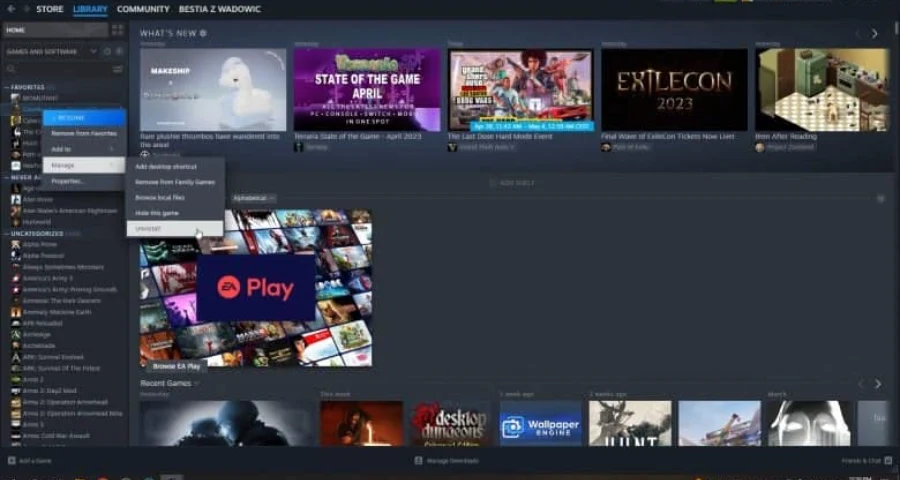
If you launch through Steam, this still matters because FC 26 still relies on the EA App in the background.
4) Repair or reinstall EA Anti-Cheat
If anti-cheat appears and then throws you back to the launcher, this is the next place to focus.
Try this:
Open the FC 26 install folder
Find EAAntiCheat.GameServiceLauncher.exe
Run it as administrator
If FC 26 still fails, repair or reinstall EA Anti-Cheat
Anti-cheat problems are one of the most repeated causes behind FC 26 not starting on PC.
5) Update Windows and your GPU driver
Outdated Windows builds or graphics drivers can cause:
splash-screen crashes
black-screen startup failures
silent returns to launcher
Install any pending Windows updates, then update your GPU driver and reboot before testing again.
6) Disable overlays and close background apps
Background software can interrupt startup checks or hook into the game too early.
Temporarily disable or close:
NVIDIA overlay
Discord overlay
other in-game overlays
RGB software
hardware monitoring tools
unnecessary startup apps
7) Whitelist FC26.exe and EA AntiCheat in antivirus and firewall
Do not just turn protection off and hope for the best.
The better move is to add exceptions for:
FC26.exe
EA AntiCheat executables
the EA App if needed
Security tools can block launch validation or prevent the anti-cheat service from starting correctly.
8) Repair Microsoft Visual C++
If FC 26 shows the splash screen, briefly goes black, and closes with no useful error, Visual C++ is worth checking.
Visual C++ components were not being recognized correctly on some affected systems. Repairing the Microsoft Visual C++ runtime can help with this specific startup-crash pattern.
9) Reinstall the EA App or the game
If none of the above works, move to reinstalling in this order:
Reinstall or repair the EA App
Test FC 26 again
If it still fails, reinstall FC 26 itself
This is the slowest option, so save it for last.
Special case: FC 26 mods and FIFA Mod Manager after title updates
If you use mods, do not assume your problem is the same as a normal launcher failure.
There is a known issue tied to Title Update 1.3.0 where FC 26 may fail to launch from FIFA Mod Manager on its own. You can use FC 26 Live Editor and enable Auto-Launch With Live Editor from the Launch button menu.
But you need at least FC 26 Live Editor v26.2.0. If you are using an older setup, update your mod tools first.
If you only started having launch problems after a title update and you use mods, test the game without mods before changing anything else.
If FC 26 is still not working
At this point, separate the issue into two buckets:
Local launch failure
This is still a local startup problem if:
the game never gets past splash screen
anti-cheat closes and sends you back to launcher
the EA App stays on Preparing Game
FC 26 never opens at all
In that case, stay focused on the PC fixes above. A routing tool will not fix a broken anti-cheat install, corrupted files, or a launcher permission problem.
Login or server-handoff problem after the game starts
This is different. If FC 26 does launch but hangs when logging in, fails to connect during EA server handoff, or becomes unstable only once it starts reaching online services, then network path issues may be part of the problem.
Optimize Your Connection with LagoFast
As you troubleshoot the launch issues with FC 26, it's important to consider not just the local fixes but also potential network problems that could be affecting your gameplay. LagoFast can be the best solution for game route optimization.
How to fix via LagoFast
Download LagoFast
Find EA SPORTS FC 26
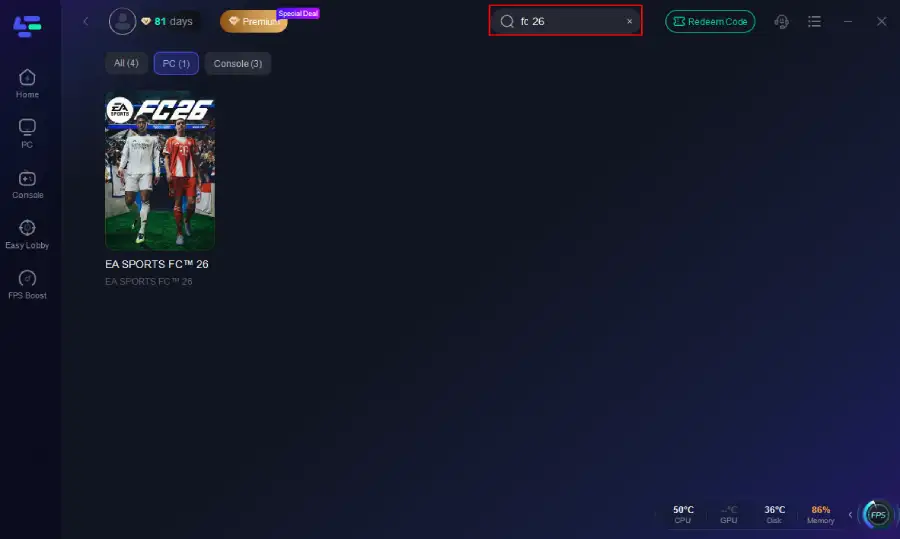
Choose a stable route (low loss/low latency)
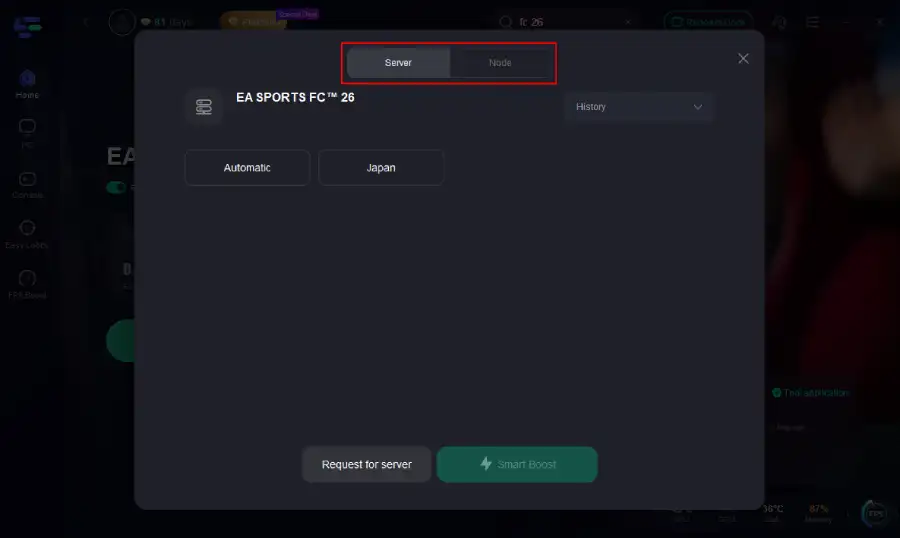
Click Smart Boost
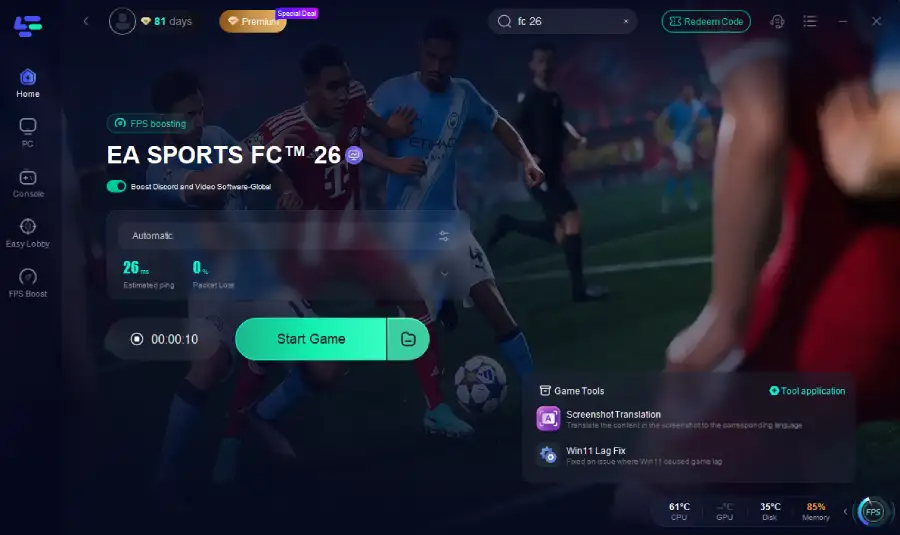
Launch the game
This allows you to avoid:
Random shutdowns
Sharp bursts of packet loss
Poor routing through overloaded nodes
How to report your problem on FC 26
If FC 26 still will not start, post a clean report on the EA Forums or contact support with enough detail that someone can actually diagnose it.
Include these details:
Platform: PC, PS5, Xbox, etc.
Launcher: Steam or EA App
Exact symptom: splash then close, black screen then EA App reopens, anti-cheat loop, Preparing Game does nothing
Whether EA Anti-Cheat opens at all
When the crash happens: instantly, after splash, after black screen, after anti-cheat
What you already tried: verify files, clear cache, run as admin, reinstall anti-cheat, update drivers, disable overlays, whitelist files
Any recent change: patch, driver update, Windows update, mod install
Useful extras:
screenshot of the launcher state
screenshot of any anti-cheat or error window
confirmation of whether the game works with mods disabled
The clearer your report, the faster you avoid getting the same basic checklist back.
FAQ
Why does FC 26 open the splash screen and then close with no error?
Usually because startup validation fails before the game fully opens. The most likely causes are anti-cheat conflicts, corrupted files, Windows or driver compatibility problems, overlays, or Visual C++ runtime issues.
How do I fix FC 26 stuck on “Preparing Game” in the EA App?
Clear the EA App cache first, then restart the launcher and run it as administrator. If that does not work, repair the game files and check for background app conflicts.
Can EA Anti-Cheat stop FC 26 from launching?
Yes. If anti-cheat fails during startup, FC 26 can return to the launcher or never open at all. Running EAAntiCheat.GameServiceLauncher.exe as administrator and repairing or reinstalling EA Anti-Cheat are two of the main fixes.
What should I do if FC 26 still will not start after verifying files?
Move down the list: clear EA App cache, repair or reinstall EA Anti-Cheat, update Windows and GPU drivers, disable overlays, whitelist FC26.exe and EA AntiCheat in security software, repair Visual C++, then reinstall the EA App or the game if needed.
Boost Your Game with LagoFast for Epic Speed
Play harder, faster. LagoFast game booster eliminates stutter and lags on PC, mobile, or Mac—win every match!
Quickly Reduce Game Lag and Ping!
Boost FPS for Smoother Gameplay!