
EA Sports FC 26 is one of the most anticipated football simulation games of 2025, bringing new dribbling mechanics, smarter AI, and authentic gameplay experiences. However, with any massive launch, players may face technical setbacks such as crashes, freezes, or the game simply refusing to start. Whether you are playing on PC, PlayStation, Xbox, or mobile, nothing is more frustrating than seeing FC 26 not working right when you’re ready for a match. This guide provides a complete walkthrough of why FC 26 may not function properly and offers practical solutions to get you back in the game quickly.

- ✅ Reduce Lag and High Ping.
- ✅ Boost FPS at the Same Time.
- ✅ Fix Packet Loss on PC and Console.
- ✅ Change Server without Latency.
- ✅ End Stuck & Crashing Issues.
Part 1: All-in-One Solution to Fix FC 26 Not Working
Part 2: Why FC 26 is Not Working & Different Platform Solutions
Part 1: All-in-One Solution to Fix FC 26 Not Working
Before diving into individual fixes for PC, consoles, and mobile, there’s one universal solution worth considering: LagoFast. Known for optimizing gaming performance, LagoFast can reduce lag, stabilize connections, and even fix startup crashes across devices. Its cross-device support makes it a standout choice, working seamlessly on PC, PlayStation, Xbox, Nintendo Switch, and mobile platforms.
Key Features of LagoFast:
- Smart route optimization for stable ping and lower latency
- Crash and error reduction with real-time performance tuning
- Compatible with PC, consoles, and mobile platforms
- Easy-to-use interface with one-click acceleration
- Regular updates to support new titles like FC 26
By using LagoFast, many users report smoother gameplay, faster loading, and fewer instances of FC 26 not working, no matter which device they prefer.
Tutorial to use LagoFast to fix FC 26 Not Working on PC:
Step 1. Download LagoFast by clicking the "Free Trial" button.
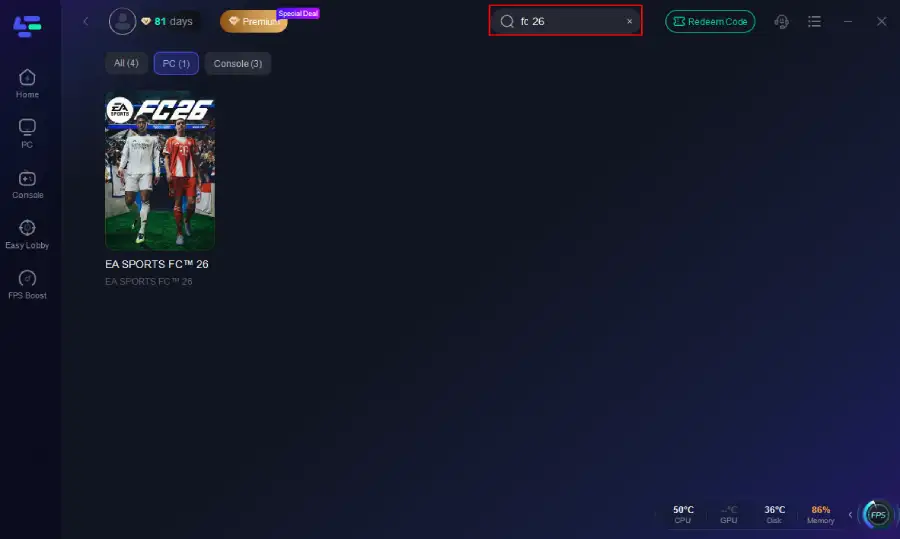
Step 2. Before you start your game, search for it within the LagoFast application to ensure it's supported.
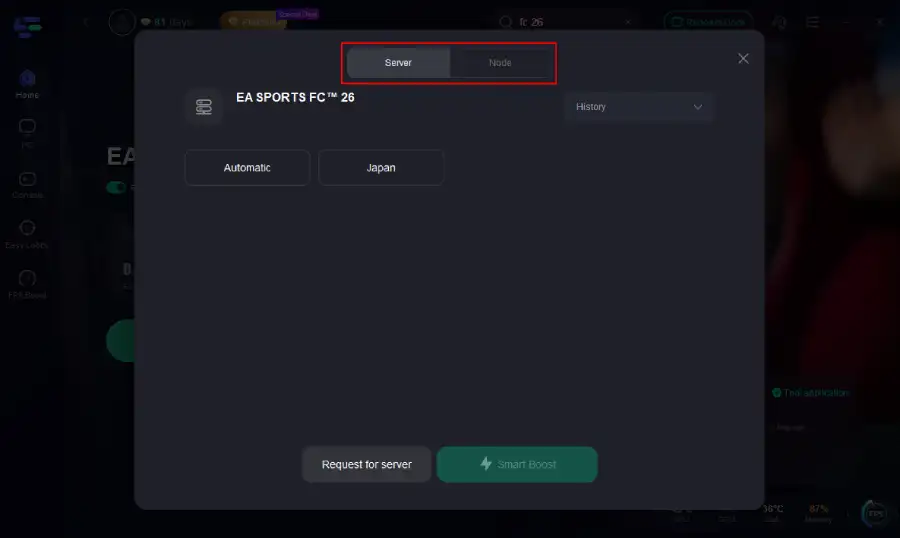
Step 3. Navigate to "Select Server" to choose the most stable server. Follow up by selecting the best Node available on the right to optimize your connection.
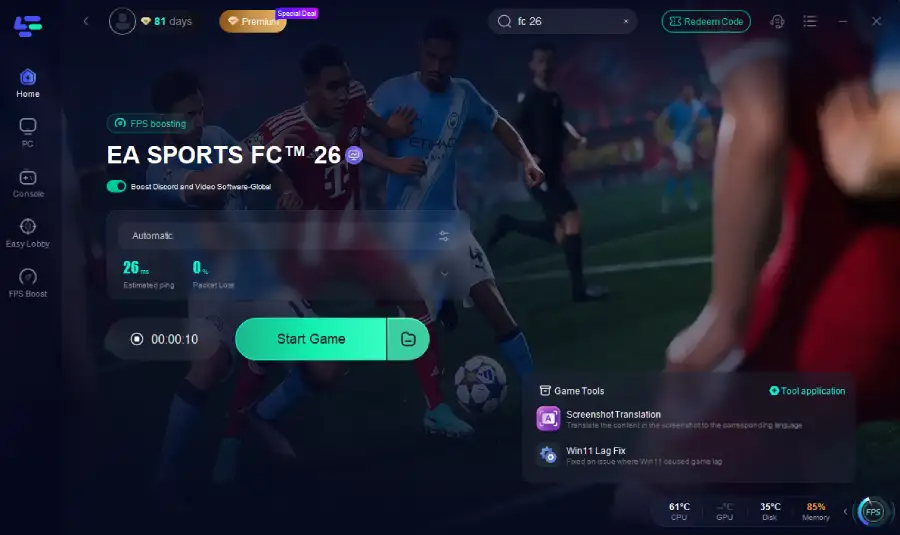
Step 4.Click the "Smart Boost" button to get real-time data on your game's ping, packet loss, and network type, which helps in monitoring and adjusting for optimal performance.
Tutorial: Using LagoFast Box to fix FC 26 Not Working on your console:
LagoFast Box offers a simple, one-click method to optimize your game connection and reduce lag on PS5, PS4 or XBox:
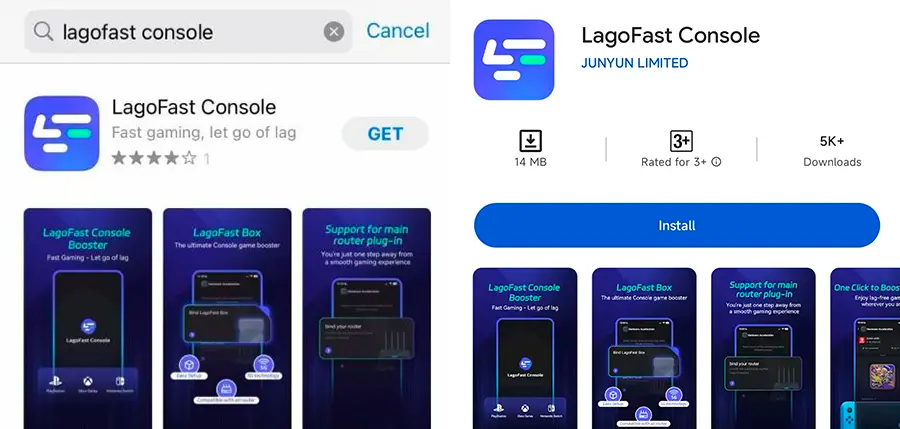
Step 1: Download the LagoFast Console App on your phone to control the LagoFast Box.
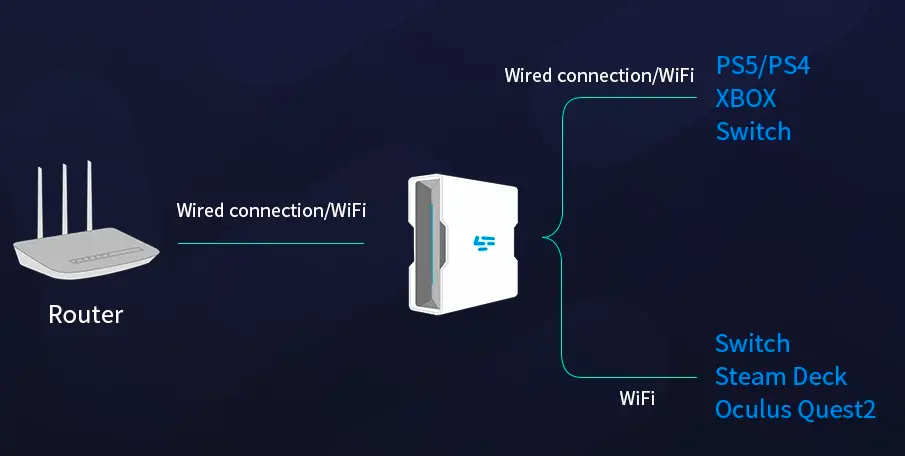
Step 2: Establish a connection between your LagoFast Box, router, and console, choosing between a wired or wireless connection.
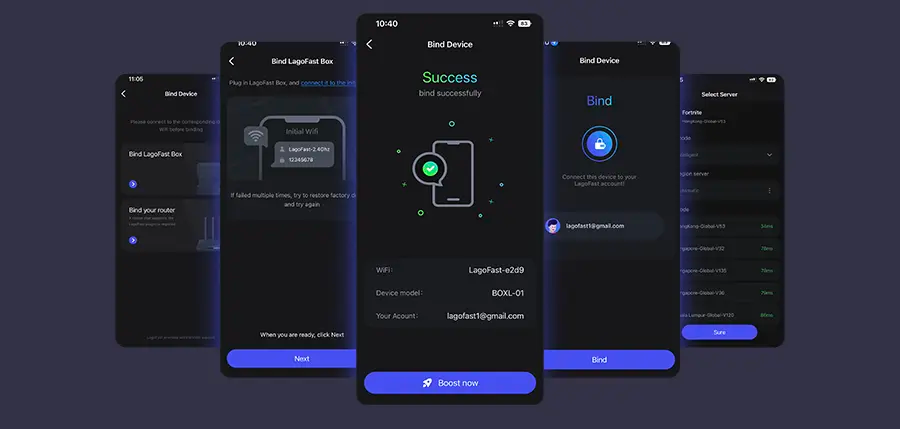
Step 3: Launch the LagoFast Console App and boost FC 26. Once you have completed the binding process with the LagoFast Box, proceed to boost this game within the LagoFast Console App.
Follow the tutorial to use the LagoFast Mobile to fix FC 26 Not Working on your mobile devices:
Step 1: Search “LagoFast Mobile booster” in the Google App Store or Apple App Store. Alternatively, click here to download the APK File.
Step 2: Click the “Download” button, then install and launch “LagoFast Mobile Booster”.
Step 3: Start FC 26, then switch to LagoFast Mobile and search for it.
Step 4. Select and click FC 26 in the interface.
Step 5: Enter the server selection interface, where you can change to a stable server, then click the “Boost” button to fix FC 26 Not Working and enhance the gaming experience
Step 6: Finally, go back to FC 26 and start playing it without any issues.
Part 2: Why FC 26 is Not Working & Different Platform Solutions
Why FC 26 is Not Working on PC & How to Fix
Reason 1: Outdated Graphics Drivers
Modern games like FC 26 rely heavily on updated GPU drivers. If your drivers are outdated, the game may crash on startup.
Steps to Fix:
Step 1: Press Win + R, type dxdiag, and confirm your GPU model.
Step 2: Visit NVIDIA, AMD, or Intel’s official website.
Step 3: Download the latest driver compatible with your card.
Step 4: Install and restart your system.
Step 5: Launch FC 26 again to test stability.
Reason 2: Corrupted Game Files
If FC 26 files are damaged or incomplete, it may not run properly.
Steps to Fix:
Step 1: Open EA App or Steam, depending on where you purchased the game.
Step 2: Right-click FC 26 in your library.
Step 3: Select Repair Game or Verify Integrity of Game Files.
Step 4: Wait for the system to re-download missing or broken files.
Step 5: Restart your PC and try launching again.
Reason 3: Background Software Conflicts
Programs like antivirus or overlays can prevent FC 26 from running.
Steps to Fix:
Step 1: Press Ctrl + Shift + Esc to open Task Manager.
Step 2: End tasks for Discord overlay, GeForce Experience, or MSI Afterburner.
Step 3: Temporarily disable antivirus real-time protection.
Step 4: Add FC 26 as an exception in your antivirus/firewall.
Step 5: Relaunch FC 26 to check functionality.
Why FC 26 is Not Working on Consoles & How to Fix
Reason 1: Outdated System Firmware
If your PlayStation or Xbox is not updated, compatibility issues may occur.
Steps to Fix:
Step 1: Go to Settings → System.
Step 2: Select System Software Update (PS) or Update Console (Xbox).
Step 3: Download and install the latest update.
Step 4: Reboot your console.
Step 5: Launch FC 26 again.
Reason 2: Corrupted Game Installation
Sometimes, FC 26 files may become corrupted on consoles.
Steps to Fix:
Step 1: Highlight FC 26 on your home screen.
Step 2: Press Options/Menu button.
Step 3: Select Delete Game.
Step 4: Reinstall from the PlayStation Store or Xbox Store.
Step 5: Test the game after fresh installation.
Reason 3: Storage or Cache Issues
A full or fragmented storage drive may cause freezing.
Steps to Fix:
Step 1: Go to Storage Settings and check available space.
Step 2: Delete unnecessary games or apps to free up space.
Step 3: Clear cache by fully powering off the console.
Step 4: Unplug the console for 30 seconds.
Step 5: Restart and try FC 26 again.
Why FC 26 is Not Working on Mobile & How to Fix
Reason 1: Device Compatibility Issues
Older smartphones may not meet system requirements.
Steps to Fix:
Step 1: Check FC 26 requirements on the official EA page.
Step 2: Ensure your device has enough RAM (minimum 4GB+ recommended).
Step 3: Update your OS to the latest version.
Step 4: Close all background apps before launching.
Step 5: If unsupported, try running on a newer device.
Reason 2: Network Instability
Mobile gaming requires a stable internet connection.
Steps to Fix:
Step 1: Switch from mobile data to Wi-Fi.
Step 2: Restart your router.
Step 3: Forget and reconnect to your Wi-Fi network.
Step 4: Enable airplane mode, wait 10 seconds, and disable it.
Step 5: Relaunch FC 26 to test stability.
Reason 3: App Cache and Storage Problems
Too much cached data can lead to crashes.
Steps to Fix:
Step 1: Go to Settings → Apps → FC 26.
Step 2: Tap Clear Cache.
Step 3: If still crashing, choose Clear Data.
Step 4: Ensure at least 5GB free space on your phone.
Step 5: Reopen FC 26 and test performance.
Conclusion
When FC 26 is not working, it can feel overwhelming, but most issues are tied to outdated drivers, corrupted files, or network problems. By following the step-by-step fixes above for PC, console, and mobile, you can quickly troubleshoot and restore smooth gameplay. And for players looking for a single solution that works across all devices, LagoFast offers an optimized way to reduce crashes and stabilize performance. With the right fixes, you can focus on what truly matters—enjoying the pitch in EA Sports FC 26.
Boost Your Game with LagoFast for Epic Speed
Play harder, faster. LagoFast game booster eliminates stutter and lags on PC, mobile, or Mac—win every match!
Quickly Reduce Game Lag and Ping!
Boost FPS for Smoother Gameplay!