
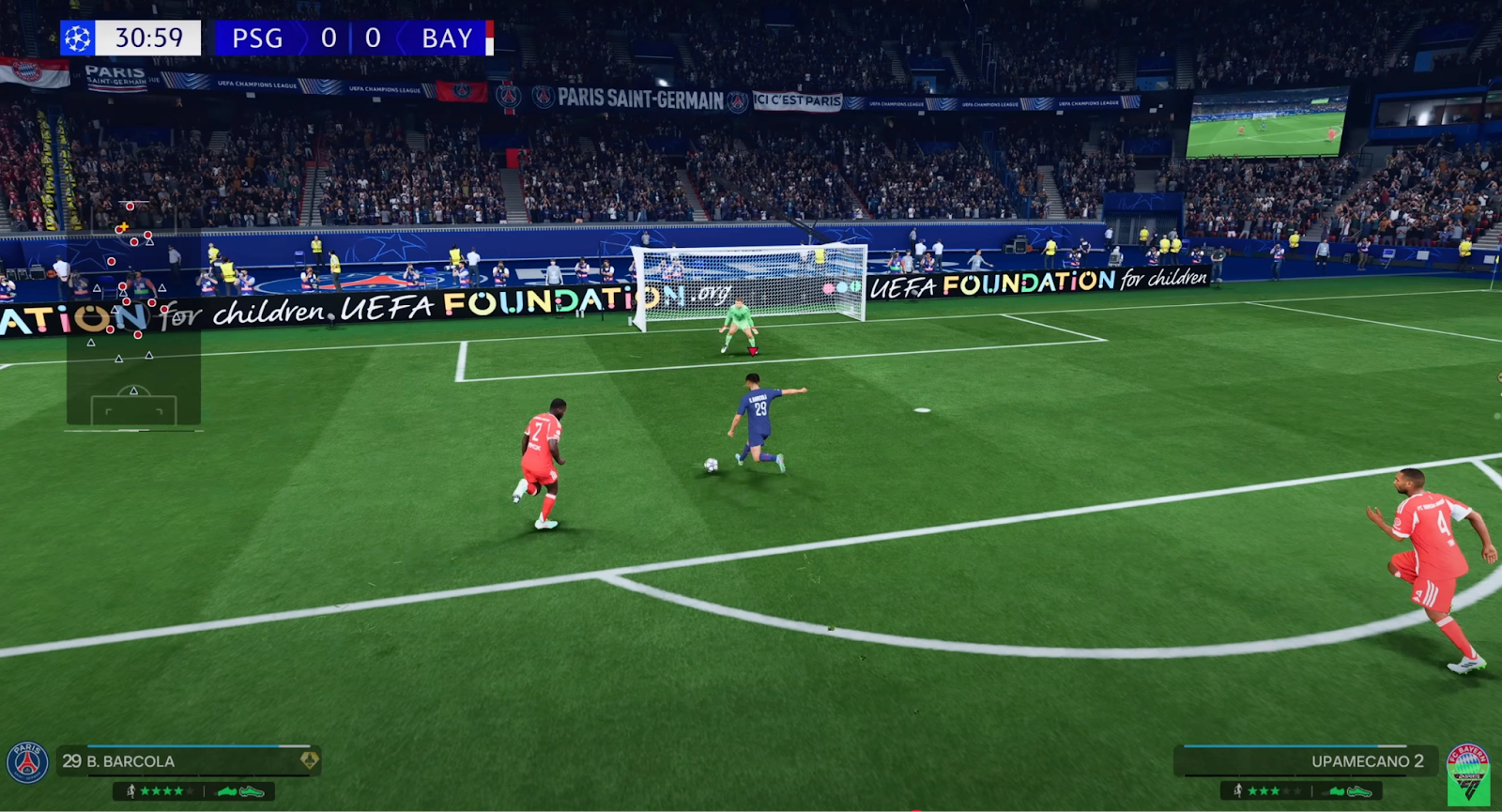
EA Sports FC 26 is shaping up to be one of the most exciting football simulation titles, introducing enhanced AI, revamped dribbling mechanics, and lifelike animations. But even with groundbreaking features, many players will face a frustrating issue—FC 26 high ping. Whether you’re grinding Ultimate Team on PC, competing online with friends on consoles, or enjoying matches on mobile, ping problems can ruin the experience. High latency leads to delayed passes, sluggish tackles, and unresponsive gameplay. This guide explores why high ping happens in FC 26 and provides detailed step-by-step fixes for every platform, ensuring smooth, lag-free matches.

- ✅ Reduce Lag and High Ping.
- ✅ Boost FPS at the Same Time.
- ✅ Fix Packet Loss on PC and Console.
- ✅ Change Server without Latency.
- ✅ End Stuck & Crashing Issues.
Part 1: All-in-One Solution to Fix High Ping in FC 26
Part 2: Why FC 26 High Ping Happens & How to Fix in Different Platforms
Part 1: All-in-One Solution to Fix High Ping in FC 26
Before diving into manual fixes, let’s highlight the most effective all-in-one solution—LagoFast, a dedicated ping reducer and booster designed for gamers. LagoFast uses a smart routing system that automatically finds the fastest path to FC 26 servers. What makes it stand out is its cross-device compatibility, working seamlessly on PC, consoles, and mobile.
Key Features of LagoFast:
Cross-platform support – Works with Windows, PlayStation, Xbox, Switch, and mobile devices.
- Real-time ping monitor – Lets you run an FC 26 ping test before matches.
- Game-specific optimization – Tailored acceleration routes for FC 26 and other online games.
- Global server coverage – Connect to the closest and most stable server worldwide.
- One-click setup – Simple interface with no technical configuration required.
For players who want a plug-and-play fix without dealing with network settings, LagoFast is the most reliable way to reduce ping in FC 26 across all platforms.
Tutorial to use LagoFast to fix high ping in FC 26 on PC:
Step 1. Download LagoFast by clicking the "Free Trial" button.
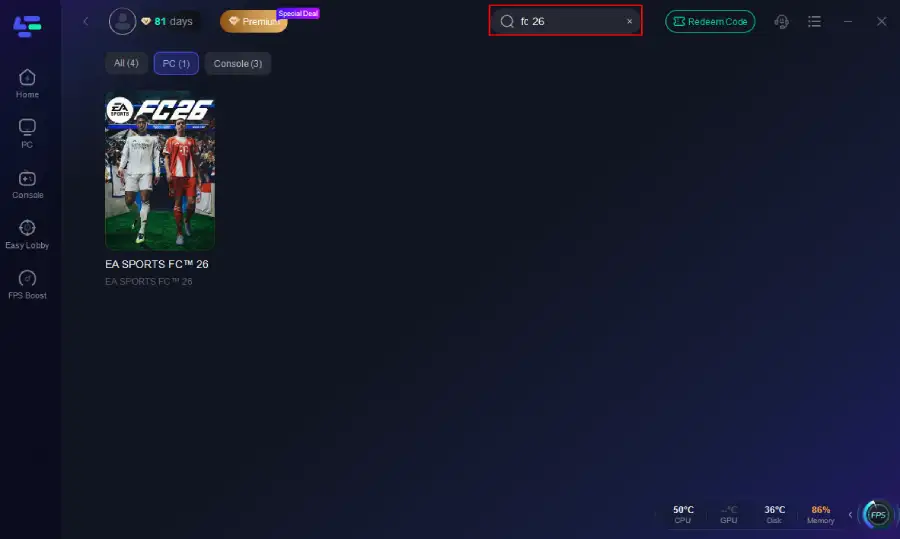
Step 2. Before you start your game, search for it within the LagoFast application to ensure it's supported.
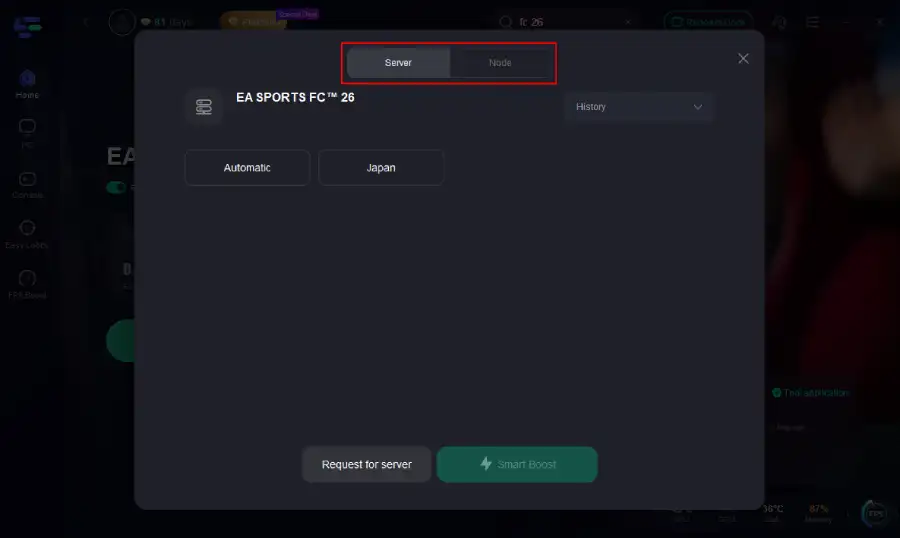
Step 3. Navigate to "Select Server" to choose the most stable server. Follow up by selecting the best Node available on the right to optimize your connection.
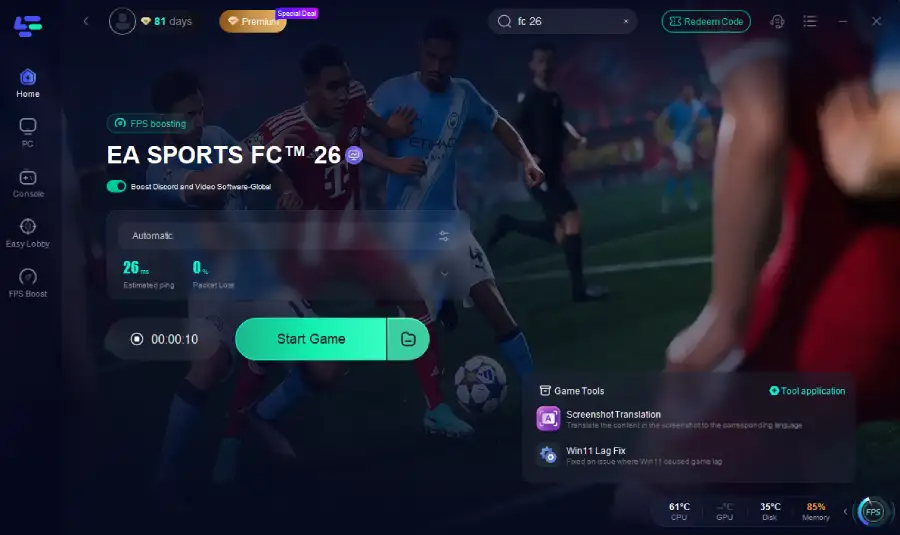
Step 4. Click the "Smart Boost" button to get real-time data on your game's ping, packet loss, and network type, which helps in monitoring and adjusting for optimal performance.
Tutorial on Using LagoFast Box to fix high ping on your console:
LagoFast Box offers a simple, one-click method to optimize your game connection and reduce lag on PS5, PS4 or XBox:
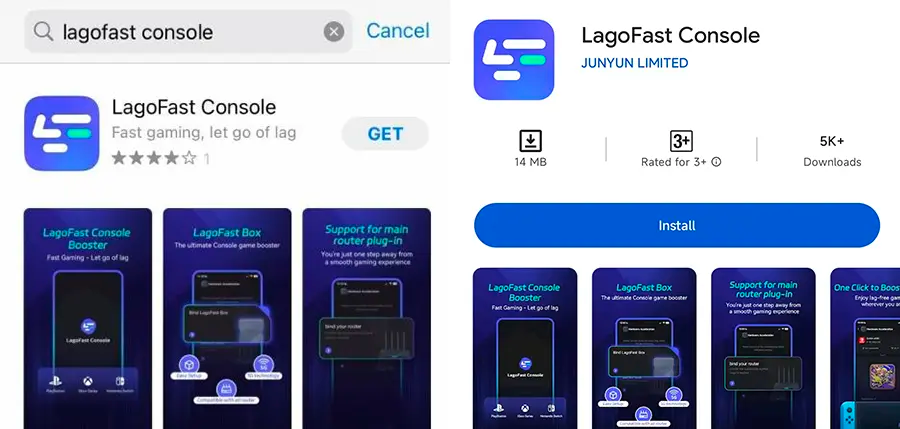
Step 1: Download the LagoFast Console App on your phone to control the LagoFast Box.
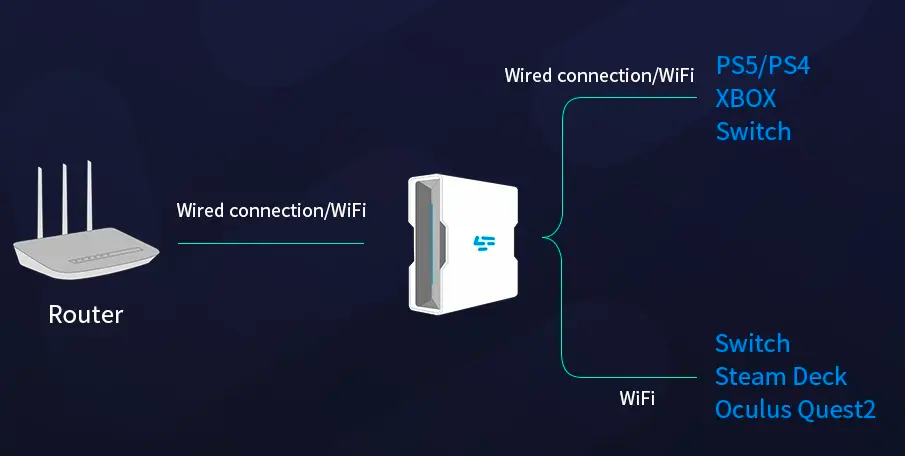
Step 2: Establish a connection between your LagoFast Box, router, and console, choosing between a wired or wireless connection.
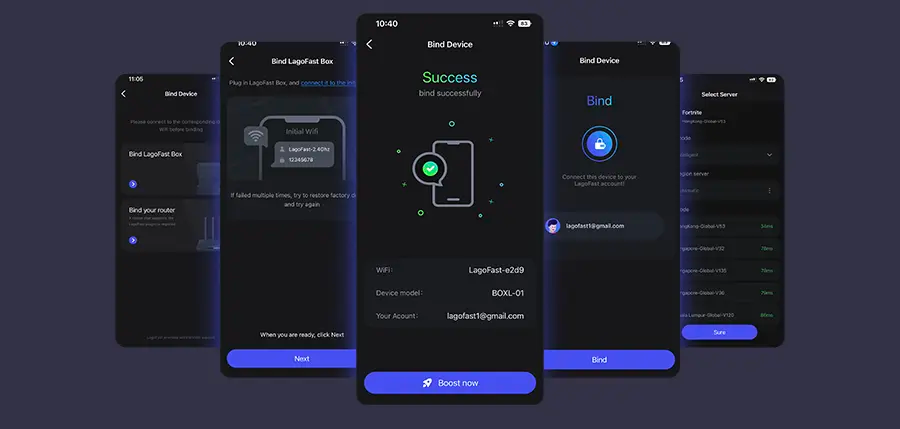
Step 3: Launch the LagoFast Console App and boost FC 26. Once you have completed the binding process with the LagoFast Box, proceed to boost this game within the LagoFast Console App.
Follow the tutorial to use the LagoFast Mobile to fix high ping on your mobile devices:
Step 1: Search “LagoFast Mobile booster” in the Google App Store or Apple App Store. Alternatively, click here to download the APK File.
Step 2: Click the “Download” button, then install and launch “LagoFast Mobile Booster”.
Step 3: Start FC 26, then switch to LagoFast Mobile and search for it.
Step 4. Select and click FC 26 in the interface.
Step 5: Enter the server selection interface, where you can change to a stable server, then click the “Boost” button to fix high ping and enhance the gaming experience
Step 6: Finally, go back to FC 26 and start playing it without any lag.
You May Like: Is FC 26 Crossplay?
Part 2: Why FC 26 High Ping Happens & How to Fix in Different Platforms
High ping issues in FC 26 can come from various sources: unstable internet, overloaded servers, or device-specific problems. Since each platform (PC, console, and mobile) has unique network behaviors, we’ll break down the causes and fixes for each one, with detailed step-by-step solutions.
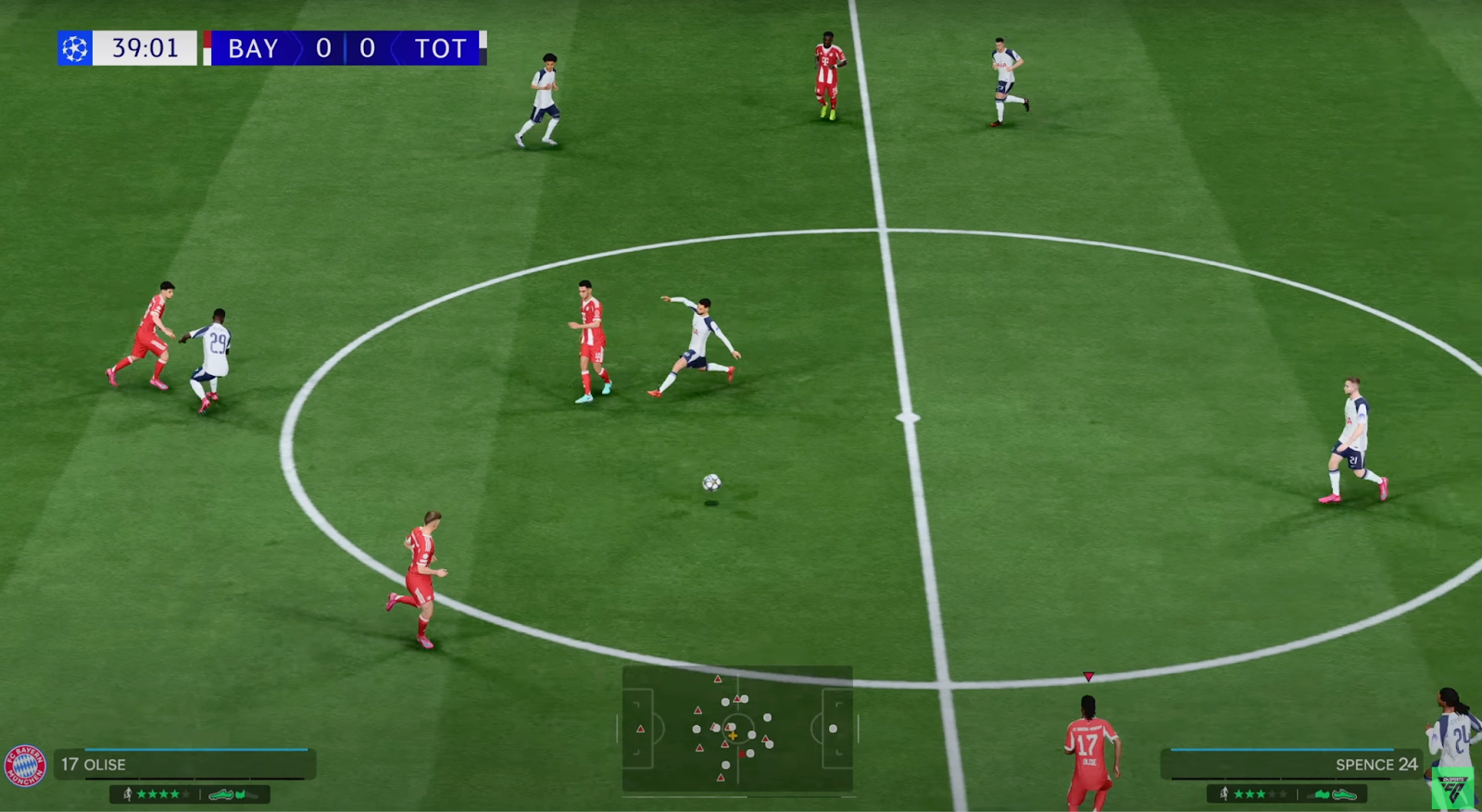
Why FC 26 High Ping & How to Fix on PC
Reason 1: Background Programs Consuming Bandwidth
Applications like Steam updates, Discord, or browsers streaming videos can steal bandwidth and raise latency.
Solution: Close background apps.
Step 1: Press Ctrl + Shift + Esc to open Task Manager.
Step 2: Go to the “Processes” tab.
Step 3: Right-click on unnecessary apps (e.g., browsers, download managers).
Step 4: Select “End Task.”
Step 5: Relaunch FC 26 and check if ping improves.
Reason 2: Outdated or Faulty Network Drivers
Old drivers can cause packet loss and unstable ping.
Solution: Update network drivers.
Step 1: Press Win + R, type devmgmt.msc, and press Enter.
Step 2: Expand the “Network adapters” section.
Step 3: Right-click your active adapter (Wi-Fi or Ethernet).
Step 4: Select “Update driver” → “Search automatically for drivers.”
Step 5: Restart your PC and test your connection.
Reason 3: Poor Wi-Fi Signal
Playing on weak Wi-Fi often causes ping spikes.
Solution: Switch to wired Ethernet or optimize Wi-Fi.
Step 1: Plug in an Ethernet cable directly to your router if possible.
Step 2: If using Wi-Fi, move closer to the router.
Step 3: Place the router in an open area away from walls.
Step 4: Switch to a 5GHz Wi-Fi band for faster speeds.
Step 5: Reconnect and check FC 26 ping stability.
Reason 4: Incorrect Server Region in FC 26
If the game connects to a faraway server, ping will increase dramatically.
Solution: Select the right server region.
Step 1: Open FC 26 settings.
Step 2: Navigate to the “Online” or “Matchmaking” section.
Step 3: Locate the server region option.
Step 4: Select the nearest available server to your location.
Step 5: Restart the game and run a ping test.
Why FC 26 High Ping & How to Fix on Consoles
Reason 1: NAT Type Restrictions
Strict or Moderate NAT can block connections, increasing ping.
Solution: Change NAT type to Open.
Step 1: Go to your router’s admin page (check router label for login info).
Step 2: Enable UPnP (Universal Plug and Play).
Step 3: Save and restart your router.
Step 4: Check NAT type in your console network settings.
Step 5: Relaunch FC 26 and verify reduced ping.
Reason 2: Overloaded Local Network
Other devices streaming 4K videos or downloading files affect your console’s connection.
Solution: Prioritize console traffic.
Step 1: Log in to your router’s Quality of Service settings.
Step 2: Add your console’s MAC address to the priority list.
Step 3: Save changes and reboot the router.
Step 4: Pause downloads on other devices.
Step 5: Test FC 26 ping again.
Reason 3: Outdated Console Firmware
Old system firmware can cause network compatibility issues.
Solution: Update console firmware.
Step 1: Go to your console’s “Settings.”
Step 2: Find “System Update.”
Step 3: If an update is available, download and install it.
Step 4: Restart your console.
Step 5: Launch FC 26 and check performance.
Why FC 26 High Ping & How to Fix on Mobile
Reason 1: Mobile Data Instability
Cellular networks often fluctuate, leading to ping spikes.
Solution: Use stable Wi-Fi instead of mobile data.
Step 1: Open your phone’s Wi-Fi settings.
Step 2: Connect to a reliable Wi-Fi network.
Step 3: Forget weak or unstable networks.
Step 4: Turn off mobile data while playing.
Step 5: Restart the FC 26 app.
Reason 2: Background Apps Running
Social media, downloads, or updates can eat bandwidth.
Solution: Close background apps.
Step 1: Open the app switcher (swipe up or press the task button).
Step 2: Swipe away all unused apps.
Step 3: Disable auto-updates in the app store.
Step 4: Enable “Do Not Disturb” mode to reduce background sync.
Step 5: Relaunch FC 26 and check ping.
Reason 3: DNS & Network Configuration Issues
Default DNS servers may route traffic inefficiently.
Solution: Change DNS for better routing.
Step 1: Go to phone Wi-Fi settings.
Step 2: Tap on your active Wi-Fi network.
Step 3: Find “IP Settings” and switch to “Static.”
Step 4: Set DNS 1 to 8.8.8.8 and DNS 2 to 8.8.4.4 (Google DNS).
Step 5: Save and reconnect to Wi-Fi.
Conclusion
High ping in FC 26 can turn an exciting football match into a frustrating experience. Thankfully, by identifying the reasons behind latency and applying platform-specific fixes, players can enjoy smoother gameplay on PC, consoles, and mobile. From optimizing settings and updating drivers to switching DNS or using QoS, there are plenty of solutions to try. For those who prefer a fast, reliable fix, LagoFast provides the most effective FC 26 ping booster across all devices. With these methods, you can step onto the virtual pitch with confidence, leaving lag behind and focusing on victory.
Boost Your Game with LagoFast for Epic Speed
Play harder, faster. LagoFast game booster eliminates stutter and lags on PC, mobile, or Mac—win every match!
Quickly Reduce Game Lag and Ping!
Boost FPS for Smoother Gameplay!