
EA Sports FC 26 is one of the most anticipated football simulation titles, but like many newly released games, players are already reporting stability issues. Crashes during startup, freezing mid-match, or unexpected shutdowns can ruin the gaming experience across PC, consoles, and mobile devices. Understanding why FC 26 is crashing and learning how to fix it is crucial for smoother gameplay. This guide breaks down the common reasons behind FC 26 crashes on different platforms and provides step-by-step fixes. Whether you’re gaming on PC, PlayStation, Xbox, Nintendo Switch, or mobile, you’ll find solutions tailored to your device.

- ✅ Reduce Lag and High Ping.
- ✅ Boost FPS at the Same Time.
- ✅ Fix Packet Loss on PC and Console.
- ✅ Change Server without Latency.
- ✅ End Stuck & Crashing Issues.
Part 1: All-in-One Solution to Fix FC 26 Crashing
Part 2: Why FC 26 Crashes & How to Fix in Different Platforms
Part 1: All-in-One Solution to Fix FC 26 Crashing
While manual troubleshooting works, it can be time-consuming. A more efficient fix is using LagoFast, a cross-device optimization tool. LagoFast helps stabilize performance across PC, consoles, and mobile by boosting system resources and optimizing network connections.
Key Features of LagoFast:
- Cross-device support: works on PC, PlayStation, Xbox, Nintendo Switch, and mobile.
- Game booster technology: allocates CPU and GPU power to FC 26 for smoother gameplay.
- Ping reducer: stabilizes online matches by lowering latency.
- Crash prevention: reduces background conflicts and memory overload.
- Easy setup: one-click optimization for FC 26.
With LagoFast, you get an all-in-one solution that eliminates the need for manual fixes every time FC 26 starts crashing.
Tutorial to use LagoFast to fix crashes in FC 26 on PC:
Step 1. Download LagoFast by clicking the "Free Trial" button.
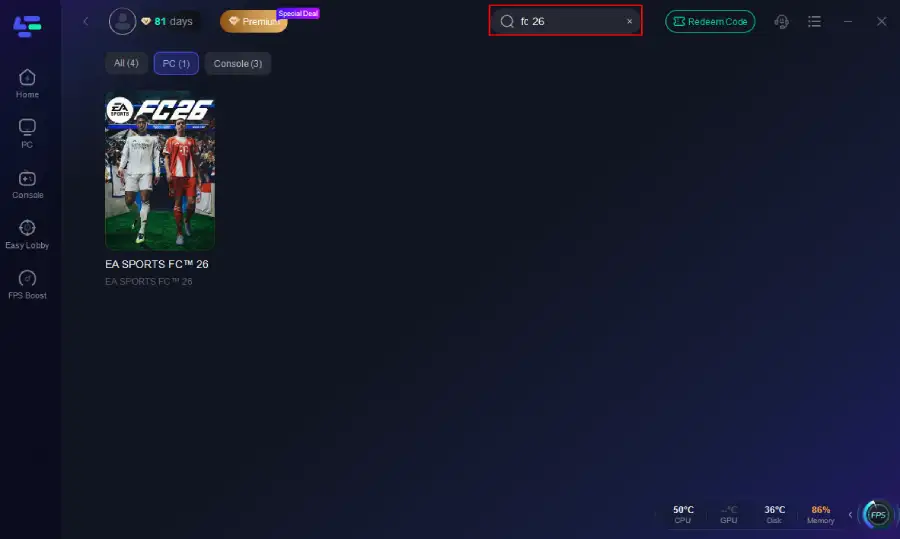
Step 2. Before you start your game, search for it within the LagoFast application to ensure it's supported.
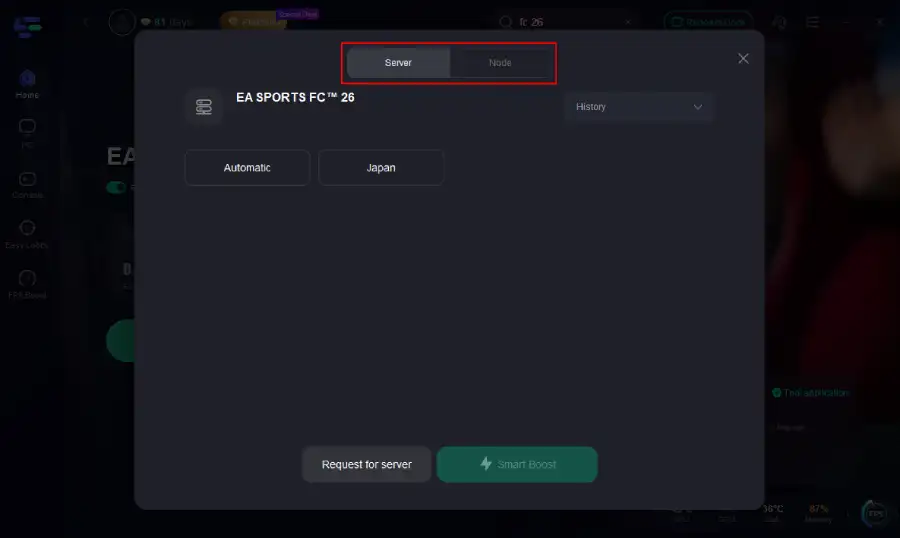
Step 3. Navigate to "Select Server" to choose the most stable server. Follow up by selecting the best Node available on the right to optimize your connection.
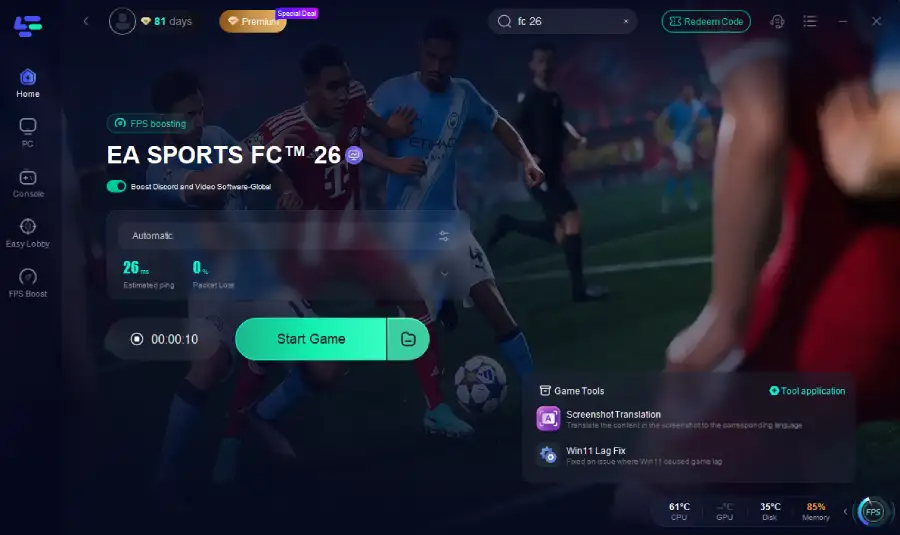
Step 4.Click the "Smart Boost" button to get real-time data on your game's ping, packet loss, and network type, which helps in monitoring and adjusting for optimal performance.
Tutorial: Using LagoFast Box to fix crashes on your console:
LagoFast Box offers a simple, one-click method to optimize your game connection and reduce lag on PS5, PS4 or XBox:
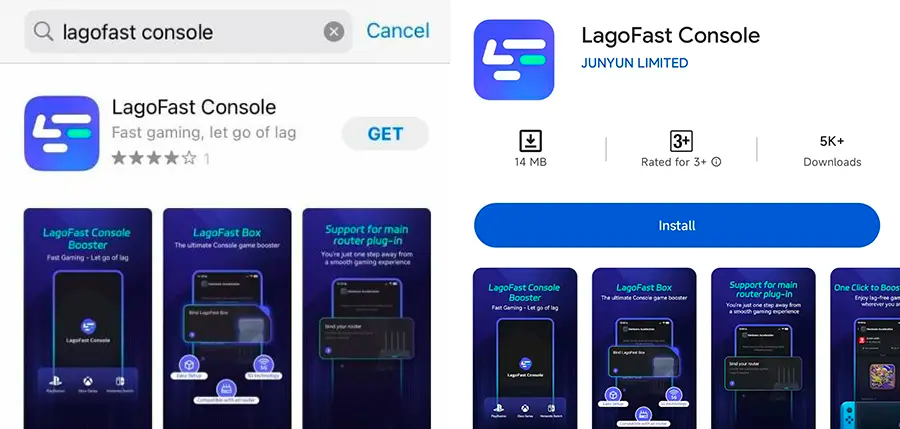
Step 1: Download the LagoFast Console App on your phone to control the LagoFast Box.
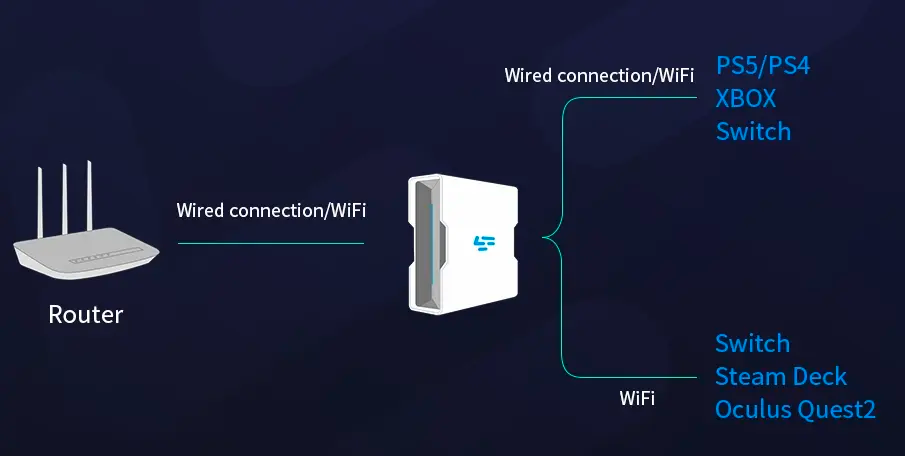
Step 2: Establish a connection between your LagoFast Box, router, and console, choosing between a wired or wireless connection.
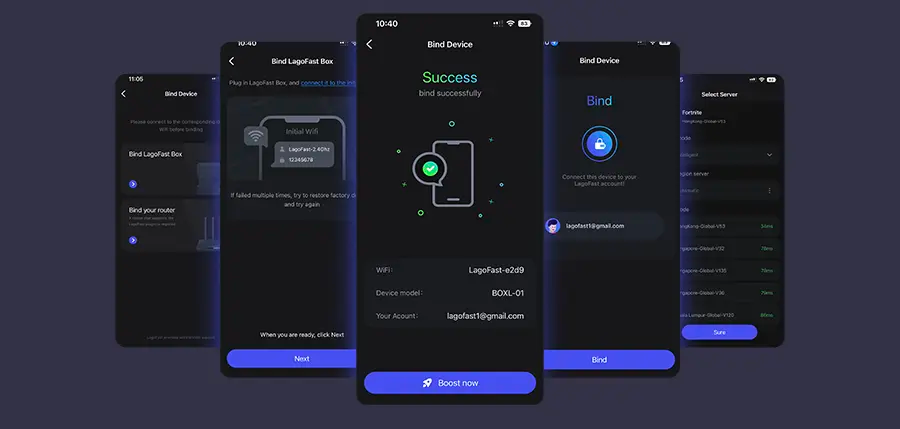
Step 3: Launch the LagoFast Console App and boost FC 26. Once you have completed the binding process with the LagoFast Box, proceed to boost this game within the LagoFast Console App.
Follow the tutorial to use the LagoFast Mobile to fix crashes on your mobile devices:
Step 1: Search “LagoFast Mobile booster” in the Google App Store or Apple App Store. Alternatively, click here to download the APK File.
Step 2: Click the “Download” button, then install and launch “LagoFast Mobile Booster”.
Step 3: Start FC 26, then switch to LagoFast Mobile and search for it.
Step 4. Select and click FC 26 in the interface.
Step 5: Enter the server selection interface, where you can change to a stable server, then click the “Boost” button to fix crashes and enhance the gaming experience
Step 6: Finally, go back to FC 26 and start playing it without any crashes.
You May Like: Is FC 26 Crossplay?
Part 2: Why FC 26 Crashes & How to Fix in Different Platforms
Why FC 26 is Crashing on PC & How to Fix
On Windows, FC 26 is powered by the Frostbite engine, which demands strong hardware and optimized drivers. Issues like startup crashes or random freezing are usually linked to system compatibility, software conflicts, or corrupted files. Here are four common causes and their fixes.
Reason 1: Outdated Graphics Drivers
If your GPU drivers are outdated, FC 26 may fail to run smoothly.
Fix: Update Graphics Drivers
Step 1: Right-click on your desktop and open Device Manager.
Step 2: Expand the Display adapters section.
Step 3: Right-click your GPU (NVIDIA, AMD, or Intel) and select Update driver.
Step 4: Choose Search automatically for drivers or download the latest driver from NVIDIA or AMD’s official site.
Step 5: Restart your PC and launch FC 26 again.
Reason 2: Corrupted Game Files
Broken or missing game files can trigger crashes, especially during startup.
Fix: Verify and Repair Game Files
Step 1: Open EA App or Steam.
Step 2: Go to your library and locate FC 26.
Step 3: Right-click and select Repair (EA App) or Verify integrity of game files (Steam).
Step 4: Wait while the launcher checks for missing or corrupted files.
Step 5: Relaunch the game once repairs are complete.
Reason 3: Background Programs Conflicting
Overlay apps like Discord, NVIDIA GeForce Experience, or even antivirus software may interfere with the game.
Fix: Disable Background Programs
Step 1: Press Ctrl + Shift + Esc to open Task Manager.
Step 2: Under the Processes tab, locate programs such as Discord, MSI Afterburner, or browsers.
Step 3: Right-click each one and select End task.
Step 4: Disable overlays from Steam, EA App, or NVIDIA settings.
Step 5: Restart FC 26 to check stability.
Reason 4: Insufficient System Performance
If your PC doesn’t meet the minimum requirements, FC 26 may freeze or crash.
Fix: Optimize In-Game Settings
Step 1: Launch FC 26 and go to Settings.
Step 2: Lower resolution to 1080p or below.
Step 3: Set graphics options like Shadows, Anti-Aliasing, and Textures to Low.
Step 4: Enable V-Sync to prevent frame drops.
Step 5: Save changes and restart the game.
Why FC 26 is Crashing on Consoles & How to Fix
Console players (PlayStation, Xbox, and Nintendo Switch) also face crashes. These issues usually stem from system updates, overheating, or corrupted saved data.
Reason 1: Outdated System Firmware
Running FC 26 on outdated firmware can cause compatibility issues.
Fix: Update Console Software
Step 1: Go to Settings on your console.
Step 2: Navigate to System Update.
Step 3: Download and install the latest update.
Step 4: Restart the console once installation is complete.
Step 5: Launch FC 26 and check if the crash persists.
Reason 2: Overheating During Gameplay
Consoles may crash when they overheat, especially during long FC 26 sessions.
Fix: Prevent Overheating
Step 1: Ensure the console is placed in a well-ventilated area.
Step 2: Clean dust from vents using compressed air.
Step 3: Avoid placing the console inside closed cabinets.
Step 4: Use a cooling stand if possible.
Step 5: Limit playtime if the console becomes too hot.
Reason 3: Corrupted Saved Data
If saved data gets corrupted, FC 26 may refuse to load or crash.
Fix: Delete and Restore Saved Data
Step 1: Open console Settings.
Step 2: Go to Storage and locate FC 26 save files.
Step 3: Delete the corrupted saved data.
Step 4: Re-sync from cloud storage (if available).
Step 5: Relaunch the game.
Reason 4: Incomplete or Damaged Game Installation
Sometimes, installation errors lead to constant crashes.
Fix: Reinstall FC 26
Step 1: Navigate to Game Library.
Step 2: Select FC 26 and press Delete/Uninstall.
Step 3: Restart your console.
Step 4: Reinstall FC 26 from the store or disc.
Step 5: Launch the freshly installed game.
Why FC 26 is Crashing on Mobile & How to Fix
Mobile players experience FC 26 freezing due to performance limitations, network issues, or app conflicts.
Reason 1: Device Performance Limitations
Older smartphones may not handle the game’s requirements.
Fix: Lower Graphics Settings
Step 1: Launch FC 26 Mobile.
Step 2: Open Settings and select Graphics.
Step 3: Set graphics to Low.
Step 4: Disable shadows and high textures.
Step 5: Restart the game.
Reason 2: Poor Network Connection
Unstable internet can cause game crashes, especially in online modes.
Fix: Stabilize Internet Connection
Step 1: Switch from mobile data to Wi-Fi.
Step 2: Move closer to the router.
Step 3: Restart your router.
Step 4: Close background apps consuming bandwidth.
Step 5: Relaunch FC 26.
Reason 3: Outdated Mobile App
If FC 26 isn’t updated, it may become unstable.
Fix: Update the Game App
Step 1: Open Google Play Store or Apple App Store.
Step 2: Search for FC 26.
Step 3: Tap Update if available.
Step 4: Restart your device after updating.
Step 5: Launch the updated game.
Conclusion
FC 26 crashing on PC, consoles, or mobile can be frustrating, but most issues can be fixed with simple troubleshooting. From updating drivers and firmware to adjusting in-game settings and reinstalling files, the solutions above cover every possible scenario. For players who want a universal solution, LagoFast provides cross-device optimization, ensuring smoother gameplay and fewer crashes. With the right fixes, you can focus on enjoying FC 26’s new features and exciting football action instead of dealing with constant technical interruptions.
Boost Your Game with LagoFast for Epic Speed
Play harder, faster. LagoFast game booster eliminates stutter and lags on PC, mobile, or Mac—win every match!
Quickly Reduce Game Lag and Ping!
Boost FPS for Smoother Gameplay!