
For any serious Counter-Strike 2 player, the FACEIT platform represents the pinnacle of competitive integrity and skill-based matchmaking. However, the thrill of a high-stakes match can quickly turn into sheer frustration when you find yourself staring at a frozen loading screen, unable to join the action. This common yet vexing issue, often leading to missed rounds, ELO penalties, and even temporary bans, can derail your competitive aspirations. As seasoned PC gamers, we understand the critical importance of a seamless entry into every match. This in-depth guide is meticulously crafted to help you diagnose, troubleshoot, and ultimately resolve the dreaded "FACEIT stuck on loading screen" problem. Whether the culprit is a network hiccup, a software conflict, or an issue with the Anti-Cheat service, we have the expert solutions you need to get back on the server and focus on what truly matters: winning.

- ✅ Reduce Lag and High Ping.
✅ Boost FPS at the Same Time.
✅ Support 2000+ Popular Online Games.
✅ Change Server without Latency.
✅ Boost Game Loading Speed. - ✅ Fix Connection Issues.
Part 1. Why is FACEIT Stuck on Loading Screen?
Part 2. Common Scenarios for FACEIT Loading Issues
Part 3. Step-by-Step Fixes for FACEIT Loading Problems
Part 4. How to Enhance Your Game Experience with LagoFast Game Booster
Part 5. Advanced Optimization for FACEIT Players
Part 1. Why is FACEIT Stuck on Loading Screen?
The phenomenon of getting stuck on the loading screen when attempting to join a FACEIT match is rarely caused by a single, isolated factor. Instead, it often results from a complex interplay between your local hardware, network configuration, and the FACEIT Anti-Cheat client. Fundamentally, the loading process involves a critical "handshake" between your PC and the FACEIT server. If this communication is interrupted or delayed, the game client may hang indefinitely.
Commonly, this issue stems from corrupted game files or a bloated shader cache, which prevents Counter-Strike 2 from properly loading map assets. On the network side, inefficient routing or unstable DNS settings can cause the connection to time out during the transition from the lobby to the game world. Furthermore, because FACEIT requires its proprietary Anti-Cheat to be active, any failure in the AC service's ability to verify your game state can result in a complete freeze at the loading phase. Understanding these root causes is the first step toward a permanent fix.
Part 2. Common Scenarios for FACEIT Loading Issues
Identifying the specific way your game hangs can help narrow down the solution. Players typically encounter one of the following scenarios:
|
Scenario |
Typical Symptom |
Likely Culprit |
|
Infinite Loop |
The loading bar fills up but the game never enters the map. |
Corrupted Map Files or Disk Errors |
|
Black Screen |
The screen goes black immediately after the map starts loading. |
Video Driver Conflict or Resolution Mismatch |
|
Anti-Cheat Hang |
The game freezes while the "Connecting to Anti-Cheat" message is visible. |
Permission Conflicts or Secure Boot Issues |
|
Crash to Desktop |
The loading screen disappears and the game closes without an error. |
Memory Leak or Outdated Graphics Drivers |
Part 3. Step-by-Step Fixes for FACEIT Loading Problems
Before diving into advanced tools, every competitive player should perform a series of manual checks to ensure their system is optimized for FACEIT's high-performance requirements.
1. Verify Game File Integrity
The most frequent cause of loading freezes in CS2 is a missing or corrupted file. To fix this, open your Steam Library, right-click on Counter-Strike 2, select Properties, then navigate to Installed Files and click Verify integrity of game files. Steam will automatically scan and replace any faulty data .
2. Clear DirectX Shader Cache
A bloated shader cache can lead to massive stutters or infinite loading screens. To clear it, search for Disk Cleanup in Windows, select your C: drive, and ensure DirectX Shader Cache is checked before clicking OK. This forces the game to rebuild fresh shaders, which often resolves loading hangs .
3. Update FACEIT Anti-Cheat and Windows
The FACEIT Anti-Cheat is highly sensitive to system updates. Ensure your Windows is fully updated (Settings > Windows Update) and that the FACEIT AC client is running the latest version. If the AC service is stuck, try a clean reinstallation by removing it via "Apps & Features" and downloading the latest installer from the official FACEIT website.
4. Adjust Launch Options
Some legacy launch options can conflict with CS2's loading process. Remove unnecessary commands like -mapload or -high from your Steam launch options. Instead, consider using +fps_max 0 to ensure the game doesn't artificially limit performance during the asset loading phase.
Part 4. How to Enhance Your Game Experience with LagoFast Game Booster
While manual fixes address local software issues, they cannot fix the fundamental problem of poor network routing. This is where LagoFast(LagoFast Game Booster - Get No Lag and Lower Ping) Game Booster becomes an essential part of your competitive toolkit. Unlike generic VPNs, LagoFast is specifically engineered for gamers, providing dedicated routes that ensure your connection to FACEIT servers remains stable and prioritized.
LagoFast addresses the "stuck on loading screen" issue by stabilizing the network handshake. If your ISP is routing your data through congested public nodes, the FACEIT server might drop your connection during the map load, leading to a freeze. LagoFast's multi-path technology finds the most efficient route, ensuring every packet reaches the server on time.
How to Use LagoFast Game Booster
1. Click the Free Trial button to download and install LagoFast Free Trial.
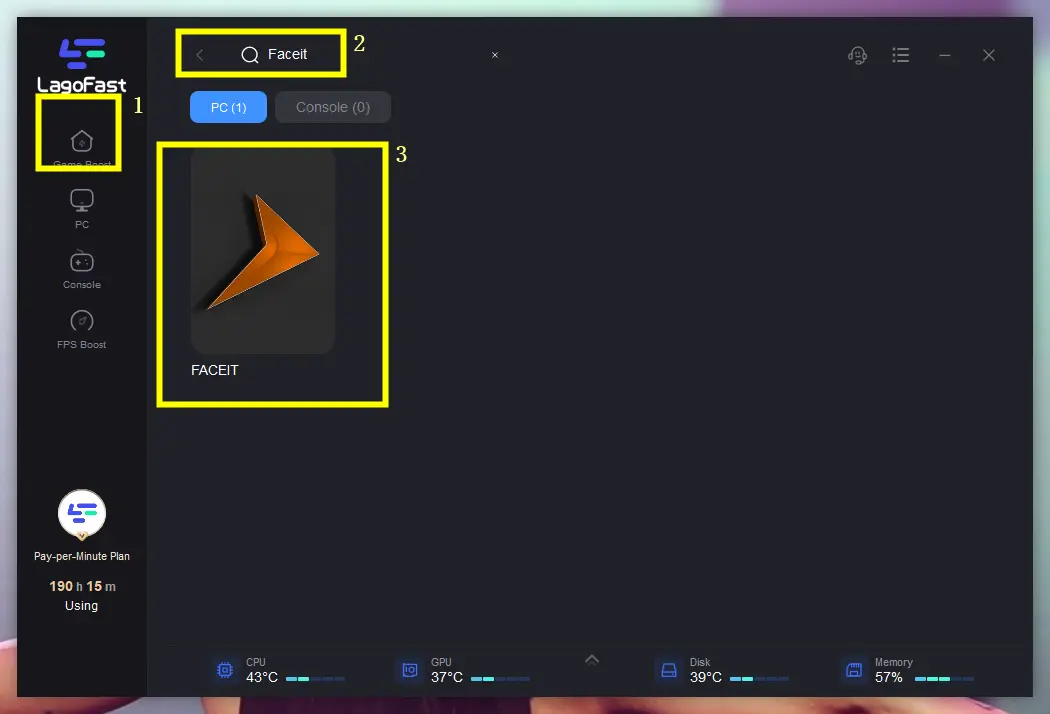
2. Search for “FACEIT” in the interface.
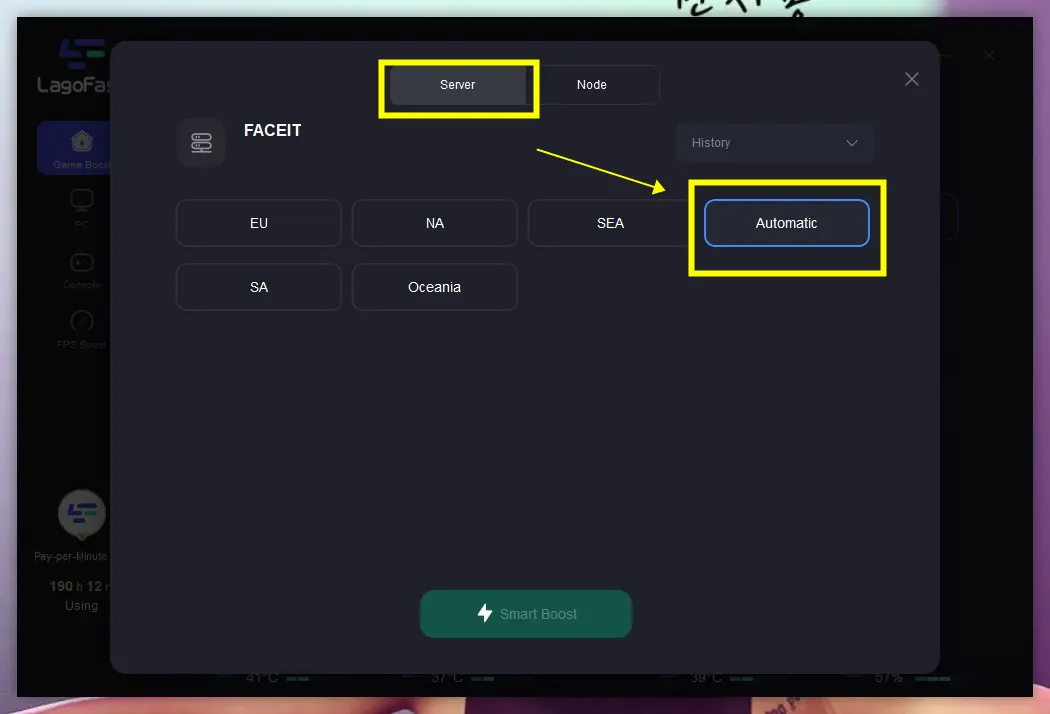
3. Select a nearby stable server (e.g., Germany or Netherlands nodes for EU FACEIT).
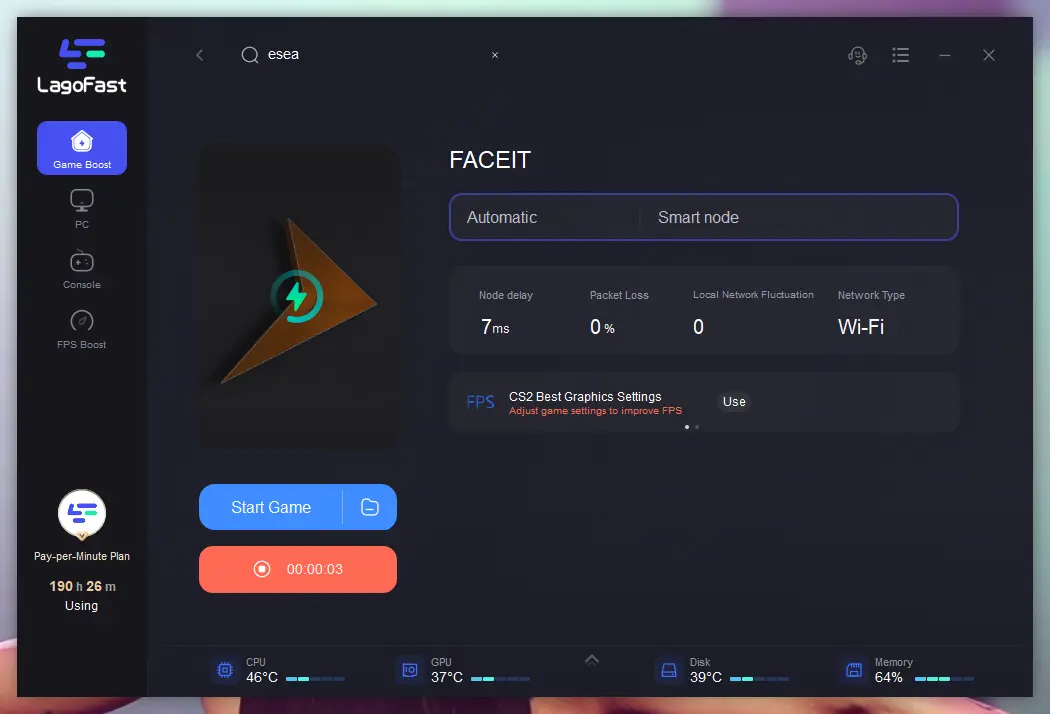
4. Enable Smart Boost to automatically reduce ping and packet loss.
Part 5. Advanced Optimization for FACEIT Players
For those who want to push their system to the limit, a few advanced tweaks can make a world of difference. Ensure that Secure Boot and TPM 2.0 are enabled in your BIOS settings, as these are increasingly mandatory for the FACEIT Anti-Cheat to function without hanging. Additionally, NVIDIA users should go to the NVIDIA Control Panel, navigate to Manage 3D Settings, and set the Shader Cache Size to 10GB or Unlimited. This prevents the system from deleting important game shaders, which is a common cause of loading screen freezes on larger maps like Ancient or Anubis.
Part 6. FAQs
Q1: Can I get banned if I get stuck on the loading screen?
A1: Unfortunately, yes. If you fail to connect to the match within the allotted time (usually 5 minutes), FACEIT will automatically issue a "Leaver" ban. This is why resolving loading issues is critical for maintaining your ELO and reputation.
Q2: Why does my game only get stuck on certain maps?
A2: This usually indicates a corrupted map file or a shader issue specific to that map's textures. Verifying your game files in Steam is the best solution for map-specific hangs.
Q3: Is it better to use an SSD for FACEIT CS2?
A3: Absolutely. An SSD significantly reduces asset loading times compared to a traditional HDD. If you are consistently the last person to load into a match, upgrading to an NVMe SSD is highly recommended.
Q4: Does the "cl_forcepreload" command still work in CS2?
A4: No, cl_forcepreload is no longer supported in CS2 and can actually cause loading screen crashes. If you have this in your autoexec or launch options, you should remove it immediately.
Q5: Why does the loading screen freeze after an update?
A5: Major updates often change how shaders are handled. The first time you load a map after an update, the game may appear stuck while it recompiles shaders in the background. Be patient for the first load, or clear your shader cache to start fresh.
Conclusion
Getting stuck on the loading screen is more than just a technical glitch; in the world of FACEIT, it’s a threat to your competitive standing. By following the manual fixes outlined in this guide—such as verifying game files and clearing your shader cache—you can eliminate most local conflicts. However, to truly safeguard your connection against routing errors and network instability, LagoFast Game Booster is the definitive solution. Its specialized gaming routes ensure that you enter every match smoothly and on time. Don't let a frozen screen cost you your next win. Optimize your setup, download LagoFast, and stay in the game.
Boost Your Game with LagoFast for Epic Speed
Play harder, faster. LagoFast game booster eliminates stutter and lags on PC, mobile, or Mac—win every match!
Quickly Reduce Game Lag and Ping!
Boost FPS for Smoother Gameplay!