
Quick Answer
Start Where Winds Meet with DirectX 12, confirm that regular DLSS appears in the graphics menu, then use LagoFast’s One-Click DLSS 5 tool to detect the game, check compatibility, download the required files, configure the installation, and launch the game. NVIDIA officially supports DLSS 5 Neural Rendering on RTX 50 Series; RTX 20–40 use is experimental and hardware-dependent.

- ✅ Reduce Lag and High Ping.
- ✅ Boost FPS at the Same Time.
- ✅ Support 8000+ Popular Online Games.
- ✅ Stable Server Connection
Part 1: Can Where Winds Meet Use DLSS 5?
Part 2: Prepare Where Winds Meet for DLSS and DirectX 12
Part 3: How to Enable DLSS 5 in Where Winds Meet With LagoFast
Part 4: Best DLSS 5, FPS and Image-Quality Settings
Part 5: Fix Where Winds Meet DLSS Not Showing or Not Working
Part 6: Reduce Where Winds Meet Stutter and Network Delay
Part 7: FAQs About Where Winds Meet DLSS 5
Part 1: Can Where Winds Meet Use DLSS 5?
Where Winds Meet supports standard NVIDIA DLSS through DirectX 12. DLSS 5 Neural Rendering is a separate stage for lighting and material detail, not simply a Super Resolution DLL or Frame Generation switch.
NVIDIA’s current official DLSS 5 rollout targets RTX 50 Series GPUs and laptops. Official support depends on the developer integration, driver path, game build, and Blackwell-focused hardware support. A modified configuration on an older card should therefore be treated as an optional experiment, not a guaranteed native feature.
|
Hardware |
DLSS 5 status in this guide |
|
RTX 50 Series |
Official DLSS 5 platform when the game integration is available |
|
RTX 40 Series |
Experimental configuration; recommended starting point for older-card testing |
|
RTX 30 Series |
Experimental; performance and latency can vary sharply |
|
RTX 20 Series |
Experimental; test cautiously and expect weaker results |
|
AMD and Intel GPUs |
Not supported by the LagoFast DLSS 5 tool |
DLSS 5 can improve the appearance of lighting, skin, hair, foliage, materials, and contact shadows. It also adds GPU work. If that work creates a lower base frame rate, combine the visual test with FPS Boost or Frame Generation only after checking frame time and input response.
Part 2: Prepare Where Winds Meet for DLSS and DirectX 12
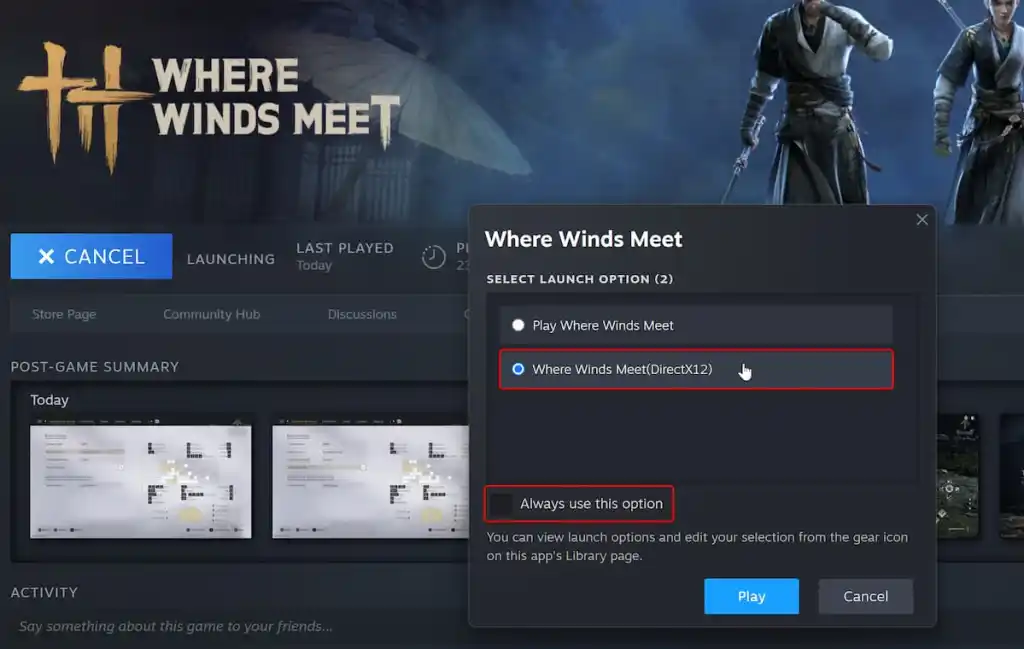
The most common reason DLSS is missing is that the game launched with DirectX 11. Where Winds Meet uses DX11 by default in some installations, while the NVIDIA DLSS, Intel XeSS, and newer upscaling options require DX12.
Enable the correct rendering API
- Launch Where Winds Meet from Steam or the game launcher.
- Select the DirectX 12 version when the launcher presents an API choice.
- Start the game and open Settings > Graphics.
- Check the upscaling menu for NVIDIA DLSS.
- Restart once if the menu was changed after the first launch.
If the launcher keeps returning to DX11, use the game’s supported launch option or desktop shortcut method for your installation. Avoid copying random executable files from third-party downloads. Verify the target path, keep the original launcher available, and use the game platform’s file-repair function if the client stops starting.
Part 3: How to Enable DLSS 5 in Where Winds Meet With LagoFast
Manual tutorials often require DLL downloads, directory edits, loaders, ReShade, or OptiScaler-style components. LagoFast’s One-Click DLSS 5 tool organizes detection, compatibility checking, download, configuration, launch, and restore.
Key Features of LagoFast One-Click DLSS
- True One-Click Setup: No DLL replacement, loaders, ReShade, or OptiScaler—LagoFast handles everything automatically.
- Complete Workflow: Detect game → check compatibility → download → configure → enable DLSS 5 → launch → one-click restore.
- RTX 20–50 Series Support: Works with RTX 20, 30, 40, and 50 Series GPUs, with RTX 40+ recommended.
- Better Visuals: Experience more realistic lighting, skin, hair, materials, and shadows, with FPS Boost available when you need extra performance.
Step-by-step tutorial for enabling DLSS 5
Step 1. Click the Free Trial button to download and install LagoFast Free Trial.
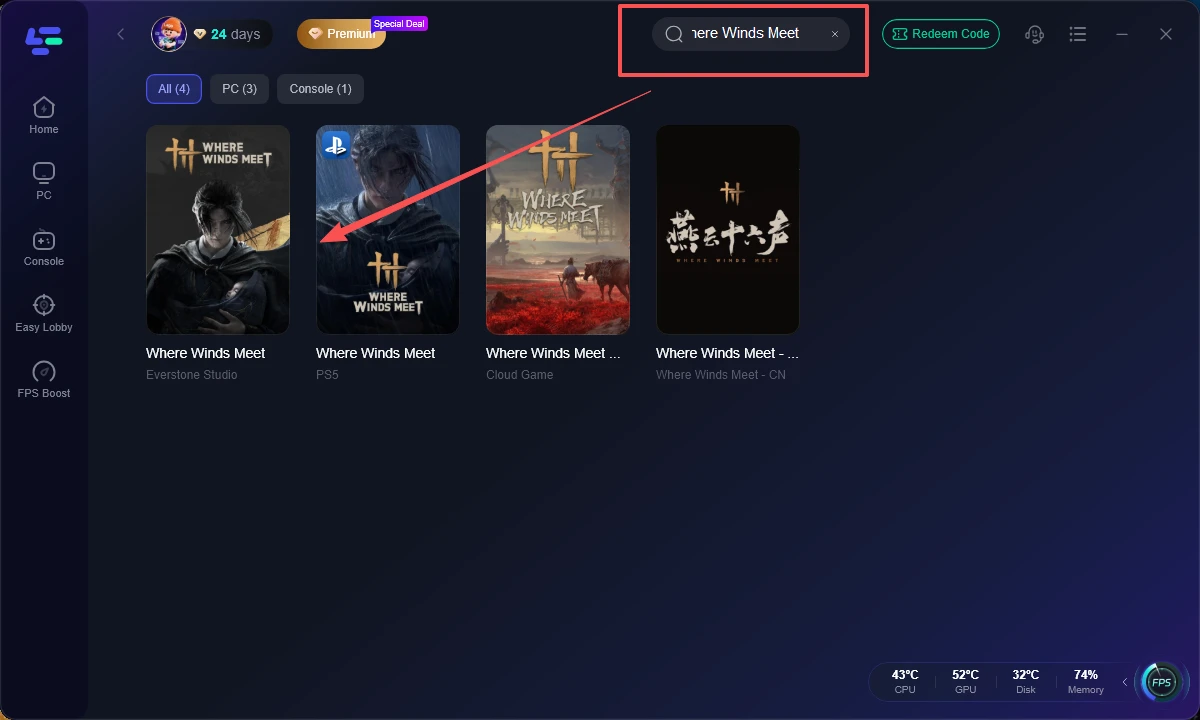
Step 2. Search for Where Winds Meet and select it.
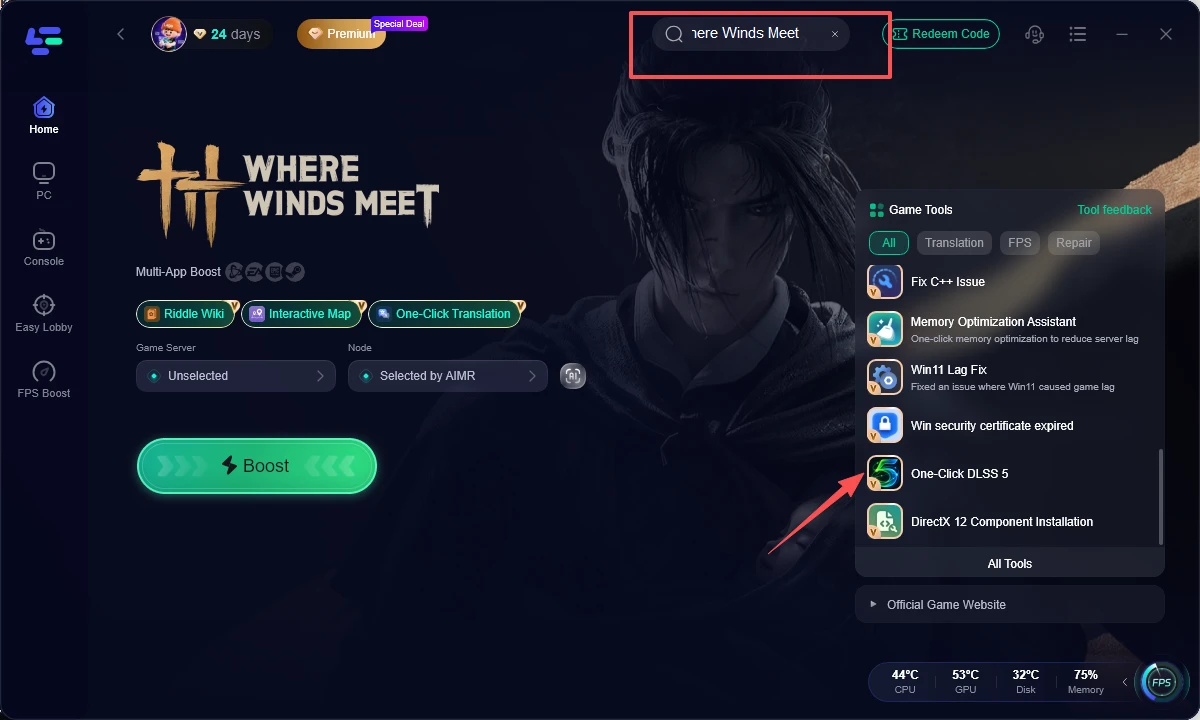
Step 3. Find One-Click DLSS 5 in the right panel. LagoFast will automatically detect the game and check compatibility.
Step 4. Select your game and click Enable DLSS 5. After confirmation, LagoFast downloads and places the required files and prepares the game to start in the DLSS 5 Neural Rendering mode.
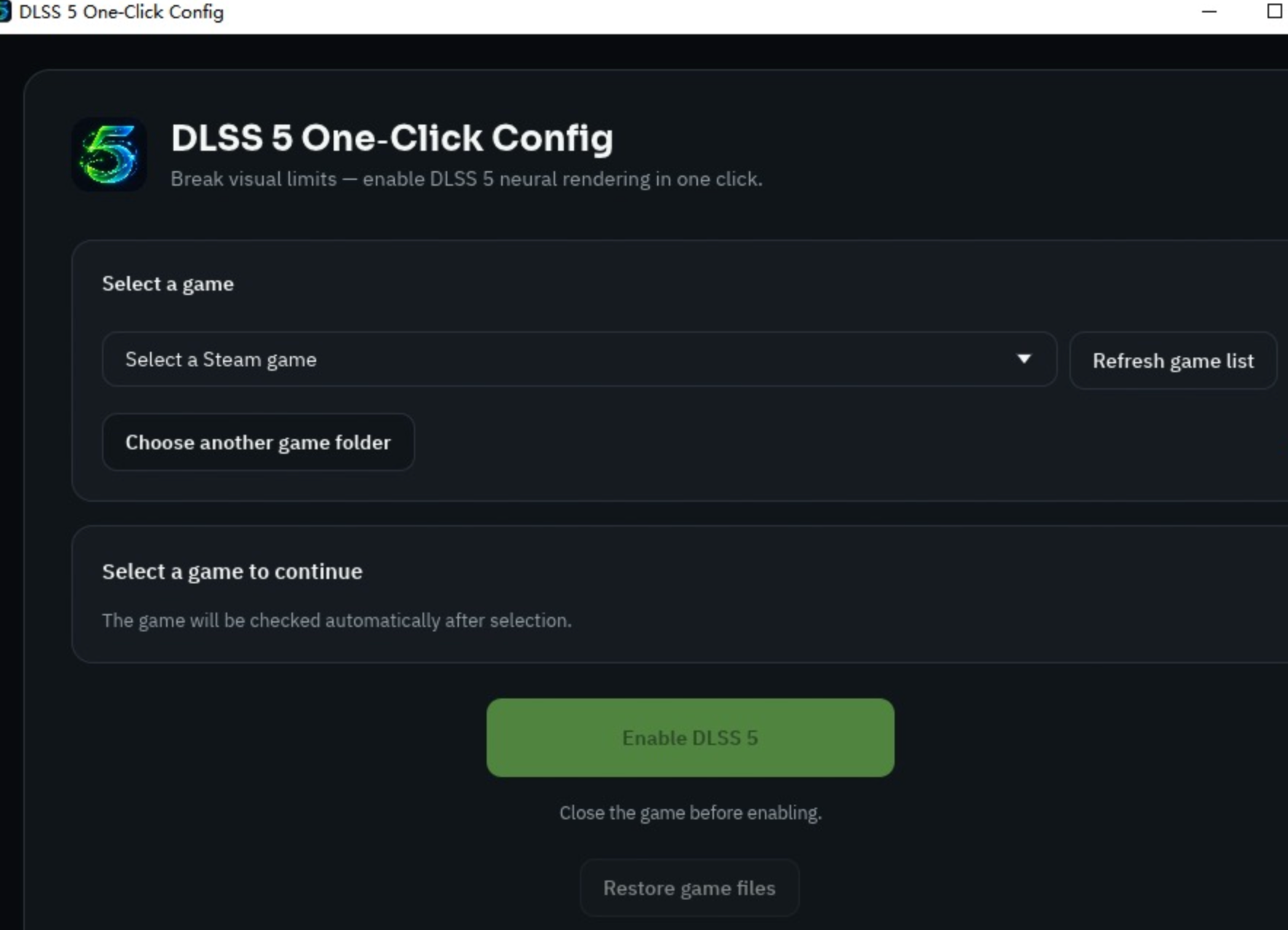
Step 5. Launch, compare, or restore. Start Where Winds Meet from the configured game page and compare FPS, frame time, image quality, and input response. If the result is unstable, use the one-click restore function instead of manually deleting files.
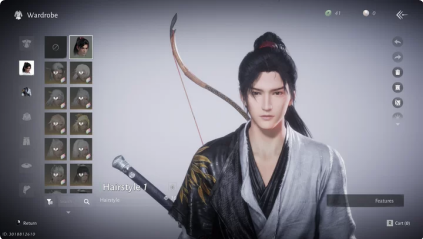
Example 1: Before enabling DLSS 5 in Where Winds Meet
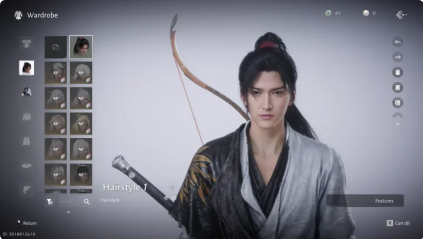
Example 2: After enabling DLSS 5 in Where Winds Meet
Part 4: Best DLSS 5, FPS and Image-Quality Settings
DLSS 5 should be tuned after the game is stable in DX12. Start with a visual comparison, then add performance features only when the native frame path is consistent.
Recommended test order
Start at DLSS Quality for 1440p or 4K, then try Balanced if GPU headroom is limited. On lower-tier RTX cards, use Balanced or Performance and reduce volumetrics, shadows, reflections, and foliage before lowering textures. Enable Frame Generation only after the base frame rate is stable.
Keep textures high when VRAM allows it. Disable motion blur if it hides combat detail, and cap menus if GPU temperature rises while the game is idle.
When judging a Where Winds Meet DLSS 5 mod, use the same camera angle and scene. Look for shimmering on leaves, unstable hair, noisy surfaces, ghosting behind moving characters, and delayed controls. A higher screenshot quality is not a win if combat feels less responsive.
Part 5: Fix Where Winds Meet DLSS Not Showing or Not Working
If the normal DLSS option is missing, fix the rendering path before trying a DLSS 5 configuration. The most common issues are DX11 launch, outdated drivers, an incomplete game update, or a configuration file that the launcher has overwritten.
Troubleshooting checklist
- Confirm the game is running in DirectX 12, not DX11.
- Update the NVIDIA driver and restart Windows.
- Repair or verify the game files through Steam or the launcher.
- Disable overlays temporarily during the first test.
- Restart the game after changing the graphics API.
- Confirm that the selected GPU is the RTX card rather than integrated graphics.
- Remove conflicting manual DLL or ReShade files before using a managed setup.
- Check that the LagoFast compatibility result matches the current game directory.
If the game crashes after configuration, restore the original files, launch the unmodified DX12 build, and test standard DLSS first. If standard DLSS works but Neural Rendering causes severe latency, the issue is likely workload or experimental compatibility rather than a missing menu option.
Part 6: Reduce Where Winds Meet Stutter and Network Delay
Where Winds Meet can stutter while shaders compile or while the engine streams new areas. A DLSS configuration cannot fix every hitch, and a network booster cannot repair GPU frame-time spikes. Diagnose the two paths separately.
For local performance, install the game on an SSD, keep the driver current, cap uncapped menus, and allow the shader cache to rebuild after updates. Reduce volumetrics, shadows, reflections, and foliage before textures.
For online sessions, LagoFast can test routing separately: select a nearby route, activate Smart Boost, pause downloads, and compare ping and packet loss across a complete session.
Part 7: FAQs About Where Winds Meet DLSS 5
Does Where Winds Meet officially support DLSS 5?
The game supports standard DLSS through DirectX 12. NVIDIA’s official DLSS 5 Neural Rendering support currently centers on RTX 50 Series hardware, so an older-GPU configuration should be treated as experimental.
What is the Where Winds Meet DLSS DirectX 12 requirement?
Launch the game with DirectX 12. DLSS and other modern upscaling options may not appear when the client starts in DirectX 11.
Can RTX 40 cards use DLSS 5 in Where Winds Meet?
RTX 40 testing is experimental. LagoFast supports RTX 20–50 Series configurations, recommends RTX 40 or newer for testing, and does not support AMD or Intel GPUs for this tool.
Why is Where Winds Meet DLSS not showing?
The game may be using DX11, an outdated driver, the wrong GPU, or an incomplete installation. Start with DX12, update the driver, repair files, and restart the game.
Does DLSS 5 increase FPS?
Not automatically. Neural Rendering can improve lighting and materials but also adds GPU workload. Use FPS Boost or Frame Generation only after confirming a stable base frame rate.
Can a DLSS 5 configuration cause stutter?
Yes. Older or unsupported hardware may show higher frame time, visual artifacts, or poor frame pacing. Compare against your baseline and use the restore option if the result is worse.
Is a Where Winds Meet DLSS 5 mod safe for online play?
Review the tool warning before applying it. Modified files can conflict with anti-cheat or future updates, so test carefully, keep a restore path, and avoid ranked or sensitive online activity until the configuration is stable.
Key takeaway
To enable DLSS 5 in Where Winds Meet, first launch the game in DirectX 12 and confirm that standard DLSS appears. NVIDIA officially targets RTX 50 Series for DLSS 5, while LagoFast provides a simpler, reversible configuration workflow for RTX 20–50 Series testing. Compare image quality, FPS, frame time, and input response together, and use LagoFast’s network optimization separately when online delay is the real problem.

Boost Your Game with LagoFast for Epic Speed
Play harder, faster. LagoFast game booster eliminates stutter and lags on PC, mobile, or Mac—win every match!
Quickly Reduce Game Lag and Ping!
Boost FPS for Smoother Gameplay!