

Dune: Awakening, the highly anticipated survival MMO set in the iconic sci-fi universe of Arrakis, has generated massive buzz since its announcement. But as with many graphically intense online games, early players are reporting serious Dune: Awakening FPS drops and low FPS issues, especially during large-scale events and combat-heavy moments.
If you're among the players struggling with performance issues in Dune: Awakening, don't worry, you’re not alone, and this guide will help you fix it. We’ll walk you through the possible causes of FPS drops, explain the release and access model, and show you how to boost FPS in Dune: Awakening using both advanced tools and manual tweaks.

Part 1: Dune: Awakening Release Date & Early Access Details
Part 2: Why Does Dune: Awakening Have FPS Drops?
Part 3: How to Fix Dune: Awakening FPS Drops? - 100% Work
Part 1: Dune: Awakening Release Date & Early Access Details
Originally slated for May 20, 2025, Dune: Awakening has officially been delayed to June 10, 2025, following player feedback and additional development time. While it won’t be launching in traditional early access, players who purchase the $70 or $90 editions can gain advanced access starting June 5.

Unlike many survival MMOs, the game won’t have a subscription fee, but it will feature optional DLC and season passes. The goal is to deliver a polished experience on day one, something the developers say justifies skipping early access entirely.
But even with a polished release, FPS performance issues have already begun to surface among players who took part in closed betas or preview builds.
Part 2: Why Does Dune: Awakening Have FPS Drops?
There are several reasons you might experience FPS drops in Dune: Awakening:
- Hardware Demands: The game features massive open-world environments, complex physics, and high-res textures that push your system to the limit.
- Unoptimized Settings: Default or ultra settings can overload your GPU and CPU, especially on older systems.
- Background Applications: Resource-heavy programs running in the background can severely reduce available memory and processing power.
- Server Sync Issues: MMO games often suffer FPS issues when syncing massive player data across servers.
- Driver Conflicts: Outdated or improperly installed graphics drivers can also lead to stuttering or low FPS.
Let’s now look at how to fix Dune: Awakening FPS drops and increase your frame rate for a smoother, more immersive experience.
Part 3: How to Fix Dune: Awakening FPS Drops
1. Best Solution: Use LagoFast FPS Booster for Dune: Awakening
If you're looking for the most efficient and hassle-free fix, LagoFast is your best choice. It’s an all-in-one FPS booster and ping stabilizer that’s specially optimized for games like Dune: Awakening.
Key Features of LagoFast:
- Smart Route Optimization: LagoFast intelligently chooses the best network path to reduce server-side lag and stutters.
- CPU/GPU Optimization: It helps you allocate your PC's resources better for improved in-game performance.
- Real-Time FPS Boost: One-click optimization increases FPS instantly.
- Background Process Cleaner: Automatically shuts down unnecessary programs that consume your RAM or CPU.
- Ping Reduction: Reduces ping spikes and ensures a stable connection even in crowded server zones.
How to Enhance Dune: Awakening with LagoFast on PC:
Step 1: Download & Install: Click the free trial button to get LagoFast on PC.
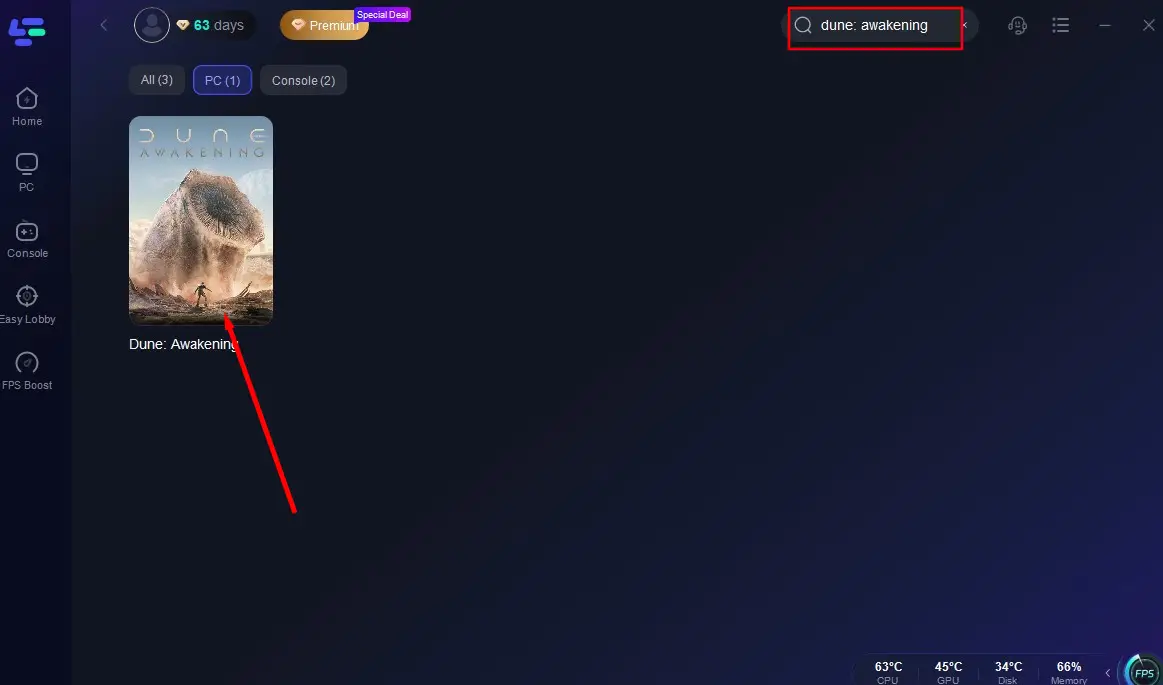
Step 2: Launch & Search: Open LagoFast and type "Dune: Awakening" into the search bar.
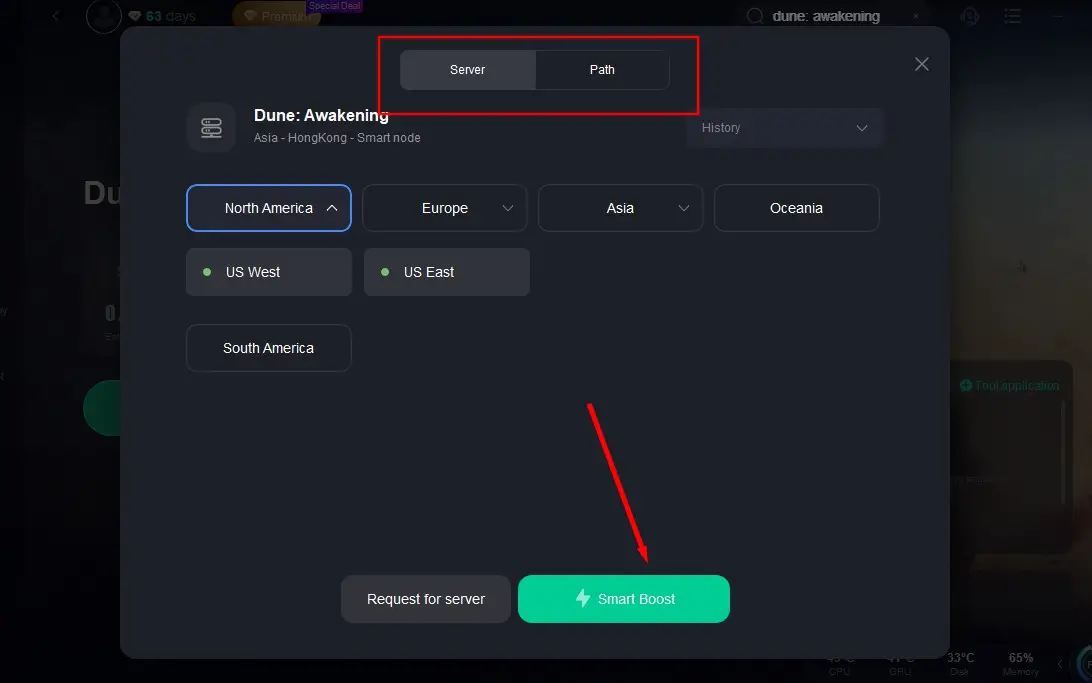
Step 3: Global Server Selection: Let LagoFast auto-scan the globe for the top-performing server node for your region, then hit "Smart Boost".
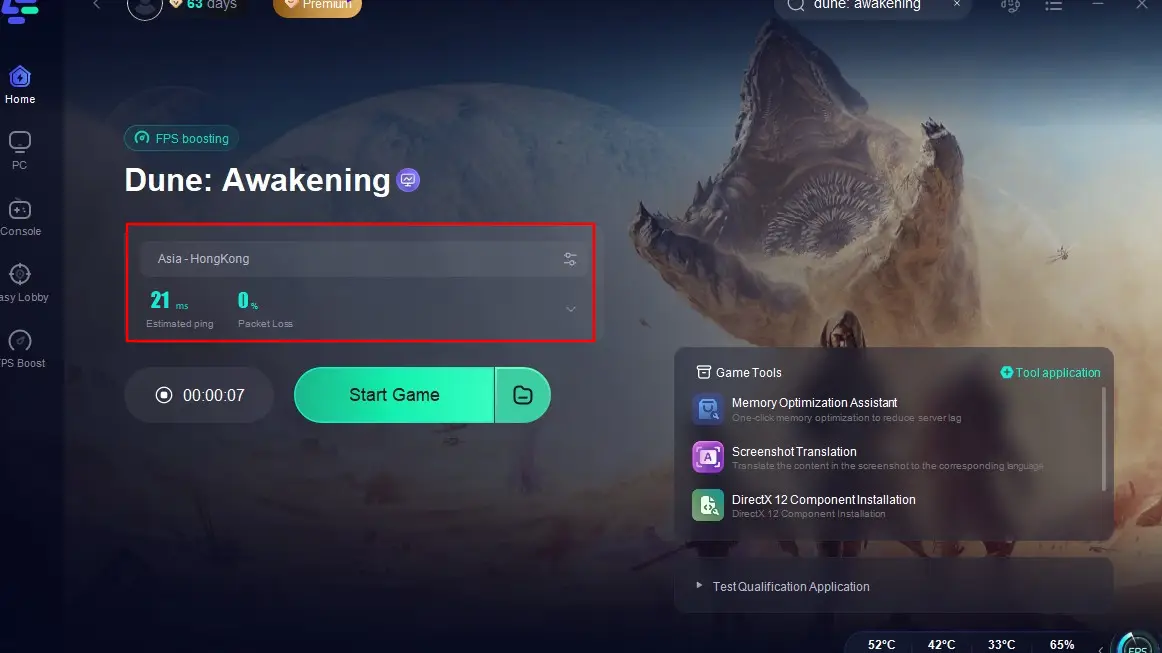
Step 4: Dive In, Lag-Free: Once optimized, monitor real-time performance data in-app and conquer Arrakis without delay!
2. Lower In-Game Graphics Settings
High graphical settings are often the main culprit behind FPS drops.
Step 1. Go to Settings, select Graphics in Dune: Awakening.
Step 2. Lower settings like Shadows, View Distance, and Post Processing to medium or low.
Step 3. Turn off Anti-Aliasing or switch to FXAA instead of TAA.
Step 4. Reduce Texture Quality to medium.
Step 5. Disable Motion Blur, Depth of Field, and V-Sync.
Step 6. Apply and restart the game for full effect.
3. Update Your GPU Drivers
Outdated drivers often cause stuttering and frame drops.
Step 1. Identify your GPU model (NVIDIA, AMD, or Intel).
Step 2. Visit the official website (NVIDIA.com or AMD.com).
Step 3. Download the latest Game Ready drivers for Dune: Awakening.
Step 4. Use clean install options to avoid driver conflicts.
Step 5. Restart your PC after installation.
Step 6. Launch the game and test performance.
4. Set High Performance Mode in Windows
Windows might throttle performance to save power.
Step 1. Open Control Panel, select Power Options.
Step 2. Select High Performance or Ultimate Performance (if available).
Step 3. Go to Advanced Power Settings.
Step 4. Ensure CPU and GPU power states are set to maximum.
Step 5. Disable hard disk sleep and USB selective suspend.
Step 6. Save and restart your PC.
5. Disable Background Applications and Startup Processes
Your PC might be overloaded with non-essential programs.
Step 1. Press Ctrl + Shift + Esc to open Task Manager.
Step 2. Go to the Startup tab and disable all non-essential items.
Step 3. In the Processes tab, end tasks like Chrome, Discord, and Spotify.
Step 4. Use MSConfig to disable unnecessary services at boot.
Step 5. Consider installing Razer Cortex or LagoFast for automated optimization.
Step 6. Restart your PC and run the game again.
6. Adjust Your GPU Control Panel Settings
Fine-tuning your GPU control settings can deliver huge FPS gains.
Steps for NVIDIA users:
Step 1. Right-click desktop and open NVIDIA Control Panel.
Step 2. Go to Manage 3D Settings, click Program Settings.
Step 3. Select Dune: Awakening from the list.
Step 4. Set Power Management Mode to Prefer Maximum Performance.
Step 5. Set Low Latency Mode to Ultra.
Step 6. Turn Vertical Sync off.
AMD users can make similar adjustments using Radeon Settings.
Conclusion
Dune: Awakening promises to be one of the most engaging and expansive MMO survival games in years, but only if it runs smoothly on your machine. Whether you're dealing with FPS drops, low FPS, or frustrating stutters, the fixes in this guide can help restore your performance. LagoFast stands out as the fastest and most user-friendly way to boost FPS in Dune: Awakening, while manual solutions like lowering graphics settings, updating drivers, and optimizing your system can also yield significant improvements. If you're tired of lag spikes, poor responsiveness, or freezing gameplay, try these fixes today to increase FPS in Dune: Awakening and enjoy the immersive survival experience you deserve.

Boost Your Game with LagoFast for Epic Speed
Play harder, faster. LagoFast game booster eliminates stutter and lags on PC, mobile, or Mac—win every match!
Quickly Reduce Game Lag and Ping!
Boost FPS for Smoother Gameplay!