
Quick Answer: To fix DragonSword Awakening crashing, ensure the game is installed on an SSD rather than an HDD, as Unreal Engine 5 requires fast asset streaming. Additionally, update your GPU drivers to the latest version, verify the game files on Steam, and run the executable as an administrator. If you encounter a black screen, wait for the initial shader compilation to complete or try switching display modes using Alt + Enter.

- ✅ Reduce Lag and High Ping.
✅ Boost FPS at the Same Time.
✅ Support 8000+ Popular Online Games.
✅ Change Server without Latency.
✅ Boost Game Loading Speed.
Part 1: Why Is DragonSword Awakening Crashing?
Part 2: Check DragonSword Awakening System Requirements
Part 3: How to Fix DragonSword Awakening Crashing on Startup
Part 4: How to Fix DragonSword Awakening Black Screen
Part 5: How to Fix DragonSword Awakening Low FPS and Stuttering
Part 6: How to Fix DragonSword Awakening Freezing or Stuck Loading
Part 7: How to Enhance Your Game Experience with LagoFast Game Booster
Part 8: DragonSword Awakening Crash FAQ
Part 1: Why Is DragonSword Awakening Crashing?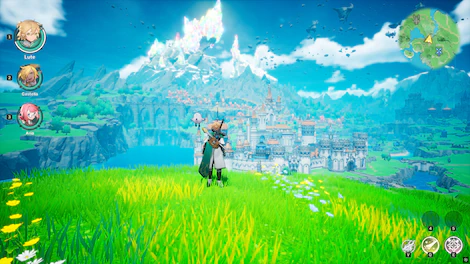
DragonSword Awakening is a visually stunning title built on Unreal Engine 5, but its cutting-edge graphics come with high technical demands. Understanding why the game is crashing is the first step toward a stable experience.
HDD Installation and Slow Asset Loading
One of the primary culprits for crashes and stuttering in modern UE5 games is the use of traditional Hard Disk Drives (HDDs). The game needs to stream massive amounts of high-resolution textures and assets in real-time. If your drive is too slow, the engine may time out, leading to a "Not Responding" error or a direct crash to desktop.
Outdated GPU Drivers
Since the game utilizes advanced features like Nanite and Lumen, it requires the latest driver optimizations from NVIDIA or AMD. Using drivers that are even a few months old can cause memory leaks or compatibility errors.
Corrupted Game Files
If your download was interrupted or a patch was incorrectly applied, essential game files might be missing or corrupted. This often manifests as a crash during the initial loading screen.
DirectX 12 and Shader Issues
The game relies heavily on DirectX 12. Shader compilation—the process of preparing graphics for your specific hardware—can sometimes fail or take longer than expected, resulting in a black screen or a crash during the "Compiling Shaders" phase.
Overlays and Background Programs
Third-party overlays from Steam, Discord, or hardware monitoring software (like MSI Afterburner) can sometimes conflict with the game's rendering pipeline, especially in Fullscreen mode.
Part 2: Check DragonSword Awakening System Requirements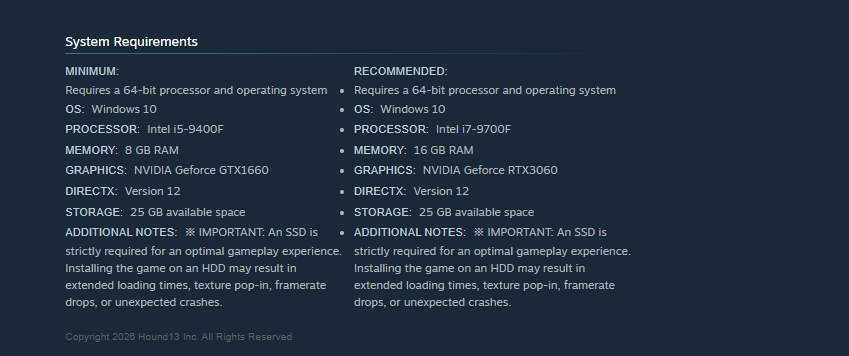
Before diving into complex fixes, ensure your PC meets the necessary benchmarks.
Minimum Requirements
- Requires a 64-bit processor and operating system
- OS: Windows 10
- Processor: Intel i5-9400F
- Memory: 8 GB RAM
- Graphics: NVIDIA Geforce GTX1660
- DirectX: Version 12
- Storage: 25 GB available space
- Additional Notes: ※ IMPORTANT: An SSD is strictly required for an optimal gameplay experience. Installing the game on an HDD may result in extended loading times, texture pop-in, framerate drops, or unexpected crashes.
Recommended Requirements
- Requires a 64-bit processor and operating system
- OS: Windows 10
- Processor: Intel i7-9700F
- Memory: 16 GB RAM
- Graphics: NVIDIA Geforce RTX3060
- DirectX: Version 12
- Storage: 25 GB available space
- Additional Notes: ※ IMPORTANT: An SSD is strictly required for an optimal gameplay experience. Installing the game on an HDD may result in extended loading times, texture pop-in, framerate drops, or unexpected crashes.
Why an SSD Is Important
You might notice that the storage requirement specifically recommends an SSD. In DragonSword Awakening, an SSD is not just about faster loading screens; it is essential for gameplay stability. Running this game on an HDD will almost certainly result in texture pop-in, audio desync, and frequent crashing during world transitions.
Part 3: How to Fix DragonSword Awakening Crashing on Startup
If the game won't even reach the main menu, try these standard fixes:
Move the Game to an SSD
If you currently have the game on an HDD, use Steam's "Move Install Folder" feature to transfer it to an SSD. This is the single most effective fix for startup stability.
Verify Steam Game Files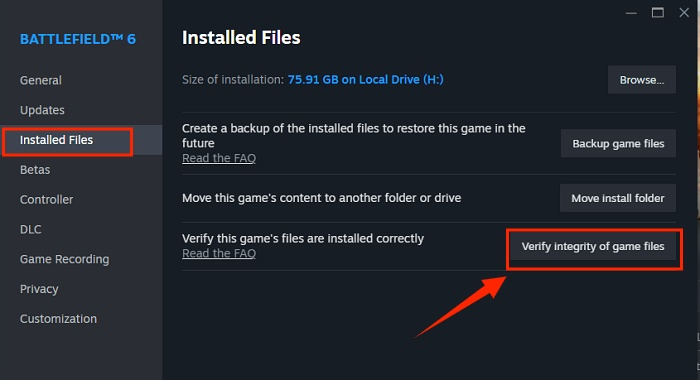
Right-click DragonSword Awakening in your Steam Library -> Properties -> Installed Files -> Verify integrity of game files. Steam will scan and redownload any corrupted data.
Update or Reinstall GPU Drivers
Download the latest drivers directly from the manufacturer's website. If you are still crashing, use a tool like DDU (Display Driver Uninstaller) to perform a clean reinstallation.
Disable Steam and Third-Party Overlays
Go to Steam Settings -> In-Game -> Disable the Steam Overlay. Do the same for Discord and any recording software.
Run the Game as Administrator
Navigate to the game's installation folder, right-click the .exe file, and select "Run as administrator." This ensures the game has full permissions to access system resources.
Repair Microsoft Visual C++ and DirectX
Ensure your Microsoft Visual C++ Redistributables (2015-2022) are up to date. You can also manually reinstall the DirectX End-User Runtimes from the official Microsoft site.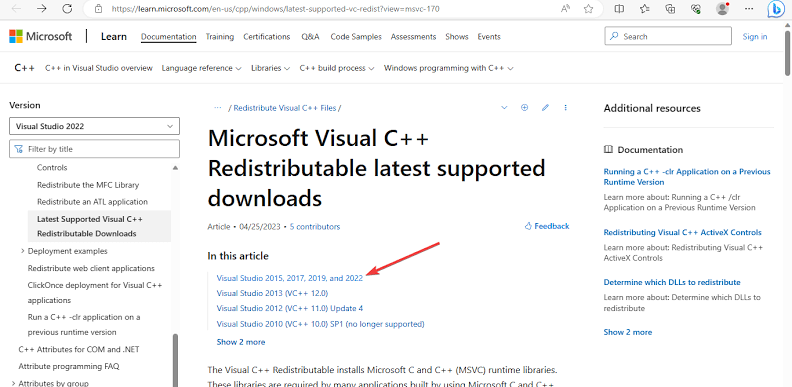
Part 4: How to Fix DragonSword Awakening Black Screen
A black screen usually indicates a hang in the graphics initialization or shader compilation.
Wait for Initial Shader Compilation
The first time you launch the game, it may stay on a black screen for several minutes while it compiles shaders. Be patient and do not force-close the game immediately.
Switch Display Modes
If the screen stays black, press Alt + Enter to switch from Fullscreen to Windowed mode. This can sometimes bypass a resolution mismatch that is preventing the game from displaying correctly.
Reset the Configuration File
If you've tweaked settings and can no longer see anything, navigate to %LOCALAPPDATA%\DragonSwordAwakening\Saved\Config\WindowsNoEditor and delete the GameUserSettings.ini file. The game will generate a new one with default settings on the next launch.
Disable HDR Temporarily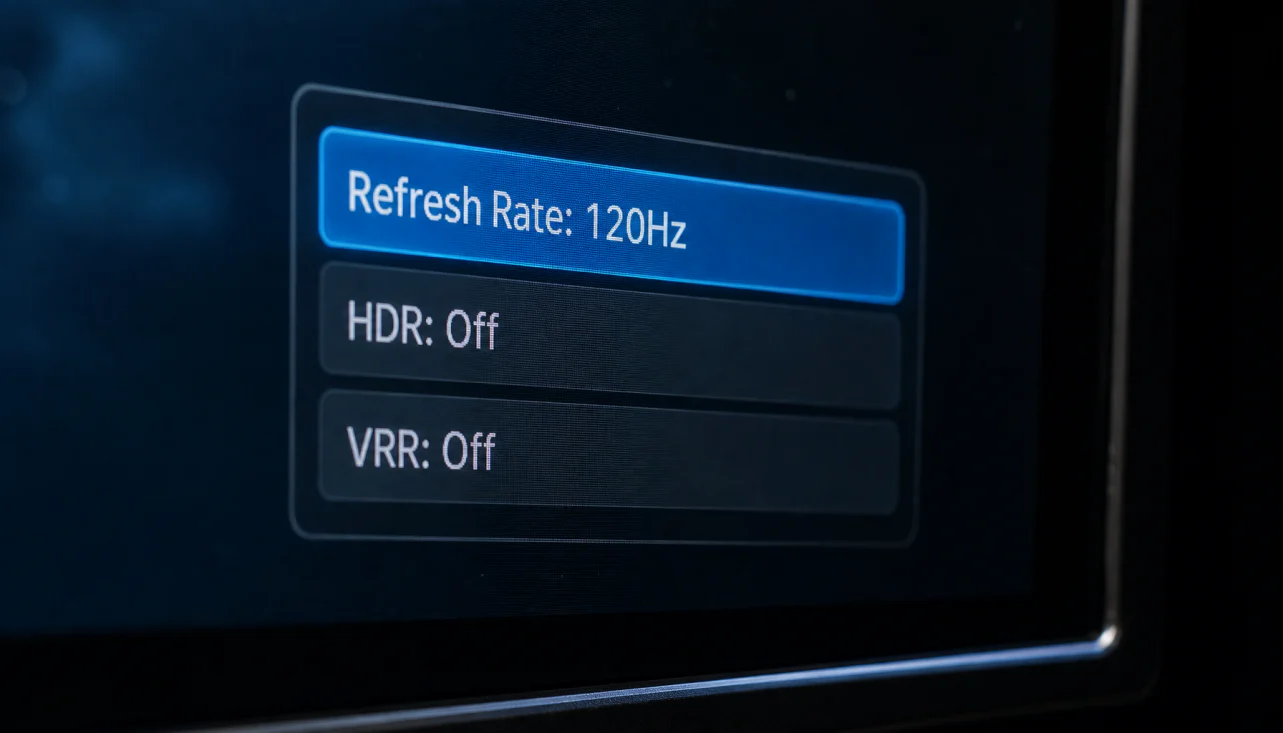
Windows Auto-HDR can sometimes cause a black screen in UE5 titles. Try disabling HDR in your Windows Display Settings before launching the game.
Part 5: How to Fix DragonSword Awakening Low FPS and Stuttering
If the game runs but feels sluggish, you need to optimize your settings.
Lower Shadows and Effects
In the graphics menu, "Shadow Quality" and "Effects Quality" are the most demanding settings. Dropping these to Medium can provide a significant FPS boost without ruining the aesthetic.
Reduce View Distance
DragonSword Awakening features vast open landscapes. Reducing the "View Distance" can take a massive load off your CPU and GPU.
Use Upscaling
Enable DLSS (NVIDIA), FSR (AMD), or XeSS (Intel). Setting these to "Quality" or "Balanced" mode can nearly double your frame rate while maintaining a sharp image.
Limit Background CPU and GPU Usage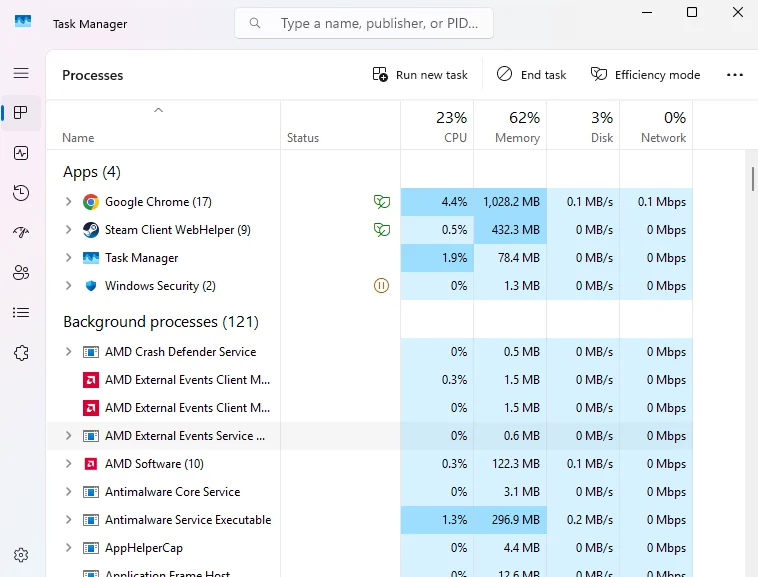
Close unnecessary browser tabs and background apps. Even a few open Chrome tabs can steal the RAM and CPU cycles needed for smooth gameplay.
Optimize FPS with LagoFast
Network-related stuttering is often mistaken for hardware lag. Using a tool like LagoFast can stabilize your connection, ensuring that "ping spikes" don't cause the game to freeze or stutter during combat.
Part 6: How to Fix DragonSword Awakening Freezing or Stuck Loading
If the game freezes mid-game or gets stuck at 99% loading:
- Increase Virtual Memory: Ensure your Windows Page File is set to "System Managed" on your fastest drive.
- Check for Overheating: Use a tool to monitor your GPU and CPU temperatures. If they exceed 85-90°C, your hardware may be thermal throttling.
- Disable Overclocking: If you have overclocked your GPU or RAM, revert to stock settings. Unreal Engine 5 is notoriously sensitive to unstable overclocks
Part 7: How to Enhance Your Game Experience with LagoFast Game Booster
While many crashes are hardware-related, many "freezes" and "stuck loading" issues are actually caused by network instability. LagoFast Game Booster is a professional tool designed to solve these hidden performance killers.
LagoFast(LagoFast Game Booster - Get No Lag and Lower Ping) uses a global network of dedicated nodes to find the fastest path to the game servers. It doesn't just lower your ping; it eliminates the Network Jitter and Packet Loss that cause the game engine to hang while waiting for data.
Detailed Steps to Use LagoFast Game Booster:
Click the Free Trial button to download and install LagoFast Free Trial.
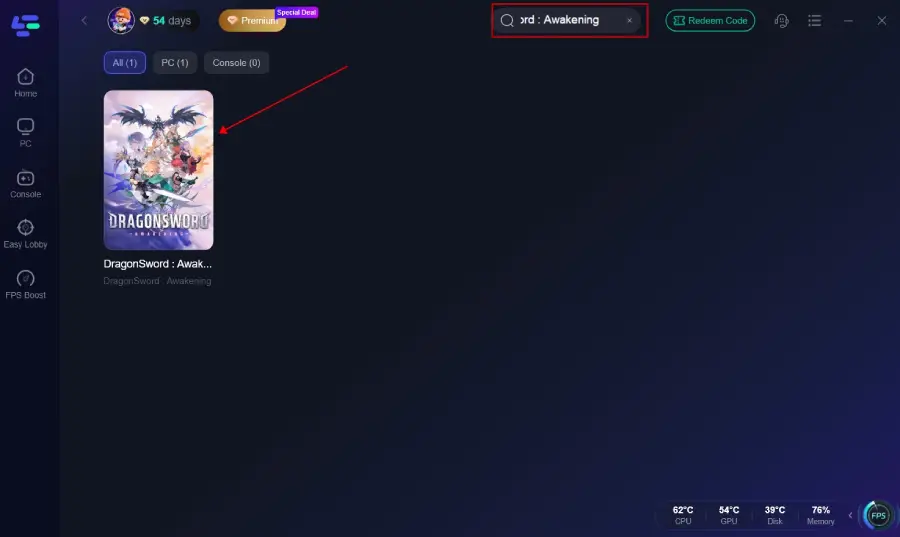
Search for DragonSword Awakening: Add the game to your boost list.
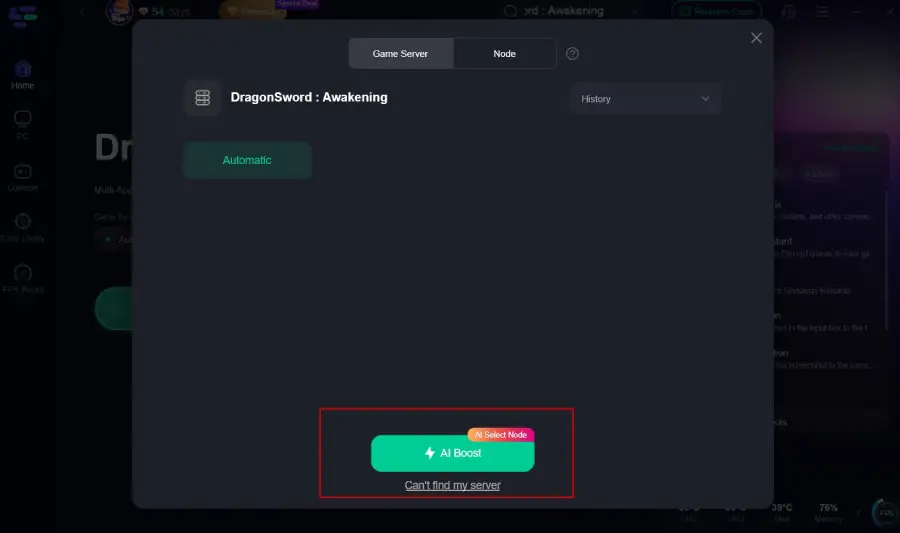
Select Your Region: Choose the server closest to your physical location for the best results.
Smart Boost: Click the "Boost" button. LagoFast will optimize your connection and clear background network congestion.
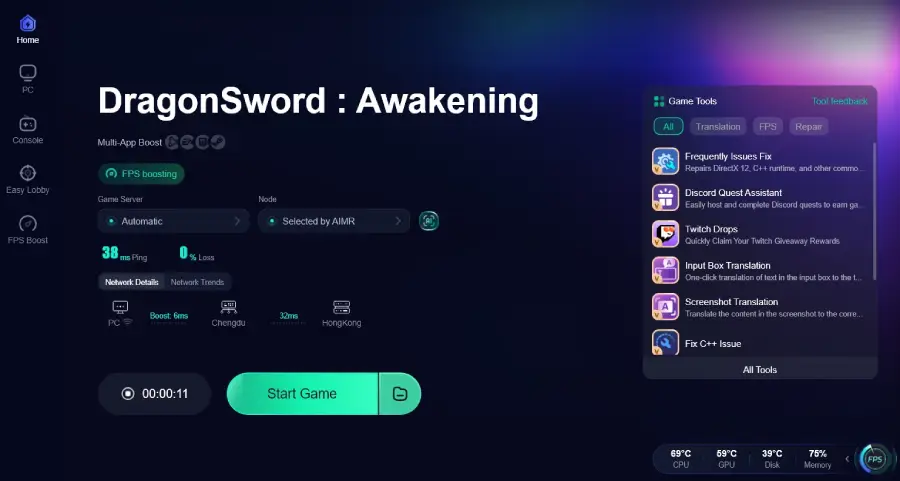
Launch the Game: Start the game through Steam or the official launcher. You will notice much faster loading times and zero network-related stuttering.
Part 8: DragonSword Awakening Crash FAQ
Q1: Can I play DragonSword Awakening on an HDD?
A: It is not recommended. The game's Unreal Engine 5 architecture relies on the fast read speeds of an SSD to stream assets. Using an HDD will lead to constant crashing and extreme stuttering.
Q2: Why does my game crash only during combat?
A: Combat triggers a high volume of particle effects and sound assets simultaneously. This spikes the demand on your GPU and RAM. Try lowering the "Effects Quality" in the settings.
Q3: Is there a "Safe Mode" for DragonSword Awakening?
A: While there isn't a dedicated safe mode button, you can simulate one by adding -windowed to the Steam Launch Options.
Q4: Does the game support DirectX 11?
A: DragonSword Awakening is built for DirectX 12. While you can try forcing DX11 with the -dx11 launch command, it may cause graphical glitches or even more crashes.
Q5: How do I fix the "Out of Video Memory" error?
A: This happens when your GPU's VRAM is full. Lower your "Texture Quality" and "Resolution" settings, and ensure you aren't running other GPU-heavy apps in the background.
Key Takeaway
Fixing DragonSword Awakening crashing requires a mix of hardware optimization and software troubleshooting. The most critical step is ensuring the game is on an SSD and that your GPU drivers are current. For those facing persistent stuttering or loading hangs, LagoFast Game Booster provides the necessary network stability to ensure a smooth, crash-free journey through Orbis.
Boost Your Game with LagoFast for Epic Speed
Play harder, faster. LagoFast game booster eliminates stutter and lags on PC, mobile, or Mac—win every match!
Quickly Reduce Game Lag and Ping!
Boost FPS for Smoother Gameplay!