

Ready to jump into the action-packed world of League of Legends? Whether you're a seasoned gamer or just getting started, this easy-to-follow guide will take you through downloading, installing, and optimizing League of Legends on your PC. Buckle up, summoner—let's dive in and get you game-ready!

How to Download League of Legends on PC – Step-by-Step
How to Install League of Legends on PC?
How to Launch and Run League of Legends Smoothly on PC
How to Play League of Legends with Smooth Connection?
1. How to Download League of Legends on PC – Step-by-Step
Looking to get started with League of Legends on your PC? Here are the most reliable ways to download the game safely and set it up without any issues:
Download from the Official League of Legends Website
- Visit the official League of Legends website.
- Click the “Download” button at the top-right corner of the homepage.
- The installer will begin downloading automatically. Once finished, open the installer and follow the on-screen steps to install the game.
- After installation, log in with your Riot Games account or create a new one to start playing.
If the official site doesn't load or install properly, you can try using leagueoflegends.cc as an alternative source. It mirrors the official installer and is often used as a backup entry point.
Download via Epic Games Store
- Open the Epic Games Store.
- Search for League of Legends in the store.
- Click “Get” and complete the checkout (it's free).
- Make sure the Epic Games Launcher is installed on your PC.
- Launch the game from the Epic launcher and log in with your Riot account.
Alternative Sources (When Official Sites Are Unavailable)
- Some trusted gaming communities and esports platforms offer official League of Legends installers.
- One example is Cyber Sports platforms, which often host up-to-date versions of the installer.
Always double-check that you're downloading from a safe and verified website. Avoid unknown or suspicious platforms that might host malicious files.
Tips for Downloading League of Legends Safely
- Always download from trusted sources. Make sure the website URL starts with https:// and is either Riot Games' official site or a verified platform like the Epic Games Store.
- Avoid third-party sites that look suspicious or prompt unexpected downloads—these can contain malware or outdated files.
- Double-check the installer file name. The official Riot Games installer is typically named something like Install League of Legends NA.exe or similar, depending on your region.
- Not sure how to start? Watch this complete video tutorial that walks you through every step.
2. How to Install League of Legends on PC?
Before installation, ensure your PC meets the necessary requirements.
System Requirements:
Minimum Requirements:
- OS: Windows 7, Windows 8, Windows 10 (64-bit)
- Processor: Intel Core i3-530 or AMD A6-3650
- Memory: 4GB RAM
- Graphics: Nvidia GeForce 9600 GT or AMD Radeon HD 6570
- Storage: At least 16GB HDD
Recommended Requirements:
- OS: Windows 10 (64-bit)
- Processor: Intel Core i5-3300 or AMD Ryzen 3 1200
- Memory: 8GB RAM
- Graphics: Nvidia GeForce GTX 560 or AMD Radeon HD 6950
- Storage: At least 20GB SSD
Installation Steps (Detailed):
- Locate the downloaded installer file (usually found in your "Downloads" folder).
- Double-click the installer file to launch the installation wizard.
- Choose the desired installation directory (default or custom).
- Accept the user agreement and privacy policy.
- Allow the installer to complete downloading the required files—this process may take several minutes depending on your internet speed.
- After installation, create or log into your Riot Games account.
- Launch League of Legends from the desktop shortcut created during installation.
Installation Tips:
- Confirm your PC meets at least the minimum requirements to avoid gameplay issues.
- Maintain a stable internet connection throughout the installation.
- Temporarily disable antivirus software if you encounter issues.
3. How to Launch and Run League of Legends Smoothly on PC
Once League of Legends is installed, running the game is simple:
Open the Game Client
Locate the League of Legends shortcut on your desktop or open the client directly from the installation folder (typically located in C:\Riot Games\League of Legends).
Log into Your Riot Account
Enter your Riot Games credentials to access your account and game data.
Optimize Your Game Settings
- Go to Settings (click the gear icon in the top-right corner of the client).
- Adjust graphics and resolution based on your PC specs for the best performance.
- Enable low-spec mode or close background apps if you're on a lower-end machine.
- Set the game to launch in full screen for smoother gameplay.
Once you're set up, click “Play” and jump into the action with no additional tweaks required.
4. How to Play League of Legends with a Smooth Connection?
LagoFast is a dedicated game connection optimization tool, designed to enhance your gaming experience by reducing latency, ping issues, and lag specifically tailored for lol gamers.
Why Choose LagoFast?
- Optimizes your connection specifically for LoL.
- Reduces latency significantly, enhancing competitive gameplay.
- Easy to use with automatic optimization.
Steps to Optimize League of Legends Connection Using LagoFast:
1. Download LagoFast and sign in
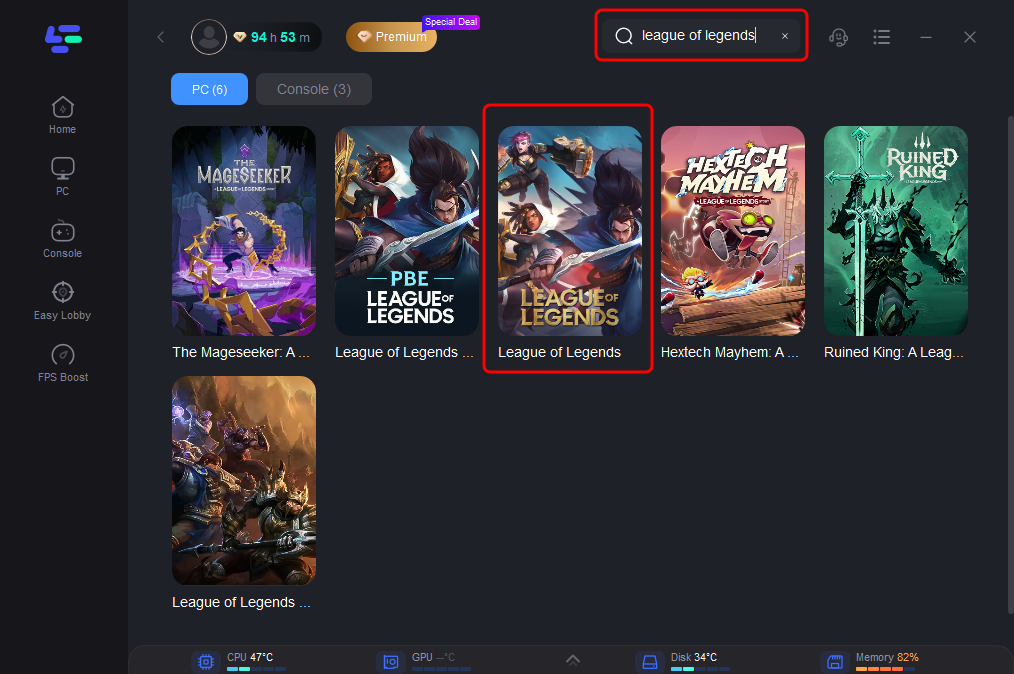
2. Search "League of Legends" and click boost
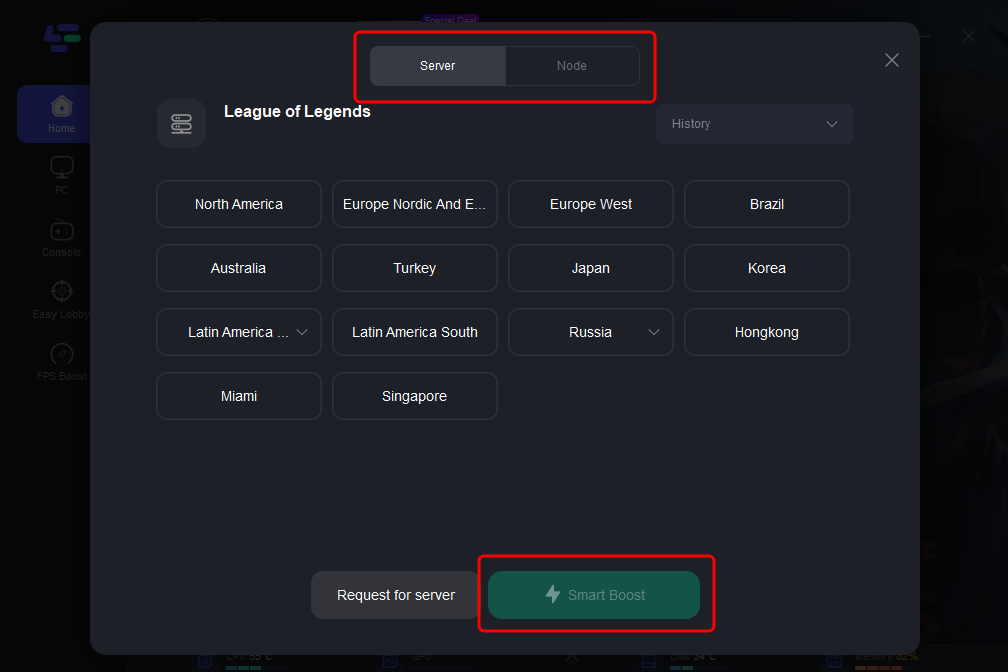
3. Choose the server and the node you want for league of legends
4. Click on the smart boost option to initiate the League of Legends boosting process. From there, you'll be able to monitor real-time ping and packet loss directly on the boosting page.
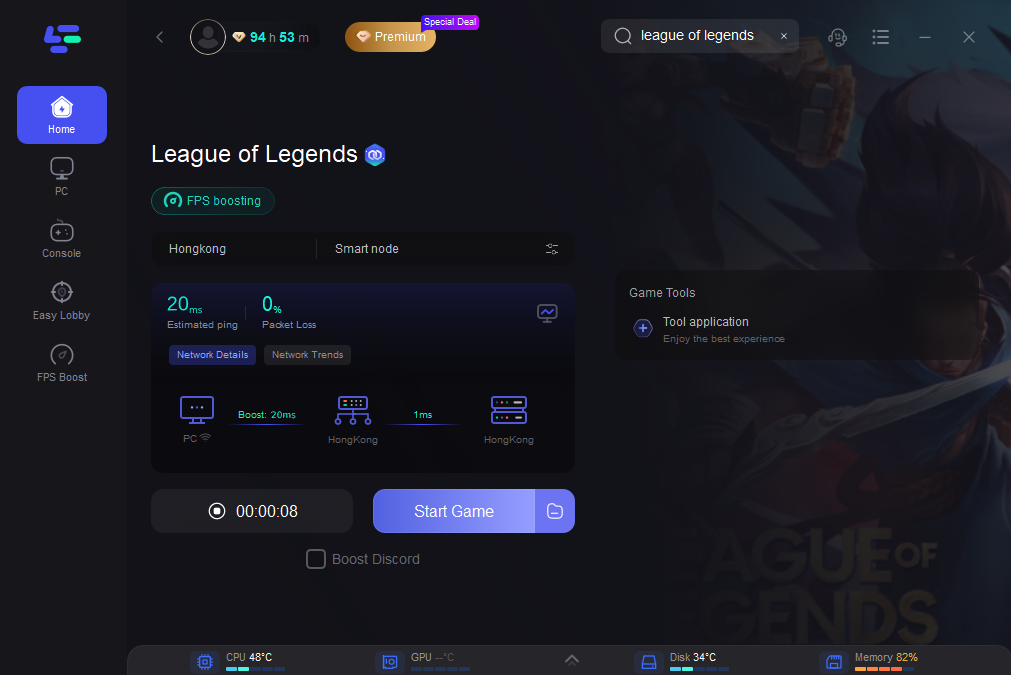
With LagoFast, League of Legends players will enjoy an uninterrupted, smooth gaming experience, fully optimized to provide the best possible performance.
Conclusion
You’re all set with the safest ways to download and install League of Legends. The only thing left? Pick your main, load into the Rift, and let the battles begin.

Boost Your Game with LagoFast for Epic Speed
Play harder, faster. LagoFast game booster eliminates stutter and lags on PC, mobile, or Mac—win every match!
Quickly Reduce Game Lag and Ping!
Boost FPS for Smoother Gameplay!