
In fast-paced FPS titles like Delta Force, audio cues can mean the difference between spotting your enemy first or getting eliminated. That’s where Delta Force Sonic Radar comes in. By visualizing in-game sounds, Sonic Radar helps players detect footsteps, gunfire, or vehicle movement with greater accuracy.
In this guide, we’ll explain What is Sonic Radar in Delta Force, how to enable it, the best Sonic Radar settings for Delta Force, and why using a tool like LagoFast Game Booster can make a huge difference. Finally, we’ll share some pro tips to help you maximize your advantage.

- ✅ Reduce Lag and High Ping.
- ✅ Boost FPS at the Same Time.
- ✅ Support 2000+ Online Games.
- ✅ Multiplatform: PC, Mobile, Console
- ✅ Change Server without Latency
Part 1. What is Sonic Radar in Delta Force
Part 2. How to Enable Sonic Radar for Delta Force
Part 3. Best Sonic Radar Tool – LagoFast
Part 4. Tips for Better Gameplay with Sonic Radar
Part 1. What is Sonic Radar in Delta Force
Sonic Radar is a software feature developed by ASUS, mainly for gaming laptops and desktops. It works by analyzing in-game audio and visually representing the direction of sounds on your screen. Here’s a clear breakdown:
Purpose
- It helps players detect the direction of important sounds, such as footsteps, gunfire, or explosions.
- This is especially useful in competitive first-person shooter (FPS) games.
How It Works
- The software captures game audio and processes it in real time.
- It then displays a small radar overlay on your screen showing the direction where the sound came from.
Key Components
- Sonic Radar Overlay: The on-screen radar that points to sound sources.
- Sound Filtering: Highlights certain types of sounds while ignoring background noise.
- Customization: Users can adjust size, transparency, and radar position.
Requirements
- Compatible ASUS ROG or TUF laptops/desktops.
- Installed Sonic Studio / Sonic Radar software.
- Works best with games that use surround sound or stereo audio.
In short, Sonic Radar is like a visual audio assistant for gaming that helps you “see” where sounds are coming from. So, What is Sonic Radar in Delta Force? Simply put, it’s an extra layer of awareness that turns sound into a visual radar, helping you respond faster in high-stress situations.
Part 2. How to Enable Sonic Radar for Delta Force
Setting up Sonic Radar doesn’t take long, but it’s important to do it correctly. Here’s how to enable it:
Check Compatibility
- Sonic Radar is only available on ASUS devices with the correct sound drivers.
- Make sure your laptop or motherboard comes with Sonic Studio / Sonic Radar software.
Install or Open the Software
- If it’s not installed, download it from the ASUS Support website by searching your device or motherboard model.
- After installation, there should be a Sonic Radar icon.
Enable Sonic Radar
- Open Sonic Radar and click Enable.
- You can adjust the radar’s screen position and transparency.
Use in Games
- Launch a game, and Sonic Radar will analyze sound sources and show a radar overlay indicating their direction.
That’s it—you’re ready to play with an added advantage.
Part 3. Best Sonic Radar Tool – LagoFast
Get Best Sonic Radar Settings for Delta Force in 1-click
While Sonic Radar itself is useful, optimizing its performance can be tricky. This is where LagoFast Game Booster helps. LagoFast not only gives you the best Sonic Radar settings for Delta Force in just one click but also ensures your overall gameplay runs smoothly.
Step 1: Click the Free Trial button and download LagoFast PC
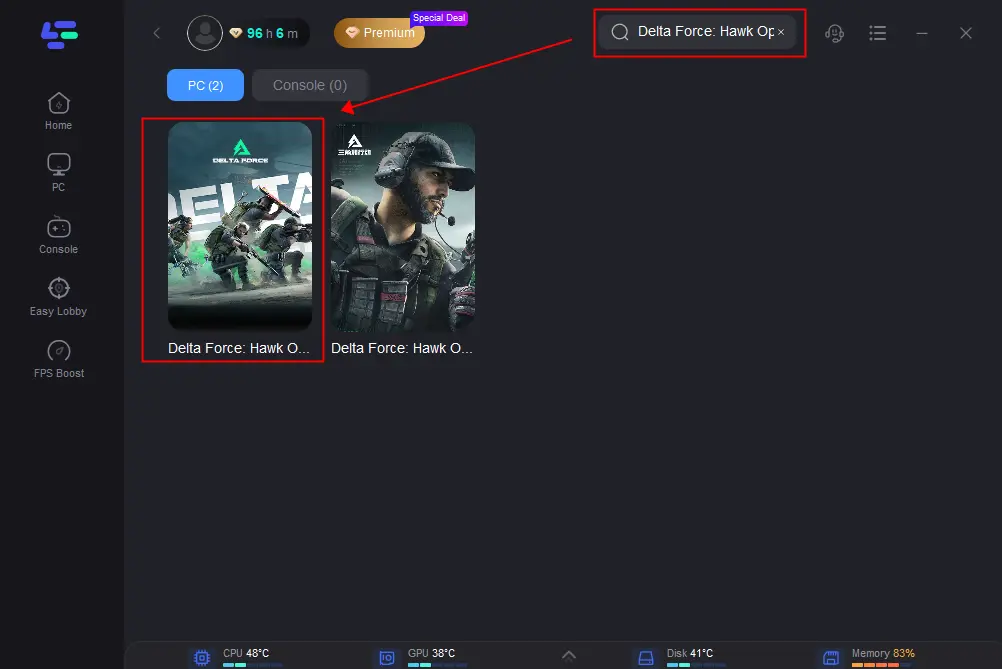
Step 2: Input “Delta Force” and click Boost
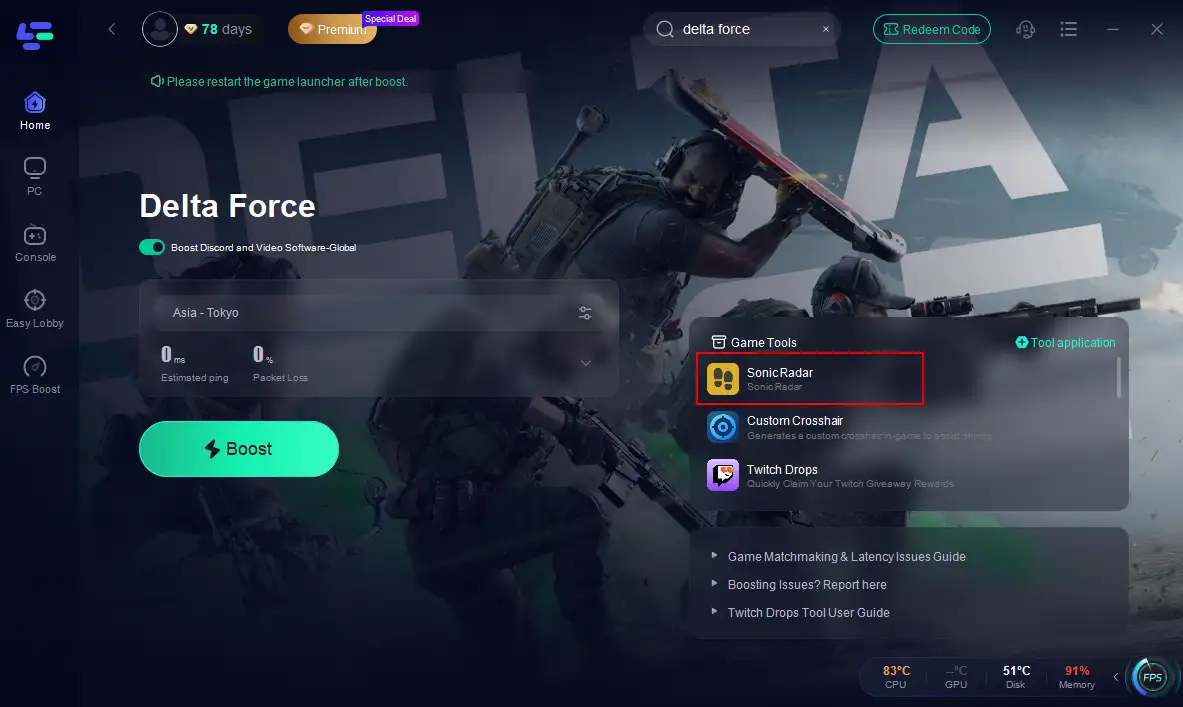
Step 3: Click the Sonic Radar tool on the right.
Step 4: Launch Sonic Radar
Open the Sonic Radar tool.
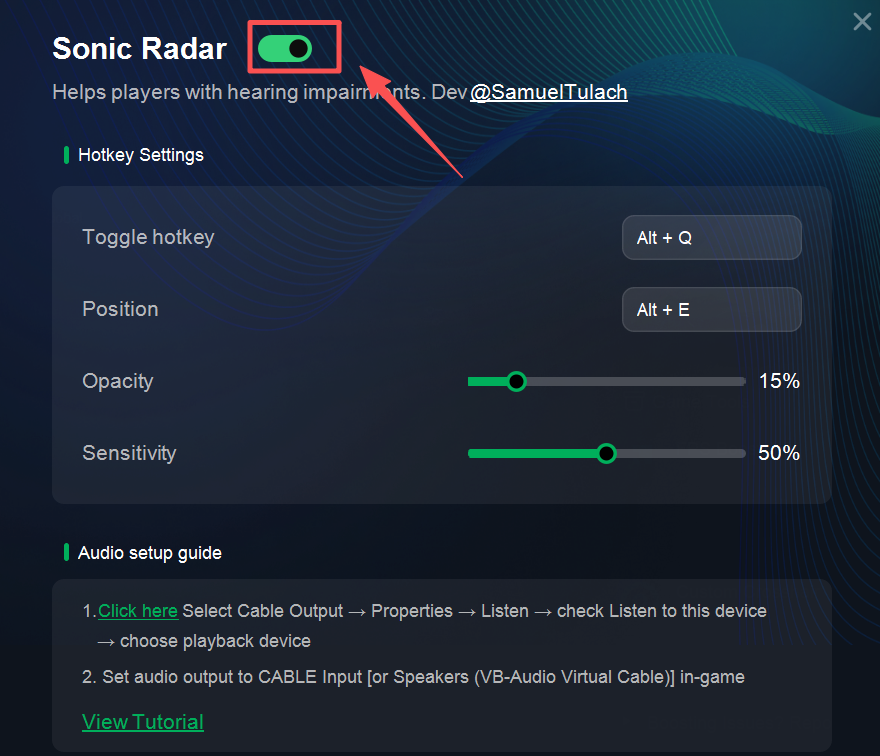
The tool will automatically install the required drivers.
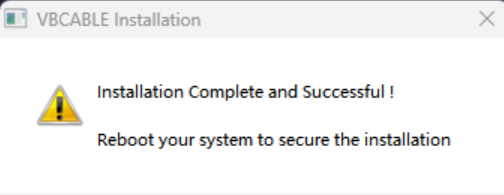
Step 5: Configure Sonic Radar
Once installation is complete, click the configuration area as shown in the tool.
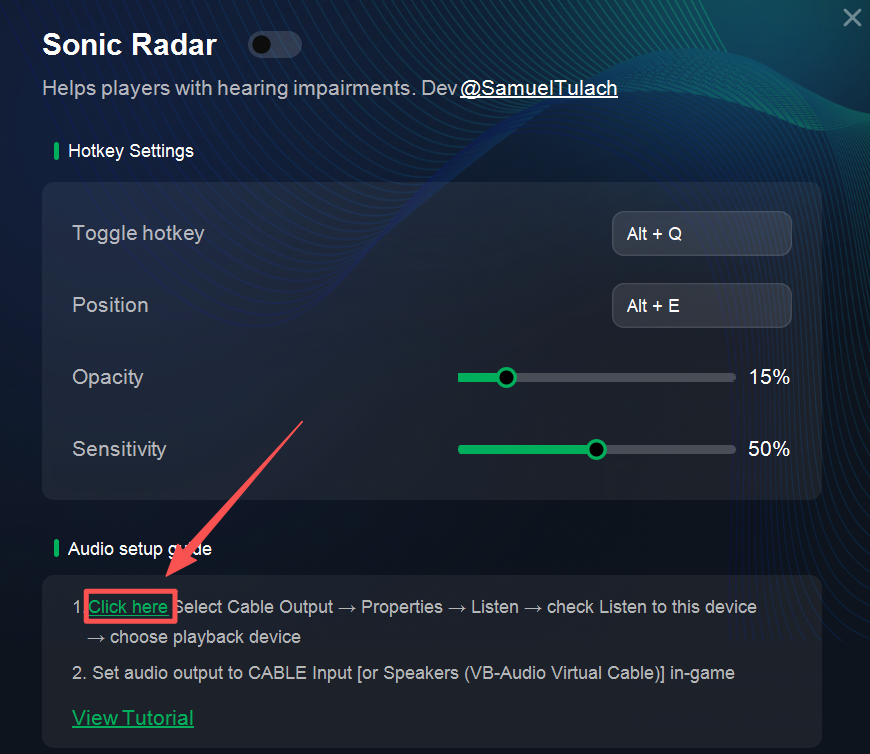
Navigate to:
Output Device → Recording → Cable Output → Properties → Listen → Check “Listen to this device.”
Under “Playback through this device”, make sure to select your active device (headphones or speakers).
Step 6: Adjust In-Game Audio Settings
Depending on the game, you may need different configurations:
Case 1: If the game shows audio output devices, select CABLE Input.
Case 2: For games like PUBG, make sure to enable HRTF in the sound settings.
Step 7: Troubleshooting No Audio Output
If there's no sound after setup, try these steps:
- Right-click the sound icon in the system tray → Sound Settings.
- Select CABLE Input (or CABLE In 16ch) → Configure.
- Change the audio channel from 7.1 Surround to 6.1 Surround.
This ensures Sonic Radar runs smoothly across most supported games, helping you improve spatial awareness with clearer directional sound.
Other Features of LagoFast
LagoFast is more than just a Sonic Radar booster:
- Multi-server routing ensures you always get the lowest ping connection.
- Auto-detection of game launch so you don’t waste time configuring.
- Cross-game support: Works with hundreds of popular online games besides Delta Force.
- Flexible subscription with pay-per-minute options so you only pay for what you use.
With LagoFast, you don’t just enable Sonic Radar—you unlock its full potential.
How to Use LagoFast to boost Delta Force:
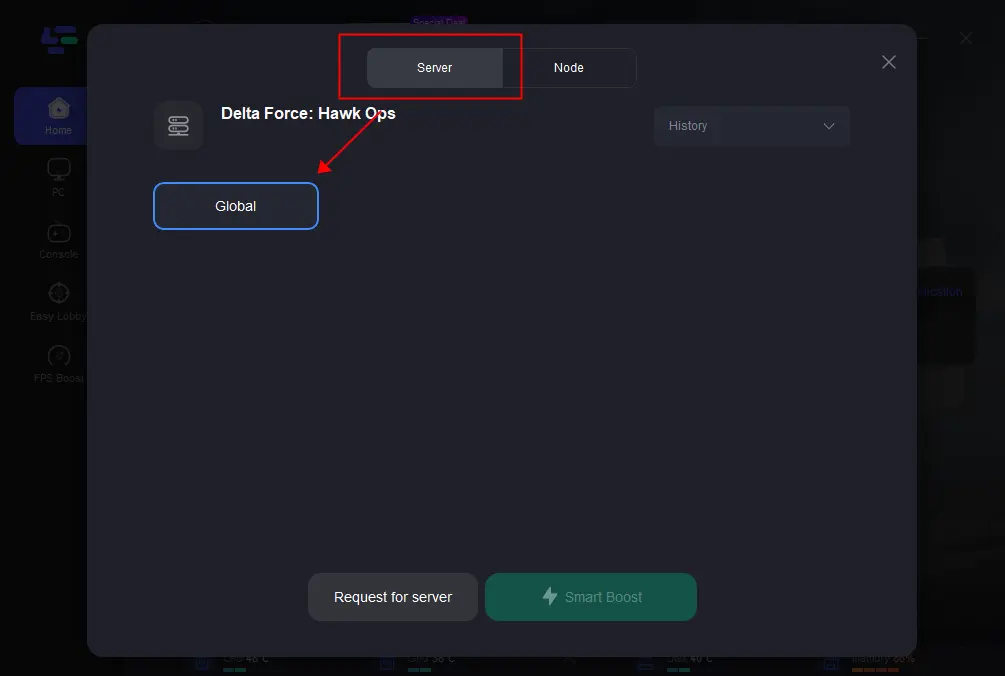
Step 1: Choose the server and connect with the low-ping route
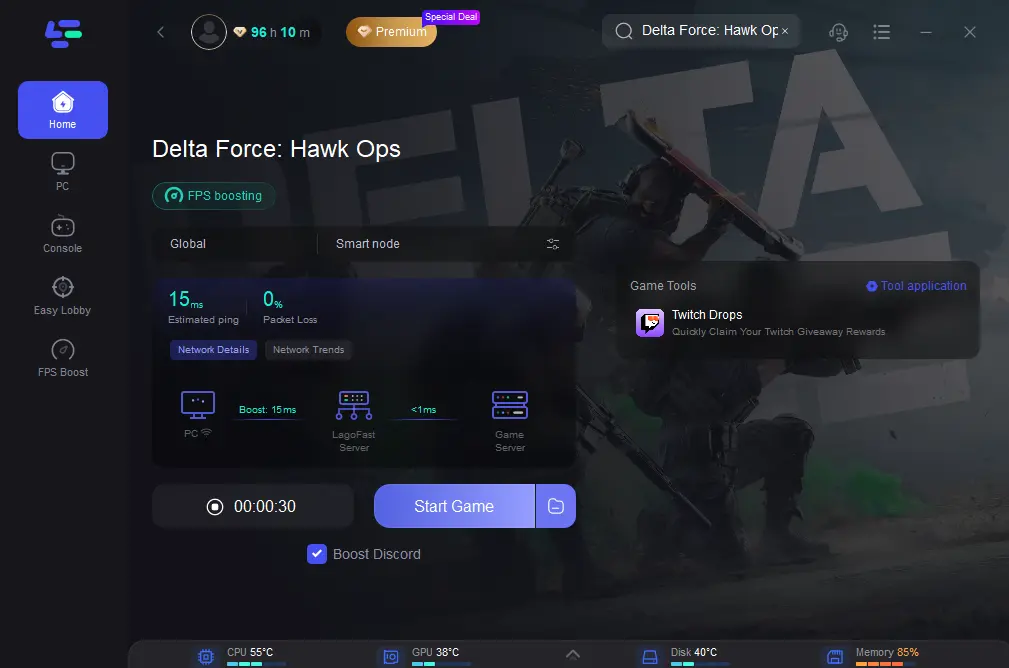
Step 2: Then click the Smart Boost button, and you can see the real-time ping rate and network status with 0 packet loss of the game.
Part 4. Tips for Better Gameplay with Sonic Radar
Now that you know how to set it up, let’s cover some tips for better gameplay with Sonic Radar in Delta Force:
- Don’t rely only on visuals: Sonic Radar is an assistant, not a replacement for listening carefully with headphones. Use both.
- Use high-quality audio gear: Even the best radar won’t help if your sound card or headset is weak. Invest in solid hardware.
- Practice map awareness: Knowing the map layout lets you combine radar cues with knowledge of choke points and popular routes.
- Adjust sensitivity: If you see too many false signals, lower the radar sensitivity in settings.
- Combine with team comms: Share what you detect with your squad for tactical advantage.
- Stay focused: Avoid putting the radar in the center of your screen. Place it near the corner so it helps but doesn’t distract.
Conclusion
In competitive FPS games like Delta Force, gaining every advantage counts. Delta Force Sonic Radar helps you translate sound into visuals, giving you faster reactions and better tactical decisions.
We’ve covered What is Sonic Radar in Delta Force, How to Enable Sonic Radar for Delta Force, the Best Sonic Radar Settings for Delta Force with LagoFast, and practical Tips for Better Gameplay with Sonic Radar.
If you want to maximize your setup, LagoFast is the best tool to fine-tune Sonic Radar while also boosting FPS and lowering ping. With the right setup and practice, Sonic Radar can help you stay one step ahead of your enemies every match.
Boost Your Game with LagoFast for Epic Speed
Play harder, faster. LagoFast game booster eliminates stutter and lags on PC, mobile, or Mac—win every match!
Quickly Reduce Game Lag and Ping!
Boost FPS for Smoother Gameplay!