
Quick Answer: Restart Steam and Windows, verify Dead by Daylight’s files, and run the Denuvo installer from the game folder with administrator permission. If Easy Anti-Cheat reports a security violation, close overlays and monitoring tools before repairing EAC. Do not delete driver files manually. If the entire PC freezes, stop repeated launches and check Windows reliability reports.
The first Steam launch can request Denuvo Anti-Cheat installation. Some players have reported launch failures, unusual memory use, frame-rate drops, full-system freezes, or EAC warnings. These reports do not mean every installation is affected.

- ✅ Reduce Lag and High Ping.
- ✅ Boost FPS at the Same Time.
- ✅ Support 8000+ Popular Online Games.
- ✅ Stable Connection
Part 1: Why Is Dead by Daylight Using Denuvo Anti-Cheat?
Part 2: What Problems Can Denuvo Anti-Cheat Cause?
Part 3: How to Fix Dead by Daylight Denuvo Anti-Cheat Not Working
Part 4: How to Fix DBD Denuvo Anti-Cheat Installation and EAC Conflicts with LagoFast Game Booster
Part 5: How to Uninstall or Reinstall Denuvo Anti-Cheat
Part 6: Dead by Daylight Denuvo Anti-Cheat FAQ
Part 1: Why Is Dead by Daylight Using Denuvo Anti-Cheat?
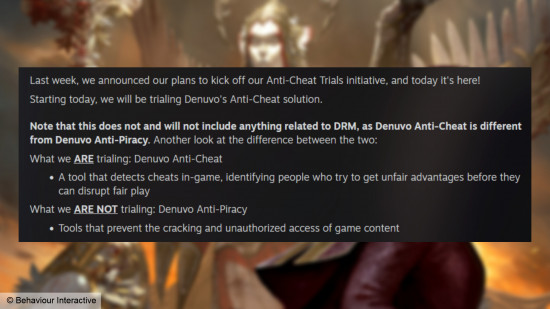
Behaviour Interactive introduced Anti-Cheat Trials to evaluate protection systems on the Steam version while collecting player feedback.
DBD Denuvo Anti-Cheat trial explained
During the trial, the first launch through Steam may display a Windows User Account Control prompt and install Denuvo Anti-Cheat. Installation is required to play while the test is active.
Denuvo Anti-Cheat versus Denuvo DRM
Denuvo Anti-Cheat is designed to detect prohibited software or tampering during gameplay. Denuvo DRM is a digital-rights-management system used by some games to validate ownership. They are not the same product, and the Dead by Daylight trial concerns anti-cheat rather than copy protection.
Part 2: What Problems Can Denuvo Anti-Cheat Cause?
These symptoms can also come from Windows, GPU drivers, Steam, or EAC. Note the failure point before changing several settings.
|
Symptom |
Likely area to check first |
Safer first action |
|
The game closes before the splash screen |
Denuvo installation or corrupted files |
Verify files and run the installer manually |
|
EAC shows “Game Security Violation Detected” |
Conflicting background software |
Close overlays, debuggers, injectors, and monitoring tools |
|
RAM usage rises sharply |
Steam, DBD, or anti-cheat interaction |
Record the process using memory in Task Manager |
|
The frame rate drops after installation |
Driver, overlay, or service conflict |
Disable overlays and update trusted drivers |
|
Windows becomes completely unresponsive |
Low-level driver or system conflict |
Stop testing, reboot, and review Reliability Monitor |
Dead by Daylight won’t launch after the anti-cheat update
A failed first installation can leave Steam unable to complete its security checks. Pending restarts, blocked administrator approval, damaged files, and a stale EAC service are also possible. Do not reinstall first.
Easy Anti-Cheat and Denuvo conflicts
DBD may use more than one protection layer during the trial. A new driver, overlay, or service can change how EAC evaluates the game. Close RGB utilities, hardware monitors, macro software, injectors, debuggers, and aggressive overlays for one test.
Part 3: How to Fix Dead by Daylight Denuvo Anti-Cheat Not Working
Use this order, starting with reversible actions before reinstalling components.
Restart Steam and Windows
Exit DBD and Steam completely, including the notification-area icon. Restart Windows, let Steam finish downloads, and launch once with administrator approval enabled.
Verify Dead by Daylight game files
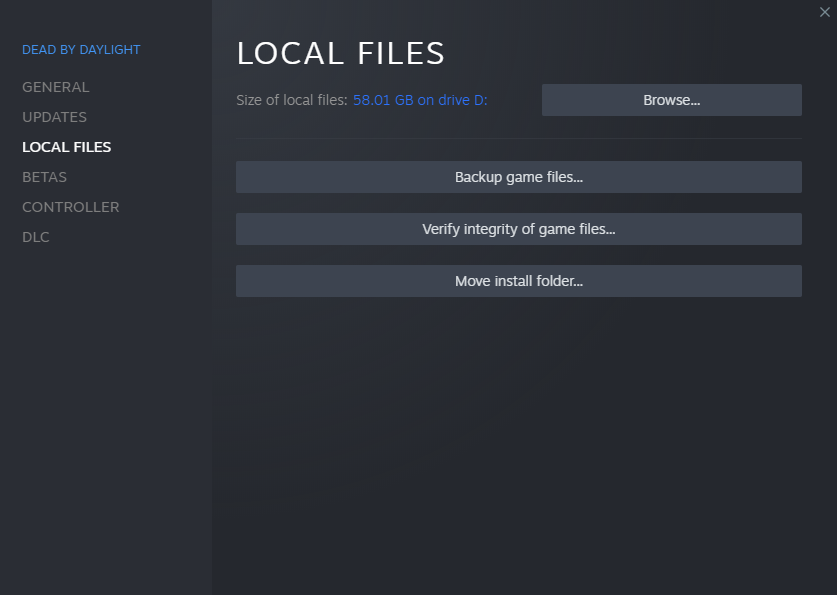
In Steam, right-click DBD, open Properties > Installed Files, and choose Verify integrity of game files. Let Steam replace damaged files, then restart it. This helps when the Denuvo folder is missing after a patch.
Manually install Denuvo Anti-Cheat
Use Steam > Manage > Browse local files, open Denuvo, and run AntiCheatInstaller.exe. Approve the administrator prompt, select Install, accept the terms, and wait for the success message before launching DBD.
Repair EAC and remove software conflicts
Close overlays and background utilities. Do not run Cheat Engine, injectors, debuggers, or unsigned modification tools with DBD. If EAC still reports a violation, use the supplied EAC setup utility and choose Repair, then restart Windows.
Update trusted system components
Install pending Windows updates and update the GPU driver from NVIDIA, AMD, or Intel. Use manufacturer utilities only; avoid driver-cleaner scripts and random fix downloads. After a full PC freeze, check Reliability Monitor before launching again.
Part 4: How to Fix DBD Denuvo Anti-Cheat Installation and EAC Conflicts with LagoFast Game Booster
LagoFast Game Booster is relevant after DBD launches and the remaining problem is network instability or high latency. It cannot install Denuvo, repair EAC, or fix a system freeze.
Step-by-step tutorial for stabilizing DBD network performance
Step 1. Click the Free Trial button to download and install LagoFast Free Trial.
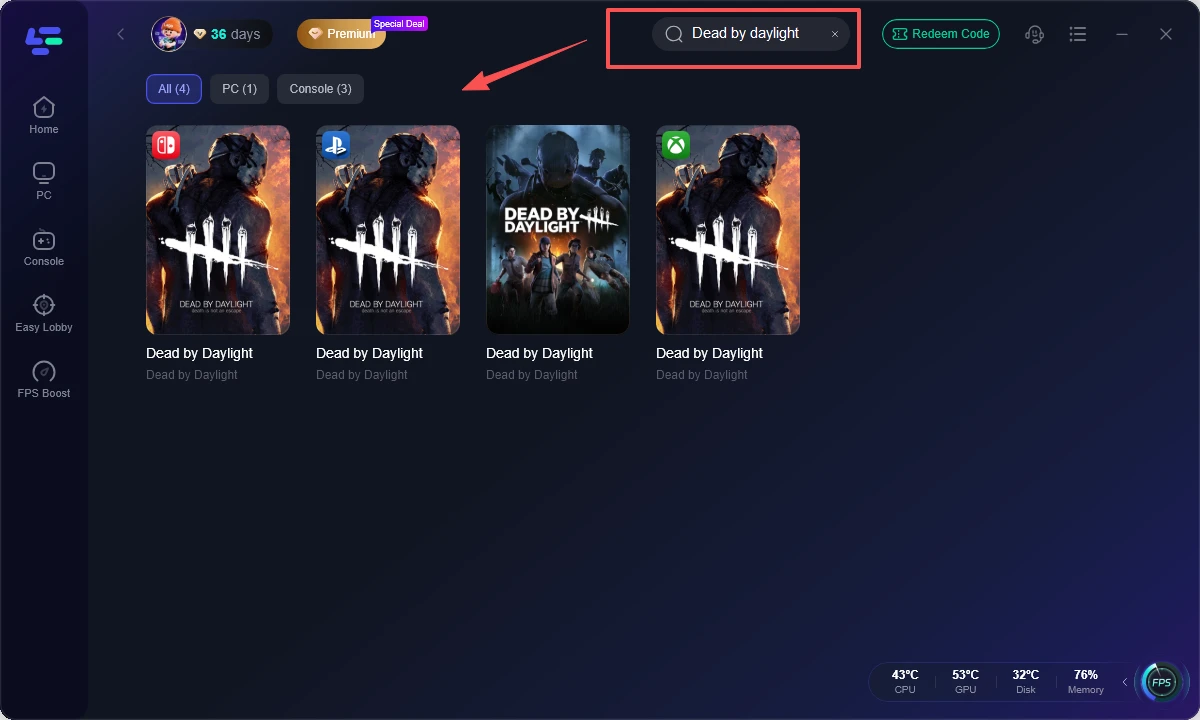
Step 2. Search for Dead by Daylight in the game list. Select the correct DBD profile so the optimization applies to the game session rather than a different title.
Step 3. Select a nearby route and compare latency. Choose the region closest to your normal game server or matchmaking location. Prefer a stable route with consistent ping over a single unusually low reading.
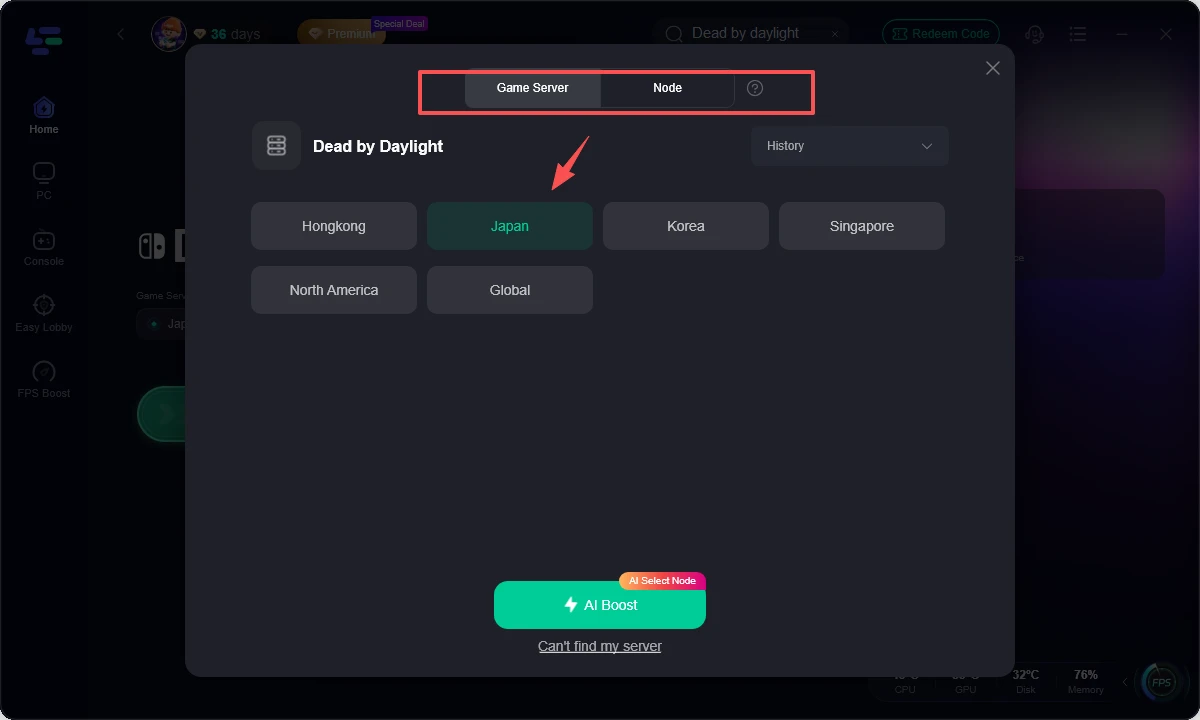
Step 4. Start AI Boost and pause competing traffic. Activate AI Boost, then pause cloud backups, downloads, video uploads, and unnecessary overlays. This can reduce packet loss and network congestion during matchmaking.
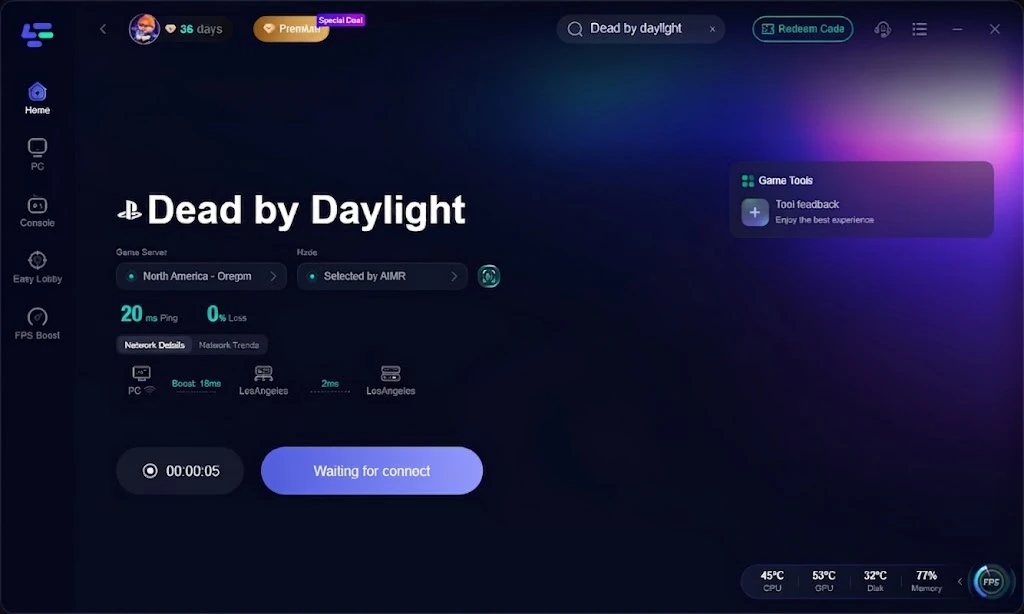
Step 5. Launch DBD and test one match. Start the game through the optimized session and test the main menu, lobby, and one match. If the game still fails before launch, return to the Denuvo, EAC, Steam, and Windows steps instead of changing network routes repeatedly.
Part 5: How to Uninstall or Reinstall Denuvo Anti-Cheat
The trial is expected to disable Denuvo Anti-Cheat and clean up its game-directory files after testing. Do not uninstall it while another game may depend on the component.
Remove Denuvo Anti-Cheat from Windows
Open the Windows Start menu and search for Add or remove programs. Find Denuvo Anti-Cheat, open its menu, select Uninstall, and approve the User Account Control prompts. Removing the component may affect other games that use Denuvo Anti-Cheat, so check those games first.
Reinstall Denuvo if DBD will not launch
If the component appears damaged, verify DBD files, then rerun Denuvo\AntiCheatInstaller.exe as administrator. If the folder is absent, consider reinstalling only after these lower-risk repairs.
Part 6: Dead by Daylight Denuvo Anti-Cheat FAQ
Is Denuvo Anti-Cheat the same as Denuvo DRM?
No. Anti-Cheat monitors prohibited tampering during play; DRM handles ownership and licensing. This trial concerns anti-cheat.
Why does Dead by Daylight ask to install Denuvo on first launch?
The Steam trial requires the component before the game can run. Windows may show an administrator prompt.
How do I fix DBD game security violation detected errors?
Close overlays, macro tools, debuggers, injectors, hardware monitors, and other software that can interact with a running game. Repair EAC, restart Windows, and test with a clean background environment.
Can high RAM usage be caused by Denuvo Anti-Cheat?
Some players have reported unusual memory use, but Steam, DBD, drivers, or another process may also be responsible. Check Task Manager first.
What should I do if Denuvo freezes my entire PC?
Stop repeated launches. Restart Windows, update trusted drivers, and inspect Reliability Monitor or Event Viewer. A full freeze needs system-level diagnosis, not repeated reinstalls.
Should I delete Denuvo files manually?
No. Use the official installer or Windows uninstall process. Deleting individual files can leave services or registry entries in an inconsistent state and may affect another game.
Conclusion
The trial changes DBD’s first-launch flow on Steam, but launch and performance faults can have different causes. Verify files, install Denuvo through its official installer, repair EAC, close conflicts, and stop testing if Windows freezes. Once DBD launches, use LagoFast Game Booster to test a more stable matchmaking route.

Boost Your Game with LagoFast for Epic Speed
Play harder, faster. LagoFast game booster eliminates stutter and lags on PC, mobile, or Mac—win every match!
Quickly Reduce Game Lag and Ping!
Boost FPS for Smoother Gameplay!