

If you’re trying to queue for a match but suddenly see the message “Steam validation rejected,” you’re not alone. Many players encounter the Counter-Strike 2 – Steam Validation Rejected error when launching the game or joining servers.
The issue usually happens when Steam fails to verify your game session or files properly. It doesn’t mean your account is banned, but it does prevent you from accessing official servers until the problem is fixed. Verification problems often occur due to corrupted game files, outdated Steam sessions, or conflicts with third-party software.
In this guide, we’ll explain why it says Steam validation rejected, what causes the problem, and the most reliable cs2 steam validation rejected fix methods you can try right now.

- ✅ Reduce Lag and High Ping.
- ✅ Boost FPS at the Same Time.
- ✅ Add CS2 to Steam Library.
- ✅ Change Server Without Latency.
- ✅ End All Connection crash Issues.
- ✅ Multiplatform: PC, Mobile, Console.
Part 1: Understanding Similar CS2 Errors Players Often Confuse
Part 2: Why Does the Steam Validation Rejected Error Happen in CS2?
Part 3: Best CS2 Steam Validation Rejected Fix Methods
Part 4: Fix CS2 Stuck on Validating or Validation Loop
Part 1: Understanding Similar CS2 Errors Players Often Confuse
Before we dive into the steam validation rejected cs2 problem, it helps to look at two other issues that players often confuse with it.
These errors appear at similar moments—usually when launching Counter-Strike 2 or joining a server—so many players assume they are the same problem. In reality, they come from different parts of the connection process.
Let’s first look at these two commonly confused errors.
Steam rejected your connection to server (CS2 offline)
This message usually appears when the Steam client fails to connect to the Steam network properly. When this happens, CS2 cannot confirm your online status, so the game may appear to be offline.
Common causes include:
- Temporary Steam server outages
- Internet connection problems
- Firewall or router restrictions
- Steam client login issues
In this situation, the problem is related to Steam network connectivity, not the game server itself.
CS2 unable to establish a connection with the game server
This error is related to the game server connection rather than Steam authentication.
It means the CS2 client cannot establish a network connection with the server you’re trying to join. This can happen due to:
- Server outages or server overload
- Network routing problems
- Firewall restrictions
- Packet loss or unstable internet connections
This message usually appears while attempting to connect to a server, before gameplay begins.
Now that we’ve clarified the difference between these two issues, we can move on to the main topic of this guide: the Counter-Strike 2 – Steam Validation Rejected error.
Unlike the previous errors, this one happens when the server cannot verify your Steam account authentication. In the next section, we’ll look at why this happens and what causes the cs2 steam validation rejected issue.
Part 2: Why Does the Steam Validation Rejected Error Happen in CS2?
When CS2 launches or connects to a server, Steam and Valve Anti-Cheat verify your game files and session to ensure everything is legitimate. If the verification process fails, the system blocks matchmaking or server access.
Common reasons include:
Corrupted or missing game files
If certain files are damaged or modified, Steam cannot validate them properly. This is one of the most common causes of cs2 steam validation rejected.
Steam client session problems
Sometimes the authentication token between Steam and the game becomes outdated, causing validation to fail.
Conflicting background software
Programs such as overlays, recording tools, controller remappers, or VPNs can interfere with the anti-cheat verification process.
Network or connection issues
If Steam cannot properly communicate with its servers during launch, the verification handshake may fail.
Launch options or outdated game versions
Incorrect launch parameters or outdated builds can also trigger the Counter-Strike 2 – Steam Validation Rejected error.
Understanding these causes helps determine the most effective fix.
Part 3: Best CS2 Steam Validation Rejected Fix Methods
If you’re wondering how to bypass Steam validation rejected CS2 errors, the safest approach is to fix the underlying verification issue. Try the following solutions in order.
Best Solution - Add CS2 to Steam Library with LagoFast Game Booster to Fix the Issue
If you’re looking for a quick CS2 Steam validation rejected fix, one method that has helped many players is making sure Counter-Strike 2 is correctly registered in your Steam library.
Sometimes the Counter-Strike 2 - Steam Validation Rejected error appears because Steam fails to properly recognize the game installation or authentication session. This can happen after updates, manual installs, or when the game path changes.
A simple way to repair this is by using LagoFast Game Booster to re-register CS2 with Steam without modifying any game files.
Here’s a step‑by‑step method using LagoFast tool to add CS2 to Steam:
Step 1: Install LagoFast Game Booster and open the program.
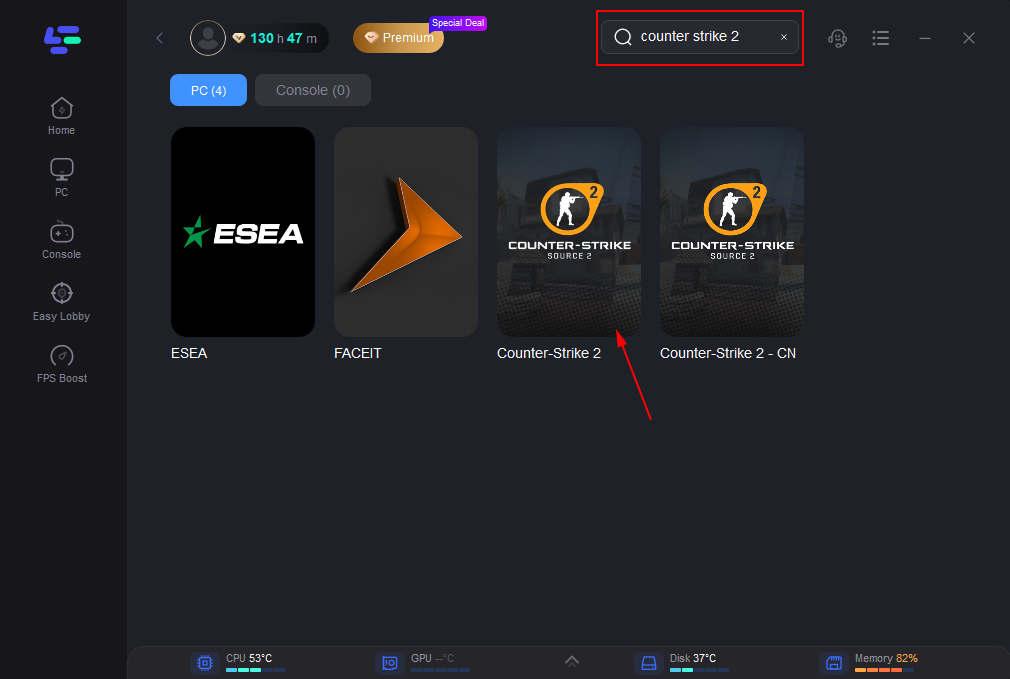
Step 2: Use the search bar in LagoFast to find Counter-Strike 2.
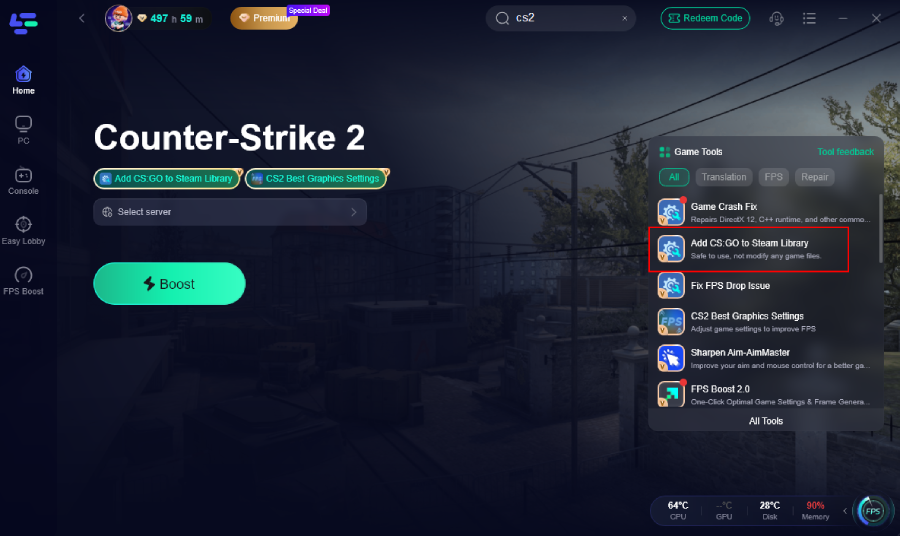
Step 3: Click “Add CS2 to Steam Library.” The tool will automatically register the game with your Steam client.
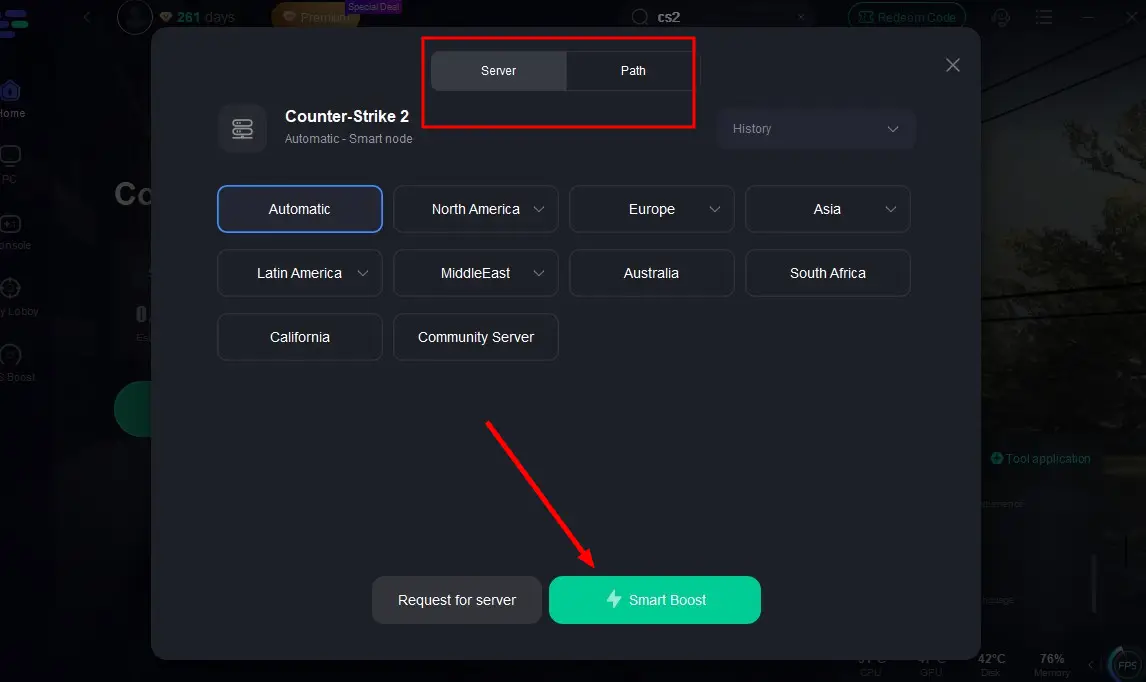
Step 4: Choose a stable server from LagoFast's server list, and click "Smart Boost" button to activate real-time optimization.
Step 5: Check the real-time game data and click the Start Game to play CS2 without any lag!
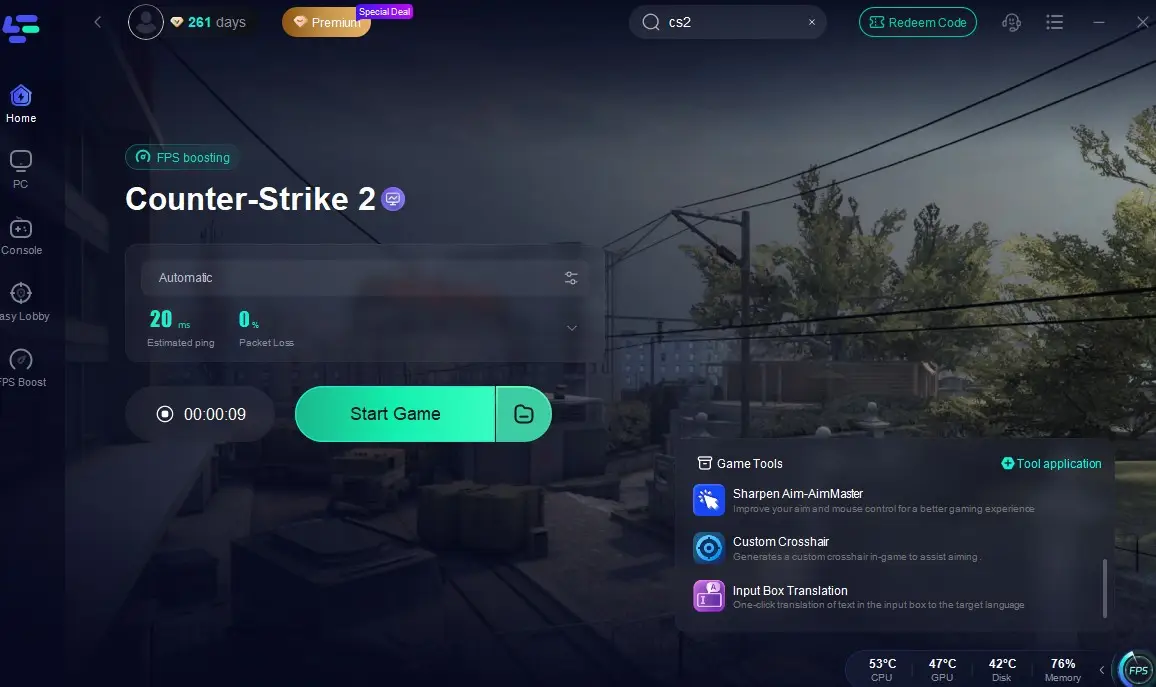
Step 6: Restart Steam, launch CS2 again, and try connecting to a server.
This process restores proper Steam authentication and can resolve the CS2 Steam validation rejected issue, especially if Steam failed to recognize the game installation correctly.
Restart Steam Completely
A full restart often resolves temporary session problems.
Steps:
- Close CS2
- Exit Steam completely (including the system tray)
- Relaunch Steam
- Start the game again
Restarting refreshes Steam’s authentication token and reconnects the client to Steam services.
Verify the Integrity of Game Files
If the issue continues, verifying files is often the most effective cs2 steam validation rejected fix.
Steps:
- Open the Steam Library
- Right-click Counter-Strike 2
- Select Properties
- Go to Installed Files
- Click Verify integrity of game files
Steam will scan your installation and automatically replace corrupted or missing files.
Clear Steam Download Cache
Sometimes Steam’s cached data becomes corrupted and triggers validation errors.
Steps:
- Open Steam settings
- Go to Downloads
- Click Clear Download Cache
- Restart Steam
This removes temporary files that may cause validation loops or update issues.
Remove Launch Options
Outdated launch commands may conflict with newer CS2 versions.
Steps:
- Open Steam Library
- Right-click Counter-Strike 2 → Properties
- Find the Launch Options field
- Remove any existing commands
If the error disappears afterward, the launch options were likely causing the problem.
Disable Background Software
Certain applications can interfere with Steam authentication.
Try temporarily disabling:
- Discord overlay
- RGB control software
- MSI Afterburner or RivaTuner
- VPN applications
- Screen recording software
Some background programs hook into game processes and may interrupt the validation process.
Part 4: Fix CS2 Stuck on Validating or Validation Loop
Another situation players encounter is when CS2 repeatedly validates game files or becomes stuck during the verification process.
If you’re searching how to fix CS2 stuck on validating or how to fix Steam validation loop cs2, these steps may help.
Log Out and Log Back Into Steam
Signing out of Steam and logging back in refreshes your account authentication session.
Update Drivers and System Files
Outdated drivers or corrupted system files can interfere with game verification. Running a system scan such as sfc /scannow can repair damaged Windows components.
Reinstall Counter-Strike 2
If none of the previous methods work, a clean reinstall may be necessary.
Steps:
- Uninstall Counter-Strike 2 from Steam
- Delete any remaining game folders
- Restart your PC
- Reinstall the game
This ensures all game files are fresh and correctly installed.
Conclusion
The Steam validation rejected error in CS2 can be frustrating, especially when it prevents you from joining matches. Fortunately, the problem is usually related to Steam authentication or corrupted game files rather than anything serious.
If you encounter the cs2 steam validation rejected error, try these fixes:
-
Restart Steam
-
Verify CS2 game files
-
Clear the Steam download cache
-
Remove launch options
-
Disable background software
-
Reinstall the game if necessary
In most cases, one of these solutions will resolve the issue and allow you to return to matchmaking without seeing the Counter-Strike 2 – Steam Validation Rejected error again.
Boost Your Game with LagoFast for Epic Speed
Play harder, faster. LagoFast game booster eliminates stutter and lags on PC, mobile, or Mac—win every match!
Quickly Reduce Game Lag and Ping!
Boost FPS for Smoother Gameplay!