
As one of the most visually ambitious open-world titles of 2026, Crimson Desert pushes the boundaries of the proprietary BlackSpace Engine. However, with cutting-edge Ray Tracing and dense environmental physics comes a heavy toll on hardware. Many players are already reporting Crimson Desert low FPS and frustrating Crimson Desert stutters that break the immersion of Kliff’s journey through Pywel. If you are looking for a Crimson Desert fps boost to achieve a stable Crimson Desert 4K/60 FPS experience, this guide covers everything from technical workarounds to the ultimate one-click solution.

- ✅ Reduce Lag and High Ping.
✅ Boost FPS at the Same Time.
✅ Support 2000+ Popular Online Games.
✅ Change Server without Latency.
✅ Boost Game Loading Speed.
Part 1: Why is Crimson Desert Low FPS?
Part 2: How to Fix Crimson Desert Low FPS—100% Work
Part 1: Why is Crimson Desert Low FPS?
There are several technical hurdles causing Crimson Desert low FPS on even modern gaming rigs. Primarily, the game features a sophisticated internal frame rate management system that often defaults to a cinematic cap, making the gameplay feel sluggish. Furthermore, the immense draw distances and real-time weather cycles in the BlackSpace Engine demand significant VRAM and CPU cycles.
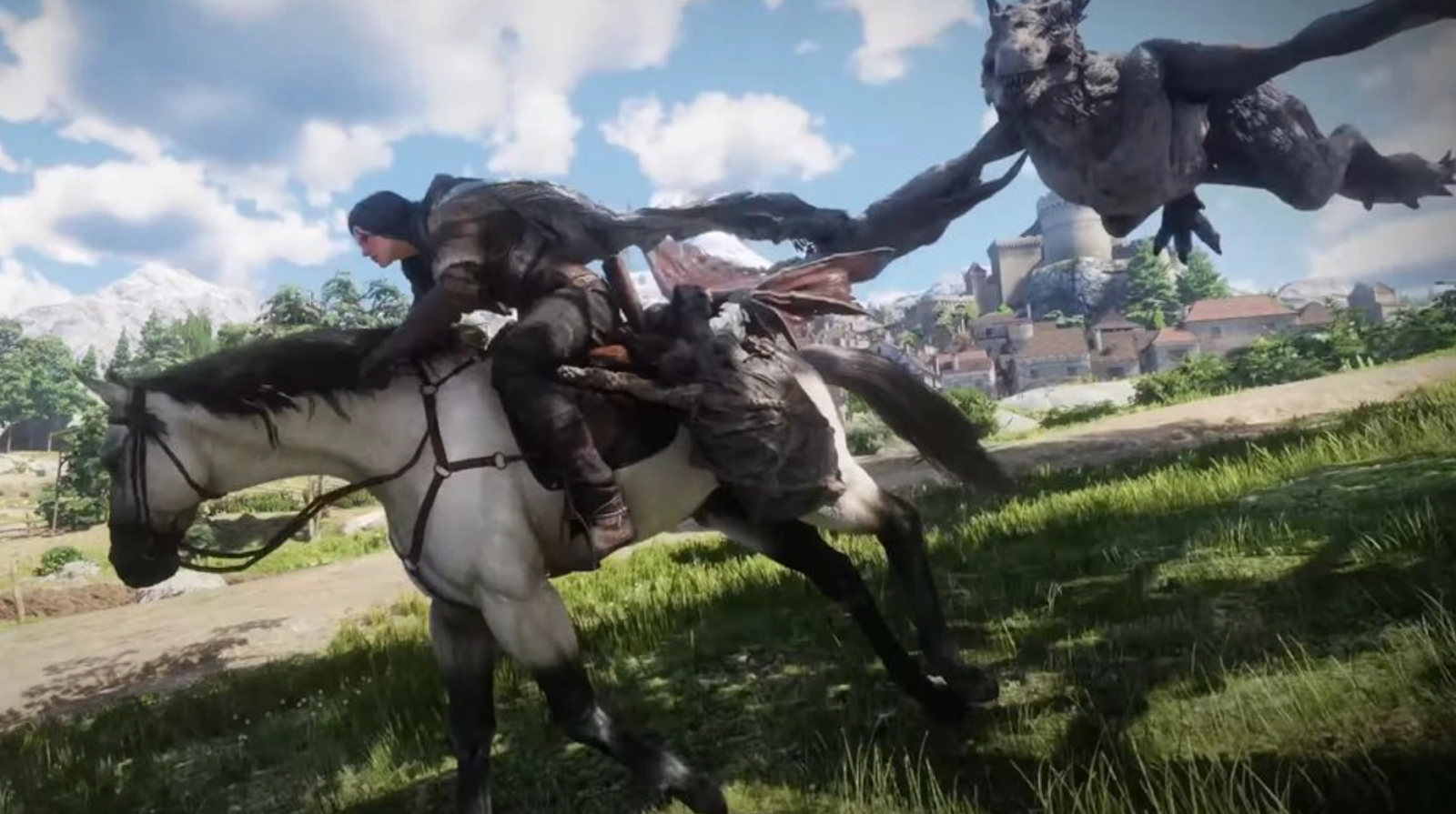
Common causes for Crimson Desert fps drops include:
- Engine Bottlenecks: The high-fidelity physics simulation for wind and foliage is extremely CPU-intensive.
- VRAM Overload: High-resolution textures in 4K can easily exceed 12GB of VRAM, leading to sudden Crimson Desert stutters.
- Outdated Drivers: Using older GPU firmware that isn't optimized for the game's specific Ray Tracing Global Illumination (RTGI).
- Background Processes: Resource-heavy applications competing for memory.
Part 2: How to Fix Crimson Desert Low FPS? - 100% Work
Solution 1: Use The Best Game FPS Booster LagoFast
To truly enjoy the visceral combat and sweeping landscapes of Pywel, you need a stable frame rate. While manual tweaks can help, the most effective way to eliminate Crimson Desert fps drops and lag is by using a dedicated optimization tool.
LagoFast stands out as the premier game FPS booster for Crimson Desert. Designed to handle the demands of large-scale open-world action games, it helps optimize system performance and network stability for a smoother overall experience. LagoFast provides a comprehensive suite of tools:
- Performance Optimization: Improves overall system efficiency to help maintain stable frame rates, especially during large-scale combat and high-intensity scenes.
- Stability Enhancement: Reduces crashes and unexpected interruptions by optimizing background processes and resource allocation.
- Real-Time Optimization: Automatically allocates system resources to prioritize the game, fixing frame drops and lag.
- Network Smoothing: Reduces ping and jitter, ensuring that the game's dynamic world updates seamlessly.
Tutorial to Use LagoFast to Fix Crimson Desert Low FPS:
Step 1: Click the Free Trial button to download and install LagoFast.
Step 2: Open LagoFast, then click the PC button on the left and search for Crimson Desert in the search bar and click it after it appears.
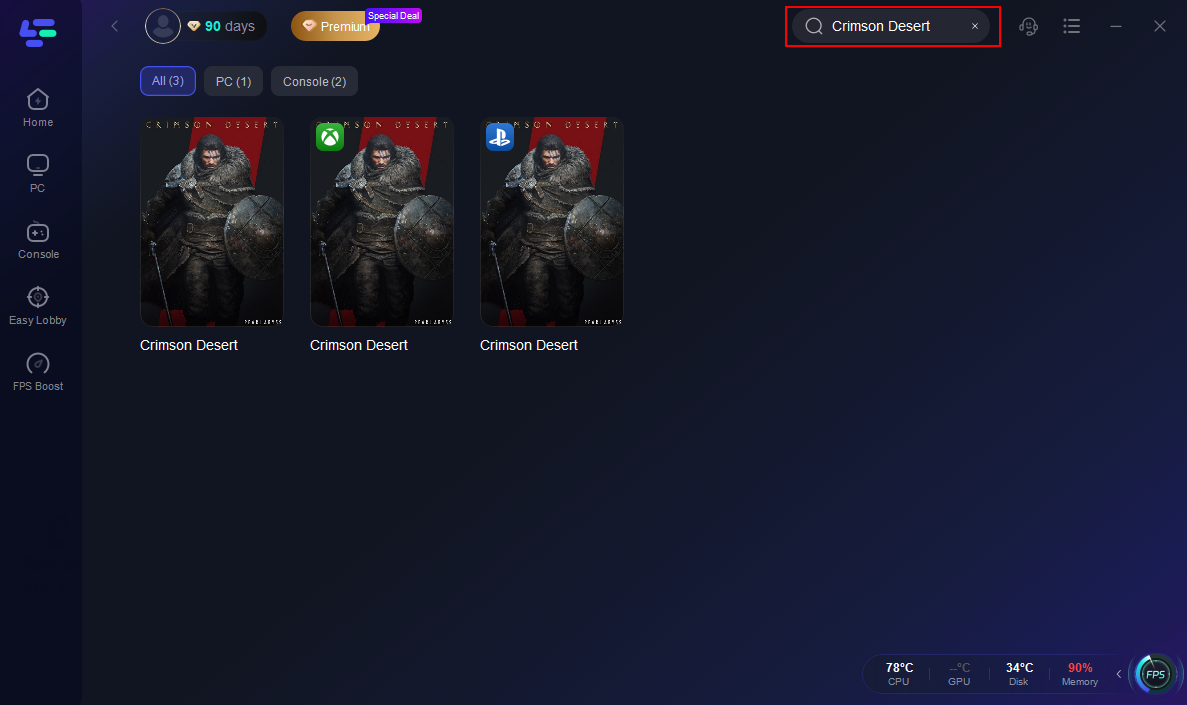
Step 3: Click on “Server” to change to a better server that ensures a better gaming experience, then click on “Smart Boost” to ensure smooth gaming.

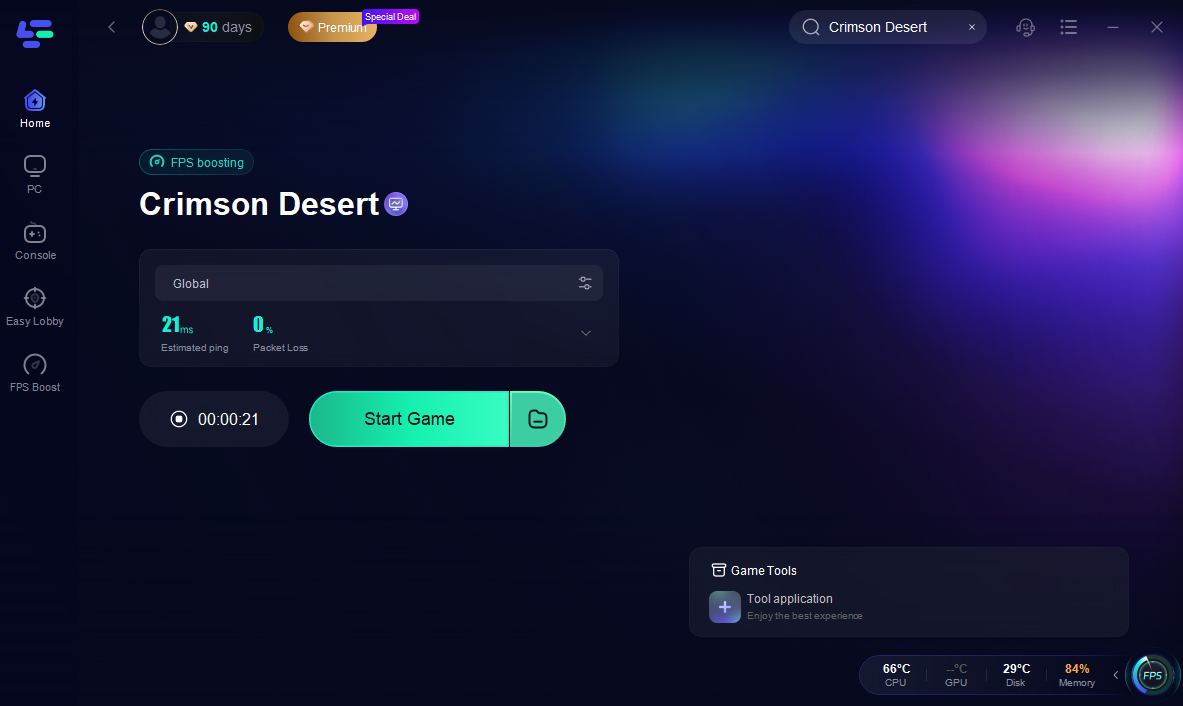
Step 4: Check the specific game ping, packet loss, and multiple path connections on the right side. Finally, click the “Start Game” to play the game.
While LagoFast offers a streamlined, automated experience, you can also attempt these manual methods. Note that these steps require significantly more time and often provide less consistent results compared to the LagoFast one-click optimization.
Solution 2: Adjust In-Game Graphic Settings
Lowering specific heavy-hitting settings can provide a moderate Crimson Desert fps boost.
Step 1. Navigate to the in-game Settings and select the Graphics menu.
Step 2. Change "Shadow Quality" and "Volumetric Fog" from High to Medium.
Step 3. Turn off "Ray Traced Global Illumination" if your GPU is struggling.
Step 4. Enable DLSS 4.5 or FSR 4 "Redstone" and set it to "Performance" mode.
Step 5. Apply changes and restart the game.
Solution 3: Enable High-Performance Power Plan
Windows often limits hardware power to save energy, which causes Crimson Desert low FPS.
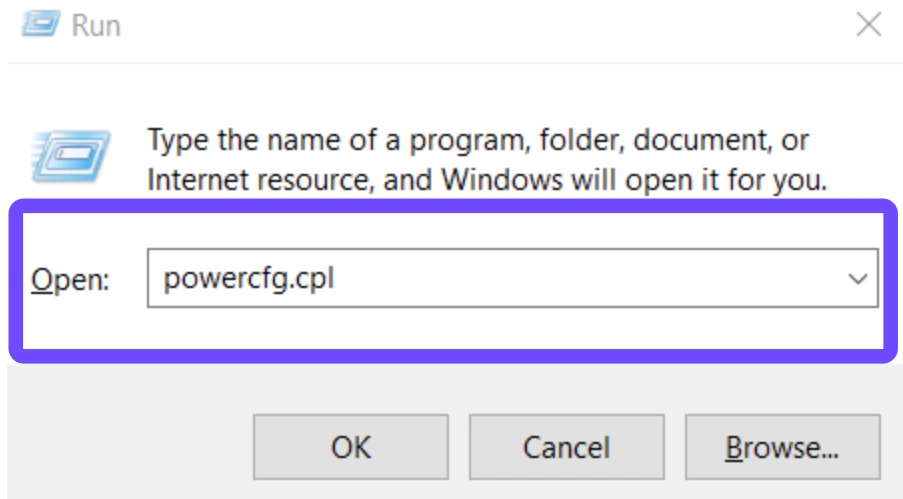
Step 1. Press Win + R, type powercfg.cpl, and hit Enter.
Step 2. Select "High Performance" or "Ultimate Performance" from the list.
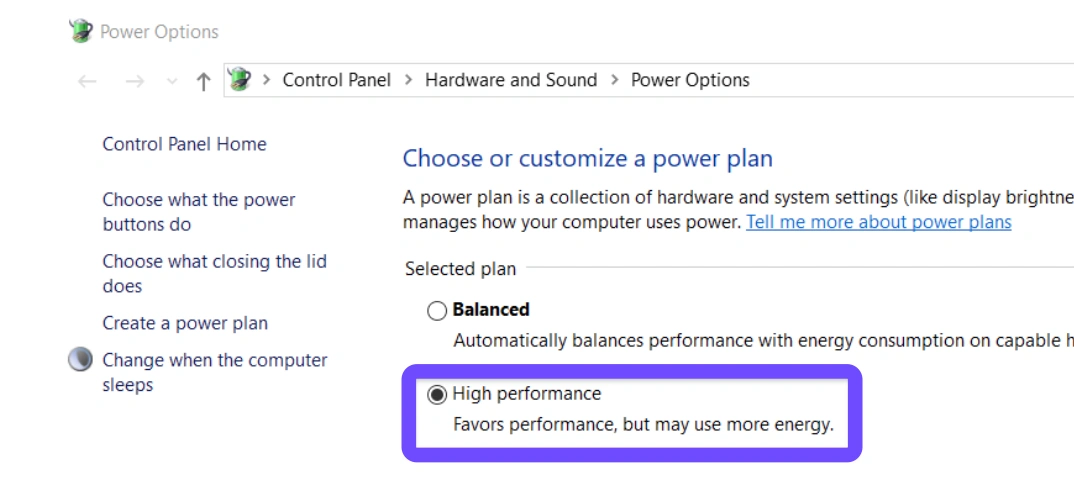
Step 3. Go to "Change plan settings" and select "Advanced power settings."
Step 4. Ensure "Processor power management" is set to 100% for both minimum and maximum.
Step 5. Click Apply and OK.
Solution 4: Clear Temporary Files and Shader Cache
Corrupted shaders are a frequent cause of Crimson Desert stutters during fast movement.
Step 1. Open the NVIDIA Control Panel or AMD Software and find the "Shader Cache" option.
Step 2. Set it to "Disabled," apply, then set it back to "Unlimited" or "On."
Step 3. Press Win + R, type %temp%, and delete all files in the folder.
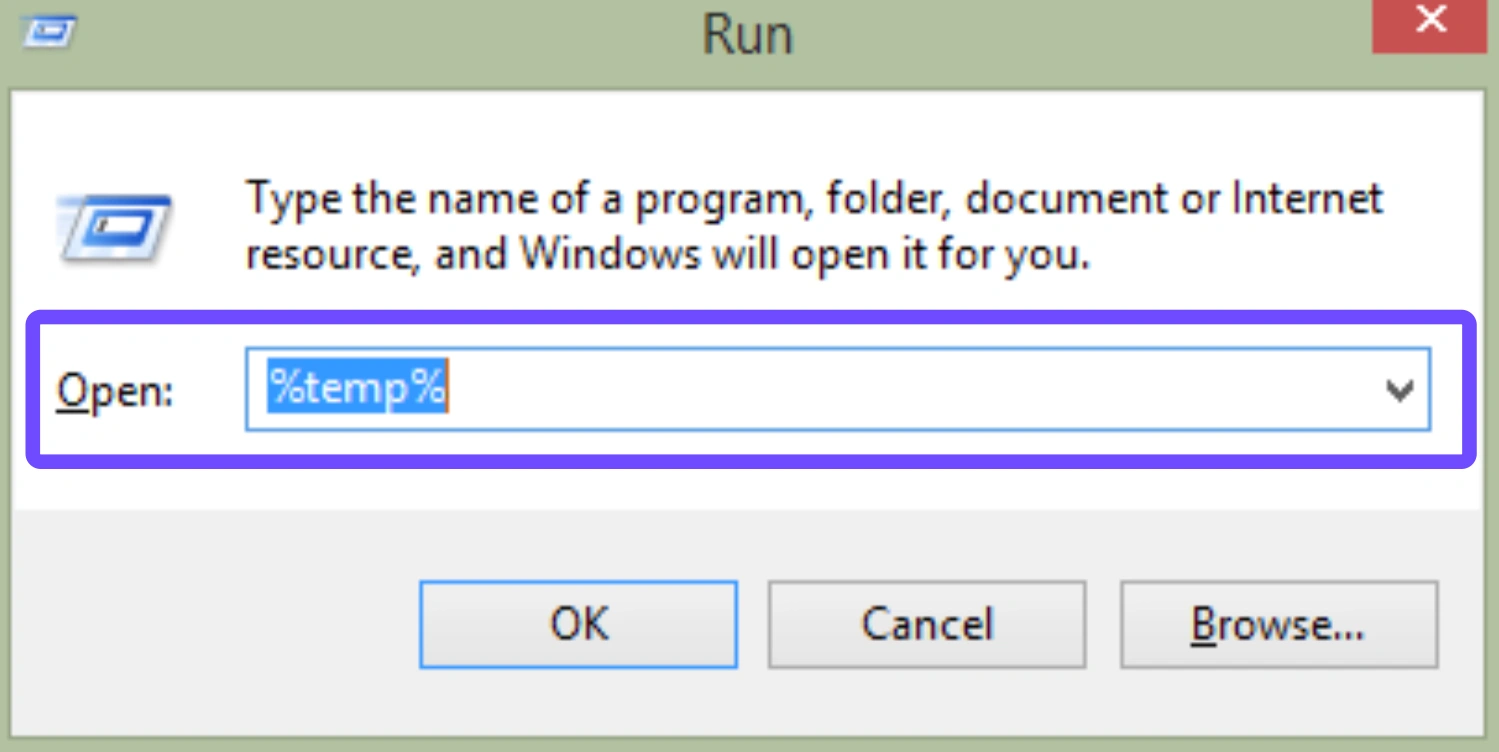
Step 4. Type temp and repeat the deletion process.
Step 5. Empty your Recycle Bin and restart the game.
Solution 5: Optimize Background Processes
Competing apps can steal vital CPU cycles needed for the BlackSpace Engine.
Step 1. Press Ctrl + Shift + Esc to open Task Manager.
Step 2. Click the "Memory" or "CPU" column to see what is consuming the most resources.
Step 3. Right-click and "End Task" on non-essential apps like browsers or heavy overlays.
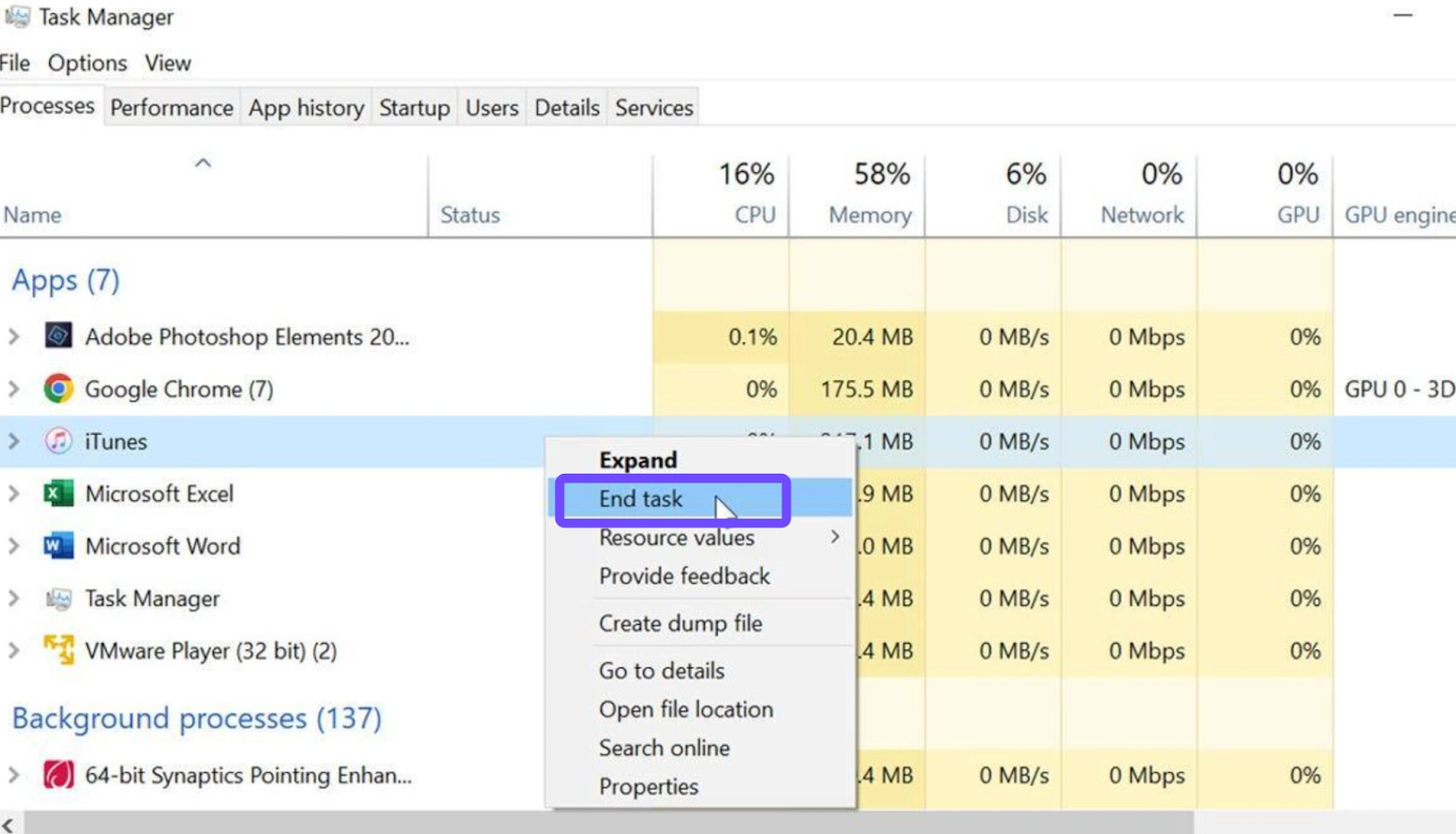
Step 4. Go to the "Startup" tab and disable unnecessary apps from launching with Windows.
Step 5. Set Crimson Desert's priority to "High" in the "Details" tab.
Solution 6: Disable Fullscreen Optimizations
Windows Fullscreen Optimizations can sometimes interfere with how a game interacts with your GPU, leading to Crimson Desert fps drops.
Step 1: Locate the CrimsonDesert.exe in your installation folder.
Step 2: Right-click the file and select Properties.
Step 3: Go to the Compatibility tab.
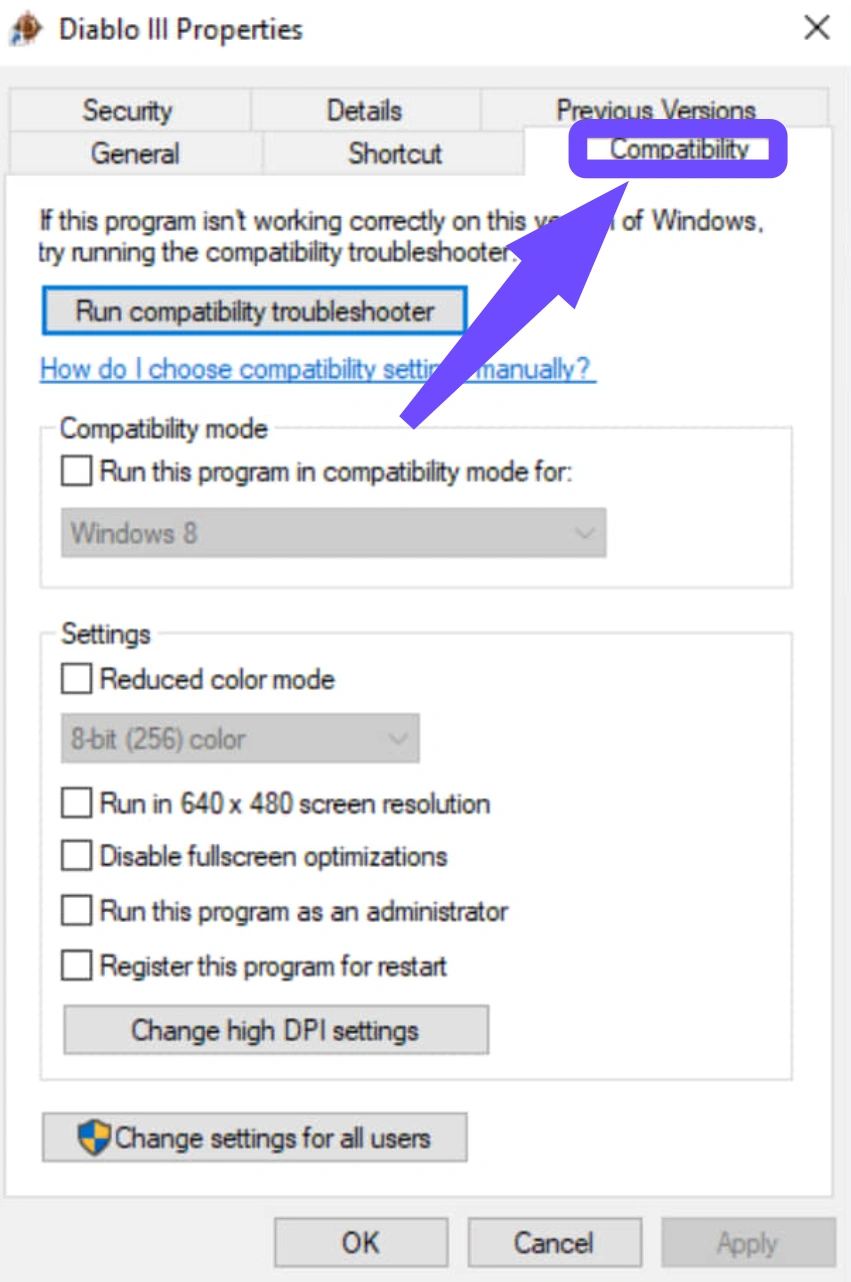
Step 4: Check the box that says Disable fullscreen optimizations.
Step 5: Click Apply and then OK.
Conclusion
Crimson Desert is a landmark title in the action-RPG genre, but its technical demands can be a hurdle. By understanding the causes of Crimson Desert low FPS and implementing the right fixes, you can transform a choppy experience into a smooth, cinematic masterpiece. While manual tweaks like updating drivers or clearing caches are helpful, they often fall short of the stability provided by professional tools. For the most reliable way to achieve Crimson Desert 4K/60 FPS and eliminate stutters for good, LagoFast remains the ultimate choice for serious players.

Boost Your Game with LagoFast for Epic Speed
Play harder, faster. LagoFast game booster eliminates stutter and lags on PC, mobile, or Mac—win every match!
Quickly Reduce Game Lag and Ping!
Boost FPS for Smoother Gameplay!