
As Crimson Desert launches, more players are starting to notice a frustrating issue—input lag. Many report a clear 0.5–1 second delay after pressing buttons, with combat feeling slow and unresponsive. This usually comes from two factors: the game’s built-in animation startup (which makes actions feel heavier) and technical issues like low FPS, V-Sync, or poor optimization. But the best solution is to combine an automated optimization tool with a few manual tweaks to stabilize performance and reduce input delay.

- ✅ Reduce Lag and High Ping.
✅ Boost FPS at the Same Time.
✅ Support 2000+ Popular Online Games.
✅ Change Server without Latency.
✅ Boost Game Loading Speed.
Part 1: Why is Crimson Desert Input Lag
Part 2: Best Crimson Desert Input Lag Fix (PC & PS5)—LagoFast
Part 3: Common Fixes for Crimson Desert Input Lag on PC & PS5
Part 1: Why is Crimson Desert Input Lag
Before trying to fix Crimson Desert input lag, it’s important to understand what’s actually causing it. Right now, the delay most players feel mainly comes from two sources: game mechanics and performance or settings issues.
Game Mechanics (Intended Input Delay)
Some delay is built into the game itself. Many players have noticed actions come with a clear startup animation, which makes combat look more realistic but also feel slightly “draggy.” Attacks don’t trigger instantly, and movement can feel sluggish.
This is why your character sometimes feels like moving through water.
Performance & Settings Issues (Fixable Lag)
The bigger problem is technical input lag, which is what causes the 0.5–1 second delay most players complain about.
This usually happens due to:
- Low or unstable FPS / performance bottlenecks
- V-Sync or frame generation adding delay
- Graphics settings being too high (resolution, shadows, effects)
- Poor keyboard & mouse optimization (current version issue)
- Background apps or minor network interference
All of these can make your actions feel slower and less responsive.
Hot Related: Crimson Desert Best Armor Guide: Early, Mid & Frostcursed Sets Explained (2026)
Part 2: Best Crimson Desert Input Lag Fix (PC & PS5)—LagoFast
If you’re looking for a quick and reliable solution, using a dedicated optimization tool is often the simplest and most effective way.
Fix Lag Issue Tool – Crimson Desert Input Lag Fix
LagoFast game booster can help reduce input lag quickly without needing to manually tweak every setting.
With its Fix Lag Issue feature, you can optimize your game with just one click, making it easier to stabilize performance and improve responsiveness right away. It can help reduce:
- Input delay caused by unstable connections
- Frame drops from background interference
- Sudden network spikes that affect responsiveness
This helps your inputs feel more instant and consistent, especially if your lag isn’t stable.
How to Use LagoFast Fix Lag Issue Tool to Input Lag Fix
Step 1: Download and launch LagoFast.
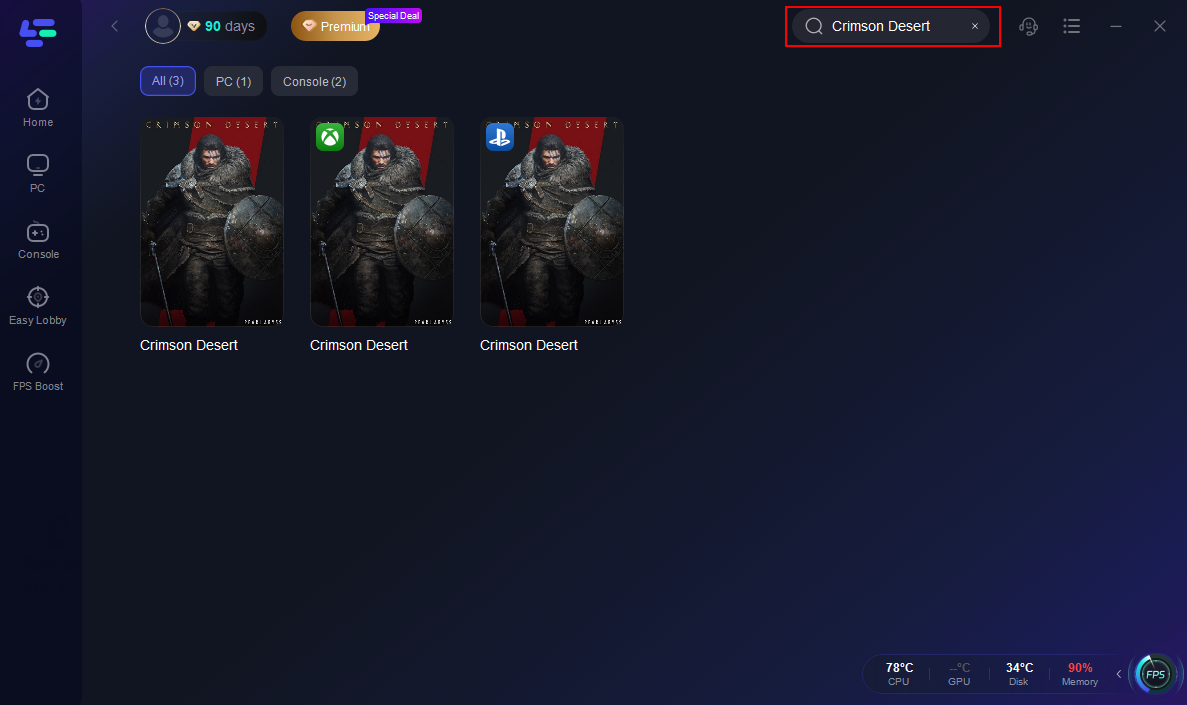
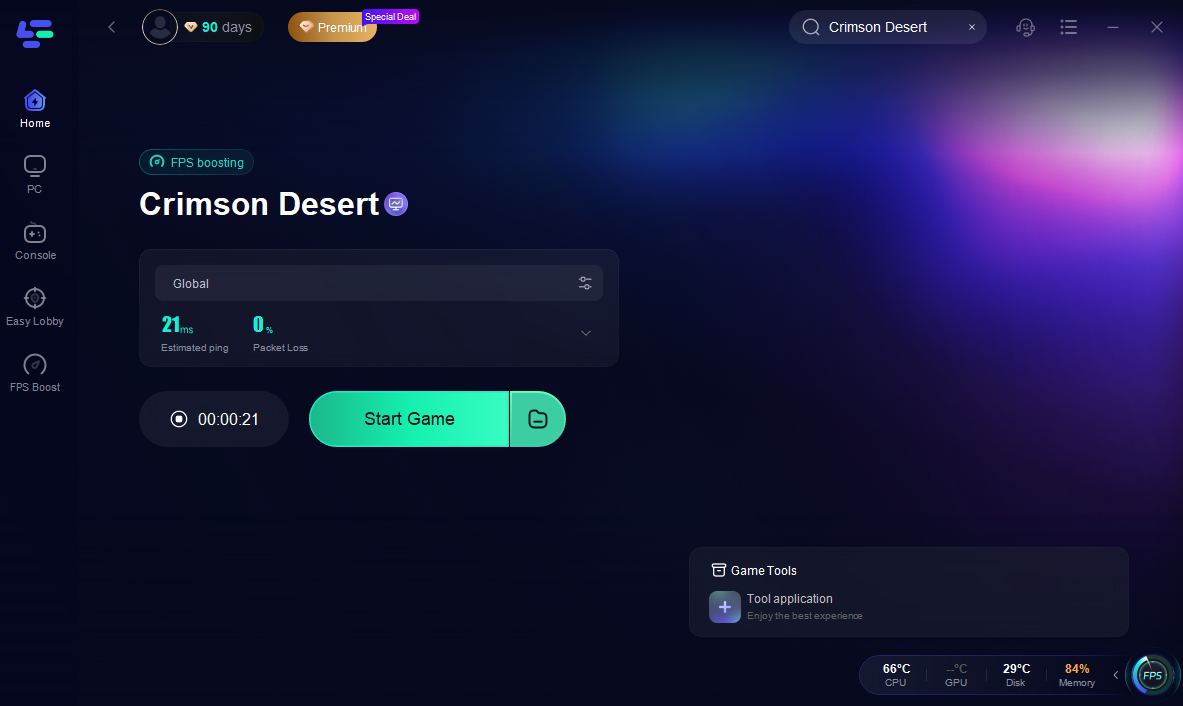
Step 2: After installation, search "Crimson Desert" in the search bar and select the game.
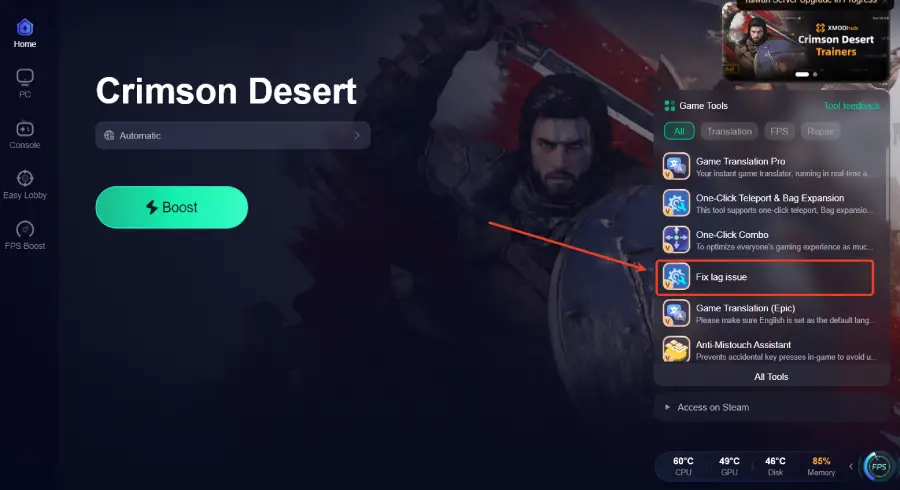
Step 3: Click the Fix Lag Issue Tool on the right panel and wait for it to download.
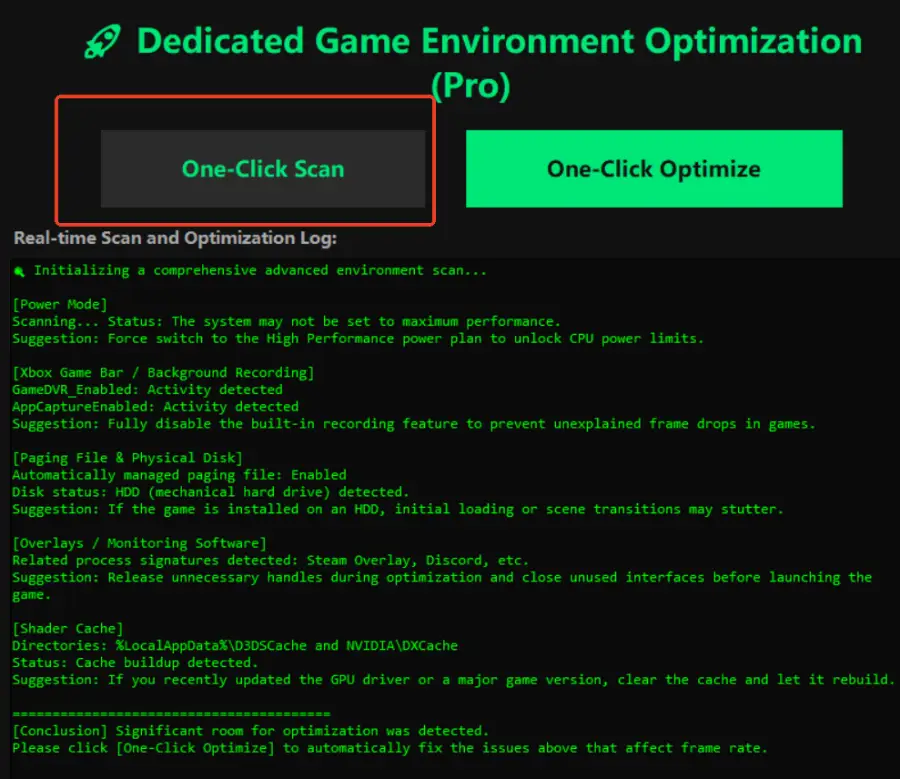
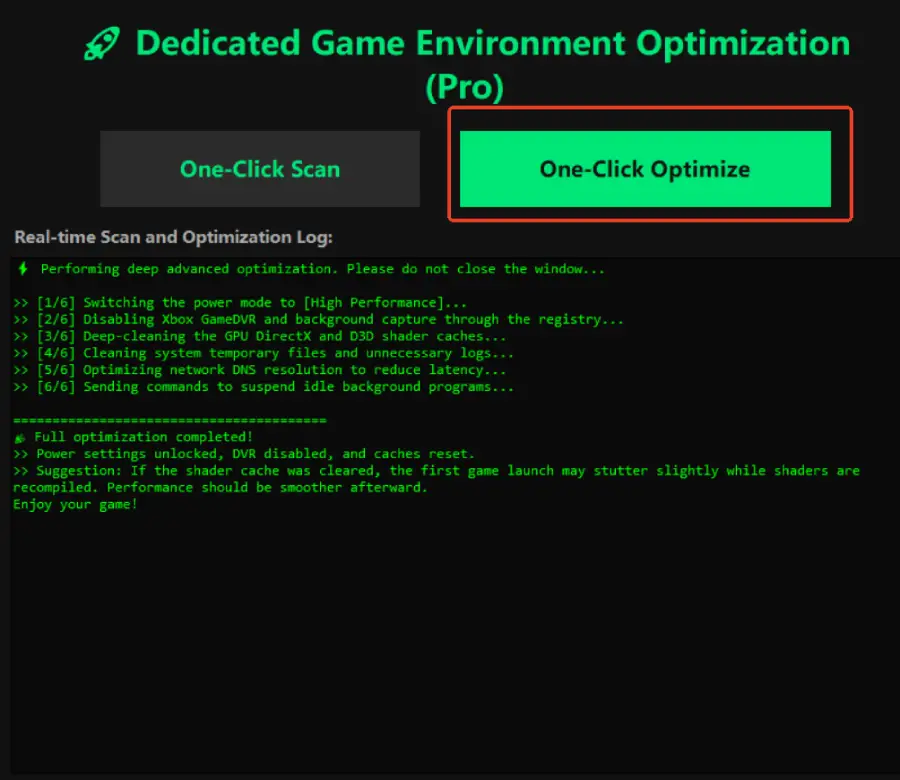
Step 4: Once loaded, a pop-up will appear. Click “One-Click Scan” to detect system issues, then click “One-Click Optimization” to fix them and improve performance.
Step 5: Go back to LagoFast. Choose your preferred server node and click "Smart Boost" to start optimizing.

Step 6: Launch your game and enjoy smooth, optimized gameplay with lower ping and no stutter.
Increase FPS & Improve Performance with LagoFast
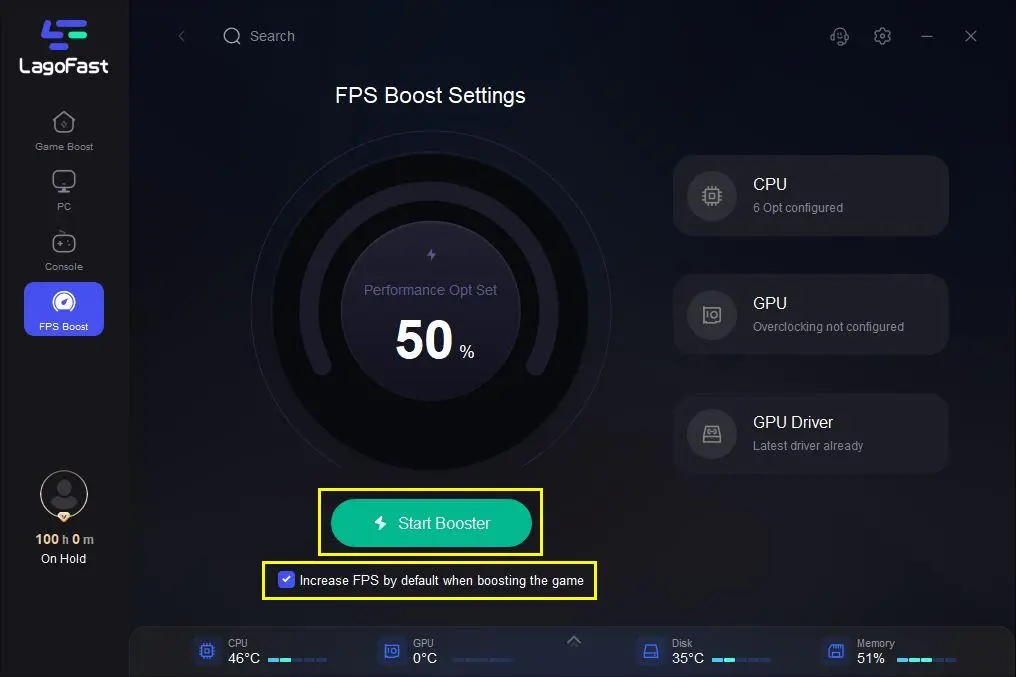
Beyond reducing input lag, LagoFast also improves overall game performance, since low or unstable FPS directly contributes to input delay.
- Helps maintain more stable FPS, reducing sudden drops during combat
- Optimizes system resources to keep CPU and RAM focused on the game
- Reduces background load that can cause performance fluctuations
- Improves connection stability and minimizes sudden spikes
- Provides real-time monitoring so you can quickly identify performance issues
On top of that, features like One-Click Teleport & Bag Expansion let you fast travel, expand your inventory, and unlock knowledge more easily. While these don’t directly fix input lag, they make the overall experience smoother and less frustrating.
Part 3: Common Fixes for Crimson Desert Input Lag on PC & PS5
If you prefer manual adjustments or want to combine them with optimization tools, these proven methods can significantly reduce Crimson Desert input lag on both PC and PS5.
Crimson Desert Input Lag PC Fix
Turn Off V-Sync (Reduce Input Delay)
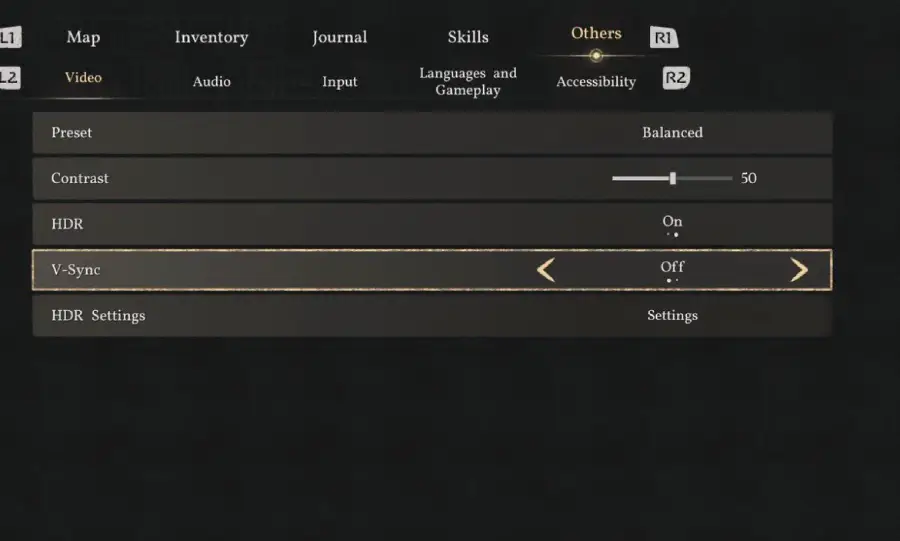
V-Sync is one of the most common causes of input lag. While it helps eliminate screen tearing, it also forces your inputs to sync with frame output, which introduces noticeable delay.
If your FPS is unstable or below 60, this delay becomes even worse.
For the best responsiveness, disable V-Sync both in-game and in your GPU control panel.
Disable Frame Generation (Avoid Artificial Latency)
Frame Generation can make gameplay look smoother by inserting extra frames, but it doesn’t improve real input response. Instead, it often adds extra latency between your input and what you see on screen.
If your goal is responsive combat rather than visuals, it’s better to keep this turned off.
Lower Graphics Settings (Remove Performance Bottlenecks)
Running the game at high or ultra settings can overload your GPU, leading to unstable FPS and delayed inputs.
Focus on lowering the most demanding settings:
- Shadows
- Volumetric clouds
- Post-processing effects
Reducing these helps stabilize frame rates, which directly improves input responsiveness.
Increase FPS (Most Important Fix)
Low or inconsistent FPS is one of the biggest contributors to input delay. The lower your FPS, the longer it takes for your inputs to register on screen.
Aim for at least 60 FPS, with higher values (80–120 FPS) providing noticeably better responsiveness.
Enable Low Latency Mode (Reduce Input Processing Time)
Modern GPUs include features designed to reduce input delay at the driver level.
- NVIDIA users: Enable NVIDIA Reflex / Low Latency Mode
- AMD users: Enable Anti-Lag
These settings help your system process inputs faster and reduce buffering delays.
Optimize Controller & Input Settings (Hidden Source of Lag)
Input lag isn’t always about performance—sometimes it’s caused by how your controller is handled.
- Disable Steam Input so the game can use its native controller support
- Lower controller deadzone (around 5–10%) for faster response
- Avoid running input tools like DS4Windows in the background
These changes can remove the “floaty” feeling many players report.
Use a Wired Connection for Controllers (Reduce Latency)
Wireless controllers are convenient, but they can introduce small amounts of latency depending on signal quality.
Switching to a wired connection ensures more stable and faster input registration, especially during combat.
Close Background Applications (Free Up Resources)
Background apps can consume CPU and memory, causing performance dips and delayed input response.
Close browsers, overlays, and recording software to keep system resources focused on the game.
Crimson Desert Input Lag PS5 Fix
Switch to Performance Mode (Higher FPS = Lower Delay)
Quality Mode prioritizes visuals, but it often runs at lower frame rates, which increases input delay.
Performance Mode delivers smoother gameplay and significantly better responsiveness.
Enable TV Game Mode (Critical for Input Lag)
Many TVs apply image processing effects that add noticeable delay between your input and what appears on screen.
To fix this:
- Turn ON Game Mode
- Turn OFF motion smoothing and post-processing features
This alone can drastically reduce input lag on console.
Use a Wired Controller (Optional but Helpful)
While PS5 controllers are optimized for wireless use, a wired connection can still reduce minor latency and improve consistency.
Especially useful if you notice inconsistent input timing.
Maintain a Stable Environment
Even on console, background activity can affect performance.
Avoid downloading updates while playing and use a stable connection to prevent small interruptions that can impact responsiveness.
Part 4: FAQs
Is Crimson Desert input lag a bug or part of the game?
It’s a mix of both. Some delay is part of the combat design, while the rest comes from performance issues.
Why does the input lag feel inconsistent?
Usually due to unstable performance or background interference, rather than a fixed delay.
Does input lag affect all platforms the same way?
Not exactly. PC is more affected by settings and hardware, while console delay often comes from display settings.
Can input lag be completely removed?
No. Some delay is intentional, but most noticeable lag can be reduced.
Can using a controller vs keyboard/mouse affect lag?
Yes. Wired controllers usually give more consistent input than wireless or poorly optimized keyboard/mouse setups.
Conclusion
To reduce Crimson Desert input lag and make gameplay more responsive:
Key fixes:
- Turn off V-Sync and Frame Generation (PC)
- Lower demanding graphics settings to stabilize FPS
- Enable low-latency modes (NVIDIA Reflex / AMD Anti-Lag)
- Switch to Performance Mode and TV Game Mode (PS5)
- Use wired controllers for more stable input
The most effective approach is to combine a reliable optimization tool like LagoFast with these manual tweaks, stabilizing performance and reducing input delay for smoother combat.

Boost Your Game with LagoFast for Epic Speed
Play harder, faster. LagoFast game booster eliminates stutter and lags on PC, mobile, or Mac—win every match!
Quickly Reduce Game Lag and Ping!
Boost FPS for Smoother Gameplay!