
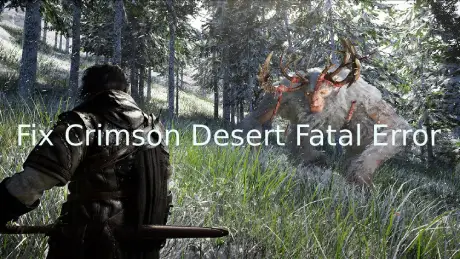
You launch Crimson Desert, expecting to enter the world of Pywel, but the game suddenly crashes with a fatal error message. This can happen right after clicking Play, during the loading screen, or even before the main menu appears.
In most cases, this fatal error occurs when something fails during the game’s startup process—such as missing system components, outdated drivers, or corrupted game files. When the game engine encounters a problem it cannot recover from, it shuts down and displays the fatal error instead of continuing to run.
The good news is that these crashes are often related to common PC configuration issues and can usually be resolved with a few practical fixes.

- ✅ Reduce Lag and High Ping.
✅ Boost FPS at the Same Time.
✅ Support 2000+ Popular Online Games.
✅ Change Server without Latency.
✅ Boost Game Loading Speed.
Part 1: What the Crimson Desert Fatal Error Means
Part 2: Common Causes of the Crimson Desert Fatal Error
Part 3: How to Fix Crimson Desert Fatal Error
Part 1: What the Crimson Desert Fatal Error Means
A Crimson Desert fatal error is a crash that occurs when the game encounters a critical problem it cannot handle. Instead of continuing to run, the game shuts down to avoid further instability.
In simple terms, something essential fails while the game is launching or initializing, and the game engine decides it cannot safely continue.
Players usually see this error in situations like:
- The game crashes immediately after clicking Play
- A fatal error message appears during startup
- The game closes during the loading screen
- Crimson Desert launches but crashes before reaching the main menu
Most of the time, the fatal error appears during initialization, when the game is loading assets, preparing graphics, and connecting to required system components. If any part of that process fails, the game may stop and display the error.
Part 2: Common Causes of the Crimson Desert Fatal Error
The Crimson Desert fatal error usually appears when something goes wrong while the game is starting up. In many cases, the crash is related to system components, graphics drivers, or damaged game files. Below are some of the most common causes players encounter.
Missing or Damaged Runtime Components
Modern PC games rely on several system frameworks to run correctly, including:
- DirectX
- Microsoft Visual C++ runtime libraries
- Windows system dependencies
If these components are missing, outdated, or corrupted, the game may fail during initialization and trigger a fatal error.
Common signs include:
- Fatal error during startup
- DLL-related error messages
- The game closing before the loading screen finishes
Ensuring these components are properly installed can often prevent launch crashes.
Outdated Graphics Drivers
Graphics drivers allow the game engine to communicate with your GPU. If the driver is outdated or incompatible, the game may crash when it tries to initialize graphics.
Typical symptoms include:
- Fatal errors during startup
- Rendering or shader initialization problems
- The game closing shortly after launch
Updating your GPU drivers is often one of the quickest ways to improve game stability and prevent startup crashes.
Corrupted or Incomplete Game Files
Game files can become corrupted due to interrupted downloads, failed updates, or incomplete installations. When important assets cannot load properly, the game may stop running and display a fatal error.
Common situations include:
- Crashes during loading
- Missing assets or resources
- Errors appearing after an update
Verifying game files through the launcher can usually repair these problems automatically.
Software Conflicts During Startup
Background applications can sometimes interfere with the game while it is starting.
Examples include:
- Game overlays
- Monitoring tools
- Security software
- Other background applications
If these programs interrupt the initialization process, the game may become unstable and crash with a fatal error.
Part 3: How to Fix Crimson Desert Fatal Error
Fix 1: Use LagoFast to Improve Game Stability
In some situations, the Crimson Desert fatal error may appear when the game fails to initialize properly due to unstable connections or missing system components during startup. Improving the overall game environment can help reduce these kinds of crashes. LagoFast is a game performance platform designed to improve gaming stability by reducing ping, fixing packet loss, stabilizing network connections, and optimizing routing between players and game servers, helping the game client run more smoothly during startup and gameplay.
LagoFast also provides several useful system tools:
- Fix C++ Issue Tool – Repairs missing or damaged Visual C++ components that may prevent games from launching.
- Win 11 Lag Fix Tool – Fixes issues where Windows 11 may cause game lag or system instability.
- DirectX 12 Component Installation Tool – Installs required DirectX components used by modern games.
- Upcoming Tools – Future utilities including DirectX 12 / C++ issue repair tools and FPS boost tools designed to further improve performance and stability.
How to Use LagoFast for Crimson Desert
Step 1: Click the Free Trial button to download and install LagoFast.
Step 2: After installation, search "Crimson Desert" in the search bar and select the game.
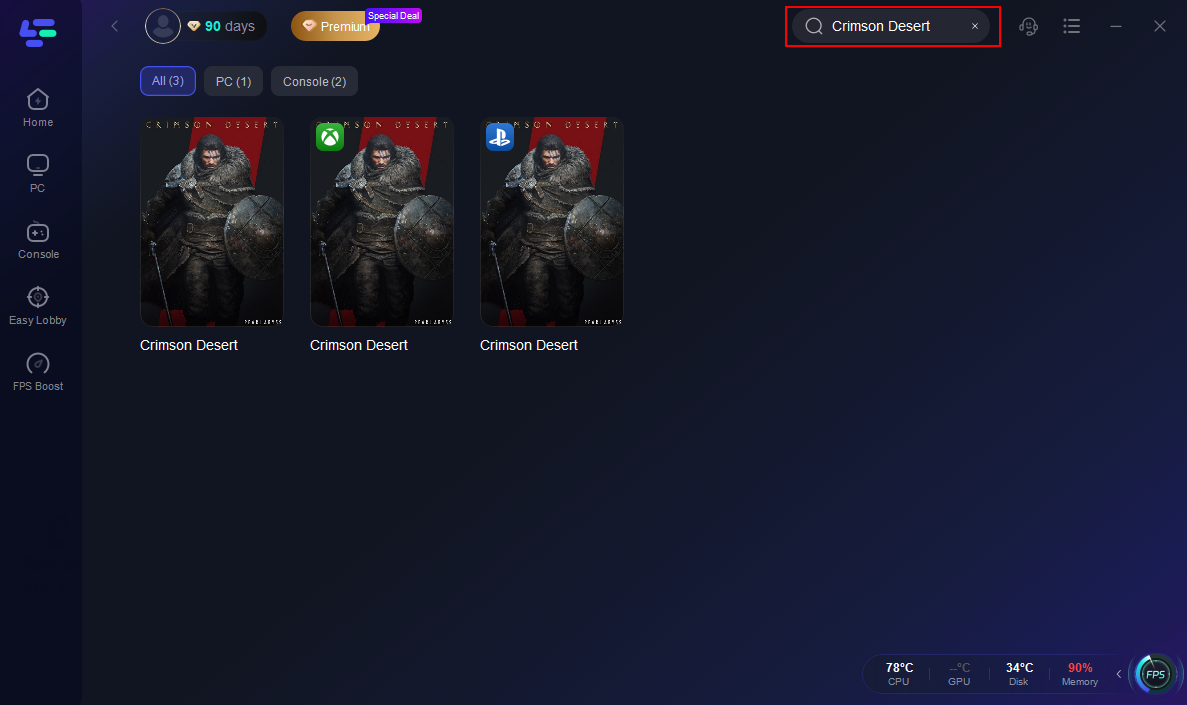
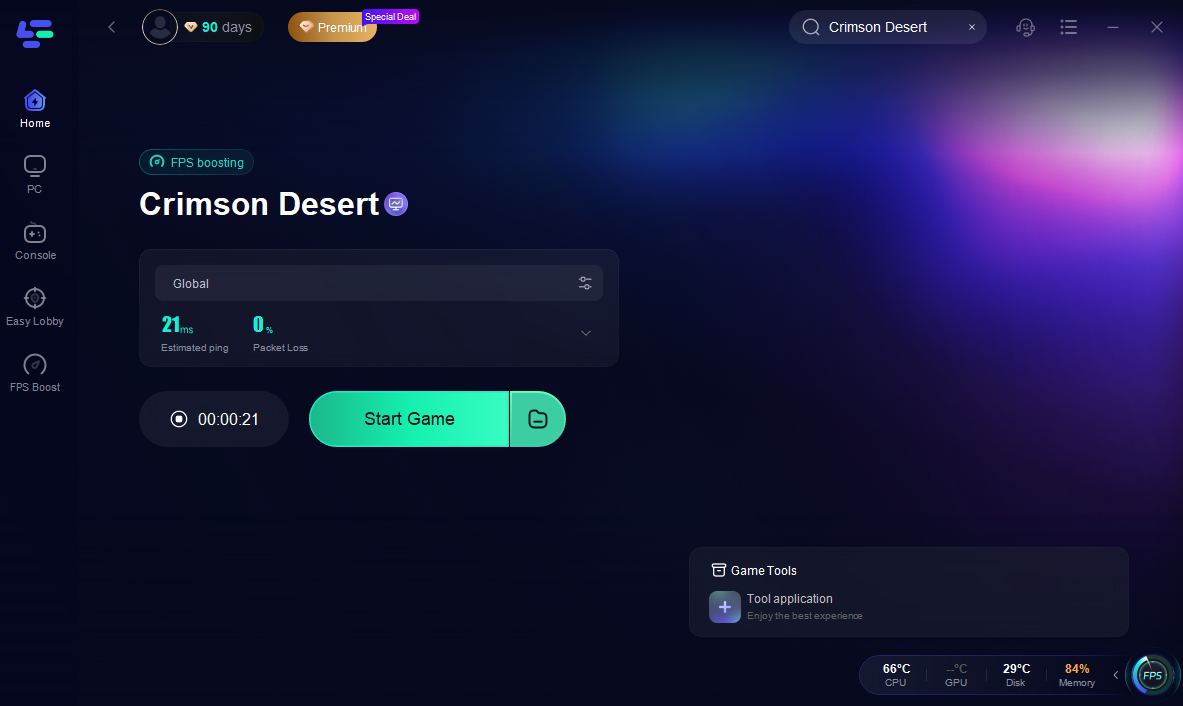
Step 3: Choose your preferred server node and click "Smart Boost" to start optimizing.

Step 4: Launch your game and enjoy smooth, optimized gameplay with lower ping and packet loss.
Fix 2: Update Your Graphics Drivers
Outdated drivers are a common cause of fatal errors.
To update them:
- Visit the official website of NVIDIA, AMD, or Intel
- Download the latest driver for your GPU
- Install the update and restart your PC
This helps ensure your system fully supports modern game engines and graphics features.
Fix 3: Verify Game Files
Corrupted files can easily cause startup crashes.
Steps to verify files:
- Open your game launcher (such as Steam or the official launcher)
- Go to Game Properties
- Select Verify Integrity of Game Files
The launcher will automatically repair missing or damaged files.
Fix 4: Reinstall DirectX and Visual C++ Runtimes
If required system libraries are missing or damaged, reinstalling them can help resolve fatal errors.
Steps include:
- Download the latest DirectX Runtime from Microsoft
- Install the newest Visual C++ Redistributables
- Restart your computer
This restores essential components used by the game.
Fix 5: Update Windows
Running an outdated operating system can cause compatibility problems with modern games.
Make sure to install:
- The latest Windows updates
- System security patches
- Updated runtime libraries
Keeping Windows up to date helps ensure the game can access all required system features.
Conclusion
The Crimson Desert fatal error usually happens when something goes wrong during the game’s startup process. Issues like outdated drivers, missing system components, corrupted files, or software conflicts can all lead to sudden crashes. By updating your GPU drivers, verifying game files, reinstalling required runtimes, and keeping Windows updated, many players can resolve the problem. Improving overall stability with tools like LagoFast may also help the game launch more reliably. Once these common issues are addressed, you should be able to launch Crimson Desert more smoothly and avoid unexpected crashes.
Boost Your Game with LagoFast for Epic Speed
Play harder, faster. LagoFast game booster eliminates stutter and lags on PC, mobile, or Mac—win every match!
Quickly Reduce Game Lag and Ping!
Boost FPS for Smoother Gameplay!