

Launching Crimson Desert only to face a C++ runtime error is frustrating. One moment you’re ready to explore Pywel; the next, the game crashes or shows a popup about missing runtime components. This error occurs when the game cannot properly access required Microsoft Visual C++ libraries, system components, or DirectX files. This guide walks you through practical solutions to fix the problem and get back to smooth gameplay.

- ✅ Reduce Lag and High Ping.
✅ Boost FPS at the Same Time.
✅ Support 2000+ Popular Online Games.
✅ Change Server without Latency.
✅ Boost Game Loading Speed.
Part 1: What the Crimson Desert C++ Runtime Error Means
Part 2: Common Causes and Typical Symptoms
Part 3: How to Fix the Crimson Desert C++ Runtime Error
Part 1: What the Crimson Desert C++ Runtime Error Means
C++ runtime error means the game failed to execute a required C++ module. In practical terms, this can result in:
- Crashes immediately after launching the game
- Certain in-game features failing to load
- Error messages pointing to files like vcruntime140.dll
These errors do not indicate a weak PC; they show missing, corrupted, or incompatible system files. Updates, background software, or unstable networks can worsen the problem.
Part 2: Common Causes and Typical Symptoms
Understanding the root causes helps you fix the error faster. Common causes include:
1. Missing or Corrupted C++ Libraries
Microsoft Visual C++ redistributables are essential. Missing or damaged versions can directly cause runtime crashes.
2. Windows 11 / OS Conflicts
Certain updates or system configurations may lead to crashes during startup or in-game. Some updates can modify system file paths or permissions, preventing the game from reading critical libraries.
3. DirectX Component Issues
Missing or outdated DirectX 12 files may prevent graphics modules from initializing properly.
4. Background Software Interference
Antivirus programs, VPNs, or monitoring tools can block access to runtime files, triggering crashes. Even lightweight monitoring software can interfere.
5. Unstable Network Conditions
While C++ errors are mainly system-related, poor network connections can worsen crashes during online gameplay or server loading.
Typical symptoms include:
- Game crashes on startup
- Error messages mentioning “C++ runtime” or missing DLLs
- Freezes, lag, or sudden shutdowns during server connection
Part 3: How to Fix the Crimson Desert C++ Runtime Error
Fix 1: Use LagoFast for Stability
Sometimes the Crimson Desert C++ runtime error isn’t just caused by missing files. System misconfigurations or unstable connections can also trigger crashes during startup. Improving connection stability and repairing essential system files can often prevent crashes. LagoFast is a game optimization platform that addresses these issues by reducing ping, fixing packet loss, stabilizing network traffic, and optimizing routing between your PC and the game servers. This helps ensure Crimson Desert launches smoothly and runs without runtime errors.
LagoFast also provides several useful system tools:
- Fix C++ Issue Tool — Repairs missing or corrupted Microsoft Visual C++ libraries that can trigger runtime crashes
- Win 11 Lag Fix Tool — Fixes issues where Windows 11 causes game lag or crashes
- DirectX 12 Component Installation Tool — Installs or repairs essential DirectX 12 components
- Upcoming Tools — Future DirectX/C++ repair utilities and FPS boost tools to further improve game performance
How to Use LagoFast for Crimson Desert
Step 1: Click the Free Trial button to download and install LagoFast.
Step 2: After installation, search "Crimson Desert" in the search bar and select the game.
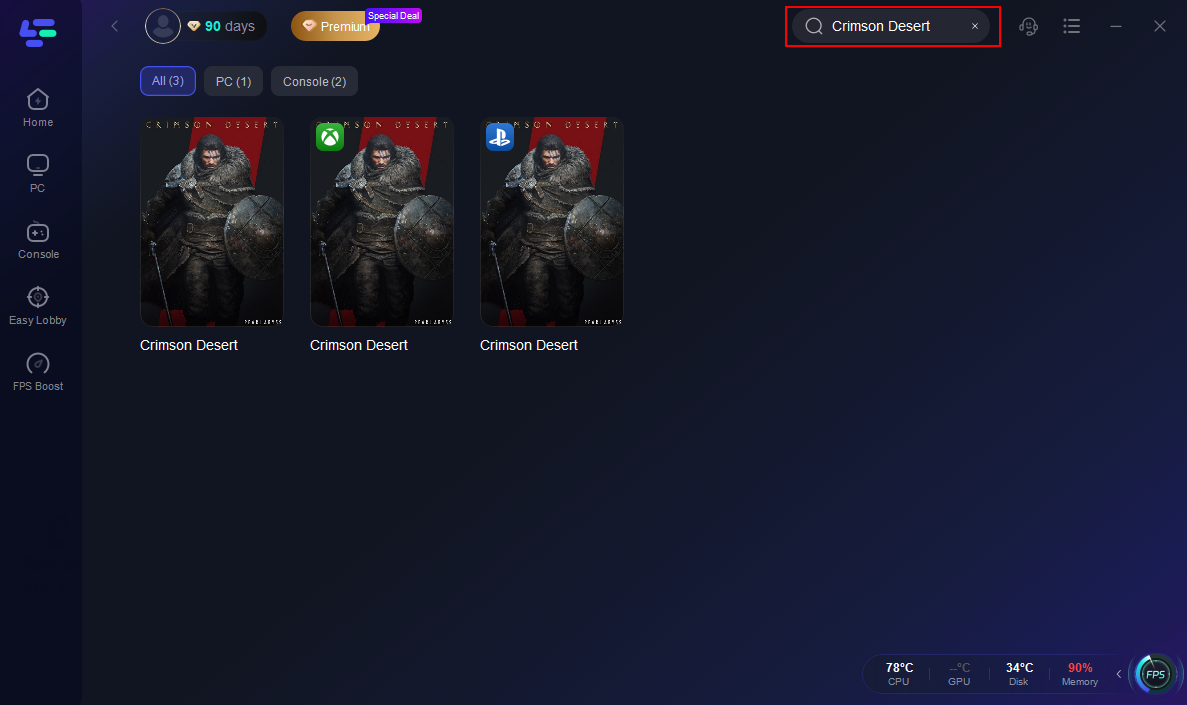
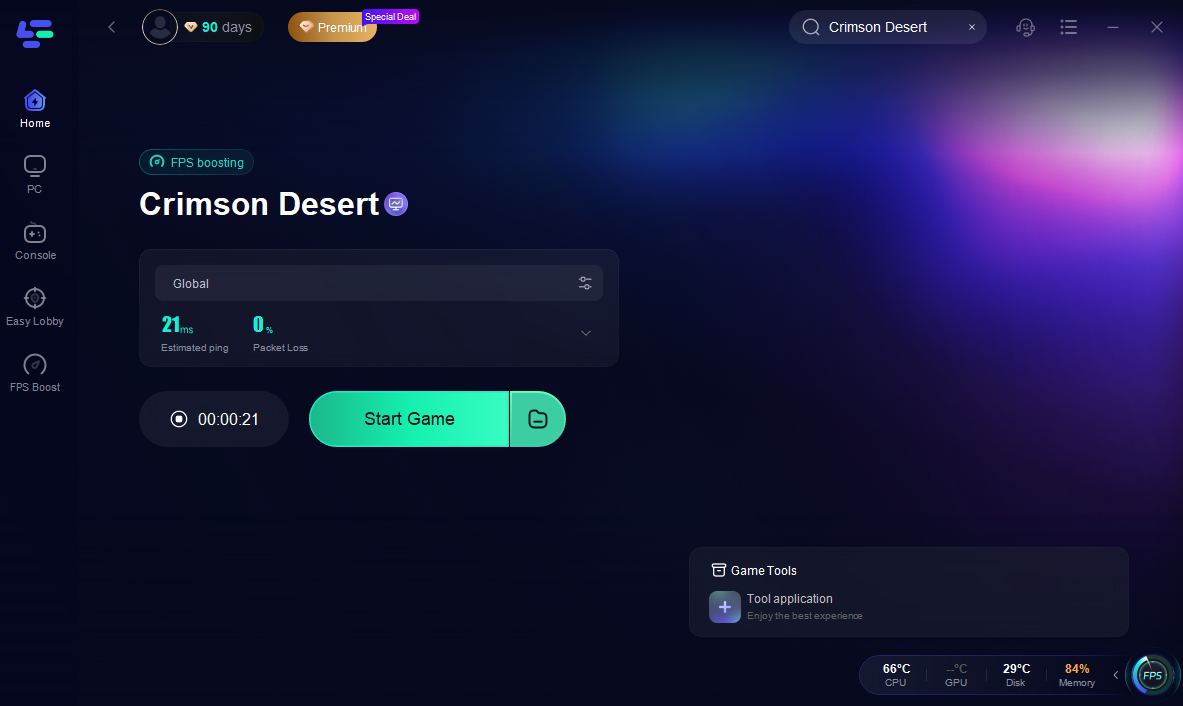
Step 3: Choose your preferred server node and click "Smart Boost" to start optimizing.

Step 4: Launch your game and enjoy smooth, optimized gameplay with lower ping and packet loss.
Fix 2: Manually Reinstall C++ Redistributables
If you prefer manual fixes:
- Visit the Microsoft Visual C++ Redistributable download page
- Install or repair versions required by Crimson Desert (2015, 2017, 2019, 2022)
- Restart your PC and launch the game
Fix 3: Update DirectX
Outdated DirectX files can prevent graphics modules from initializing properly:
- Press Windows + R, type dxdiag to check your DirectX version
- Download the latest DirectX 12 runtime from Microsoft
- Install, restart, and test the game
Fix 4: Disable Conflicting Background Software
Some programs may block runtime files:
- Temporarily disable antivirus/firewall
- Close VPNs, network monitoring tools, and overlays
- Run Crimson Desert as Administrator
- Re-enable security software afterward
Fix 5: Check Game Files and Updates
Ensuring your game files and drivers are up-to-date helps prevent crashes:
- Verify game files in your launcher to fix missing or corrupted files
- Keep Crimson Desert updated to the latest patch
- Update GPU drivers to the newest version
Conclusion
The Crimson Desert C++ runtime error is usually caused by missing or corrupted system components, DirectX issues, or conflicts with background software. Using LagoFast, reinstalling C++ redistributables, updating DirectX, and keeping your game files and drivers up-to-date can resolve most crashes. Following these steps ensures smoother, more stable gameplay, allowing you to explore Pywel without interruptions. With these fixes, most players can enjoy Crimson Desert without worrying about runtime errors or sudden crashes.

Boost Your Game with LagoFast for Epic Speed
Play harder, faster. LagoFast game booster eliminates stutter and lags on PC, mobile, or Mac—win every match!
Quickly Reduce Game Lag and Ping!
Boost FPS for Smoother Gameplay!