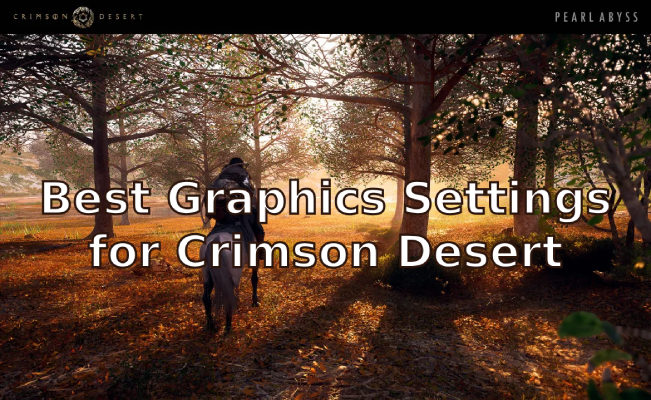
Crimson Desert can look absolutely stunning—but the “best” graphics settings depend on one simple question: do you prioritize higher FPS, cleaner image quality, or full visual fidelity with ray tracing?
For most players, the quick answer is this:
- On PC, start by adjusting shadows, lighting, ray tracing, and ray reconstruction before touching anything else
- On PS5 and Xbox Series X, Balanced mode is the safest default
- On PS5, disable 120 Hz output if the game looks unusually blurry
This guide breaks everything down by platform and hardware level, with realistic expectations about what actually improves performance—and what doesn’t.

Best Game Booster!
- ✅ Reduce Lag and High Ping.
- ✅ Boost FPS at the Same Time.
✅ Support 2000+ Popular Online Games.
✅ Popular Mods Supported.
✅ Boost Game Loading Speed.
Free Trial
Part 1: PC System Requirements Before Optimization
Part 2: Best Graphics Settings for Low-End PC (Max FPS Focus)
Part 3: Best Settings for Mid-Range PC (1440p Balance)
Part 4: Best Settings for High-End PC (Ultra Visuals)
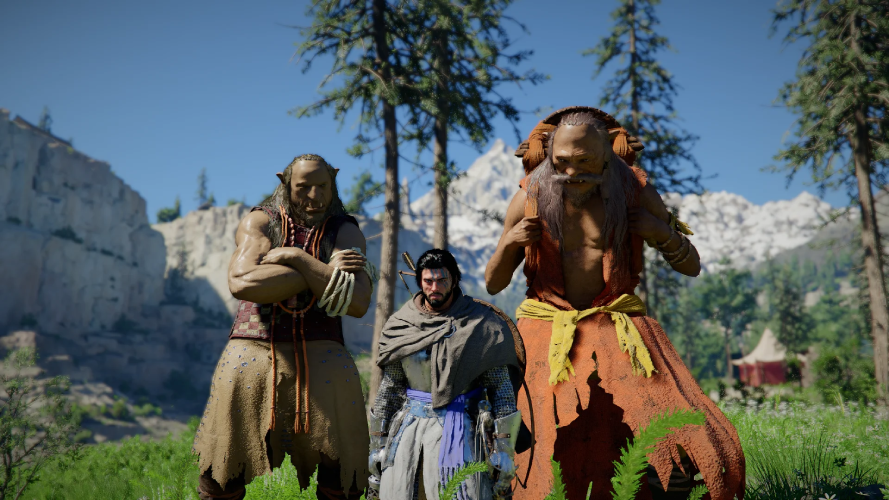
Part 5: Most Important Graphics Settings Explained
Part 6: DLSS vs FSR – Image Quality & Upscaling
Part 7: Best Console Settings (PS5 & Xbox)
Part 8: Fix Blurry Graphics on PS5
Part 9: Known Issues & Realistic Expectations
Part 10: When Network Optimization Tools Help
Part 11: FAQ
Part 1: PC System Requirements Before Optimization
Before spending time tweaking sliders, make sure the issue is actually your settings—not your hardware.
Based on available information, a reasonable baseline PC setup includes:
- 16 GB RAM
- Windows 10 or newer
- Latest DirectX 12
- 150 GB SSD storage
If your system falls below this, no amount of tweaking will fully solve performance issues. Performance can vary significantly depending on your exact hardware and configuration.
Part 2: Best Graphics Settings for Low-End PC (Max FPS Focus)
If you’re running near minimum specs, your goal should be simple: stable 1080p—not ultra visuals.
Recommended Setup
- Resolution: 1080p
- Upscaling: Enable DLSS or FSR
- Shadows: Lower first
- Lighting: Reduce early
- Ray Tracing: Off
- Ray Reconstruction: Avoid
- Other Settings: Keep near optimized defaults
Why This Works
Lighting, shadows, ray tracing, and reconstruction have the biggest performance impact. Many other settings are already well-optimized and don’t significantly affect FPS unless dropped very low.
If you're using something like a GTX 1060 or RX 5500 XT, don’t waste time lowering everything. Focus on the heavy-impact settings first.
Part 3: Best Settings for Mid-Range PC (1440p Balance)
For mid-tier systems, 1440p with smart compromises delivers the best experience.
Recommended Setup
- Resolution: 1440p
- Textures: High (if VRAM allows)
- Lighting: High if stable
- Shadows: Lower before textures
- Ray Tracing: Optional
- Ray Reconstruction: Test carefully
- Upscaling: Use DLSS/FSR for smoother frame pacing
Many players find it effective to start from a Cinematic preset and tweak downward, instead of building settings from scratch.
Part 4: Best Settings for High-End PC (Ultra Visuals)
High-end systems unlock the full visual potential of Crimson Desert.
Recommended Setup
- Resolution: 4K or near-4K
- Preset: High or Ultra
- Lighting: High
- Shadows: High
- Ray Tracing: Enabled
- Ray Reconstruction: Scene-dependent
- Upscaling: Only if needed for stability
Ray tracing delivers a major visual upgrade, especially in lighting quality. Ray reconstruction can further improve clarity and reduce noise—but it comes at a performance cost.
Part 5: Most Important Graphics Settings Explained
If you only care about FPS gains, start here:
1. Lighting
One of the most impactful settings both visually and performance-wise.
2. Shadows
Usually the safest setting to reduce for quick FPS gains.
3. Ray Tracing
Very expensive—but also one of the most noticeable visual upgrades.
4. Ray Reconstruction
Improves lighting clarity and reduces noise, but can be demanding.
What Matters Less
Many other settings are already optimized and won’t significantly impact performance unless drastically reduced.
Part 6: DLSS vs FSR – Image Quality & Upscaling
Crimson Desert supports DLSS and FSR (but not Intel XeSS 2.0).
Recommendations
- Use DLSS on NVIDIA GPUs
- Use FSR on AMD hardware
- Avoid aggressive upscaling presets unless necessary
Some reports suggest DLSS 4.0 may produce cleaner visuals than DLSS 4.5 in certain cases. Results can vary, so testing is key.
If the image looks too soft or noisy, reduce the aggressiveness of upscaling first.
Part 7: Best Console Settings (PS5 & Xbox)
PS5 & Xbox Series X
Available modes:
- Performance
- Balanced
- Quality
Best default: Balanced
It offers the best compromise between visual fidelity and smooth gameplay. Reports indicate ray tracing is enabled across all modes.
Xbox Series S
Available modes:
Choose Performance for responsiveness, or Quality for better visuals.
Part 8: Fix Blurry Graphics on PS5
If the game looks unusually blurry, the issue may not be in-game settings.
Known Issue
Enabling 120 Hz output on PS5 may cause the game to run at a much lower internal resolution.
Fix
- Go to PS5 settings
- Open display/video settings
- Disable 120 Hz output
- Restart the game
This is often the first thing to check if the image looks soft.
Part 9: Known Issues & Realistic Expectations
Even with optimized settings, some issues may persist:
- Heavy grass ghosting
- Noticeable pop-in
- Frame drops on consoles
- PS5 blur (especially with 120 Hz enabled)
Reality Check
- Settings won’t fully fix engine-level pop-in
- Ghosting may improve slightly with less aggressive upscaling
- Console modes improve balance—but not perfection
Optimization helps, but it won’t eliminate every visual issue.
Part 10: When Network Optimization Tools Help
If you’re experiencing what feels like “graphics stutter” in Crimson Desert, it’s easy to assume your GPU or in-game settings are the problem. However, if these issues mainly occur during high-load moments—such as online sessions, matchmaking, or crowded areas—the root cause may not be graphical performance at all, but network instability.
In situations like this, tools like LagoFast can be useful. It’s specifically designed to reduce ping spikes, packet loss, routing inefficiencies, and unstable connections. That said, it’s important to understand that it does not improve raw GPU performance or increase your local FPS.
Here’s a simple way to use it:
Step 1: Click the Free Trial button to download and install LagoFast.
Free Trial
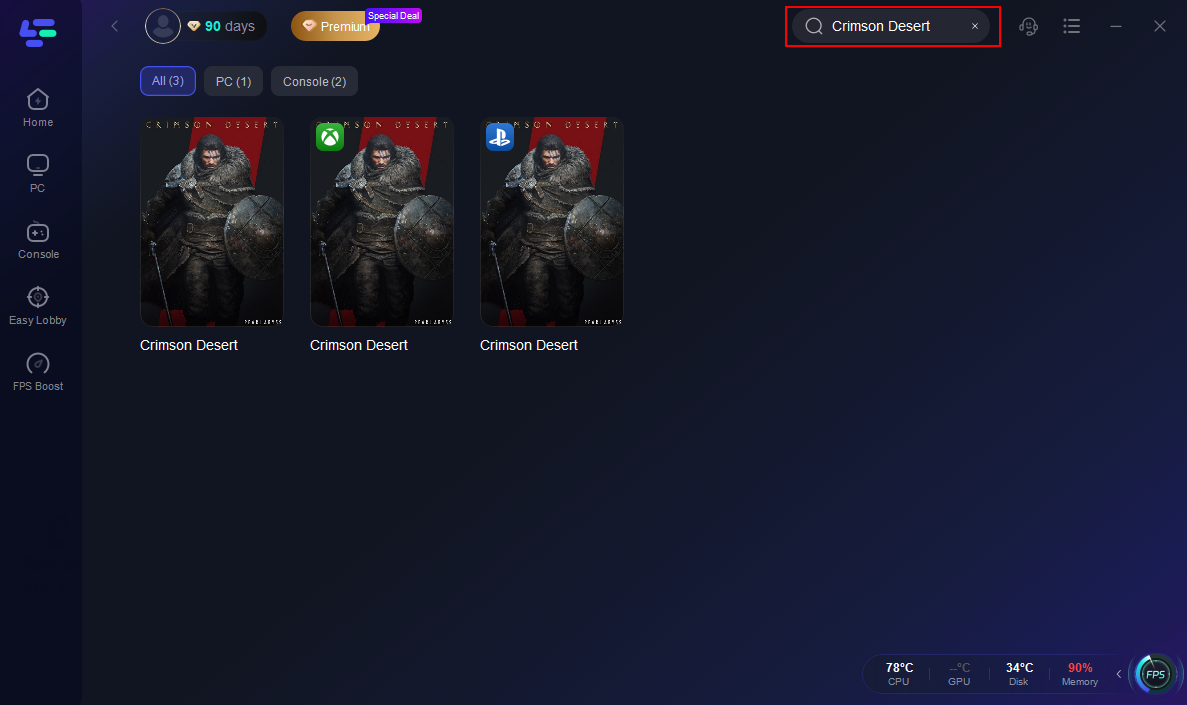
Step 2: After installation, search "Crimson Desert" in the search bar and select the game.
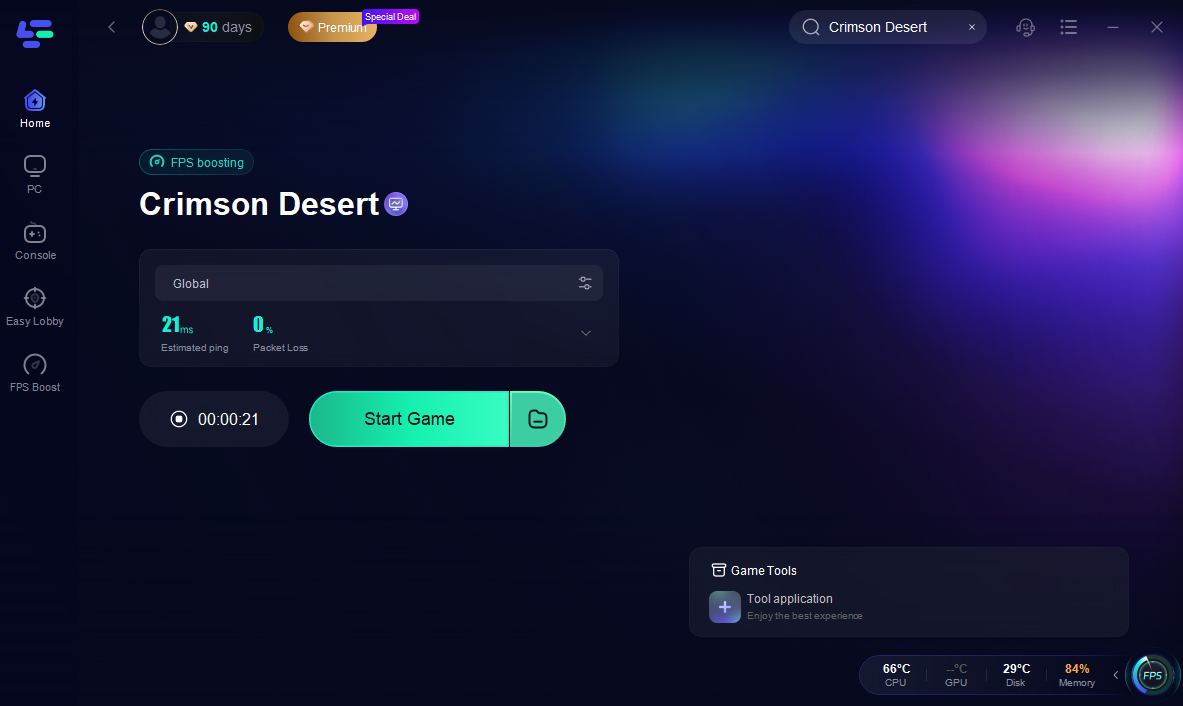
Step 3: Go back to LagoFast. Choose your preferred server node and click "Smart Boost" to start optimizing.

Step 4: Launch your game and enjoy smooth, optimized gameplay with lower ping and no stutter.
Part 11: FAQ
What are the best settings for low-end PC?
Use 1080p, enable DLSS/FSR, lower shadows first, reduce lighting if needed, and disable ray tracing and reconstruction.
What are the best settings for 1440p?
Use high textures and lighting, reduce shadows when needed, and enable DLSS/FSR for smoother frame times.
Is ray tracing worth it?
Yes, if your GPU can handle it. It significantly improves lighting but comes with a performance cost.
Does Crimson Desert support DLSS or FSR?
Yes, both are supported. Intel XeSS 2.0 is not.
Why is the game blurry on PS5?
A known issue with 120 Hz output can lower internal resolution. Disabling it in system settings usually fixes the problem.
Final Recommendation
Crimson Desert is fairly well-optimized overall, but the biggest improvements come from adjusting the right settings—not lowering everything blindly.
Focus on lighting, shadows, and ray tracing first, keep realistic expectations about issues like ghosting and pop-in, and you’ll reach a smooth, visually strong setup much faster.