
The “Couldn't Download Level” or “Failed to Receive Data” error in Rust appears when you try to connect to a server, but the game fails to download the required map file. This issue is especially common on custom or modded servers and can make it impossible to join, even after restarting the game.
This guide explains:
- What this error is
- Why it happens
- Step-by-step solutions to fix it

- ✅ Reduce Lag and High Ping.
- ✅ Boost FPS at the Same Time.
- ✅ Support 2000+ Popular Online Games.
- ✅ Change Server without Latency.
- ✅ Boost Game Loading Speed.
- ✅ Fix Game Crashing Issues
Part 1. Understanding “Couldn't Download Level” Rust Error
Part 2. Common Causes of Rust Level Download Failures
Part 3. Step-by-Step Fixes for Rust Level Download Issues
Part 4. Fresh Reinstall of Rust
Part 5. Enhance Rust Downloads with LagoFast
Part 1. Understanding “Couldn't Download Level” Rust Error
When this error occurs:
The game loads assets successfully but disconnects during the map download stage.
You may see messages like:
Disconnected: Couldn't Download Level: procedural_xxxxxFailed to Receive DataDisconnect couldn't download level rustCouldn't download level rust 4250.1521617
Rejoining often doesn’t help, and players can get stuck in queue loops, especially during wipe days. This issue might affect specific servers or every custom server you try to join.
Part 2. Common Causes of Rust Level Download Failures
The error can be triggered by a mix of client-side, network, and server-side problems:
Corrupted Map Cache or Temp Files
Old or partially downloaded .map files in Rust’s maps or temp folder can prevent new maps from downloading.
Server Wipes or Map Mismatch
If a server wipes its map, your client may try to load an outdated version, causing download errors.
Firewall or Antivirus Blocking Downloads
Security software can silently block Rust from downloading large map files.
Network Routing or DNS Issues
Poor ISP routing or misconfigured DNS can interrupt downloads, especially if the map is hosted externally.
Blocked Domains or Regional Restrictions
Some hosting providers are blocked in certain countries, making direct downloads impossible.
Third-Party Network Software
Apps like Killer Network Suite, VPNs, or bandwidth optimizers often interfere with downloads.
Steam Cache Problems
Corrupted Steam cache may prevent successful game file or map downloads.
Server Misconfiguration (Admin Issue)
Incorrect .HTACCESS rules or file permissions on custom servers can return the wrong response instead of the .map file.
Hardware or Adapter Problems
Some players fixed this by switching USB Wi-Fi adapters or moving to Ethernet.
Part 3. Step-by-Step Fixes for Rust Level Download Issues
Step 1. Clear Rust’s Map and Temp Cache
- Go to:
...\Steam\steamapps\common\Rust\ - Delete all files in the maps folder.
- Delete all contents in the temp folder.
- Relaunch Rust and try joining again.
Step 2. Clear Steam’s Download Cache
- Open Steam.
- Go to Settings → Downloads → Clear Download Cache.
- Restart Steam.
Step 3. Manually Download the Map
- Launch Rust and press F1 to open the console.
- Look for a line starting with
Download map file <URL>. - Copy that URL into your browser and download the map.
- Move the
.mapfile to:...\Steam\steamapps\common\Rust\maps - Restart Rust and join the server.
Step 4. Disable Antivirus and Firewall
- Temporarily disable antivirus and firewall to see if Rust downloads are blocked.
- Add
Rust.exeandRustClient.exeto allowed apps.
Step 5. Check Network Configuration
- Try another network (mobile hotspot or different Wi-Fi) to rule out ISP issues.
- Restart your router and switch DNS to Google (
8.8.8.8) or Cloudflare (1.1.1.1). - If using a VPN, turn it off. If the host is region-blocked, try a VPN in another country.
Step 6. Fix USB Adapter or Switch to Ethernet
- Move USB Wi-Fi adapters to a different port or switch to a wired connection.
- Many players reported instant fixes with this method.
Step 7. Verify Game Files
- In Steam, right-click Rust → Properties → Installed Files → Verify Integrity of Game Files.
- Allow Steam to repair or re-download missing files.
Part 4. Fresh Reinstall of Rust
If the previous steps do not work:
- Back up your Rust settings.
- Uninstall Rust from Steam.
- Delete leftover folders:
...\Steam\steamapps\common\Rust\ - Reinstall Rust completely via Steam.
Part 5. Enhance Rust Downloads with LagoFast
LagoFast Game Booster improves network stability, reduces ping, and ensures fast map downloads. It works on PC and mobile, helping players avoid disconnects during level downloads or gameplay.
Benefits of LagoFast
- Ultra-Low Latency: Reduces ping and eliminates lag for smoother gameplay.
- Multi-Platform Support: Works on PC and mobile.
- Fast Downloads: Accelerates updates and map downloads.
- Stable Connections: Avoids packet loss and disconnections, even on crowded servers.
How to Use LagoFast on Mobile
Step 1: Click here to download the APK File of LagoFast mobile.
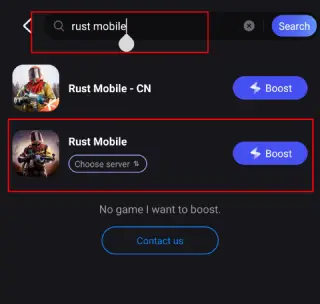
Step 2. Search for your game and select it.
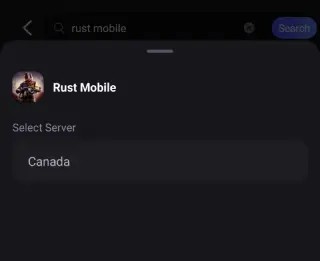
Step 3. Pick the server that suits you best.
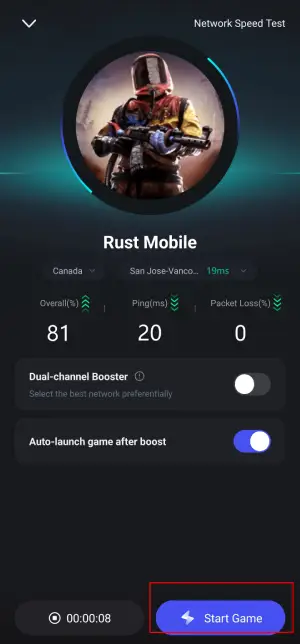
Step 4. Tap Boost, and LagoFast will display real-time ping and packet loss stats.
How to Use LagoFast on PC
Step 1: Click the Free Trial button to download and install LagoFast.
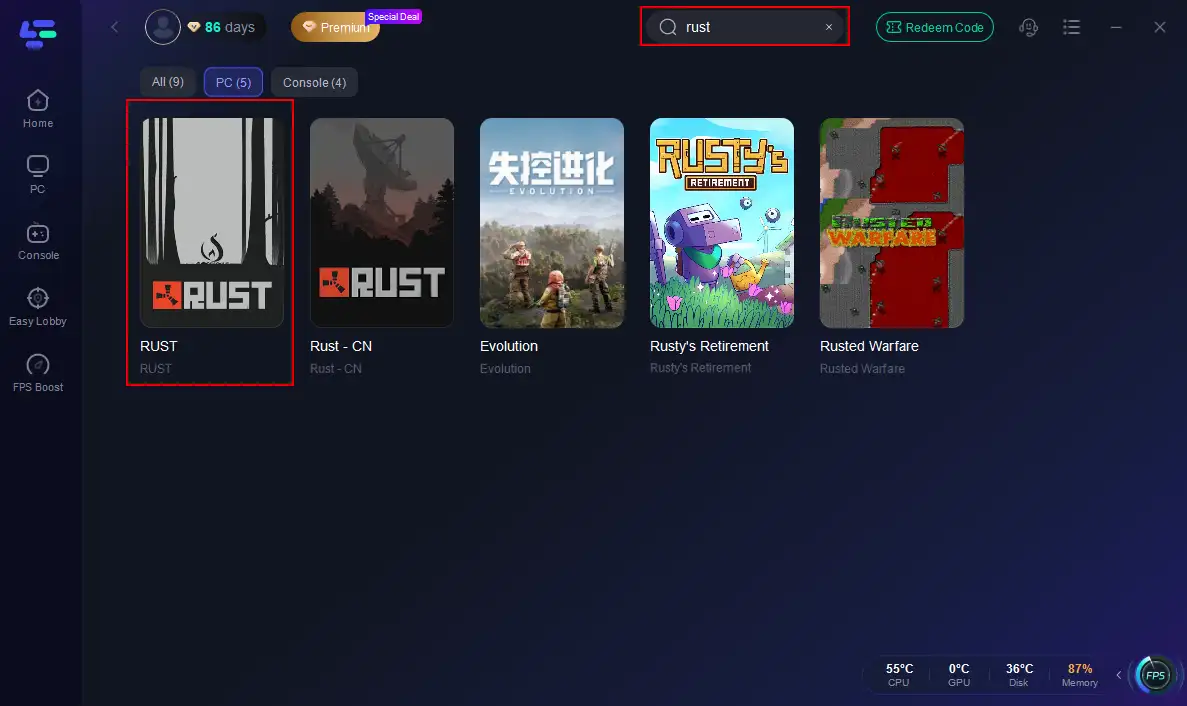
Step 2: Open LagoFast, then click the PC button on the left and search for Rust in the search bar, and click it after it appears.
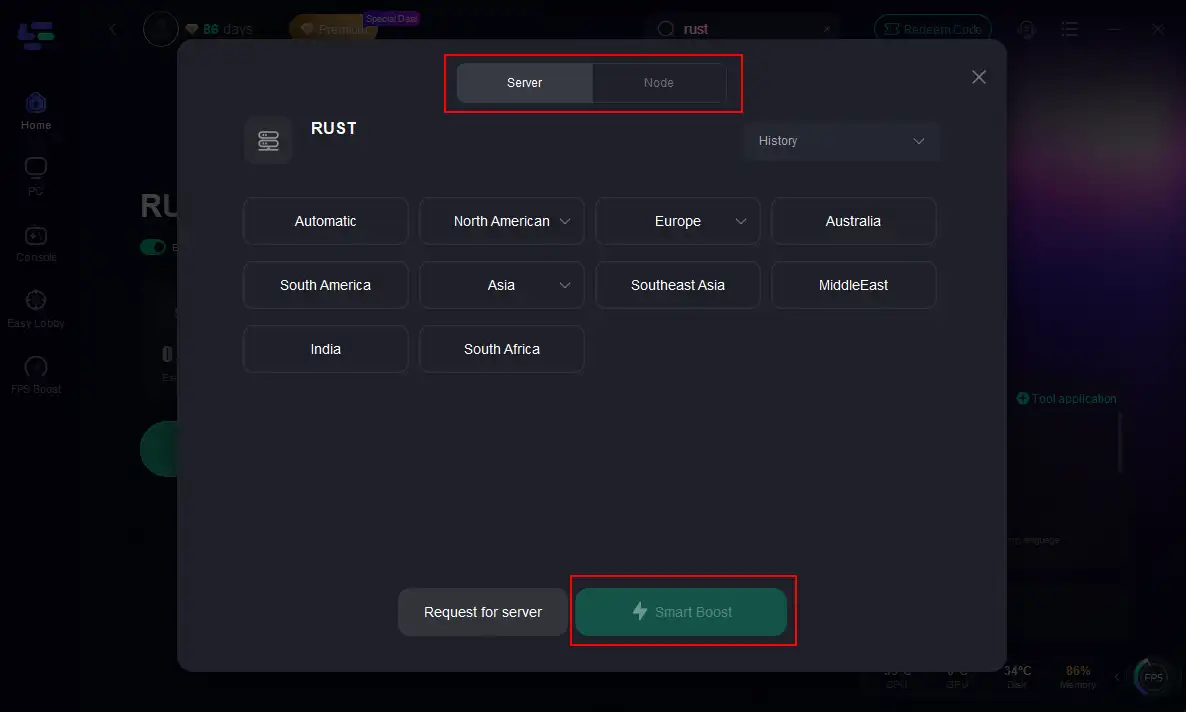
Step 3: Click on “Server” to change to a better server that maximizes the gaming experience, then click on “Smart Boost”.
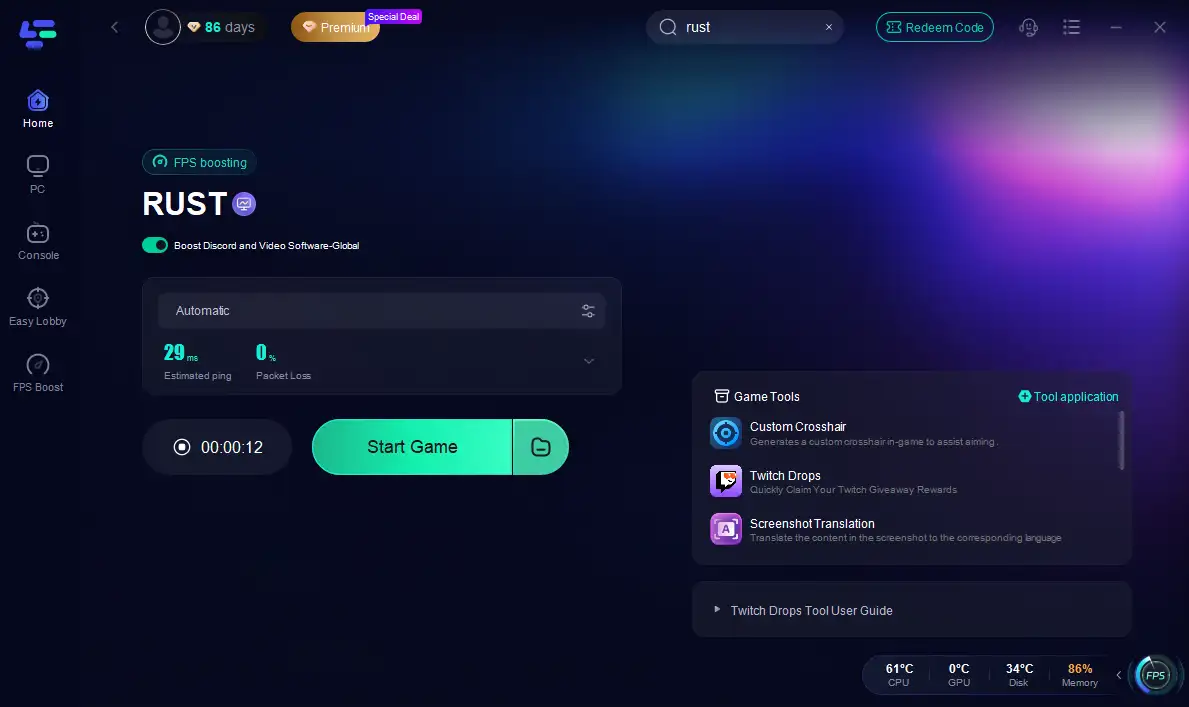
Step 4: Check the specific game ping, packet loss, and multiple path connections on the right side. Finally, click the “Start Game” to play Rust.
LagoFast is particularly helpful during modded servers, wipe days, or high-traffic events where map downloads can stall.
Conclusion
“Couldn't Download Level” Rust errors can be caused by corrupted maps, network problems, or server issues. Most players fix this by:
- Clearing maps and temp cache
- Verifying Rust game files
- Adjusting network settings or switching to Ethernet
- Using LagoFast for faster and stable downloads
If these steps fail, a fresh reinstall usually resolves persistent issues. Following this guide ensures smoother server joins and uninterrupted Rust gameplay.

Boost Your Game with LagoFast for Epic Speed
Play harder, faster. LagoFast game booster eliminates stutter and lags on PC, mobile, or Mac—win every match!
Quickly Reduce Game Lag and Ping!
Boost FPS for Smoother Gameplay!