
The highly anticipated soccer game REMATCH has arrived, offering a fresh alternative to traditional sports sims with fast-paced action, no fouls, and skill-based gameplay. But like any major online release, it hasn't been without hiccups, particularly connection issues that leave players staring at frustrating error messages like “Can’t connect to REMATCH server.” If you’re among the many players experiencing REMATCH connection errors, don’t worry, this guide will help you understand what’s going wrong and how to fix it. From basic system checks to advanced network tweaks, we’ll cover everything you need to get back on the pitch.

- ✅ Reduce Lag and High Ping.
✅ Boost FPS at the Same Time.
✅ Support 2000+ Online Games
✅ Change Server Without Latency.
✅ Multiplatform: PC, Console, Mobile.
✅ End Stuck, Connection & Crashing Issues
Part 1: REMATCH Release Date & Overview
Part 2: Why You Can't Connect to REMATCH Server
Part 3: Best Solutions to Fix “Can't Connect to REMATCH Server”
Part : REMATCH Release Date & Overview
REMATCH officially launches on June 19, 2025, and it’s available on PC, PlayStation, and Xbox platforms. Developed to bring a more arcade-style soccer experience, the game emphasizes fluidity, speed, and skill, removing traditional rule enforcement like fouls and offsides to create non-stop action.
There are three editions available for pre-order:
- Standard Edition ($29.99): Includes base game + Adopter Cap
- Pro Edition ($39.99): Adds bonus cosmetics and the Captain Pass
- Elite Edition ($49.99): Includes all bonuses, Beta access, and AR Cage
The game introduces modes like 5v5 and 4v4 matchups, and beta access allowed players to test gameplay in April 2025. Its online multiplayer modes aim to challenge players with real-time decisions and seasonal content updates.
But all of this potential becomes meaningless when you run into the dreaded message: “Can’t connect to REMATCH server.” Let’s explore why that happens.
Hot Related: Chrono Odyssey Connection Issues: Comprehensive Guide
Part 2: Why You Can't Connect to REMATCH Server
If you’re encountering the message “can’t connect to REMATCH server”, you’re not alone. There are several possible reasons this error occurs:
- Server Overload or Downtime: REMATCH servers might be undergoing maintenance or suffering from high player traffic.
- Network Configuration Issues: Incorrect DNS settings, IP address conflicts, or restricted NAT types can all impact connectivity.
- Corrupted Game Files: Missing or damaged files can interfere with how the game communicates with its servers.
- Firewall or Antivirus Conflicts: Security software might be blocking your access to REMATCH.
- Incorrect System Time/Date: Desynchronized system clocks can prevent authentication with game servers.
- ISP or Regional Restrictions: Sometimes, your internet service provider or physical location causes connection delays or blocks.
Fortunately, most of these problems can be resolved without needing to wait for a patch or server-side fix. Let’s go through the best solutions.
Part 3: Best Solutions To Fix “Can't Connect to REMATCH Server”
1. Use LagoFast to Quickly Resolve REMATCH Server Errors
One of the easiest and most reliable ways to fix REMATCH connection issues is by using LagoFast, a specialized game booster and ping reducer. This tool is built specifically for online gamers who experience lag, disconnections, or server login failures.
How LagoFast Helps Fix REMATCH Server Problems:
- Smart Routing Technology: LagoFast uses intelligent multi-node routing to bypass congested paths between your PC and the REMATCH servers.
- Ping Reduction & FPS Boosting: Instantly reduces latency and improves performance, especially helpful in competitive matches.
- Region Optimization: It can switch server routes based on your region to avoid geo-blocks and reduce packet loss.
- One-Click Boost: With a single click, LagoFast can fix the “can’t connect to REMATCH server” error by optimizing your network configuration and stabilizing your connection.
- Wide Game Support: Supports hundreds of titles beyond REMATCH, including Apex Legends, Valorant, Fortnite, and more.
LagoFast is perfect if you don’t want to dig into system settings or manually troubleshoot your connection.
Tutorial to use LagoFast to fix the REMATCH server disconnection on PC:
Step 1: Click the Free Trial button to download and install LagoFast.
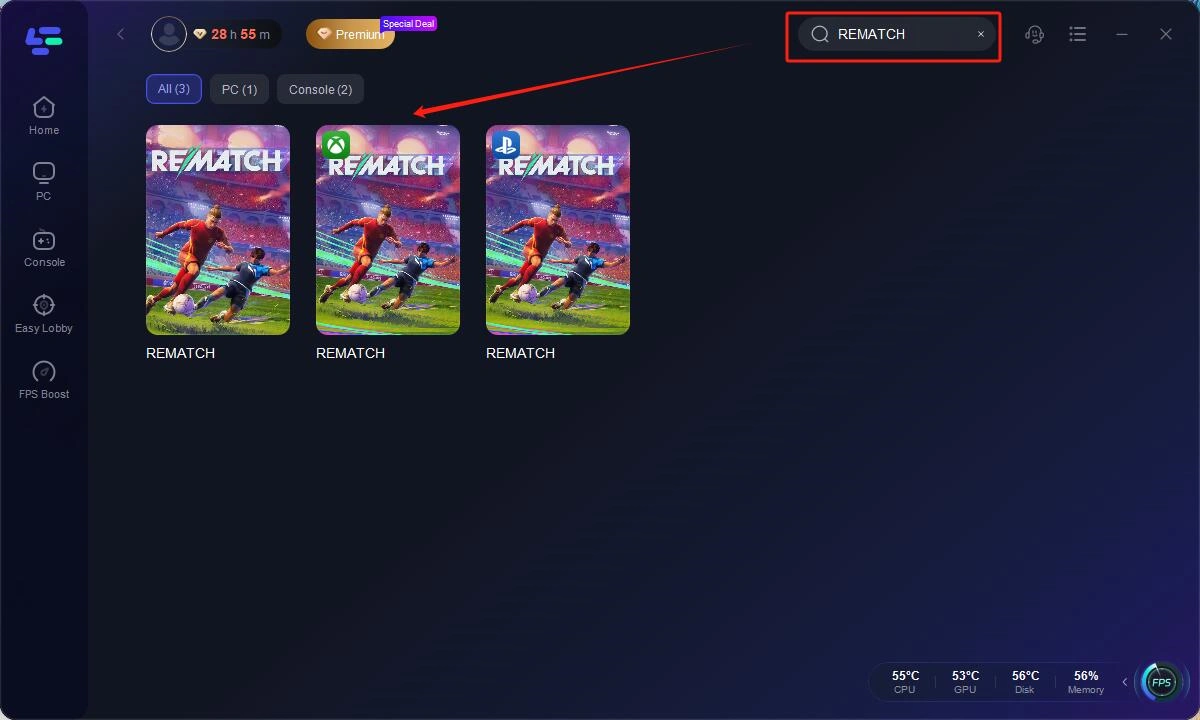
Step 2: Open LagoFast, then click the PC button on the left and search REMATCH in the search bar, click it after it appears.
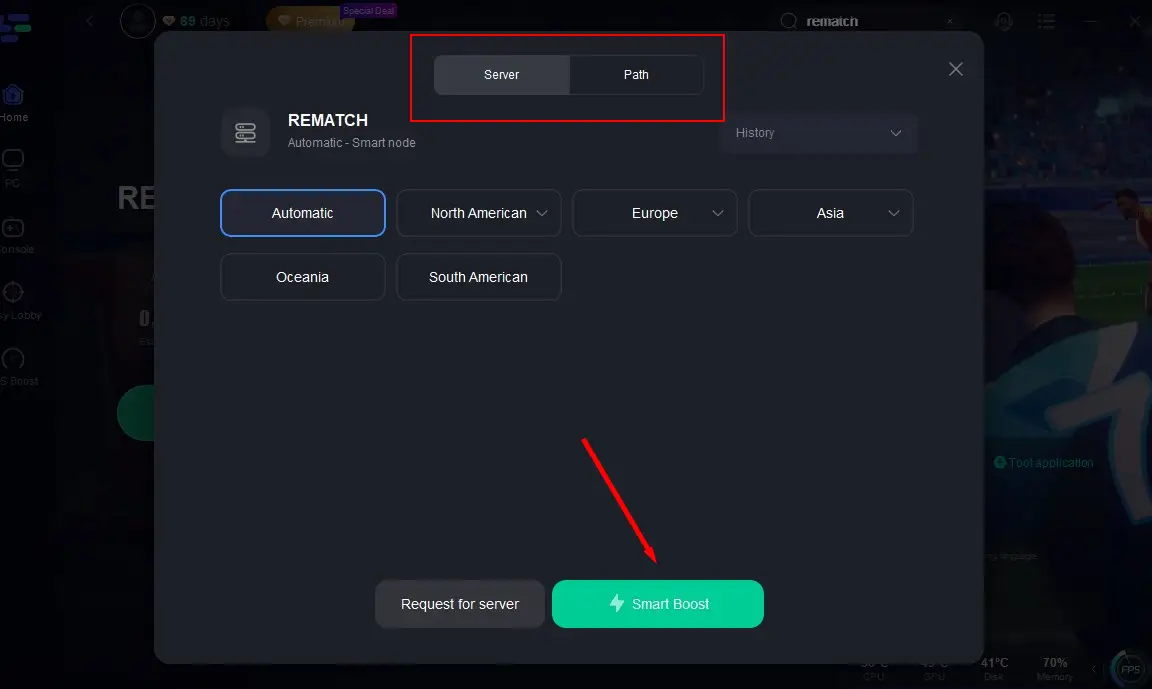
Step 3: Click on "Server" to change to a better server that ensures the gaming experience, then click on "Smart Boost".
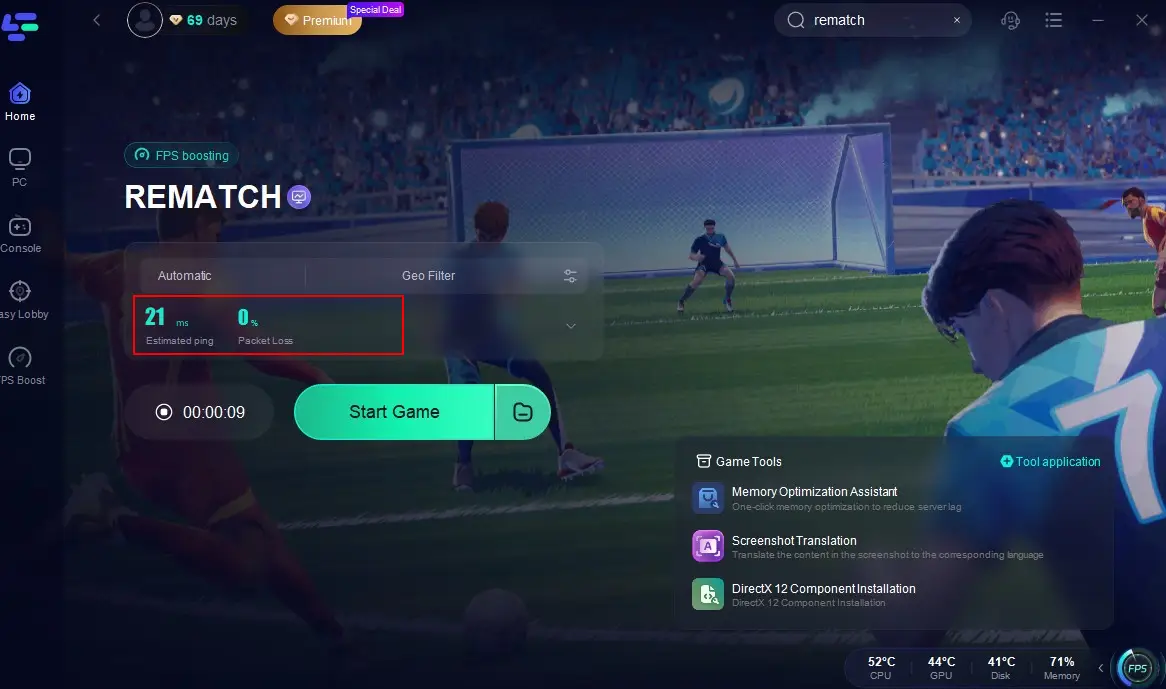
Step 4: Check the specific game ping, packet loss, and multiple path connection on the right side. Finally, click the "Start Game" to play the game.
2. Verify the Game Files
Sometimes the REMATCH connection issue stems from corrupted or missing game files. Verifying game files ensures everything is installed correctly.
Steps to Verify Game Files (on Steam):
Step 1: Launch Steam and go to your Library
Step 2: Right-click on REMATCH and select “Properties.”

Step 3: Click on the “Installed Files” tab.
Step 4: Click “Verify integrity of game files".

Step 5: Wait for Steam to scan and repair any issues.
Step 6: Restart your PC and try launching the game again.
This process will replace any damaged or missing files that could be preventing server communication.
3. Check Your System Time & Region Settings
Incorrect system time and date settings can cause problems connecting to REMATCH servers, especially if server authentication relies on time synchronization.
Steps to Correct Date and Time Settings (Windows):
Step 1: Right-click on the time in your taskbar and select “Adjust date and time.”
Step 2: Enable “Set time automatically” and “Set time zone automatically.”

Step 3: Scroll down and click “Sync now” under “Additional settings.”
Step 4: Switch your region to match your actual location.
Step 5: Restart your computer to apply changes.
Step 6: Launch REMATCH and check if the connection issue persists.
These simple tweaks can resolve hidden conflicts between your PC and REMATCH servers.
4. Run These Commands to Flush Network Configuration
Flushing your DNS and renewing your IP can help solve hidden networking issues.
Steps to Run Network Commands:
Step 1: Press Win + S, type cmd, right-click on “Command Prompt” and choose “Run as administrator.”
Step 2: Type the following commands one by one and press Enter after each:
- ipconfig /flushdns
- ipconfig /release
- ipconfig /renew

Step 3: After completing the commands, close the Command Prompt.
Step 4: Restart your PC.
Step 5: Relaunch REMATCH.
Step 6: See if the connection has improved.
This method is especially helpful for clearing old DNS cache and resolving IP conflicts that can cause REMATCH server errors.
5. Try Google DNS Server
Switching to Google’s DNS can provide a more stable connection to REMATCH servers, particularly if your ISP’s DNS is unreliable.
Steps to Change to Google DNS:
Step 1: Press Win + R, type ncpa.cpl, and press Enter.
Step 2: Right-click your active network adapter and choose “Properties.”
Step 3: Double-click on “Internet Protocol Version 4 (TCP/IPv4).

Step 4: Select “Use the following DNS server addresses.”
Step 5: Enter the following:

- Preferred DNS: 8.8.8.8
- Alternate DNS: 8.8.4.4
Step 6: Click OK and restart your system.
This often solves REMATCH connection issues caused by regional ISP filtering or poor routing.
6. Temporarily Disable Firewall and Antivirus
Security software can block REMATCH from establishing a connection, especially during updates or first-time launch.
Steps to Temporarily Disable Firewall and Antivirus:
Step 1: Open Windows Security from the Start menu.
Step 2: Click on “Firewall & Network Protection.”

Step 3: Choose your current network and toggle off the firewall temporarily.
Step 4: Open your antivirus software and turn off real-time protection.
Step 5: Launch REMATCH and check the connection.
Step 6: If it works, whitelist REMATCH in your firewall/antivirus settings before re-enabling them.
Always re-enable your firewall after testing.
7. Reinstall Network Drivers
Outdated or corrupted network drivers can impact how your system communicates with REMATCH servers.
Steps to Reinstall Network Drivers:
Step 1: Press Win + X and select “Device Manager.”
Step 2: Expand “Network Adapters.”
Step 3: Right-click your adapter and choose “Uninstall device.”

Step 4: Confirm and reboot your PC.
Step 5: Windows will automatically reinstall the driver.
Step 6: Try connecting to REMATCH again.
This is a helpful fix if you’ve recently updated Windows or your internet adapter.
Conclusion
Experiencing REMATCH connection issues can be frustrating, especially if you're just trying to enjoy a few matches with friends. Whether it’s the “can’t connect to REMATCH server” message or frequent disconnections, there are plenty of steps you can take to get back in the game. Start by checking your system clock and network settings, verifying the game files, and consider using reliable tools like LagoFast. It’s one of the quickest ways to resolve server errors and enjoy a lag-free experience, not only in REMATCH but in other online titles as well. With these tips and fixes, you’ll be back on the battlefield in no time, without having to wait for a patch or contact support.
Boost Your Game with LagoFast for Epic Speed
Play harder, faster. LagoFast game booster eliminates stutter and lags on PC, mobile, or Mac—win every match!
Quickly Reduce Game Lag and Ping!
Boost FPS for Smoother Gameplay!