
EA Sports FC 26 has taken the gaming world by storm, but nothing is more frustrating than being blocked by the dreaded "Unable to Connect to EA Servers" error. Whether you're trying to jump into Ultimate Team, Career Mode, or online multiplayer, connection issues can ruin your gaming experience. This comprehensive guide will help you diagnose and fix FC 26 connection problems, covering everything from server status checks to advanced fixes.

- ✅ Reduce Lag and High Ping.
- ✅ Boost FPS at the Same Time.
- ✅ Fix Packet Loss on PC and Console.
- ✅ Change Server without Latency.
- ✅ End Stuck & Crashing Issues.
Part 1: Common Causes Behind FC 26 Can’t Connect to Server
Part 2: Step-by-Step Fixes for Can’t Connect to FC 26 Server Issue
Part 3: Bonus Tips - How to Check FC 26 Server Status
Part 1: Common Causes Behind FC 26 Can’t Connect to Server
If you’re unfortunately encounter issues connecting to the FC 26 servers, the very first step is to understand the reasons behind it. Generally, the common causes can be grouped into four main categories:
Server-side Outages or Maintenance
EA servers occasionally go into maintenance or experience downtime. These periods often coincide with patch releases or updates, though cause disconnection to servers.
Internet or Network Issues
- Unstable connection: Packet loss or intermittent connectivity will trigger an FC 26 connection failed error.
- NAT/firewall restrictions: Network Address Translation settings or over-aggressive firewalls can block EA’s ports.
Local Software Conflicts
- Antivirus or VPN interference: These can accidentally block EA traffic, causing FC 26 Unable to Connect to EA Servers Error.
- Corrupted game files: Missing or corrupt files in your EA FC 26 installation may lead to connection dropouts.
- Out-of-date client or OS: Running outdated EA app or missing OS updates can lead to compatibility problems, resulting in FC 26 connection issues.
Platform-Specific Bugs
Whether you're on PC, PlayStation, or Xbox, occasional platform-specific bugs emerge—especially after updates.
Hot Related: EA FC 26 Release Date, Platforms, & Gameplay Features
Part 2: Step-by-Step Fixes for Can’t Connect to FC 26 Server Issue
After konwing the common causes of "Can't connect to FC 26 server” error, here are some fixes to help you go back to the game:
1. Best Fix - LagoFast
Most connection failures in FC 25 are actually linked to network issues. In such situations, using LagoFast game booster can make a real difference. LagoFast is specifically built to enhance network performance and improve your gaming experience. It helps tackle many of the problems that lead to the “unable to connect to FC 26” error. Here is how to use it:
For PC Players:
Step 1. Download LagoFast by clicking the "Free Trial" button.
Step 2. Before you start your game, search for it within the LagoFast application to ensure it's supported.
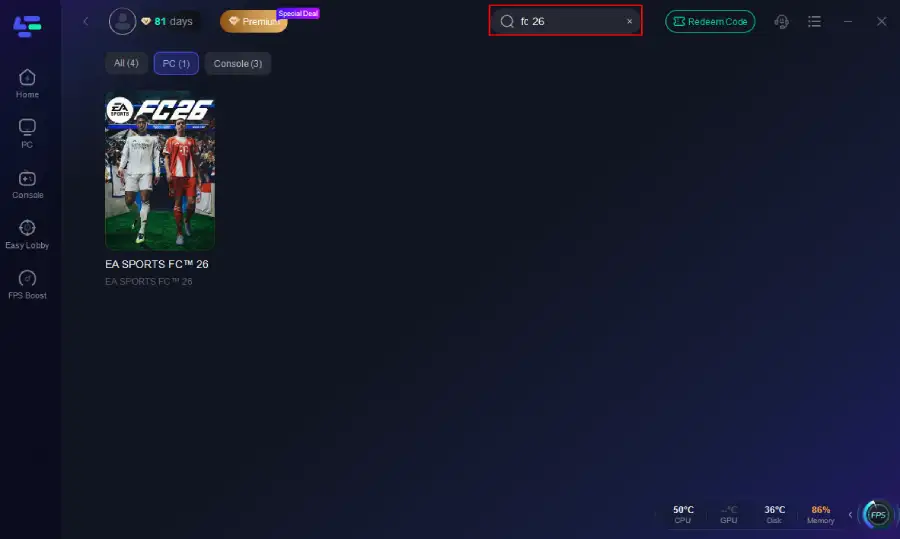
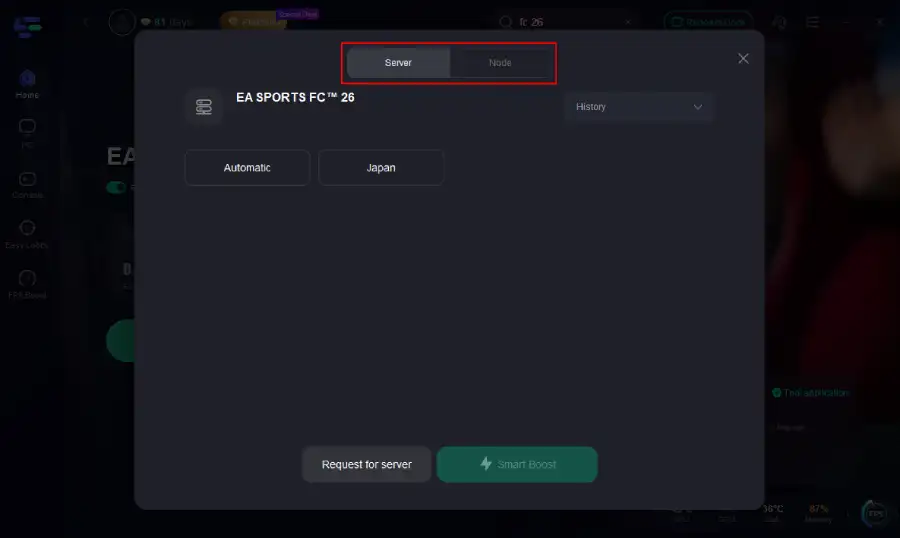
Step 3. Navigate to "Select Server" to choose the most stable server. Follow up by selecting the best Node available on the right to optimize your connection.
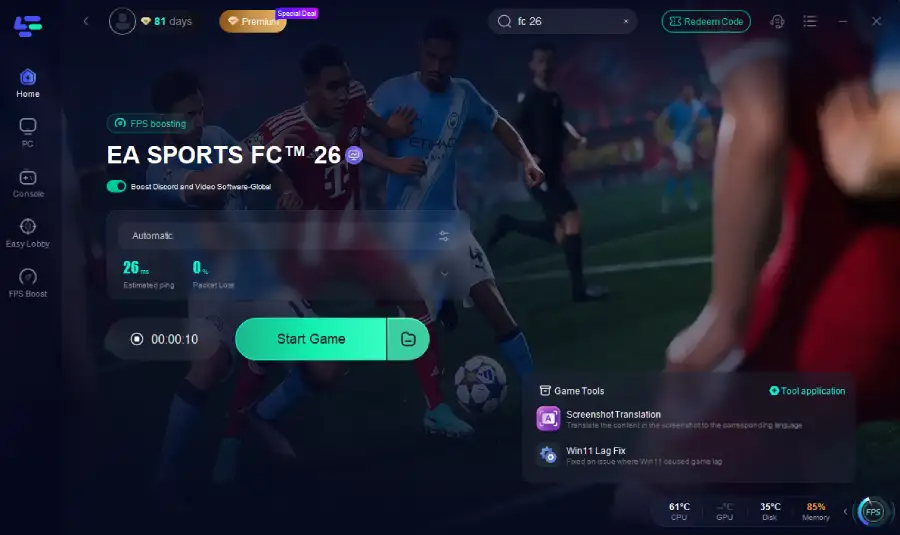
Step 4.Click the "Smart Boost" button to get real-time data on your game's ping, packet loss, and network type, which helps in monitoring and adjusting for optimal performance.
For Console Players:
Step 1. Download the LagoFast Console App to control the LagoFast Box

Step 2. Connect your LagoFast Box to your router and Console. You can use either wired connection or wireless connection.

Step 2. Launch LagoFast Console App and Boost FC 26. After you finish LagoFast Box binding, you can boost the game in LagoFast Console App.

2. Switch to a Wired Connection
- Use an Ethernet cable. Wired connections dramatically reduce lag and packet loss.
- If wireless, ensure strong signal or switch to the 5 GHz band.
3. Configure Your Network Settings
Enable UPnP on your router or manually forward EA’s required ports:
- PC (Origin / EA App): TCP : 80, 443, 1024–1124, 18000–18050
- PlayStation / Xbox generally works better with Open NAT settings.
Check firewall and antivirus settings to allow EA, Origin, EA App, and FC 26 explicitly.
Temporarily disable VPNs to test if the connection stabilizes.
4. Verify Game File Integrity
- On EA App: Right-click on FC 26 > Repair.
- On Origin: Go to “Repair Game” under the game’s settings.
This ensures the game’s files are current and uncompromised.
5. Change DNS
- Open Network Settings → Change Adapter Options
- Right-click your connection → Properties
- Select IPv4 → Properties
Use:
- Preferred DNS: 8.8.8.8
- Alternate DNS: 8.8.4.4
6. Update Network Drivers
Outdated drivers often cause connection issues:
- Press Win + X → Device Manager
- Expand Network Adapters
- Right-click your adapter → Update Driver
7. Update Device or FC 26
Ensure your OS, drivers (especially network drivers), and EA client are fully up to date.
Clear EA client cache:
- Windows: Close EA App, delete the %ProgramData%/Origin folder (excluding LocalContent), and restart.
- Consoles: Restart the console and reconnect to EA servers.
8.Restart the Game or Device
- Turn off your console/PC, router, and modem.
- Unplug them for at least 30 seconds.
- Power them back on in the order: modem → router → console/PC.
You May Like: Is FC 26 Crossplay?
Part 3: Bonus Tips - How to Check FC 26 Server Status
If you want to check the FC 26 server status, try three channels below:
- Visit EA Help Official Status Page
- Check third-party sites like Downdetector
- Follow @EAHelp on Twitter for real-time updates
Pro Tip: EA typically performs server maintenance on Tuesdays (as of 2025), so plan your gaming sessions accordingly.
Related Article: How to Fix FC 26 Packet Loss
Conclusion
FC 26 connection issues can usually be resolved with systematic troubleshooting. Start with basic network checks, verify server status, and progressively move to advanced solutions. By using LagoFast, players can effectively reduce the frequency of these issues and minimize connection problems caused by network or server errors. Download LagoFast now to ensure a smooth and seamless gameplay experience in FC 26!
Boost Your Game with LagoFast for Epic Speed
Play harder, faster. LagoFast game booster eliminates stutter and lags on PC, mobile, or Mac—win every match!
Quickly Reduce Game Lag and Ping!
Boost FPS for Smoother Gameplay!