
Getting Call of Duty: Black Ops 7 up and running should be a moment of excitement—until it fails to launch or breaks mid-stream. Whether your game refuses to start, sync, or load, these issues can be a major buzzkill. In this guide, we explore why these problems happen and share effective solutions so you can get back in the fight.

- ✅ Reduce Lag and High Ping.
- ✅ Boost FPS at the Same Time.
- ✅ Ensure Stable Server Connection.
- ✅ Change Server without Latency.
- ✅ Fix Crashing and Stuck Errors.
- ✅ 0% Packet Loss Rate
- ✅ Boost Game Downloading Speed.
Part 1. Introduction to Black Ops 7 Not Working Issues
Part 2. Why is Black Ops 7 Not Working on PC
Part 3. Troubleshooting Call of Duty: Black Ops 7 Won't Start
Part 4. Fixing Call of Duty: Black Ops 7 Not Launching and Stuck on Loading Screen
Part 5. Using LagoFast Game Booster to Solve Performance Issues
Part 1. Introduction to Black Ops 7 Not Working Issues
Black Ops 7 has a lot of moving parts—new anti-cheat systems, launcher upgrades (COD HQ), cross-play integration, and added game modes like Zombies and Skirmish. Launch issues stem from how these systems interact with your PC setup, network, and background software.
Gamers across platforms report recurring issues like:
- Instant crashes or black screens at startup
- Game launcher spinning but nothing happens
- Stalling on a loading screen or stuck at Splash
- Unexpected disconnections mid-launch
These issues often mirror difficulties previously seen in Black Ops 6, so solutions from COD6 can still apply.
You May Like: How to Fix Call of Duty: Black Ops 7 Slow Download Speed - 100% Work
Part 2. Why is Black Ops 7 Not Working on PC
Core reasons behind launch failure include:
- Anti-Cheat & Software Conflicts: Programs like FaceIT Anti-Cheat, Riot Vanguard, and remapping tools (e.g., ReWASD) often disrupt Black Ops launches.
- System Services Conflict: Background services or startup apps interfering with game launch. Clean boot methods frequently reveal hidden culprits.
- Corrupt or Incomplete Game Files: Installation mismatches or incomplete updates can stop launch. Verifying file integrity frequently helps.
- Launcher or Platform Glitches: Battle.net or COD HQ itself may not open or sync correctly, causing launch failure.
- Hardware or Driver Problems: Outdated GPU drivers, disabled ASLR, or missing Windows updates create launch blockers.
You May Like: Call of Duty: Black Ops 7 Pre-Order Guide — Editions, Bonuses, and Game Pass Access
Part 3. Troubleshooting Call of Duty: Black Ops 7 Won't Start
Here’s a step-by-step checklist to fix issues causing the game not to start:
Perform a Clean Boot
Press Win + R → type msconfig → Services tab → check Hide all Microsoft services → Disable all → Restart. This reveals if a third-party service is blocking launch.
Uninstall Conflicting Software
If you have tools like FaceIT, Vanguard, ReWASD, or custom overlays, remove them completely. Many users reported success afterward.
Verify or Repair Game Files
- In Battle.net, click the cog next to Black Ops 7 → Scan & Repair.
- In Steam, right-click the game → Properties → Verify Integrity of Game Files.
Run Launchers as Administrator
Ensure Battle.net, Steam, or the game launcher is run with Administrative privileges. Also, disable antivirus/firewall temporarily to confirm they're not interfering.
Update Drivers & Windows
Keep your GPU drivers (NVIDIA/AMD/Intel) updated to the recommended version for COD. Run Windows Update, especially on Windows 11 to enhance system stability.
Reinstall the Game
If issues persist, uninstall Black Ops 7, delete remaining files, then reinstall to a default path.
Clear Launcher Cache
If Battle.net won't open, delete Battle.net folder in %AppData%, then relaunch as admin.
Related Article: Is CoD Black Ops 7 on Game Pass?
Part 4. Fix Call of Duty: Black Ops 7 Not Launching and Stucking on Loading Screen
If the game starts but stalls on loading, try these targeted fixes:
- Click Through Stuck Screens: Some users with older COD titles fixed black screen by clicking the window rapidly until the game appeared.
- Spamming F1 then Alt+Tab: Workaround that got the game past frozen Launch screens in Warzone/BO6.
- Allow Shader Preloading: Let shader loading fully complete before trying to play. Interruptions here cause load failures.
- Restart Launcher/Console: On Xbox, disconnecting from party or restarting the console helped fix launch loops.
Part 5. Using LagoFast Game Booster to Solve Performance Issues
LagoFast won’t directly fix launch failures, but it stabilizes the connection and optimizes performance—helpful if loading hangs or network timeouts occur.
Benefits of LagoFast:
- Improves routing to game servers, reducing preloading stalls.
- Stabilizes ongoing connection for smoother launch handshake.
- Lowers latency, improving responsiveness post-launch.
How to Use LagoFast on PC
Step 1: Click the Free Trial button to download and install LagoFast.
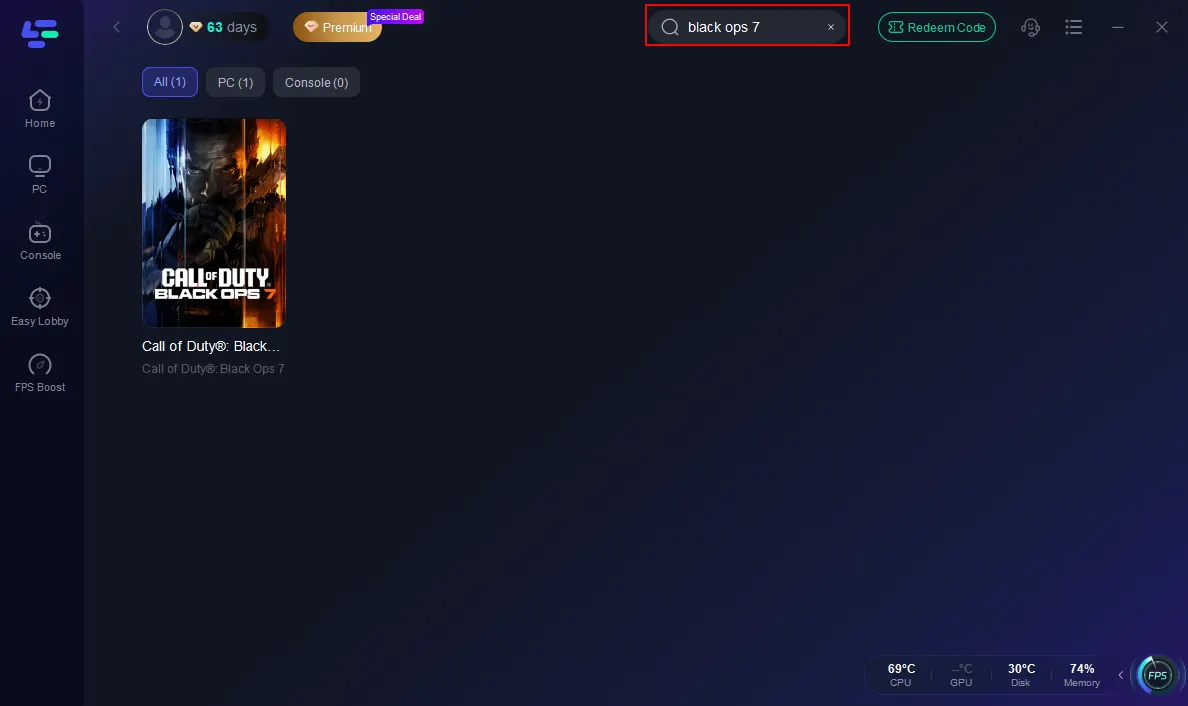
Step 2: Open LagoFast, then click the PC button on the left and search Black Ops 7 in the search bar, and click it after it appears.
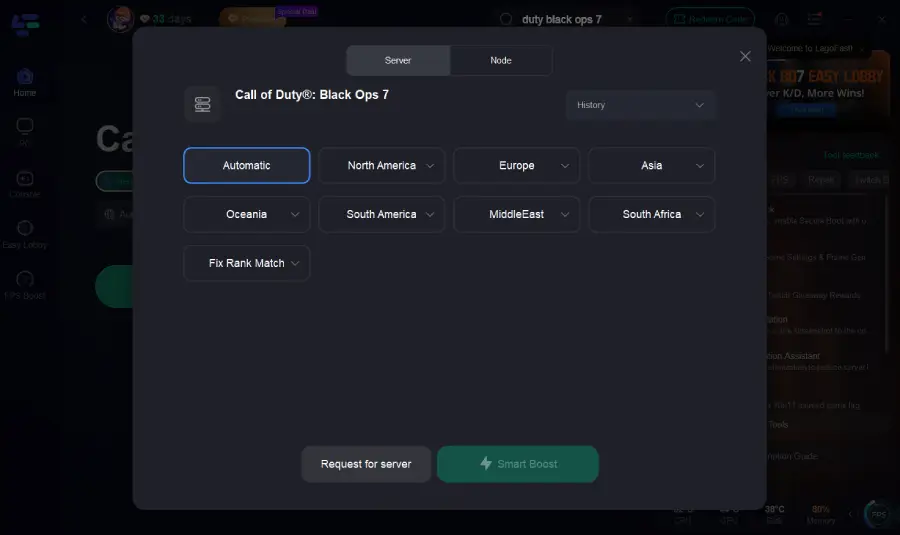
Step 3: Click on “Server” to change to a better server that ensures the Black Ops 7 gaming experience, then click on “Smart Boost”.
Step 4: Launch game and enjoy an enhanced gaming experience with reduced lag and improved stability.
How to Use LagoFast Box on Consoles
For console players, the LagoFast Box provides the same network optimization benefits on PlayStation and Xbox.
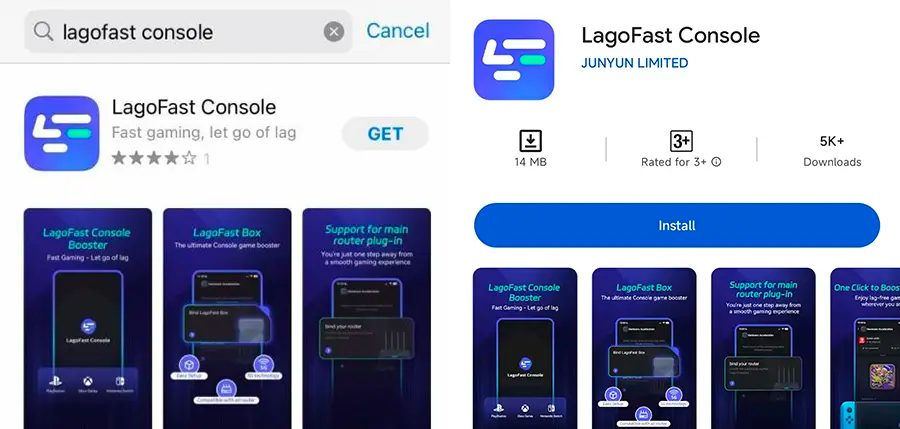
Step 1: Download the LagoFast Console App on your phone to control the LagoFast Box.
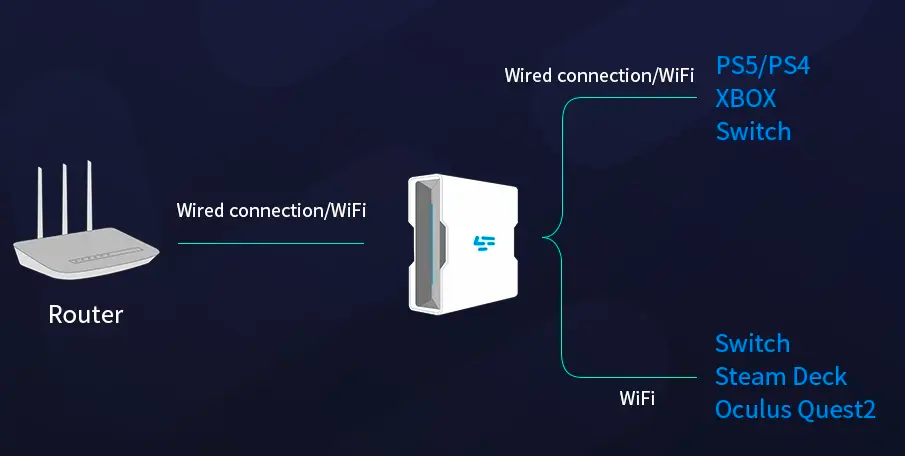
Step 2: Establish a connection between your LagoFast Box, router, and console, choosing between a wired or wireless connection.
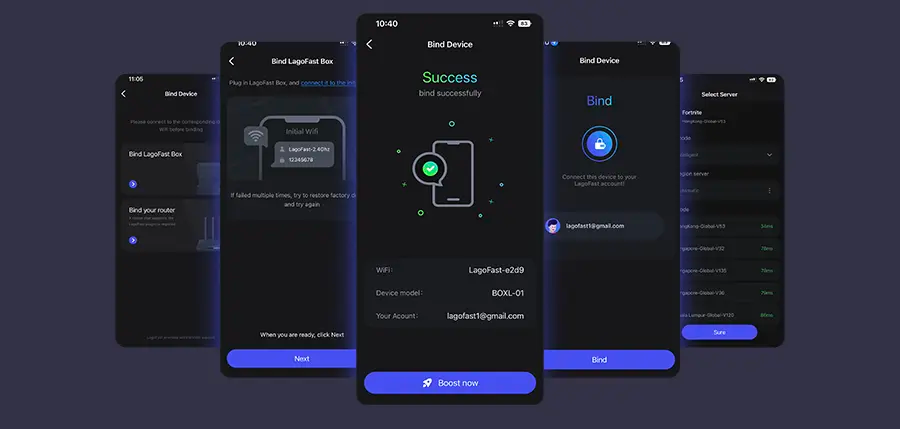
Step 3: Launch the LagoFast Console App and boost Black Ops 7. Once you have completed the binding process with the LagoFast Box, proceed to boost this game within the LagoFast Console App.
You May Also Like: Call of Duty: Black Ops 7 Multiplayer: How to Play Co-Op
Part 6. FAQs
Q1: Is Black Ops 7 launch failure due to my hardware?
Not always. Many issues stem from background software conflicts—not hardware faults. A clean boot helps confirm this.
Q2: Will reinstalling the game fix corrupted file issues?
Yes—only if it’s a file issue. Combined with “verify” scan, reinstalling often resolves launch fails.
Q3: Do I always need to disable antivirus when playing?
Not always—just whitelist the game and launcher processes so your anti-malware doesn’t block them.
Q4: Does LagoFast help with launch issues?
Not directly—but it primes your network, helping reduce problems during login, DLC checks, and updates.
Conclusion
Launch issues in Call of Duty: Black Ops 7 are usually due to software conflicts, services, or corrupted files. Start with a clean boot and methodically disable overlays, anti-cheats and background tools. Verify or reinstall files, update software, and consider using LagoFast Game Booster (PC) and the LagoFast Box (Console) for an optimized, smooth launching experience.

Boost Your Game with LagoFast for Epic Speed
Play harder, faster. LagoFast game booster eliminates stutter and lags on PC, mobile, or Mac—win every match!
Quickly Reduce Game Lag and Ping!
Boost FPS for Smoother Gameplay!