
Call of Duty: Black Ops 7 is one of the most anticipated releases of 2025, promising high-stakes battles, massive maps, and fast-paced gameplay. However, as with many new titles, performance issues like lag, stutter, and frame drops can interrupt the fun. Whether you’re on PC, PlayStation, or Xbox, lag can make the game feel unplayable. This article covers why Black Ops 7 runs into performance problems across platforms and provides practical, step-by-step fixes to make your gameplay smoother.
Ukrainian version: Як Виправити Лаги У Call of Duty: Black Ops 7 На ПК Та Консолях – 100% Робочі Рішення

- ✅ Reduce Lag and High Ping.
- ✅ Boost FPS at the Same Time.
- ✅ Ensure Stable Server Connection.
- ✅ Change Server without Latency.
- ✅ Fix Crashing and Stuck Errors.
- ✅ 0% Packet Loss Rate
- ✅ Boost Game Downloading Speed.
Part 1: Why Call of Duty: Black Ops 7 Lags on PC & Consoles
Part 2: How to Fix Call of Duty: Black Ops 7 Lag on PC & Consoles?
Part 1: Why Call of Duty: Black Ops 7 Lags on PC & Consoles
Performance issues in Call of Duty titles usually stem from system requirements, network conditions, or platform limitations. Since Black Ops 7 is graphically demanding and heavily online-focused, both PC and console players may face issues.
Why Call of Duty: Black Ops 7 Lags on PC
On PC, lag and stutter can occur due to:
- Hardware bottlenecks – older GPUs, limited RAM, or weak CPUs struggle with high-demand games.
- Outdated drivers – failing to update graphics or chipset drivers can cause frame drops.
- Overheating and thermal throttling – components reduce performance when running too hot.
- Poor optimization – some PCs may experience stutter even if they meet system requirements.
- Network instability – inconsistent internet connections can result in in-game lag spikes.
Why Call of Duty: Black Ops 7 Lags on Consoles
On PlayStation and Xbox, lag can be traced to different factors:
- Server issues – overloaded or unstable servers cause rubber-banding and high ping.
- Wi-Fi connection – consoles using wireless internet often face packet loss and latency.
- Background downloads or apps – updates running in the background consume bandwidth.
- Hardware limits – older generation consoles like PS4 or Xbox One may struggle with performance.
- Network congestion – multiple devices on the same network can slow down online gameplay.
Hot Related: How to Fix Call of Duty: Black Ops 7 Slow Download Speed
Part 2: How to Fix Call of Duty: Black Ops 7 Lag on PC & Consoles
All-in-One Solution: LagoFast – Fix Black Ops 7 Lag on All Platforms
The quickest way to handle lag across PC, PlayStation, and Xbox is using LagoFast, a dedicated lag reducer designed for online games. Unlike standard boosters, LagoFast optimizes your connection, reduces ping, and stabilizes servers worldwide. It works as an all-in-one solution, making it perfect if you want a fast, easy fix without manually tweaking settings.
Key Features of LagoFast:
- Smart routing for lower ping and stable connections
- Compatible with PC, Xbox, and PlayStation
- Boost FPS on low-end PCs by optimizing background processes
- One-click setup – no complicated technical knowledge required
- Global servers to reduce lag in cross-region matches
If you want an instant improvement in Call of Duty: Black Ops 7 performance, LagoFast is the most effective and reliable method.
Tutorial to use LagoFast to fix Black Ops 7 lag on PC:
Step 1: Click the Free Trial button to download and install LagoFast.
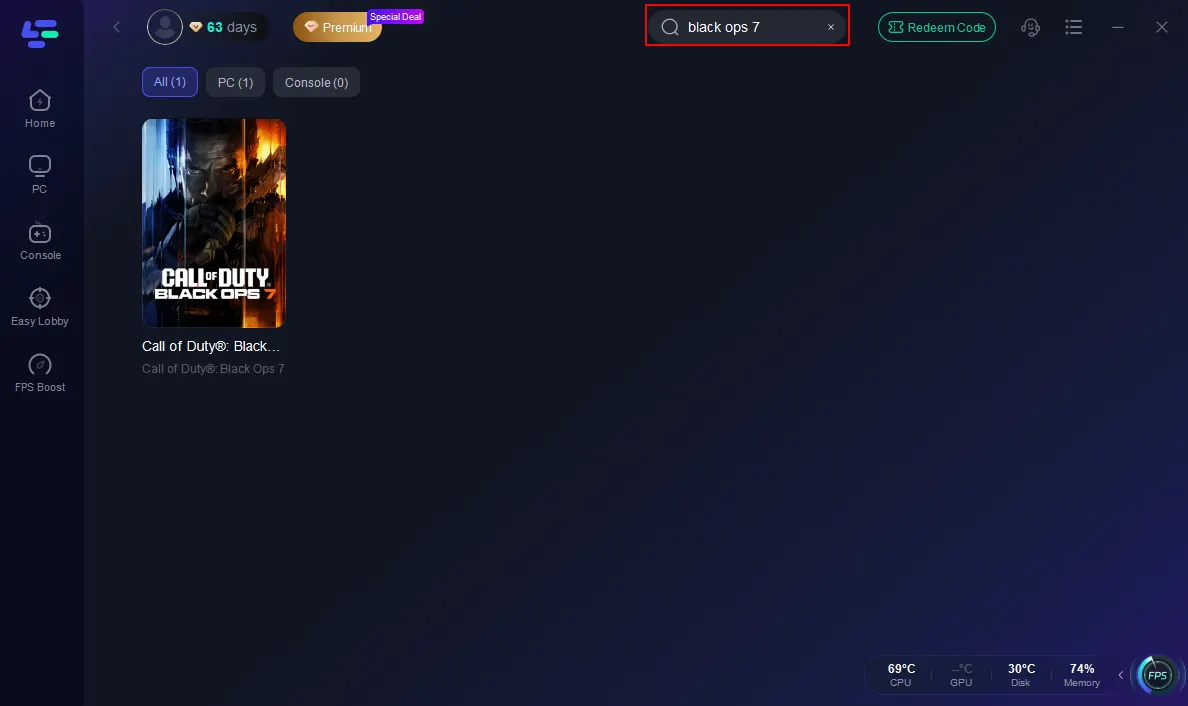
Step 2: Open LagoFast, then click the PC button on the left and search Black Ops 7 in the search bar, and click it after it appears.
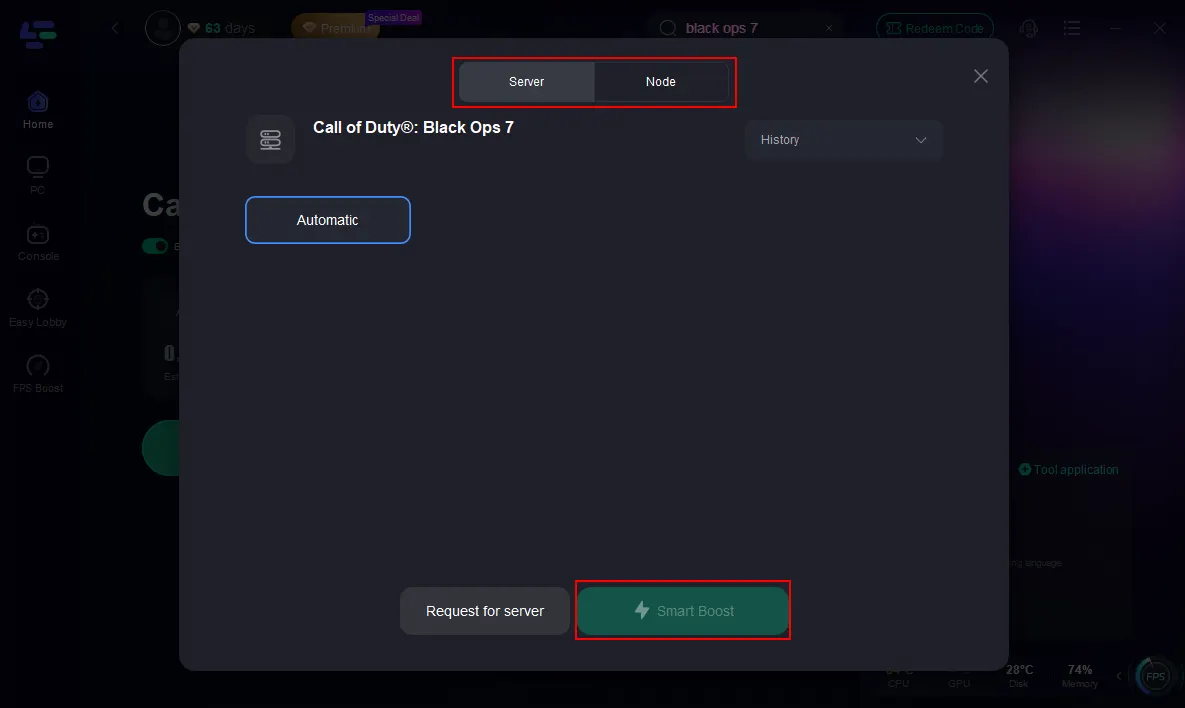
Step 3: Click on “Server” to change to a better server that ensures the Black Ops 7 gaming experience, then click on “Smart Boost”.
Step 4: Launch game and enjoy an enhanced gaming experience with reduced lag and improved stability.
Tutorial on using LagoFast Box to fix BO7 lag on consoles:
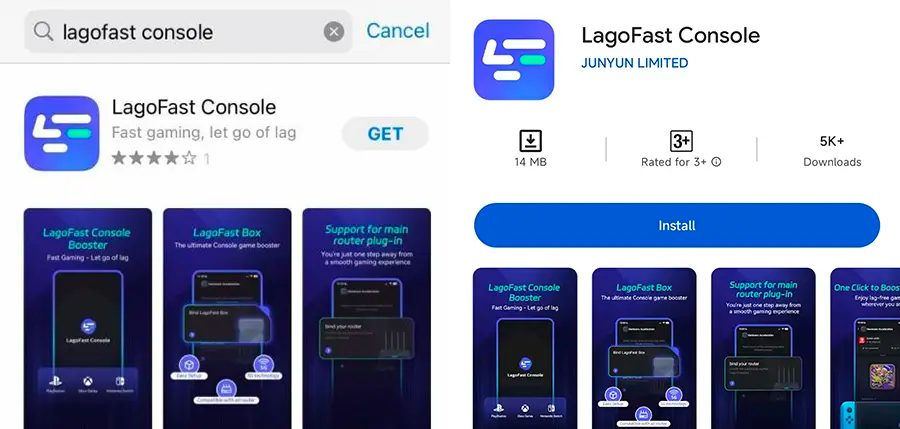
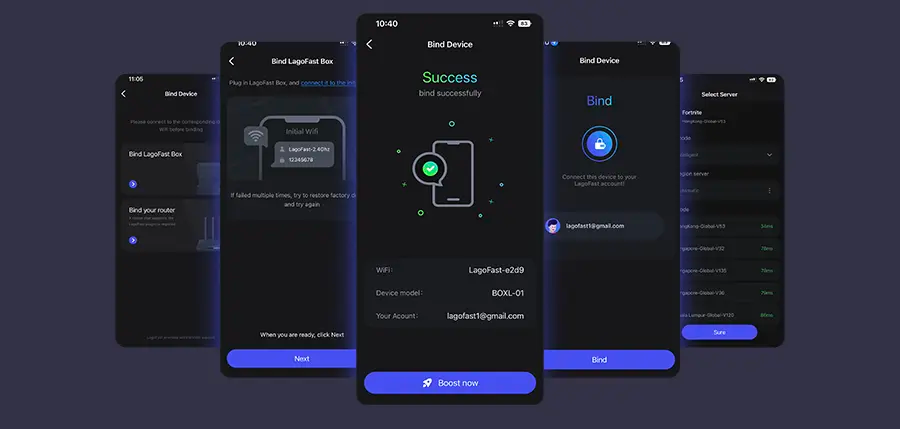
Step 1: Download the LagoFast Console App on your phone to control the LagoFast Box.
Step 2: Establish a connection between your LagoFast Box, router, and console, choosing between a wired or wireless connection.
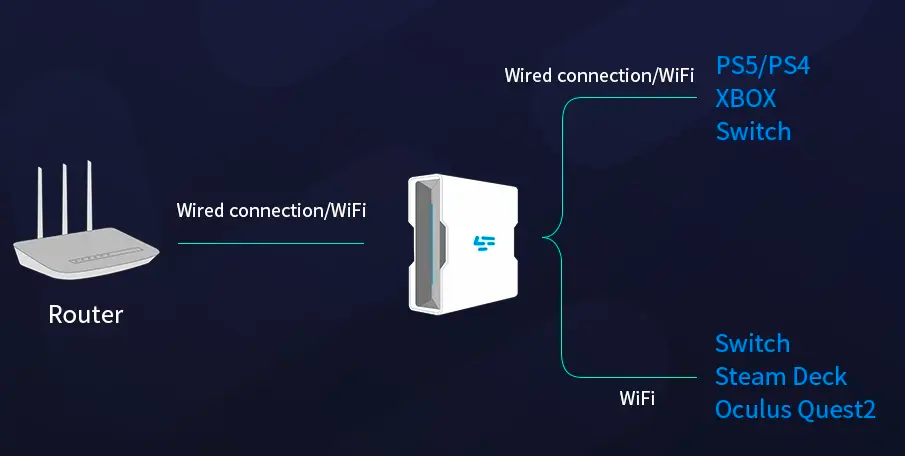
Step 3: Launch the LagoFast Console App and boost Black Ops 7. Once you have completed the binding process with the LagoFast Box, proceed to boost this game within the LagoFast Console App.
Related Article: Black Ops 7 Zombies – Full Overview, Maps, and Everything You Should Know
How to Fix Call of Duty: Black Ops 7 Lag on PC
If you prefer manual solutions, here are four methods to fix lag and stutter on your computer.
Solution 1: Optimize Graphics Settings
Step 1. Launch Black Ops 7 and head to the in-game settings.
Step 2. Lower Texture Quality, Shadows, and Anti-Aliasing to medium or low.
Step 3. Disable Motion Blur and V-Sync for smoother performance.
Step 4. Adjust the Render Resolution to match your monitor’s native resolution.
Step 5. Apply changes and restart the game for improvements.
Solution 2: Update GPU Drivers and Windows
Step 1. Open your graphics card software (NVIDIA GeForce Experience or AMD Adrenalin).
Step 2. Check for the latest GPU driver updates.
Step 3. Install the driver and restart your PC.
Step 4. Go to Windows Update Settings and ensure your OS is updated.
Step 5. Re-launch Black Ops 7 to test performance.
Solution 3: Improve Network Connection
Step 1. Switch from Wi-Fi to a wired Ethernet connection.
Step 2. Restart your modem and router to refresh your internet connection.
Step 3. Close other applications consuming bandwidth (like streaming or downloads).
Step 4. Use NAT Type Open in your router settings for better matchmaking.
Step 5. Test internet speed to confirm lower ping and reduced packet loss.
Solution 4: Optimize PC Performance
Step 1. Press Ctrl+Shift+Esc to open Task Manager.
Step 2. End unnecessary background tasks consuming CPU or RAM.
Step 3. Enable High-Performance Mode in Windows power settings.
Step 4. Clear temporary files using Disk Cleanup.
Step 5. Relaunch Black Ops 7 with fewer background processes running.
You May Like: Is Call of Duty: Black Ops 7 on Xbox and PS4?
How to Fix Call of Duty: Black Ops 7 Lag on Consoles
For Xbox Consoles
Solution 1: Optimize Xbox Network Settings
Step 1. Press the Xbox button and go to Settings > General > Network Settings.
Step 2. Test your network connection.
Step 3. Switch from Wi-Fi to a wired connection if possible.
Step 4. Set your console to use a static IP for more stable matchmaking.
Step 5. Restart your Xbox and relaunch Black Ops 7.
Solution 2: Clear Cache & Improve Console Performance
Step 1. Power down the console completely (not just rest mode).
Step 2. Unplug the power cord for at least 30 seconds.
Step 3. Reconnect and power on the console.
Step 4. Clear unused games or apps to free storage space.
Step 5. Relaunch Black Ops 7 and test performance improvements.
For PlayStation Consoles
Solution 3: Improve PS Network Connection
Step 1. Go to Settings, select Network, and click Set Up Internet Connection.
Step 2. Choose Custom Setup and set DNS to 8.8.8.8 / 8.8.4.4 (Google DNS).
Step 3. Switch from Wi-Fi to LAN if possible.
Step 4. Enable Rest Mode downloads to avoid interruptions during play.
Step 5. Restart your PS console and relaunch Black Ops 7.
Solution 4: Rebuild Database on PlayStation
Step 1. Turn off your PlayStation completely.
Step 2. Hold the power button until you hear two beeps (Safe Mode).
Step 3. Connect your controller with a USB cable.
Step 4. Select Rebuild Database from the Safe Mode menu.
Step 5. Restart the console and test Black Ops 7 performance.
Conclusion
Call of Duty: Black Ops 7 delivers an exciting new chapter in the franchise, but lag and stuttering can quickly ruin the experience. Whether you’re on PC, Xbox, or PlayStation, issues often stem from network instability, hardware limits, or system misconfigurations. The fastest and most effective fix across all platforms is using LagoFast, an all-in-one performance booster that reduces ping and stabilizes gameplay. For those who prefer manual tweaks, adjusting graphics settings, improving internet connections, and maintaining console health are practical ways to make the game run smoother. With the right setup, you’ll enjoy a seamless Black Ops 7 experience.
Boost Your Game with LagoFast for Epic Speed
Play harder, faster. LagoFast game booster eliminates stutter and lags on PC, mobile, or Mac—win every match!
Quickly Reduce Game Lag and Ping!
Boost FPS for Smoother Gameplay!