
Burglin’ Gnomes is a chaotic online co-op game where the fun starts when your gnome crew actually gets into the same room. But after the full release, many players may run into connection problems because the game uses a P2P connection system.
That means your co-op session depends heavily on the connection between players, the lobby host, Steam invite status, and whether the game can build a stable route between everyone in the room.
If you can play solo but cannot enter a friend’s room, fail to join a lobby, get a P2P error, or keep getting kicked from the lobby, do not start with random PC fixes. For Burglin’ Gnomes, the fastest solution is to fix the P2P connection and lobby setup first.

- ✅ Lower ping and fewer disconnects.
- ✅ More FPS and better PC performance.
- ✅ Support for 8000+ games.
- ✅ Stable connections and region switching.
Quick Answer: What Should You Try First?
If Burglin’ Gnomes has connection or P2P errors, follow this order:
Use LagoFast Fix P2P error tool.
Recreate the lobby after applying the fix.
Let the most stable player host.
Join the room one by one.
Restart Steam and use a fresh invite.
Check that everyone is using the same full release version.
Allow Burglin’ Gnomes and Steam through firewall.
Remove mods or old demo files if the problem continues.
For most players, the first four steps are the most important.
Why Burglin’ Gnomes Connection Errors Happen
Burglin’ Gnomes is not a normal single-player game with a simple online menu. It is built around co-op rooms and P2P connection. When you enter a friend’s room, your PC needs to connect properly with the host and other players.
That is why connection errors often appear in these moments:
You accept a Steam invite
You enter a friend’s room
The host starts the run
More players join the lobby
The game moves from lobby to co-op session
One player joins from another region
The host has unstable Wi-Fi
Someone still has an old demo or outdated build
If solo mode works but online co-op fails, the issue is probably not graphics, drivers, or FPS. It is more likely a P2P, Steam lobby, host, or version problem.
Fix 1: Use LagoFast Fix P2P Error Tool
This is the first fix to try because it directly targets the kind of problem Burglin’ Gnomes players are facing after launch.
Since the game uses P2P connection, lobby errors can happen when your route to the host is unstable or when the game cannot build a clean connection between players. LagoFast provides a P2P Repair Tool for Burglin’ Gnomes, which can help repair unstable P2P connection and improve access to friend rooms.
Use this fix if you see:
Unable to enter a friend’s room
Failed to join lobby
P2P error
Connection error
Kicked from lobby
Co-op session not loading properly
How to Use LagoFast P2P Repair Tool
Open LagoFast.
Search for Burglin’ Gnomes.
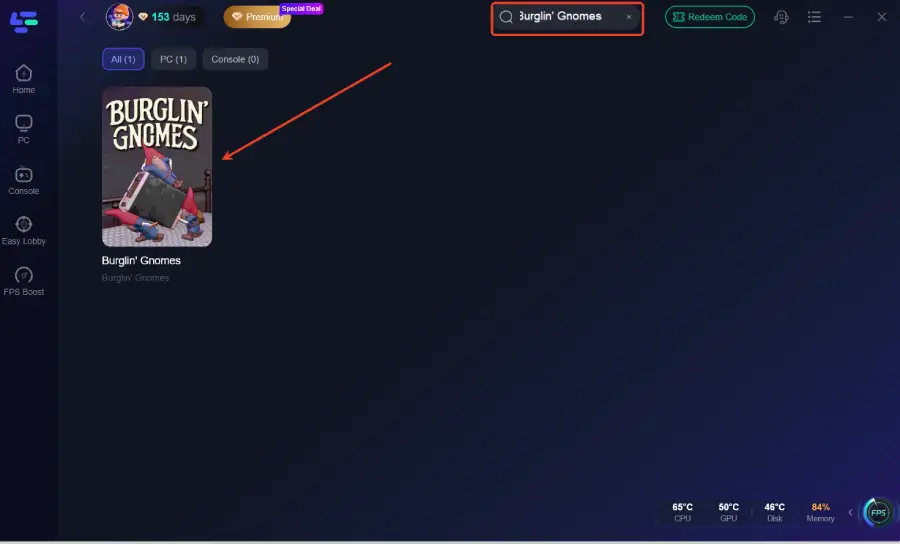
Select the game.
Click Tool Box on the right.
Choose Fix P2P error.
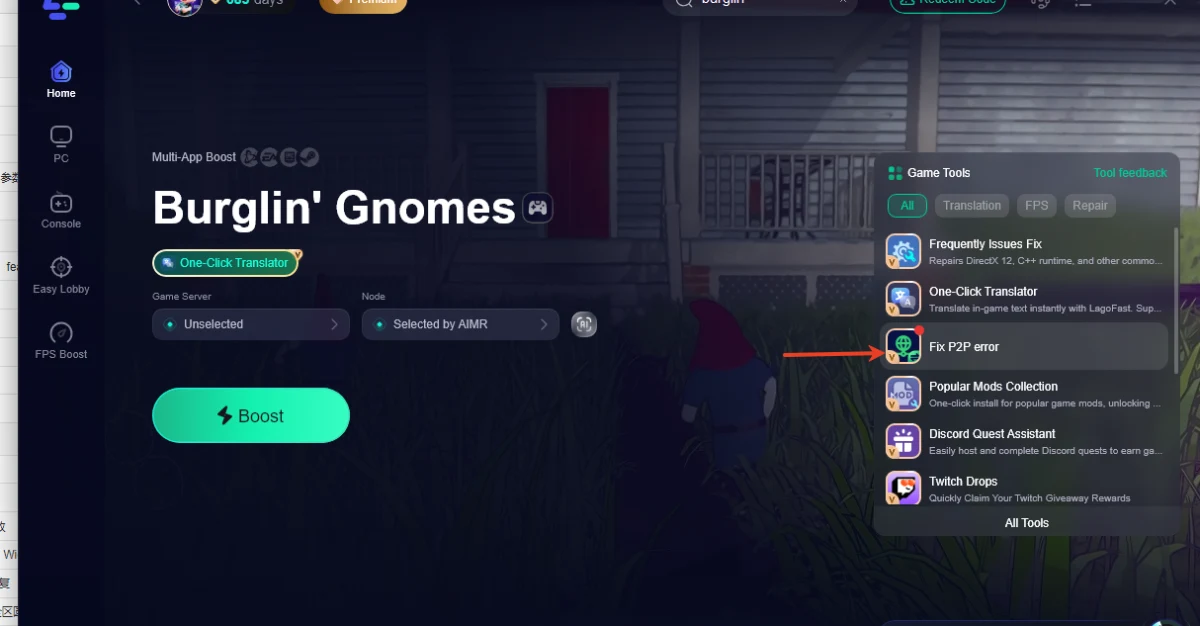
Apply the fix.
Restart Burglin’ Gnomes.
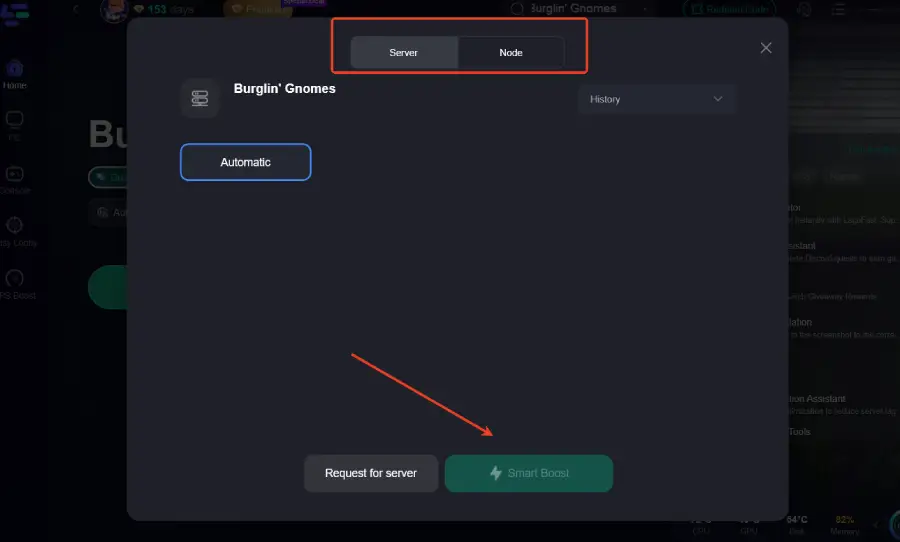
Join your friend’s room again.
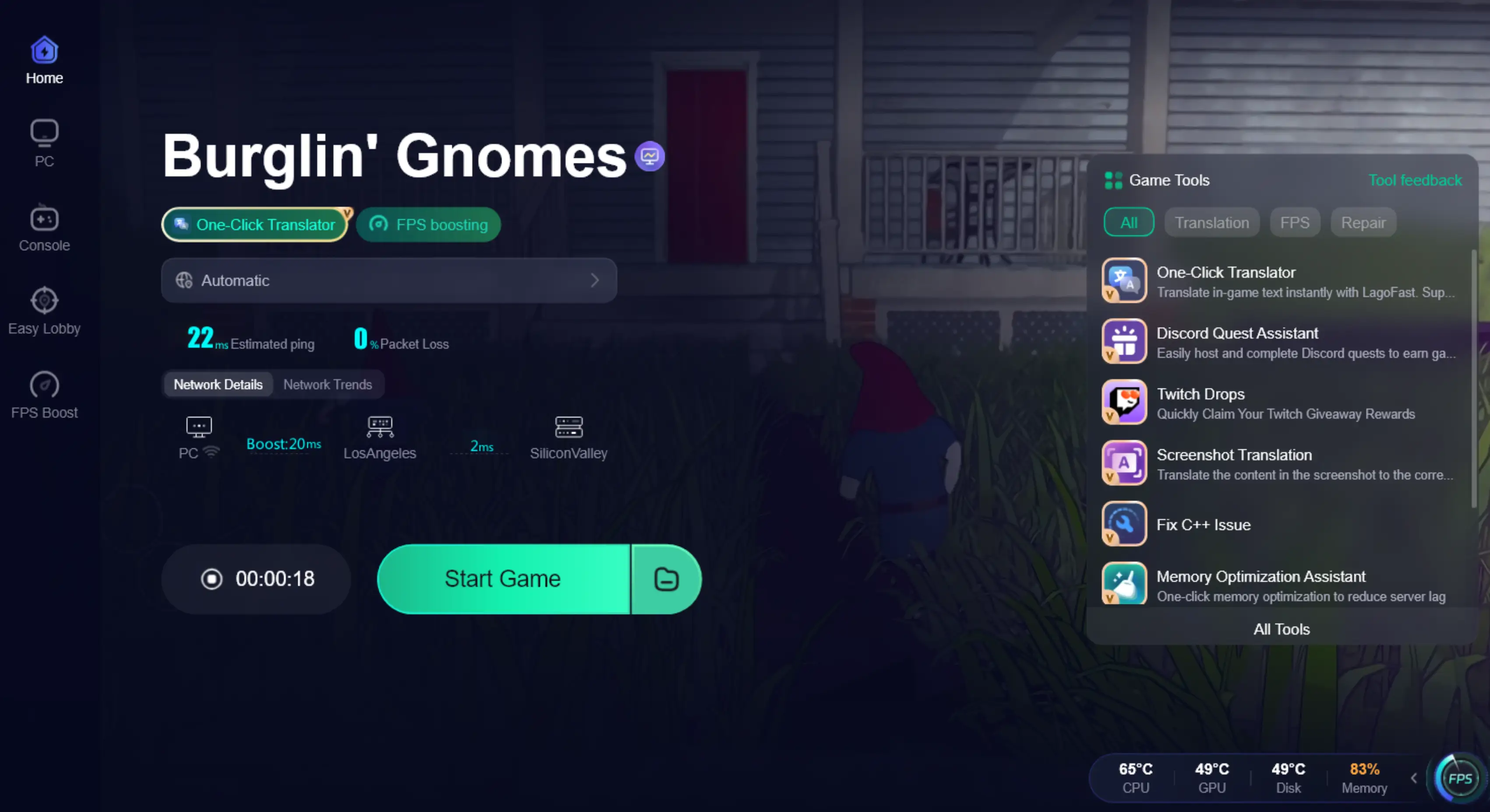
If only one player cannot join, that player should use the P2P repair tool first.
If the whole lobby keeps failing, the host should use the tool first, then create a new room.
Fix 2: Recreate the Lobby After Applying the P2P Fix
After using the P2P repair tool, do not keep trying to enter the same broken lobby again. A failed P2P session may remain unstable even if the connection has been repaired.
The host should create a fresh room.
Do this:
Everyone exits the current lobby.
The host closes the room.
The host restarts Burglin’ Gnomes.
The host creates a new lobby.
One friend joins first.
If the first player joins successfully, invite the next player.
Start the run only after everyone is stable in the lobby.
This is important because Burglin’ Gnomes relies on the connection between players. If the first lobby attempt already failed, rebuilding the room is cleaner than forcing old invites.
Fix 3: Let the Most Stable Player Host
In a P2P co-op game, the host matters a lot. If the host has unstable internet, strict firewall settings, weak Wi-Fi, high packet loss, or unstable routing, other players may fail to join or get kicked from the lobby.
If Burglin’ Gnomes keeps kicking players out, switch host.
The best host should be the player with:
The most stable internet
Lowest ping to other players
Wired connection if possible
No background downloads
No unstable Wi-Fi
No strict firewall blocking the game
No repeated disconnects in other co-op games
If everyone can join when Player B hosts, but not when Player A hosts, then Player A’s network or P2P route is likely the issue.
In that case, Player A should use LagoFast P2P repair, restart Steam, allow the game through firewall, or avoid hosting until the connection is stable.
Fix 4: Join One by One, Not All at Once
Burglin’ Gnomes can become unstable if several players accept invites at the same time, especially during launch day when many players are online and Steam sessions may be busy.
Instead of inviting the whole group at once, use a step-by-step join process.
Recommended lobby test:
Host creates the room.
Player 2 joins.
Wait until Player 2 is fully visible in the lobby.
Player 3 joins.
Wait again.
Continue until everyone is in.
Start the run only after all players are stable.
This helps you find which player is causing the P2P problem.
If the lobby works with 2 players but breaks when the 4th or 5th player joins, the issue may be tied to one player’s connection, route, firewall, or version.
Fix 5: Use Steam Friends Join Instead of Old Invites
If clicking an invite does nothing, or if you accept an invite but fail to enter the room, the invite may be expired or tied to an old broken lobby.
Try joining directly through Steam Friends.
Steps:
Ask the host to create a new lobby.
Open your Steam Friends list.
Right-click the host’s name.
Choose Join Game if available.
If Join Game does not appear, ask the host to send one fresh invite.
Accept only the latest invite.
Do not click old invites.
Do not ask the host to spam multiple invites.
If the host recreates the lobby, the previous invite should be ignored.
Steam lobby links can break after a room is closed or recreated, so always use the newest invite.
Fix 6: Do Not Start the Run While Someone Is Still Joining
Some Burglin’ Gnomes connection errors happen during the transition from lobby to the actual co-op run. If the host starts too quickly while someone is still loading or connecting, that player may get kicked or the session may fail.
Before starting:
Make sure every player is fully inside the lobby.
Do not invite another player while starting the run.
Do not alt-tab during the loading transition.
Do not let one player join late if the lobby is already unstable.
If a player fails to load, return to lobby and recreate the room.
For Burglin’ Gnomes, a stable lobby before the run is more important than rushing into the house.
Fix 7: Make Sure Everyone Is on the Full Release Version
Burglin’ Gnomes had a popular demo before release, so some players may still have old demo files, outdated builds, or a version mismatch after launch.
Before joining friends, everyone should check:
The full release is installed
Steam has finished updating the game
No one is still launching an old demo build
No one has a paused update
No one is using a different test branch
Everyone restarted Steam after updating
If one player keeps failing to join while others can play normally, that player should check their game version first.
A version mismatch can cause lobby errors, connection failures, or kicks during loading.
Fix 8: Allow Steam and Burglin’ Gnomes Through Firewall
Since the game uses P2P connection, firewall blocking can stop the game from connecting to friends even if solo mode works normally.
Allow both:
Steam
Burglin’ Gnomes
Make sure they are allowed on Private network.
Use this if:
The game opens normally
Solo mode works
You cannot enter a friend’s room
You get kicked when the lobby starts
Only your PC has the problem
Do not turn off firewall permanently. Just allow the game and Steam properly.
Fix 9: Stop Downloads and Avoid Weak Wi-Fi
This is not the first fix, but it matters if you are hosting.
P2P co-op is sensitive to unstable upload, packet loss, and Wi-Fi drops. If the host’s connection is unstable, the whole lobby can fail.
Before playing:
Stop Steam downloads
Pause cloud backups
Avoid streaming while hosting
Use wired internet if possible
Move closer to the router
Let another player host if your Wi-Fi is unstable
If players keep getting kicked from your room, your host connection may be the reason.
Fix 10: If One Player Always Gets Kicked
If the same player always gets kicked from Burglin’ Gnomes lobbies, focus on that player’s setup.
That player should:
Use LagoFast P2P Repair Tool.
Restart Steam completely.
Verify game files.
Confirm full release version is installed.
Allow Burglin’ Gnomes and Steam through firewall.
Stop downloads and background apps.
Try joining a different host.
Test with only one friend.
If everyone else can stay in the lobby, the issue is probably not the whole game. It is likely that player’s P2P route, Steam session, firewall, or local files.
Fix 11: If the Whole Lobby Gets Kicked
If the entire lobby collapses or everyone gets returned to the main menu, focus on the host and room setup.
Do this:
Host uses LagoFast P2P Repair Tool.
Host restarts Steam.
Host creates a fresh room.
Players join one by one.
Do not start until everyone is stable.
If it fails again, switch host.
Test with 2 players first.
Add the rest of the group later.
When the whole room fails, changing host is often more useful than reinstalling the game.
Final Thoughts
Burglin’ Gnomes connection problems are mainly tied to how the game handles online co-op. Since it uses P2P connection, the most important fixes are P2P repair, host stability, fresh lobby creation, Steam invite reset, and version sync.
If the game works in solo mode but fails when joining friends, start with LagoFast Fix P2P error. Then recreate the room, let players join one by one, and switch host if the lobby still fails.
Once the P2P connection is stable, you can finally get back to the real fun: breaking into houses with your gnome crew instead of getting kicked before the chaos begins.

Boost Your Game with LagoFast for Epic Speed
Play harder, faster. LagoFast game booster eliminates stutter and lags on PC, mobile, or Mac—win every match!
Quickly Reduce Game Lag and Ping!
Boost FPS for Smoother Gameplay!