
Borderlands 4 has finally landed, bringing its trademark looter-shooter chaos, cel-shaded art, and endless gunfights to PC, PS5, and Xbox Series X|S. But while the gameplay is as addictive as ever, many PC players are experiencing frustrating issues like FPS drops, stuttering, and low FPS even on rigs that meet the official system requirements. Poor frame rates can ruin immersion, making combat sluggish and less responsive. The good news? There are multiple ways to achieve a Borderlands 4 FPS boost and ensure smooth gameplay.

- ✅ Reduce Lag and High Ping.
- ✅ Boost FPS at the Same Time.
- ✅ Support 2000+ Popular Online Games.
- ✅ Change Server without Latency.
- ✅ Boost Game Loading Speed.
- ✅ Fix Game Crashing Freezing Issues
Part 1: Borderlands 4 FPS Issue: FPS Drops & Low FPS
Part 2: How to Fix Borderlands 4 FPS Boost
Part 1: Borderlands 4 FPS Issue: FPS Drops & Low FPS
Borderlands 4 is a demanding title, especially with its vibrant art style, massive environments, and high weapon effects density. If you’re facing low FPS or random FPS drops, here are the most common causes:
- System requirements not met – Running the game below recommended hardware often results in unstable FPS.
- Outdated drivers – Graphics drivers that aren’t updated can cause rendering inefficiencies.
- High graphics settings – Ultra textures, shadows, and ray tracing can overwhelm GPUs at 1440p and 4K.
- Background processes – Browsers, overlays, or antivirus scans can eat up system resources.
- Thermal throttling – Overheating CPUs or GPUs reduce performance automatically.
- Unoptimized game files – Launch-day bugs can impact stability.
- Network-related stutter – High ping may feel like FPS drops when the game lags.
If you’ve noticed these symptoms, don’t worry — you’re not alone, and the fixes are straightforward.
Related Article: Is Borderlands 4 on Game Pass?
Part 2: How to Fix Borderlands 4 FPS Boost
There are both software and hardware solutions to stabilize Borderlands 4 and improve performance.
Solution 1: The Best Borderlands 4 FPS Booster: LagoFast
One of the quickest ways to fix FPS drops and stabilize Borderlands 4 is by using LagoFast FPS Booster, a tool built specifically for gamers who want a smoother experience. Its FPS Boost 2.0 technology uses one-click optimization to automatically detect the best settings for your system. With Frame Generation support, it can literally generate extra frames, giving you higher FPS without needing to upgrade your hardware.
Other LagoFast features include:
- One-click optimal game settings – Instantly adjusts graphics settings for best performance vs. quality balance.
- Global server acceleration – Reduces lag spikes and stabilizes network performance.
- Real-time FPS monitor – Track FPS changes and system performance while playing.
- Custom optimization options – Tailor CPU/GPU usage and memory allocation.
- Cross-game support – Works not just for Borderlands 4, but hundreds of popular titles.
- Cross-device support – Support multiple devices, including consoles, PC, and mobile.
With LagoFast, you can avoid the trial-and-error of manually tweaking settings. It’s the best Borderlands 4 FPS Booster available today.
Tutorial to use LagoFast to boost FPS in Borderlands 4 on PC:
Step 1: Click the Free Trial button to download and install LagoFast.
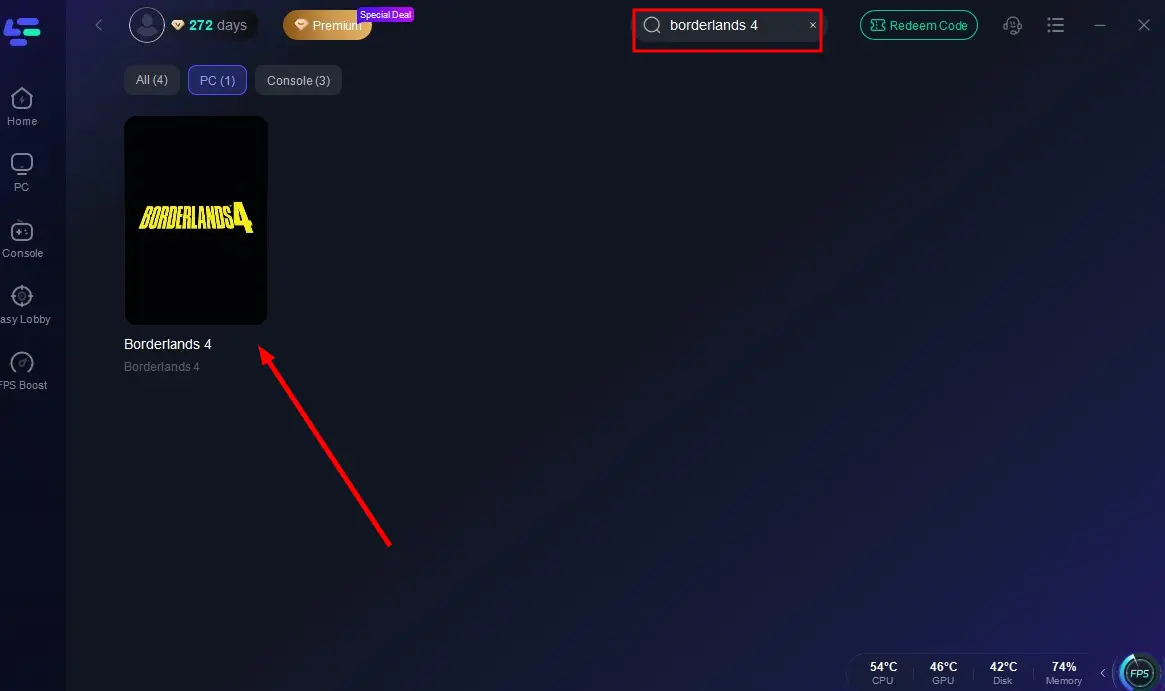
Step 2: Open LagoFast, then click the PC button on the left and search for Borderlands 4 in the search bar, and click it after it appears.
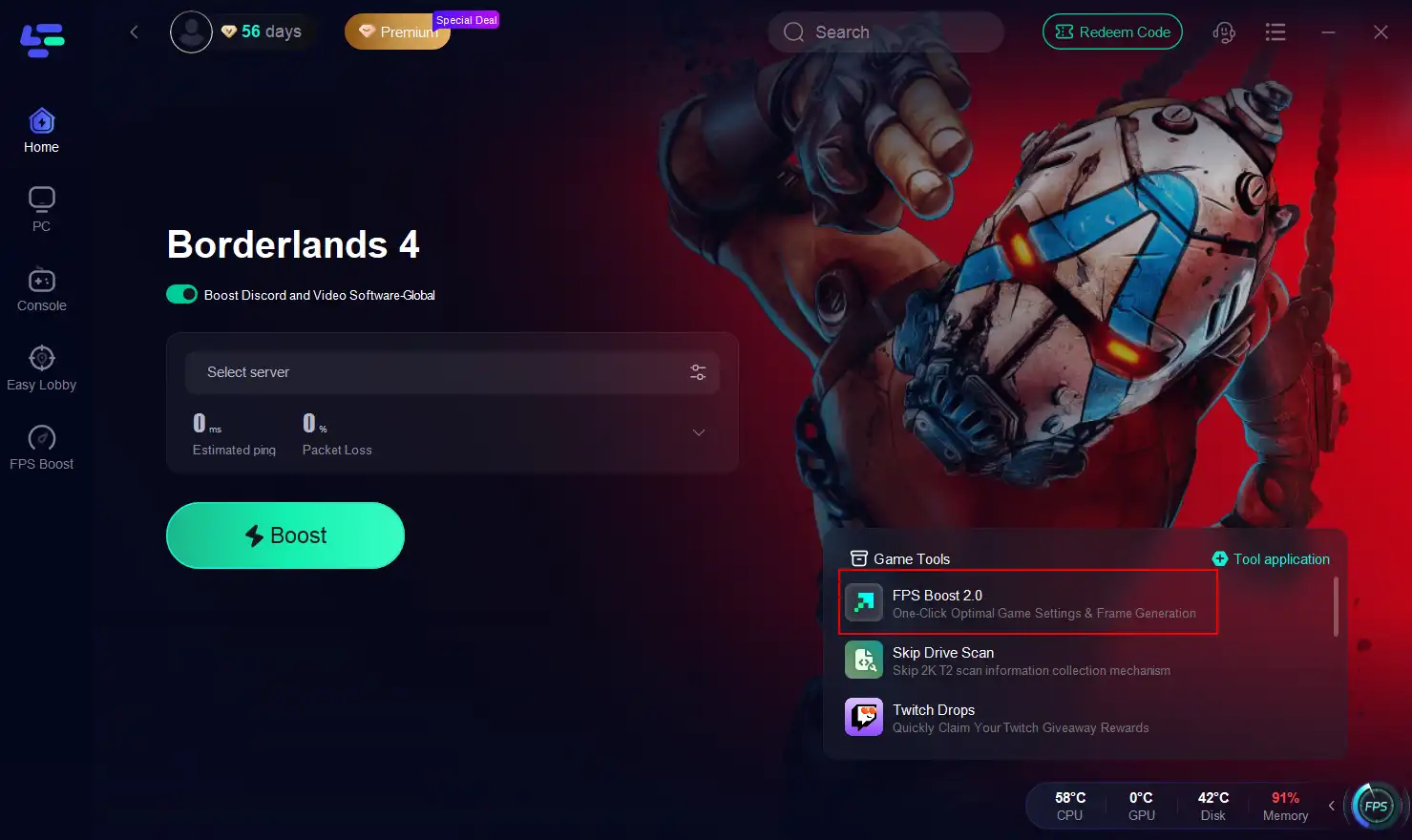
Step 3: Click the “FPS Boost 2.0” tool on the right.
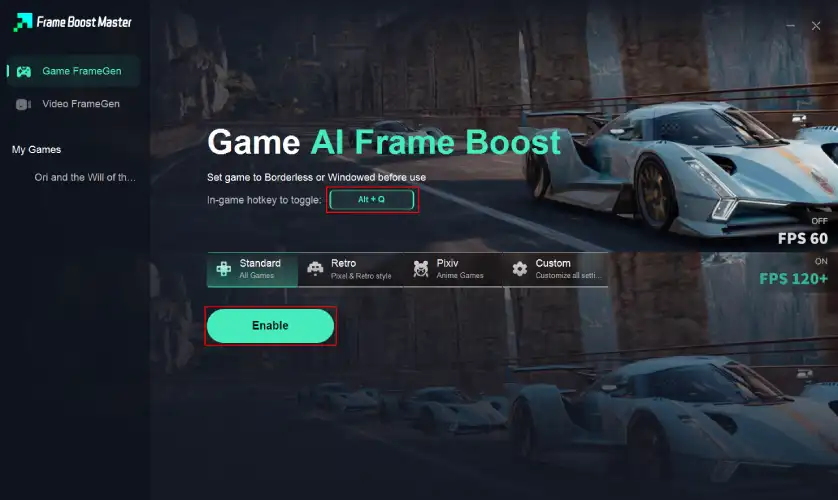
Step 4: You can customize the hotkeys. Click Enable to turn on FPS boost.
Step 5: Click the “Select Server” button to connect to an optimal server node based on your needs, then activate optimization via “Smart Boost”.
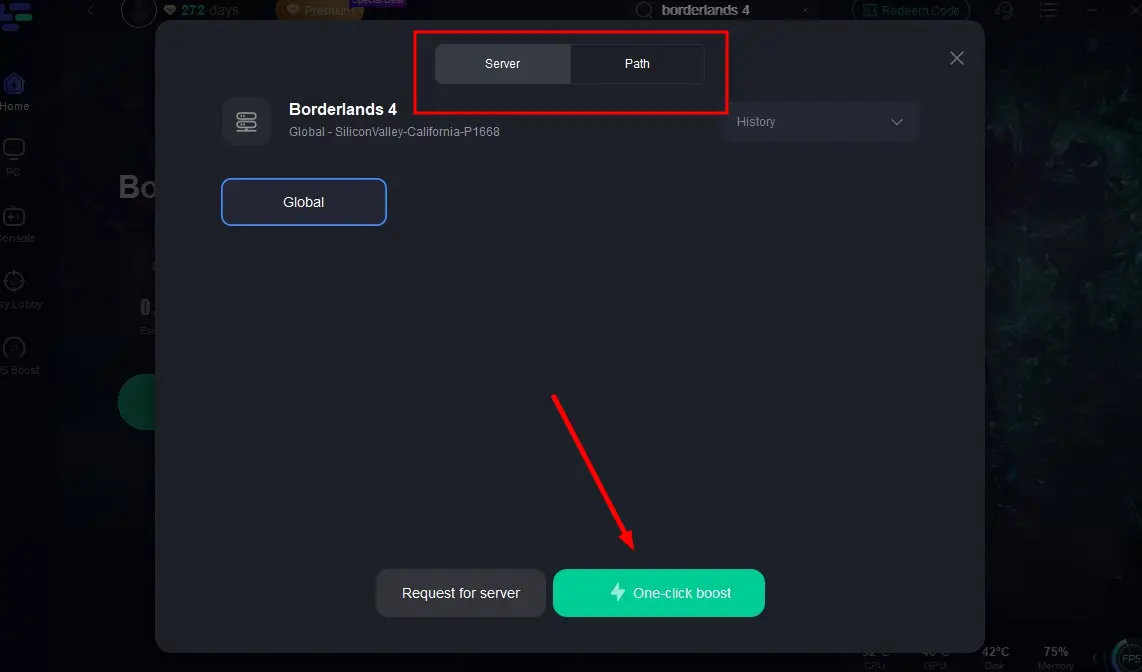
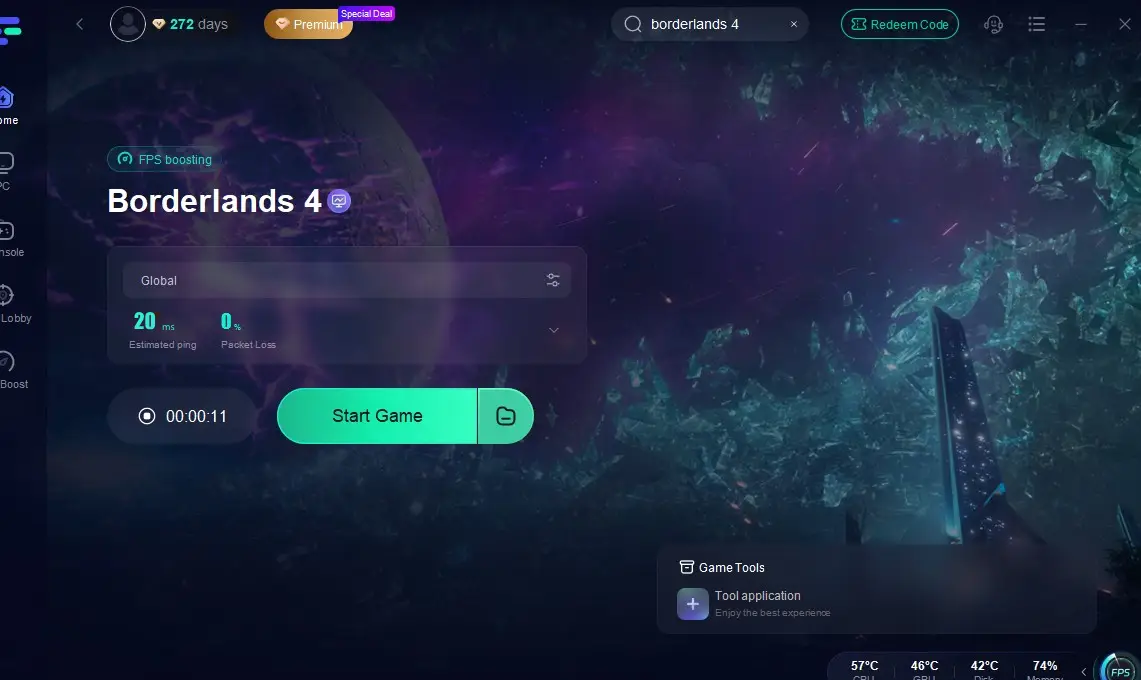
Step 6: After enabling real-time optimization, check the live ping and packet loss rates, then click “Start Game” to begin playing.
Solution 2: Update GPU Drivers
Keeping your graphics card drivers updated ensures compatibility with the latest game patches and optimizations.
Step 1: Open NVIDIA GeForce Experience or AMD Adrenalin software.
Step 2: Check for driver updates.
Step 3: Download and install the latest version.
Step 4: Restart your PC after installation.
Step 5: Launch Borderlands 4 and test FPS improvements.
Solution 3: Adjust In-Game Graphics Settings
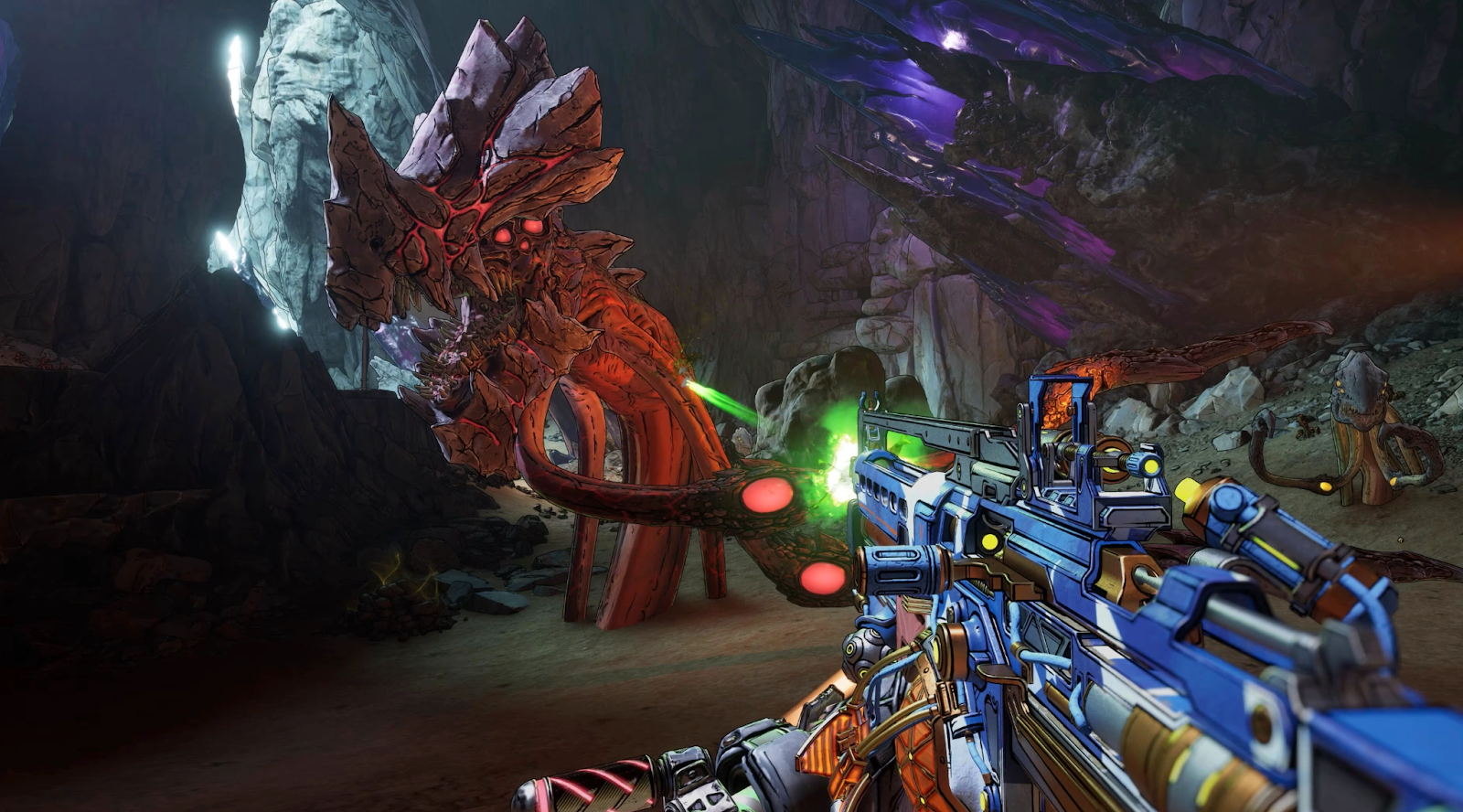
Lowering certain settings can drastically improve performance without sacrificing visuals too much.
Step 1: Open Borderlands 4 settings menu.
Step 2: Set resolution scaling to around 90–95%.
Step 3: Lower shadow quality and disable motion blur.
Step 4: Set texture quality to high instead of ultra.
Step 5: Apply changes and test FPS stability.
Solution 4: Enable Windows Game Mode & High Performance
Windows has built-in tools to prioritize gaming performance.
Step 1: Go to Windows Settings and select Gaming, then click Game Mode.
Step 2: Enable Game Mode.
Step 3: Open Control Panel, and go to Power Options.
Step 4: Select “High Performance” or “Ultimate Performance” plan.
Step 5: Restart your PC and relaunch the game.
Solution 5: Optimize Background Processes
Unnecessary background apps can hog resources and cause FPS drops.
Step 1: Open Task Manager (Ctrl + Shift + Esc).
Step 2: Go to the “Processes” tab.
Step 3: Right-click and end tasks for apps like Chrome, Discord overlay, or cloud sync tools.
Step 4: Disable startup apps by navigating to the “Startup” tab.
Step 5: Restart PC and test gameplay.
Solution 6: Check for Overheating & Clean Hardware
Heat is a silent FPS killer.
Step 1: Use tools like HWMonitor or MSI Afterburner to monitor temperatures.
Step 2: Ensure GPU stays below 85°C and CPU below 90°C.
Step 3: Clean fans, vents, and heatsinks from dust.
Step 4: Improve airflow by adjusting case fans or adding cooling pads for laptops.
Step 5: Reapply thermal paste if temps remain too high.
Related Article: Best Borderlands 4 Mods Tool
Conclusion
Borderlands 4 is one of the most exciting launches of 2025, but FPS drops and stuttering can ruin the looter-shooter chaos. Thankfully, boosting performance is possible through smart optimizations. The easiest fix is using LagoFast FPS Booster, with FPS Boost 2.0 and Frame Generation, offering instant improvements. Alongside LagoFast, updating drivers, tweaking settings, enabling Game Mode, killing background tasks, and managing thermals all ensure smoother gameplay. With these steps, you can enjoy Borderlands 4 at its chaotic best without worrying about frame drops.
Boost Your Game with LagoFast for Epic Speed
Play harder, faster. LagoFast game booster eliminates stutter and lags on PC, mobile, or Mac—win every match!
Quickly Reduce Game Lag and Ping!
Boost FPS for Smoother Gameplay!