
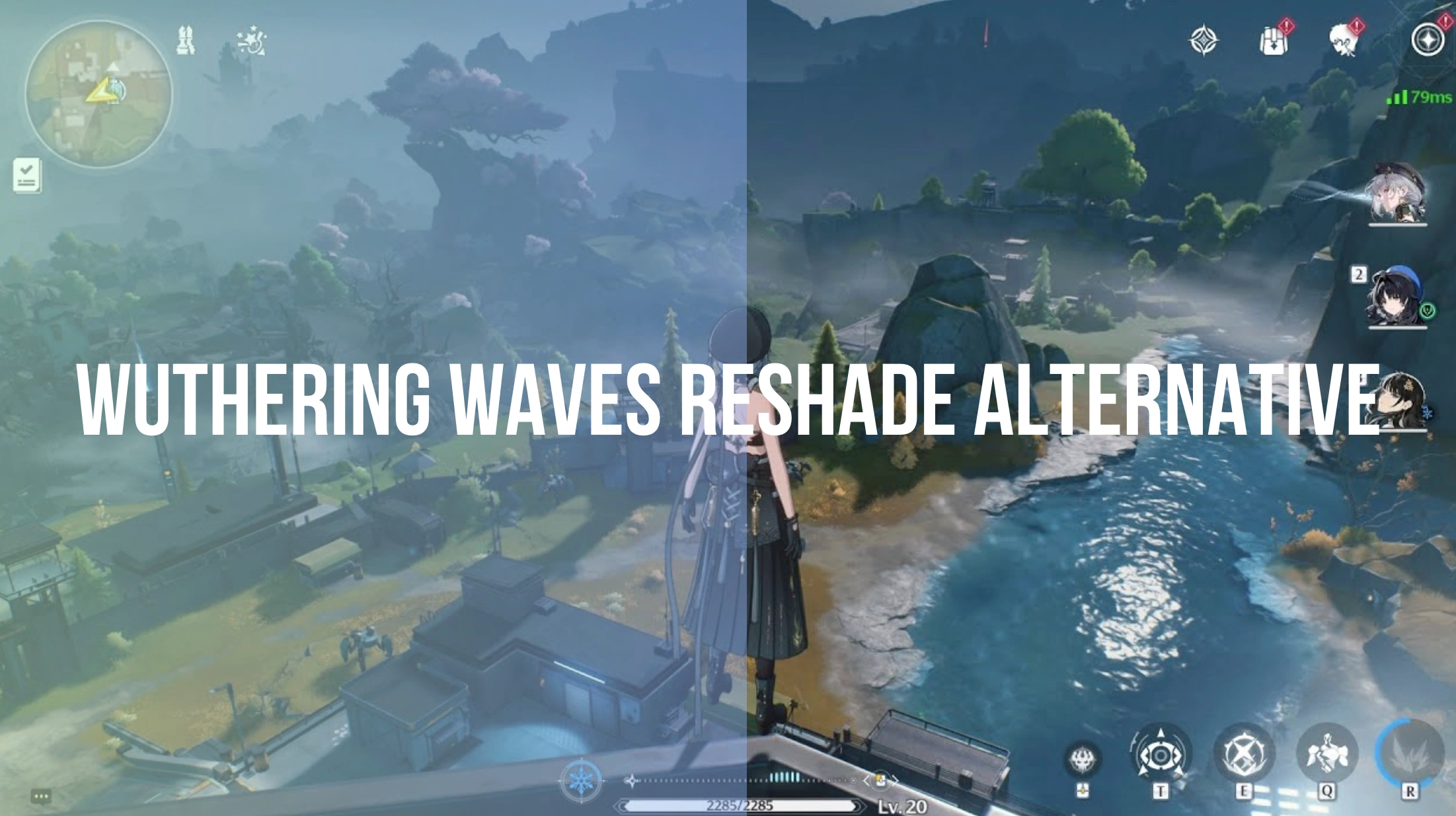
Quick Answer: What Is the Best Wuthering Waves ReShade Alternative?
If you have been exploring Huanglong but feel like the world looks a bit washed out, you are not alone. Many players search for a Wuthering Waves ReShade alternative to fix the game's default hazy look. While LagoFast offers an incredible one-click game filter tool for top competitive titles to instantly swap styles, let’s dive into how you can safely achieve the ultimate visual setup in Wuthering Waves today.
Wuthering Waves features an incredible open world with fast-paced combat and stunning character designs. However, out of the box, some players find the color palette a bit bland, blurry, or lacking contrast. To fix this, the community often turns to third-party post-processing tools to inject vibrant colors, sharp textures, and cinematic depth into their gameplay.

- ✅ Reduce Lag and High Ping.
- ✅ Boost FPS at the Same Time.
- ✅ Change Server Without Latency.
- ✅ One-Click Translation Tool.
- ✅ End All Connection Issues.
- ✅ Multiplatform: PC, Mobile, Console
Part 1: What Is Wuthering Waves ReShade?
Part 2: Why Players Want ReShade for Wuthering Waves
Part 3: Is ReShade Safe for Wuthering Waves?
Part 4: ReShade vs Global Filter vs NVIDIA Filter vs LagoFast Game Filter
Part 5: How to Make Wuthering Waves Look Better Without ReShade
Part 6: LagoFast – Best Game Filter for Wuthering Waves
Part 1: What Is Wuthering Waves ReShade?
To understand how to improve your game’s visuals, it helps to look at the tools players traditionally use to tweak their graphics on PC.
What ReShade Does in PC Games
ReShade is a highly popular, generic post-processing injector designed for PC titles. It functions by intercepting raw data directly at the graphics API level (such as DirectX or Vulkan) before it displays on your monitor. By introducing custom shaders, it allows users to forcefully apply advanced visual enhancements, including ambient occlusion, screen-space reflections, depth-of-field manipulation, dynamic color correction, and premium sharpening passes, to older or visually understated titles.
Why Wuthering Waves Players Search for ReShade Presets
The design choices in Wuthering Waves skew slightly toward a bleak, sci-fi aesthetic. While thematic, this often translates to low contrast, overly aggressive Temporal Anti-Aliasing (TAA) that softens textures, and a greyish color profile that obscures fine details on character outfits and landscapes.
Players look for community-created presets to make the anime art style pop, eliminate the foggy overlay, and prepare their game for Photo Mode. An optimized preset turns dull environments into vibrant fields and sharpens character silhouettes perfectly for high-resolution desktop wallpapers.
ReShade vs. Normal Graphics Settings
Standard in-game graphics menus control internal engine parameters like texture resolution, shadow maps, geometry distance, and lighting quality. They dictate what the engine renders. ReShade, conversely, works on the finalized frame buffer. It treats the rendered output like a raw photograph, applying layers of digital filters, color grading, and artificial contrast adjustments over the top of the native engine output.
Part 2: Why Players Want ReShade for Wuthering Waves
The demand for advanced visual customization stems from several specific visual frustrations and player goals:
- Eliminating the Bleak Haze: The default rendering pipeline creates a flat contrast curve. Shadows lack depth, and highlights rarely pop, leaving the environment looking somewhat sterile.
- Correcting Textural Blurriness: Forced anti-aliasing techniques frequently smear fine architectural details and weapon textures, making high-end PC builds look like they are running at a sub-native resolution scale.
- Avoiding Manual Parameter Tweaking: The average gamer doesn't want to spend hours balancing tiny values like luma sharpening, chromatic aberration, and curves sliders just to achieve a clean look. They want a reliable preset that works out of the box.
- Perfecting Photo Mode & Wallpapers: For creators who capture screenshots of their favorite Resonators, deep blacks and rich color separation are necessary to make images look professional and striking.
Part 3: Is ReShade Safe for Wuthering Waves?
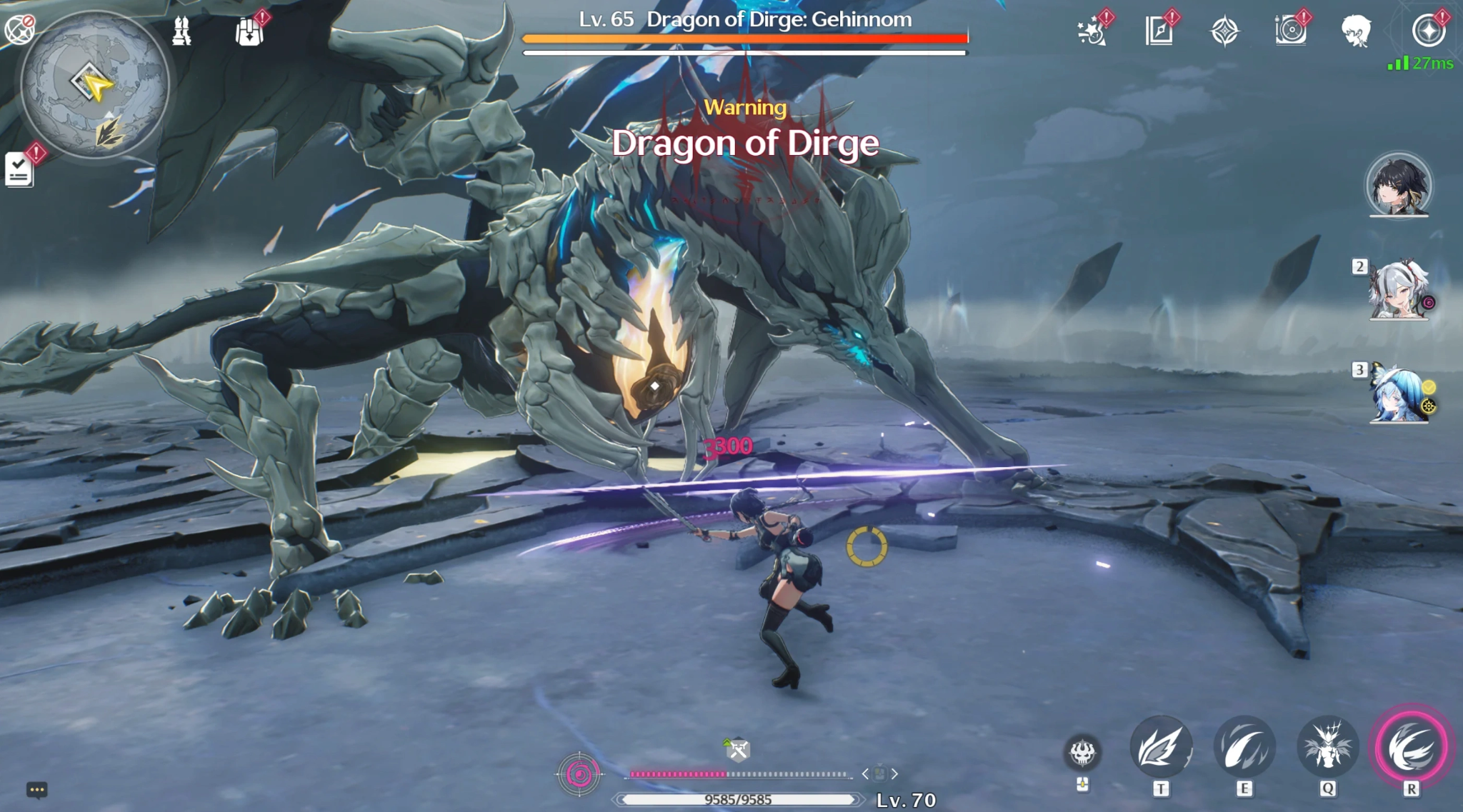
The million-dollar question for every online live-service game is whether utilizing these tools will get your account flagged.
The Short Answer: Using ReShade in Wuthering Waves is highly risky and can potentially lead to a game crash or an account ban.
Because Wuthering Waves uses an active, kernel-level anti-cheat system to protect its online ecosystem, any software that actively injects code or hooks into the .exe game files can easily be flagged as malicious third-party manipulation. While some players manage to use basic versions of ReShade without immediate consequence, game updates can suddenly change anti-cheat detection thresholds.
If the anti-cheat system detects unauthorized file modifications, it can result in anything from instant game crashes on startup to a direct account ban. Furthermore, heavy post-processing shaders are notorious for causing sudden frame drops, micro-stutters, and overall performance degradation during intensive combat sequences.
Part 4: ReShade vs Global Filter vs NVIDIA Filter vs LagoFast Game Filter
When looking for the best way to clean up your graphics safely, it helps to compare the primary visualization methods available to PC players:
|
Filter Solution |
Strengths |
Vulnerabilities / Risks |
Ideal User Base |
|
ReShade |
Massive shader library; infinite manual tweaking options; deep community preset support. |
High anti-cheat detection risk; potential game crashes; complex file setup. |
Offline, single-player modding enthusiasts willing to risk bans. |
|
Global Filter |
Safe, official in-game tool; zero installation required; zero impact on account security. |
Very limited sliders; lacks automated presets; color shifting can look unnatural when pushed. |
Casual players looking for basic, safe adjustments. |
|
NVIDIA Filter |
Excellent sharpening and color vibrance tools; runs via native driver overlay. |
Exclusively limited to NVIDIA hardware; can cause noticeable 10-15% FPS drops on mid-range cards. |
Owners of high-end NVIDIA GPUs who don't mind a slight performance tax. |
|
LagoFast Game Filter |
Instantly switches styles; zero anti-cheat file injection; safe overlay framework. |
Presets are pre-configured; requires external client execution. |
Players wanting safe, fast visual upgrades with maximum system stability. |
Wuthering Waves Global Filter: Built-In But Manual
Kuro Games added an internal "Global Filter" and color adjustment sliders within the settings menu to address player feedback regarding washed-out visuals. While this native option is entirely safe and simple to use, it lacks a robust preset-saving framework. Finding the exact sweet spot requires manual slider adjustments, and it often lacks the complex contrast-mapping algorithms needed to clear the engine's inherent blurriness without over-saturating the image.
NVIDIA Filter: Useful But Limited to GeForce Users
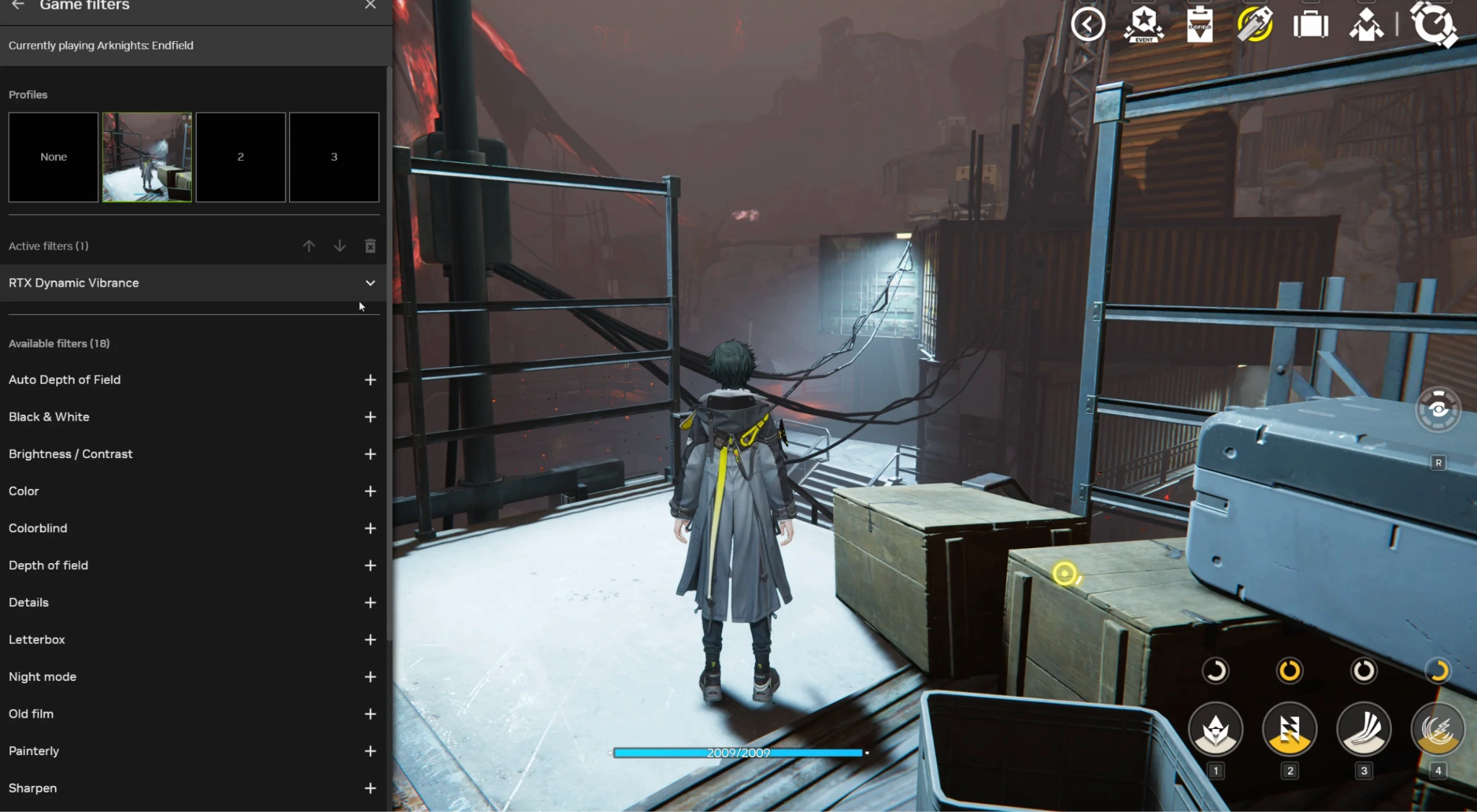
For players running compatible NVIDIA graphics cards, the NVIDIA App/GeForce Experience overlay provides "Game Filters" (Freestyle). Features like Details (Sharpening/Clarity) and Color work beautifully to remove the game's default haze. However, this feature is completely locked away from AMD Radeon and Intel Arc users. Furthermore, rendering these filters through the driver layer can introduce a noticeable performance penalty, causing frame drops during intense combat scenarios or within densely populated areas like Jinzhou.
ReShade: Powerful But Risky for Online Games
As established, ReShade offers unparalleled control over post-processing aesthetics. Unfortunately, its underlying architecture relies on hooks that replicate malicious injection vectors. For an online service game with active anti-cheat, it creates a constant security threat that makes its powerful customization features unviable for regular gameplay.
LagoFast Game Filter: One-Click Visual Presets for Easier Switching
The LagoFast Game Filter bridges the gap between premium visual quality and absolute account security. It bypasses the need to inject code directly into the game's executable folder. Instead, it utilizes an optimized external display overlay to adjust tone maps and edge definitions in real time. This ensures that the security engine sees completely untouched game files, while your monitor displays deep contrast, bright colors, and clean lines.
Part 5: How to Make Wuthering Waves Look Better Without ReShade
If you want to maximize your graphical fidelity using traditional, non-intrusive methods, you can optimize your visual experience manually through a combination of system and in-game changes:
Adjust Brightness, Contrast, Saturation, and Sharpness
Step 1. Open the In-Game Settings menu and navigate to the Graphics tab.
Step 2. Locate the Brightness slider. The default value often over-exposes the scene; dropping this slider down to 30% - 40% instantly deepens shadows and cleans up the washed-out look.
Step 3. Turn up the Sharpness slider to roughly 0.6 - 0.8. This counteracts the muddying effects of the game's built-in anti-aliasing without introducing excessive visual noise.
Use Global Filter and Color Filter Settings
Within the advanced graphics configurations, toggle through the native filter options. Experiment with the custom color filter intensities to see what suits your monitor panel. Keep in mind that different monitors (IPS, VA, or OLED) display colors uniquely, so manual tracking is required to ensure your white balance doesn't skew too far into cold or warm hues.
Use NVIDIA Filter if Supported
If you are running an NVIDIA setup, hit Alt + Z (or your custom overlay hotkey) while the game is running to bring up the overlay menu. Add a Color filter and raise the Digital Vibrance slightly, then add a Sharpen filter to give fine lines on armor and environments a distinct, crisp edge.
Part 6: LagoFast – Best Game Filter for Wuthering Waves
While LagoFast is widely celebrated for its elite network optimization, dropping ping, fixing packet loss, and eliminating lag spikes, it also features an innovative LagoFast Game Filter utility.
Currently, the custom game-specific filters are precisely tuned for highly competitive environments like Wuthering Waves, where spotting an enemy in a dark corner can mean the difference between life and death. However, its overarching design philosophy is exactly what open-world gamers look for:
One-Click Color Tone Switching
Instead of forcing you to memorize long lists of configuration values or manually drag multiple sliders every time you update your graphics drivers, the tool features an intuitive toggle system. You can completely transform the atmosphere of Solaris-3 with a single click.
Better Screenshots Without Complex ReShade Setup
Capturing clean, professional-looking images for social media or wallpapers shouldn't require an advanced background in photo editing. LagoFast handles real-time color mapping automatically, ensuring your captures are crisp, perfectly saturated, and ready to share immediately.
Switch Between Vibrant, Cute, Soft, and Cinematic Styles
Every player prefers a different visual style depending on their current activity:
- Vibrant: Perfect for high-energy combat tracking and exploring colorful biomes.
- Cinematic: Drops black points slightly and adjusts color temperatures for deep, story-driven immersion during main quest cutscenes.
- Soft & Cute: Brightens the overall environment while maintaining rich color depth, ideal for lighthearted casual exploration and capturing portrait shots of your characters.
Improve Visuals While Keeping Gameplay Stable
Traditional post-processing setups often struggle with resource management, leading to micro-stutters during intensive combat rotations or boss fights. Because the LagoFast framework is highly optimized for performance, it delivers enhanced clarity and color separation without putting a heavy load on your hardware, ensuring your frame times remain perfectly smooth.
Step-by-Step Tutorial to Use LagoFast to Filter the Screen and Optimize Gaming Experience:
Step 1: Click the Free Trial button to download and install LagoFast.
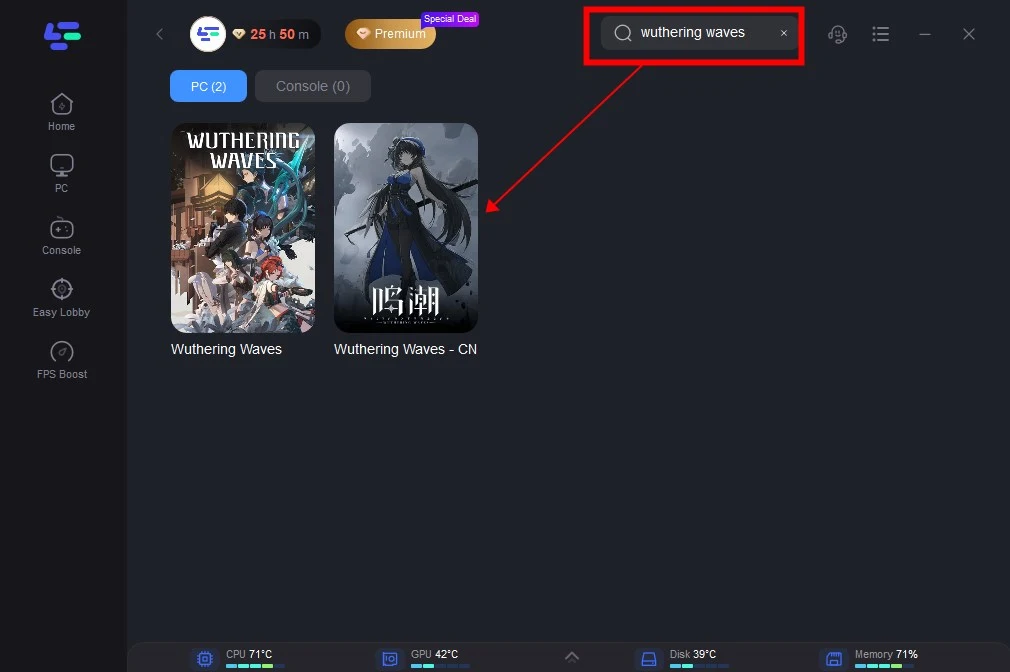
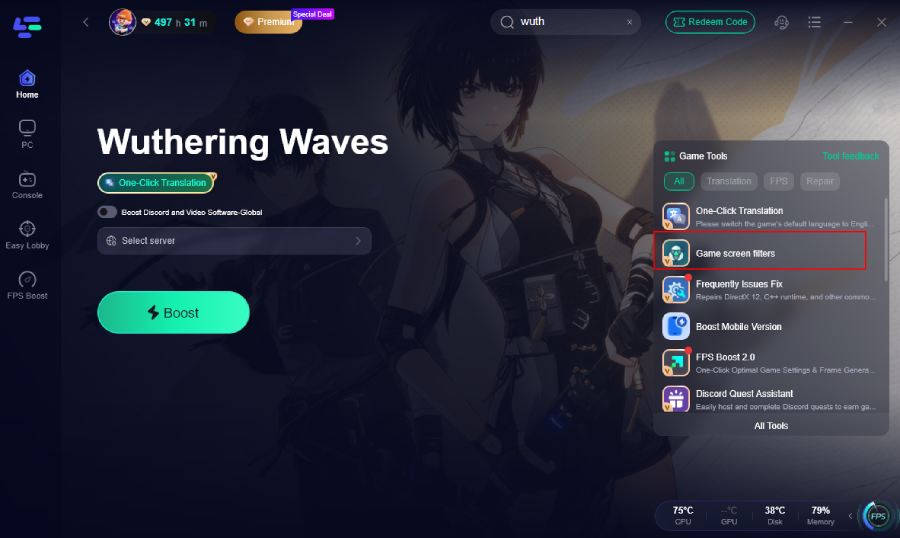
Step 2: Open LagoFast then click the PC button on the left and search Wuthering Waves in the search bar, click it after appearing.
Step 3: Click the Game Screen Filter Tool on the right.
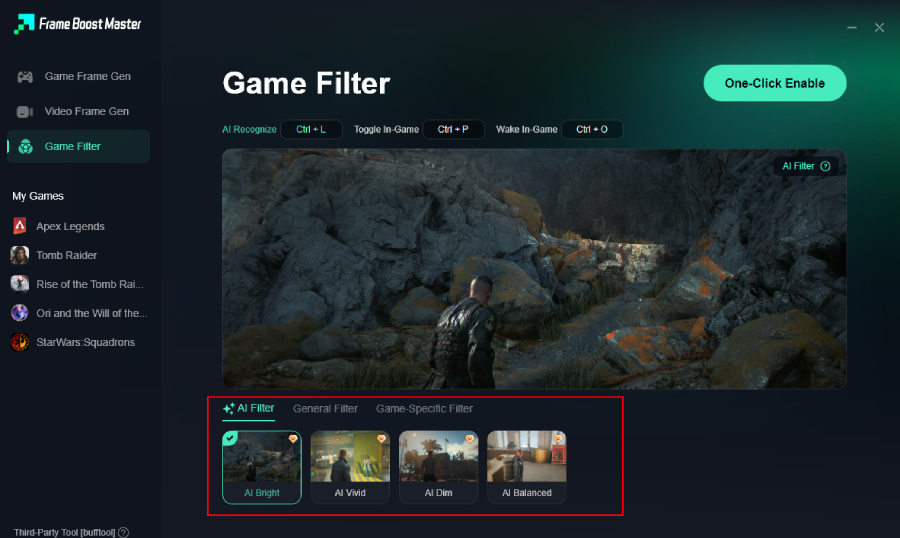
Step 4. Select your preferred filter like AI Bright and click One-Click Enable button to unlock the new experience.
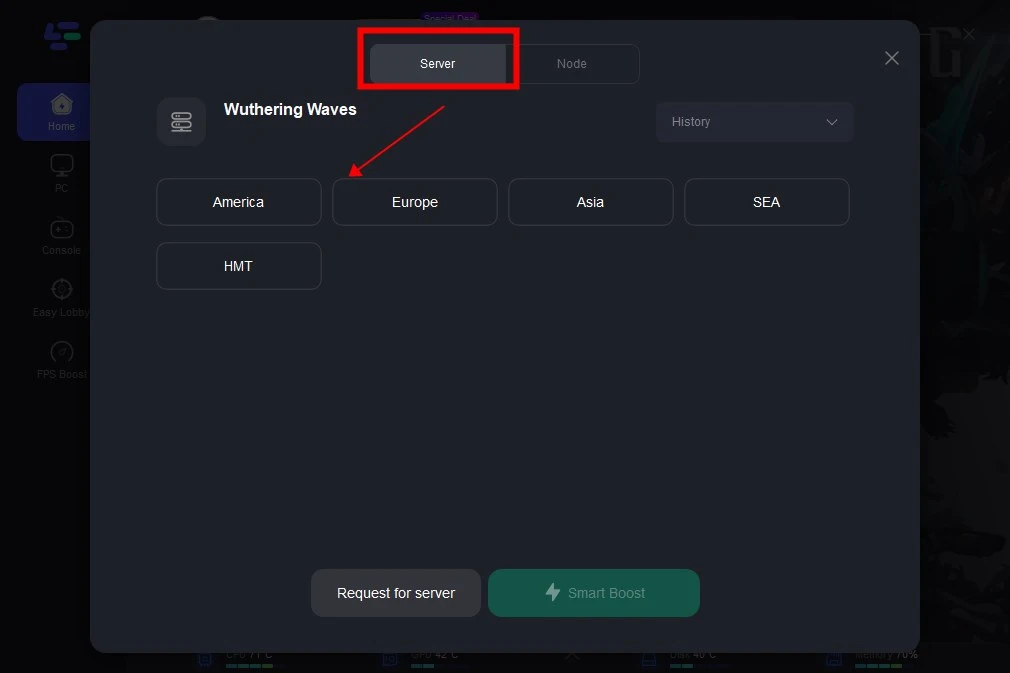
Step 5: Click on “Server” to change to a better server that ensures the gaming experience, then click on “Smart Boost”.
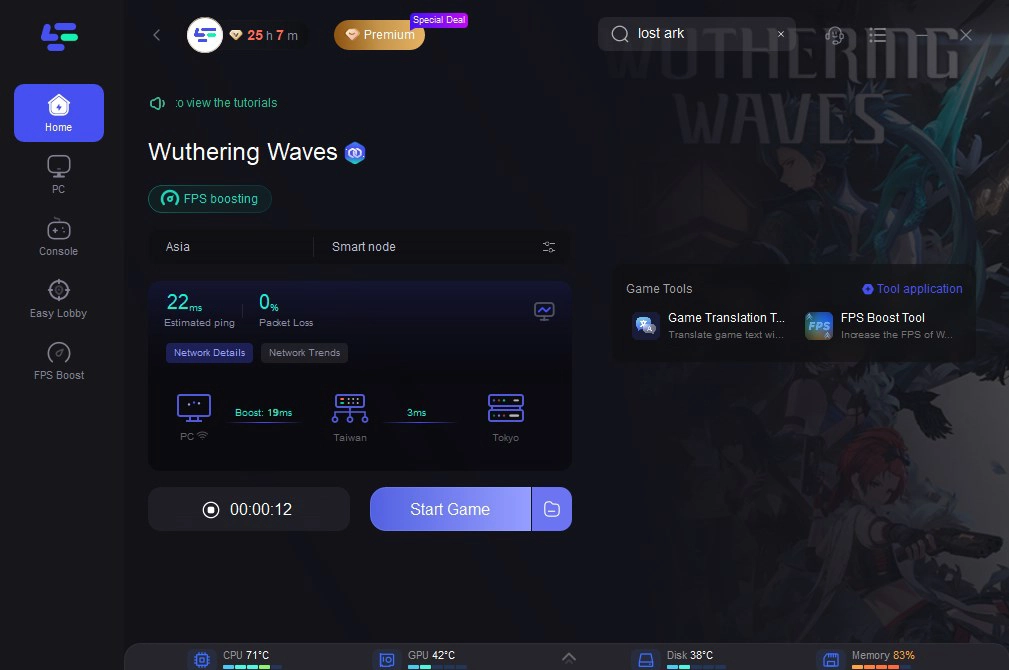
Step 6: Check the specific game ping, packet loss, and multiple path connection on the right side. Finally, click the “Start Game” to play the game.
Part 7: FAQs
Why does Wuthering Waves look so washed out by default?
The default visual presentation uses a low-contrast color profile combined with aggressive post-processing anti-aliasing (TAA). This design choice is intended to fit the game's post-apocalyptic sci-fi theme, but it can often make the environment look slightly blurry or grey on standard PC monitors.
Does LagoFast Game Filter affect my in-game FPS?
No, the tool is highly optimized to run alongside your game client. Unlike complex ReShade configurations that can reduce performance by 10% to 15%, LagoFast enhances your visuals with minimal impact on your system resources.
How do I fix the blurry textures in Wuthering Waves without software?
Ensure your Resolution Scale is set to 100% in the graphics menu and turn off Motion Blur and Depth of Field. Additionally, raising the in-game Sharpness slider to around 70% will help restore fine details lost to anti-aliasing.
Is the NVIDIA Game Filter safe to use?
Yes, NVIDIA's filter tool is completely safe. Because it operates natively through your GPU's official driver software rather than injecting files directly into the game's directory, it is fully recognized and whitelisted by anti-cheat systems.
Do I need to manually adjust parameters in LagoFast?
No, the platform features pre-configured, professional-grade visual profiles. You can switch between vibrant, cinematic, or soft aesthetics instantly with a single click, completely removing the need for manual configuration.
Why is my ReShade not working after a game update?
Whenever a game receives a major patch, the underlying executable paths or anti-cheat protocols often change. This frequently breaks third-party injectors, causing the game to crash on launch until a new version of the injector is manually downloaded and reinstalled.
Conclusion
You don't have to risk your hard-earned Wuthering Waves account just to get clean, vibrant, and stunning graphics. While traditional ReShade setups offer excellent customization, their structural vulnerabilities to anti-cheat software make them highly dangerous for online multiplayer games. By making the switch to a safe, streamlined alternative like LagoFast, you can instantly wipe away the default blurry visuals, capture breathtaking screenshots, and enjoy smooth, lag-free exploration across Solaris-3 with zero stress.

Boost Your Game with LagoFast for Epic Speed
Play harder, faster. LagoFast game booster eliminates stutter and lags on PC, mobile, or Mac—win every match!
Quickly Reduce Game Lag and Ping!
Boost FPS for Smoother Gameplay!