
When Call of Duty: Black Ops 7 (BO7) arrives, PC players will want the perfect balance between image quality and performance. In fast-paced shooters like BO7, even small drops in frame rate or stuttering can mean losing a firefight. On the other hand, ultra graphics settings can look stunning but may cripple lower-tier systems.
In this guide, we’ll walk through why graphics settings matter in BO7, what hardware bottlenecks to watch out for, which display and general settings usually hit the sweet spot, and how to troubleshoot FPS drops over time. We’ll also show how using LagoFast Game Booster can help smooth both graphics and network stability. Let’s dive in.

- ✅ Reduce Lag and Boost FPS
✅ Ensure Stable Server Connection.
✅ Change Server without Latency.
✅ Fix Crashing and Stuck Errors.
✅ 0% Packet Loss Rate
✅ Boost Game Downloading Speed.
Part 1. Why Graphics Settings Matter in BO7
Part 2. PC Hardware Requirements & Bottlenecks for BO7
Part 3. Best Display & General Settings in BO7
Part 4. Tips for Ongoing Optimization & Troubleshooting FPS Drops
Part 5. How LagoFast Game Booster Helps Smooth Graphics & Network Stability
Part 1: Why Graphics Settings Matter in BO7
Graphics settings in BO7 are more than eye candy—they impact gameplay responsiveness, clarity, and competitive viability. Here are key reasons why tuning settings properly is critical:
1. Input latency and frame pacing
Lower frame rates or inconsistent frame delivery introduce micro-stutters and lag in input response. In a shooter, that slight delay can cost you a kill.
2. Visual clarity over spectacle
Some effects (like volumetric lighting, motion blur, heavy shadows) look pretty but can obscure enemies, especially at a distance. You gain more from clear textures and stable performance than maximal effects.
3. Hardware diversity
Players run BO7 on a wide range of PC hardware. A one-size-fits-all “ultra” preset will penalize many users. Good settings let high-end rigs shine while keeping the game playable on mid or lower systems.
4. Competitive consistency
In multiplayer, consistency matters more than maximum visuals. If your FPS dips mid-fight, you lose advantage. Stable, smooth performance is preferable to occasional flashy frames.
Because of these dynamics, the “best” graphics settings are often those that balance performance and clarity, not simply pushing every slider to max.
Part 2: PC Hardware Requirements & Bottlenecks for BO7
Before you fine-tune settings, it helps to understand where bottlenecks typically happen in BO7 and what hardware you should pay attention to.
Likely Hardware Demands & Bottlenecks
- GPU VRAM & throughput: High-resolution textures and effects demand VRAM. GPUs with limited VRAM (4–6 GB) will struggle with high texture, ray tracing, or ambient occlusion settings.
- CPU and core utilization: Multiplayer environments, physics, and netcode load the CPU. If your CPU is weak, even a powerful GPU won’t help.
- Memory bandwidth and system RAM: Insufficient RAM or slow memory can cause texture streaming stutter.
- Storage (SSD vs HDD): Fast SSDs reduce texture pop-in and load times.
- Display and refresh rate: If your monitor is 120Hz or 240Hz, you’ll want settings that can push consistent frames near that threshold.
- Power and cooling: Thermal throttling hurts sustained performance.
What to Target First
- If you already have a mid-tier GPU (e.g. a card equivalent to a modern RTX 3060 / RX 6700), focus on balancing shadows, effects, and post-processing first.
- If the CPU is aging (e.g. 4-core or low single-thread speed), reduce physics, particle, or simulation loads.
- Prioritize stable 144 Hz (or your monitor’s refresh rate) over chasing 4K ultra settings with dips.
Knowing where your system will struggle lets you be selective with settings tweaks.

Part 3: Best Display & General Settings in BO7
Below is a recommended baseline of settings for BO7, described in prose form rather than table form, based on what tends to work well in fast shooters (and drawing from successful PC settings in BO6). The goal is to strike a balance between visuals and smooth performance.
Display Mode & Refresh Rate
Set the game to Fullscreen Exclusive mode (rather than borderless or windowed) to reduce input lag and allow your GPU to focus fully on rendering. Choose your monitor’s native resolution (e.g. 1920×1080 or 2560×1440) and set the refresh rate to the maximum supported value (like 144 Hz, 165 Hz, 240 Hz).
V-Sync / Frame Limiting
Turn V-Sync off to avoid added input latency. Instead, if you experience noticeable screen tearing, use a frame cap slightly above your monitor’s refresh rate (for example +3 FPS). If BO7 supports reflex/low latency mode, enable that to reduce render queue latency.
Render Scaling / Upscaling
If BO7 includes upscaling techniques (DLSS, FSR, XeSS, or fidelityFX CAS), use them. Running at 100% render resolution with an upscaler helps preserve clarity while offloading some GPU strain. If you get large FPS drops in action sequences, dynamic resolution or adaptive scaling can save frames.
Anti-Aliasing
Use smoother yet lightweight options such as SMAA or T2X. These smooth edges without the heavy overhead of supersampling or temporal AA, and maintain sharper visuals than turning AA off entirely.
Texture Quality
Set Texture Quality to High, unless your GPU struggles or has limited VRAM. If you see VRAM saturation, reduce to Medium to avoid texture pop-in or stutter.
Shadow Quality
Keep Shadow Quality at Medium. Shadows are GPU-intensive and often don't provide tactical advantage; lowering them reduces load dramatically without losing core visual fidelity.
Particle Quality
Set Particle Quality to Low. This minimizes visual clutter (smoke, sparks, explosions) and helps maintain stable FPS in heavy action zones.
Ambient Occlusion / Screen-space Effects
Disable or set Ambient Occlusion to Low/Off. It’s visually heavy and yields diminishing returns in visibility sensitivity. Similarly, reduce or disable Screen-Space Reflections, Depth of Field, and other post-process effects that interfere with direct clarity.
Motion Blur / Film Grain
Turn Motion Blur and Film Grain off. These overlay effects reduce clarity and can disrupt line-of-fire perception in fast movement.
Field of View (FOV)
Set your FOV between 100 to 110. A higher FOV gives you better peripheral vision, without warping visuals awkwardly. Test within this range to find your comfort point.
Ray Tracing
Unless you run a flagship GPU (RTX 4080, 4090, or equivalent), turn Ray Tracing off. The performance cost is often not worth the incremental lighting benefits in competitive environments.
This recommended combination lets you preserve visual sharpness where necessary (textures, clarity) while disabling or scaling down heavy effects that don’t aid gameplay, ensuring you maintain stable, high FPS.
Part 4: Tips for Ongoing Optimization & Troubleshooting FPS Drops
Even with solid initial settings, real-world conditions (new patches, maps, shaders, background apps) can degrade performance over time. Here are strategies to maintain smooth performance.
1. Keep GPU drivers and BO7 patched
Driver updates and game patches often include performance optimizations. Running outdated drivers is one of the easiest ways to lose FPS. (This is regularly recommended in CoD optimization guides.)
2. Monitor temps and avoid thermal throttling
Use tools like MSI Afterburner or HWMonitor to view GPU/CPU temps. If components hit high temperatures (e.g. over ~85–90 °C), performance may be throttled. Clean dust, improve airflow, or adjust fan curves.
3. Close unnecessary background applications
Web browsers, streaming software, cloud sync tools, or overlays (Discord, GeForce Experience, etc.) consume CPU, RAM, or GPU cycles. Closing or disabling them during gameplay frees resources.
4. Clear shaders, cache, or reset config files
Over time, shader cache, configuration files, or temporary assets can become corrupted or bloated. If BO7 supports cache clearing or config resets, do that occasionally to restore stability.
5.Use lower settings for specific maps / modes
In dense or large maps, turn down particle effects, volumetric lighting, or shadows temporarily for a smoother experience.
6. Dynamic resolution / adaptive scaling usage
If BO7 allows dynamic resolution, enable it so that during intense frames the engine downscales resolution slightly to preserve FPS. It’s better to maintain smooth input than pushing full resolution at all times.
7. Check GPU control panel / power settings
In NVIDIA or AMD control panels, set power mode to “Prefer Maximum Performance” or equivalent, ensure BO7 is added to the game profile, and disable any vertical sync override from driver settings.
8. Cap FPS if GPU is underutilized
Sometimes unlimited FPS causes GPU runaway or micro-stutters. Cap FPS to a stable number slightly above monitor refresh rate if this phenomenon occurs.
9. Test in-game benchmarking / overlays
Use built-in performance overlays or benchmarking tools to see where drops occur. If frames dip during explosions or foliage zones, that points to particle or foliage settings as bottlenecks.
By staying proactive and adjusting based on usage, you can maintain smoother, consistent performance through BO7’s lifecycle.
Part 5: How LagoFast Game Booster Helps Smooth Graphics & Network Stability
While graphics settings deal with rendering performance, latency, packet loss, and network instability can feel like graphical hiccups (stutters, lag spikes). LagoFast(LagoFast Game Booster - Get No Lag and Lower Ping) Game Booster can complement your graphics optimization by improving network conditions.
Steps with LagoFast:
1. Click the Free Trial button to download and install LagoFast Free Trial.
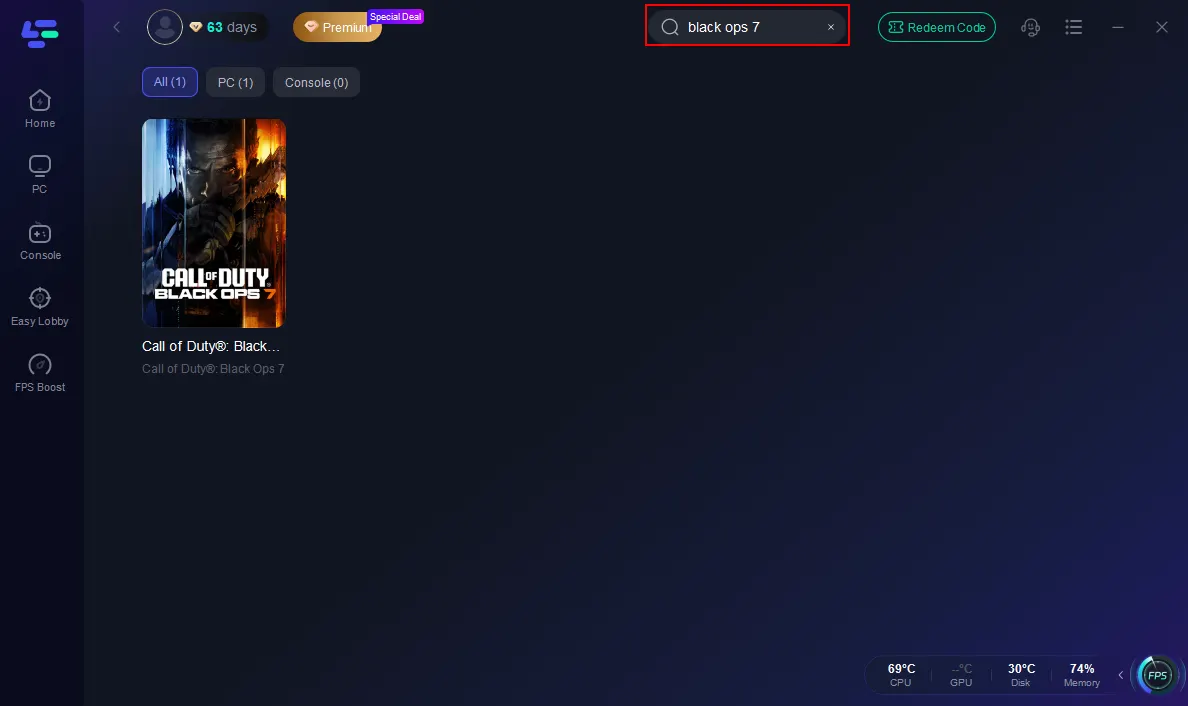
2. Open LagoFast and select BO7 from the game list.
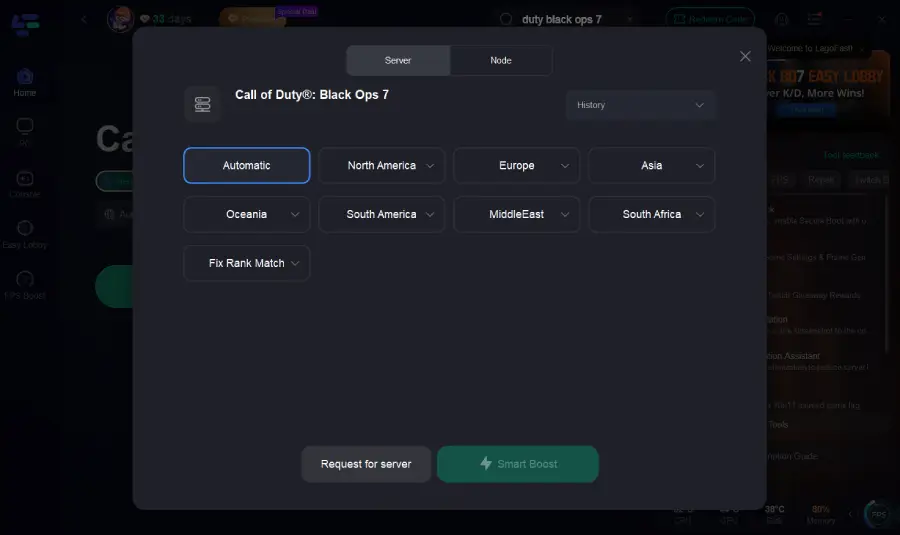
3. Choose the best server and enable Smart Boost.
4. Launch BO7 with optimized connection, reduced ping, and higher FPS.
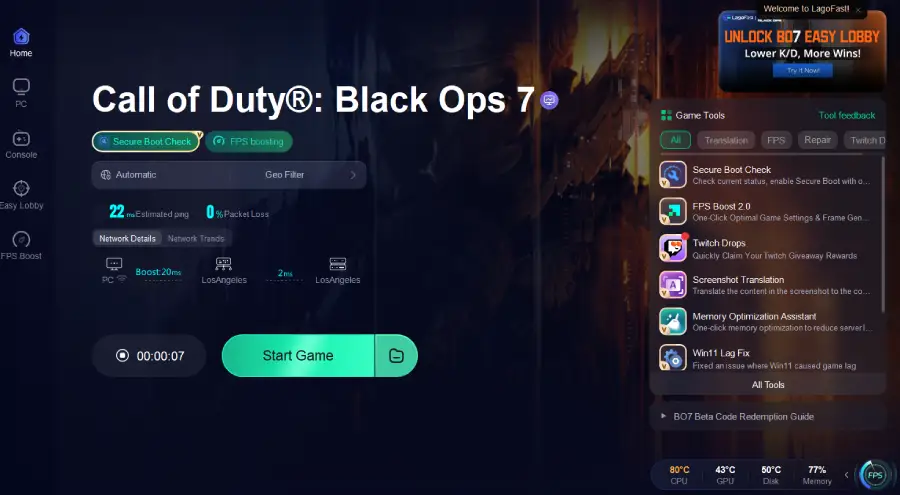
By combining tuned graphics settings and optimized network routing, you reduce both rendering lag and network lag — giving you the most responsive and stable gameplay experience possible.
Part 6: FAQs
Q1. Will ultra effects always look ‘better’?
Not in BO7’s case, especially in multiplayer. Many ultra effects (like heavy shadows, volumetric lighting) degrade performance more than they contribute to clarity. It’s better to reduce such effects and maintain stable FPS.
Q2. What’s the ideal FOV?
Between 100–110 is a safe range for most players. It expands your field of view without causing excessive distortion or discomfort. Test small adjustments to find your comfort zone.
Q3. What if I only have a mid-tier or older GPU?
Set textures to Medium, disable shadows or ambient occlusion, turn off ray tracing, and rely on upscaling or dynamic resolution. The goal is consistent 120+ FPS (or as close as your monitor allows) rather than chasing perfect visuals.
Q4. How often should I revisit my settings?
Whenever BO7 receives a patch, your GPU drivers update, or you change hardware. Also revisit settings if you notice performance drops or new graphical features are added.
Conclusion
Getting the best PC graphics settings in BO7 is less about maxing every slider and more about making smart trade-offs. Focus on clarity, performance stability, and responsiveness. Use mid-tier or reduced settings for shadows, particles, and post-processing, while preserving textures or anti-aliasing where it helps you see more clearly. Combine all that with network optimization through tools like LagoFast Game Booster to mitigate lag or packet issues.
Optimize consciously, monitor your system, and stay flexible. That will ensure you dominate BO7 with both smooth visuals and responsive gameplay.

Boost Your Game with LagoFast for Epic Speed
Play harder, faster. LagoFast game booster eliminates stutter and lags on PC, mobile, or Mac—win every match!
Quickly Reduce Game Lag and Ping!
Boost FPS for Smoother Gameplay!