
If you keep getting the “Timed Out” message right when the loading bar hits 100%, you’re not the only one losing your mind over it. Players across Steam, EA App, and PlayStation are all seeing the same issue: the game loads perfectly fine, only to kick them out before the round even starts.
It’s not your PC specs, and it’s not your Wi-Fi speed — this one’s a mix of EA App bugs, anti-cheat false flags, and weird background interference. Let’s go through what’s really happening and how to fix the issue on PC, PS5, and Xbox.

- ✅ Reduce Lag and High Ping.
- ✅ Boost FPS at the Same Time.
- ✅ Support 2000+ Popular Online Games.
- ✅ Stop Stuck & Black Screen Issues.
- ✅ Ensure Stable Connections.
Part 1: What the “Timed Out” Error Looks Like
Part 2: Why You Can’t Play Battlefield 6
Part 3: How to Fix Battlefield 6 “Timed Out” on PC (Steam / EA App)
Part 4: How to Fix Battlefield 6 “Timed Out” on PS5
Part 5: How to Fix Battlefield 6 “Timed Out” on Xbox
Part 1: What the “Timed Out” Error Looks Like
PC (Steam / EA App)
The loading bar reaches 100%, then the screen freezes for a moment before returning to the main menu with a “Timed Out” message.
PS5
You connect to matchmaking, see “Joining Server,” then get “You have been disconnected. Connection to server timed out.”
Xbox
The same message appears — and sometimes the game claims you were kicked “for inactivity” even while you’re actively moving or fighting.
Common player complaints:
- “Played one match fine, then every round since times out instantly.”
- “I got kicked mid-tank fight — said I was AFK.”
- “The beta worked perfectly, but the release build won’t even connect.”
Part 2: Why Battlefield 6 Won’t Let You Play
The “Timed Out” and “Inactivity” errors usually come down to three overlapping causes:
1. Over-Strict Anti-Cheat or Overlay Conflicts
On PC, software such as ASUS GameFirst, MSI LAN Manager, Nahimic Audio, or Sonic Studio can interfere with Battlefield’s anti-cheat system.
When this happens, the handshake between client and server fails, leading the game to think your connection went silent — and you get “timed out.”
2. Account / Authentication Desync
Steam ↔ EA App tokens or PSN / Xbox Live ↔ EA Account links sometimes expire during the connection process.
The game can’t confirm your session and kicks you out even though you’re logged in.
3. Server Instability or Region Routing
During high-load periods (launch days or beta weekends), EA’s regional servers may drop packets.
- On consoles, this appears as “connection to server timed out.”
- On PC, it often happens right when the loading hits 100% or after the first match.
Part 3: How to Fix Battlefield 6 “Timed Out” on PC (Steam / EA App)
1. Close Overlay / Network Tools
Exit all apps that hook into network or audio layers:
- ASUS GameFirst IV / V
- MSI Dragon Center / LAN Manager
- Nahimic Audio Service
- Sonic Studio / Sonic Radar
Then restart your PC and relaunch Battlefield 6. Many players report this instantly stops random mid-match disconnections.
2. Launch EA App Before Steam
Open the EA App manually and confirm Battlefield 6 appears in your library.
If not, unlink and relink your Steam account via Settings → Connections, then start the game from Steam.
This refreshes your login token and prevents 100% loading timeouts.
3. Do a Clean Boot to Find Conflicts
- Press Windows + R → msconfig
- Check Hide all Microsoft services → Disable all
- Open Task Manager → Startup → Disable extras
- Reboot and test the game
If it connects now, re-enable apps one by one to find the culprit.
4. Switch to Ethernet & Test Alternate Routes
Even minor Wi-Fi jitter can break the login handshake.
Use a wired connection if possible. If not, try tethering to a mobile hotspot to rule out ISP routing issues.
5. Use LagoFast Game Booster for Routing Optimization
If you’re outside core server regions (NA / EU / KR), packet loss between your ISP and EA’s edge nodes can cause “Timed Out.” LagoFast reroutes Battlefield 6 traffic through optimized low-latency paths.
How to use LagoFast:
Download and launch LagoFast.
Search for Battlefield 6 in the dashboard.

Select your nearest game node or auto-optimize.
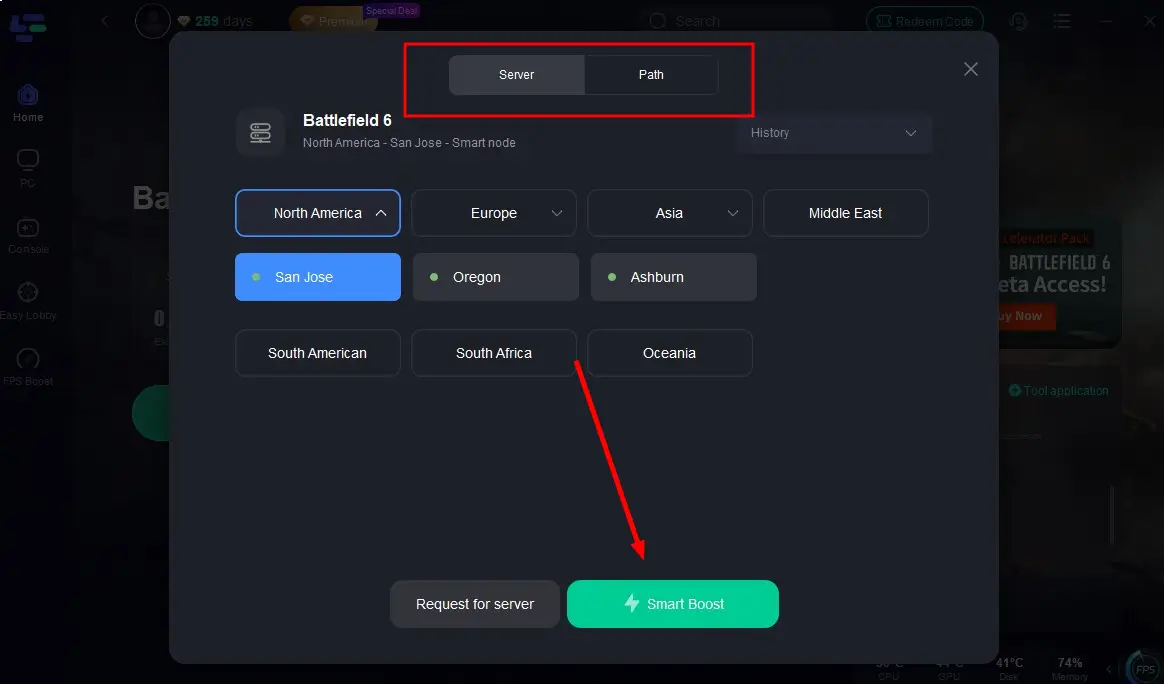
Enable Smart Boost mode to combine ping and FPS optimization.

This stabilizes your handshake from login to match join.
Part 4: How to Fix Battlefield 6 “Timed Out” on PS5
1. Check Server Status
Visit EA Help → Battlefield 6 Server Status or follow @BattlefieldComms on Twitter.
If servers are down or under maintenance, no local fix will work.
2. Re-Link EA Account to PSN
Log into ea.com → Account Settings → Connections.
Unlink PlayStation Network → relink and accept permissions.
Restart your console and try again. This resets your authentication token — the main cause of PS5 timeouts.
3. Rebuild Database on PS5
- Power off your PS5 completely.
- Hold the power button until you hear a second beep (~7 seconds).
- Connect your controller and select Rebuild Database.
This clears corrupted cache data that can break multiplayer connections.
4. Disable Rest Mode & Auto-Login
Some users report issues after waking the console from rest mode.
Go to Settings → Power Saving → Disable Rest Mode Features.
Restart and try joining again.
5. Change DNS or Use Wired Connection
Switch to Google DNS (8.8.8.8 / 8.8.4.4) or Cloudflare (1.1.1.1).
Plug in Ethernet instead of Wi-Fi to reduce packet loss and improve stability.
Part 5: How to Fix Battlefield 6 “Timed Out” on Xbox
1. Power Cycle and Clear Alternate MAC
- Hold the power button for 10 seconds → unplug for 60 seconds.
- Go to Settings → Network → Advanced → Alternate MAC Address → Clear → Restart.
This flushes cached network tokens that may block server connections.
2. Check Linked EA Account
Visit ea.com → Account Settings → Connections.
Ensure your Xbox profile is properly linked and permissions are granted.
If not, unlink and relink, then restart the console.
3. Use Manual DNS
Go to Settings → Network → Advanced Settings → DNS → Manual → enter 8.8.8.8 / 8.8.4.4.
This often resolves handshake timeouts for players in high-latency regions.
4. Avoid Quick Resume
Battlefield 6 doesn’t handle Quick Resume well.
Always quit the game fully and restart it from the dashboard before joining a new match.
Final Thoughts
If you’re getting the “Timed Out” error, it’s not your fault. It’s mostly EA’s anti-cheat being too aggressive and EA App desyncs breaking connections. Try disabling your motherboard’s “network optimizer” tools first — that’s been the real game-changer for most players.
And if that still doesn’t work, use a smart route optimizer like LagoFast to stabilize your connection — especially if you’re playing from outside the U.S. or EU regions.
Boost Your Game with LagoFast for Epic Speed
Play harder, faster. LagoFast game booster eliminates stutter and lags on PC, mobile, or Mac—win every match!
Quickly Reduce Game Lag and Ping!
Boost FPS for Smoother Gameplay!