
Experiencing a stuck loading screen in Battlefield 6 can be incredibly frustrating, especially when you’re eager to jump into the action. While this issue can be caused by various factors, there are several solutions you can try to resolve it and get back to playing. In this article, we’ll explore the potential reasons why Battlefield 6 gets stuck on the loading screen and provide you with effective troubleshooting steps to fix the problem.
German Version: Battlefield 6 steckt im Ladebildschirm fest: Wie man es beheben kann
Korean Version: Battlefield 6 로딩 화면 멈춤 현상: 해결 방법 안내
Japan Version: Battlefield 6 ロード画面で固まる:解決法

- ✅ Reduce Lag and High Ping.
- ✅ Boost FPS at the Same Time.
- ✅ End Connection Issues.
- ✅ Support Cross-Platform.
1. Common Reasons for Battlefield 6 Stuck on Loading Screen
2. Troubleshooting Steps to Fix Battlefield 6 Stuck on Loading Screen
3. How to Use LagoFast to Fix Battlefield 6 Loading Screen Issues
1. Common Reasons for Battlefield 6 Stuck on Loading Screen
Before we dive into the solutions, it’s helpful to understand what could be causing the loading screen issue. Here are some common reasons:
- Outdated Drivers: Graphics drivers that are outdated can lead to issues like a stuck loading screen. This is because the game may not be able to communicate properly with your GPU.
- Corrupted Game Files: Sometimes, a game file can become corrupted during installation or an update, leading to loading problems.
- System Overload: If your system is running too many processes in the background, it might struggle to load Battlefield 6 properly.
- Server-Side Issues: Occasionally, the problem could be on the server-side. Server maintenance or outages can cause delays or issues with loading into a game.
- Internet Connection: A slow or unstable internet connection can also cause the game to get stuck on the loading screen, particularly when trying to connect to multiplayer servers.
2. Troubleshooting Steps to Fix Battlefield 6 Stuck on Loading Screen
1. Update Your Graphics Drivers
Outdated or incompatible drivers are one of the most common culprits when Battlefield 6 is stuck on the loading screen. To ensure your drivers are up to date:
- For NVIDIA users: Visit the NVIDIA Driver Download page and download the latest drivers for your GPU.
- For AMD users: Go to the AMD Driver Support page to get the latest drivers for your system.
Once you’ve updated your graphics drivers, restart your PC and try launching the game again.
2. Repair or Verify Game Files
Sometimes, corrupted game files can be the cause of the loading screen issue. If you’re using a platform like Origin or Steam, both offer a way to verify and repair game files. Here’s how:
On Steam:
- Open Steam and go to your Library.
- Right-click on Battlefield 6 and select Properties.
- Under the Local Files tab, click Verify Integrity of Game Files.
- Let Steam scan and repair any corrupted files.
On Origin:
- Open Origin and go to My Game Library.
- Right-click on Battlefield 6 and select Repair.
- Wait for the repair process to finish and then try launching the game again.
3. Close Background Processes
If your system is overloaded with background processes, it might be affecting the game’s ability to load properly. To close unnecessary processes:
- Open Task Manager by pressing Ctrl + Shift + Esc.
- Look through the Processes tab and end tasks that are using a significant amount of CPU or memory (but be careful not to close essential processes like the operating system or security software).
- After freeing up system resources, restart your PC and try launching the game again.
4. Check Server Status
Sometimes the issue isn’t on your end, but with Battlefield 6’s servers. Server-side issues, such as maintenance or outages, can prevent you from progressing past the loading screen. To check the status of Battlefield 6’s servers:
- Visit the official Battlefield 6 server status page for updates on any ongoing issues.
- Check community forums or social media platforms for real-time reports about server issues.
5. Optimize Your Internet Connection
An unstable or slow internet connection can cause loading issues in Battlefield 6, especially in multiplayer modes. Here’s what you can do to improve your connection:
- Use a wired connection: If you’re on Wi-Fi, try switching to a wired Ethernet connection for a more stable and faster connection.
- Close bandwidth-heavy applications: Make sure no other apps or devices on your network are using too much bandwidth (like streaming videos or large downloads).
- Test your internet speed: Use a tool like Speedtest.net to check if your internet speed is sufficient for online gaming. Ideally, you should have a minimum of 3 Mbps download and 1 Mbps upload speed.
6. Reinstall Battlefield 6
If none of the above solutions work, the next step is to reinstall the game. Sometimes, a fresh installation can resolve persistent issues caused by corrupted files or settings. To reinstall Battlefield 6:
- Uninstall the game from Origin or Steam.
- Restart your computer.
- Reinstall the game and ensure all files are downloaded correctly.
- Launch the game and check if the issue is resolved.
3. How to Use LagoFast to Fix Battlefield 6 Loading Screen Issues
If you’re experiencing Battlefield 6 stuck on loading screen issues, LagoFast can help you reduce latency and optimize your gaming connection for smoother gameplay. Follow these easy steps to solve the problem using LagoFast:
Benefits of Using LagoFast
- Lower Ping: Reduces lag by connecting to the nearest server.
- Fewer Packet Losses: Minimizes connection interruptions, ensuring smooth gameplay.
- Customizable Servers: Choose from a variety of stable servers tailored to your location.
How to Use
Download LagoFast: Click the Free Trial button to get started.
Search for Battlefield 6: Open LagoFast and search for Battlefield 6 before launching the game.

Select a Stable Server: Click on "Select Server" and choose a server with the best connection.
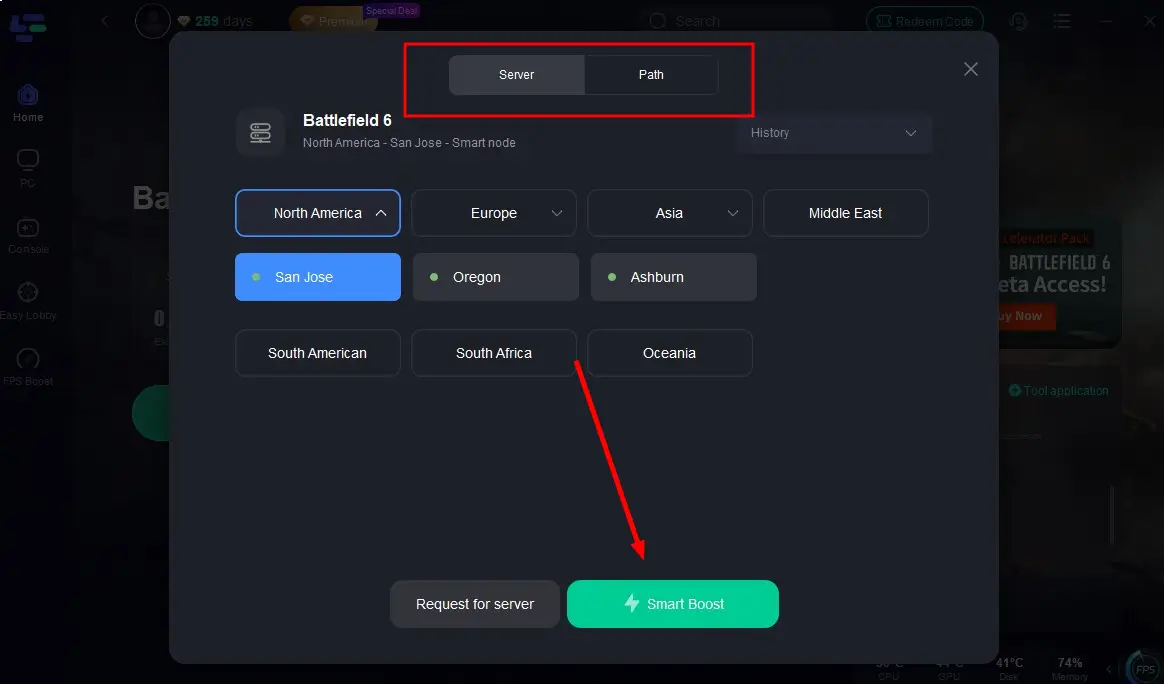
Activate Smart Boost: Click the "Smart Boost" button to check ping, packet loss, and network type for optimal performance.

LagoFast is designed to enhance your network, ensuring stable connections and faster load times, which will help you overcome any loading screen issues in Battlefield 6. By using LagoFast, you can fix your Battlefield 6 loading screen issue and enjoy uninterrupted gaming.
Hot Related: Farlight 84 Global Relaunch Date: All You Want to Know Is Here
Conclusion
If you’re experiencing a stuck loading screen in Battlefield 6, it’s important to diagnose the issue by following the troubleshooting steps above. Whether it’s updating your drivers, verifying game files, or checking server status, these steps should help you get back into the game. If the problem persists after trying all of the solutions, consider reaching out to EA Support for further assistance or keep an eye on updates related to the game for any known issues.
Boost Your Game with LagoFast for Epic Speed
Play harder, faster. LagoFast game booster eliminates stutter and lags on PC, mobile, or Mac—win every match!
Quickly Reduce Game Lag and Ping!
Boost FPS for Smoother Gameplay!