
Experiencing low FPS in Battlefield 6 can severely impact your gaming experience, especially during intense firefights. This guide provides comprehensive solutions to identify and resolve FPS drops, ensuring smoother gameplay.
German Version: So beheben Sie Low-FPS-Probleme in Battlefield 6: Unverzichtbare Lösungen
Korean Version: Battlefield 6 저사양 프레임 드랍 핵심 해결 가이드

- ✅ Reduce Lag and High Ping.
- ✅ Boost FPS at the Same Time.
- ✅ End Connection Issues.
- ✅ Support Cross-Platform.
Part 1: Introduction of Battlefield 6
Part 2: Understanding Battlefield 6 FPS Drops
Part 3: How to Show FPS in Battlefield 6
Part 4: Optimizing Game Settings for Better FPS
Part 5: Additional Tips to Resolve Low FPS in Battlefield 6
Part 1: Introduction of Battlefield 6
Battlefield 6 is the latest installment in EA DICE's renowned first-person shooter series, returning to the franchise's iconic all-out warfare. With large-scale battles, advanced graphics, and dynamic environments, the game demands significant system resources. Optimizing performance is crucial for an immersive experience.
Part 2: Understanding Battlefield 6 FPS Drops
FPS (frames per second) drops can result from various factors, including:
- Hardware Limitations: Outdated or underpowered CPU, GPU, or insufficient RAM.
- Software Conflicts: Background applications consuming resources.
- Driver Issues: Outdated or incompatible graphics drivers.
- In-Game Settings: High graphics settings exceeding hardware capabilities.
- Thermal Throttling: Overheating components reducing performance.
Part 3: How to Show FPS in Battlefield 6
Monitoring your FPS helps assess performance and the impact of optimizations.
Method 1: In-Game Console Command
- Press the tilde key (~) to open the console.
- Type Perfoverlay.drawfps 1 and press Enter.
This command displays the FPS counter on your screen.
Method 2: NVIDIA GeForce Experience
- Open GeForce Experience and go to Settings.
- Under "HUD Layout," select "Performance" and choose a position for the FPS counter.
- Press Alt + R during gameplay to view FPS.
Method 3: Windows Game Bar
- Press Win + G to open the Game Bar.
- Click on the "Performance" widget to view FPS and other metrics.
Part 4: Optimizing Game Settings for Better FPS
1. Use LagoFast for Network Optimization
LagoFast enhances your gaming experience by optimizing network routes, reducing latency, and stabilizing connections. This can indirectly improve FPS by minimizing lag and ensuring smoother gameplay.
Step 1: Begin by clicking the Free Trial button to download and install the LagoFast Free Trial.
Step 2: Search for Your Game: Open LagoFast and find your game in the search bar.

Step 3: Choose the Best Server: Click "Select Server" and pick a stable server for your region.
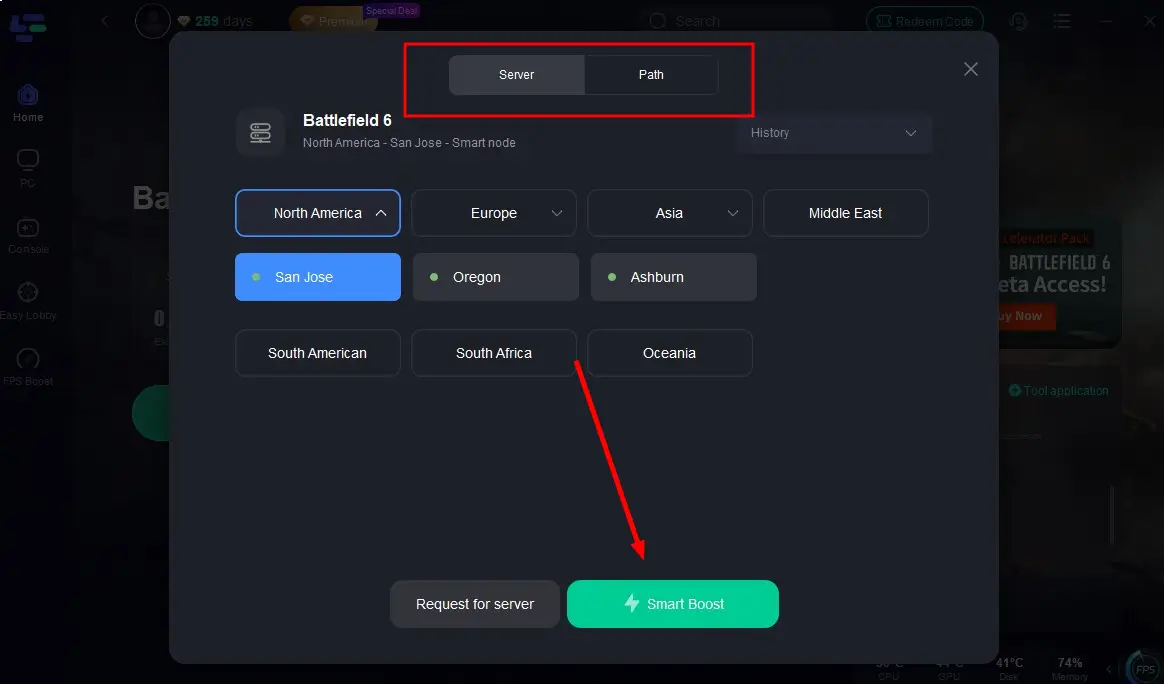
Step 4: Activate Smart Boost: Hit the "Smart Boost" button to monitor your ping, packet loss, and network type in real time.

2. Adjust In-Game Graphics Settings
Lowering certain graphics settings can significantly boost FPS:
- Resolution: Set to your monitor's native resolution or lower.
- Graphics Quality: Choose "Medium" or "Low" presets.
- Texture Quality: Set to "Medium" or "Low."
- Shadow Quality: Lowering shadows can greatly improve performance.
- Anti-Aliasing: Disable or set to the lowest setting.
- V-Sync: Disable to reduce input lag.
3. Update Graphics Drivers
Ensure your GPU drivers are up to date:
- NVIDIA: Download here.
- AMD: Download here.
4. Enable Game Mode and Hardware-Accelerated GPU Scheduling
- Go to Settings > Gaming > Game Mode and enable it.
- Navigate to Settings > System > Display > Graphics Settings.
- Enable "Hardware-accelerated GPU scheduling."
5. Disable Background Applications
Close unnecessary applications running in the background, such as:
- Web browsers
- Streaming software
- Chat applications (e.g., Discord)
6. Clean Boot Your System
Performing a clean boot can help identify if background services are causing FPS drops:
- Press Win + R, type msconfig, and press Enter.
- Under the "Services" tab, check "Hide all Microsoft services" and click "Disable all."
- Restart your computer.
Part 5: Additional Tips to Resolve Low FPS in Battlefield 6
- Monitor Temperatures: Use tools like HWMonitor to ensure your CPU and GPU are not overheating.
- Upgrade Hardware: If possible, consider upgrading your RAM, CPU, or GPU to meet the game's recommended specifications.
- Defragment Hard Drive: If using an HDD, defragment it to improve load times and performance.
- Adjust Power Settings: Set your PC's power plan to "High Performance" in the Control Panel.
Part 6: Battlefield 6 FAQs
Q1: What are the minimum system requirements for Battlefield 6
While official requirements may vary, it's recommended to have at least:
- OS: Windows 10 64-bit
- Processor: Intel Core i5 or AMD Ryzen 5
- Memory: 8 GB RAM
- Graphics: NVIDIA GTX 1050 Ti or AMD Radeon RX 560
- DirectX: Version 12
- Storage: 100 GB available space
Q2: Can network issues cause low FPS
Network problems typically cause lag or high latency rather than low FPS. However, severe network issues can lead to stuttering, which may be perceived as FPS drops.
Q3: How often should I update my graphics drivers
It's advisable to check for GPU driver updates monthly or whenever a new game is released to ensure optimal performance and compatibility.
Q4: Is it better to play in fullscreen or windowed mode for higher FPS
Fullscreen mode generally provides better performance and lower input lag compared to windowed or borderless modes.
Hot Related: Battlefield 6 Stuck on Loading Screen: How to Fix It
Conclusion
Low FPS in Battlefield 6 can be a significant barrier to enjoying the game, but by understanding the causes and implementing the solutions outlined in this article, you can enhance your gaming experience. Whether you’re optimizing your network with LagoFast, adjusting your graphics settings, or ensuring your hardware is performing at its best, taking these steps will help you achieve the smooth gameplay you desire. Prepare for the battle ahead and enjoy the immersive world of Battlefield 6!

Boost Your Game with LagoFast for Epic Speed
Play harder, faster. LagoFast game booster eliminates stutter and lags on PC, mobile, or Mac—win every match!
Quickly Reduce Game Lag and Ping!
Boost FPS for Smoother Gameplay!