
The Battlefield 6 Early Access and Open Beta have brought thousands of players into massive battles, but also into equally massive queues — and a long list of frustrating errors.
From “Invalid Code” messages to infinite loading screens, we’ve collected every known Battlefield 6 Beta error, their causes, and the fixes confirmed by the community.
This guide is based on official EA troubleshooting steps, real player reports, and in-game testing.

- ✅ Reduce Lag and High Ping.
- ✅ Boost FPS at the Same Time.
- ✅ Support 2500+ Popular Online Games.
- ✅ Change Server without Latency.
- ✅ End Connection & Stuck Issues.
An undefined error occurred in Battlefield 6
Problem Description:
- Appears during game launch or high-traffic periods.
- Usually caused by connection issues to EA servers, not corrupted game files.
- Common causes: server overload, network/firewall issues, EA account problems, and rare corrupted game files.
Solutions:
Check Server Status
Visit EA Help
Follow official Battlefield channels for updates
Restart Devices
Restart game, EA App/Steam, PC/console, router/modem
Verify Game Files
EA App: Library → Battlefield 6 → Repair
Steam: Library → Battlefield 6 → Properties → Local Files → Verify Integrity
Network & Firewall
Use a stable internet, preferably wired
Allow Battlefield 6 and the EA App in the firewall/antivirus
Other Tips
Flush DNS (ipconfig /flushdns) on PC
Disable VPN
Contact EA Support if the issue persists
Battlefield 6 Error Code 1:8600
Battlefield 6 Error Code 1:8600 is a connection error that may prevent you from logging in.
Solutions:
1. Initial Steps
Restart devices: Restart your router, modem, computer, and the game itself.
Check server status: Make sure EA servers are online (EA Help).
Use a wired connection: Switch from Wi-Fi to Ethernet for more stable connectivity.
2. Network & DNS Fixes
Change DNS settings: Use Google Public DNS (8.8.8.8 / 8.8.4.4).
Check firewall/antivirus: Temporarily disable Windows Defender or other antivirus software.
3. Advanced Solutions
Unplug USB devices: Keep only your mouse and keyboard connected.
Run as administrator: Right-click the EA app or game executable → Run as administrator.
Clear EA app cache: Use EA App Recovery Tool (Menu → Help).
Perform a clean boot: Restart Windows in clean boot mode to avoid background conflicts.
Battlefield 6 Multiplayer Not Working & Battlefield 6 multiplayer not installed
Battlefield 6 multiplayer may not work due to connection issues, server problems, or local system conflicts.
Solutions:
1. Check Server Status
Verify that EA servers are online (EA Help).
2. Restart Devices
Restart your router, modem, computer, and the game.
3. Network & Connection
Use a wired Ethernet connection instead of Wi-Fi.
Change DNS to Google Public DNS (8.8.8.8 / 8.8.4.4).
Temporarily disable firewall or antivirus software.
4. Game & System Fixes
Run the EA app and Battlefield 6 as administrator.
Clear the EA app cache (Menu → Help → App Recovery).
Ensure Windows and graphics drivers are up to date.
5. Advanced Steps
Disconnect unnecessary USB devices.
Perform a clean boot to eliminate background conflicts.
Battlefield 6 Error Types
EA generally groups Battlefield errors into the following categories, with an additional type for player-reported unknown issues:
- Authentication & Login Errors – Problems with account access, verification codes, or linking EA, Steam, PlayStation, or Xbox accounts.
- Connection & Network Errors – Server queues, matchmaking timeouts, or session drops during gameplay.
- Matchmaking & Game Join Errors – Stuck on splash/loading screens, game modes locked, or unable to join matches.
- Other / Generic Errors – Entitlement bugs, UI glitches, missing settings, or features not appearing.
- Unknown Errors – Player-reported issues without an official error code or category, often random or inconsistent in cause.
Battlefield 6 Beta – Known & Unknown Error Codes / Issues
1. Direct Error Codes
- DICEONLINEERROR_UNKNOWN 223004S – Appears when connecting to online services; often tied to entitlement sync issues or backend outages.
- Battlefield 6 Error 111 – Community-reported startup error, may be linked to account verification or server-side rejection.
- Battlefield 6 Secure Boot Error – Game refuses to start unless Secure Boot is enabled in BIOS.
- Battlefield 6 DirectX Error – Crash or black screen during launch caused by outdated or missing DirectX components.
2. Code Redemption & Account Linking Errors
- "Code Invalid" – Code entered but rejected as invalid, even when accounts are linked.
- "Code Already Used" – Redeemed on another EA account or entitlement not refreshed.
- Black Screen on Redeem Page – EA’s redeem page loads but stays black, preventing code entry.
- No Email After Code Redemption – Redeem process says email will be sent, but no confirmation arrives.
- No Verification Code Received – EA login sends verification, but email/SMS never arrives.
- "Too Many Attempts. Please try again later." – EA login lockout after repeated code/verification failures.
- Wrong Email Linking – EA account email differs from Steam/PSN email, causing access denial.
- Twitch Drop Linked but No Access – Accounts linked and code redeemed, but modes still locked.
3. Access & Mode Lock Issues
- "Requires Early Access" – Game installed but main modes locked despite code or entitlement.
- All Game Modes Locked for Hours – Multiplayer modes remain locked after redemption.
- Shooting Range Only / Everything Else Locked – Only firing range accessible; multiplayer unavailable.
- System Menu Missing on PS5 Beta – No crossplay toggle or “System” settings.
- Phantom Edition Access Confusion – Owners unsure if edition includes early access; still locked.
- EA Pro Subscribers Still Locked Out – Active EA Play Pro users unable to access beta.
4. Connection & Matchmaking Errors
- "Connection Failed" – After reaching menu; often due to server overload.
- Infinite Loading on Map Change (Conquest) – Stuck loading when switching maps.
- Splash Screen Blink Loop – Splash screen blinks every 2 seconds after queuing.
- Queue Never Progresses – Queue number not moving or inaccurate.
- Stuck at “Searching for Players” – Never proceeds to loading screen.
- Kicked from Squad, Unable to Rejoin – Random squad removal with no reconnection.
- Frequent Disconnections – Connection drops mid-match.
- Cannot Join Matches After Playing Earlier – Worked before, now locks out.
5. Game Launch & Crash Issues
- Battlefield 6 Error on Startup – Generic failure to boot; may require file verification.
- Game Closes After 1 Minute of Loading – Launches then shuts down without an error message.
- Game Never Loads Past Initial Screen – Full install but stuck on first load.
- PC Version Won’t Launch After Labs Test – Old build from previous test conflicts with beta.
- Battlefield 6 Platform Error – Launch blocked due to mismatched platform entitlements.
6. Gameplay & UI Bugs
- Missing “SYSTEM” Settings (PS5) – Crossplay toggle and other menus unavailable.
- No Text in Main Menu – Labels missing, preventing matchmaking.
- Weapon Mastery Unlocks Require Restart – Unlocks only apply after game restart.
7. Unknown Errors (Player-Reported, No Official Code)
- Modes locked despite correct linking.
- Beta entitlement applied but not recognized.
- Server join works only after multiple restarts.
- Steam beta install treated as separate game, causing confusion.
Hot Related: What Time Does the Battlefield 6 Beta End: All You Need to Know
Battlefield 6 Beta — Step-by-Step Fix Guide (Unknown Error, Locked Modes, Code/Linking)
Check live issues first (saves you time)
- There is an ongoing issue with Early Access not working. EA/DICE is working on it. Restarting your game / PC / console might help.
- If you redeemed a code but everything is still locked, this can be a backend/entitlement delay. Give it some time between retries.
1) Hard-restart everything
- Quit the game.
- Exit EA App/Steam from the system tray (actually close it).
- Reboot your PC/console.
- Relaunch the launcher and the game.
Why: clears stuck sessions and forces entitlement checks to refresh.
2) Repair the game, then force an update
PC (EA App)
- Library → Battlefield 6 → Manage → Repair.
- After repair, click the three dots (…) → Check for update.
PC (Steam)
- Library → Battlefield 6 → Properties → Installed Files → Verify integrity of game files.
Why: the “Unknown error … (DICEONLINEERROR_UNKNOWN 223004S)” often means your local build is out of sync.
3) Fix Early Access locked / “Requires Early Access”
- Make sure your EA account is linked to the correct platform (Steam/PSN/Xbox) and to the same email you actually use there.
- If you used a Twitch Drop or key:
- Redeem on EA’s redeem page (not just in-game).
- Close and reopen the launcher after redeeming.
- If you redeemed but still locked:
- Unlink and re-link the platform account to EA, then relaunch.
- Try launching via the EA App instead of Steam (or vice versa) once to refresh entitlements.
- If you see black screens or “too many attempts” during EA login, wait a while and try again.
Why: most lockouts are entitlement propagation or account-link mismatches.
4) Fix “Unknown Error … (DICEONLINEERROR_UNKNOWN 223004S)”
Do steps 1–3 first. If it persists:
- Clear EA App cache (EA App → Help → App Recovery → Clear cache).
- Power-cycle your router (unplug 30–60 seconds).
- Try again. If still failing, it’s likely a live backend sync issue—wait and retry later.
5) Secure Boot / Javelin anticheat requirements (PC)
If you get Secure-Boot/TPM-style errors or can’t pass the menu on PC:
- BIOS/UEFI: ensure Boot Mode = UEFI (not Legacy/CSM).
- Enable Secure Boot in BIOS (Security → Secure Boot → Enabled). On some boards you must “Restore default keys” once.
- Windows: press Win+R → tpm.msc → confirm TPM 2.0 is “Ready.”
- If your OS disk is MBR, convert to GPT with Microsoft’s mbr2gpt (back up first).
- Reboot and relaunch.
Why: Battlefield 6’s anticheat requires Secure Boot and TPM 2.0.
6) Stuck on splash/infinite loading / can’t join Conquest
- Repair/verify game files (Step 2).
- Disable overlays: Discord, GeForce Experience, Steam/EA overlay.
- Update GPU drivers (NVIDIA/AMD).
- Try re-queuing instead of waiting on a stuck loading screen.
- Avoid peak minutes (first 10–15 minutes after a wave of codes goes out).
Optional: on some PCs, launching once via windowed or without overlays can push past the first bad load.
7) Code redeem problems (invalid/already used/no email)
- Use the EA redeem page; try a different browser if the page is blank/black.
- Check your spam/junk for EA verification emails.
- If it says “already used,” log out of EA, clear EA App cache, log back in, and re-link your platform account.
- If nothing helps and the code is consumed, contact EA support with the code, your EA ID, and timestamp.
8) Modes locked on console (PS5/Xbox)
- Fully quit the game and restart the console after redeeming a code.
- Confirm your EA account is linked to the same PSN/Xbox account you’re using.
- If PS5 suddenly asks for PS Plus for beta modes you were just playing, restart and try again—it’s usually a transient entitlement check.
- If the System menu is missing on PS5 beta, check for a system update and reinstall the beta.
9) Frequent disconnects / rubberbanding
- Use a wired connection if possible.
- Reboot router and avoid downloads/streams on your network.
- Close background apps that use bandwidth.
- If your route to servers is unstable, consider a game-network optimizer to stabilize packet loss and spikes.
10) When to contact EA
Contact support if:
- You repaired and updated, Secure Boot/TPM are good, and you still get “Unknown error” every time.
- Your valid code shows redeemed, accounts are linked, but you’ve been locked out for hours while others report the issue is resolved.
Include:
- EA ID, platform, exact message/code, steps tried, and screenshots.
Quick checklist (copy/paste friendly)
- Restart game/launcher/PC or console
- Repair/verify files → then manually check for update
- Ensure EA↔platform linking, same email on both sides
- Redeem code on EA redeem page; relaunch afterward
- Clear EA App cache; power-cycle router
- BIOS: UEFI + Secure Boot enabled; TPM 2.0 ready
- Disable overlays; update GPU drivers
- Re-queue or try off-peak if loads hang
- If still stuck, contact EA with details
How to Play Battlefield 6 without Errors?
After resolving account and error code issues, stable connection matters. As a professional game booster, LagoFast provides Battlefield 6 server nodes across the globe, allowing players to connect to the nearest and most stable servers for lowest ping. The key advantages of using LagoFast include:
- Global Server Network: Deploys server nodes in over 60 countries and 150+ cities worldwide, offering diverse server options.
- Stable Connections: Avoids congested networks to minimize disconnects and maintain connection reliability.
- Real-Time Monitoring: Displays FPS, ping, and connection quality
- Lag-Free Gameplay: Reduces packet loss and jitter
- Ping Reduction: Optimized routing for minimal latency
How to Play Battlefield 6 Smoothly with LagoFast:
Click the "Free Trial" button to download LagoFast and complete the installation.
Use the search bar to find Battlefield 6 and click on the search result.

Choose the best server location based on your geographical area and desired gaming performance, then click "Smart Boost" to initiate real-time optimization.
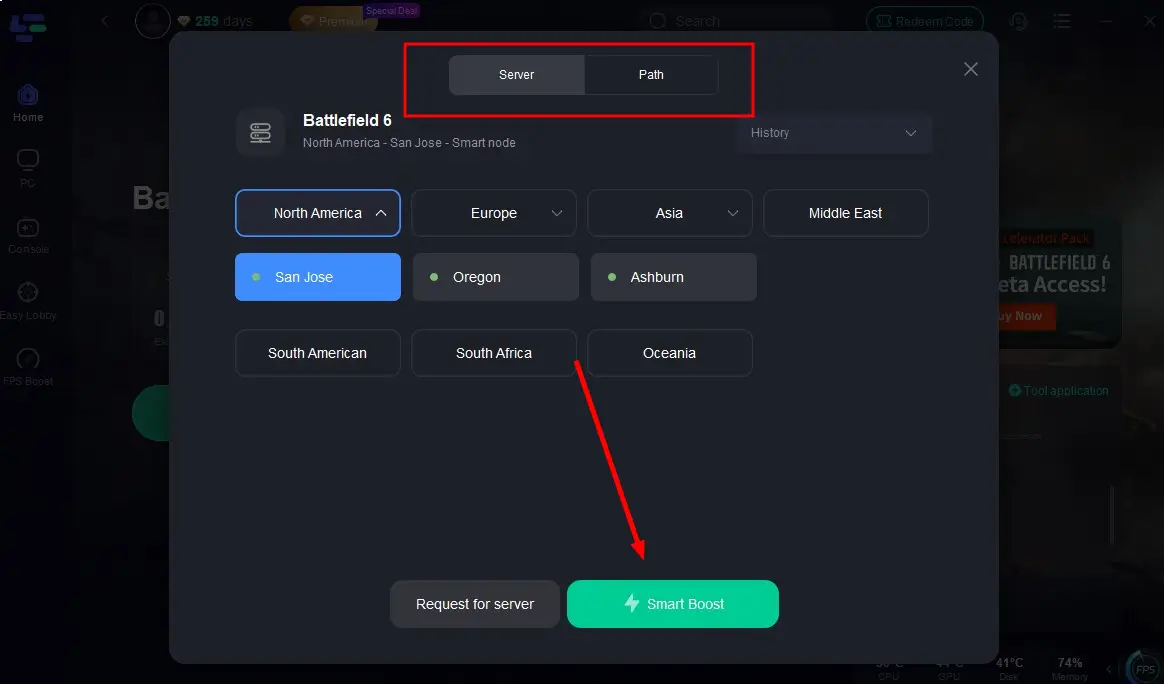
Verify your real-time ping and packet loss rates, then click "Start Game" to dive into the intense battles of Battlefield 6!

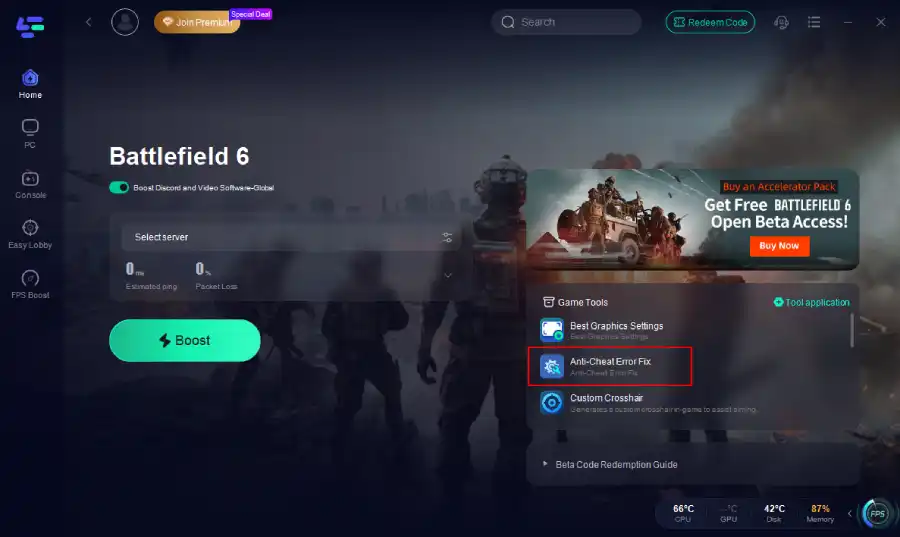
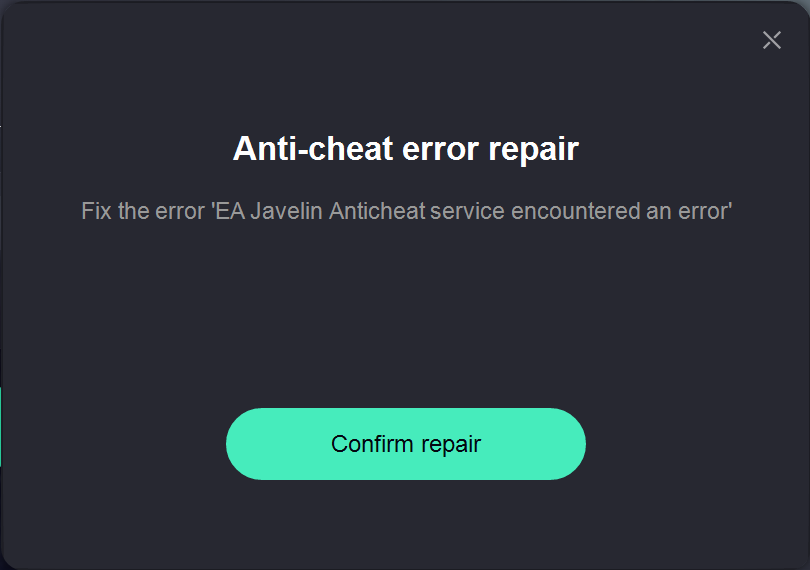
Tired of manually tweaking BIOS settings or troubleshooting drivers? LagoFast’s Anti-Cheat Error Fix Tool is tailor-made for this problem.
Click the Anti-Cheat Error Fix tool at the bottom right corner. Click confirm.
Conclusion
The Battlefield 6 Beta has faced numerous real-world player issues, from invalid codes to locked game modes and server disconnects. Most problems stem from server strain or account linking errors. Applying the right fixes often restores access, allowing players to return to testing the game as intended.
Boost Your Game with LagoFast for Epic Speed
Play harder, faster. LagoFast game booster eliminates stutter and lags on PC, mobile, or Mac—win every match!
Quickly Reduce Game Lag and Ping!
Boost FPS for Smoother Gameplay!