

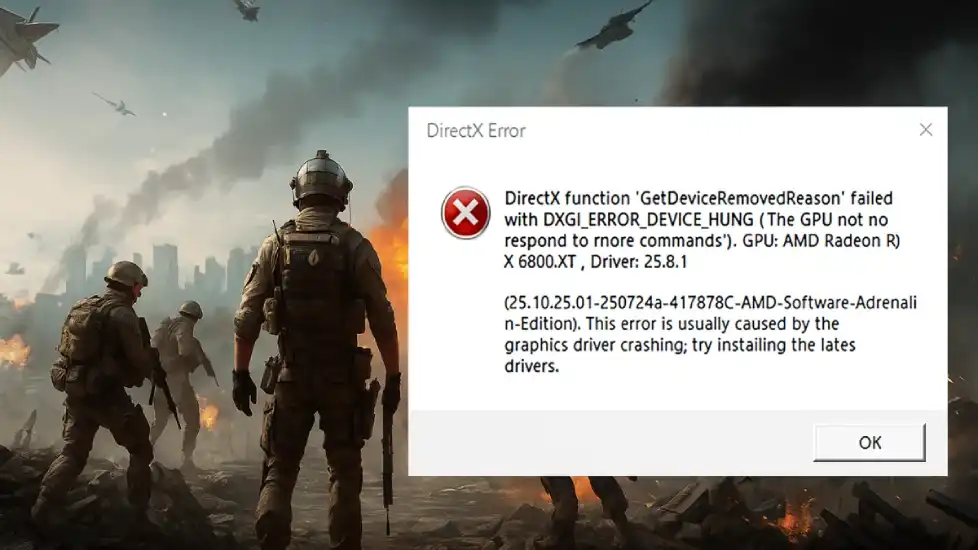
If you’re one of the many players struggling with Battlefield 6 DirectX errors or frequent crashes, you’re not alone. These issues, often tied to DirectX function errors or GPU instability, can ruin your gameplay. In this guide, we’ll walk through proven fixes, community-tested solutions, and essential tools to get you back in the fight. Let’s dive in.
Part 1: Common Fixes & Community Solutions
Part 2: Fix Battlefield 6 DirectX Error and Optimize Gaming Experience with LagoFast
Part 3: Quick Diagnostic Checklist
Part 4: Other Battlefield 6 Errors and Solutions
Part 1: Common Fixes & Community Solutions
Basic Troubleshooting
Start with these foundational steps to resolve Battlefield 6 keeps crashing issues:
Update Drivers
Outdated GPU drivers are a leading cause of DirectX errors. Visit NVIDIA or AMD’s 官网 to download the latest drivers for your card. For RTX 40/50 series users, roll back to version 572.83 if you encounter DXGI_ERROR_DEVICE_HUNG.
Verify Game Files
Corrupted game files can trigger crashes. Use EA App/Steam’s “Verify Integrity” feature to scan and repair Battlefield 6.
Clean Boot
Disable non-essential startup programs to free up resources. Press Win + R, type msconfig, and disable services under the “Services” tab (check “Hide All Microsoft Services" first).
Reinstall DirectX
Use Microsoft’s DirectX End-User Runtime Web Installer to reinstall DirectX components. This fixes missing or corrupted files.
Community Hacks That Work
- DDU Uninstaller: Use Display Driver Uninstaller to wipe old GPU drivers completely before reinstalling.
- New Admin Account: Create a fresh Windows admin account to bypass anti-cheat or system conflicts. This solved crashes for many beta testers.
Part 2: Fix Battlefield 6 DirectX Error and Optimize Gaming Experience with LagoFast
LagoFast is an all-in-one game booster that offers a range of tools to help players fix various issues and enhance their gaming experience in Battlefield 6.
Fix Battlefield 6 DirectX Error with DirectX 12 Component Installation Tool
For a one-click DirectX 12 repair, use the DirectX 12 Component Installation Tool of LagoFast. This tool resolves DXGI_ERROR_DEVICE_HUNG and other DirectX-related crashes by reinstalling critical components. It’s especially useful if Windows Update fails to fix the issue.
How to fix Battlefield 6 DirectX Error with LagoFast:
Click the "Free Trial" button to download LagoFast.
Use the search bar to find Battlefield 6 and click on the search result.

Go to the game tools on the right, scroll down, and click the DirectX 12 Component Installation Tool.
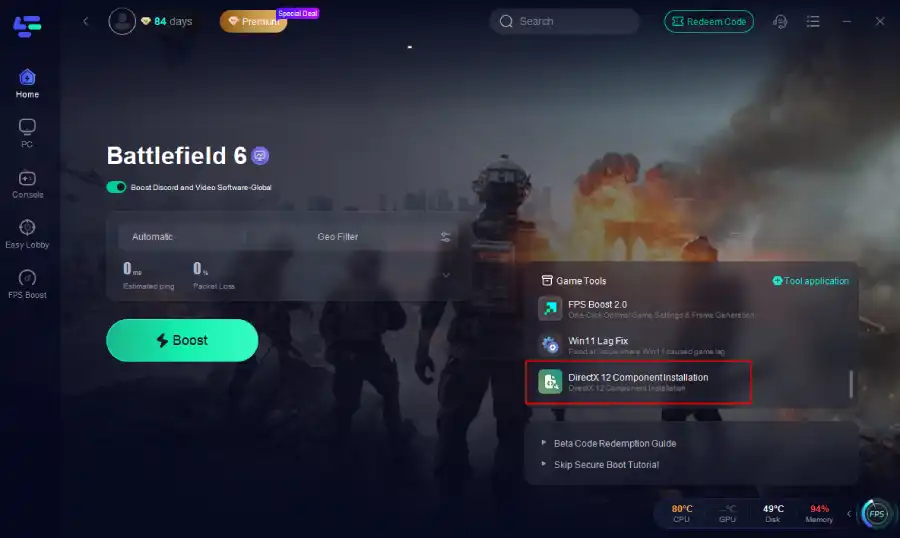
Wait for downloading and install it.
Secure Boot Check Tool
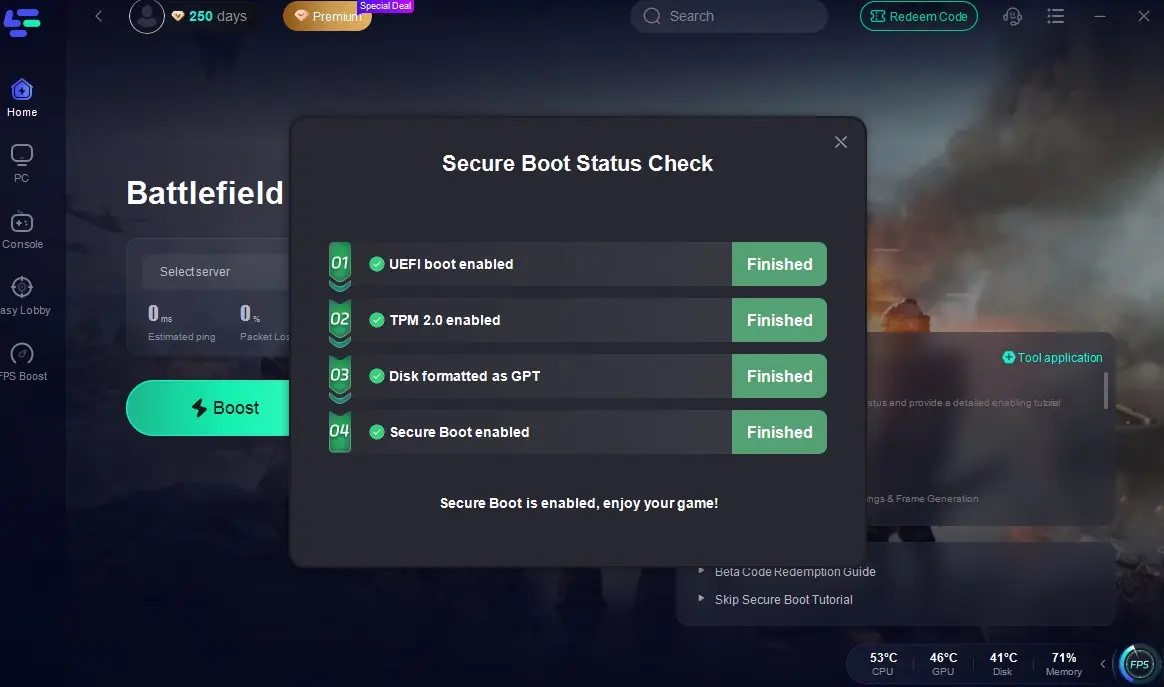
Battlefield 6 requires Secure Boot to be enabled (a system-level security feature tied to UEFI BIOS) to run smoothly, as its anti-cheat system relies on this secure environment. If you’re seeing errors like “Secure Boot is not enabled,” LagoFast’s Secure Boot Check Tool is a must-have.
This tool does three key things:
- Auto-detect status: It checks if Secure Boot is enabled, along with related settings like UEFI boot mode, TPM 2.0 activation, and whether your disk is formatted as GPT (all required for Battlefield 6 to run).
- Pinpoint issues: If something’s wrong—like Secure Boot being disabled in BIOS or your disk using Legacy/MBR instead of GPT—it’ll show exactly where the problem is (e.g., “TPM 2.0 not enabled” or “Boot mode set to Legacy”).
Click the Secure Boot Check tool on the interface.
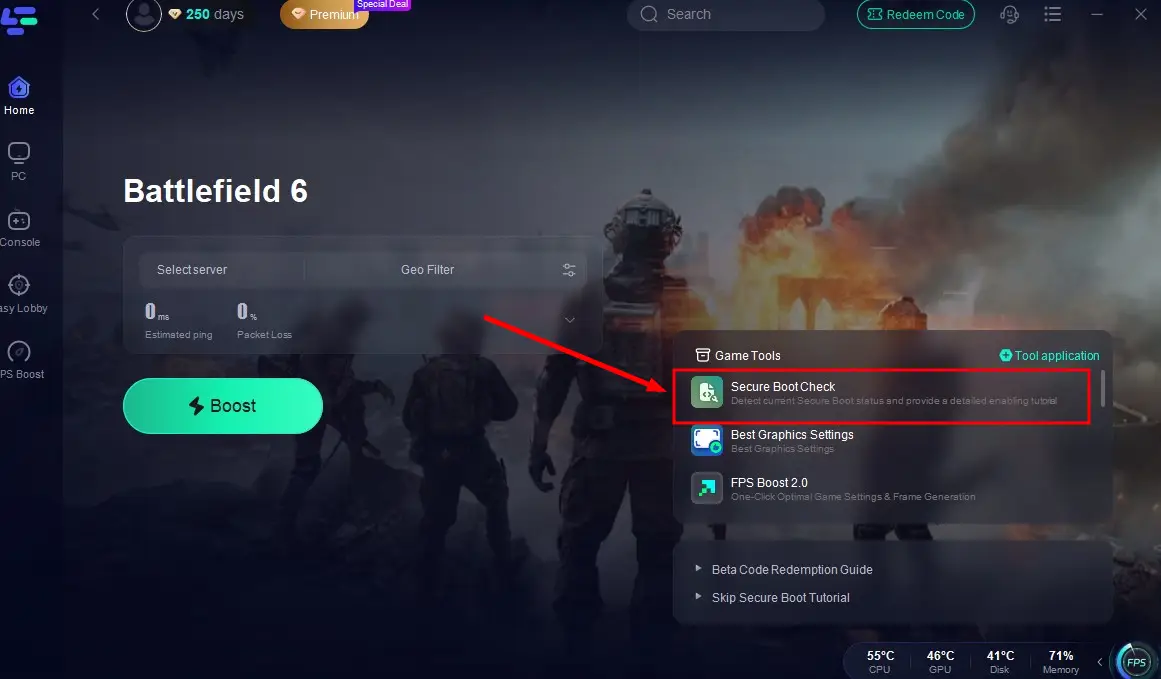
Then you can see the whole process of the Secure Boot, precisely locate the error and fix it with the tutorial provided by LagoFast!
Other Core Features: Reduce Lag, Fix High Ping & Boost FPS
How to Set Up LagoFast for Battlefield 6:
Step 1: Find Battlefield 6 by LagoFast's search bar.
Step 2: Find Battlefield 6 and click “Select Server” to choose a stable server in your region
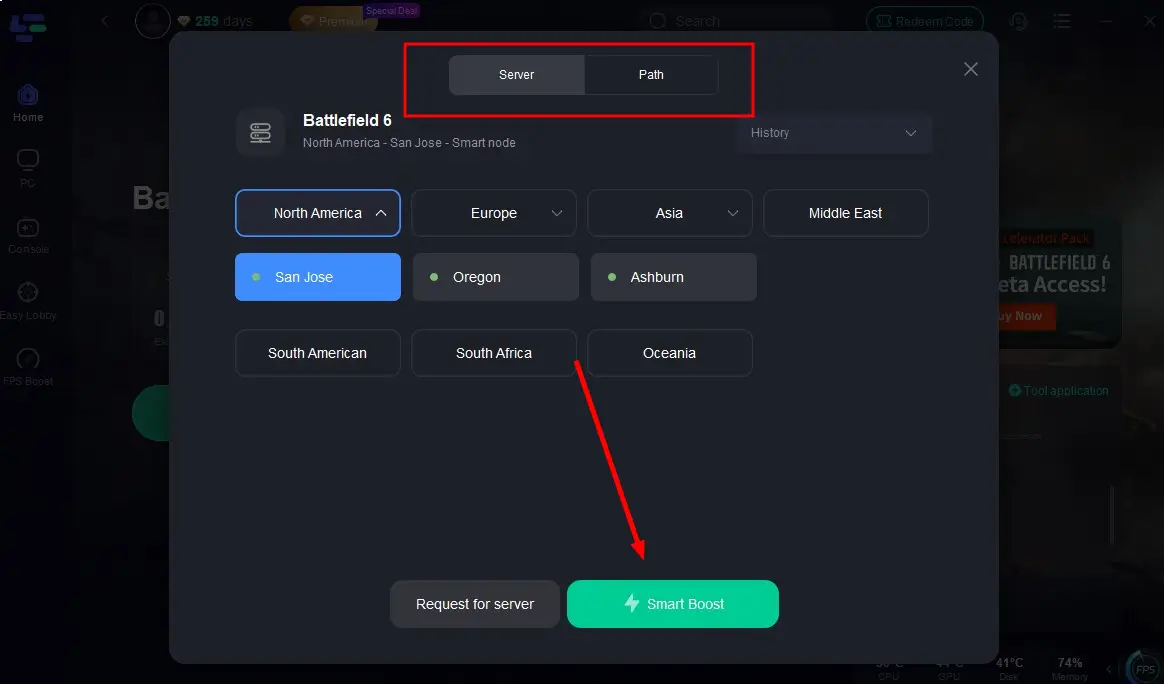
Step 3: Click “Smart Boost” to begin optimization and monitor your ping, packet loss, and connection in real time

Part 3: Quick Diagnostic Checklist
Before diving into advanced fixes, run through this 5-minute checklist:
- Check GPU Temperature: Use HWMonitor or MSI Afterburner to ensure your GPU isn’t overheating (ideally <85°C).
- Disable Overclocking: Reset CPU/GPU to stock settings. Overclocking often causes DXGI_ERROR_DEVICE_HUNG.
- Free Up RAM: Close background apps like Discord, Spotify, and browser tabs. Use Task Manager to monitor resource usage.
- Network Test: Ping the game server using Pingplotter to identify packet loss or high latency.
Part 4: Other Battlefield 6 Errors and Solutions
1. DXGI_ERROR_DEVICE_HUNG / GetDeviceRemovedReason
What it means: GPU driver crash or memory instability.
Fixes:
- Roll back GPU drivers to a stable version (e.g., 572.83 for NVIDIA).
- Use MSI Afterburner to lower GPU core/memory clock by 50-100 MHz.
- Increase virtual memory (page file size) to 45GB in Windows settings.
2. DirectX Errors on Launch
What it means: Corrupted DirectX files or driver conflicts.
Fixes:
- Run the DirectX 12 Component Installation Tool to repair broken files.
- Use System File Checker (sfc /scannow) to scan for corrupted system files.
3. Sudden Crashes / Rendering Stutters
What it means: Overheating, overclocking, or VRAM bottleneck.
Fixes:
- Clean your PC’s fans and ensure proper airflow.
- Enable "Hardware-Accelerated GPU Scheduling” in Windows Settings > Display > Graphics.
- Lower in-game texture quality and disable “Ultra” settings if you have 8GB or less VRAM.
Conclusion
Battlefield 6’s DirectX errors and crashes can be frustrating, but with the right tools and fixes, you can overcome them. Start with driver updates and file verification, then move to advanced solutions like DirectX 12 Component Installation or Secure Boot adjustments. If all else fails, reach out to EA Support with your crash logs. Stay persistent—your smooth gameplay is worth it!
Boost Your Game with LagoFast for Epic Speed
Play harder, faster. LagoFast game booster eliminates stutter and lags on PC, mobile, or Mac—win every match!
Quickly Reduce Game Lag and Ping!
Boost FPS for Smoother Gameplay!