
Arena Breakout: Infinite finally launched on Steam on September 16, 2025, after years of anticipation. Players were eager to experience the game through Steam’s platform, but some are now reporting that the game is either inaccessible or not working properly.

- ✅ Reduce Lag and High Ping.
- ✅ Boost FPS at the Same Time.
- ✅ Support 2000+ Online Games.
- ✅ Change Region Server Quickly.
- ✅ Multiplatform Game Support.
Part 1: What happens and why it doesn’t work?
Part 2: How to Fix Arena Breakout: Infinite Not Working on Steam
Part 1: What happens and why it doesn’t work?
If Arena Breakout: Infinite isn’t working on Steam, it usually means the game is running into launch issues, crashes, or connection errors after its release
1. Game Won’t Launch or Stays Stuck
- Steam shows the game as “Running,” but nothing appears.
- The Easy Anti-Cheat (EAC) window opens, then disappears.
- This usually signals EAC conflicts, missing files, or corrupted install data.
2. Crashes on Startup or Loading Screen
- The game loads briefly and then crashes to the desktop.
- Often tied to driver issues, Windows security updates, or EAC kernel-level errors.
3. Server Connection Issues
- You can open the game, but servers won’t load, or you can’t join matches.
- Could be caused by launch-day server overloads or network conflicts.
4. Steam Overlay or Launcher Conflicts
- The game freezes if Steam overlay or third-party tools (like Crosshair apps) run.
- ABI’s aggressive anti-cheat flags some overlays.
5. Performance Problems
- Even if it launches, players may see stutters, FPS drops, or lag.
- Caused by Unity engine optimization issues or outdated graphics drivers.
Part 2: How to Fix Arena Breakout: Infinite Not Working on Steam
Make Sure Your PC Meets the System Requirements
Before troubleshooting deeper, double-check that your PC meets the minimum and recommended system requirements for Arena Breakout: Infinite. Here are the specs you’ll need to run the game smoothly:
Minimum:
- Requires a 64-bit processor and operating system
- OS: 64-bit Windows 10 or above
- Processor: Intel Core i5-7500 or AMD Ryzen 5 1400
- Memory: 12 GB RAM
- Graphics: NVIDIA GTX 960 2G or AMD Radeon RX 5500 or Intel Arc A380
- DirectX: Version 12
- Network: Broadband Internet connection
- Storage: 70 GB available space
Recommended:
- Requires a 64-bit processor and operating system
- OS: 64-bit Windows 10 or above
- Processor: Intel Core i7-9700 or AMD Ryzen 5 3600X
- Memory: 16 GB RAM
- Graphics: NVIDIA RT X2060 or AMD Radeon Rx 6600
- DirectX: Version 12
- Network: Broadband Internet connection
- Storage: 70 GB available space
Quickest Fix: Use LagoFast
If Arena Breakout: Infinite isn’t launching or keeps disconnecting, the issue can often come from an unstable internet connection. LagoFast is a dedicated game connection optimizer designed to stabilize your network, reduce lag, lower ping, and even boost FPS in real time—helping you get back into the game smoothly.
Follow our detailed tutorial to learn how to use LagoFast and get back to enjoying your game!
Step 1: Download and install LagoFast.
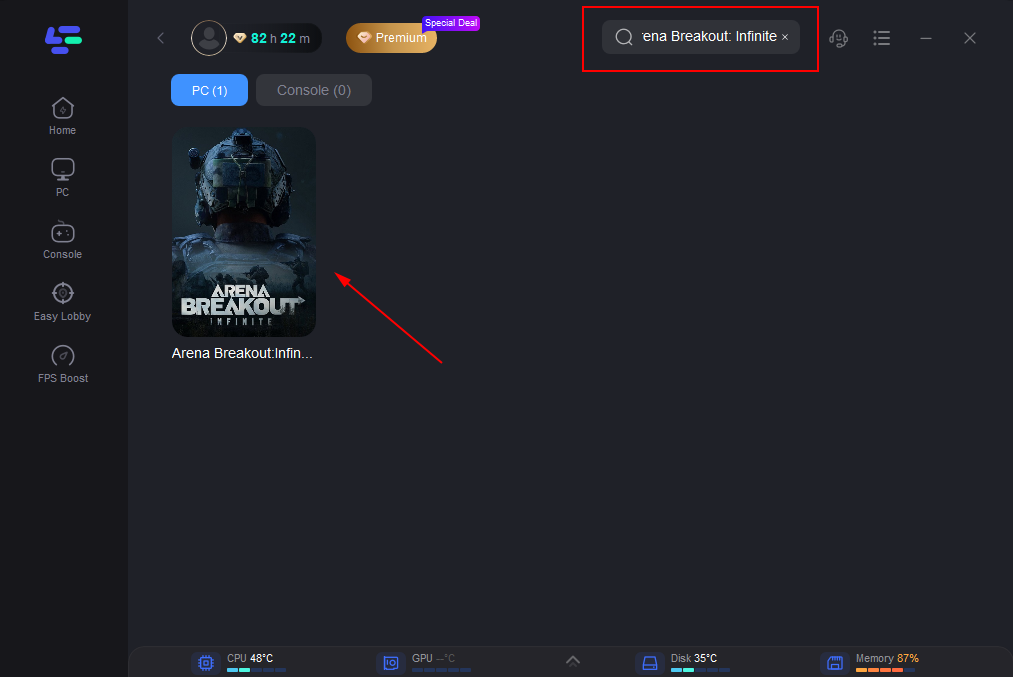
Step 2: Search “Arena Breakout: Infinite” and click the result.
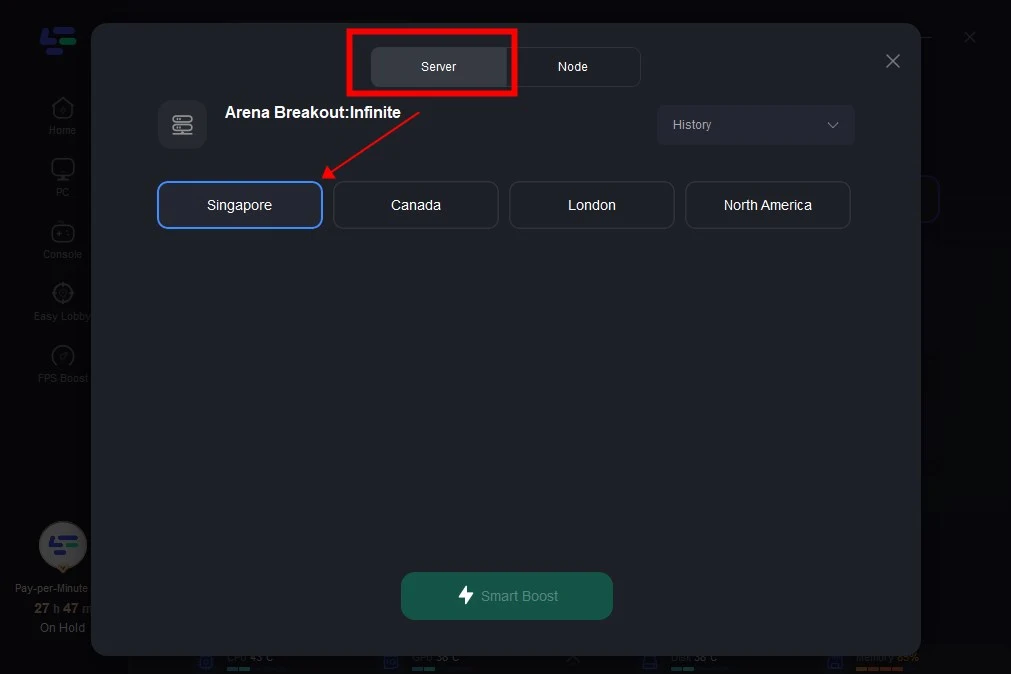
Step 3: Choose the server and node you like
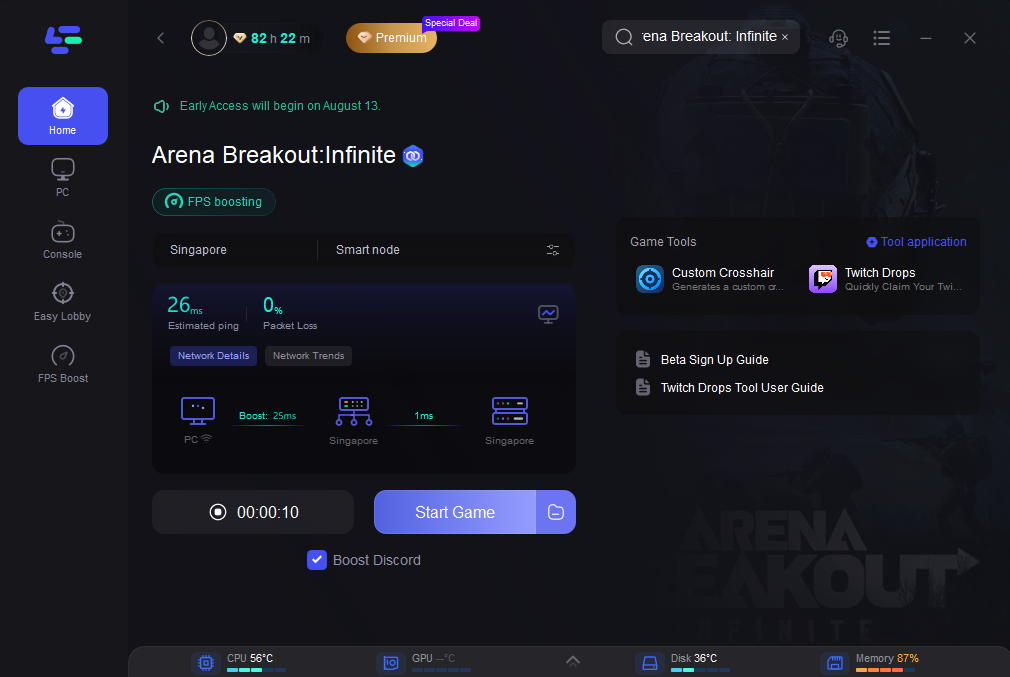
Step 4: The boosted page will display your packet loss rate, network status, and ping rate. Just start the Arena Breakout: Infinite!
More Step-by-step fixes
1. Confirm there’s no live outage or hotfix rolling out
Check the game’s Steam News and the official X account for maintenance or known issues tied to the Sept. 2025 full release.
2. Check your PC meets (and selects) the right GPU
Minimum/recommended specs are higher than many shooters; on laptops, force the game to use the dedicated GPU in Windows Graphics Settings.
3. Verify game files in Steam
Steam → Library → Arena Breakout: Infinite → gear icon → Properties → Installed Files → Verify.
4. Repair or reinstall the game’s anti-cheat
ABI uses an anti-cheat service (often referred to as Anti-Cheat Expert/ACE). Open the game folder from Steam (“Browse local files”), run the anti-cheat installer/repair tool, or fully reinstall the anti-cheat component.
5. Disable overlays and macro tools (test once without them)
Turn off Steam, Discord, NVIDIA/AMD overlays. Close macro/automation tools (they can be blocked by anti-cheat).
6. Put launcher and game on the same drive (if you moved it)
Players who relocated the game fixed startup hangs by ensuring the launcher and game live on the same drive.
7. Clear caches that commonly break launches
Steam → Settings → Downloads → Clear Download Cache, then sign back in. Re-verify files afterward.
8. Run as Administrator once
Right-click the game’s EXE (or Steam) → Run as administrator (useful if Windows permissions are blocking anti-cheat from initializing).
9. Whitelist in Windows Security (and check Controlled Folder Access)
If you use Controlled Folder Access or strict AV settings, allow the game EXE and anti-cheat folder. If Windows Security got into a bad state, reset it, then try again.
10. Repair Windows system files (fixes post-update corruption)
Open Command Prompt (Admin) and run:
DISM /Online /Cleanup-Image /RestoreHealth
sfc /scannow
Restart.
11. Do a clean boot and retry
Boot with only essential services to rule out conflicts; re-enable services afterward.
12. Reinstall cleanly (last resort)
Uninstall the game. Manually delete remaining folders in Steam’s common directory and in %AppData%/%LocalAppData% for the game/anti-cheat, then reinstall.
Conclusion
Arena Breakout: Infinite hitting Steam was a huge moment, but launch-day bugs and connection issues have made it rough for some players. The good news is most of these problems are easy to fix with a few quick checks—like repairing files, updating drivers, or tweaking your connection—so you can get back to playing without the frustration.
Boost Your Game with LagoFast for Epic Speed
Play harder, faster. LagoFast game booster eliminates stutter and lags on PC, mobile, or Mac—win every match!
Quickly Reduce Game Lag and Ping!
Boost FPS for Smoother Gameplay!