

ArcheAge Chronicles is preparing for its upcoming server stress test to evaluate network stability. Eager players must understand the exact schedule, access steps, and regional restrictions to secure a spot. This guide covers how to join the playtest, system requirements, language support, and common Steam issues. Additionally, using game boosters like LagoFast can help players reduce lag, optimize server routes, and translate in-game text in real time.

- ✅ Reduce Lag and High Ping.
- ✅ Boost FPS at the Same Time.
- ✅ Support 8000+ Popular Online Games.
- ✅ Stable Server Connection
Part 1: When Does the ArcheAge Chronicles Network Test Beta Start
Part 2: How to Get Access to the ArcheAge Chronicles Network Test
Part 3: How to Download and Preload the ArcheAge Chronicles Playtest Network Test
Part 4: What Platforms Can Play the ArcheAge Chronicles Network Test?
Part 5: ArcheAge Chronicles Network Test Server Regions and Connection
Part 6: What Languages ArcheAge Chronicles Supports
Part 7: How to Play ArcheAge Chronicles in Your Language Using LagoFast
Part 8: ArcheAge Chronicles PC Requirements
Part 9: How to Fix ArcheAge Chronicles Playtest Not Showing and Can't Request Access
Part 10: How to Fix ArcheAge Chronicles Server Connection, Login, and Network Error
Part 11: ArcheAge Chronicles Network Test Beta FAQs
Part 1: When Does the ArcheAge Chronicles Network Test Beta Start
Following the official announcement on September 3, the developers scheduled a short server test to evaluate capacity under heavy player traffic.
The upcoming ArcheAge Chronicles playtest date covers a tight six-hour window. The event focuses strictly on testing server infrastructure and network stability in early areas rather than serving as a full playtest or open beta.
|
Key Details |
Official Information |
|
Announcement Date |
September 3 |
|
Test Start Time |
September 12, 19:00 EDT |
|
Test End Time |
September 13, 01:00 EDT |
|
Total Duration |
6 Hours |
|
Test Phase |
ArcheAge Chronicles Network Test (Server Stress Test) |
|
Available Content |
Early game areas only |
Part 2: How to Get Access to the ArcheAge Chronicles Network Test
Securing entry to the test requires a few manual steps on the official store page.
Players who want to know how to join ArcheAge Chronicles playtest can apply directly through Steam. Access is distributed through a random selection draw, meaning an application does not guarantee a slot.
Step 1: Open the Steam client and log into your account.
Step 2: Search for ArcheAge Chronicles in the store search bar.
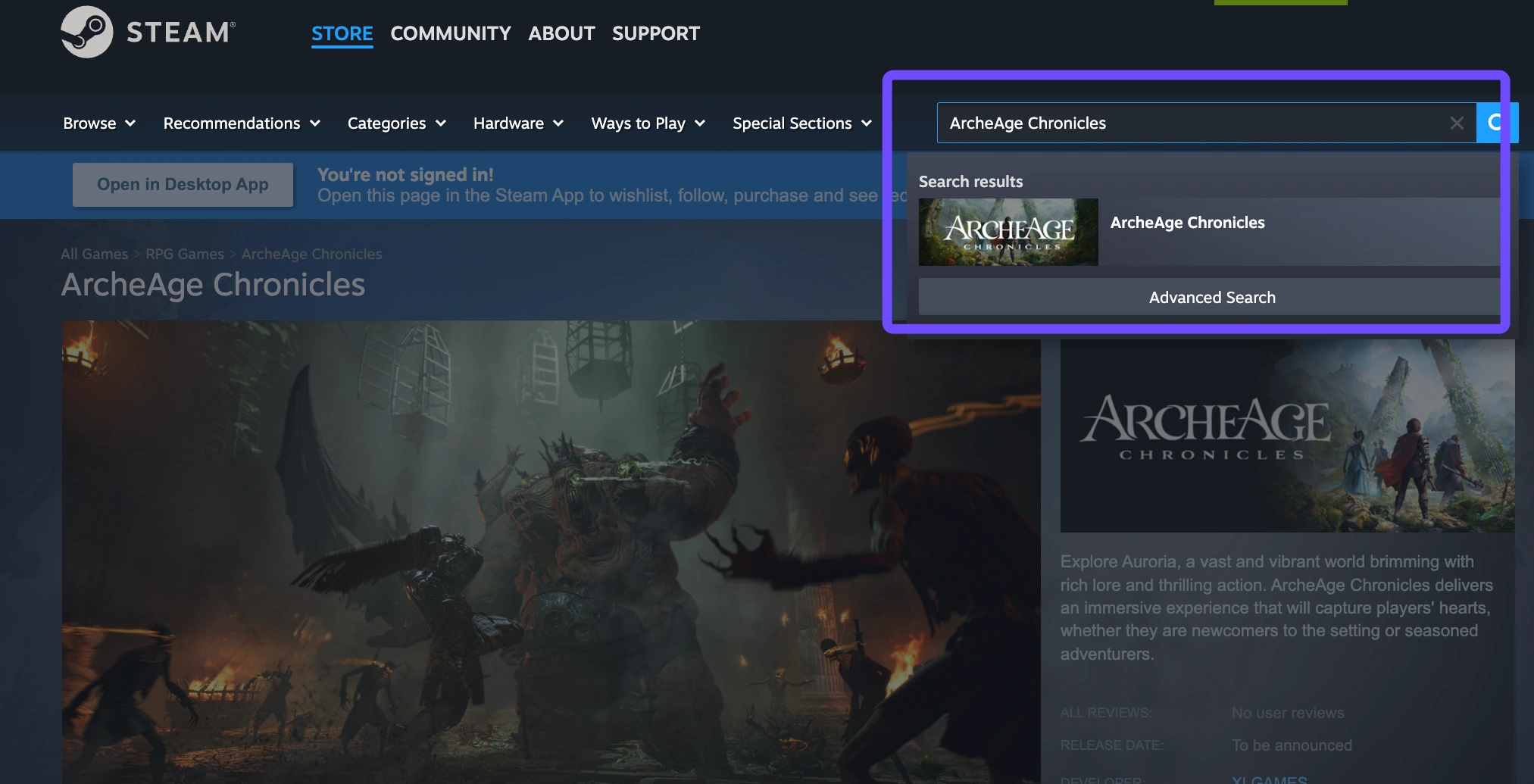
Step 3: Scroll down to the Join the ArcheAge Chronicles Playtest Network Test section.
Step 4: Click the green Request Access button.
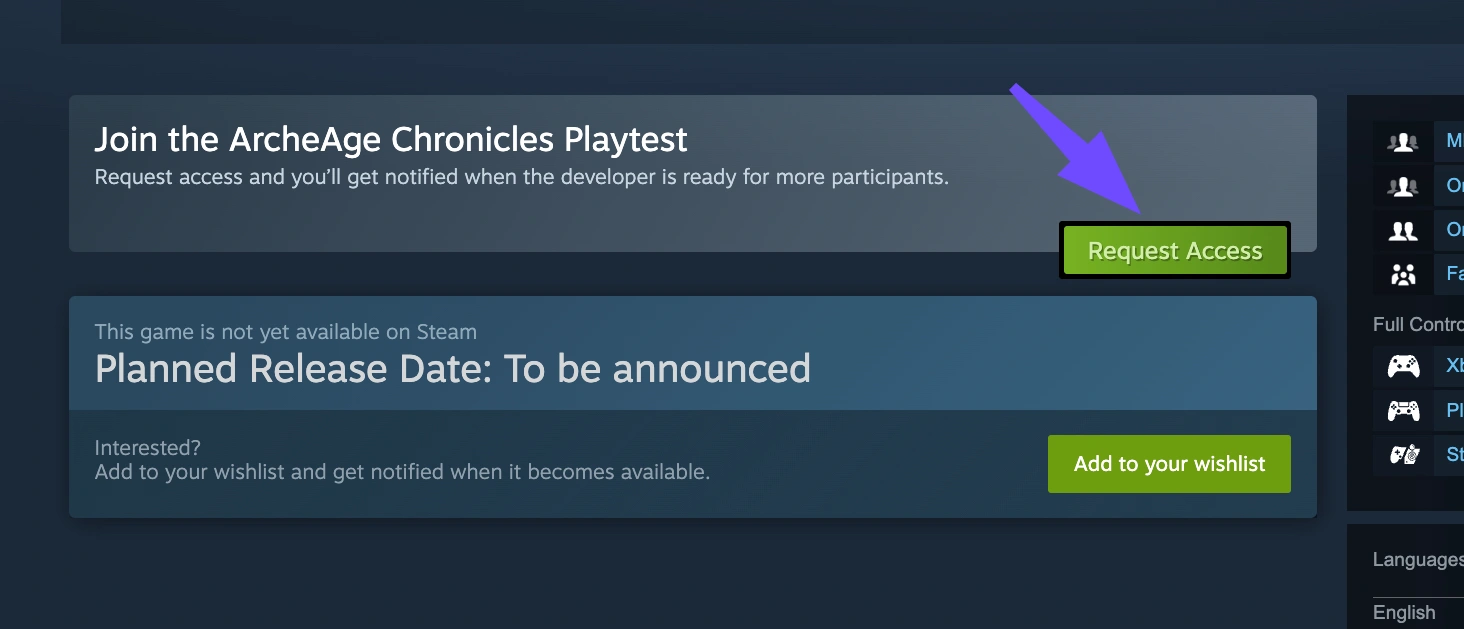
Step 5: Confirm your selection in the pop-up window.
Step 6: Check your registered Steam email address or Steam client notifications for an official invitation before the test begins.
Part 3: How to Download and Preload the ArcheAge Chronicles Playtest Network Test
Preloading allows selected players to install game files prior to the official launch time.
Since the test lasts only six hours, utilizing the preload feature ensures you do not waste limited play time on installation downloads.
Step 1: Check your Steam account to verify if your request for access was accepted.
Step 2: Open your Steam Library once access is granted.
Step 3: Locate ArcheAge Chronicles Network Test in your game list.
Step 4: Click the blue Pre-load button to begin downloading game assets.
Step 5: Wait for the download to finish so the playtest files are ready for launch on September 12 at 19:00 EDT.
Part 4: What Platforms Can Play the ArcheAge Chronicles Network Test?
Platform availability determines where participants can launch the upcoming test build.
The upcoming ArcheAge Chronicles network test access is restricted strictly to PC users during this phase.
|
Platform |
Supported Status |
Details |
|
PC (Steam) |
Supported |
Primary platform for the ArcheAge Chronicles playtest |
|
PlayStation 5 |
Not Supported |
Excluded from the short server stress test |
|
Xbox Series X/S |
Not Supported |
Excluded from the short server stress test |
Part 5: ArcheAge Chronicles Network Test Server Regions and Connection
Regional restrictions limit direct access to specific geographical locations.
The official server setup for this test focuses on North American infrastructure. Consequently, players logging in outside designated territories will encounter regional blocks.
- Official Supported Regions: United States and Canada only.
- Unsupported Regions: Europe, Asia, South America, Oceania, and others.
- Common Regional Error: ArcheAge Chronicles playtest not available error message displayed on Steam.
Players attempting to access the ArcheAge Chronicles Network Test outside US / Canada will need a reliable network tool like LagoFast to route their connection through an eligible North American node.
Part 6: What Languages ArcheAge Chronicles Supports
In-game text and audio options determine accessibility for global audiences.
Based on current SteamDB listings, the test build offers interface and subtitle options for four major languages, with audio support exclusive to Korean.
|
Language |
Interface Support |
Full Audio Support |
Subtitle Support |
|
English |
Supported |
Not Supported |
Supported |
|
Korean |
Supported |
Supported |
Supported |
|
Simplified Chinese |
Supported |
Not Supported |
Supported |
|
Traditional Chinese |
Supported |
Not Supported |
Supported |
Part 7: How to Play ArcheAge Chronicles in Your Language Using LagoFast
Network latency and missing language localization can hinder your stress test experience.
LagoFast is a dedicated gaming booster designed to solve network latency and localization challenges for online gamers worldwide. It optimizes network routing to reduce ping, stabilize packet transmission, and prevent login failures during heavy multiplayer tests. Additionally, it features a built-in real-time Screenshot Translation tool that converts on-screen game text into your target language instantly, ensuring you understand quest objectives and interface elements regardless of official audio or text limitations.
How to Translate ArcheAge Chronicles in Real Time with LagoFast:
Step 1: Download and install the official LagoFast application on your PC.
Step 2: Open LagoFast and search for ArcheAge Chronicles in the main search bar.
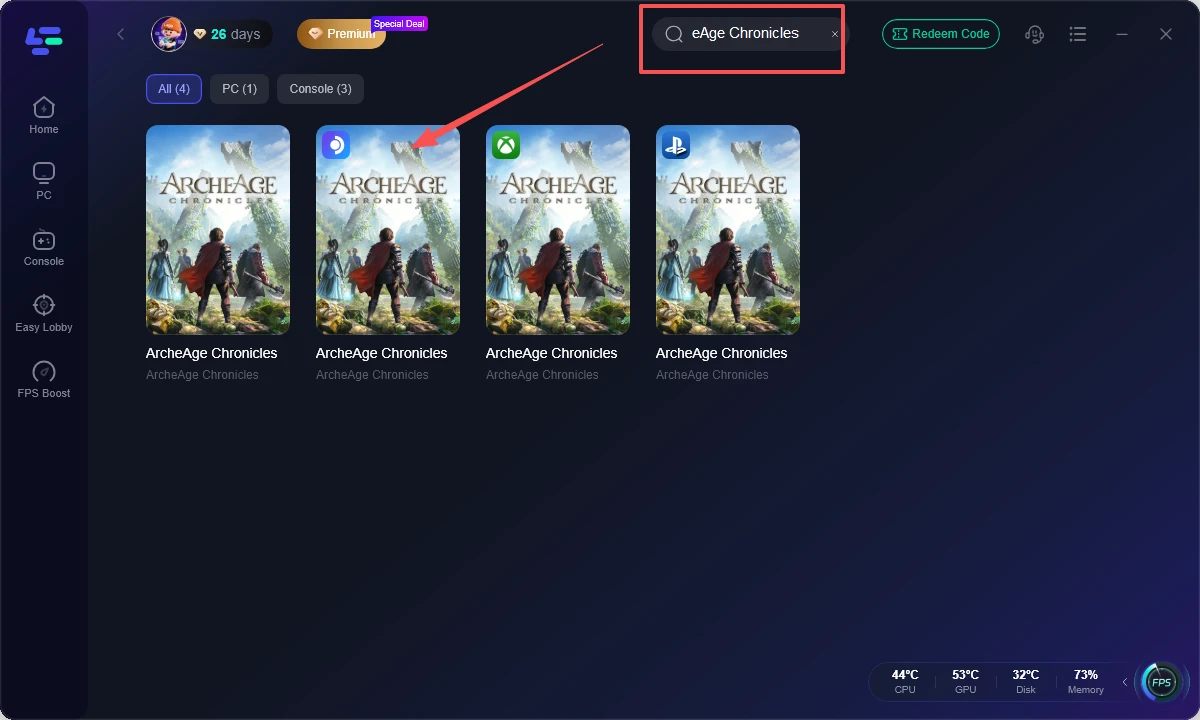
Step 3: Select a North American server node if you are playing from outside the US or Canada to bypass regional errors.
Step 4: Navigate to the Game Tools section on the right-side panel and click on Translation.
Step 5: Select your Target Language and choose English as your Source Language for accurate output.
Step 6: Assign a hotkey shortcut, such as Alt + T, that does not overlap with standard movement controls.
Step 7: Launch the game through LagoFast and press your assigned hotkey whenever you need real-time on-screen translation.
Part 8: ArcheAge Chronicles PC Requirements
Meeting the hardware benchmarks prevents performance stuttering and low frame rates.
Review the system specifications below to ensure your hardware can handle the game engine before requesting playtest access.
|
Component |
Minimum Requirements |
Recommended Requirements |
|
Operating System |
Windows 10 (64-bit) |
Windows 11 (64-bit) |
|
Processor |
Intel Core i5-8400 / AMD Ryzen 5 2600 |
Intel Core i7-10700K / AMD Ryzen 7 5800X |
|
Memory |
16 GB RAM |
32 GB RAM |
|
Graphics Card |
NVIDIA GeForce GTX 1060 / AMD Radeon RX 580 |
NVIDIA GeForce RTX 3070 / AMD Radeon RX 6800 |
|
DirectX |
Version 12 |
Version 12 |
|
Storage |
100 GB SSD space required |
100 GB NVMe SSD space required |
Part 9: How to Fix ArcheAge Chronicles Playtest Not Showing and Can't Request Access
Store front errors can prevent eligible users from seeing the request access prompt.
If you encounter the ArcheAge Chronicles Playtest not showing / can't request access issue, apply these troubleshooting procedures to restore the store page functionality.
Step 1: Clear your Steam download cache by opening Settings, selecting Downloads, and clicking Clear Cache.
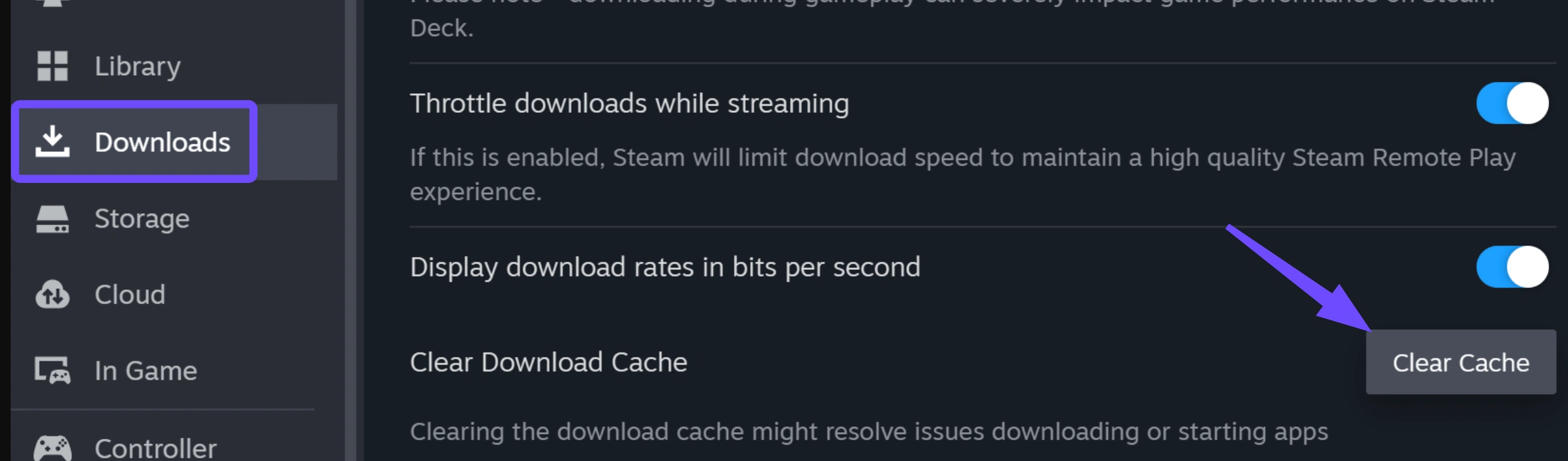
Step 2: Log out of your Steam account and restart the Steam client application completely.
Step 3: Verify your account region settings under Account Details to confirm your region matches supported areas.
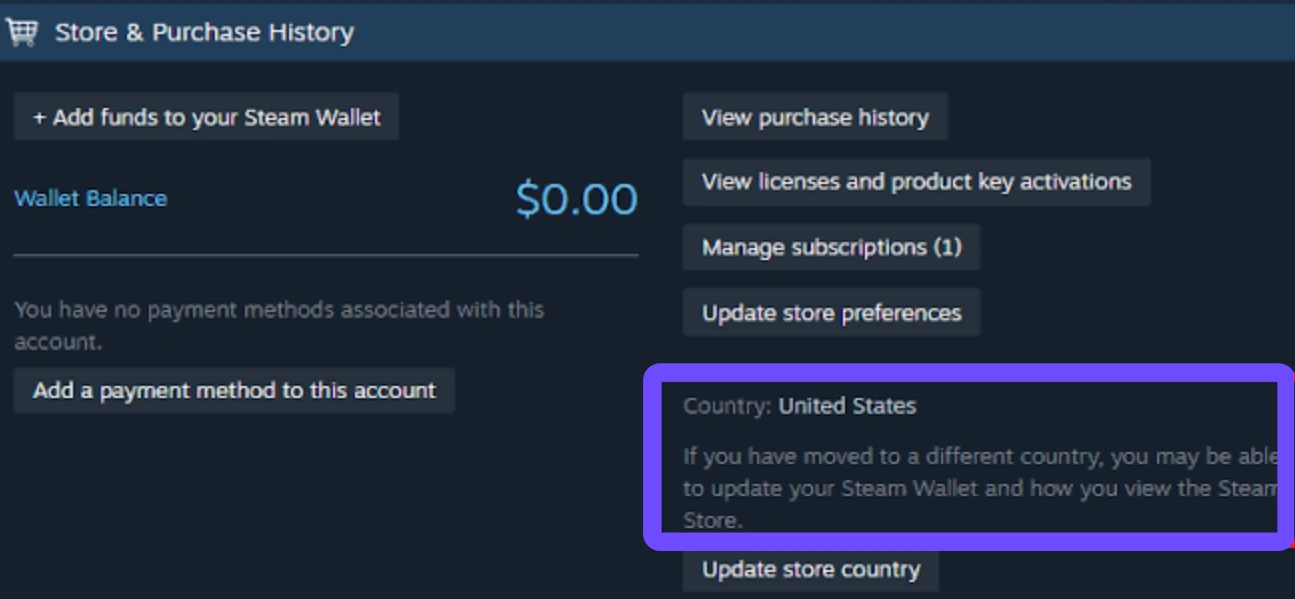
Step 4: Use a dedicated game booster like LagoFast to connect to a US or Canada node before launching Steam.
Step 5: Access the Steam store via a web browser using an incognito window if the desktop app continues to fail.
Part 10: How to Fix ArcheAge Chronicles Server Connection, Login, and Network Error
Server overload during stress tests frequently causes connection drops and authentication failures.
When experiencing an ArcheAge Chronicles server connection / login / network error, run through the following steps to stabilize your line.
Step 1: Check official social channels to ensure game servers have not gone offline for emergency maintenance.

Step 2: Restart your internet router to refresh your local IP address and clear temporary cache data.
Step 3: Close background applications that consume network bandwidth, such as cloud backups or stream downloads.
Step 4: Open LagoFast, select ArcheAge Chronicles, and enable Smart Routing to bypass congested network nodes.
Step 5: Switch from a wireless Wi-Fi setup to an Ethernet cable connection to prevent packet loss.
Part 11: ArcheAge Chronicles Network Test Beta FAQs
Here are answers to common questions players ask regarding the upcoming network stress test.
Is the ArcheAge Chronicles network test a full beta?
No, this event is strictly a six-hour server stress test designed to evaluate network capacity under heavy player loads in early game areas.
Can players outside the US and Canada join the network test?
Officially, the test is restricted to the US and Canada. However, players in other regions can connect by using LagoFast to switch their virtual region to a North American node.
Does clicking Request Access guarantee entry into the test?
No, access is granted randomly to a select group of applicants. Submitting a request registers your account for a potential invitation.
Will my playtest progress transfer to the official release?
No, all character progress, inventory items, and test data will be wiped completely once the test ends on September 13.
Is preloading supported for this test?
Yes, players who receive an official access invitation can pre-download the game files before the test begins on September 12 at 19:00 EDT.
What should I do if I get a server login error during the test?
First, verify that the test window is active. If servers are online, use LagoFast to optimize your network route and resolve login timeouts caused by server congestion.
Conclusion
The ArcheAge Chronicles Network Test offers a brief window to test early gameplay mechanics while helping developers evaluate server stability. Because the event runs for only six hours, preparing your Steam account, verifying system specs, and setting up your network in advance is crucial. If you encounter regional restrictions, elevated ping, or language barriers, LagoFast provides a simple solution to optimize routing and translate on-screen content. Prepare your setup early to ensure uninterrupted play when servers go live.

Boost Your Game with LagoFast for Epic Speed
Play harder, faster. LagoFast game booster eliminates stutter and lags on PC, mobile, or Mac—win every match!
Quickly Reduce Game Lag and Ping!
Boost FPS for Smoother Gameplay!