
The highly anticipated shooter ARC Raiders from Embark Studios officially launches on October 30, 2025. With so many players jumping in right away, many are encountering a major hurdle—it’s not the gameplay, it’s the login: the infamous ARC Raiders server queue. In this article we’ll break down what that queue is, why you might experience long wait times, how to check the ARC Raiders server status, what to do if the ARC Raiders server down message pops up, and finally a tip involving using LagoFast to help reduce waiting and improve your game experience.

- ✅ Reduce Lag and High Ping.
- ✅ Boost FPS at the Same Time.
- ✅ Support 2000+ Popular Online Games.
- ✅ Fix High Ping Easily
- ✅ Change Server without Latency
Part 1: What is the Server Queue and Why It Happens
Part 2: How Long Does the Queue Take & What Impacts It
Part 3: Check ARC Raiders Server Status & What to Do if Server Down
Part 4: Use LagoFast Change Server to Reduce Queue Time & Optimize Experience
Part 1: What is the Server Queue and Why It Happens
When you launch ARC Raiders and try to log in, you might encounter a message that you’re in the queue—this is the ARC Raiders server queue. In simple terms, it means the game’s login or matchmaking servers are deliberately limiting the number of simultaneous connections, so additional players must wait until space frees up.
At launch, this was a real issue: thousands of players across platforms tried to log in at once, overwhelming the servers and triggering large queues. Most players are waiting around 10 to 15 minutes, with peak times possibly making it longer.
Common reasons include:
- A massive spike in user count at launch, stressing infrastructure.
- The game’s “online services temporarily unavailable” or error code ARSQ0003 when servers are congested.
- Geographic or ISP‑related latency causing servers to throttle or reject connections.
So if you’re waiting in the ARC Raiders server queue, it’s not just you—it’s a demand vs capacity issue right now.
More Guides about Games: How to Download and Play Chaos Zero Nightmare on PC & Mobile
Part 2: How Long Does the Queue Take & What Impacts It
From early data, most players report 10‑15 minutes wait time to get past the queue. But that’s an average under the less busy windows; peak hours may push that higher. The key impacts are:
- Time of day: Logging in during prime hours will likely result in longer queues. Logging in early morning or off‑peak helps.
- Server region: Depending on your region or your ISP routing, you may hit higher latency which slows down how fast you can enter.
- Server health/status: If the servers are struggling or under maintenance, queue times may spike or connections may fail.
Given this, it’s good practice when you see the “in queue” message to be patient, keep your client running, and avoid exiting and rejoining too frequently, which might drop you back in the back of the queue.
Part 3: Check ARC Raiders Server Status & What to Do if Server Down
Before assuming the issue is your internet, the game, or your PC, you should first check the ARC Raiders server status. Here are steps and what to watch out for:
How to check server status:
- Visit official Embark Studios social channels (Discord, Twitter/X) for updates on server health.
- Check community forums for reports of server outages. Many users share if they encounter the "servers down" message.
- On PC via Steam or Epic, check the game’s server or community discussion page—users often post “servers down” or “lag/queue” alerts.
If the ARC Raiders server down message is shown or the status indicates problems:
- Wait it out: The developers are aware and working to scale capacity.
- Avoid continuously re‑trying: you may lose your place in queue or make the problem worse.
- Try connecting in a different region if that option is available.
- Check your local network (restart router, switch to wired connection) to ensure the problem isn’t on your side.
Part 4: Use LagoFast Change Server to Reduce Queue Time & Optimize Experience
Here’s a more proactive tip: You can use a tool like LagoFast to help reduce latency and potentially reduce your queue time—or at minimum ensure smoother gameplay once you’re in.
What is LagoFast?
LagoFast is a network‑optimization software that can reduce ping, improve routing, and allow you to “change server / region” more easily.
Why this might help for ARC Raiders:
- If your connection to the game’s server region is slow, you may experience longer queue wait or delayed server responses.
- By using LagoFast to connect via a better node / path, you may reduce your latency and improve how fast you get through the login queue.
- Once inside the game, LagoFast may help stabilize your network route so you face fewer disconnects or lag.
How to use it (general steps):
Step 1: Click the "Free Trial" button below to download and install the LagoFast for free.
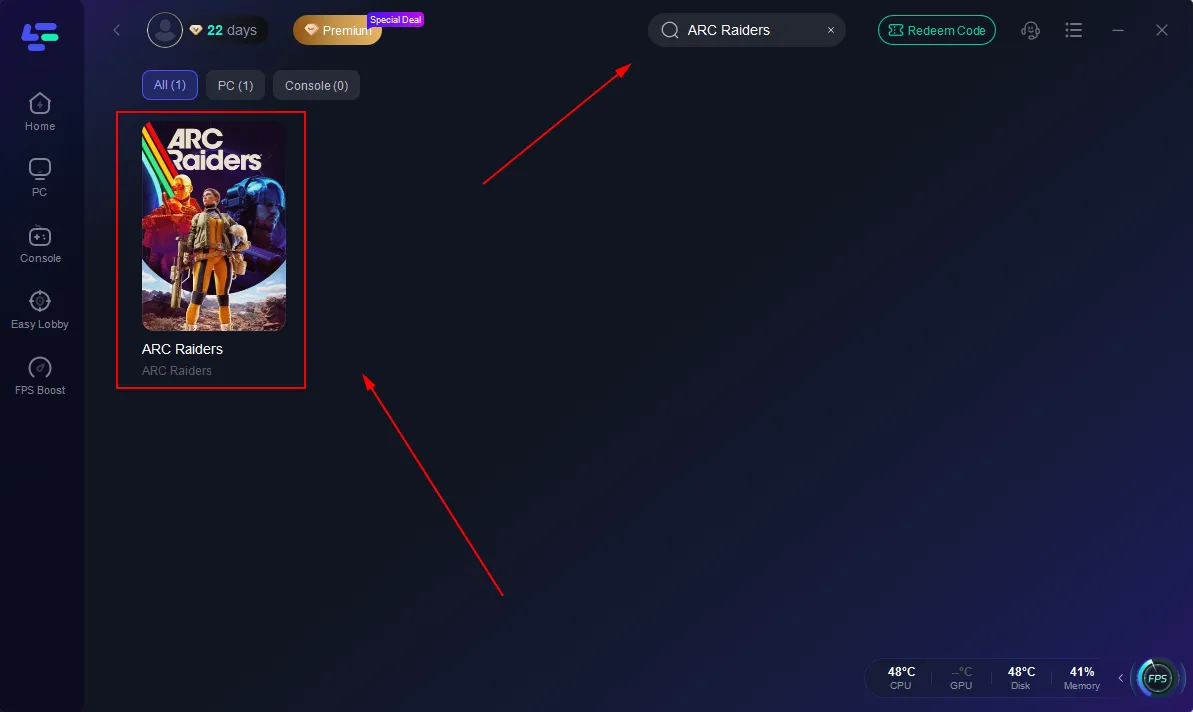
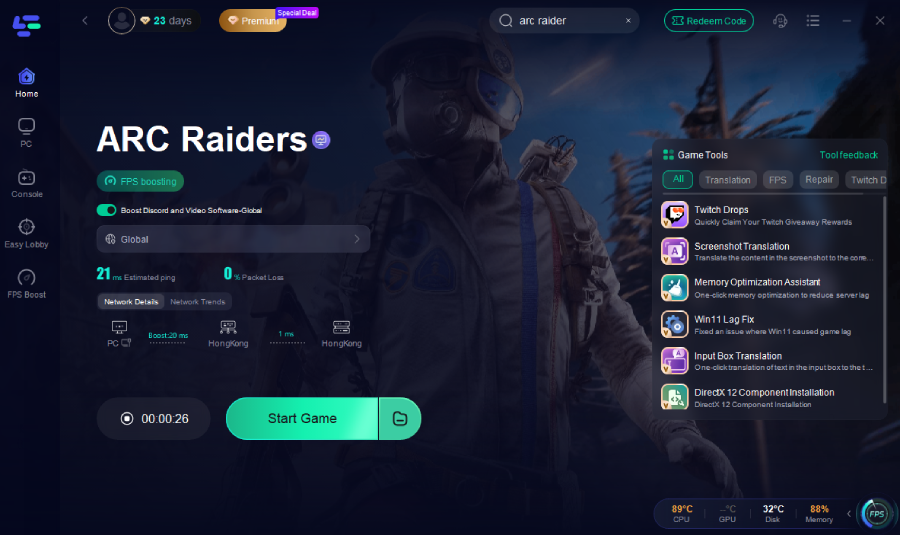
Step 2: Launch LagoFast, search for "ARC Raiders" in the search bar, and select the game.
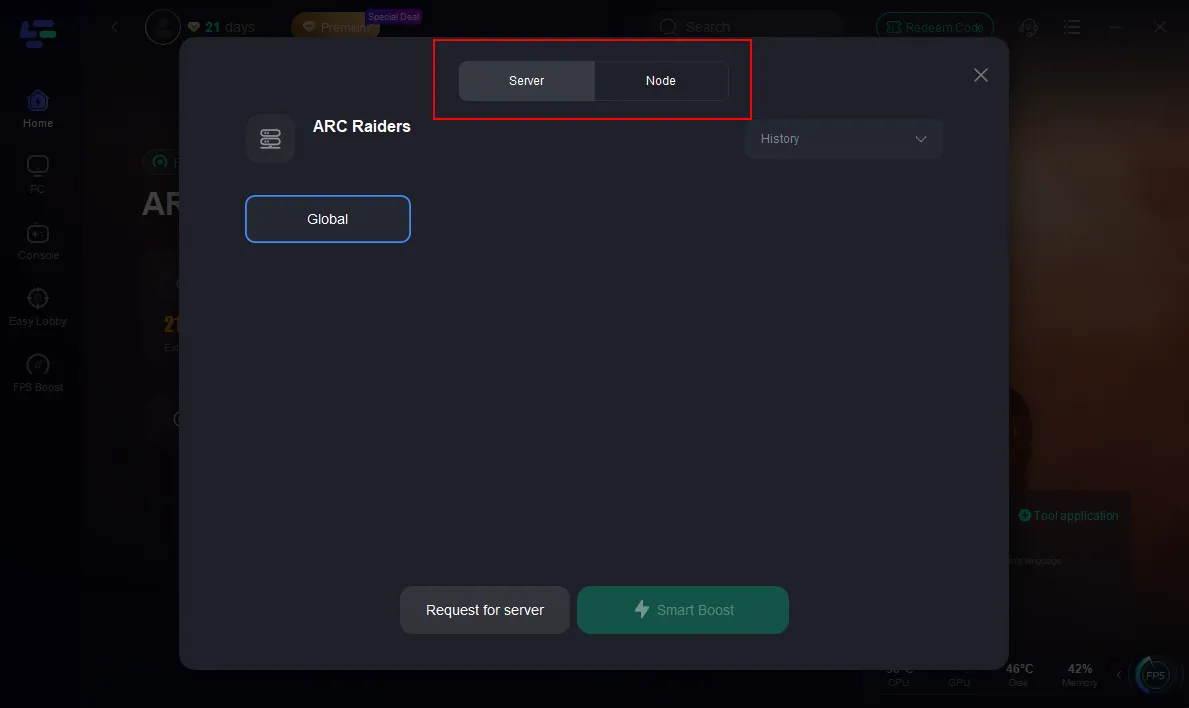
Step 3: Click the "Select Server" button to connect to an stable server node, then activate optimization via "Smart Boost".
Step 4: After enabling real-time optimization, check the live ping and packet loss rates, then click "Start Game" to begin playing.
Conclusion
For gamers gearing up for ARC Raiders, the main hurdle right now is simply getting into the game through the ARC Raiders server queue. With massive demand at launch, queue times of 10‑15 minutes are common and may increase during peak hours. Before blaming your PC or ISP, check the ARC Raiders server status to see if a ARC Raiders server down event or high‑load condition is affecting you.
If you're looking to get in faster and smoother, consider using a network‑optimization tool like LagoFast to switch server nodes and reduce latency—while this won’t eliminate the queue, it may improve your odds and give you a smoother experience once you’re in.
Stay patient, pick a less crowded time if possible, and optimize your connection—then you’ll be ready to jump into the fray as soon as possible.

Boost Your Game with LagoFast for Epic Speed
Play harder, faster. LagoFast game booster eliminates stutter and lags on PC, mobile, or Mac—win every match!
Quickly Reduce Game Lag and Ping!
Boost FPS for Smoother Gameplay!