

Apex Legends is one of the most popular battle royale titles globally, but it isn’t immune to technical issues. Whether you’re in the middle of an intense firefight or just trying to launch the game, random crashes, freezing, or startup problems can ruin the experience. Many players report that Apex Legends keeps crashing, especially on PC via Steam, with some even unable to get past the loading screen.
From lobby disconnects to game crashing on startup or during matchmaking, the issues vary. This guide will explore the possible causes and walk you through how to fix Apex Legends crashing issues, ensuring you can get back into the action with minimal frustration.

Part 1: Why Apex Legends Keeps Crashing
Part 2: How to Fix Apex Legends Keeps Crashing - 6 Top Solutions
Part 1: Why Apex Legends Keeps Crashing
Crashing in Apex Legends can be due to a variety of technical and regional factors. Here are the most common reasons players encounter persistent issues:
Outdated Graphics Drivers or System Software
Many crashes stem from GPU drivers that haven’t been updated. Apex Legends is constantly being optimized with new content, and your system must be up to date to handle these changes. If your driver is incompatible with the latest patch, performance instability or crashing is likely.
System Overheating or Hardware Overload
Gaming on higher resolutions or pushing ultra settings can strain your CPU or GPU. If your system gets too hot or overloaded, Apex Legends might freeze or shut down entirely as a protective measure.
Faulty Game Files or Corrupt Installations
Missing or corrupt files often result in Apex crashing on startup or during matches. This is particularly common if you've experienced a forced shutdown, an incomplete patch, or an installation error.
Third-Party Background Apps or Overlays
Programs like Discord overlays, MSI Afterburner, or even antivirus software can interfere with game processes. These conflicts often cause Apex Legends to crash randomly, especially after an update.
Cloudflare Outage Affecting Servers in Specific Regions
Players in regions such as Siberia, Ural, and southern Russia have been affected by intermittent Cloudflare server issues. These outages cause connection errors, lobby crashes, or even prevent players from logging into Apex Legends entirely.
Steam Launch Errors and Configuration Conflicts
On Steam, misconfigured launch options or outdated game cache data can cause Apex Legends to crash on launch or while loading into a match.
Part 2: How to Fix Apex Legends Keeps Crashing - 6 Top Solutions
LagoFast – The Best Fix for Apex Crashing and Freezing Issues
If Apex Legends is crashing for you, don’t worry, there are proven fixes that resolve most of these issues. The first and best solution is using a tool that boosts stability and speeds up game responsiveness, especially for users in regions with server instability.
LagoFast is a smart game booster and network accelerator that improves stability and responsiveness for Apex Legends players, especially those affected by regional server issues. Players in Siberia, the Ural region, and southern Russia have reported log-in failures and matchmaking crashes due to a Cloudflare network outage. LagoFast works around these server bottlenecks and accelerates your connection, helping you get into matches faster without freezing or crashing.
Key features of LagoFast include:
- Real-time ping reduction for smoother gameplay.
- Dedicated routes to bypass network congestion and server issues.
- Fast game boot-up by optimizing system resources.
- Support for Apex Legends on Steam, Origin, and the EA App.
- Custom optimization profiles for your hardware and region.
- Lightweight, user-friendly interface.
Whether your Apex Legends keeps crashing on startup or during gameplay, LagoFast provides the most comprehensive and user-friendly fix with automatic updates and ongoing regional optimizations.
How to Fix Apex Legends Keeps Crashing Issue by LagoFast:
Step 1: Click the Free Trial button to download and install LagoFast.
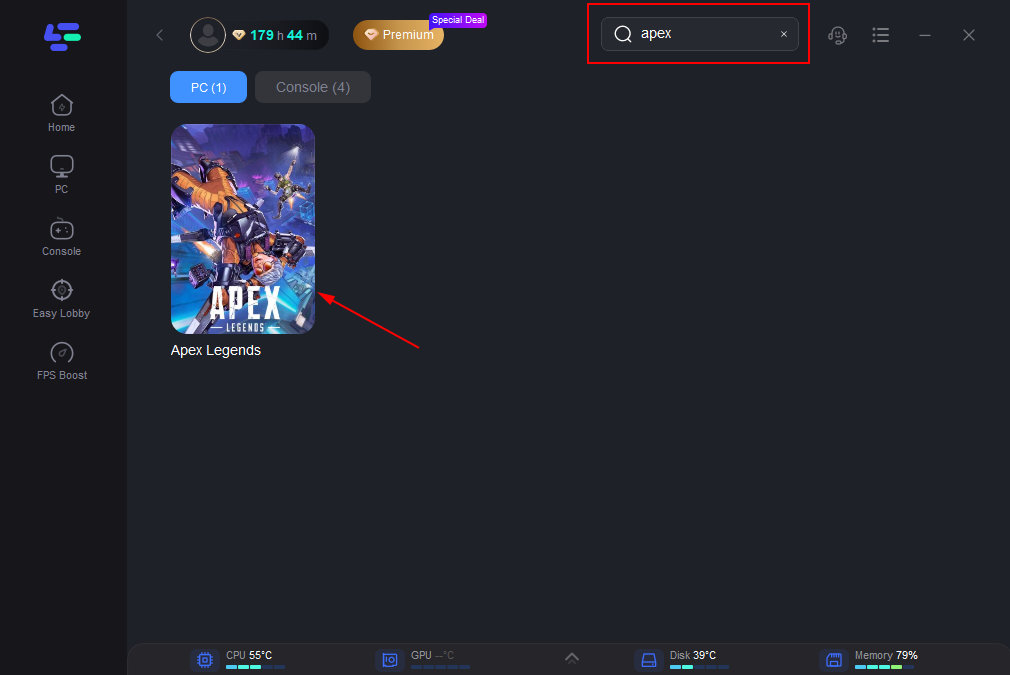
Step 2: Open LagoFast, click the PC icon on the left, and type Apex Legends in the search bar. Click on the game when it appears.
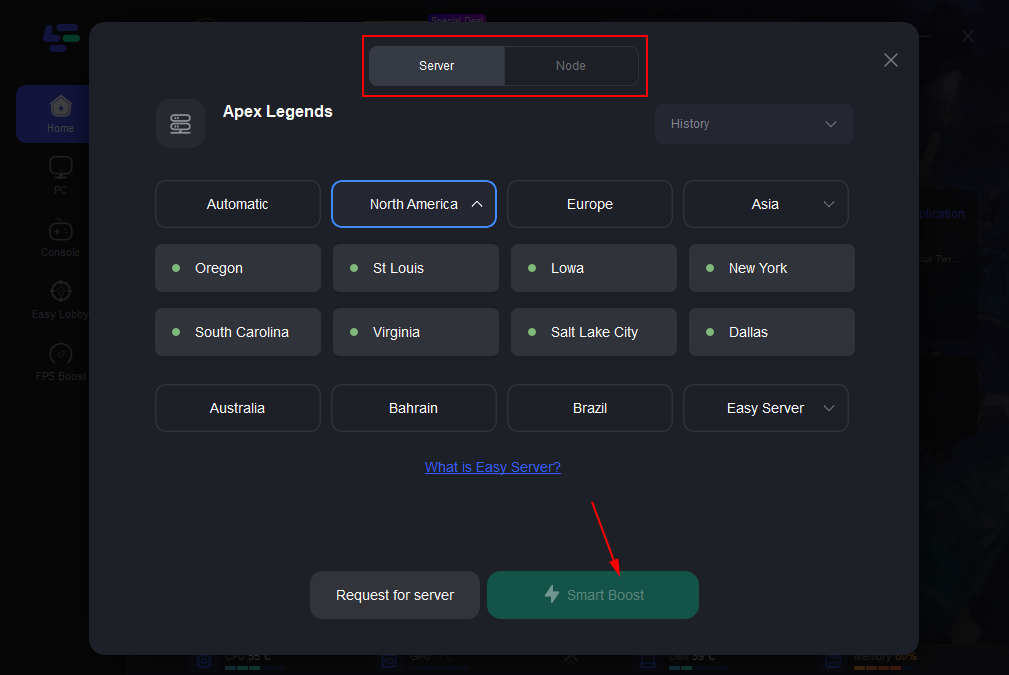
Step 3: Click “Server” to select the best server for a stable game, then click “Smart Boost”.
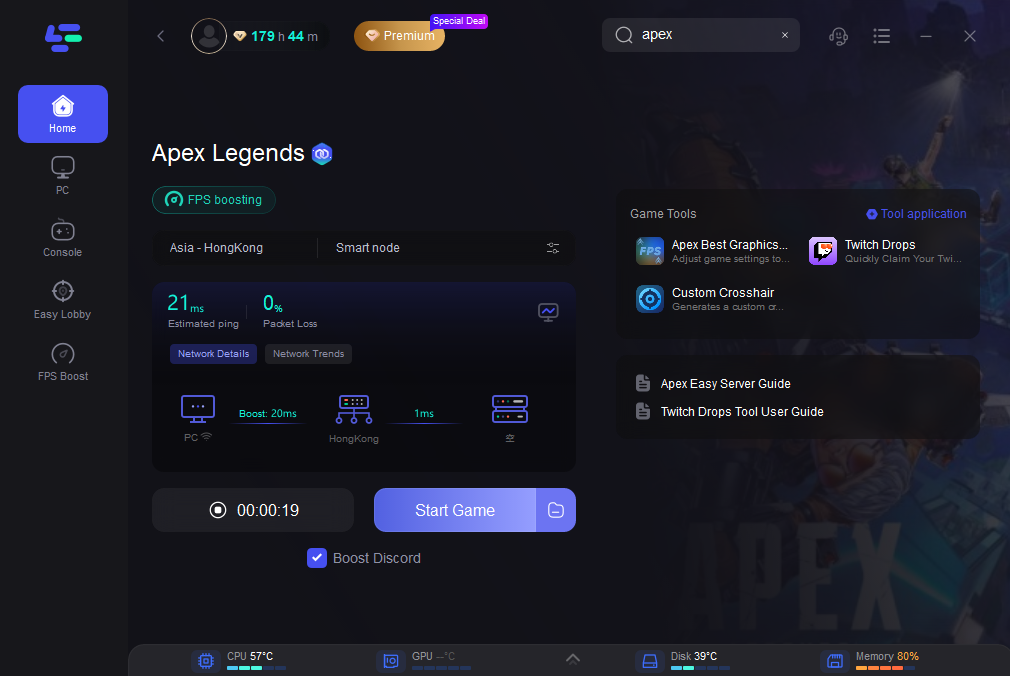
Step 4: On the right, check your ping, packet loss, and multi-path metrics. Then click “Start Game” to launch the game.
Update Graphics Drivers and Windows
Outdated drivers are the number one cause of freezes and crashes in Apex Legends.
Steps:
Step 1: Press Win + X and select Device Manager.
Step 2: Expand Display Adapters and right-click your GPU.
Step 3: Click Update driver and Search automatically for drivers.

Step 4: Visit the official NVIDIA or AMD website to install the latest driver if needed manually.
Step 5: Check for Windows updates by typing “Check for updates” in the Start menu.
Step 6: Restart your PC after all updates are installed and try launching Apex again.
Repair or Verify Apex Legends Game Files
Corrupt files can cause Apex Legends to crash unexpectedly or fail to launch altogether.
Steps:
Step 1: Launch Steam or EA App.
Step 2: Go to your Library and right-click Apex Legends.
Step 3: Select Properties.

Step 4: Navigate to the Installed Files or Local Files tab.
Step 5: Click on Verify integrity of game files.

Step 6: Wait for the process to complete, then relaunch the game.
Disable Overlays and Background Programs
Overlays can conflict with Apex Legends, leading to freezing or FPS drops.
Steps:
Step 1: Right-click on your taskbar and open Task Manager.
Step 2: End background apps such as Discord, MSI Afterburner, or GeForce Experience.
Step 3: Disable in-game overlays in those apps (e.g., Discord: go to Settings, select Game Overlay, then click Turn off).
Step 4: Disable the Steam Overlay (Go to Steam, select Settings, select In-Game, uncheck “Enable Steam Overlay”).

Step 5: Restart your computer.
Step 6: Launch Apex without any third-party software running.
Adjust Apex Legends Launch Options
Custom launch commands can improve performance and stability.
Steps:
Step 1: Open Steam and right-click Apex Legends.
Step 2: Go to Properties and select General.
Step 3: In the Launch Options field, type:
- +fps_max 120 -novid -nojoy -high

Step 4: This will cap FPS, skip the intro video, and reduce input overhead.
Step 5: Click out of the settings and close Steam.
Step 6: Reopen Steam and test the game.
Lower Graphics Settings and Disable V-Sync
Overloading your GPU can cause Apex Legends to crash during matches or while loading.
Steps:
Step 1: Launch Apex Legends and go to Settings, and select Video.
Step 2: Set Display Mode to Fullscreen.
Step 3: Set Texture Streaming Budget to Medium or Low.
Step 4: Disable V-Sync and Anti-aliasing.
Step 5: Lower all graphical settings to Medium or Low.
Step 6: Apply settings and restart the game.
Conclusion
Apex Legends remains a top-tier competitive shooter, but frequent crashing and freezing, caused by outdated drivers, software conflicts, hardware overload, or regional server issues, can severely disrupt gameplay. Fortunately, these problems are fixable with the right tools and steps. For players especially affected in Siberia, the Ural region, and southern Russia due to Cloudflare-related server instability, LagoFast offers the most effective solution by optimizing network paths, improving connection speed, and ensuring smooth game entry. Combined with the other step-by-step fixes outlined above, players can resolve most crashing issues and return to Apex Legends with confidence and stability.
Boost Your Game with LagoFast for Epic Speed
Play harder, faster. LagoFast game booster eliminates stutter and lags on PC, mobile, or Mac—win every match!
Quickly Reduce Game Lag and Ping!
Boost FPS for Smoother Gameplay!