
You boot up Apex after installing the new Cyberpunk-themed update ready to grind ranked, but instead of buttery-smooth 144+ frames, you are sliding into a slide-show. Nothing drains the adrenaline out of a clutch 1v3 faster than your screen hitching right as you pull the trigger. If you have been dealing with massive FPS drops, micro-stutters, and random freezes since the latest patch dropped, you aren't imagining things, the update genuinely broke performance for thousands of players. Let’s get your rig running back at maximum speed.

- ✅ Reduce Lag and High Ping.
- ✅ Boost FPS at the Same Time.
- ✅ Support 8000+ Popular Online Games.
- ✅ Support Easy Lobby in all Cod Games without Lag
Part 1: The Main Symptoms: What Exactly Is Going Wrong?
Part 2: Why Did the Cyberpunk Update Break Apex?
Part 3: The Ultimate Fix: How LagoFast Can Save Your FPS
Part 4: Manually Fix Combat & Fast Rotation Stutter
Part 5: Manually Fix Brief Game Freezing
Part 6: Manually Fix EA App-Specific Stuttering
Part 7: Manually Fix Random Update Crashes
Part 8: Manually Fix CPU-Specific Low FPS
Part 9: Manually Fix Catalyst Spike Drops
Part 10: Apex Legends Cyberpunk Update FAQs
Part 1: The Main Symptoms: What Exactly Is Going Wrong?
The performance hit from this latest patch isn't just a minor dip in frames; it is a widespread disruption affecting all tiers of hardware. Players with high-end rigs featuring RTX 40-series cards and modern multi-core processors are reporting the exact same game-breaking issues as budget setups. The degradation shows up in very specific, repeatable ways during matches:
|
Symptom |
When It Happens |
Impact on Gameplay |
|
Normal FPS suddenly drops |
Mid-match or when entering new POIs |
Frames tank from 180+ down to 50–60, creating heavy input lag. |
|
Combat & fast rotation stutter |
Whipping camera 180° or aiming down sights |
Screen hitches right as enemies appear, throwing off tracking. |
|
Brief game freezing |
Interacting with survey beacons or ring consoles |
Game locks up for 1–3 seconds; often fatal during gunfights. |
|
EA App-specific stuttering |
Playing via the native EA desktop client |
Persistent frame pacing spikes and background memory leaks. |
|
Random update crashes |
Loading into dropship or mid-rotation |
Direct desktop crash with no error code or warning. |
|
CPU-specific low FPS |
Systems utilizing Intel multithreaded CPUs |
GPU usage drops below 50% while CPU worker threads bottleneck. |
Part 2: Why Did the Cyberpunk Update Break Apex?
Whenever a major themed patch drops, Respawn introduces new environmental assets, lighting shaders, and under-the-hood engine tweaks. Unfortunately, this update introduced a perfect storm of technical bottlenecks within the aging Source engine.
The Hyperthreading & Worker Thread Bug
The biggest culprit behind Apex low FPS on specific CPU configurations is a broken CPU thread scheduler. On modern Intel processors (especially 12th through 14th gen chips with hybrid architectures), the game engine is failing to distribute processing loads correctly across Performance and Efficient cores. Instead of feeding the GPU a steady stream of data, CPU threads get deadlocked. This causes your graphics card utilization to plummet to 40–50%, resulting in your framerate hard-capping around 60 FPS regardless of how low you set your visual settings.
Shader Overload & Memory Leaks
The introduction of high-density neon lighting, revised skyboxes, and complex particle effects has overloaded the texture streaming buffer. When you spin your camera quickly toward a new area or a dense POI, the engine struggles to load directional shadows and volumetric lighting on the fly. This real-time compilation lag manifests as Apex stuttering after the Cyberpunk update during critical combat moments.
Background Overlay Conflicts
Recent updates to the built-in Easy Anti-Cheat (EAC) module and platform clients have made the game ultra-sensitive to background processes. Overlays from the EA App, Discord, or hardware monitoring tools continuously interrupt frame pacing, causing micro-freezes and sudden desktop crashes without crash logs.
Part 3: The Ultimate Fix: How LagoFast Can Save Your FPS
Before you start digging deep into Windows registry files or manually editing configuration files, the fastest way to stabilize your gameplay is by using LagoFast. While most gamers think of LagoFast primarily as a ping reducer, its built-in FPS Boost engine is specifically engineered to resolve game-specific optimization bugs. By automatically tuning your PC's power allocation, terminating memory-hogging background tasks, and optimizing network data routing, LagoFast eliminates micro-stutters and stabilizes frame delivery without requiring a computer science degree.
Why LagoFast is the Best All-in-One Solution for Apex:
- One-Click FPS Boost: Automatically tunes your Windows power plan, disables unnecessary background services, and frees up RAM dedicated specifically to r5apex.exe.
- Smart Network Routing: Eliminates network jitter and packet loss, which often masquerade as visual frame stuttering during heavy squad engagements.
- CPU & GPU Priority Allocation: Forces your operating system to dedicate primary processing power to Apex Legends, bypassing hybrid core scheduling bottlenecks.
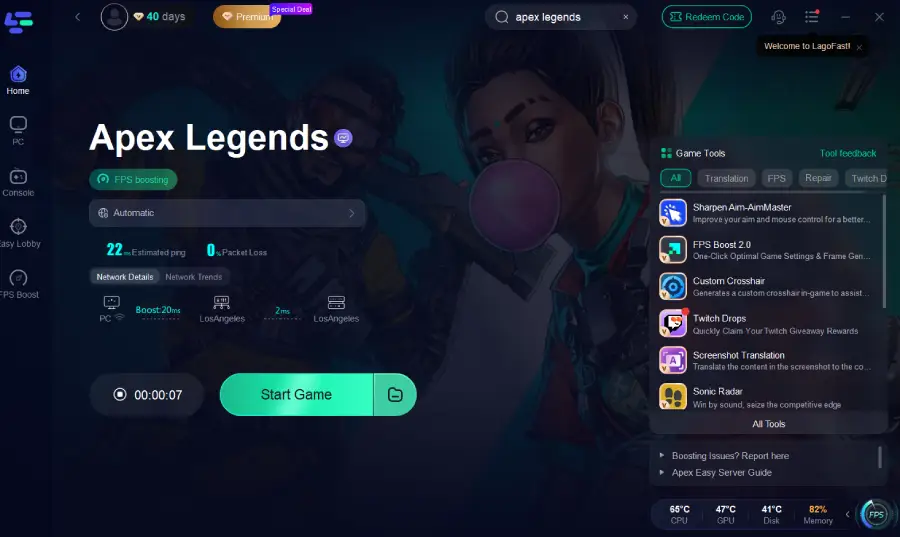
Tutorial to Use LagoFast to Fix Apex Legends FPS Drops:
Step 1: Click the Free Trial button to download and install LagoFast.
Step 2: Open LagoFast, then click the PC button on the left, search for Apex Legends in the search bar, and click it after it appears.
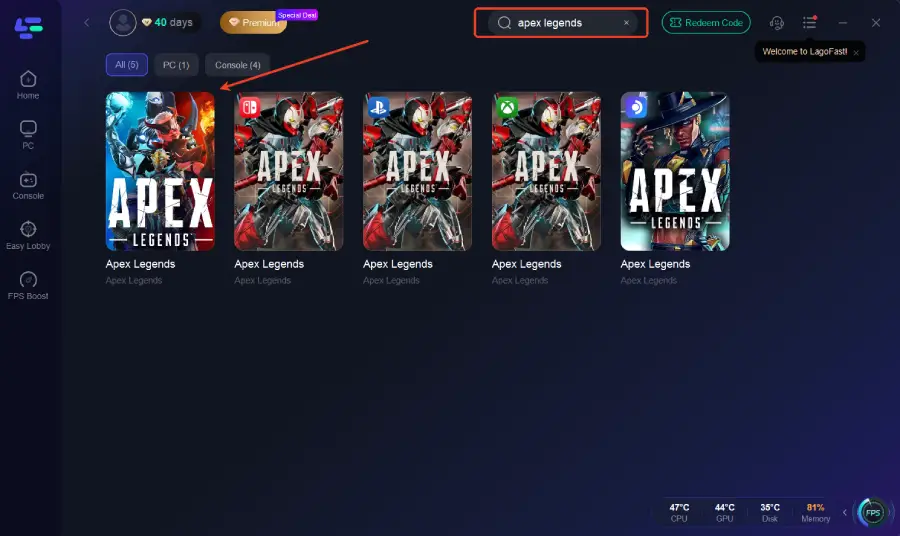
Step 3: Click the FPS Unlocker Tool on the right to boost FPS.
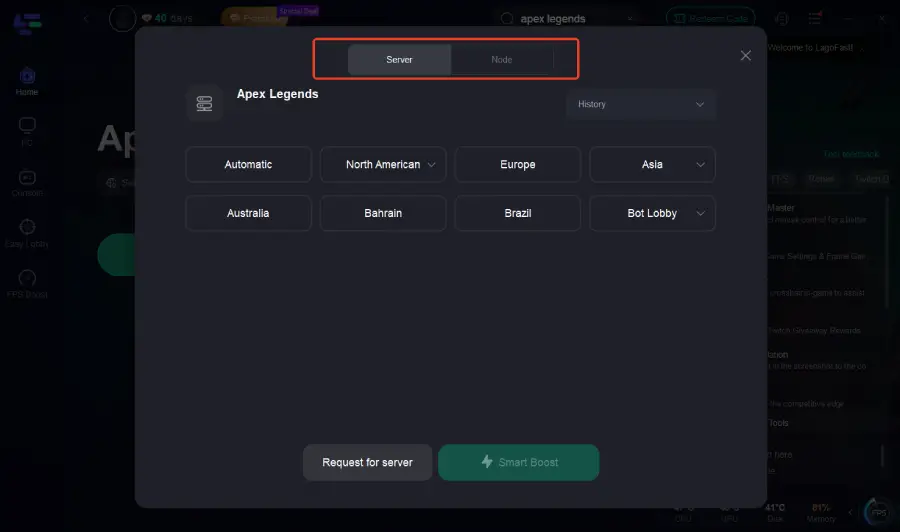
Step 4: Click on “Server” to change to a better server that ensures a better gaming experience, then click on “Smart Boost” to fix Apex Legends lag and stuttering.
Step 5: Check the specific game ping, packet loss, and multiple path connections on the right side. Finally, click “Start Game” to play the game.
Part 4: Manually Fix Combat & Fast Rotation Stutter
When your screen hitches the second you snap your camera toward an enemy or flick your crosshair, your GPU is struggling to render new directional shadow and texture assets on the fly. Here is how to fix combat stuttering:
Step 1. Open Apex Legends and navigate to Settings and select Video.
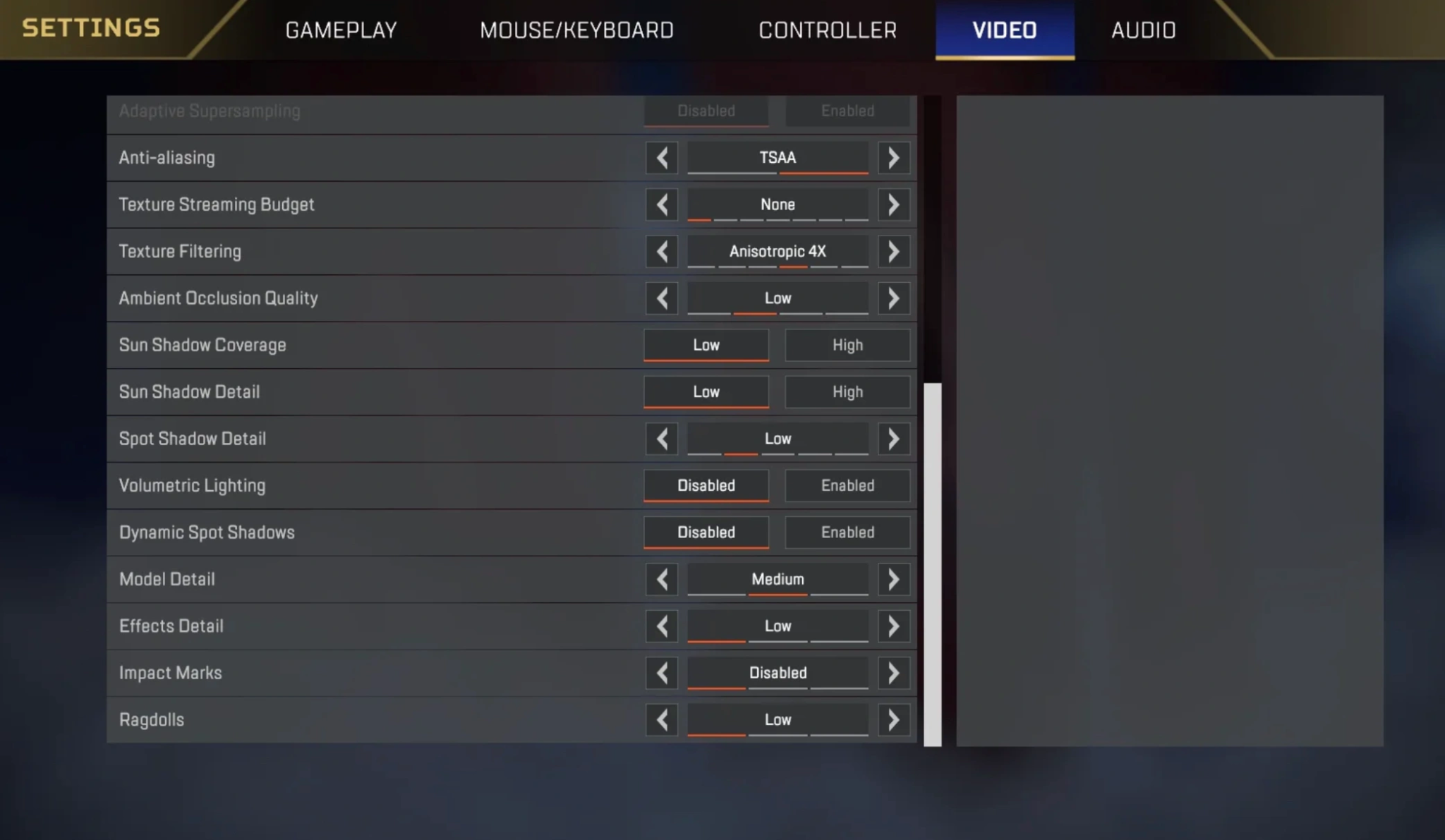
Step 2. Change Sun Shadow Coverage and Sun Shadow Detail strictly to Low; these two settings are the primary culprits for post-update directional stuttering.
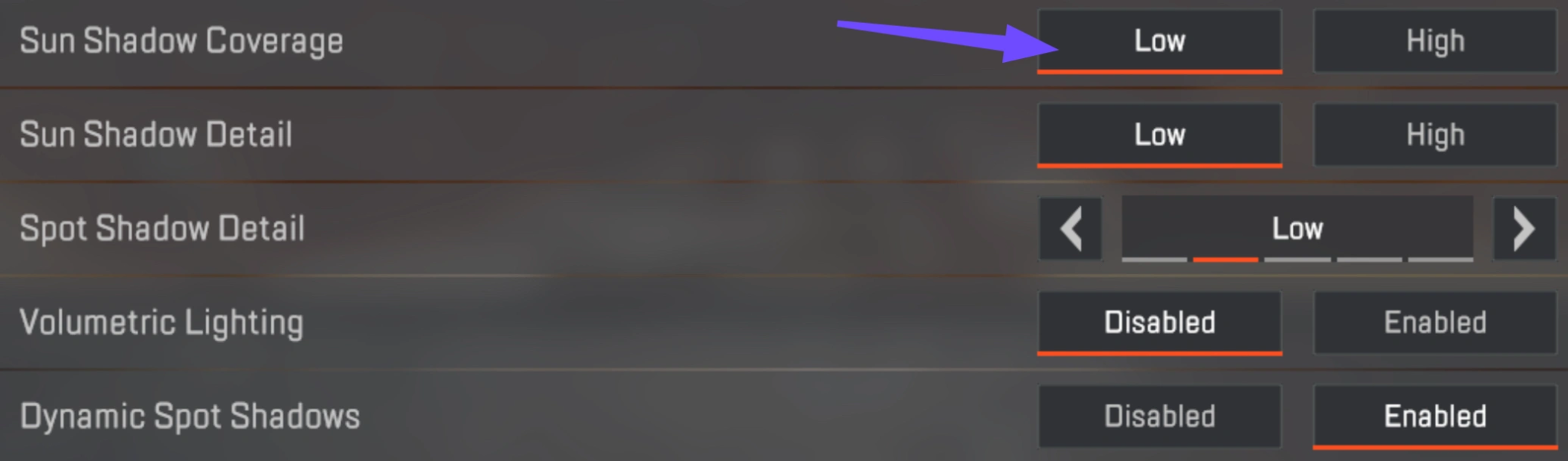
Step 3. Set Spot Shadow Detail to Disabled or Low to reduce real-time rendering calculations when multiple abilities trigger during fights.
Step 4. Lower Texture Streaming Budget by one tier below your GPU's actual VRAM limit (for example, set it to 6GB if you have an 8GB graphics card) to prevent memory overflow.
Step 5. Disable Volumetric Lighting and Dynamic Spot Shadows to stop shader compilation spikes whenever you rapidly rotate your character.
Part 5: Manually Fix Brief Game Freezing
Experiencing Apex freezing mid-game for two to three seconds right when hitting a survey beacon, scanning a ring console, or populating a busy kill feed is usually caused by disk read delays and corrupted shader cache files.
Step 1. Close the game completely and open your Steam or EA App library.
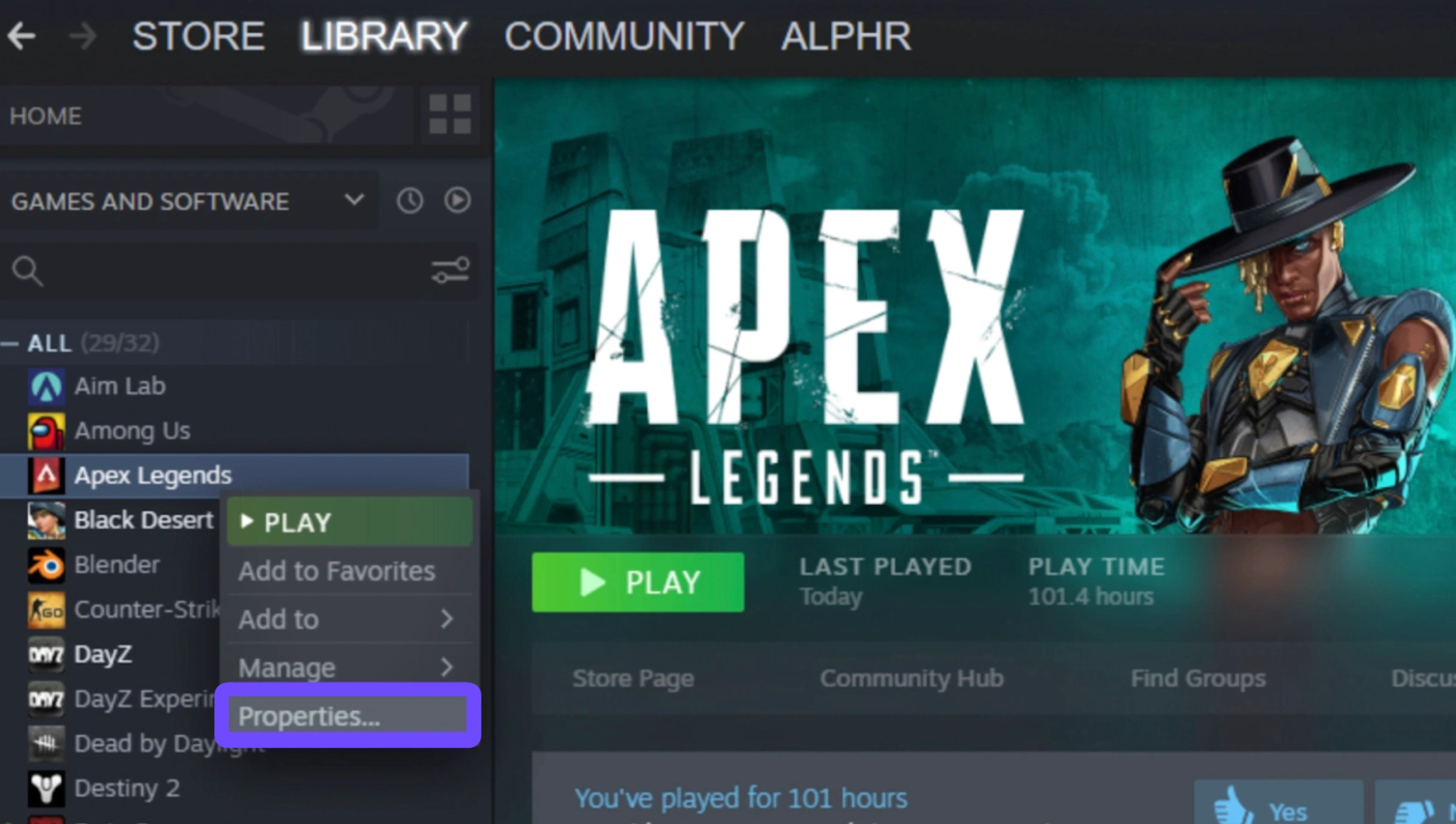
Step 2. Right-click Apex Legends, select Properties (or Manage in the EA App), and click Verify Integrity of Game Files to repair corrupted update archives.
Step 3. Press Win + R, type %localappdata%, navigate to ApexLegends, select Saved, select Saved Games, and delete the Respawn folder to clear out outdated local cache files.
Step 4. Open your NVIDIA Control Panel (or AMD Software), go to 3D Settings and select Shader Cache Size, and set it to at least 10GB or Unlimited.
Step 5. Add r5apex.exe as a formal exclusion in your Windows Defender or third-party antivirus software to prevent real-time background scans from freezing disk reads during matches.
Part 6: Manually Fix EA App-Specific Stuttering
Players launching the game through the official Electronic Arts client frequently suffer from persistent Apex EA App stuttering due to the launcher's aggressive background web helper processes and memory-leaking overlays.
Step 1. Open the EA App, click the three horizontal lines in the top-left corner, and navigate to Settings, select Application.
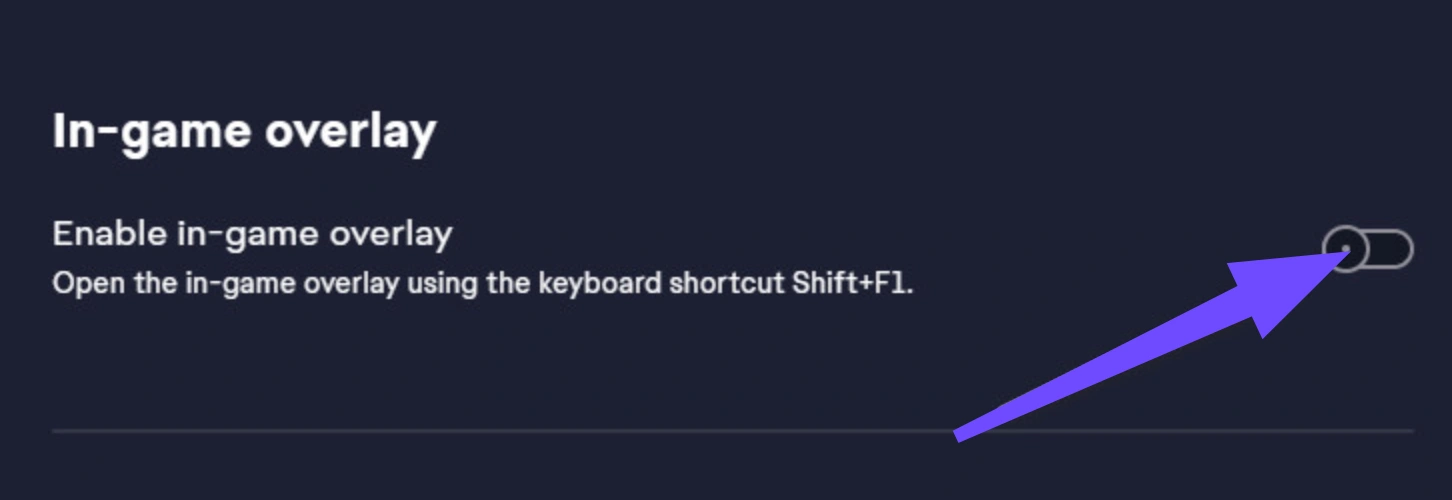
Step 2. Scroll down to the In-Game Overlay section, and toggle Enable in-game overlay to OFF; disabling this single feature eliminates massive frame pacing spikes.
Step 3. In the same Application menu, turn off Share usage data and disable background automatic updates while gaming.
Step 4. Open Windows Task Manager (Ctrl + Shift + Esc) while playing, locate EA Background Service and EA Web Helper, right-click them, and set their Efficiency mode to on or lower their priority.
Step 5. If stuttering persists, right-click the EA App desktop shortcut, select Properties, select Compatibility, and check both Run this program as an administrator and Disable fullscreen optimizations.
Part 7: Manually Fix Random Update Crashes
Dealing with Apex crashing after Cyberpunk update without any error messages is typically linked to DirectX 12 instability, outdated graphics drivers clashing with new game assets, or unstable RAM overclocking profiles.
Step 1. If you are using the DirectX 12 beta launch argument (-eac_launcher_settings SettingsDX12.json), remove it immediately from your launch options to revert to standard DirectX 11.
Step 2. Perform a clean installation of your graphics drivers using Display Driver Uninstaller (DDU) in Safe Mode to wipe old shader caches, then install the latest stable GPU driver release.
Step 3. Reboot your PC into the motherboard BIOS and temporarily disable XMP or EXPO memory overclocking profiles if you experience frequent silent desktop crashes during loading screens.
Step 4. Right-click the executable file (r5apex.exe) in your game installation folder, select Properties, select Compatibility, and check Disable fullscreen optimizations.
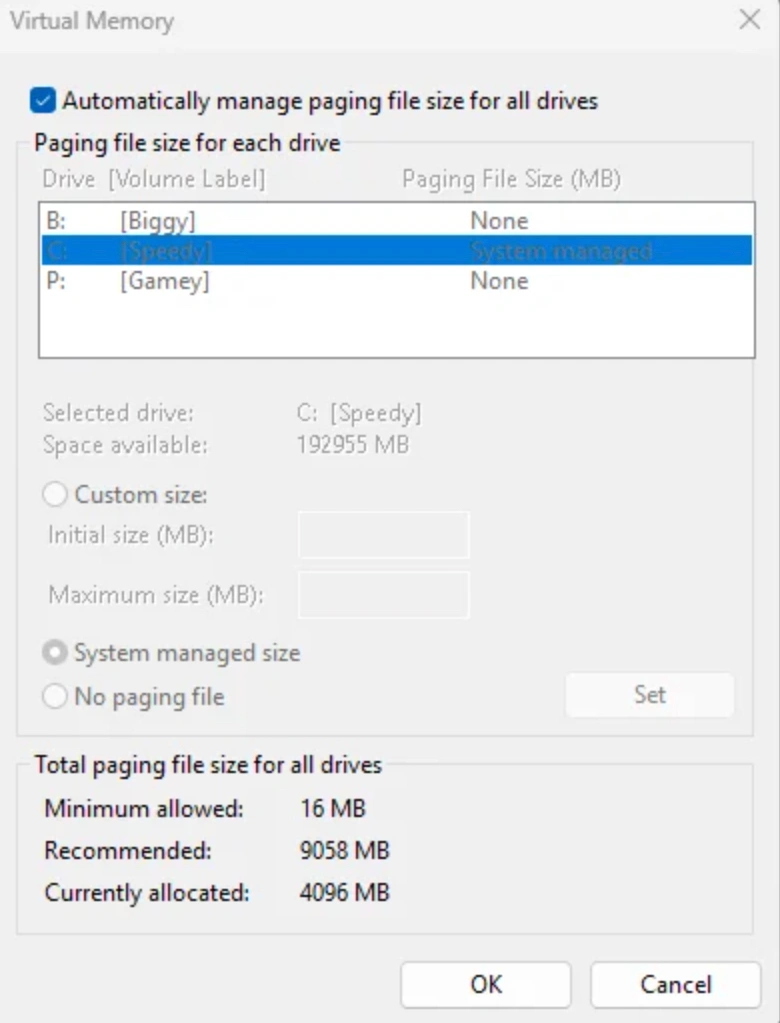
Step 5. Increase your Windows Virtual Memory (Pagefile) by going to System Properties, Advanced, Performance Settings, Advanced, select Virtual Memory, and manually setting an initial and maximum size of at least 16384 MB (16GB) on your fastest SSD.
Part 8: Manually Fix CPU-Specific Low FPS
If your GPU sits at 40% usage while your frames crawl, you are hitting the infamous Apex low FPS on specific CPU bug. This primarily impacts multi-core Intel processors where hyperthreading bottlenecks the Source engine.
Step 1. Open Steam or EA App, go to Apex Legends Launch Options, and add the command -numworkerthreads X (replace X with your physical CPU core count minus 2).
Step 2. If you are using an Intel 12th, 13th, or 14th gen CPU, add the launch argument -disableECores to force the operating system to run the game exclusively on your high-performance cores.
Step 3. For a permanent hardware fix on Intel systems, restart your PC, enter your motherboard BIOS, and disable Hyper-Threading Technology; this instantly unlocks hard-capped 60 FPS drops back to 200+ FPS.
Step 4. In Windows, go to Settings, System, Display, Graphics, locate Apex Legends, and set the Graphics Preference explicitly to High Performance.
Step 5. Add the launch argument +r_enable_rendering_jobs 0 or -render_on_input_thread in your client launch options to smooth out multi-threaded rendering queues.
Part 9: Manually Fix Catalyst Spike Drops
Experiencing severe Apex FPS drops near Catalyst spikes, neon signage, or heavily detailed terrain features happens because particle effects and volumetric shaders overwhelm your graphics card's fill rate.
Step 1. In the in-game Video settings, turn Effects Detail down to Low to dramatically reduce the particle rendering load during tactical explosions and ability spikes.
Step 2. Set Model Detail and Terrain Detail to Medium or Low to prevent complex mesh geometry from crushing your frame rate in dense map zones.
Step 3. Add the launch argument +r_zfill_all 0 in your game properties to disable unnecessary z-buffer filling for complex skyboxes and distant structure rendering.
Step 4. Keep Volumetric Lighting and Sun Shadow Coverage strictly disabled or on Low when fighting around glowing structures or dynamic environmental hazards.
Step 5. Use an external frame rate limiter like RTSS (RivaTuner Statistics Server) or the in-game +fps_max command to cap your FPS 3–5 frames below your monitor's refresh rate, preventing severe GPU usage spikes when staring at high-density visual clutter.
Part 10: Apex Legends Cyberpunk Update FAQs
Why is my Apex Legends FPS suddenly dropping after the Cyberpunk update?
The update introduced new visual assets, lighting effects, and underlying engine modifications that trigger severe CPU thread scheduling conflicts and shader compilation bottlenecks. On many systems, this causes the GPU to wait for CPU instructions, cutting hardware utilization in half and tanking your framerate.
Does disabling Hyperthreading really fix low FPS in Apex?
Yes. For players running modern Intel processors (especially 12th, 13th, and 14th generation chips), disabling Hyperthreading in the motherboard BIOS resolves a major Source engine bug where worker threads deadlock. Thousands of players have reported jumping from a stuttery 60 FPS back to a locked 240 FPS immediately after disabling it.
Why is Apex freezing mid-game during intense fights or when using survey beacons?
Brief 1–3 second freezes usually occur when the game engine attempts to read texture data or compile new shaders on the fly while your system is overloaded. When you hit a survey beacon or engage multiple squads, the sudden burst of visual and UI data overwhelms disk read speeds or your GPU's shader cache.
How do I stop Apex stuttering after Cyberpunk update on EA App?
The native EA App is notorious for background memory leaks and overlay conflicts. Disabling the EA App in-game overlay, turning off background data sharing, and setting the "EA Background Service" process to low priority in Windows Task Manager solves the majority of launcher-specific frame pacing issues.
Will LagoFast actually increase my FPS or just fix my ping?
LagoFast is a comprehensive game booster designed to handle both network routing and PC system optimization. While its primary claim to fame is routing your connection to eliminate latency and packet loss, its integrated FPS Boost tool actively manages Windows power plans, terminates CPU-heavy background apps, and allocates maximum RAM to Apex Legends to guarantee smooth frame pacing.
What are the best launch options for Apex Legends after the recent patch?
For the most stable performance after the latest update, open your game properties in Steam or the EA App and input the following string: -novid -high +fps_max 180 -numworkerthreads 6 +r_enable_rendering_jobs 0
(Note: Adjust the -numworkerthreads value to match your specific CPU's physical core count minus two, and set +fps_max to match your monitor's native refresh rate).
Conclusion
Do not let unoptimized patches and engine bottlenecks ruin your ranked climb. By tweaking your internal video settings, disabling problematic CPU threads, and letting LagoFast optimize your system resources and network routing, you can eliminate stuttering and get back to smooth, responsive gameplay. Jump back into the Outlands and claim your Champion screen!

Boost Your Game with LagoFast for Epic Speed
Play harder, faster. LagoFast game booster eliminates stutter and lags on PC, mobile, or Mac—win every match!
Quickly Reduce Game Lag and Ping!
Boost FPS for Smoother Gameplay!