
Quick Fixes for Apex Legends Connection Issues
Before diving into deep system changes, try these immediate solutions to get back into the Outlands:
- Use a Dedicated Game Booster: Use LagoFast to optimize your route to the EA servers and bypass regional congestion.
- Restart Your Hardware: Power cycle your router and modem for 30 seconds.
- Change Data Centers: On the Apex title screen, press 'Tab' (PC) or the Right Stick (Console) to select a different server with lower packet loss.
- Flush Your DNS: Clear your network cache to remove corrupted connection paths.
Nothing kills the hype of a hot drop like a sudden freeze followed by the dreaded "Connection to server timed out (code:net)" message. This persistent error has plagued Apex Legends players for years, often striking right as the ring closes. While it feels like a game-breaker, most code:net issues are solvable with the right networking tweaks and optimization tools.

- ✅ Lower ping and fewer disconnects.
- ✅ More FPS and better PC performance.
- ✅ Support for 8000+ games.
- ✅ Stable connections and region switching.
Part 1: What Is Apex Legends Connection to Server Timed Out (Code:net)?
Part 3: Players’ Comments: The Community Struggle
Part 4: Full Fix for Apex Legends Connection Timed Out (Code:net)
Part 5: Advanced Fix – LagoFast: The Ultimate Solution
Part 7: Cause and Solution Reference Table
Part 1: What Is Apex Legends Connection to Server Timed Out (Code:net)?
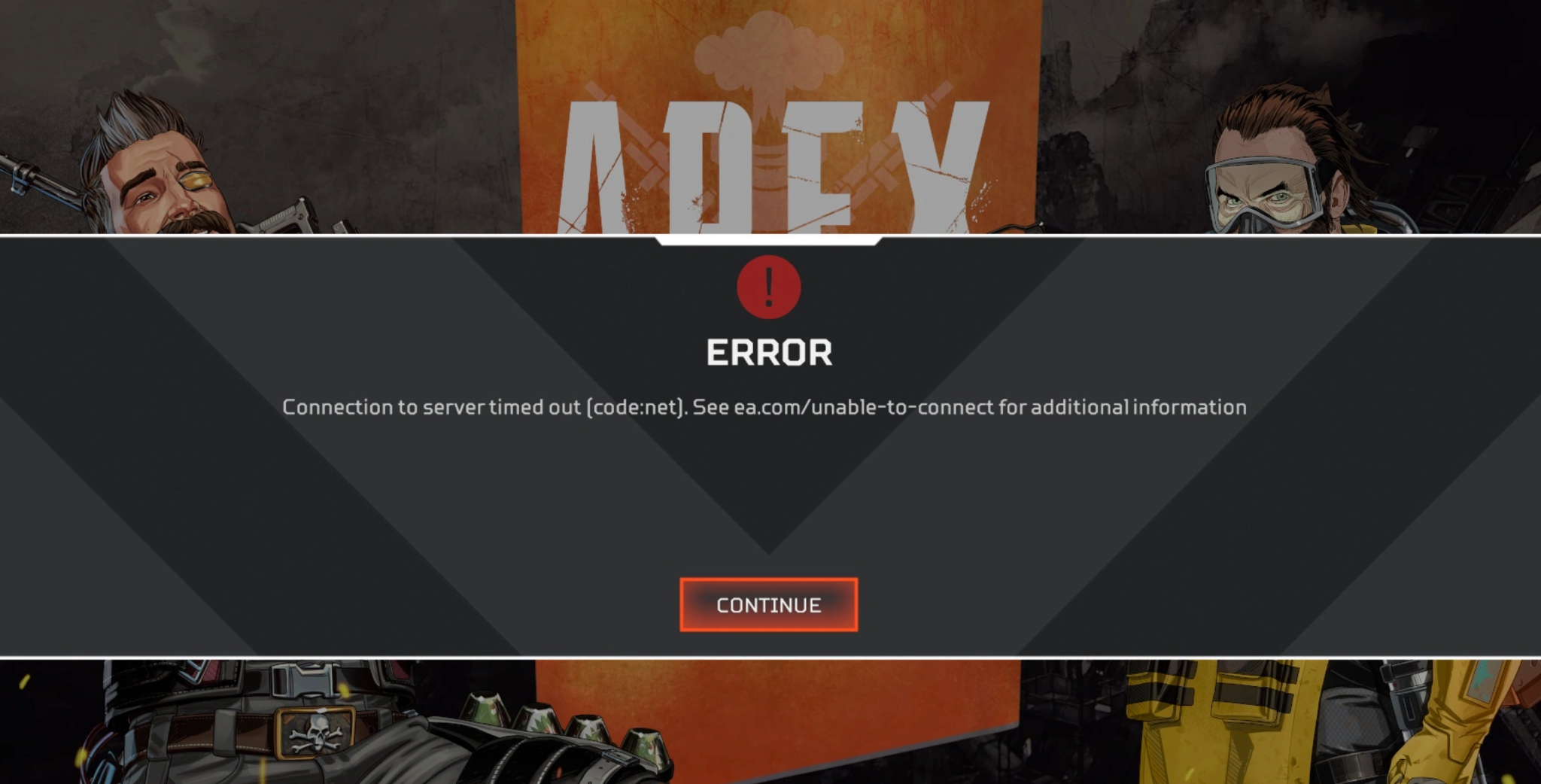
In the world of Apex Legends, Code:net is a generic error signal. It essentially means that your client (your PC or console) was communicating with the EA servers, but that communication was suddenly cut off or "timed out." Unlike "Code:leaf," which usually happens during matchmaking, Code:net typically kicks you mid-match or during the loading screen, sending you back to the main menu.
Part 2: Why Does It Happen?
The frustration with Code:net stems from the fact that it isn't always "your fault." The primary causes include:
- Server-Side Instability: EA’s servers may be struggling under heavy load or regional outages.
- ISP Throttling: Your Internet Service Provider might be routing your traffic through inefficient, congested "nodes."
- Anti-Cheat Desync: Recent updates have caused "Anti-cheat authentication timeouts," where the game disconnects you because it can't verify your client fast enough.
- Local Network Congestion: High ping or packet loss on your home Wi-Fi.
Part 3: Players’ Comments: The Community Struggle
The Apex community has been vocal about these issues. Recently, a Community Manager noted that code:net is a "general connection error," suggesting that clearing DNS is a vital first step.
However, players in regions like Northeast Asia and Central Europe have reported that standard fixes, like reinstalling the game or restarting the router, often fail. One player noted, "I’ve tried switching data centers and resetting net configs... nothing works." Another highlighted a rising issue where "Anti-cheat verification timed out" prevents login entirely, even when the player's internet is functioning perfectly for other apps. This highlights the need for more advanced routing solutions.
Part 4: Full Fix for Apex Legends Connection Timed Out (Code: net)
Solution 1: Flush DNS and Change DNS Servers
Clearing your DNS cache removes old data that might be pointing to a dead server.
Step 1. Type cmd in the Windows Search bar and Run as Administrator.
Step 2. Type ipconfig /flushdns and press Enter.
Step 3. Go to Network & Internet Settings and select Change adapter options.
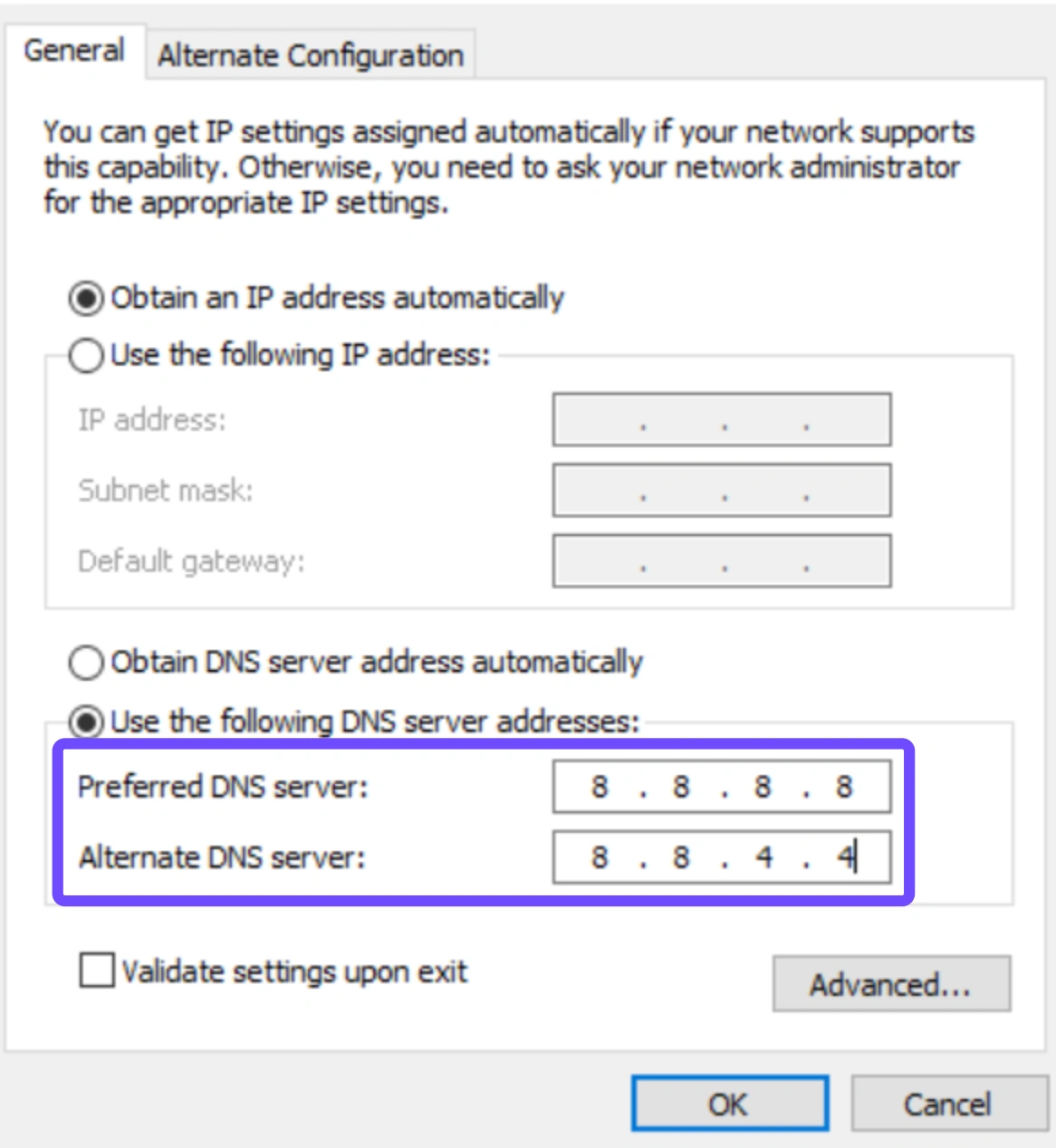
Step 4. Right-click your connection, select Properties, and click Internet Protocol Version 4 (TCP/IPv4).
Step 5. Set Preferred DNS to 8.8.8.8 and Alternate to 8.8.4.4 (Google DNS).
Solution 2: Repair Easy Anti-Cheat (EAC)
If you are seeing the "Anti-cheat authentication timeout" version of the error:
Step 1. Navigate to your Apex Legends installation folder.
Step 2. Open the EasyAntiCheat folder.
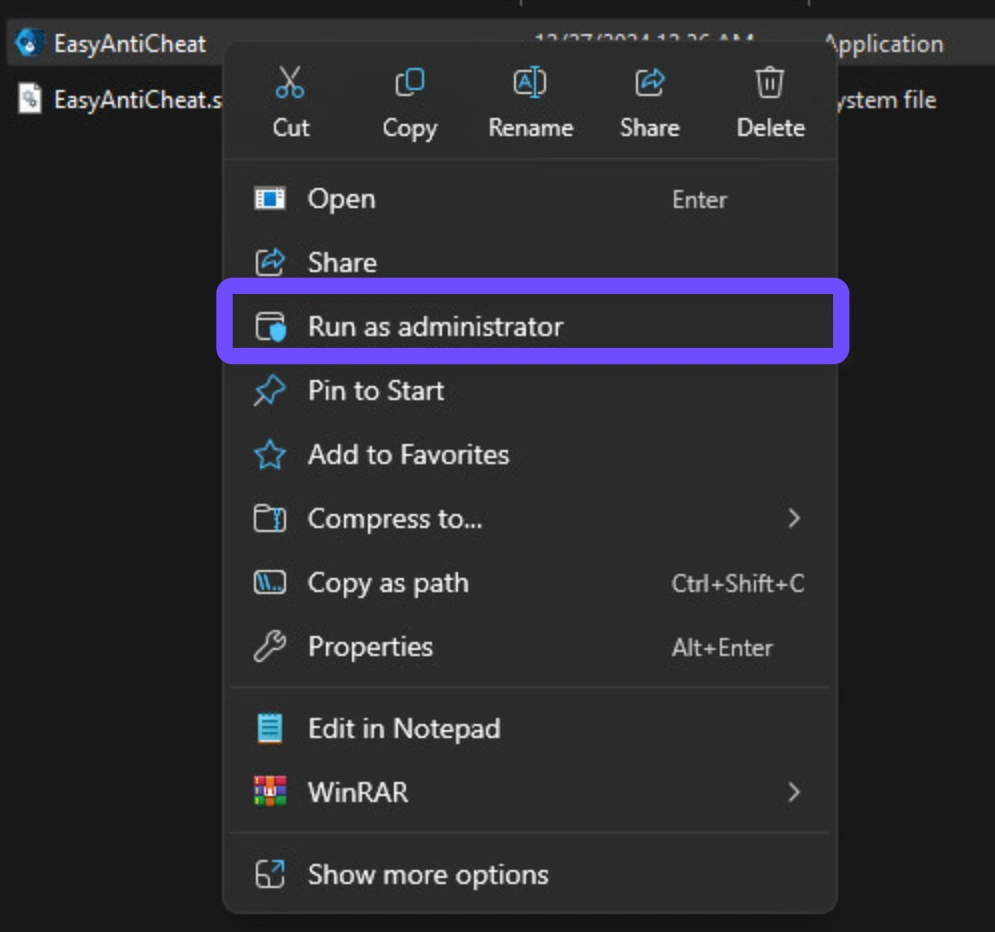
Step 3. Right-click EasyAntiCheat_Setup.exe and Run as Administrator.
Step 4. Select Apex Legends and click Repair Service.
Solution 3: Perform a Clean Boot
Third-party software (like firewalls or other launchers) can interfere with EA's "Signon: Full" process.
Step 1. Press Win + R, type msconfig, and hit Enter.
Step 2. Under the Services tab, check Hide all Microsoft services.
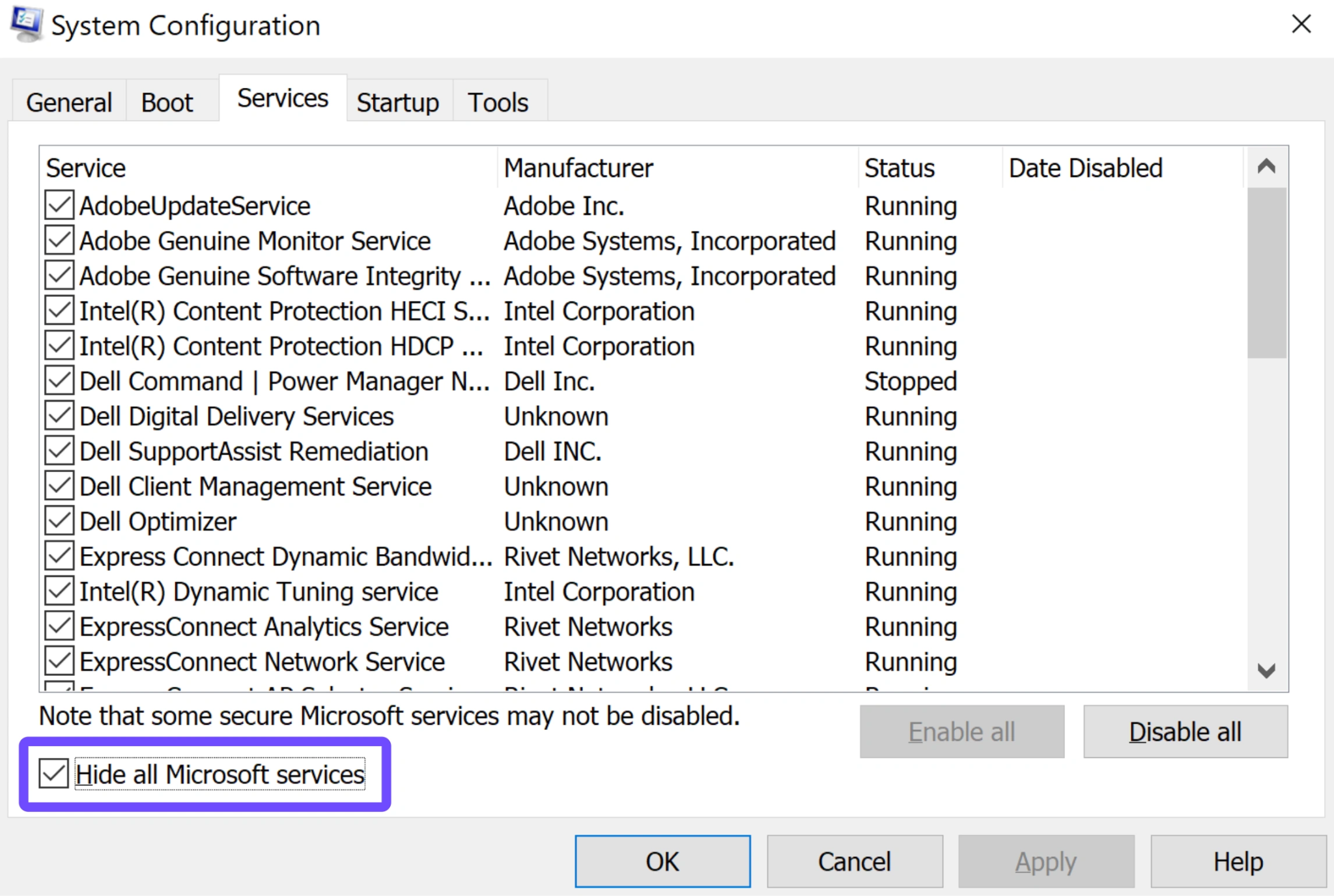
Step 3. Click Disable all.
Step 4. Go to the Startup tab, open Task Manager, and disable all startup items.
Step 5. Restart your PC.
Solution 4: MAC Address Reset (Consoles)
For Xbox and PlayStation players:
Step 1. Go to Settings and select Network Settings.
Step 2. Select Advanced Settings.
Step 3. Select Alternate MAC Address and click Clear.
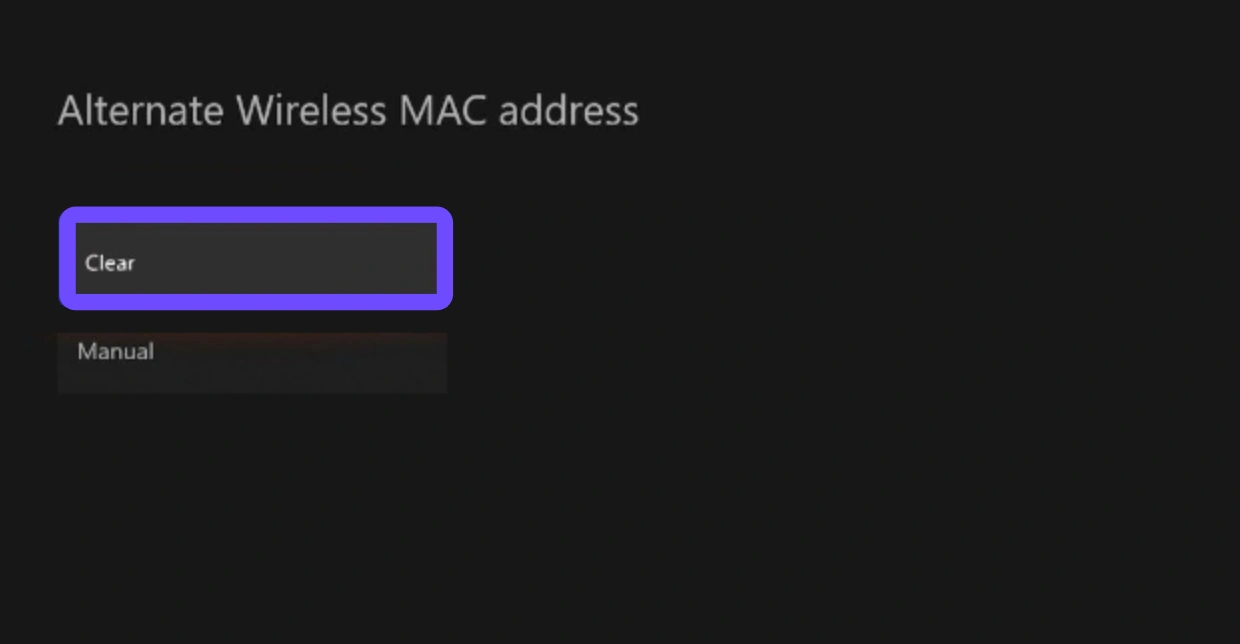
Step 4. Your console will restart, refreshing its handshake with the server.
Part 5: Advanced Fix – LagoFast: The Ultimate Solution
When manual troubleshooting fails, the issue usually lies in the routing between your house and the Apex server. Standard internet traffic takes the "cheapest" path, not the "fastest" one.
LagoFast is a specialized game booster designed to create a direct, high-speed lane for your gaming data. It features a unique multipath connection protocol that identifies the most stable server nodes in real-time. Beyond fixing Code:net, LagoFast offers a dedicated FPS Boost tool that optimizes your CPU and GPU settings with a single click, ensuring your hardware doesn't bottleneck your performance during intense gunfights.
Key Features of LagoFast:
- Global Server Coverage: Fixes "Unable to connect" errors in any region (Northeast Asia, Europe, LATAM, etc.).
- Real-Time Path Optimization: Automatically switches to a better node if the current one experiences packet loss.
- Easy Anti-Cheat Stabilization: Reduces the latency that causes anti-cheat timeouts.
- FPS Boost: Overclocks game performance by stopping unnecessary background processes.
- Cross-Device Boost: Seamlessly switch and boost your connection across PC, mobile, and consoles with a single account, ensuring a stable Apex Legends experience on any platform.
Tutorial to Use LagoFast to Fix Apex Legends Connection to Server Timed Out (Code: net) :
Step 1: Click the Free Trial button to download and install LagoFast.
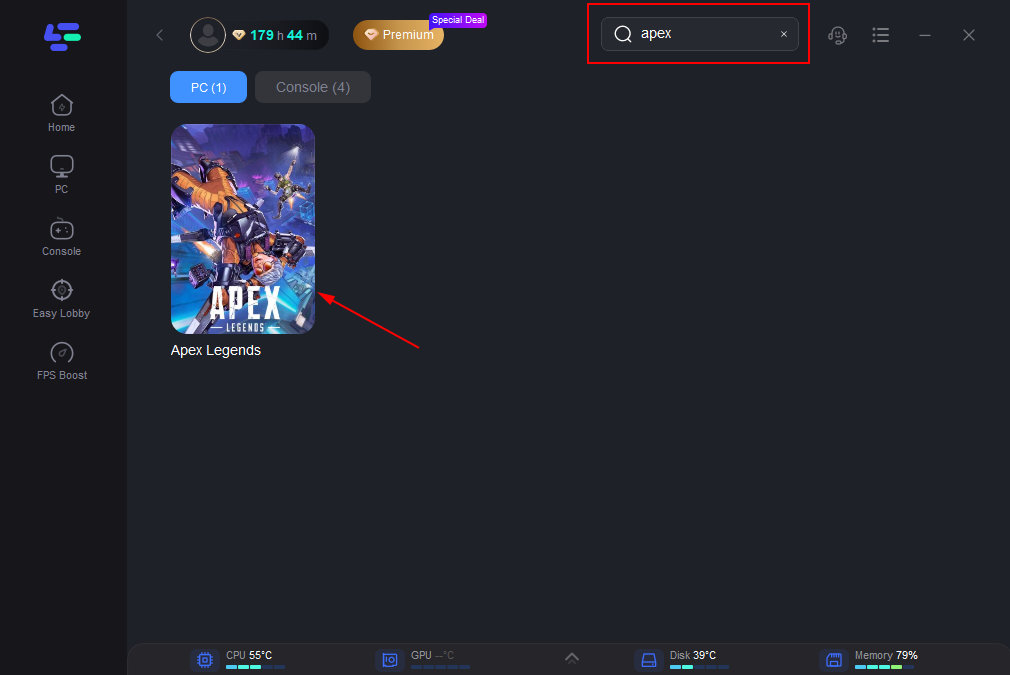
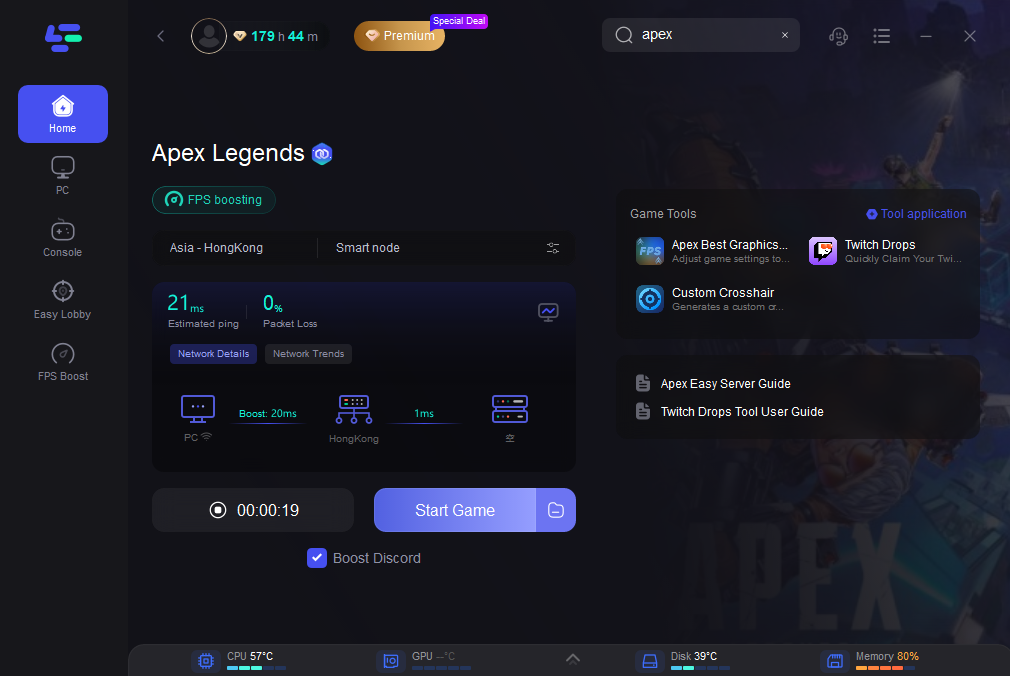
Step 2: Open LagoFast, then click the PC button on the left and search for Apex Legends in the search bar, and click it after it appears.
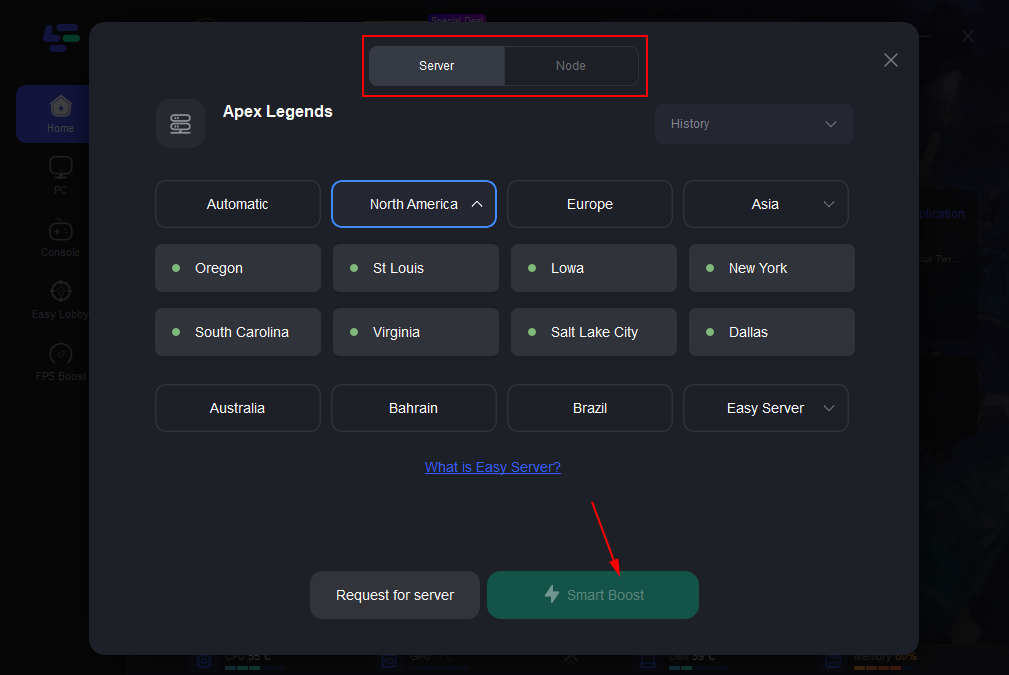
Step 3: Click “Server” to switch to a better server, which can ensure a stable connection. Then click “Smart Boost” to resolve the connection issue.
Step 4: Check the specific game ping, packet loss, and multiple path connections on the right side. Finally, click the “Start Game” to play the game.
Part 6: Bonus Tips
- Switch to Wired: If you are on Wi-Fi, the "timeout" is often caused by 2.4GHz interference. An Ethernet cable is the #1 defense against code:net.
- Update Network Drivers: Ensure your Motherboard or Wi-Fi card drivers are current.
- Disable Background Apps: Close bandwidth-heavy apps like Chrome, Discord (overlay), or Spotify while playing.
Part 7: Cause and Solution Reference Table
|
Error Message / Symptom |
Likely Cause |
Recommended Solution |
|
Code:net (Mid-game) |
Server Desync / ISP Routing |
Use LagoFast / Change Data Center |
|
Anti-cheat Timeout |
EAC File Corruption |
Repair EAC / Run as Admin |
|
Code:leaf (Lobby) |
Matchmaking Handshake Fail |
Restart Game / Flush DNS |
|
High Ping / Rubberbanding |
Congested Network Path |
Ethernet Cable / LagoFast FPS Boost |
|
Signon: Full Error |
Corrupted Cache |
Clear Origin/EA App Cache |
Part 8: FAQs
Is Code:net a ban?
No, Code:net is strictly a connection timeout error. If you were banned, you would see a specific "Account Banned" message.
Why does Code:net happen more in Ranked?
Ranked servers often handle more data (tracking points, placements). If the server is under heavy load, it is more likely to drop "unstable" connections.
Does reinstalling Apex fix Code:net?
Rarely. Since the issue is usually network-related, reinstalling the 60GB+ game is often a waste of time. Try flushing your DNS first.
Can my Firewall cause connection timeouts?
Yes. Ensure that ApexLegends.exe and EasyAntiCheat.exe are added as exceptions in your Windows Defender Firewall.
Why do I get code:net and code:leaf together?
These are "sister" errors. Code:leaf is the server not responding to a join request, while code:net is the server dropping an active session.
Final Takeaway
Apex Legends "Connection to server timed out (code:net)" is an annoying hurdle, but it doesn't have to end your session. By following the systematic fixes, starting with DNS flushes and moving toward professional tools like LagoFast, you can stabilize your connection and focus on becoming the next Apex Champion. Don't let bad routing be the reason you lose your RP!

Boost Your Game with LagoFast for Epic Speed
Play harder, faster. LagoFast game booster eliminates stutter and lags on PC, mobile, or Mac—win every match!
Quickly Reduce Game Lag and Ping!
Boost FPS for Smoother Gameplay!