
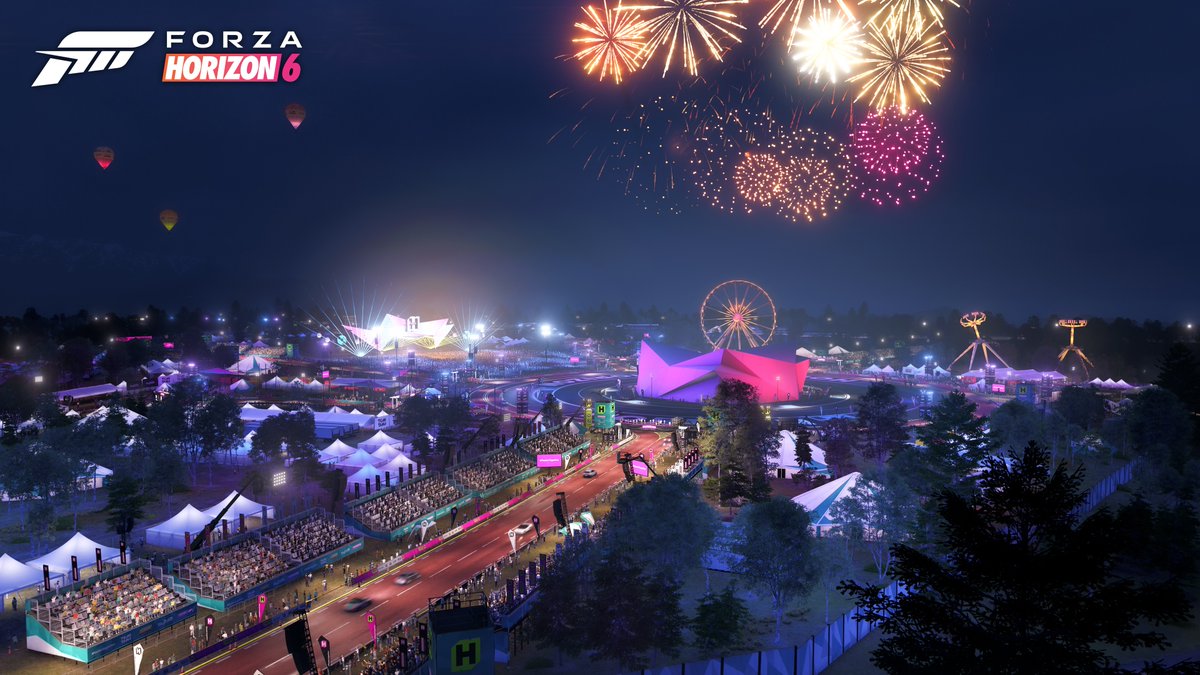
“The RUNE version of Forza Horizon 6 boots to the splash screen, then shows a black screen and crashes to desktop.”
If you’re seeing that kind of launch failure, or messages like “amd_ags_x64.dll is missing,” “could not be located,” or “the code execution cannot proceed because amd_ags_x64.dll…”, the usual cause is a missing, corrupted, blocked, or mismatched game DLL. In one word: the game is failing to load a file it needs to start.
The safest fix is to verify or repair the game files first, then update your GPU driver, run the game as administrator, and check whether antivirus quarantined the file. Avoid random DLL download sites and don’t copy AGS DLLs from unrelated games.

- ✅ Lower ping and fewer disconnects.
- ✅ More FPS and better PC performance.
- ✅ Support for 3000+ games.
- ✅ Stable connections and region switching.
What do these amd_ags_x64.dll error messages mean?
These messages are usually the same problem showing up in different ways:
“amd_ags_x64.dll is missing”: the game can’t find the file where it expects it.
“amd_ags_x64.dll could not be located”: same idea, but sometimes caused by a broken install path or deleted file.
“The code execution cannot proceed because amd_ags_x64.dll…”: Windows found a problem serious enough that the game can’t keep launching.
Why it matters: when this DLL is missing or broken, games may not launch at all.
What is amd_ags_x64.dll in Forza Horizon 6?
In Forza Horizon 6 Wiki, amd_ags_x64.dll refers to the AMD GPU Services Library file used by games for graphics-related initialization and feature handling.
Despite the AMD name, this kind of error is not limited to AMD GPU owners. The game can still throw the error on an Nvidia system if the bundled file is missing, corrupted, blocked, or the install is incomplete.
Common triggers include:
a bad patch or incomplete update
corrupted game files
antivirus quarantine
accidental deletion
outdated graphics drivers
permissions issues
mismatched DLL versions
Why This Error Happens in Forza Horizon 6
The amd_ags_x64.dll not found error usually happens for one of these reasons:
The game file is missing or corrupted
The DLL may be missing from the install folder because the download or update did not finish correctly.
Windows Security or antivirus deleted/quarantined the file
This is very common when the game worked yesterday but fails today.
The game was moved to another drive incorrectly
If the game folder was copied manually instead of moved through Steam, Xbox App, or the launcher, some runtime files may be missing.
The wrong DLL was copied into the folde
Downloading a random DLL from the internet can create a version mismatch. AGS files are not always interchangeable between games.
The game is not an official build
If you are using a repack, cracked version, or modified executable, the DLL may be removed by antivirus or missing from the package. This guide only covers normal troubleshooting for official PC installations.
What should you try first?
Start with the fixes that restore the original game files safely.
1) Verify or repair the game files
If your launcher supports file verification, do this first. It’s the cleanest fix because it replaces missing or damaged files with the correct version for that build.
This is especially important with AGS files, because version mixing can cause crashes and GPU initialization problems.
If your platform has a repair or verify option, run it before doing anything manual.
2) Reinstall the game if verify is unavailable or fails
If file verification doesn’t exist on your launcher, or it finishes and the error still appears, do a clean reinstall.
A reinstall can restore all missing game files, including the correct DLL. If possible:
uninstall the game
reboot the PC
reinstall from the official launcher/source
let all updates finish before launching
If the install was interrupted, paused, or your connection dropped during download, a reinstall is often more useful than chasing the DLL by hand.
3) Update your graphics driver
Because amd_ags_x64.dll is tied to GPU services, an outdated or broken graphics driver can also trip launch problems.
Update whichever driver you actually use:
AMD Adrenalin driver for AMD GPUs
GeForce driver for Nvidia GPUs
Intel graphics driver if you’re on integrated graphics or hybrid laptop setups
A clean driver install can help if a normal update doesn’t.
4) Run the game as administrator
If the file exists but the game can’t access it properly, this can be a permissions problem.
Try:
right-click the game EXE or launcher
choose Run as administrator
if that works, set it in Properties > Compatibility
This is not the most common fix, but it’s quick and worth testing after verify/reinstall and driver updates.
5) Check antivirus quarantine and the Recycle Bin
Security software can sometimes flag or isolate DLL files, especially right after an update or fresh install.
Check:
your antivirus quarantine/history
Windows Security protection history
the Recycle Bin in case the file was deleted manually by mistake
If you find the file in quarantine, restore it only if you’re sure it came from your legitimate game install.
6) Run System File Checker
This won’t usually replace a game-specific DLL by itself, but it can fix underlying Windows corruption that contributes to launch issues.
Open Command Prompt as administrator and run:
sfc /scannow
Then reboot and test the game again.
Can LagoFast Fix the amd_ags_x64.dll Error in Forza Horizon 6?
LagoFast cannot replace a missing amd_ags_x64.dll file. This error usually means the game file is missing, corrupted, blocked by antivirus, or not installed correctly.
To fix the DLL error first:
Verify Forza Horizon 6 game files on Steam or Xbox App.
Check Windows Security quarantine.
Restore the file only if it comes from the official game folder.
Update your GPU driver.
Restart your PC and launch the game again.
After the game can launch normally, LagoFast can help if you still have online problems such as:
failed to connect to server
login timeout
unstable connection
high ping
packet loss
disconnection during multiplayer
slow game update or download speed
How to Use LagoFast After Fixing the DLL Error
Step 1: Download and install LagoFast.
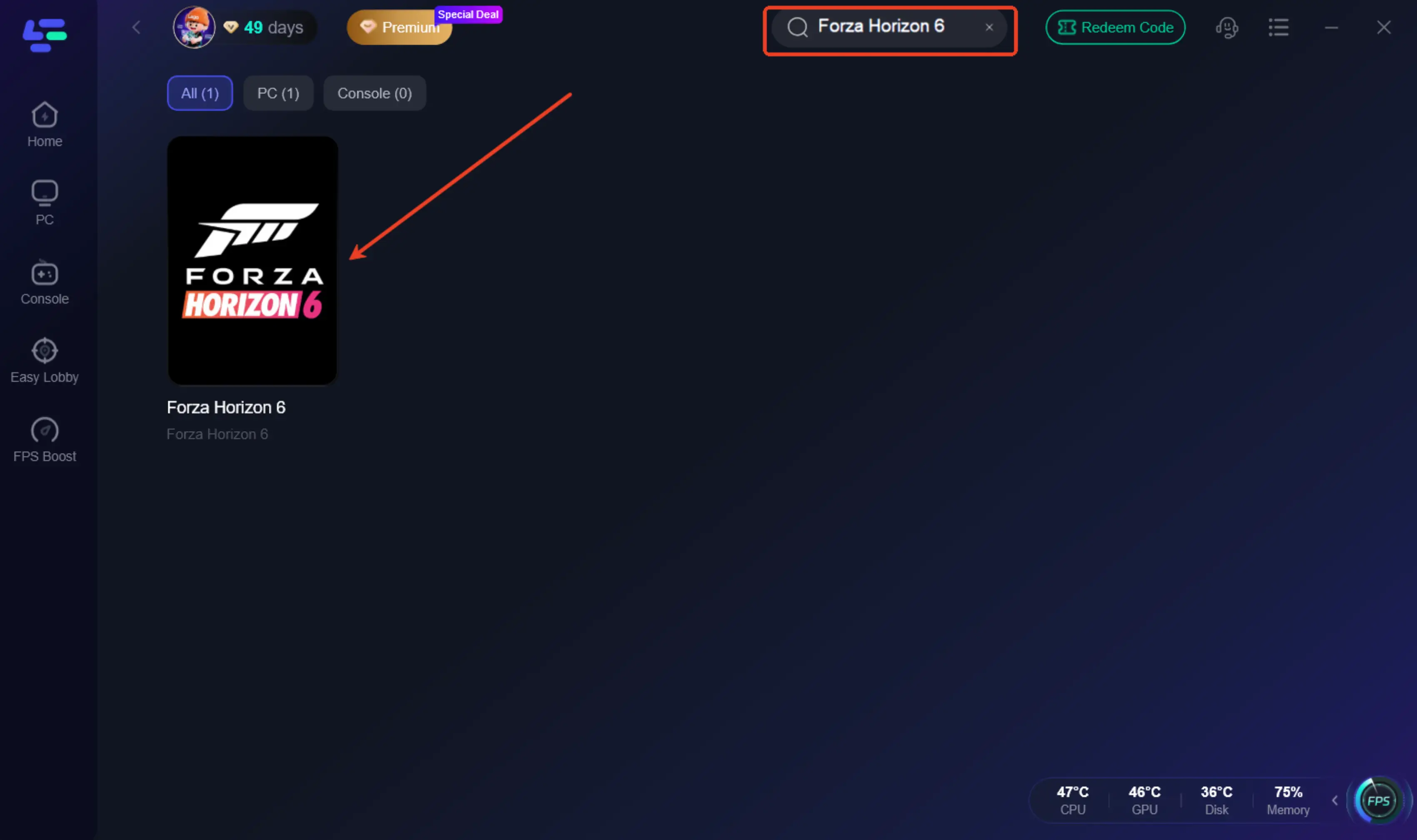
Step 2: Open LagoFast and search for Forza Horizon 6.
Step 3: Choose the server or route closest to your region.
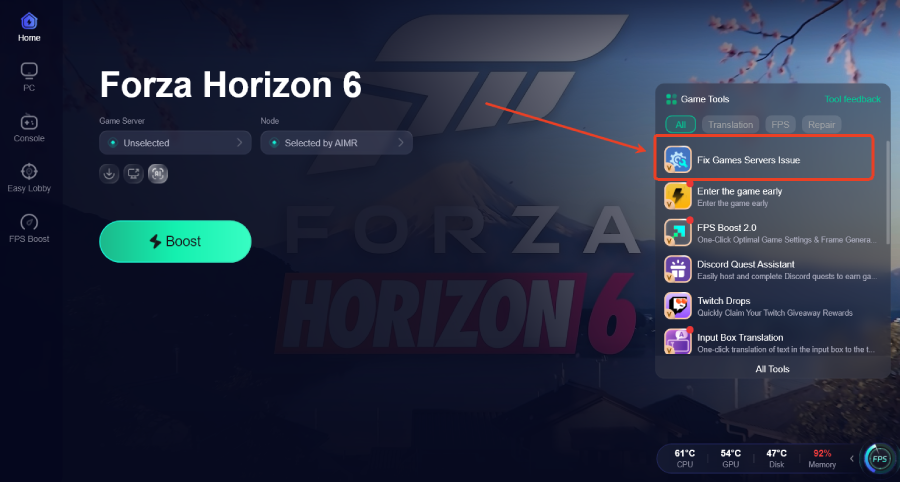
Step 4: Click Boost before launching the game.
Step 5: Start Forza Horizon 6 and check whether the login, multiplayer connection, and server route are stable.
Should you manually replace amd_ags_x64.dll?
Only as a last resort.
If you’ve already tried verify/repair, reinstall, driver updates, admin launch, antivirus checks, and SFC, then manual restoration can make sense — but only if the file comes from the exact same game build or another trusted install of the same version.
Safe rule:
use the file from the same game, same build, same platform source
or restore it through an official reinstall/repair
Unsafe rule:
don’t download random DLLs from DLL websites
don’t copy AGS DLLs from unrelated games
don’t drop a System32 version into the game folder just because it worked for someone else in a different title
That last one matters. Evidence from other games shows AGS versions can differ by year/build, and mixing them can create new crashes instead of fixing the launch.
What’s outside your control?
If the file keeps disappearing after a clean reinstall, or the same error started right after a game update, the issue may be on the game side rather than your PC side.
That usually means one of these:
the shipped game build has the wrong file set
the launcher delivered a bad patch
the current build has a compatibility bug with certain drivers or setups
At that point, repeatedly downloading random DLLs is usually wasted time.
Linux/Proton: is there a different amd_ags_x64 issue?
Possibly, but this is a niche edge case.
On Linux/Proton, some players reporting black screen or FHE01 behavior have pointed to WINEDLLOVERRIDES settings involving amd_ags_x64. One reported fix specifically said to remove an amd_ags_x64=n,b override on Nvidia.
Treat this as limited community-only troubleshooting, not an official fix. It’s also separate from the normal Windows-style missing DLL error.
I would only try this if:
you’re actually on Linux/Proton
your issue is black screen/FHE01 rather than a standard missing DLL popup
you already know how to safely edit launch options and roll them back

Boost Your Game with LagoFast for Epic Speed
Play harder, faster. LagoFast game booster eliminates stutter and lags on PC, mobile, or Mac—win every match!
Quickly Reduce Game Lag and Ping!
Boost FPS for Smoother Gameplay!