
The game refuses to launch.
Some get stuck forever on the loading screen, others see a black screen after the NC logo, and a few watch the client close before even reaching the menu.
For a massive Unreal Engine 5 MMO like Aion 2, startup problems can be game-breaking—if the launcher hangs or the client never opens, you can’t even get to character creation, let alone the first quest.
This guide explains why Aion 2 won’t start, what’s causing black-screen and loading-loop issues, and—most importantly—how to fix them faster.

- ✅Less ping and crashes.
- ✅ Higher FPS and better PC performance.
- ✅ Support for 2000+ games.
- ✅ Stable connection and region switching.
Part 1: What Players Are Reporting
Part 3: How LagoFast Can Fix Launch Problems Faster
Part 1: What Players Are Reporting
“Game opens, black screen, then nothing—it just sits there.”
“After the NC logo, the game hangs forever on the loading page.”
“Launcher says ‘Running,’ but the client never appears.”
These are the exact same symptoms that Aion Online and Lineage W players experienced on launch day—meaning the root causes are usually predictable: driver conflicts, missing permissions, or game resource verification errors.
Part 2: Why It Happens
- Launcher permission conflicts—The anti-cheat module blocks client startup without admin rights.
- GPU driver or DirectX mismatch—Unreal Engine 5 may crash during initialization on outdated or unsupported drivers.
- Overlay software conflicts—tools like Discord, MSI Afterburner, or GeForce Experience hooks can freeze the opening screen.
- Corrupted or incomplete pre-download—Some early files from the preload client are failing checksum verification.
- Windows 11 compatibility mode—known to cause silent crashes with NCSoft launchers.
Part 3: How LagoFast Can Fix Launch Problems Faster
While most launch issues are system-side, unstable network initialization or packet loss can also delay authentication during startup—especially if you’re connecting cross-region (KR/TW servers).
LagoFast helps by:
- Creating a direct route to Aion 2’s login servers, avoiding slow regional ISPs.
- Preventing launcher timeout loops and “connection lost” errors.
- Reducing initial load times by stabilizing data packets.
To use it:
1. Download and install LagoFast.
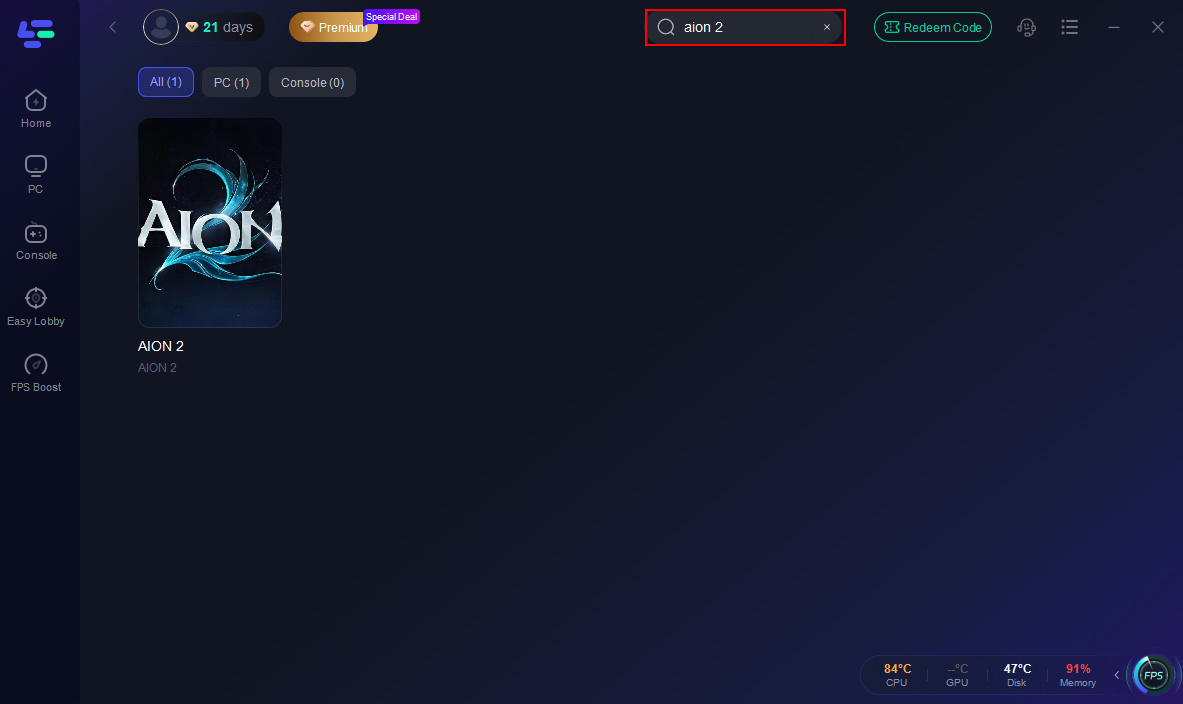
2. Add Aion 2 to your game list.
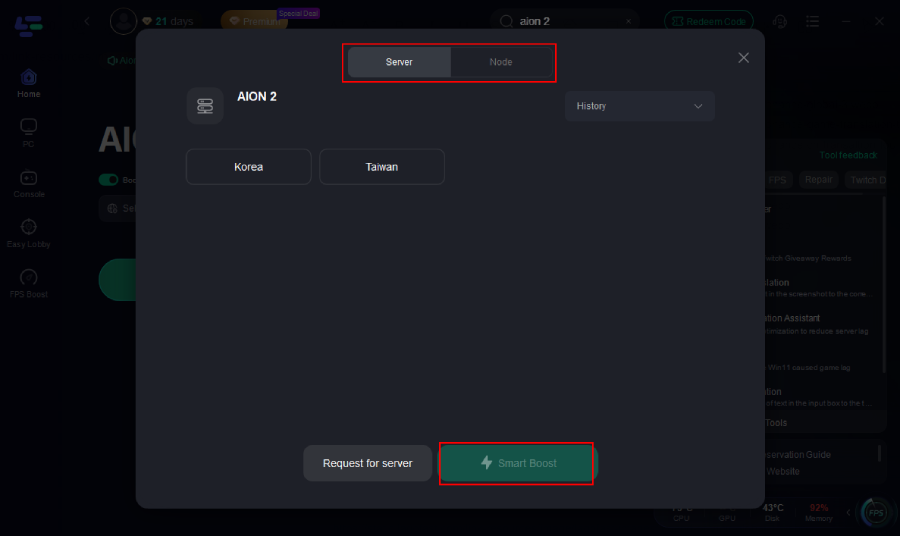
3. Select your nearest route (e.g., Seoul or Taipei).
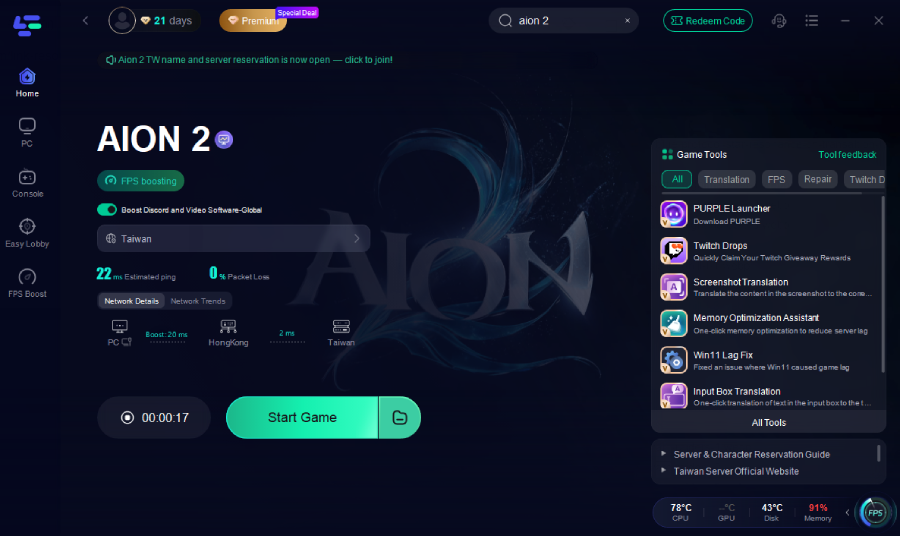
4. Click Start Game and launch through LagoFast’s optimized channel.
Part 4: Step-By-Step Fixes
Step 1. Run as Administrator
Right-click the Aion 2 launcher → Properties → Compatibility → Check “Run this program as administrator.”
Step 2. Disable Overlays Before First Launch
Turn off Discord, Steam, NVIDIA, or any monitoring tools—Unreal Engine titles often hang at boot due to overlay conflicts.
Step 3. Update Graphics Drivers and DirectX
Install the latest NVIDIA/AMD drivers and run the DirectX web installer to ensure Unreal Engine 5 loads properly.
Step 4. Verify Game Files
If you’ve pre-downloaded the client, use NC Launcher’s Repair feature before launch day to check for broken files.
Step 5. Switch to Compatibility Mode (if black screen persists)
Right-click the launcher → Properties → Compatibility → Run in Windows 8 mode; many players fixed blank-window issues this way in previous NCSoft titles.
Step 6. Wait on First Load
During the first startup, Unreal Engine 5 shaders may take 1–3 minutes to compile—don’t close the client too early; black screen doesn’t always mean crash.
Part 5: FAQ
Q: The game shows the NCSoft logo, then goes black. What should I do?
A: Wait 2–3 minutes first. If it doesn’t continue, update your GPU drivers and disable all overlays (Шаг 2, 3).
Q: It says “Running” in the launcher but never opens.
A: Force-close aion2.exe in Task Manager, restart your PC, and run as administrator (Шаг 1).
Q: Will LagoFast help if the launcher times out during login?
A: Yes—it ensures a clean route to Korean/Taiwan login servers, avoiding “network timeout” loops.
Q: Is reinstalling necessary?
A: Only if the repair tool fails. Try verifying files first (Step 4).
Final Thoughts
At major MMORPG launches, “not launching” errors are almost guaranteed—Aion 2’s Unreal Engine 5 base and heavy anti-cheat make it especially sensitive to system conflicts.
Most issues will clear up with basic driver updates, verified files, and disabling overlays. For players outside Korea or Taiwan, LagoFast adds an extra layer of stability, reducing launch delays and ensuring smooth access once the servers open.
Boost Your Game with LagoFast for Epic Speed
Play harder, faster. LagoFast game booster eliminates stutter and lags on PC, mobile, or Mac—win every match!
Quickly Reduce Game Lag and Ping!
Boost FPS for Smoother Gameplay!