

If you’ve recently noticed lag spikes, rubber-banding, or delays in Aion 2, you’re not alone. Many players are struggling with Aion 2 high ping and Aion 2 high latency, especially after recent updates and server congestion. High ping not only ruins your combat timing but can also make PvP or dungeon runs frustratingly unplayable. The good news is—there are proven methods to fix this issue. Whether you’re wondering “Why is my ping suddenly so high in Aion 2?” or looking for the best Aion 2 ping reducer, this guide covers everything you need to know for smoother, lag-free gameplay.

- ✅Less ping and crashes.
- ✅ Higher FPS and better PC performance.
- ✅ Support for 2000+ games.
- ✅ Stable connection and region switching.
Part 1: Why Is Aion 2 High Ping?
Part 2: How to Fix Aion 2 High Ping – 100% Working Methods
Part 1: Why Is Aion 2 High Ping?
Before we jump into the fixes, let’s understand what causes Aion 2 high ping in the first place. Ping measures how long it takes for your game to communicate with the server. The higher the ping, the longer the delay between your actions and what happens on screen.
Here are the most common reasons your Aion 2 ping might be suddenly high:
Long distance from the game server
The farther your location is from the Aion 2 game server, the longer the data needs to travel, leading to high latency.

Network congestion
Too many users on the same network—especially during peak hours—can cause bandwidth bottlenecks and unstable ping.
ISP routing problems
Your Internet Service Provider might not have an optimized route to the Aion 2 servers, resulting in delayed data transmission.
Background downloads or updates
Other applications or system updates consuming your bandwidth can cause Aion 2 high ping spikes mid-game.
Outdated network drivers or firmware
Old drivers or router firmware may not handle modern network optimizations efficiently, increasing your latency.
Wi-Fi interference
Wireless connections are convenient but often unstable, especially when there’s interference from other devices or thick walls between you and your router.
Identifying the cause is crucial before applying the right fix. However, if you want the fastest and all-in-one solution—LagoFast is your best bet.
Part 2: How to Fix Aion 2 High Ping - 100% Working Methods
LagoFast – The Most Effective and All-in-One Way to Fix Aion 2 High Ping
When it comes to lowering Aion 2 ping, LagoFast is hands-down the most reliable and complete solution available today. It’s an advanced Aion 2 ping reducer designed specifically for gamers who want instant performance improvement.
LagoFast uses exclusive data transmission protocols and global acceleration nodes to ensure your game data always takes the shortest and fastest route to Aion 2 servers. Whether you’re playing on PC, Android, or iOS, LagoFast optimizes your network connection in real time, eliminating lag, stutters, and disconnections.
Key Features of LagoFast:
- Smart Routing Technology: Automatically connects to the fastest route between your device and Aion 2 server.
- Global Server Coverage: Hundreds of nodes worldwide for optimal ping regardless of region.
- Dedicated Gaming Acceleration: Prioritizes game traffic over background data for stable gameplay.
- Cross-Platform Support: Works on PC, consoles and mobile platforms, perfect for Aion 2 on all devices.
- Easy to Use: LagoFast offers a user-friendly interface that makes getting started effortless, even for beginners.
Tutorial to use LagoFast to fix high ping in Aion 2 on PC:
Step 1: Begin by clicking the Free Trial button to download and install the LagoFast Free Trial.
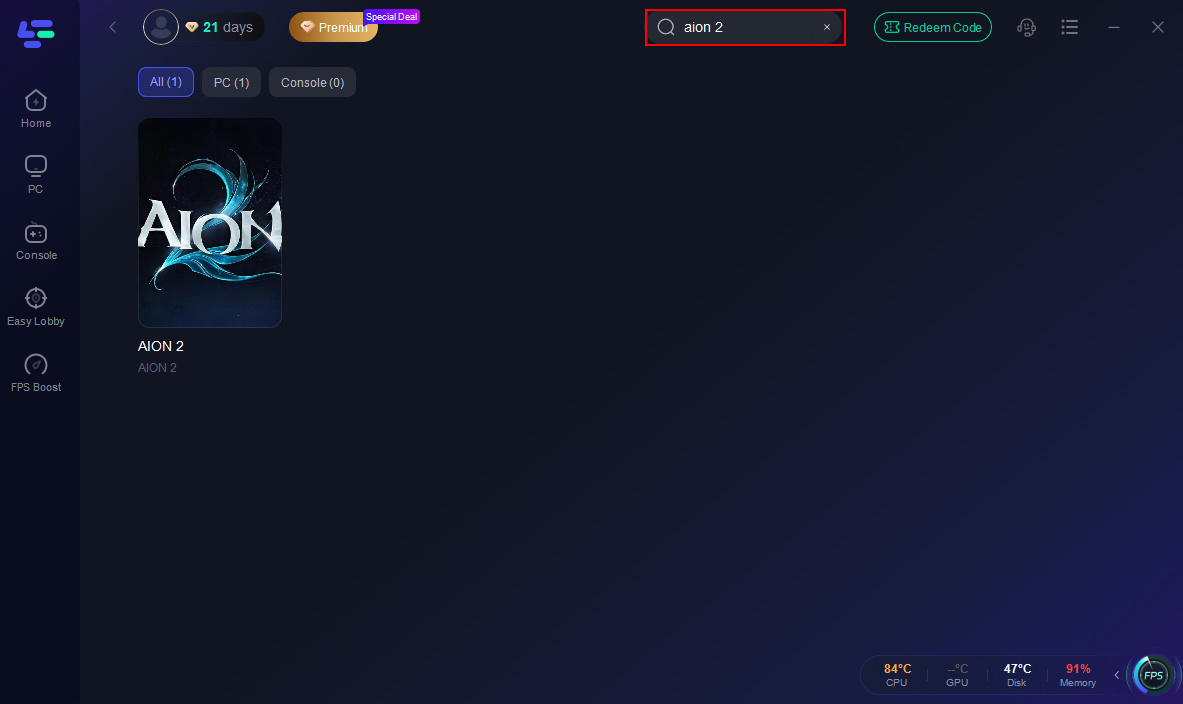
Step 2: Search for Aion2: Open LagoFast and use the search bar to find Aion2.
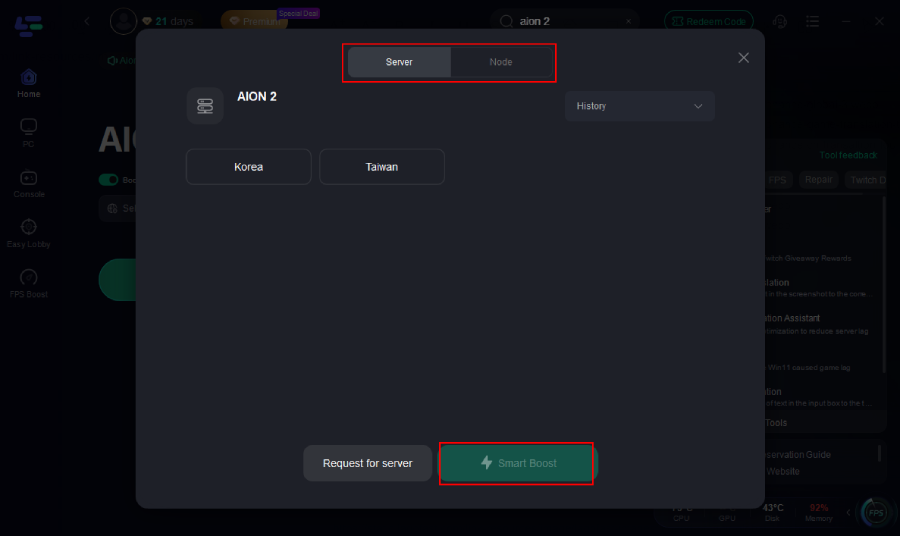
Step 3: Optimize Network Settings: LagoFast will automatically select the optimal server and settings to reduce latency and packet loss
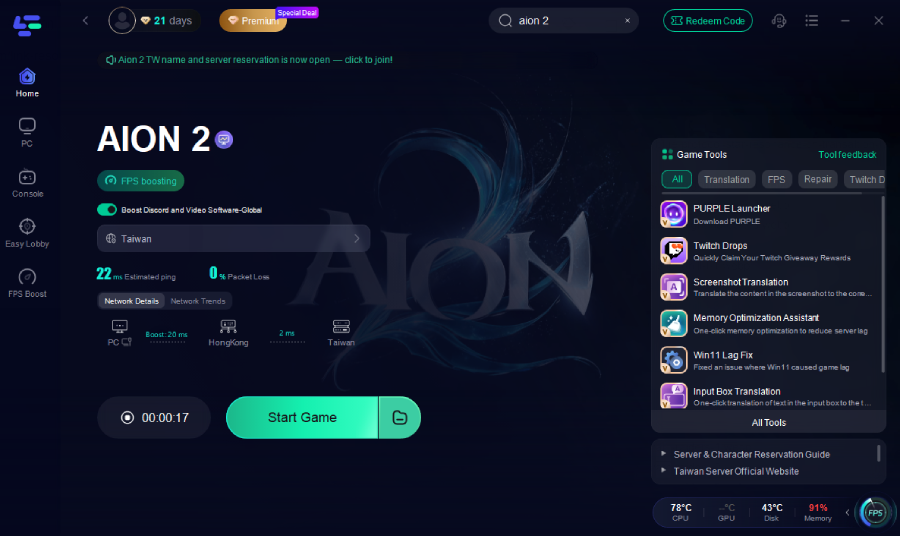
Step 4: Launch the Game: Start Aion2 through LagoFast to enjoy improved performance and stability.
Switch to a Wired Ethernet Connection
A wired connection is always more stable than Wi-Fi. Wireless interference and packet loss can cause inconsistent ping spikes in Aion 2.
Steps:
Step 1: Plug your PC or laptop directly into the router using an Ethernet cable.
Step 2: Disable Wi-Fi to prevent automatic switching between connections.
Step 3: Ensure the cable is properly connected and not damaged.
Step 4: Run a speed test to confirm connection stability.
Step 5: Launch Aion 2 and check if your ping has improved.
Close Background Applications and Updates
Background tasks can secretly consume bandwidth and increase latency.
Steps:
Step 1: Press Ctrl + Shift + Esc to open Task Manager.
Step 2: Identify processes consuming high network usage (like Steam, Chrome, or Windows Update).
Step 3: Right-click and choose “End Task.”
Step 4: Pause any ongoing game downloads or cloud syncs.
Step 5: Re-launch Aion 2 and test your ping again.
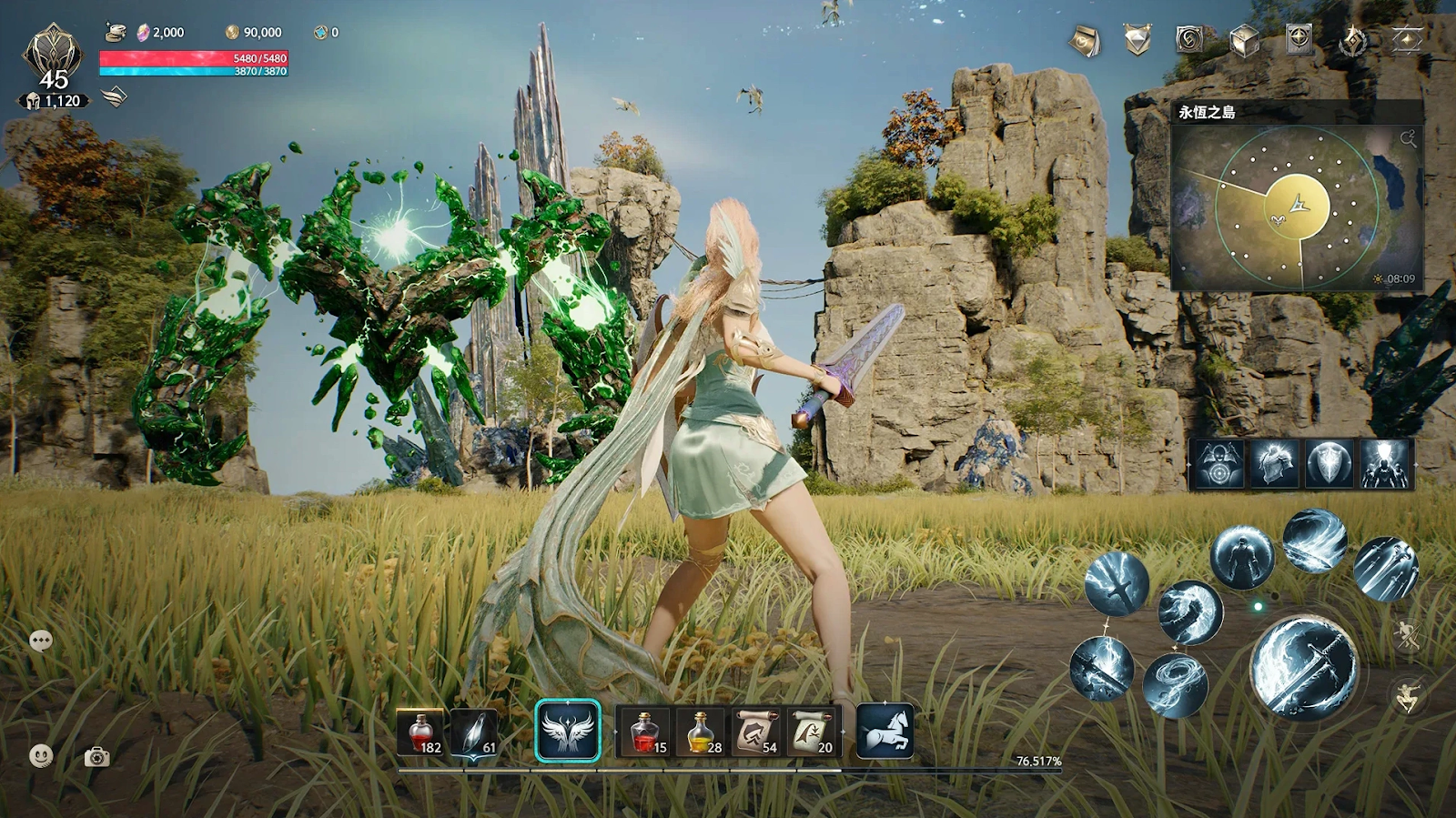
Optimize In-Game Network Settings
Aion 2’s network settings can sometimes cause unnecessary strain on your system.
Steps:
Step 1: Open Aion 2 and go to “Settings.”
Step 2: Navigate to “Network” or “Connection Settings.”
Step 3: Disable unnecessary visual updates like high-frequency pings or background data.
Step 4: Reduce graphics settings to lower data load.
Step 5: Restart the game and monitor ping stability.
Update Network Drivers and Router Firmware
Outdated network drivers or router firmware can cause instability and delay.
Steps:
Step 1: Press Win + X → select “Device Manager.”
Step 2: Expand “Network Adapters.”
Step 3: Right-click your adapter and choose “Update driver.”
Step 4: Visit your router manufacturer’s website and download the latest firmware.
Step 5: Restart both your PC and router after updates.
Change DNS Server for Faster Resolution
Using a faster DNS can reduce latency when connecting to Aion 2 servers.
Steps:
Step 1: Open “Network & Internet Settings.”
Step 2: Click on “Change Adapter Options.”
Step 3: Right-click your connection → Properties → “Internet Protocol Version 4 (TCP/IPv4).”
Step 4: Select “Use the following DNS server addresses.”
Step 5: Enter 8.8.8.8 and 8.8.4.4 (Google DNS) or 1.1.1.1 (Cloudflare DNS).
Choose the Nearest Server or Region
Server distance plays a massive role in ping levels.
Steps:
Step 1: Launch Aion 2 and log into your account.
Step 2: Go to server selection or region settings.
Step 3: Choose the closest geographical region to your location.
Step 4: Confirm and restart the game to connect to the new server.
Step 5: Use LagoFast afterward for additional routing optimization.
Extra Tips to Reduce Lag in Aion 2
- Reboot your router once a week to clear memory buildup.
- Avoid using public Wi-Fi for gaming.
- Set Aion 2 to “High Priority” in Windows Task Manager.
- Use a gaming router with QoS (Quality of Service) settings.
- Regularly scan for malware or background programs that consume bandwidth.
Conclusion
Experiencing Aion 2 high ping or sudden latency spikes doesn’t mean you have to live with lag forever. Whether it’s caused by server distance, network congestion, or outdated settings, there are reliable fixes available. While manual tweaks can help, the most efficient and guaranteed solution remains LagoFast—the ultimate Aion 2 ping reducer for smooth, delay-free gameplay. With smart routing and real-time optimization, LagoFast ensures your skills, reactions, and strategies are perfectly timed. Start using LagoFast today and say goodbye to Aion 2's high latency once and for all.

Boost Your Game with LagoFast for Epic Speed
Play harder, faster. LagoFast game booster eliminates stutter and lags on PC, mobile, or Mac—win every match!
Quickly Reduce Game Lag and Ping!
Boost FPS for Smoother Gameplay!