
Quick Answer: Why Aion 2 DPS Tracker (Meter) Is Not Working and How to Fix It?
If your Aion 2 DPS tracker is not working, the problem usually comes from overlay settings, display mode, tracker permissions, unsupported game patches, server compatibility, or character detection issues. In some cases, the DPS meter may open correctly but show no data, fail to detect damage, display the wrong player name, or stop updating during dungeon and raid fights. The fastest way to bypass these traditional packet-parsing and display bugs is to use a dedicated, fully integrated gaming tool like LagoFast’s DPS Tracker. Built directly into a specialized gaming network and optimization framework, LagoFast avoids the broken overlays and missing combat logs that plague standard third-party tools.
Maxing out your damage output in a massive Unreal Engine 5 MMORPG like Aion 2 requires precision. You need to know exactly how your skill rotations are performing during high-stakes aerial combat and multi-stage raids. However, running into a broken or completely non-responsive DPS meter can instantly stall your progression, leaving you blind to your actual combat stats. When your combat overlay goes blank right in the middle of a major instance, troubleshooting it quickly becomes top priority.

- ✅Less ping and crashes.
- ✅ Higher FPS and better PC performance.
- ✅ Support for 8000+ games.
- ✅ Stable connection and region switching.
Part 1: Why Is Your Aion 2 DPS Tracker Not Working?
Part 2: Common Aion 2 DPS Tracker Problems
Part 3: Quick Fixes for Aion 2 DPS Meter Not Working
Part 4: How to Fix Aion 2 DPS Tracker Not Showing Data
Part 5: How to Fix Aion 2 DPS Meter Overlay Not Showing
Part 6: How to Fix Wrong DPS Numbers or Missing Damage
Part 7: Aion 2 DPS Tracker Not Working After Update
Part 8: Is Aion 2 Blocking DPS Trackers?
Part 9: How to Prevent DPS Tracker Problems in Dungeons and Raids
Part 10: How LagoFast Helps with Aion 2 Performance and Tracking
Part 1: Why Is Your Aion 2 DPS Tracker Not Working?
Modern performance tracking tools pull structural data dynamically as the game client exchanges packets with the live server. Because they rely on precise timing, display settings, and network alignment, even a minor system conflict can cause the tracker to lose its grip on the data stream.
When your metrics stall, the culprit is usually a mismatch in admin privileges, a window focus conflict, an overprotective firewall, or an outdated software patch struggling to read a newly deployed game version.
Part 2: Common Aion 2 DPS Tracker Problems
Players run into a handful of distinct errors when trying to measure their real-time output. Identifying the exact behavior of your issue makes it much easier to deploy the right solution.
DPS Meter Not Showing Any Data
The program launches smoothly and the UI framework is clearly visible on your screen, but the numbers remain stuck at zero. This happens when the tool is active but completely blind to the game's combat logs or network traffic, meaning no raw data is being processed.
DPS Tracker Not Detecting Damage
You are actively executing your rotation and seeing damage numbers fly off the enemies on screen, yet the tracker registers nothing. This occurs when the tool fails to intercept specific combat packets or when local memory addresses shift after a micro-patch.
Overlay Not Showing in Game
The software indicates it is running perfectly in the background, but the visual overlay refuses to render over your game screen. This is almost always caused by graphics settings blocking third-party apps from drawing elements on top of the active window.
Party DPS Not Tracking
Your personal damage bars rise and fall accurately, but the columns for your party members remain completely blank. The tool is successfully reading local client actions but failing to parse the broader zone-wide network data that includes your teammates.
Raid DPS Not Updating
Everything works beautifully during regular exploration, but the moment you step into a massive multi-group raid instance, the entire window freezes. High volume combat events can overwhelm poorly optimized packet sniffers, causing data drops.
Wrong Damage Numbers or Missing Skills
The tracker is running, but the final numbers feel incredibly low or completely leave out specific high-tier skill bursts. This occurs when complex skill modifications, damage-over-time (DoT) ticks, or companion/summon damage are miscalculated or ignored.
Character Shows as Unknown Player
Instead of reading your actual character name, the main data bar labels you or your group members as "Unknown Player." This is a classic symptom of a desynced initial loading phase where the tool missed the login packet identifying the characters.
DPS Tracker Crashes or Freezes
The app simply locks up or closes itself entirely mid-fight. This points directly to severe RAM bottlenecks, CPU scheduling conflicts, or deep software incompatibilities with Windows backend processes.
Part 3: Quick Fixes for Aion 2 DPS Meter Not Working
Before diving into complex troubleshooting menus, try these highly effective, rapid workarounds to restore your tracking utility.
Restart the DPS Tracker Before Launching Aion 2
Order of operations is vital for telemetry tools. If you launch your game client first, it secures system resources and blocks outside apps from hooking into its memory stream. Always boot your utility software first, let it idle, and then hit launch on your game client.
Run the Tracker as Administrator
Without elevated system rights, third-party software cannot read or write data inside protected system folders like Program Files. Right-click your tracking utility’s executable file, select Run as Administrator, and confirm the pop-up prompt.
Switch from Exclusive Fullscreen to Borderless Windowed
Exclusive Fullscreen prevents secondary applications from rendering graphics directly over the primary display layer. Dive into your in-game graphic settings, locate the display mode drop-down menu, and toggle it to Borderless Windowed or Windowed Mode.
Check Game Resolution and Display Scaling
If your Windows OS display scaling is set to 125% or 150% on a high-resolution 4K monitor, your overlay window might actually be rendering off-screen or shrinking down to an invisible 1-pixel boundary. Set your display scaling back to 100% to test if the window reappears.
Update the DPS Tracker to the Latest Version
Whenever NCSoft pushes out a balance update or a security patch, internal data structures shift slightly. If your application version is outdated, it will fail to read the modified client data. Check for updates manually or download the newest version directly from the developer's official hub.
Allow the Tracker Through Windows Security or Antivirus
Because tracking applications inspect packet flows and active memory layers, aggressive antivirus systems frequently flag them as false positives. Add the entire folder of your tracking application to your antivirus and Windows Defender exclusion lists.
Re-enter the Character or Teleport to Refresh Detection
If your character name is showing up as "Unknown" or your values are frozen after a long loading screen, try using a teleport scroll or returning briefly to the character selection screen. Forcing a zone change forces the game server to resend fresh packet metadata to your client.
Restart the Game and Tracker Together
When all else fails, a clean wipe of your active memory state clears out stuck background tasks. Fully shut down your game launcher, kill any lingering processes via the Task Manager, and start both programs fresh.
Part 4: How to Fix Aion 2 DPS Tracker Not Showing Data
If your interface launches smoothly but stays completely blank with zero numbers during a fight, use this sequence to fix the data stream link:
Step 1. Locate Your Game Log Folder: Navigate directly to your installation directory (e.g., C:\Games\Aion2\Client). Look for a subfolder named Logs.
Step 2. Enable In-Game Chat Logging: Open your in-game settings menu, navigate to Chat/Log options, and verify that combat log output is actively enabled. If the game isn't printing text files of your combat events, your tracking tool has nothing to scan.
Step 3. Verify File Permissions: Right-click your game’s Logs folder, choose Properties, click the Security tab, and verify that your system user profile possesses full read and write permissions.
Step 4. Clear Old Log Cache: If your text log files grow to massive multi-gigabyte sizes, your application will choke trying to read through them. Delete or archive old text files inside the folder so the program only has to scan fresh data.
Part 5: How to Fix Aion 2 DPS Meter Overlay Not Showing
When your numbers are working in the background but the actual visual dashboard refuses to appear on top of your screen, follow these layout configuration steps:
Step 1. Disable Overlapping Apps: Turn off Discord Overlay, GeForce Experience Overlay, OverlayExpert, and RivaTuner Statistics Server. Having multiple programs fighting to draw on the exact same screen coordinates causes them to cancel each other out.
Step 2. Check Game Graphics API: If the tracking tool relies on DirectX 11 hooks and your game client is utilizing DirectX 12 or Vulkan, the interface cannot draw its layout. Match your game’s graphics engine settings to the exact version supported by your application.
Step 3. Reset UI Positioning: Open your tracker’s settings file (usually a .json or .ini file in its installation folder) and look for the window coordinate values (X and Y). Set them manually back to 0,0 to place the box back into the top-left corner of your primary screen.
Part 6: How to Fix Wrong DPS Numbers or Missing Damage
If your metrics feel heavily delayed, or if massive bursts of damage are completely missing from your history charts, tune your processing parameters:
Step 1. Adjust Update Frequency: Inside your app's configuration dashboard, locate the tick-rate or update frequency interval slider. Lowering it to 100ms or 200ms makes the tracking incredibly responsive, while raising it reduces CPU load during massive multi-faction wars.
Step 2. Fix Parsing Filters: Make sure your tool isn't filtering out critical parameters like passive pet damage, summon spells, shield absorption values, or damage-over-time (DoT) applications. Toggle "Include Minions/Summons" to true.
Step 3. Synchronize System Time: Time-stamps on incoming server packets must line up exactly with your local computer clock. Go to your Windows settings, open Time & Language, and click Sync Now to ensure your system clock matches global atomic clocks perfectly.
Part 7: Aion 2 DPS Tracker Not Working After Update
MMORPGs are constantly changing digital environments. Whenever a major content seasonal drop or system maintenance concludes, the internal memory offsets change entirely. This means that an application that worked perfectly on a Tuesday night might be completely broken by Wednesday morning.
When this occurs, there is nothing wrong with your personal computer configuration. You simply have to wait for the open-source community or the tool developers to analyze the new game files, rewrite the memory maps, and push an updated build out to the public. If you want a hassle-free experience that updates automatically behind the scenes alongside game patches, switching to an enterprise-supported solution like LagoFast keeps you ahead of the curve.
Part 8: Is Aion 2 Blocking DPS Trackers?
NCSoft maintains a strict stance against cheating, scripting hacks, and malicious software. Standard, passive tracking monitors that simply look at combat logs or read outgoing network data packets traditionally do not violate these parameters, as they offer zero automated advantages or gameplay execution modifications.
However, if your third-party tracker injects custom code directly into the Aion 2 execution thread or manipulates protected system memory, the built-in anti-cheat system will flag it, instantly shutting down the app or blocking your account connection entirely. To avoid these severe account safety risks, always use clean, officially verified utility suites that work seamlessly alongside anti-cheat architectures.
Part 9: How to Prevent DPS Tracker Problems in Dungeons and Raids
To keep your tracker running smoothly during chaotic, high-density group encounters, optimize your background setup before you queue up:
|
Action |
Why It Works |
|
Clear old log history |
Keeps the tracker's database lightweight and prevents memory bottlenecks. |
|
Lower combat text clutter |
Reduces the processing burden on both your game client and your local storage drive. |
|
Set tracker CPU priority to High |
Ensures Windows allocates enough processing power to parse data during intense fights. |
|
Disable non-essential plugins |
Minimizes the risk of internal script conflicts that can freeze your overlay. |
Part 10: How LagoFast Helps with Aion 2 Performance and Tracking
Instead of wrestling with unstable community modifications, broken overlays, and tools that risk tripping anti-cheat bans, switching to LagoFast provides an all-in-one alternative. LagoFast features a built-in, completely safe Team DPS Tracking tool optimized specifically for major MMO environments. Because it functions alongside an advanced network booster, it captures data directly from your optimized game connection without relying on risky memory injection or unreliable log parsing.
Key Features of LagoFast:
- Real-Time Team DPS Tracking: Monitor your personal damage output and your entire party's performance smoothly without interface lag or frozen values.
- All-in-One Optimization Dashboard: Track your combat statistics, system temperatures, and framerates simultaneously within a clean, reliable overlay.
- Ping Stabilization and Route Optimization: Drastically lower your latency and remove packet loss, ensuring your damage numbers update instantly without dropped data.
- Hardware FPS Booster: Safely cleans background system processes to unlock maximum framerates and buttery-smooth gameplay, even during massive open-world faction warfare.
LagoFast doesn't just stop at precise performance tracking; it actively optimizes your network routing to eliminate lag spikes, screen stuttering, and packet loss mid-combat.
Step-by-Step Tutorial to Use LagoFast to Track Party Member Damage:
Step 1: Click the Free Trial button to download and install LagoFast.
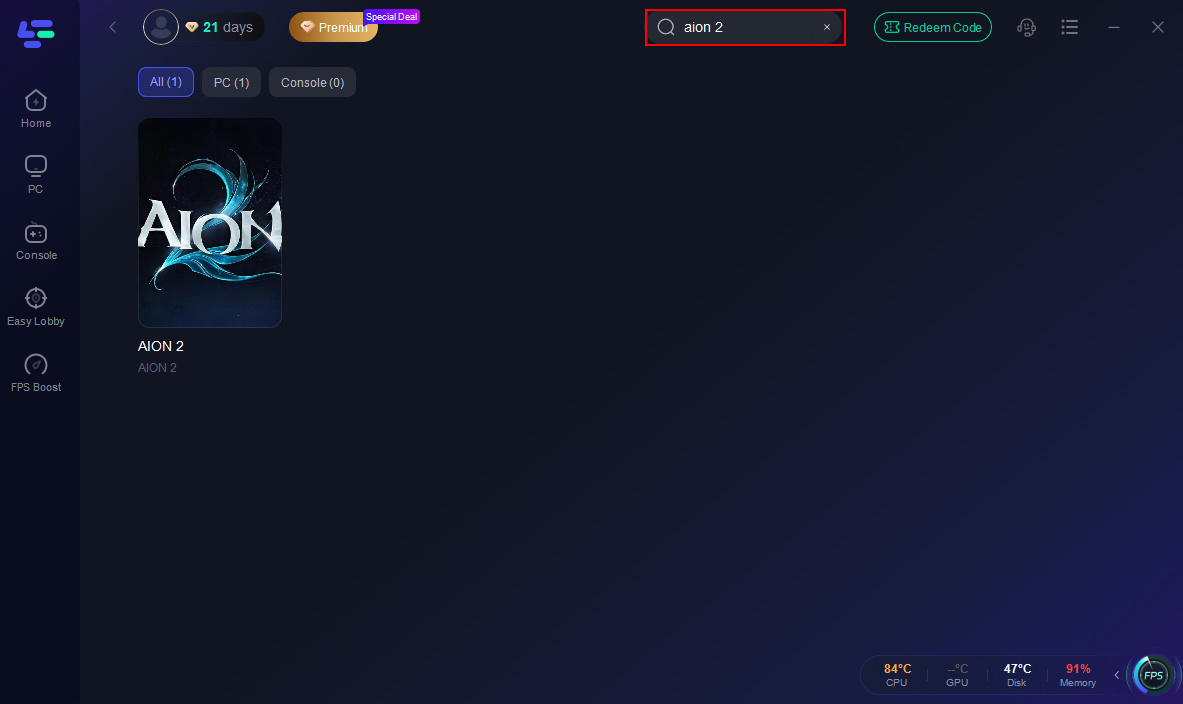
Step 2: Open LagoFast, then click the PC button on the left, search for Aion 2 in the search bar, and click it after it appears.
Step 3. Click the Real-time DPS Tracker in the Game tool Section.
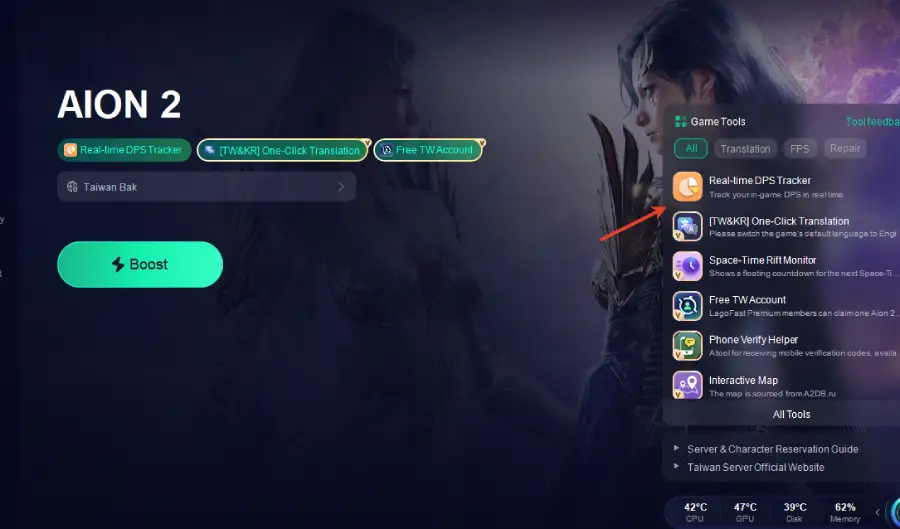
Step 4. Before launching the game, toggle the launch button of Team DPS Tracking Tool to "On."
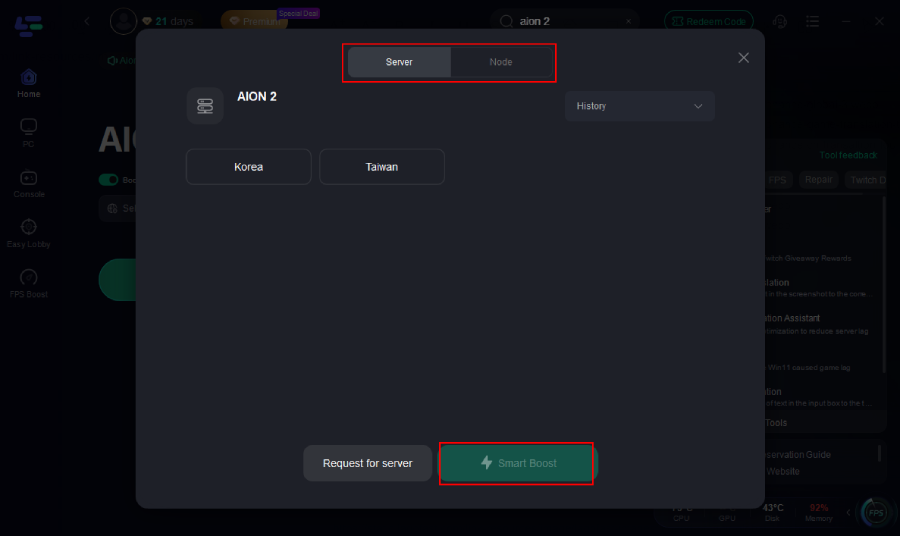
Step 5: Go back to the main interface and click on Server to change to a better server that ensures a better gaming experience, then click on Boost to fix Aion 2 lag and stuttering.
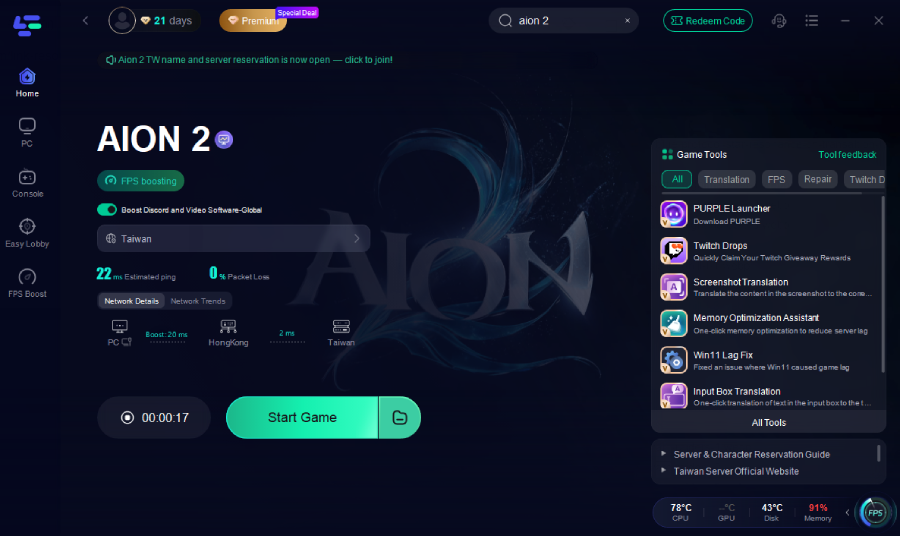
Step 6: Check the specific game ping, packet loss, and multiple path connections on the right side. Finally, click “Start Game” to play the game.
Part 11: FAQs
Why does my DPS tracker freeze only during major boss fights?
The massive flood of combat text, status effects, and multi-player damage updates during boss encounters can overwhelm inefficient software engines, causing the data parser to lag behind and freeze up.
Can I get banned for using a damage meter in Aion 2?
You will not get banned for using a passive, network-based tracking tool like LagoFast. However, you do run a serious risk of an anti-cheat ban if you use unverified tools that modify or inject code into the game's memory files.
Why can I see my own damage numbers but not my party members' stats?
Your tool is likely reading your local client animations rather than the incoming server packets. Ensure administrator privileges are enabled so the program can see all incoming party data over your network card.
Does changing my graphics settings affect the overlay display?
Yes. Running the game in exclusive fullscreen mode can completely hide external overlays. Switching your display profile to borderless windowed mode ensures consistent overlay rendering.
Why does my character show up as "Unknown" in the tracker?
This occurs when the tracker is launched after you have already logged into the world, causing it to miss the initial authentication packets that link your character ID to your account name.
Do I need to update my tracker every single time the game patches?
Yes. Even minor server changes can alter the structure of combat data logs, requiring an updated version of the tracking software to read the new layouts accurately.
Conclusion
A broken DPS tracker can severely disrupt your progression, but most issues can be resolved by adjusting your system permissions, fixing display modes, or updating your software. For a hassle-free experience that combines highly accurate tracking with real network optimization, utilizing LagoFast keeps your combat insights clear, safe, and running smoothly.

Boost Your Game with LagoFast for Epic Speed
Play harder, faster. LagoFast game booster eliminates stutter and lags on PC, mobile, or Mac—win every match!
Quickly Reduce Game Lag and Ping!
Boost FPS for Smoother Gameplay!