
AION 2 brings stunning visuals and demanding real-time combat, making optimal performance essential for every player. Navigating graphics configurations can be tricky, especially when balancing image clarity with high frame rates. In this AION 2 DLSS 4.5 guide, we break down the ideal configurations, compare modes, and solve common issues like missing DLSS options. To skip tedious manual setup, game boosters like LagoFast offer simple one-click optimization for smoother gameplay.

- ✅ Reduce Lag and High Ping.
- ✅ Boost FPS at the Same Time.
- ✅ Support 8000+ Popular Online Games.
- ✅ Stable Server Connection
Part 1: Does AION 2 Support DLSS 4.5?
Part 2: What Does DLSS 4.5 Change in AION 2?
Part 3: How to Enable DLSS 4.5 in AION 2
Part 4: Best AION 2 DLSS 4.5 Settings
Part 5: Best DLSS Settings for Different RTX GPUs
Part 6: Best DLSS Settings for Different AION 2 Scenarios
Part 7: Simplify AION 2 DLSS Optimization with LagoFast
Part 8: AION 2 DLSS Errors and Solutions
Part 9: Why AION 2 Still Stutters With DLSS Enabled
Part 1: Does AION 2 Support DLSS 4.5?
AION 2 natively integrates modern upscaling standards to ensure smooth frame rates across different hardware configurations. The game officially supports NVIDIA DLSS 4.5 along with Frame Generation on compatible hardware. Players running modern NVIDIA graphics cards can leverage these upscaling features to boost performance significantly while maintaining sharp image fidelity during intense battles.
Part 2: What Does DLSS 4.5 Change in AION 2?
The arrival of DLSS 4.5 brings significant improvements over older upscaling iterations, directly benefiting the detailed visual world of AION 2. Here is a quick breakdown of what DLSS 4.5 improves in the game:
- Enhanced Ray Tracing Reconstruction: Improves real-time lighting, reflection clarity, and skin texture details on player models.
- Fewer Motion Artifacts: Reduces ghosting and trailing effects during fast-paced PvP combat and flying sequences.
- Improved Hair and Foliage Rendering: Keeps intricate details like character hair and environmental grass crisp rather than blurry.
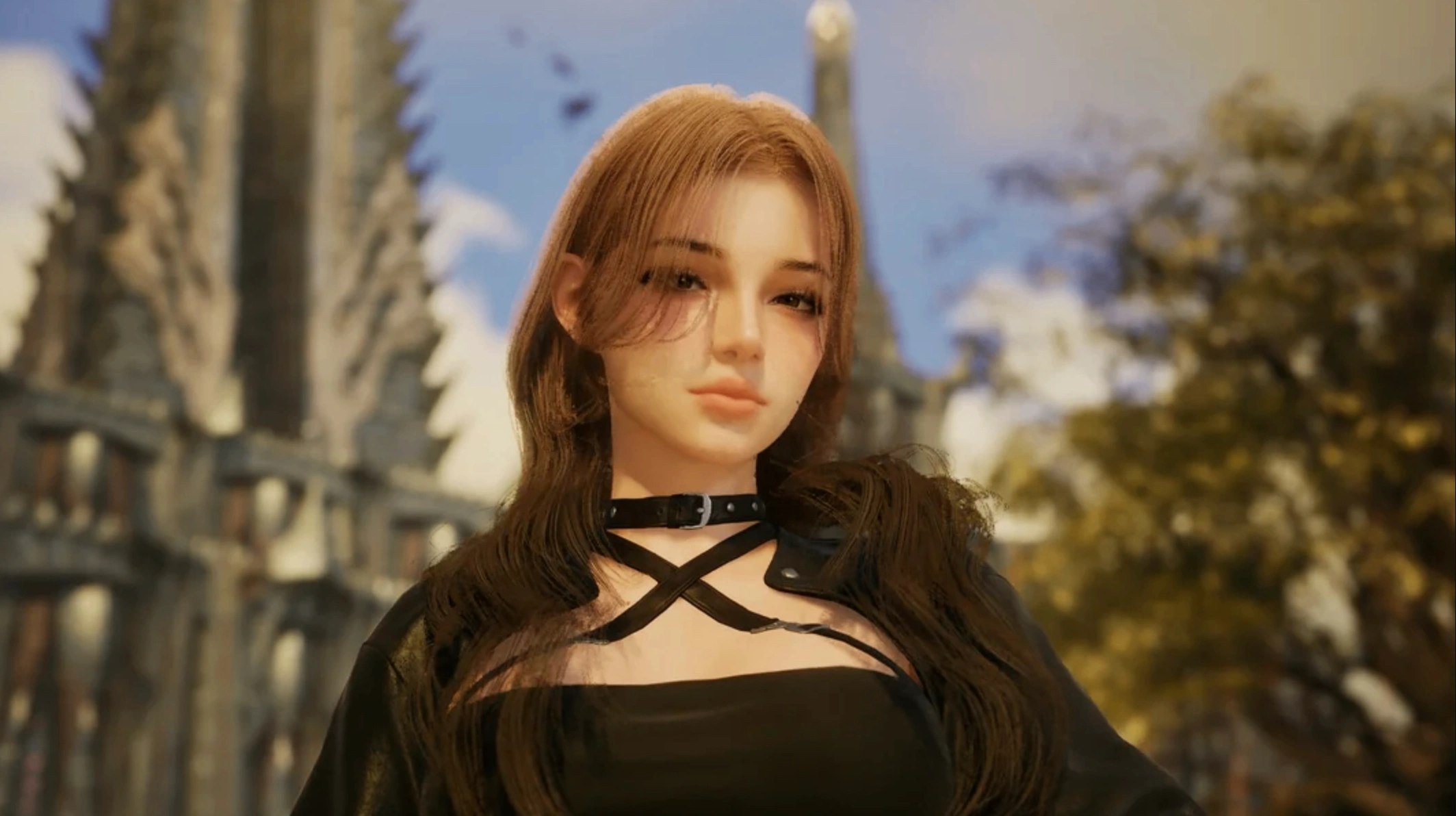
- Smarter Temporal Stability: Delivers a cleaner image that closely matches native resolution without steep performance penalties.
Part 3: How to Enable DLSS 4.5 in AION 2
Enabling DLSS 4.5 in AION 2 requires just a few simple steps inside your system and game settings. Follow these clear steps to activate upscaling properly:
Step 1: Update your NVIDIA GPU drivers to the latest release using GeForce Experience or the official NVIDIA website.
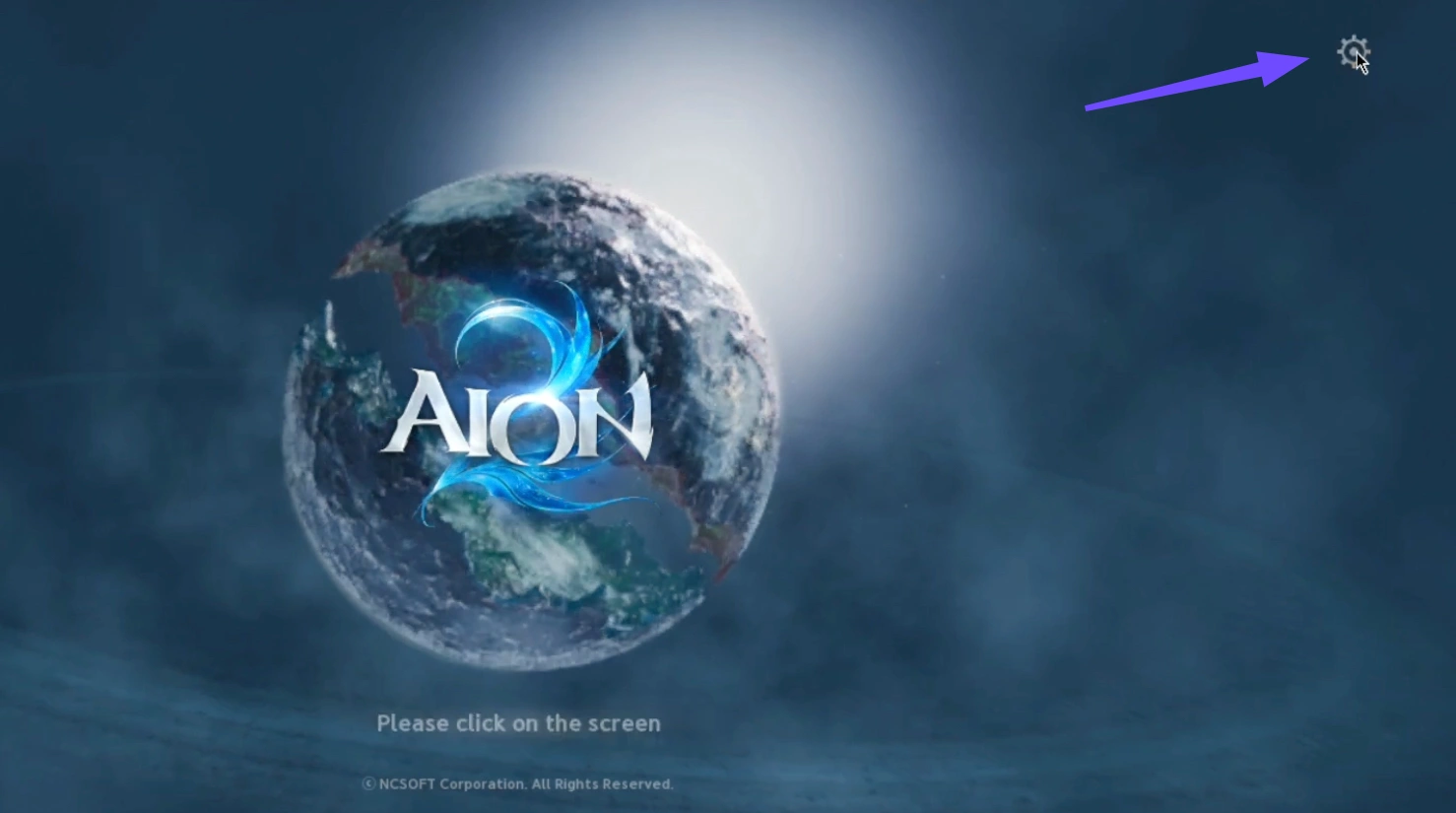
Step 2: Launch AION 2 and open the main Settings menu.
Step 3: Navigate to the Display or Graphics tab.
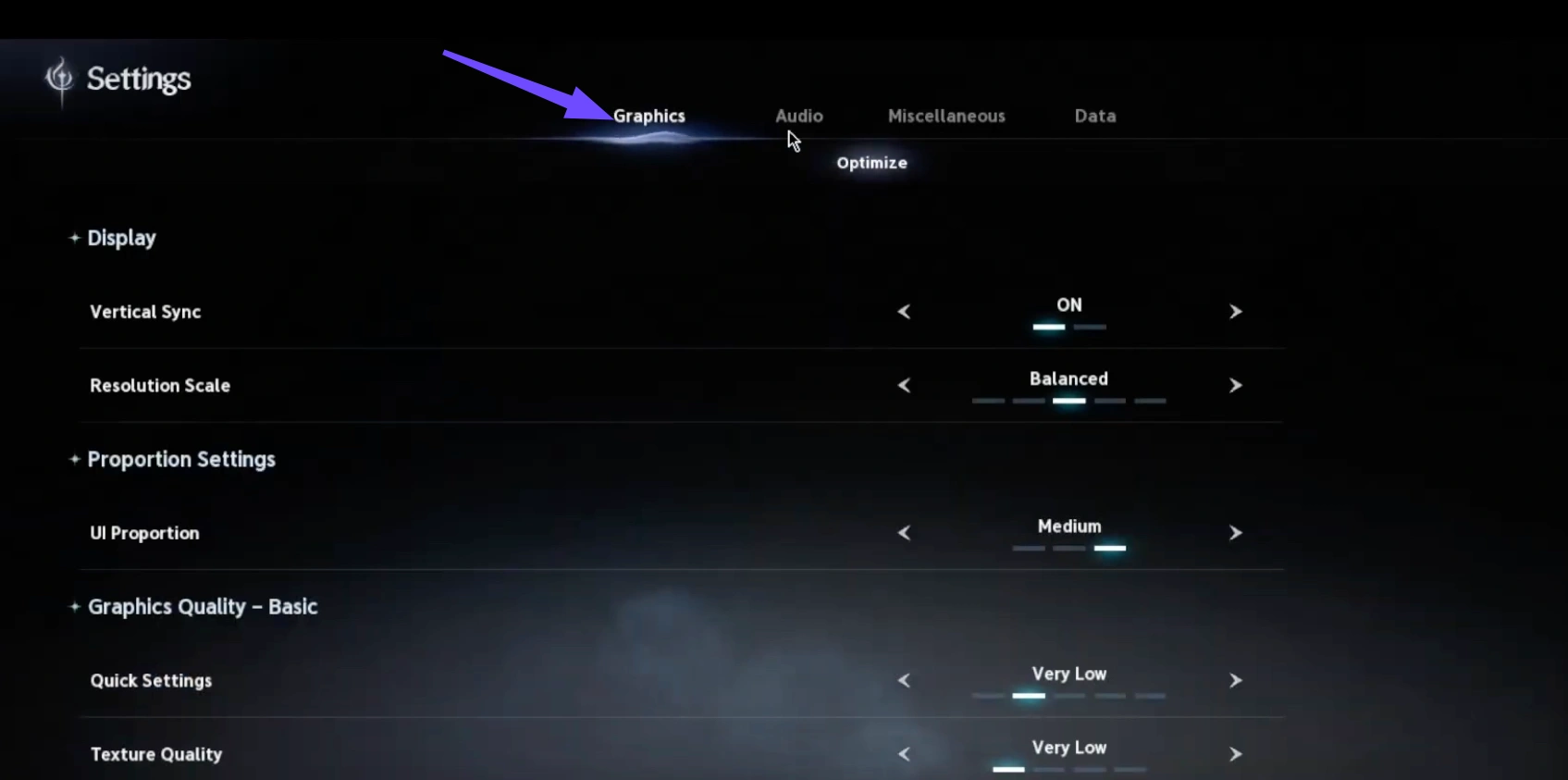
Step 4: Locate the Anti-Aliasing / Upscaling section and select NVIDIA DLSS.
Step 5: Choose your preferred DLSS Mode (Quality, Balanced, or Performance).
Step 6: Enable Frame Generation if you are using a supported RTX graphics card.
Step 7: Click Apply Changes and restart the game client if prompted.
Part 4: Best AION 2 DLSS 4.5 Settings
Finding the ideal balance between frame rate and visual clarity depends heavily on your target resolution and personal playstyle. Below is a quick overview of recommended settings before we dive deeper into specific configurations.
|
Setting |
Recommended Value |
Target Goal |
|
DLSS Mode |
Quality |
Maximum visual clarity with solid FPS boost |
|
Frame Generation |
On (RTX 40/50 Series) |
Doubling frame rates in GPU-bound areas |
|
NVIDIA Reflex |
On + Boost |
Minimizing input latency |
|
Sharpness Slider |
30% to 50% |
Crisp edges without artificial noise |
DLSS Quality vs Balanced vs Performance
Choosing the right preset determines how much internal rendering resolution is scaled down before AI reconstructs the frame.
- Quality Mode: Renders at approximately 67% of native resolution. It provides the best image detail with almost zero blur, making it ideal for daily gameplay.
- Balanced Mode: Renders at roughly 58% of native resolution. A great sweet spot for 1440p displays when extra frames are needed in heavy raids.
- Performance Mode: Renders at 50% of native resolution. Best reserved for 4K displays or budget GPUs struggling to maintain stable framerates.
Best Settings for 1080p, 1440p and 4K
Resolution plays a massive role in how DLSS upscaling algorithms process image reconstruction.
- 1080p Resolution: Use DLSS Quality or DLAA. Lower resolutions have fewer source pixels, so higher DLSS presets prevent image softness.
- 1440p Resolution: Use DLSS Quality for optimal visuals, or DLSS Balanced if targeting high refresh rate monitors above 144 Hz.
- 4K Resolution: Use DLSS Quality or Balanced. You can even use Performance mode at 4K while maintaining sharp visual quality.
Native Resolution vs DLSS
Comparing native rendering against AI-assisted upscaling highlights clear trade-offs in performance and input latency.
- AION 2 Native Resolution: Offers uncompressed visual fidelity but places heavy demand on your GPU, resulting in lower frame rates.
- AION 2 DLSS 4.5: Delivers up to 70% higher FPS while preserving nearly identical visual detail, making it superior for fluid combat.
Part 5: Best DLSS Settings for Different RTX GPUs
Hardware generations vary significantly in AI processing capability and dedicated Tensor core power. Here are the recommended aion 2 dlss settings based on your graphics card series.
RTX 50 Series
Next-generation RTX 50 series cards easily handle demanding visual parameters without effort.
- Target Resolution: 4K or 1440p Ultrawide
- DLSS Mode: Quality or DLAA (Deep Learning Anti-Aliasing)
- Frame Generation: Enabled
- NVIDIA Reflex: On + Boost
RTX 40 Series
RTX 40 series GPUs benefit hugely from dedicated Optical Flow Accelerators and AI upscaling.
- Target Resolution: 1440p or 4K
- DLSS Mode: Quality (1440p) / Balanced (4K)
- Frame Generation: Enabled
- NVIDIA Reflex: On
RTX 20 and 30 Series
Legacy RTX GPUs lack hardware support for Frame Generation but still benefit tremendously from DLSS upscaling.
- Target Resolution: 1080p or 1440p
- DLSS Mode: Quality (1080p) / Balanced (1440p)
- Frame Generation: Not Supported
- NVIDIA Reflex: On
Part 6: Best DLSS Settings for Different AION 2 Scenarios
AION 2 places dynamic demands on your system depending on player density, resolution, and visual complexity. Refer to the table below for recommended settings across various gameplay scenarios:
|
Scenario / Parameter |
Recommended Direction |
|
1080p Resolution |
Prioritize Native / DLAA; avoid excessive upscaling |
|
1440p Resolution |
DLSS Quality preferred |
|
4K Resolution |
DLSS Quality / Balanced (adjust based on GPU capability) |
|
Open World Exploration |
DLSS Quality for maximum visual fidelity |
|
Dungeons & Raids |
DLSS Quality / Balanced |
|
Large-Scale PvP / High-Density Areas |
Reduce CPU-heavy settings; do not rely solely on DLSS |
|
RTX 40 / 50 Series GPUs |
Frame Generation can be tested/enabled |
|
Latency-Sensitive Gameplay |
Use Frame Generation with caution |
Settings for High FPS
To achieve maximum frame rates, combine DLSS upscaling with lower internal render burdens. Set DLSS to Balanced or Performance mode, enable Frame Generation on supported GPUs, and turn on NVIDIA Reflex to keep input latency minimal.
Large-Scale PvP
Massive player counts in siege battles shift performance bottlenecks from the GPU directly onto the CPU. Use DLSS Quality or Balanced mode to keep GPU load manageable while lowering character count limits and shadow resolutions to relieve processor strain.
Open World and Dungeon
PvE content allows players to prioritize visual richness while keeping smooth 60+ FPS performance. Set DLSS to Quality mode to maintain sharp foliage and environmental textures while enabling Frame Generation freely for smooth camera rotation.
Part 7: Simplify AION 2 DLSS Optimization with LagoFast
Configuring graphics options manually can sometimes feel complicated, especially when dealing with missing files or driver conflicts.
LagoFast offers a streamlined One-Click DLSS tool designed to simplify visual and performance optimization for players. Instead of forcing players to manually handle complex DLL replacements, game directories, loaders, or ReShade configs, LagoFast automates the entire process. Its complete workflow automatically detects your game, verifies compatibility, downloads required files, configures settings, enables DLSS, and launches the game with an easy one-click restore option. Supporting RTX 20 to 50 series GPUs, LagoFast combines visual enhancements like refined lighting and textures with performance features such as FPS Boost and Frame Generation for a hassle-free gaming experience.
How to Enable AION 2 DLSS 4.5 with LagoFast
Follow these steps to upgrade your visuals smoothly without performance stutters.
Step 1: Download and install the official LagoFast client on your PC.
Step 2: Open LagoFast and search for AION 2 in the search bar.
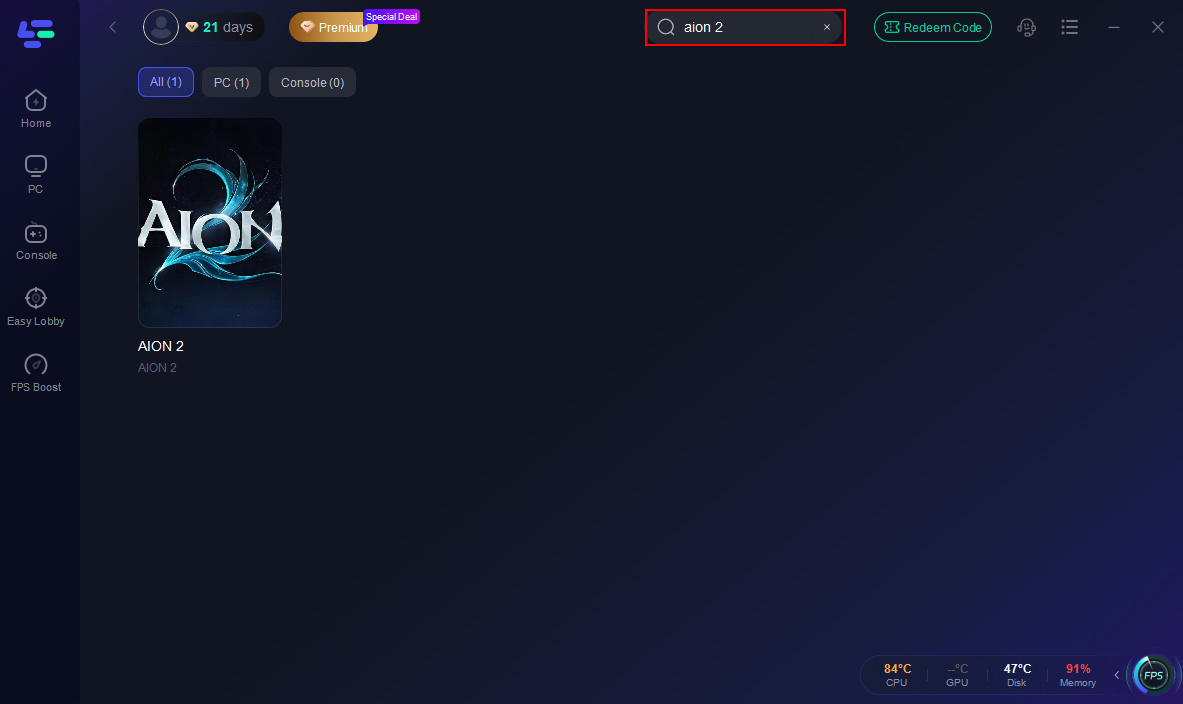
Step 3: Locate and click the One-Click DLSS tool on the game page.
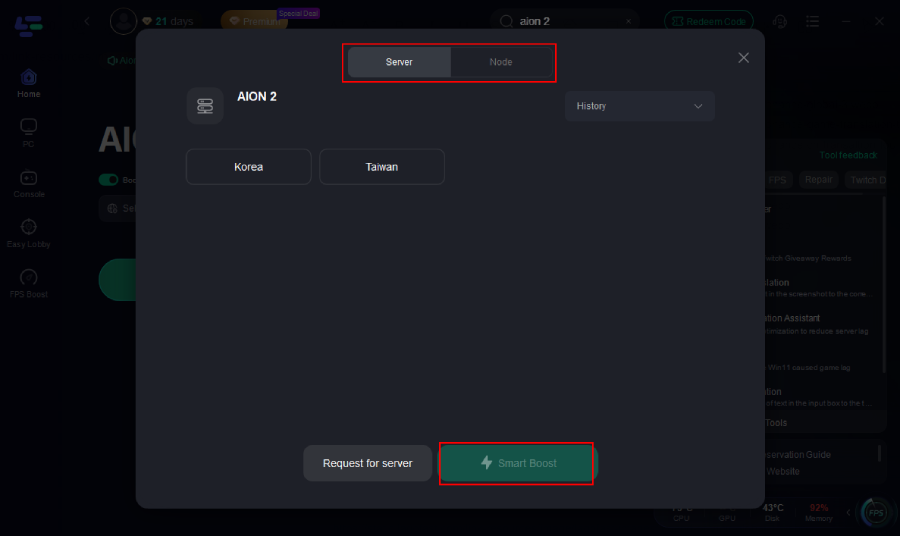
Step 4: Select AION 2 and click Enable DLSS 4.5. LagoFast will automatically verify GPU compatibility, download the required files, and configure your settings.
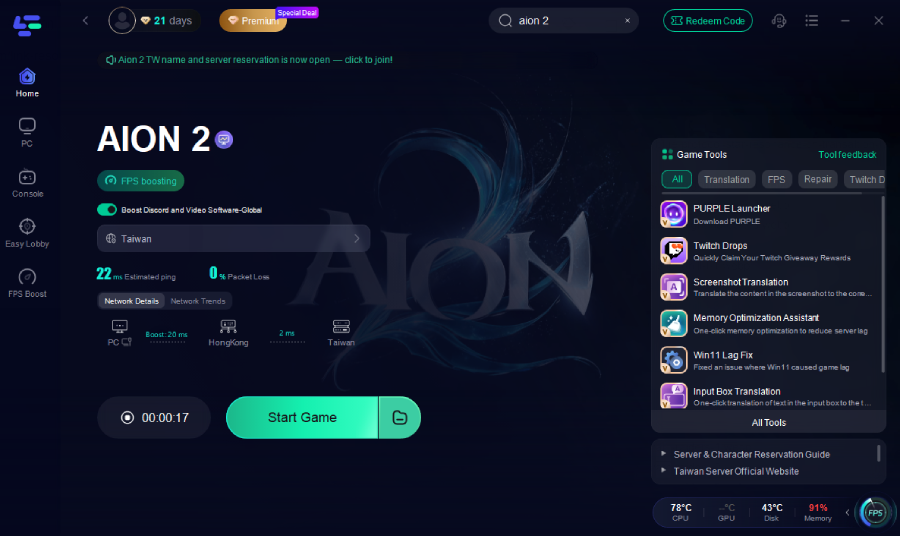
Step 5: Launch AION 2 directly through LagoFast to enjoy boosted FPS and enhanced visual fidelity.
Bonus Tips: Should You Enable Frame Generation in AION 2?
Frame Generation creates entirely new AI-generated frames between traditionally rendered ones, substantially boosting perceived smoothness.
You should enable AION 2 frame generation if your base frame rate is already above 50 to 60 FPS and you are playing on an RTX 40 or 50 series GPU. It works exceptionally well during open-world exploration and dungeon runs. However, if your base frame rate is below 40 FPS or you are participating in hyper-competitive PvP where every millisecond of input response matters, Frame Generation might introduce subtle latency. Using the built-in FPS tools in LagoFast can help balance smooth frame output while automatically optimizing latency settings.
Part 8: AION 2 DLSS Errors and Solutions
Technical glitches occasionally prevent DLSS options from displaying or working properly inside the game menu.
Fix AION 2 DLSS Not Showing or Missing
If you notice AION 2 DLSS not showing or AION 2 DLSS missing in the settings menu, work through these troubleshooting steps:
Step 1: Verify your graphics card is an NVIDIA RTX GPU (GTX series cards do not support DLSS).
Step 2: Update your display drivers to the latest NVIDIA driver version.
Step 3: Enable Hardware-Accelerated GPU Scheduling (HAGS) in Windows System Settings under Graphics Settings.
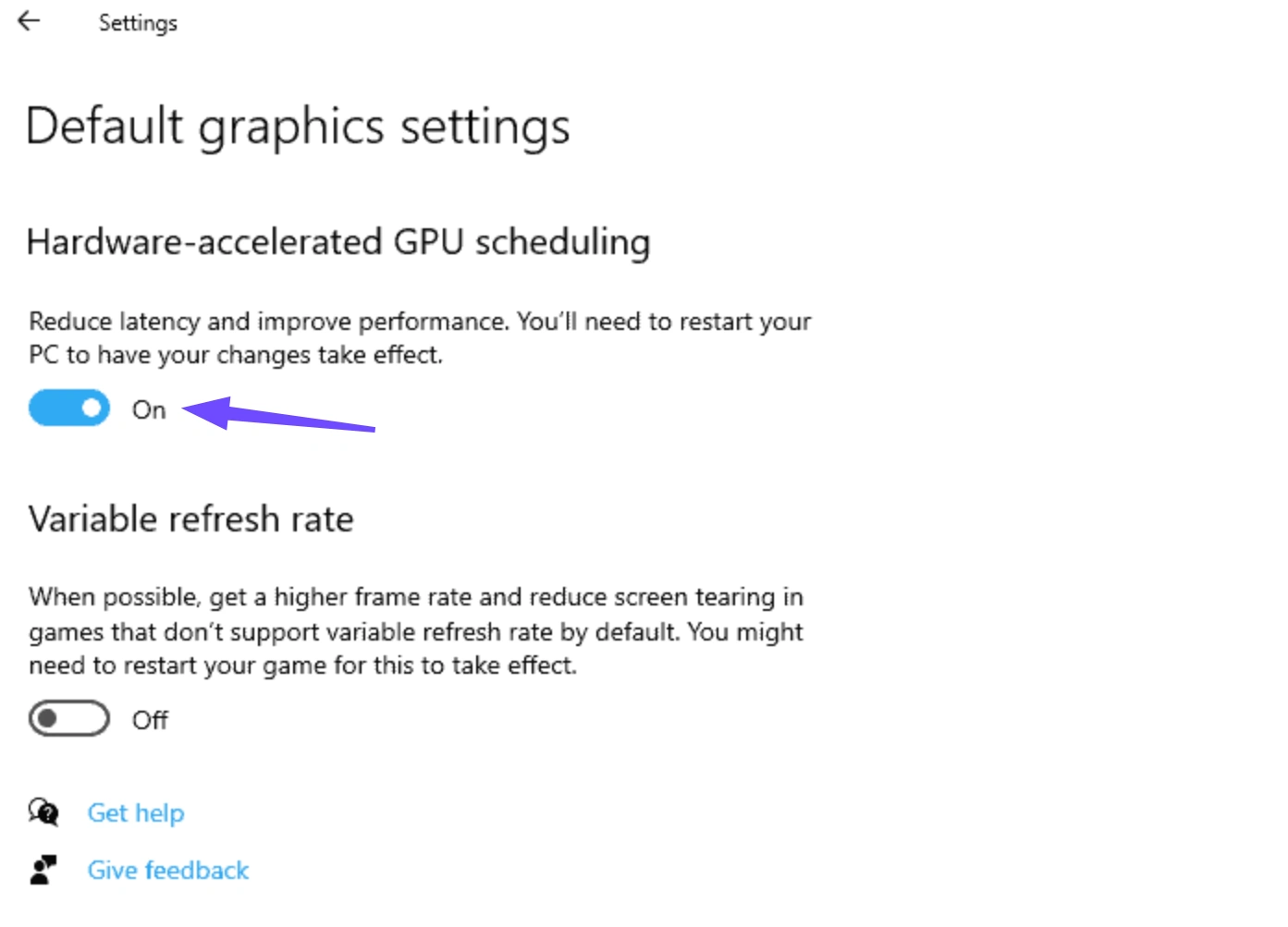
Step 4: Ensure Windows 10 or 11 is updated to the latest build version.
Step 5: Restart your PC and relaunch AION 2.
Fix AION 2 Frame Generation Not Showing
When experiencing AION 2 frame generation not showing, check these specific platform requirements:
Step 1: Confirm you are using an RTX 40 or RTX 50 series graphics card.
Step 2: Turn on Hardware-Accelerated GPU Scheduling in Windows and reboot your computer.
Step 3: Disable overlay programs like Discord or RivaTuner that might conflict with frame injection.
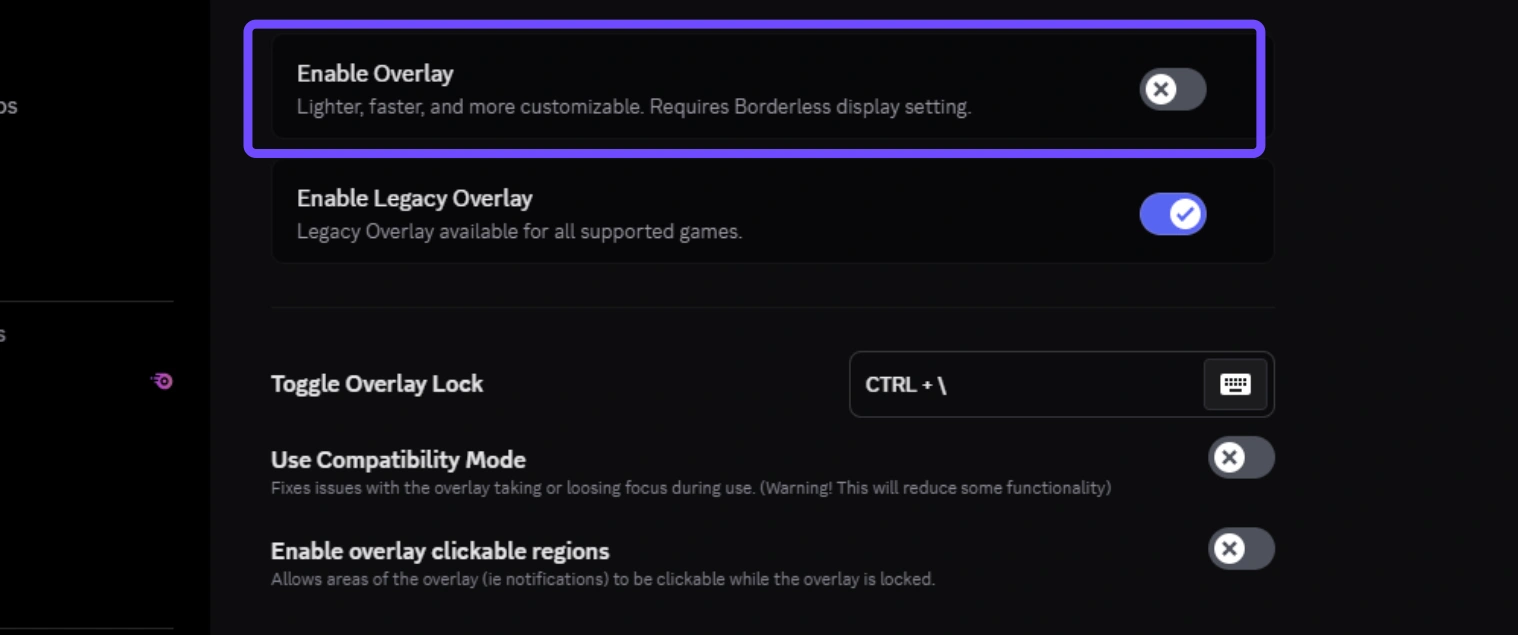
Step 4: Reset graphics settings to default inside AION 2 and re-enable DLSS.
Part 9: Why AION 2 Still Stutters With DLSS Enabled
DLSS processes graphics rendering pipelines, but stutters in MMORPGs often stem from other hardware bottlenecks.
Shader Compilation Stutter
Unreal Engine 5 compiles shaders dynamically as new spell animations, monster models, and environment assets load for the first time. DLSS cannot bypass shader compilation delays. Running the game once through major zones allows the shader cache to build, reducing hitching over time.
CPU Bottleneck in Crowded Areas
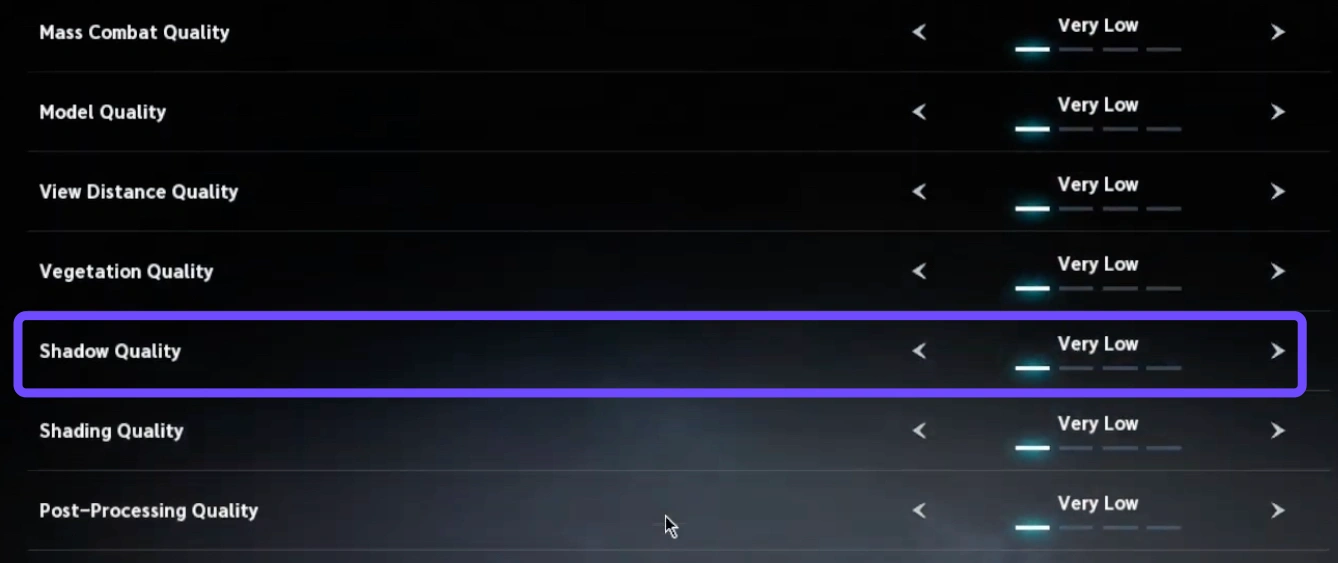
In massive PvP sieges or crowded player hubs, the CPU becomes overwhelmed processing player locations, combat math, and draw calls. When the CPU is bottlenecked, the GPU waits for data, meaning DLSS upscaling will not increase frame rates. Lower settings like Character Display Limit, Shadow Quality, and Physics Effects to relieve CPU strain.
DLSS and Frame Generation Issues
Running out of Video Memory (VRAM) at 4K resolution can cause severe frame drops when Frame Generation is enabled. If VRAM usage exceeds 95%, drop texture quality down one notch to prevent memory swapping to system RAM.
Part 10: AION 2 DLSS 4.5 FAQs
Here are answers to the most frequently asked questions regarding DLSS configuration and performance optimization in AION 2.
What is the main difference in aion 2 dlss quality vs balanced?
DLSS Quality renders at 67% native resolution and provides superior visual fidelity. DLSS Balanced renders at 58% native resolution, offering higher frame rates with a minor drop in fine detail.
Why is aion 2 dlss missing from my graphics menu?
If aion 2 dlss missing appears on your system, it usually indicates outdated GPU drivers, disabled Hardware-Accelerated GPU Scheduling in Windows, or an unsupported non-RTX graphics card.
Can I use Frame Generation on RTX 30 series cards in AION 2?
No, NVIDIA Frame Generation hardware architecture is exclusive to RTX 40 and RTX 50 series graphics cards. RTX 30 series users can only use standard DLSS upscaling.
How do I fix aion 2 dlss stuttering during gameplay?
To fix aion 2 dlss stuttering, enable NVIDIA Reflex, install the game on an NVMe SSD, and lower CPU-dependent settings like player density and shadow quality in crowded zones.
Is aion 2 native resolution better than DLSS Quality?
While aion 2 native resolution delivers uncompressed image output, DLSS Quality offers nearly identical visuals while granting a 40% to 70% increase in overall frame rates.
Does LagoFast support RTX 20 and RTX 30 GPUs for DLSS optimization?
Yes, LagoFast fully supports RTX 20 through RTX 50 series GPUs, helping players easily configure DLSS upscaling and boost game performance with one click.
Conclusion
Optimizing your graphics settings in AION 2 is the best way to enjoy smooth gameplay without sacrificing visual beauty. By choosing the right DLSS mode, configuring Frame Generation, and tailoring settings to your GPU, you can conquer lag and stuttering easily. For players wanting a hassle-free solution without manual tweaking, LagoFast provides a simple one-click DLSS optimization tool to ensure your game always runs at peak performance.
Boost Your Game with LagoFast for Epic Speed
Play harder, faster. LagoFast game booster eliminates stutter and lags on PC, mobile, or Mac—win every match!
Quickly Reduce Game Lag and Ping!
Boost FPS for Smoother Gameplay!