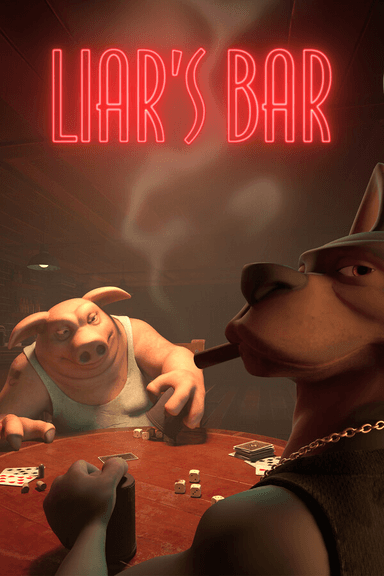
Best Liar’s Bar Game Boosters: Reduce FPS Issues
Liar’s Bar is a popular multiplayer game that brings players into an immersive and strategic gameplay experience. However, like many online games, Liar’s Bar players often face FPS issues, which can greatly impact the smoothness and quality of gameplay. FPS drops can lead to lag, delayed reactions, and a frustrating gaming experience.
In this article, we'll explore how using game boosters can help reduce FPS issues in Liar’s Bar and how to optimize your gaming performance for a seamless experience.
Part 1: Introduction of Liar’s Bar
Part 2: Why Need a Liar’s Bar Game Booster
Part 3: How to Lower FPS in Liar’s Bar
Part 1: Introduction of Liar’s Bar
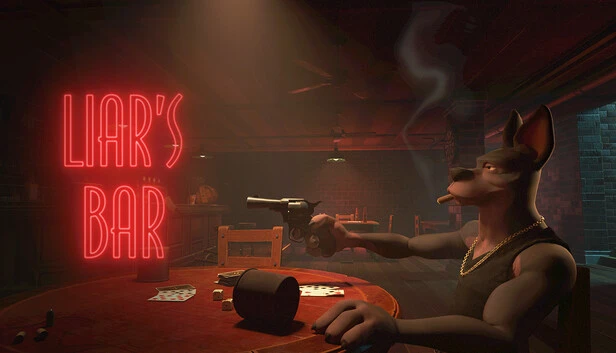
Liar's Bar is a 2-4 player multiplayer deception game set in a shady bar where bluffing and outsmarting your opponents is key to survival. Players must use wit and creativity to outsmart their opponents while navigating through various mini-games and challenges. The game’s premise revolves around bluffing and cunning tactics, making it an engaging and dynamic experience.
But as a large-scale online game, some players encounter performance issues, particularly FPS drops. This can be caused by hardware limitations, network instability, or software conflicts. The consequences of low FPS include choppy visuals, delayed inputs, and a generally frustrating experience, which can significantly hinder a player’s ability to succeed in the game.
Part 2: Why Need a Liar’s Bar Game Booster
Game booster is a tool designed to optimize network connectivity performance and ensure a smooth gaming experience, especially for demanding online games like Liar's Bar. Game boosters can help players improve their gaming experience by monitoring real-time game network data transmission dynamics, adjusting network connections in a timely manner, and assisting players in better connecting to game servers.
Here’s why you need a Liar’s Bar game booster:
- Improve Network Stability
Multiplayer games like Liar’s Bar require a stable network connection to ensure smooth gameplay. A game booster can help reduce network-related lag by optimizing your internet connection, reducing packet loss, and lowering ping. This is particularly important if you’re playing in a competitive environment where every millisecond counts. - Prevent FPS Drops
FPS drops often occur due to resource allocation issues or network instability. Game boosters can help prevent these drops by ensuring that your system is running efficiently and that your internet connection is stable. - Reduce Latency
Latency refers to the delay between your actions in the game and the game response. Game boosters can help reduce latency by assisting players in selecting the nearest server and improving network connection speed. This can make your movements feel more agile in the game, giving you an advantage over your opponents.
In short, using a Liar’s Bar game booster can significantly enhance your gaming experience by addressing the common causes of FPS drops and improving both system and network performance.
Part 3: How to Lower FPS in Liar’s Bar
Lowering FPS issues in Liar’s Bar can be achieved by optimizing both your hardware and software settings. Here are some effective ways to lower FPS issues and improve the overall performance of the game:
1. Use Game Booster Software
One of the most effective ways to enhance game performance is by using specialized game booster software like LagoFast. LagoFast automatically optimizes your PC’s resources and network to provide a smoother gaming experience. Its low-latency mode helps in reducing FPS drops and network lag in Liar’s Bar, offering a more stable connection.
LagoFast is a game booster designed to optimize network performance.
How to Use LagoFast on PC
Step 1: Click the Free Trial button to download and install LagoFast Free Trial.
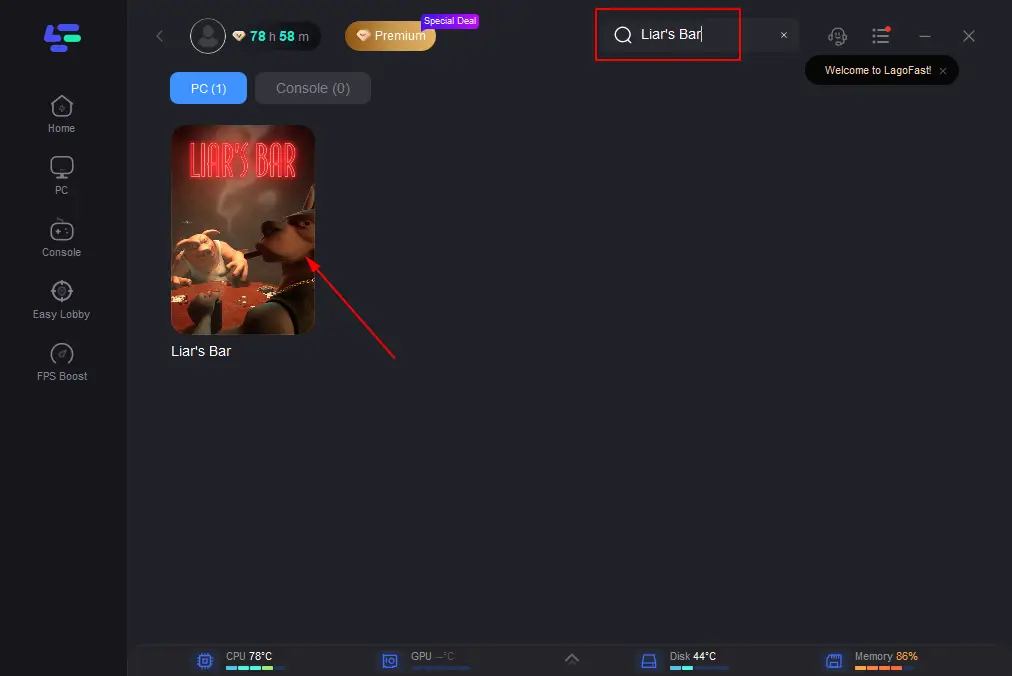
Step 2: Once installed, open the app and go to the game library. Look for Liar’s Bar in the list of games and select it. This will allow LagoFast to optimize your internet connection for the best performance in this specific game.
Step 3: LagoFast provides various server options to choose from. Select a server that is geographically close to the game’s servers to reduce latency and lower your ping, leading to better in-game performance.
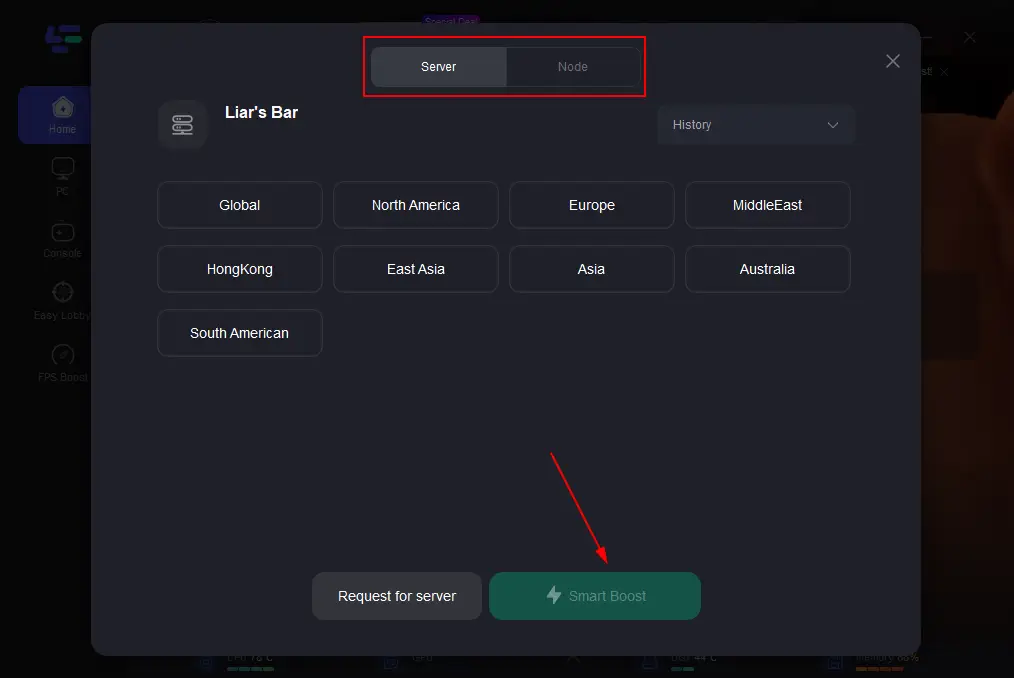
Step 4: After selecting a server, click on the optimization option in the app. LagoFast will then automatically adjust your connection settings, prioritizing gaming traffic and reducing lag and FPS issues.
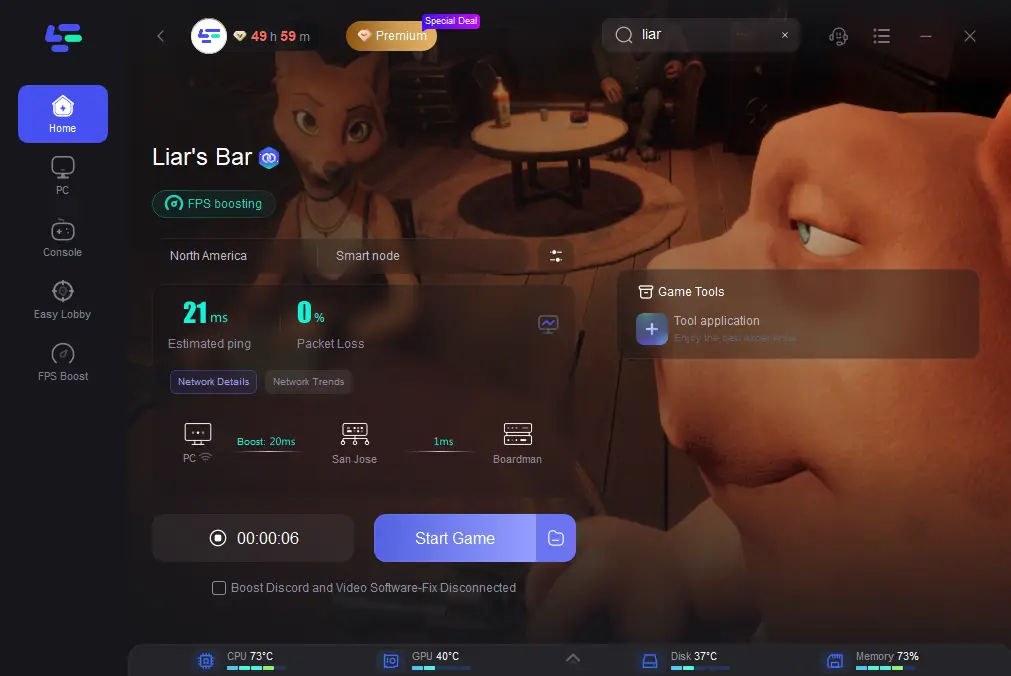
Once you’ve entered Liar’s Bar, keep an eye on your ping and overall game performance. LagoFast provides real-time stats so you can monitor how your connection improves as you play.
2. Optimize Graphics Settings
One of the most common causes of FPS drops is running the game on high graphics settings that your hardware can’t handle. Lowering certain settings like texture quality, shadows, and anti-aliasing can significantly improve FPS. Go to the game’s settings menu and adjust the following:
- Resolution: Lowering the resolution can give a noticeable FPS boost, though it may reduce visual clarity.
- Texture Quality: Reducing texture quality frees up memory and improves FPS.
- Shadows and Lighting: Turning these settings to low or off can dramatically improve performance without affecting gameplay too much.
- V-Sync: Turning off V-Sync can reduce input lag and improve FPS.
3. Update Graphics Drivers
Ensure that your graphics card drivers are up-to-date. Outdated drivers can cause performance issues in games, including FPS drops. Regularly check for updates from your GPU manufacturer (NVIDIA, AMD, or Intel) to ensure optimal performance.
4. Close Background Applications
Running multiple applications in the background, such as browsers, music players, or other software, can consume system resources and affect your game’s performance. Before launching Liar’s Bar, close all unnecessary programs to free up memory and processing power.
5. Check Your Internet Connection
FPS issues can also be caused by network problems. Ensure that your internet connection is stable and that your ping is as low as possible. Use a wired connection if possible, as it offers more stability than Wi-Fi. If your internet connection is slow or inconsistent, consider using a VPN or game booster that can optimize your network connection.
6. Adjust In-Game FPS Cap
Some games allow you to set a cap on the maximum FPS. By lowering the FPS cap to a level that your system can handle (e.g., 60 FPS), you can reduce performance spikes and ensure smoother gameplay.
Conclusion
Liar’s Bar is a fun and challenging game, but performance issues like FPS drops can hinder your ability to enjoy it to the fullest. By using the right strategies, including adjusting your graphics settings, updating drivers, and employing a game booster like LagoFast, you can reduce FPS issues and optimize your gaming experience. Whether you’re playing on a high-end or lower-end PC, these tips will help you get the most out of Liar’s Bar and ensure a smooth and enjoyable experience.