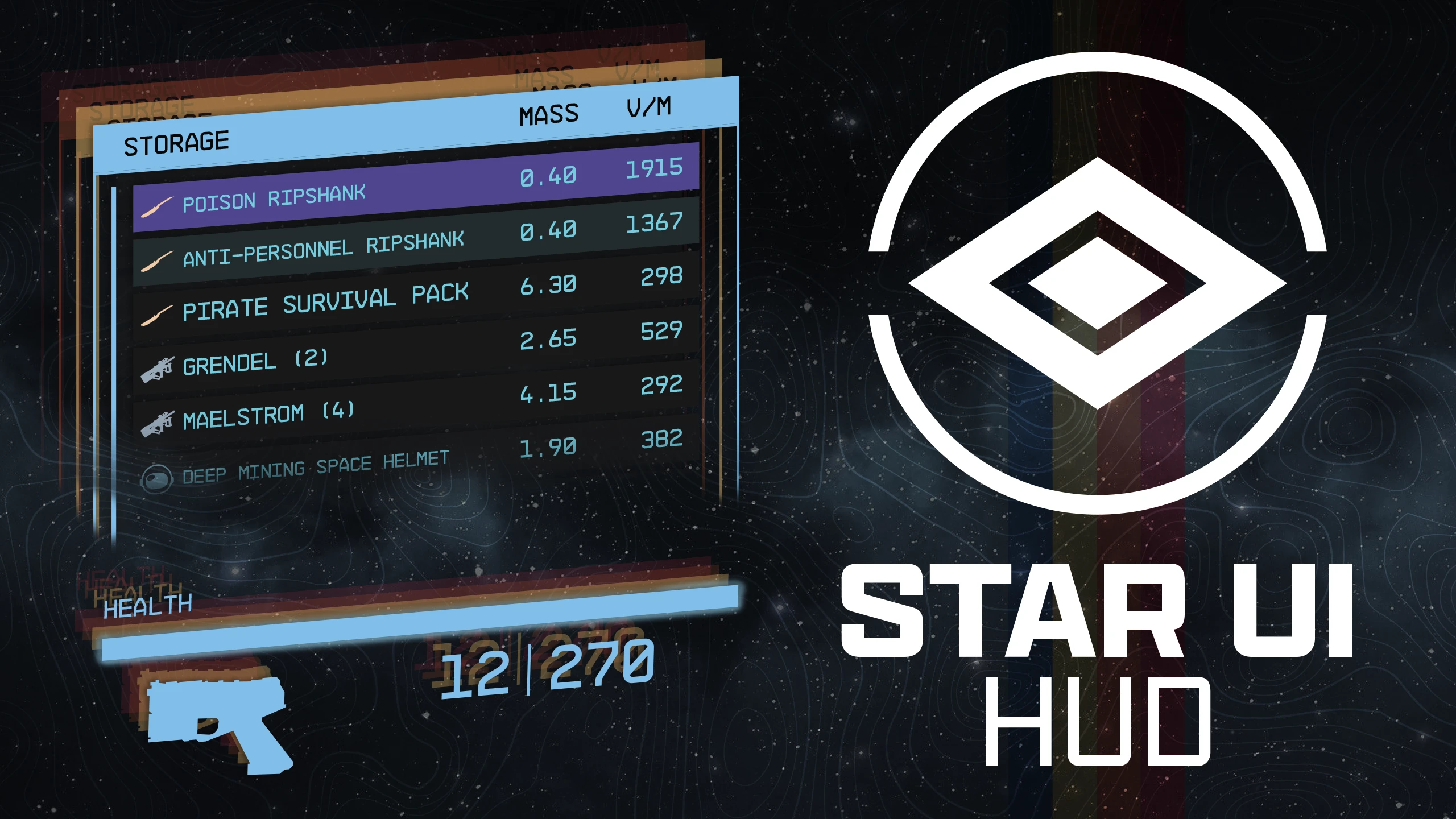
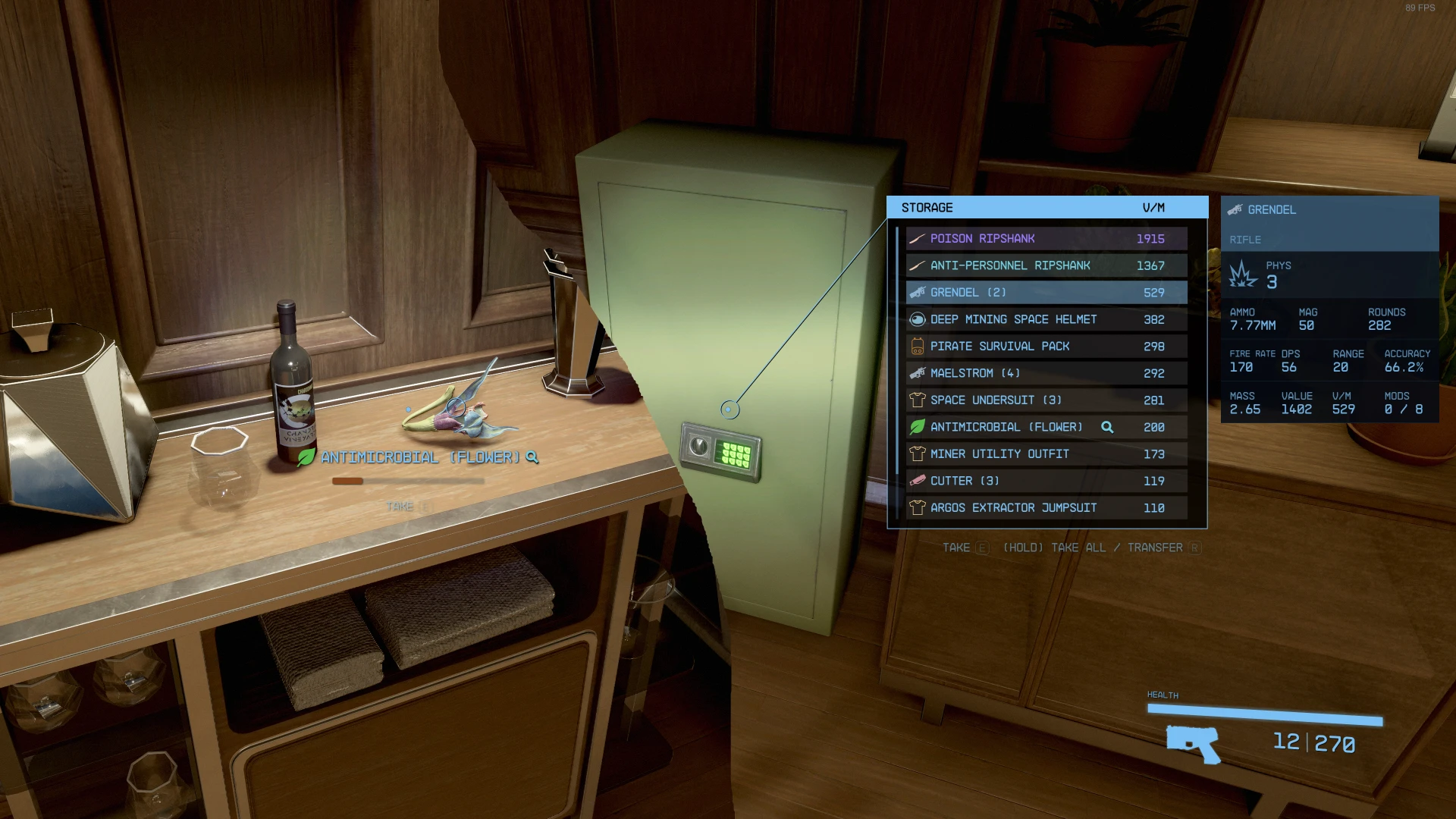
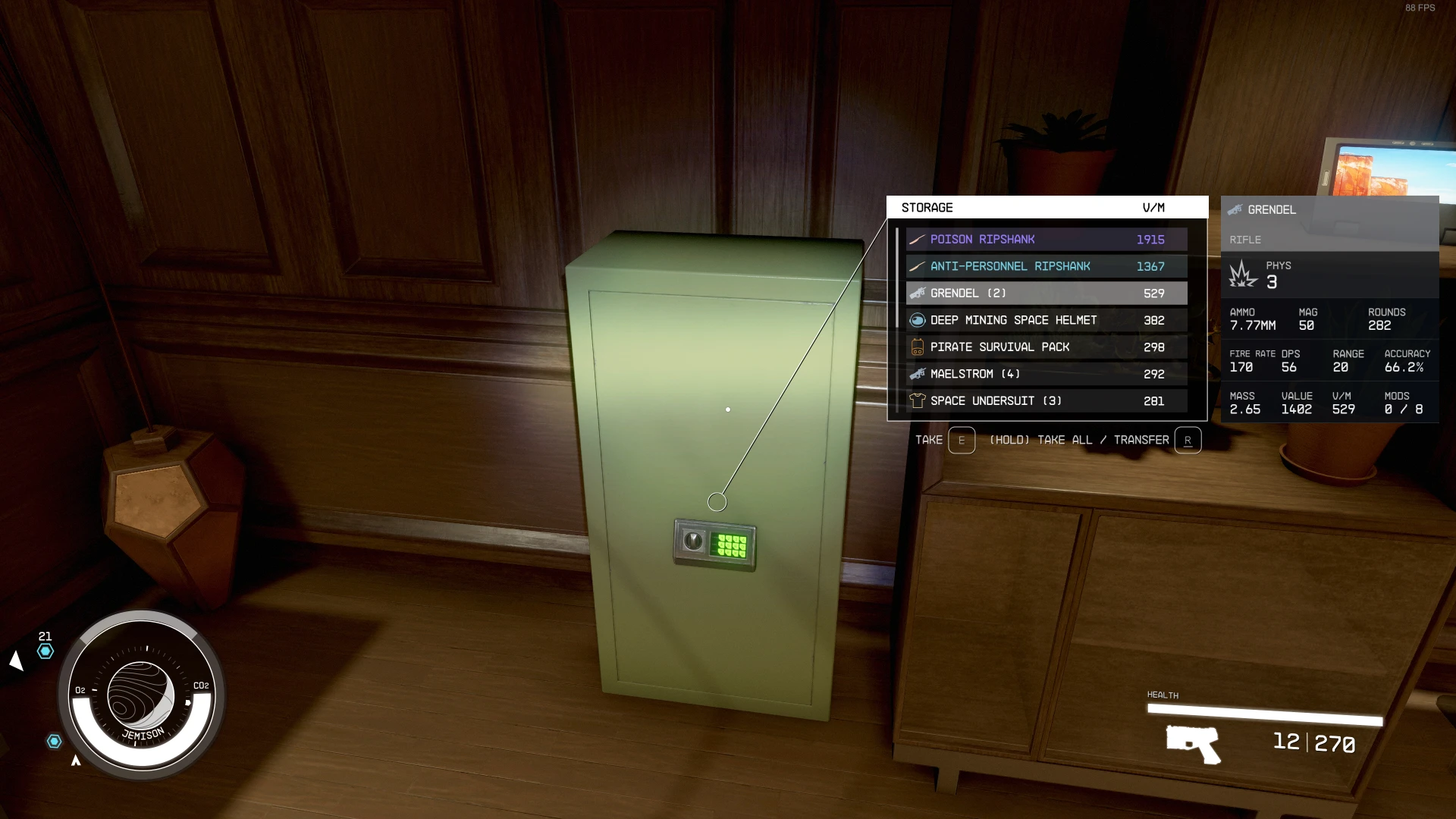
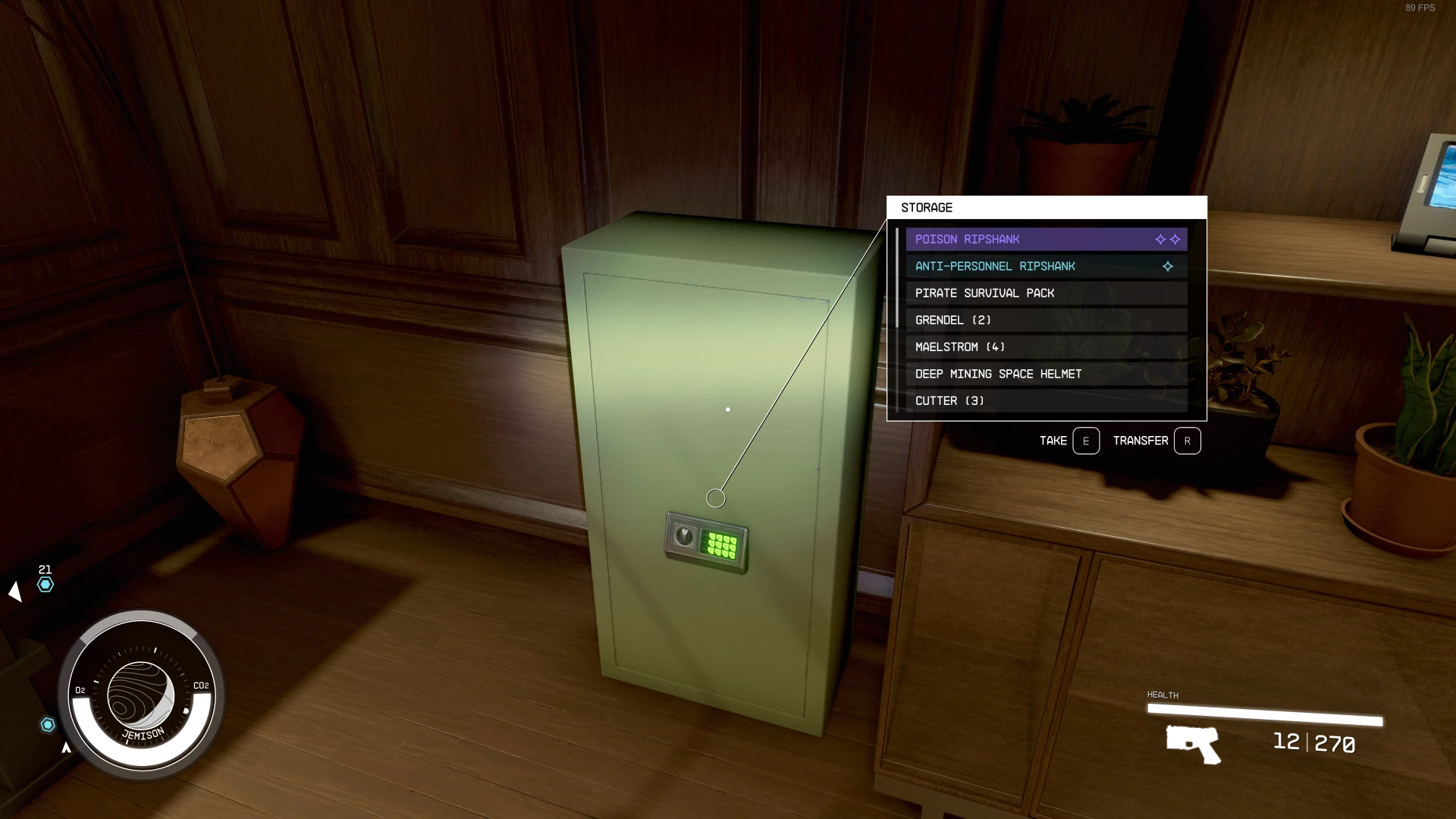
StarUI HUD gives you full control over most HUD widgets and provides an updated loot list and better item cards with DPS and V/W. Resize, move, recolour or disable most of the HUD widgets. The loot list can show additional columns like V/W
StarUI HUD gives you full control over most HUD widgets and provides an updated loot list and better item cards with DPS and V/W. Resize, move, recolour or disable most of the HUD widgets. The loot list can show additional columns like V/W (sort-able) and show you the item card for hovered items!
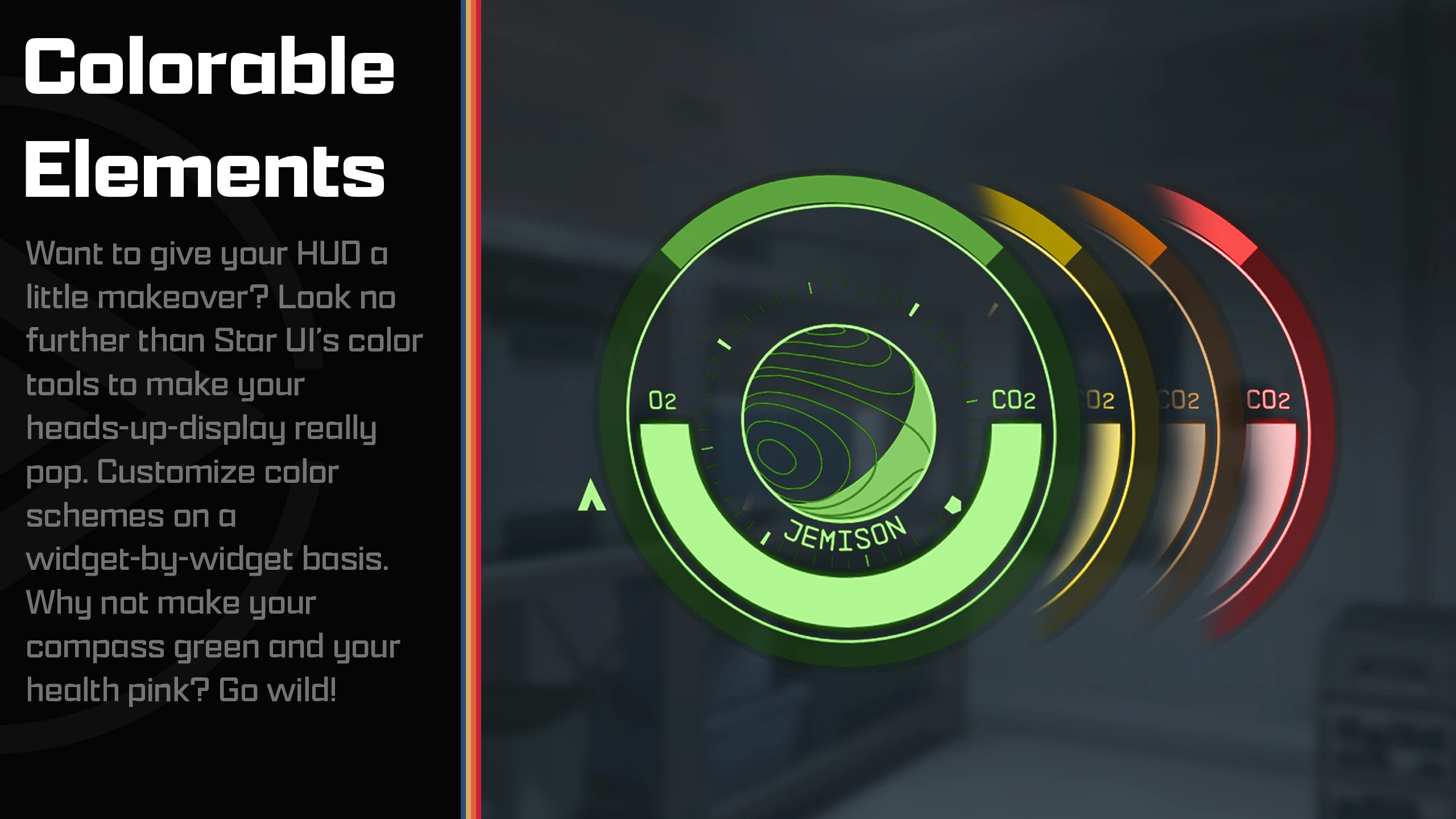
Change most widgets on the HUD to your liking:
Change the position, the scale (size), the rotation and the color (color modifier or color overwrite available) individually per widget
Hide it, if you don't want to see it!
And for the special watch and player status widget: Adjust the 3D Position (only for 3D experts) or simply deactivate the 3D effect.
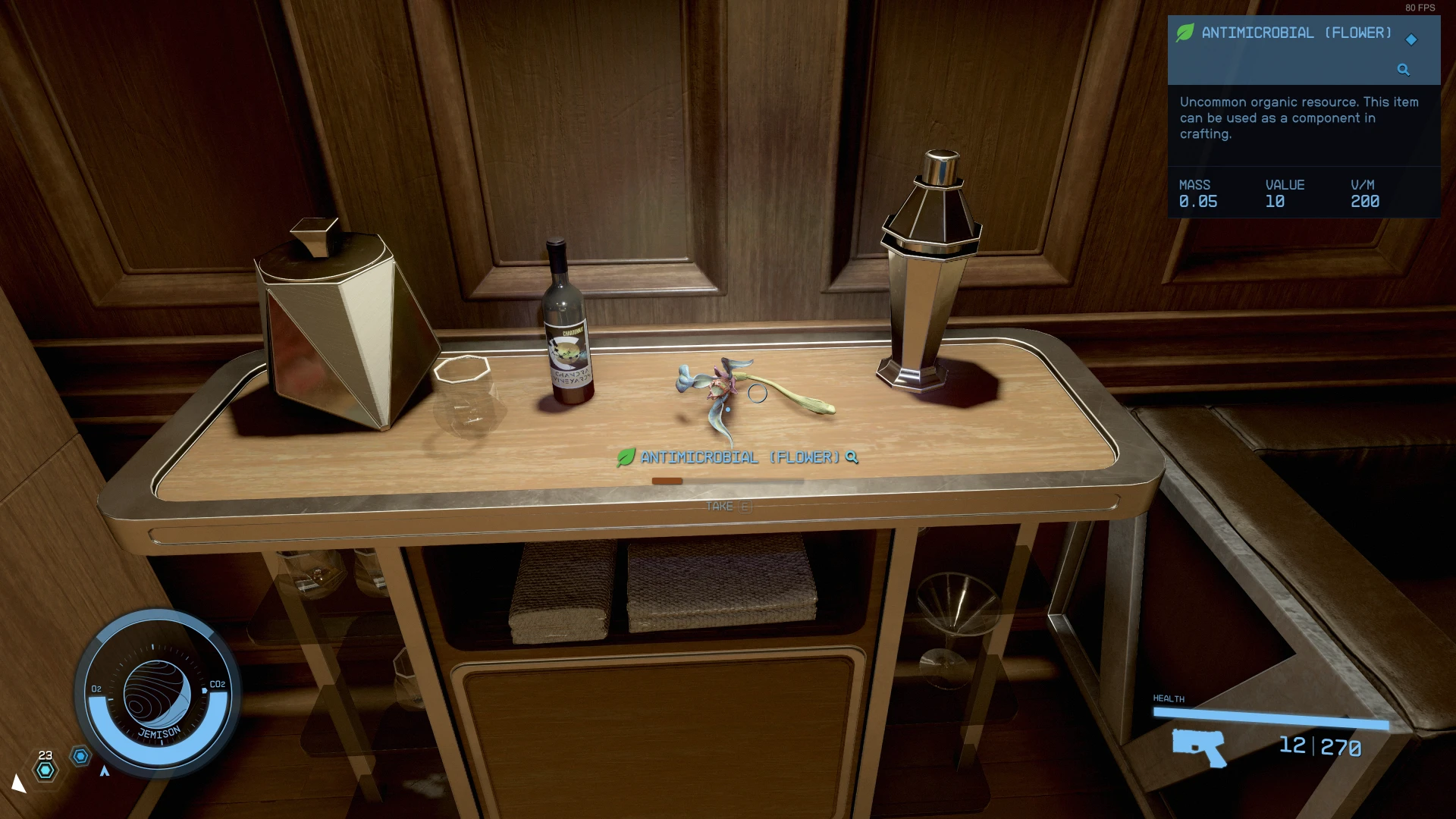
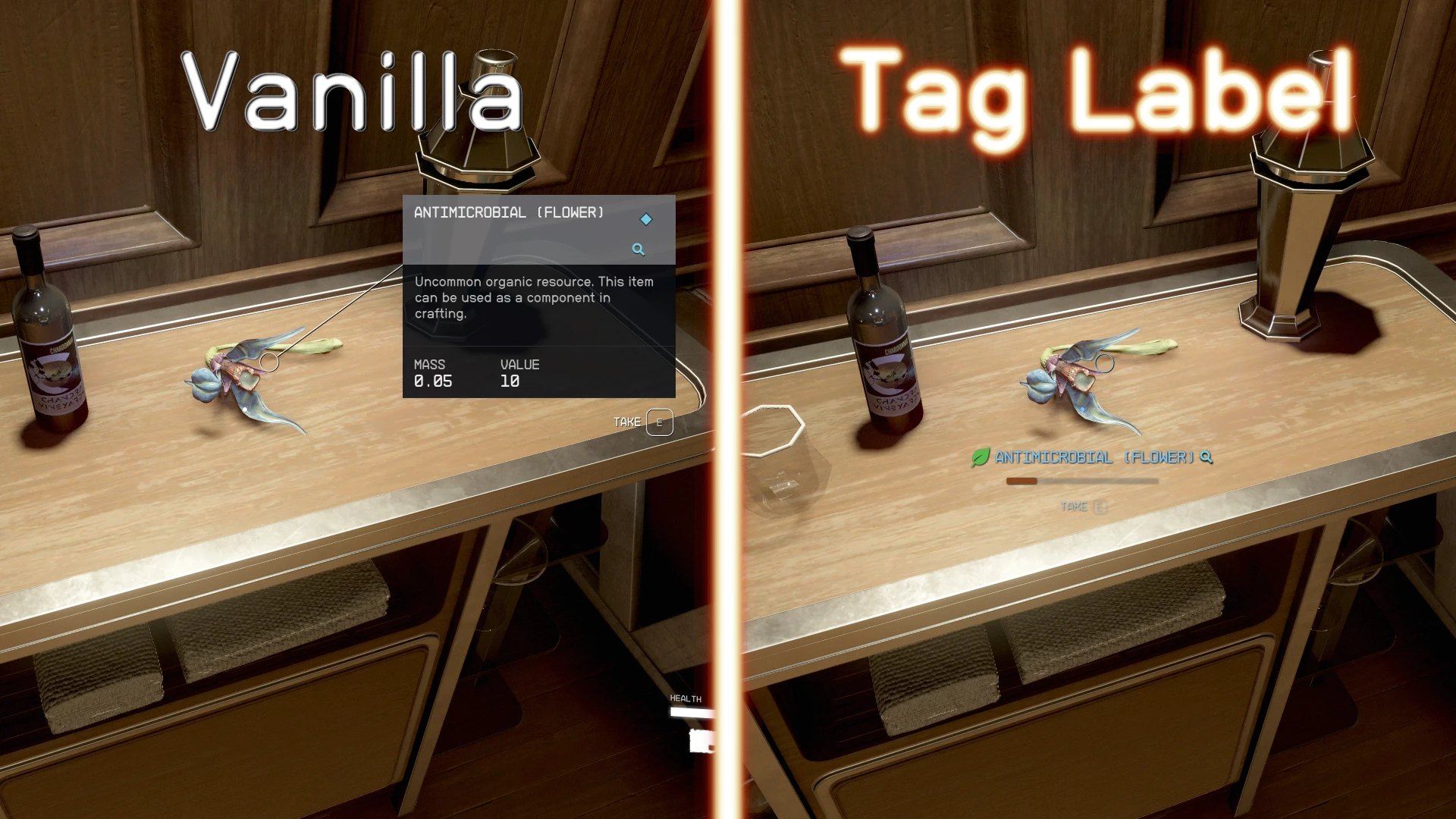
New widget: Tag Label
Reduces the HUD's clutter level and let you focus on the important things.
Displays the item name and item tag icon below your cross-hair. So you see what an item is without the need to look at the big item card (which is moved to top right screen as you don't really need it)
For tagged, stolen or contraband items the appropriate icon will be added after the name
Trash items are displayed slightly faded out, so those item draw even less attention
New widget: Loot-O-Meter
Displays a bar below your cross-hair which fills up with the value per mass value of the item. So you can easily see what's worth to be taken!
The bar can change the color from red to orange to green based on how much its filled
Customizable and can be disabled if you don't like it
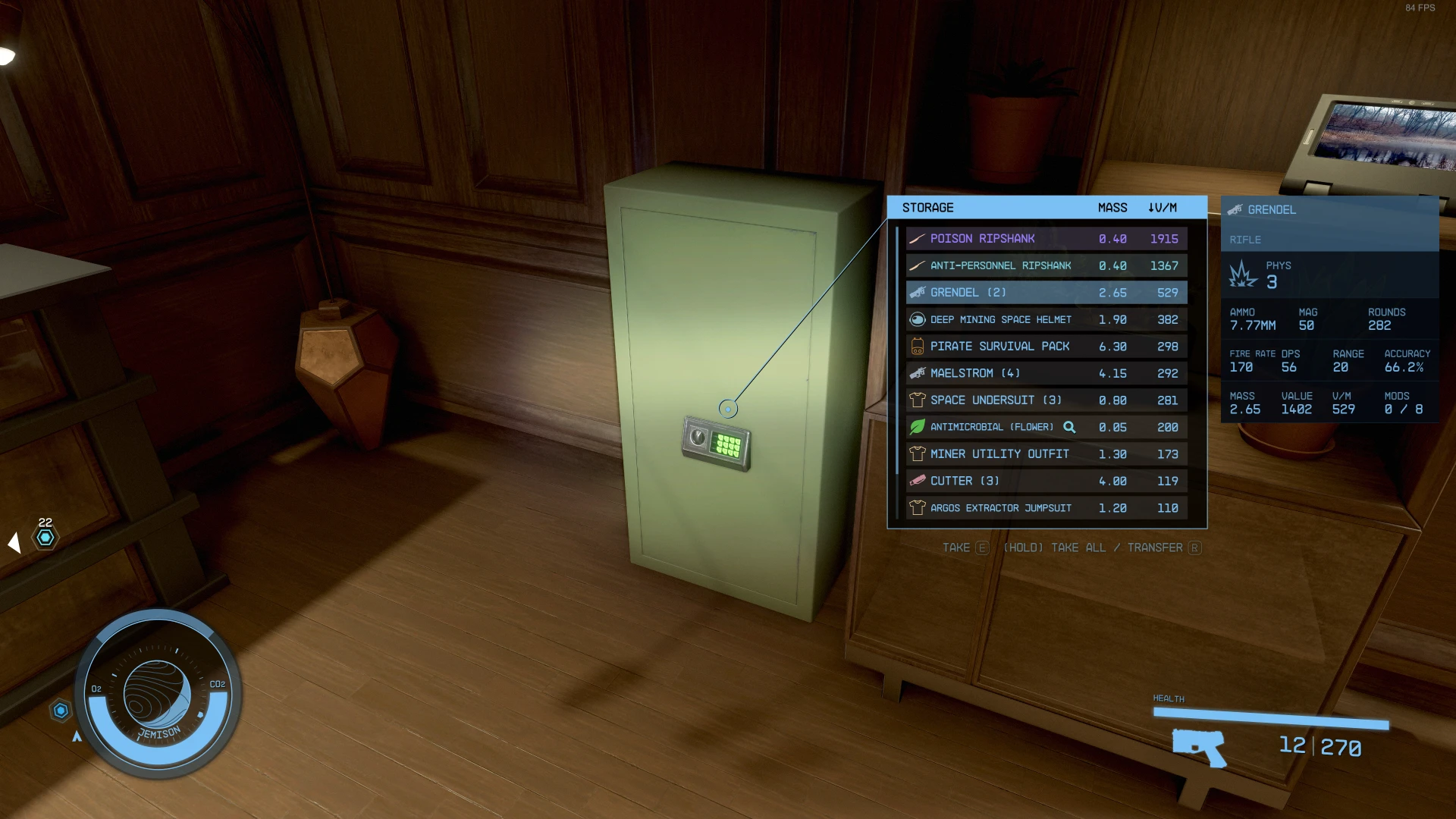
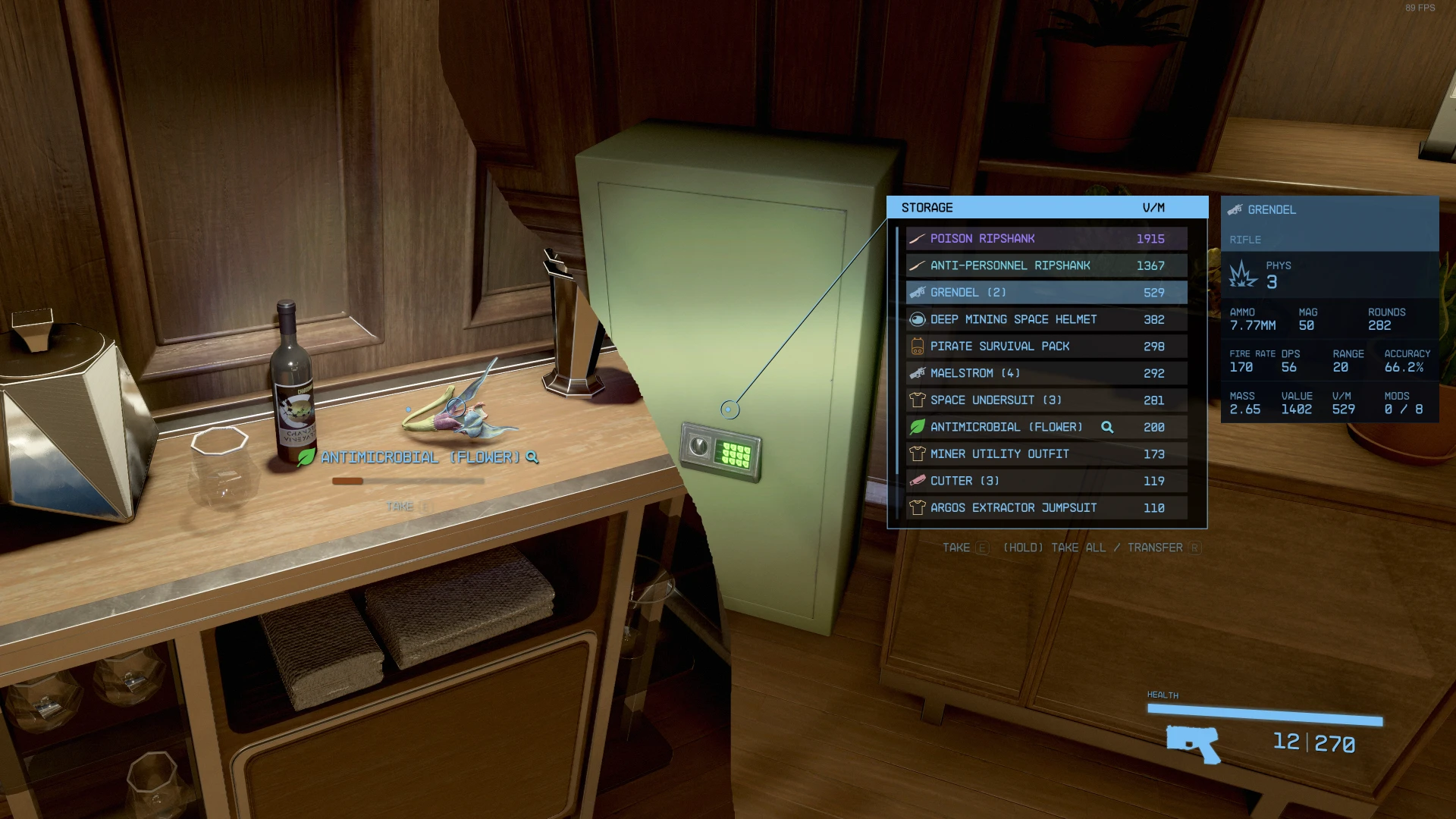
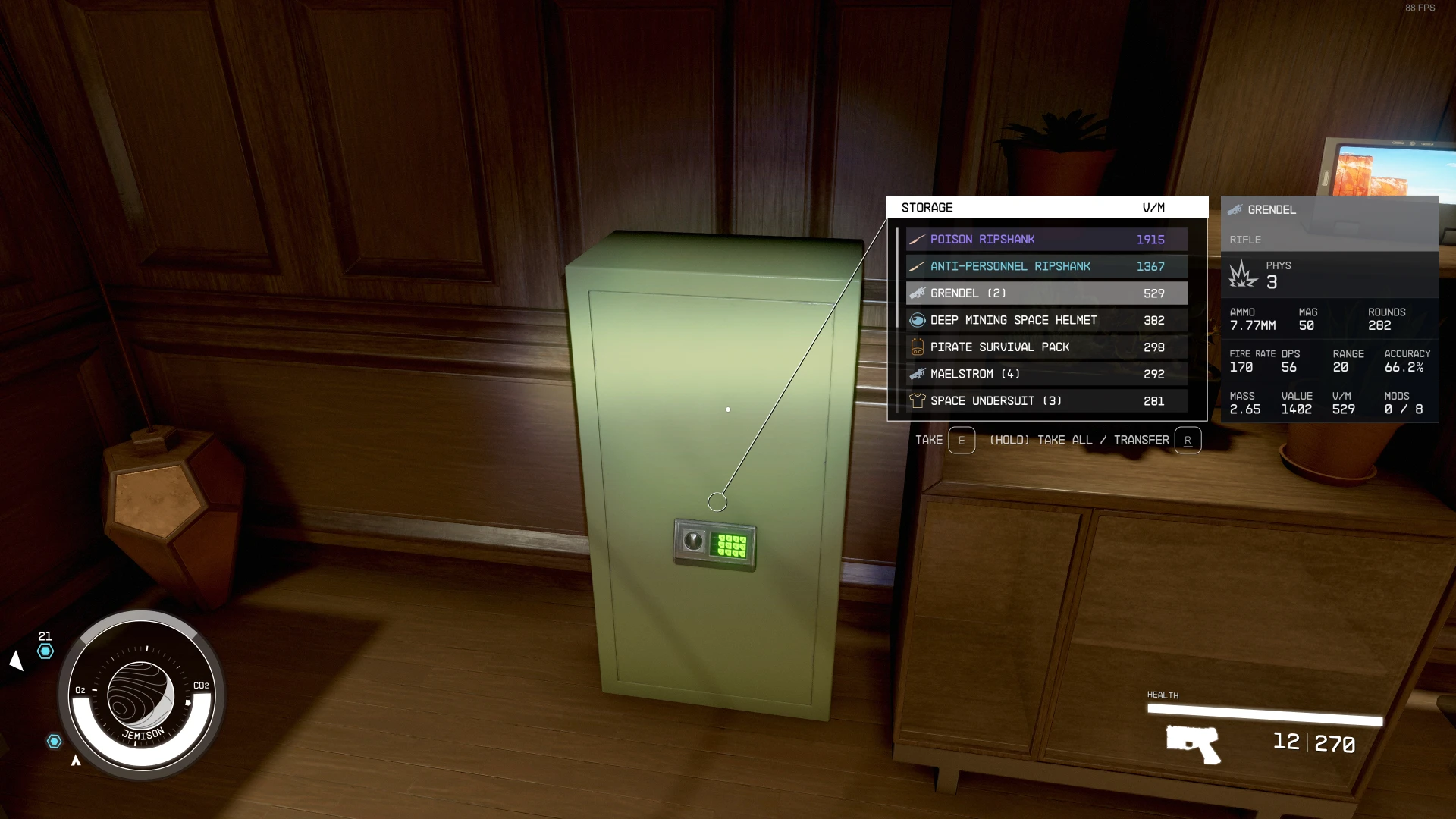
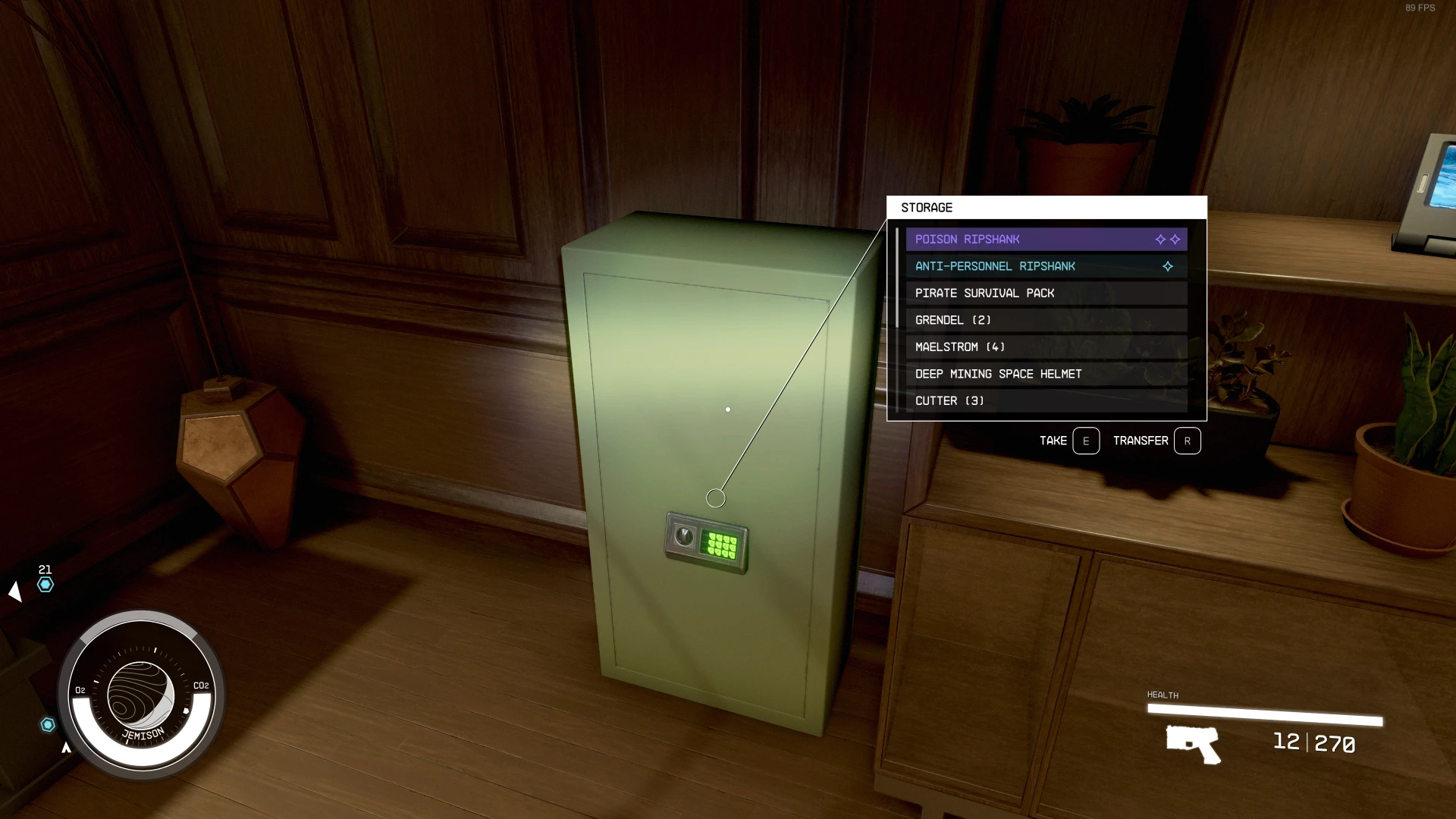
Upgraded loot list (quick container view)
Dynamic size, more items visible (or less if you like)
Automatic height adaption based on content
Item tag icons for every item - See easily what type the item is!
Additional configurable columns (Default adds a V/M column). The list can also be sorted by the column (And you can toggle through the columns it in-game with ALT key)
Shows an item card for the highlighted item
Upgraded item cards
Added item tag icon
Added value V/M for all items with value and mass
Added value DPS for weapon (Burst-DPS, reloading-time not accounted)
Colorizable, relocatable and resizable: All item cards can be adjusted for every situations where they are visible
Quality of Life
Accidental Steal Protection - Prevents pressing the take button if it would be steal. You need to sneak to be able to steal.
Loot list and Tag Label widgets will change to RED when taking would be stealing.
Take All function for most containers - Press sprint and take to take all
Customize your crosshair
Many settings for the crosshair to make it like you want it.
Choose one of the replace modes (Default, DotOnly, DotWhenNotAiming, None) or customize the replacements individually per type, per is-aiming-state and per is-3rd-person-state.
Colorize and resize your crosshair individually per type. Want a big red pistol crosshair, but a small green rifle? You can do it!
Customize your watch
Beside the standard widget settings, you can disable various parts of the watch, either making room for mods or just cause you don't like a part.
Four presets you can choose: Author's Choice, Author's Choice (No Colors), Vanilla Extended and Vanilla. You can change that at any time and customize your chosen one as you like!
Safe to install/remove at any time! Doesn't affect your save game and won't prevent your ability to get achievements!
Integrated item sorting system for all Starfield items for the languages: EN, DE, ES, FR, IT, JA, PL, PTBR and ZHHANS.
You can control when the reticle circle and line are visible individually for different situations (the leader line going from the looked item to the item card/name box)
Reduce the button bars icon for key/controller button and slightly fade out the button bar
Shows a big door icon on doors which leads to other areas (e.g. the ones that trigger a loading screen)
Full translation support (See the translation section on this side if your translation is already available)
Many other smaller or bigger improvements
Completely customizable (see the well-documented INI file)
Simply install with Vortexor Mod Organizer 2 (for manual installation open the spoiler below)
Enable Archive Invalidation in your INI
It's just one click in Bettini (enable "Load Loose Files" and save)
Copy the folders Interface\ from the zip into your Starfield\Data\ folder (where the ba2 files are) - ignore folders fomod and Optional
For some people that folder won't work, copy the files to your Documents\My Games\Starfield\Data\ folder in that case (create Data\ if it doesn't exist)
Choose one of the three presets from the sub-folder StarUI HUD Presets\ and copy the INI file content into a new file StarUI HUD.ini in Interface\.
(Optional) 30fps or 120fps version: After doing the above steps copy the files from the appropriate sub-folder in Optional\ and overwrite the existing ones.
You can customize every aspect of this mod. Use the StarUI Configuratorto configure any setting in this mod with an easy to use graphical interface. You can also do it manually: See the well-documented INI file StarUI HUD (default).ini and adapt it to your liking!
Presets The mod comes with three presets: Author's Choice, Vanilla Extended and Extended. Click for a preview:
Spoiler:
Show
(Click to enlarge image)
Author's Choice
Vanilla Extended
Vanilla
Tips
You can switch later to another preset at any time. The presets are copied to folder Interface\StarUI HUD Presets. Simply copy the INIs content to your
Tip 2: Copy the file StarUI HUD (default).ini and rename it to StarUI HUD.ini. This INI file will be read too and won't be overwritten by mod updates!
Tip 3: When you editing settings: A simple quick-save/quick-load will load your changed configuration!
INI settings file Author's Choice preset INI file:
Spoiler:
Show
[StarUI HUD]
; Configuration file for StarUI HUD ; ================================= ; ; Allows you to configure many different settings for your StarUI HUD layout. ; To adjust the widgets and their position and color see the widget section later in this file ; ; Some general notes and tips: ; ; Position ; -------- ; The position is specified based on a 1920x1080 layer. If you have another resolution, it will ; automatically transformed into the position on your monitor. ; ; Color ; ----- ; The sColors values are color modifiers, so if apply a red color to a green element it will ; become orange! ; For most widgets you have the option bForceColor, which will force the color. But be careful, ; this setting will remove ALL color information as well as any brightness levels from the widget. ; The colors are specified as "red, green, blue(, alpha)" where alpha is optional. ; RGB values are from 0 to 255. Alpha is from 0 to 100 (percent). ; Most colors are optional overrides. So if you don't specify a value for the widget, it will ; use the hud's default color (sHudDefaultColor). ; ; Examples: ; black is "0, 0, 0" ; white is "255, 255, 255" ; red is "255, 0, 0" ; blue is "0, 0, 255" ; half-transparent without color is "255, 255, 255, 50" ; Color tip: Use any of the common RGB color picker on the net to find your values! ; ; Anchors ; ------- ; Define a point on an element for various features (like as alignment for the item card, so in ; which direction an item card should be drawn or at which point the leading line attaches to) ; ; Valid values: TopLeft, TopRight, BottomLeft, BottomRight, {HorizontalOffset}% {VerticalOffset}% ; ; Examples for free percent values: ; 0% 0% - Equals TopLeft ; 100% 0% - Equals TopRight ; 100% 100% - Equals BottomRight ; 50% 50% - The center of the shape ; 0% 25% - This will position the anchor on the left side on 1/4 height. ; ; Tips ; ------------ ; * You can edit this file while the game is running. A simple quick-save/quick-load should ; load the new configuration! ; * Copy this file and rename the copy to "StarUI HUD.ini". Then change your settings in the ; new file. The new file won't be overwritten by mod updates!
; HUD Generic
; Default HUD color (may be overridden by a elements special color) sHudDefaultColor = 122, 192, 244 ; Use hard drop-down-shadows instead of soft ones bHudHardDropDownShadow = 0
; Quality-Of-Life ;============= ; Preventing accidental steals. Changes the button for stealing, so you need to hold it to steal. Theft-proof accident = 1
; Item marker ;============= ; This is the circle on objects in the world you are looking at ; Enable or disable the line from the item marker (circle) to other elements for different types of viewed element... ; Note: When using the new TagLabel it's recommended to it disabled. ; ...when viewing a generic entity (bed, chair,...) bHudReticleLineForGeneric ; ...when viewing an item without item card (late game) bHudReticleLineForSingleItem = 0 ; ...when viewing an item with item card bHudReticleLineForSingleItemWithItemCard = 0 ; ...when viewing a inventory bHudReticleLineForLootList = 1 ; Colorize your item marker circle (and line) sHudReticleColor = sHudReticleStealColor
; Standard Label ; ================= ; The white box you see mostly in Vanilla and Vanilla Extended when hovering things without item cards Labelcolor = sLabelStealColor = 255, 128, 128 sLabelContrabandColor = 253, 204, 36
; Tag Label ; ============= ; The "Tag Label" is a alternate (new) way to display the item you're looking at. ; Displays a smaller widget for the item instead of only big item card - Fixed at the crosshair or (optional) floating above the item in the world bHudEnableTagLabelCrosshair = 1 ; Tag label - But this one is bound to the world item (You should only use one to prevent confusion) bHudEnableTagLabelWorld ; Position of the Tag Label (relative to crosshair/world item) fHudTagPositionX = 0 fHudTagPositionY = 50 ; Scale (size) of the Tag Label (in percent) iHudTagLableScale = 100 ; Add an item tag icon to items bHudTagShowItemTags = 1 ; Colerize sHudTagLabelColor = sHudTagLabelStealColor = 255, 128, 128 sHudTagLabelContrabandColor = 253, 204, 36 ; Force the item tag icon to be in the same color as the label bHudTagLabelForceTagIconColor = 0 ; The newest high-tech HUD addon by the Constellation engineers: Showing the value/mass as a bar on your HUD! ; The Loot-O-Meter will add a bar below the item name which visualizes the V/M ("value per mass") value for this item. ; The higher the V/M value, the fuller the bar. bHudTagLabelLootOMeter = 1
; Big Door ; ========== ; Enables a big door icon indicator when you look at a door which leads to other areas/cells (part of Tag Lable) bHudEnableBigDoorIcon = 1 ; Colorize the door icon sHudBigDoorColor =
; Button Bar ; ============ ; Smaller buttons for the button bar bButtonBarSmallerButtons ; Moves the button bar to the new tag label bButtonBarMoveToTagLabel = 1 ; Colorize the button bar sHudButtonBarColor = sHudButtonBarStealColor = 255, 128, 128 ; Fade out things you read once and never need again iButtonBarOpacity = 50
; Item card - all versions ;========================= ; Display the item tag icon in the item card bItemCardAddItemTag ; Enable colored version of item tag bItemCardItemTagColored ; Add a new entry for the value per mass bItemCardAddValuePerMass ; Add a new entry for Burst DPS (Damage per second, without reloading time) bItemCardAddDPS = 1 ; Colorize the item card sItemCardColor = ; Colorize the item card for STEAL mode sItemCardStealColor = 255, 128, 128 ; Colorize the item card for CONTRABAND mode sItemCardContrabandColor = 253, 204, 36
; Define where the reticle line should attach to (leave empty for auto-aligning it to the left side of the item card headers bottom line) sItemCardReticleLineAttachAnchor =
[itemcard _ singleitem] ; Position of the item card (when hovering items. Default: 1168, 257) ; Values for top right display: X=1900, Y=20, Anchor=TopRight ; Values for Vanilla display: X=1168, Y=257, Anchor=TopLeft fPositionX = 1900 fPositionY = 20 ; Specify the max height. The item card will be scaled down if the limit is exceeded. (Default is to respect the remaining screen space) fMaxHeight = 850 ; Anchor for the item cards position (this determines in which direction the item card will expand from your given position, e.g. TopLeft will expand to right/down, BottomLeft to right/up) ; Valid values for anchor: TopLeft, TopRight, BottomLeft, BottomRight = TopRight ; Scaling (size) of the item card (in percent) iScale = 100
[ItemCard_SingleItem_ScanMode] ; Position/scale of the item card in scanner mode. ; For a detailed description of the settings see [ItemCard_SingleItem] fPositionX = 1358 fPositionY = 257 fMaxHeight = 600 sAnchor = Top Left iScale = 100
[Loot]
; Loot List ; =========== ; Enable StarUI HUD's upgraded loot list with icons, extra information, resizable and more bEnable ; Show item icon tags in the list bShowItemTags ; Enable colored version of item tag bItemTagColored = 1 ; Add extra columns to the loot list. You can add multiple columns separated by comma. ; For a list of available columns see the list later in the file. Most probably you like to use one of those: VPM, DPS, VALUE, VALUE_STACK, MASS, MASS_STACK ; Tip: You can toggle the sort when looking at the list and pressing ALT key sAddColumns = VPM ; Sort the loot list by a column (the column does not need to be visible). You can use TAG here to sort by the items tag. Leave empty or use GAME for vanilla sort. sSortByColumn = GAME ; Width of the additional column iExtraColumnWidth = 65 ; Add the extra function "Take All" to loot list (Hold the transfer key to take all at once) bAddTakeAll = 1
; Auto-adapt list height to content (max to the specified height below) bAdaptHeightToContent = 1 ; Colorize the list! sColor = sStealColor = 255, 128, 128
; Scale (size) of the whole list iScale = 100
; List position in normal mode (Default: 1193, 302) fPositionX = 1193 fPositionY = 302 ; List dimension in normal mode (Vanilla: 373x248, Default: 373x390) iWidth = 373 iHeight = 390
; Loot list position in scanner mode ; Note: The list headline is provided by the scanner interface. Keep that in mind when changing the position in scanner mode. fScannerPositionX = 1380 fScannerPositionY = 565 ; Loot list dimension in scanner mode iScannerWidth = 373 iScannerHeight = 248
; Attach point of the reticle line (from item circle to the list). Available: TopLeft, TopRight, BottomLeft, BottomRight sReticleLineAttachPoint = Top Left
; Show an item card to the item you have hovered in the list (for position/scale see the next sections) bShowItemCard = 1 ; Select categories for the item card. Only list items in this categories will show a item card sShowItemCardCategories = Weapons, Ammo, Spacesuits, Packs, Helmets, Apparel, Throwables, Aid, Notes, Resources, Misc
[LootList.ItemCard] ; Position/scale of the item card for the loot list (normal mode) ; For a detailed description of the settings see [ItemCard_SingleItem] fPositionX = 1610 fPositionY = 258 sAnchor = Top Left iScale =
[LootList.ItemCard_ScanMode] ; Position/scale of the item card for the loot list (scanner mode) ; For a detailed description of the settings see [ItemCard_SingleItem] fPositionX = 1410 fPositionY = 500 iScale = 80 sAnchor = BottomLeft fMaxHeight =
; ============= ; HUD Widgets ; ============= ; Re-position and colorize every widget like you want. If you set no value for the color, then sHudDefaultColor is used. ; ; Enable or disable the whole widget with bEnabled. ; Also allows you to enlarge or shrink the widget (fScale) and rotate it (fRotation). ; ; Special values are explained above the setting. ; For a explanation of position and color see the file header.
[Watch] ; The watch in the bottom left area bEnabled = 1 ; Colorize the widget. If the value is empty, the default HUD color will be used. sColor = bForceColor = 0 ; Re-position the widget - default position: 72, 808 (for 16:9. Different on widescreen!) - Remove the leading ";" to adjust position ; Note: The widget uses a 3D effect, so adjusting the position can be tricky (Just try some values and see where it ends) ; fPositionX = 72 ; fPositionY = 808 ; Note scale and rotation work only with disabled 3D effect fScale = 100 fRotation ; Disable the 3D effect bDisable3D = 0 ; Adjust the 3D transformation matrix. Warning: Only for 3D experts! (remove ";" to change the values) ;s3DTransformationMatrix = 1.065422, -0.06871, -0.150934, 0, -0.037639, 1.062183, 0.191458, 0, 0.127329, -0.171576, 0.976908, 0, 41.719982, 807.84552, -4.454321, 1
; Enable mission markers bEnableMissionMarker ; Enable enemy markers bEnableEnemyMarker ; Enable special marker (like your ship) bEnableSpecialMarker ; Enable compass bEnableCompass ; Enable O2 bar (normal mode) bEnableO2Bar = 1 ; Enable planet icon bEnablePlanetIcon ; Enable location name bEnableLocationName ; Various displays in scan mode bEnableScanO2Bar bEnableScanTemperature bEnableScanOxygen bEnableScanGrav bEnableScanLocationText = 1 bEnableScanBioAlertText bEnableScanEnvAlertText
[RightMeters] ; Displays player health, weapon, grenades etc. bEnabled = 1 ; Colorize the widget. If the value is empty, the default HUD color will be used. sColor = bForceColor = 0 ; Re-position the widget - default position: 1836, 1032 (for 16:9. Different on widescreen!) - Remove the leading ";" to adjust position ; Note: The widget uses a 3D effect, so adjusting the position can be tricky (Just try some values and see where it ends) ; fPositionX = 1846 ; fPositionY = 1037 ; Note scale and rotation work only with disabled 3D effect fScale = 100 fRotation ; Disable the 3D effect bDisable3D = 0 ; Adjust the 3D transformation matrix. Warning: Only for 3D experts! (remove ";" to change the values) ;s3DTransformationMatrix = 0.958322, 0, -0.285688, 0, -0.014952, 0.99863, -0.050155, 0, 0.285297, 0.052336, 0.957009, 0, 1879.831787, 1042.355225, 16.766846, 1
[Crosshair] ; The crosshair bEnabled = 1 ; Colorize the widget. If the value is empty, the default HUD color will be used. sColor = bForceColor ; Re-position the widget - default position: 960, 540 fPositionX = 960 fPositionY = 540 fScale = 100 fRotation = 0
; Special options for crosshair
; Show crosshair when aiming (first person) bShowInIronSights = 0
; Enable the spread animation (how far bullets go from the crosshairs center) bEnableSpreadIndication
; Show if a weapon/tool is effective by changing the color bEnableEffectiveIndication = 1
; Crosshair replace mode ; ; The modes: ; Default - Default! ; DotOnly - Show only the DOT crosshair (always) ; DotWhenNotAiming - Show the DOT crosshair when not aiming (for all weapon crosshairs) ; None - No Crosshair at all ; Custom - Define your own replacements (in the area below) sReplaceMode = Default
; Scale your crosshair by type! (in percent, default is the widgets scale) iScalePistol = iScaleCutter = iScaleDot = iScaleShotgun = iScaleRifle = iScaleLaser = iScaleTool = iScaleInteraction = iScaleCommand =
; Note: ALL following replacements are only enabled if sReplaceMode is "Custom" ; Available crosshair types: None, Pistol, Cutter, Dot, Shotgun, Rifle, Laser, Tool, Interaction, Command [Crosshair.CustomReplacements] ; Custom replacements for 1st person (needs sReplaceMode to be "Custom") sReplacePistol = Pistol sReplaceCutter = Cutter sReplaceDot = Dot sReplaceShotgun = Shotgun sReplaceRifle = Rifle sReplaceLaser = Laser sReplaceTool = Tool sReplaceInteraction = Interaction sReplaceCommand = Command
[Crosshair.CustomReplacements_Aiming] ; Custom replacements when aiming in 1st person (needs sReplaceMode to be "Custom") sReplacePistol = Pistol sReplaceCutter = Cutter sReplaceDot = Dot sReplaceShotgun = Shotgun sReplaceRifle = Rifle sReplaceLaser = Laser sReplaceTool = Tool sReplaceInteraction = Interaction sReplaceCommand = Command
[Crosshair.CustomReplacements_3rdPerson] ; Custom replacements in 3rd person (needs sReplaceMode to be "Custom") sReplacePistol = Pistol sReplaceCutter = Cutter sReplaceDot = Dot sReplaceShotgun = Shotgun sReplaceRifle = Rifle sReplaceLaser = Laser sReplaceTool = Tool sReplaceInteraction = Interaction sReplaceCommand = Command
[Crosshair.CustomReplacements_3rdPerson_Aiming] ; Custom replacements when aiming in 3rd person (needs sReplaceMode to be "Custom") sReplacePistol = Pistol sReplaceCutter = Cutter sReplaceDot = Dot sReplaceShotgun = Shotgun sReplaceRifle = Rifle sReplaceLaser = Laser sReplaceTool = Tool sReplaceInteraction = Interaction sReplaceCommand = Command
[HitAndKill] ; Hit and kill markers on the crosshair bEnabled = 1 ; Colorize the widget. If the value is empty, the default HUD color will be used. sColor = bForceColor = 0 ; Re-position the widget - default position: 960, 538 fPositionX = 960 fPositionY = 538 fScale = 100 fRotation
[ExplosiveIndicator] ; Shows an indicator when an explosive thing is near you bEnabled = 1 ; Colorize the widget. If the value is empty, the default HUD color will be used. sColor = bForceColor = 0 ; Re-position the widget - default position: 960, 540 fPositionX = 960 fPositionY = 540 fScale = 100 fRotation
[DirectionalHit] ; Displays a indicator from where you were hit bEnabled = 1 ; Colorize the widget. If the value is empty, the default HUD color will be used. sColor = bForceColor = 0 ; Re-position the widget - default position: 960, 540 fPositionX = 960 fPositionY = 540 fScale = 100 fRotation = 0
[StealthMeter] ; Shows your current stealth level bEnabled = 1 ; Colorize the widget. If the value is empty, the default HUD color will be used. sColor = 255, 255, 255 bForceColor ; Re-position the widget - default position: 960, 128 fPositionX = 960 fPositionY = 128 fScale = 100 fRotation = 0
; Override color for the various stealth modes sBarColorHidden = sBarColorCaution = sBarColorDetected = sBarColorDanger =
[ArtifactPowers] ; Artifact powers widget. You know what it is when you are at that stage in the game. bEnabled = 1 ; Colorize the widget. If the value is empty, the default HUD color will be used. sColor = bForceColor = 0 ; Re-position the widget - default position: 960, 540 fPositionX = 960 fPositionY = 540 fScale = 100 fRotation
[SocialCommands] ; I have no idea what this is. But that won't prevent me from letting you modify it. bEnabled = 1 ; Colorize the widget. If the value is empty, the default HUD color will be used. sColor = bForceColor = 0 ; Re-position the widget - default position: 1090, 190 fPositionX = 1090 fPositionY = 190 fScale = 100 fRotation
[CrewBuff] ; Crew buffs widget bEnabled = 1 ; Colorize the widget. If the value is empty, the default HUD color will be used. sColor = bForceColor = 0 ; Re-position the widget - default position: 1851, 139 fPositionX = 1851 fPositionY = 139 fScale = 100 fRotation
[Quest Marker] ; The floating quest marker on the HUD
; Colorize the widget. If the value is empty, the default HUD color will be used. sColor = 255, 255, 255 bForceColor = 0
[HitDamage] ; Shows hit damage bEnabled = 1
[EnemyHealth] ; Contains the enemy health bars. bEnabled = 1 ; Colorize the widget. If the value is empty, the default HUD color will be used. sColor = 255, 255, 255 bForceColor = 0
; ======================== ; Doc: Available columns ; ======================= ; AMMO - Show used ammo type ; AMMO_ROUNDS - Show available rounds for ammo type ; DR - Damage resistance ; DMG - Weapon damage ; DPS - Weapon damage per second (Burst DPS, so without reload-time) ; FAV - Shows your favorite assignment number ; MASS - Weight ; MASS_STACK - Weight per stack ; RARITY - Shows the rarity of the item (rare, epic, legendary for weapon/apparel and common, uncommon, rare,... for other items) ; VALUE - VALUE ; VALUE_STACK - Value per stack ; VPM - Value / Mass
; Detail columns for weapon ; WMANUFACTURER - Shows the manufacturer of the weapon ; WACC - Weapon accuracy ; WBASENAME - Shows the base name of the weapon (e.g. Eon, Grendel, Maelstrom,...) ; WMAG - Weapon ammo capacity ; WMODS - Weapon mod slots ( used / max ) ; WRANGE - Weapon range ; WROF - Weapon rate of fire (gund) / Attack speed (melee) ; WTYPE - Weapon Type
; Detail columsn for Damage ; PHYS - Weapon physical damage / Armor physical resistance ; ENGY - Weapon energy damage / Armor energy resistance ; EM - Weapon EM damage / Armor EM resistance ; ELEC - Weapon electrical damage / Armor electrical resistance [Currently unused in the game]
Old inventory - Improves all inventory screens for use on a PC. Many Quality-of-Life features and completely customizable. StarUI HUD - Customize your HUD. Relocate, resize and recolor widgets. Item tag icons, loot list item cards, Loot-O-Meter and many more features. StarUI Workbench - Improves all workbenches with columns, comparison, compact design, individual layout, Quality-of-Life features and more. StarUI Outpost - Improves the outpost interface with a new build menu, better key handling and many Quality-of-Life features. StarUI Ship Builder - Improves the ship builder interface with sort-able columns, category and variant list, as well as plenty Quality-of-Life features. StarUI Configurator - Configure all StarUI mods in a well aligned graphical interface with many helpful functions.
Bethesda for making another great RPG! Cala for making the awesome teaser images! Collective Modding discord - for morale support, testing, ideas and more! (Check it out!) The xEdit-Team for their great continues work The NexusMods community
And a big thanks to all the engaged beta testers in the #starui channel (alphabetical order, if i miss one please tell me): afkafka ajantaju Cursed Jay Ivensaurus JohnnyLX91 maarlebw NamantH The Bay Harbor Butcher Thesparalius Zhinjio
This tool is provided by the third party [bufftool]
Download Mods For Free
Install LagoFast, start Starfield and play with the mods you love.
We use cookies to make interactions with our websites andservices easy and meaningful. For more information aboutthe cookies we use or to find out how you can disable cookies, click here.