Optimization and upgrade guide for Doom The Dark Ages with option for RT OFF.
Autor:velasquez3589Last updated:16/05/2025 04:16:245.3K0KB

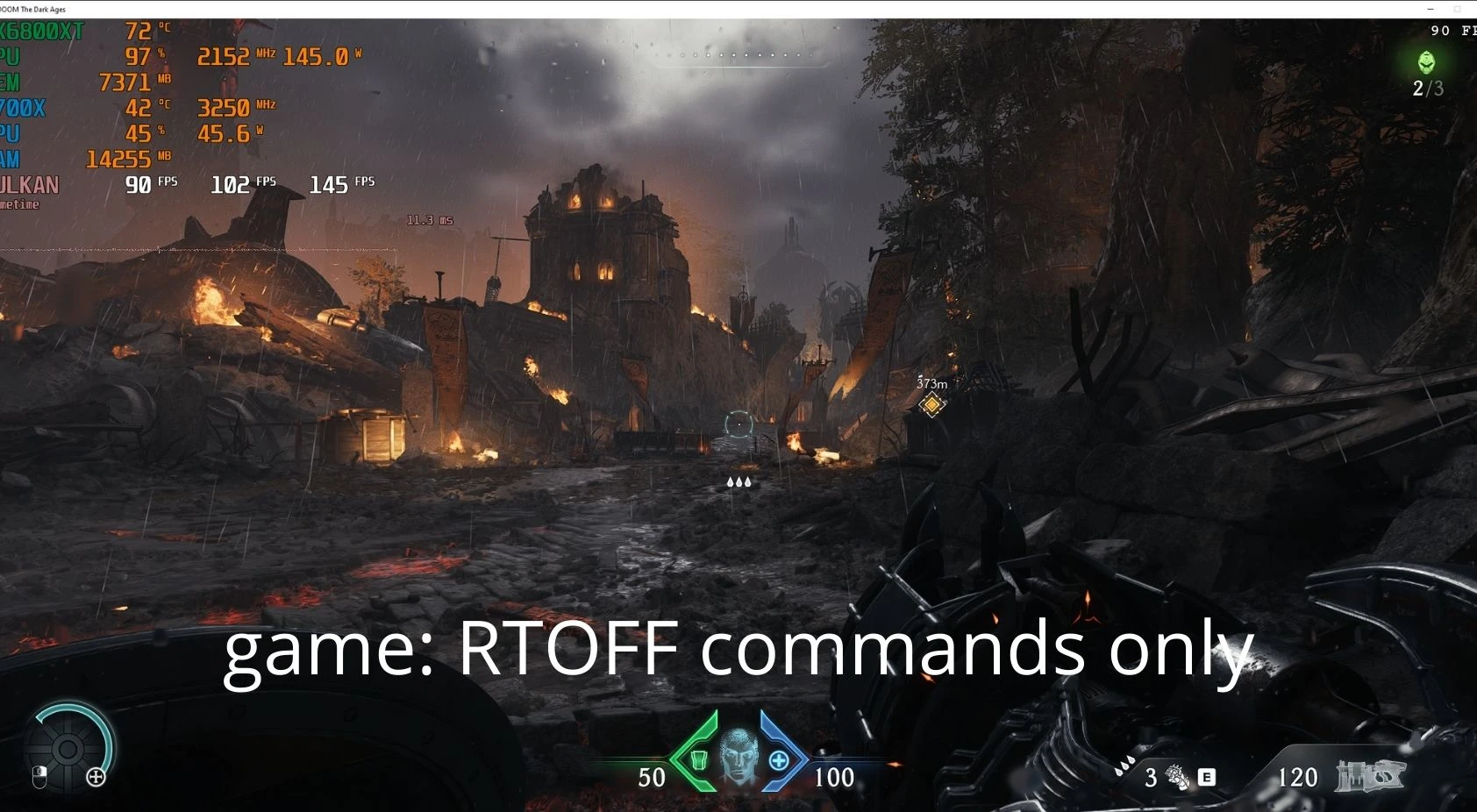
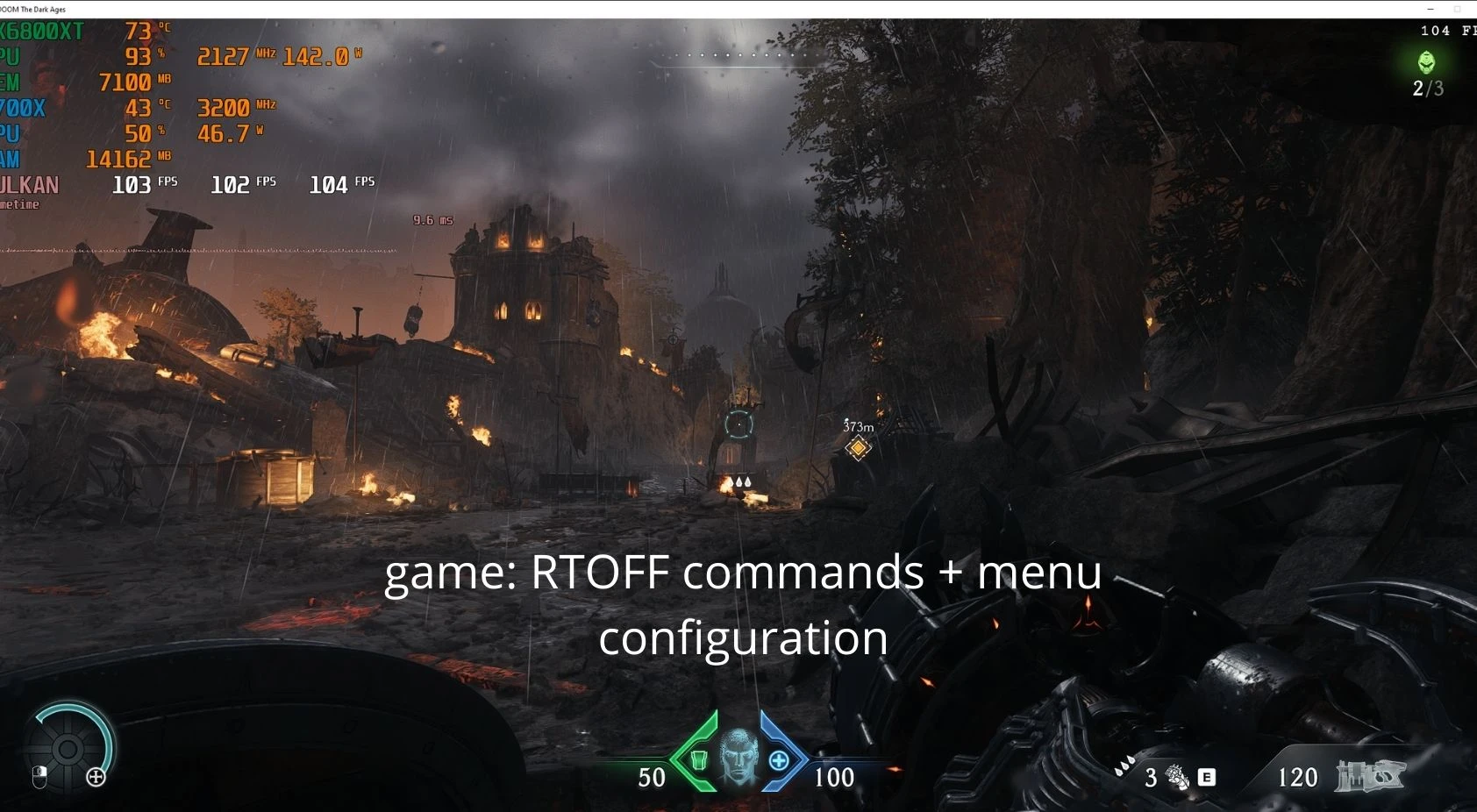
Mod Introduction
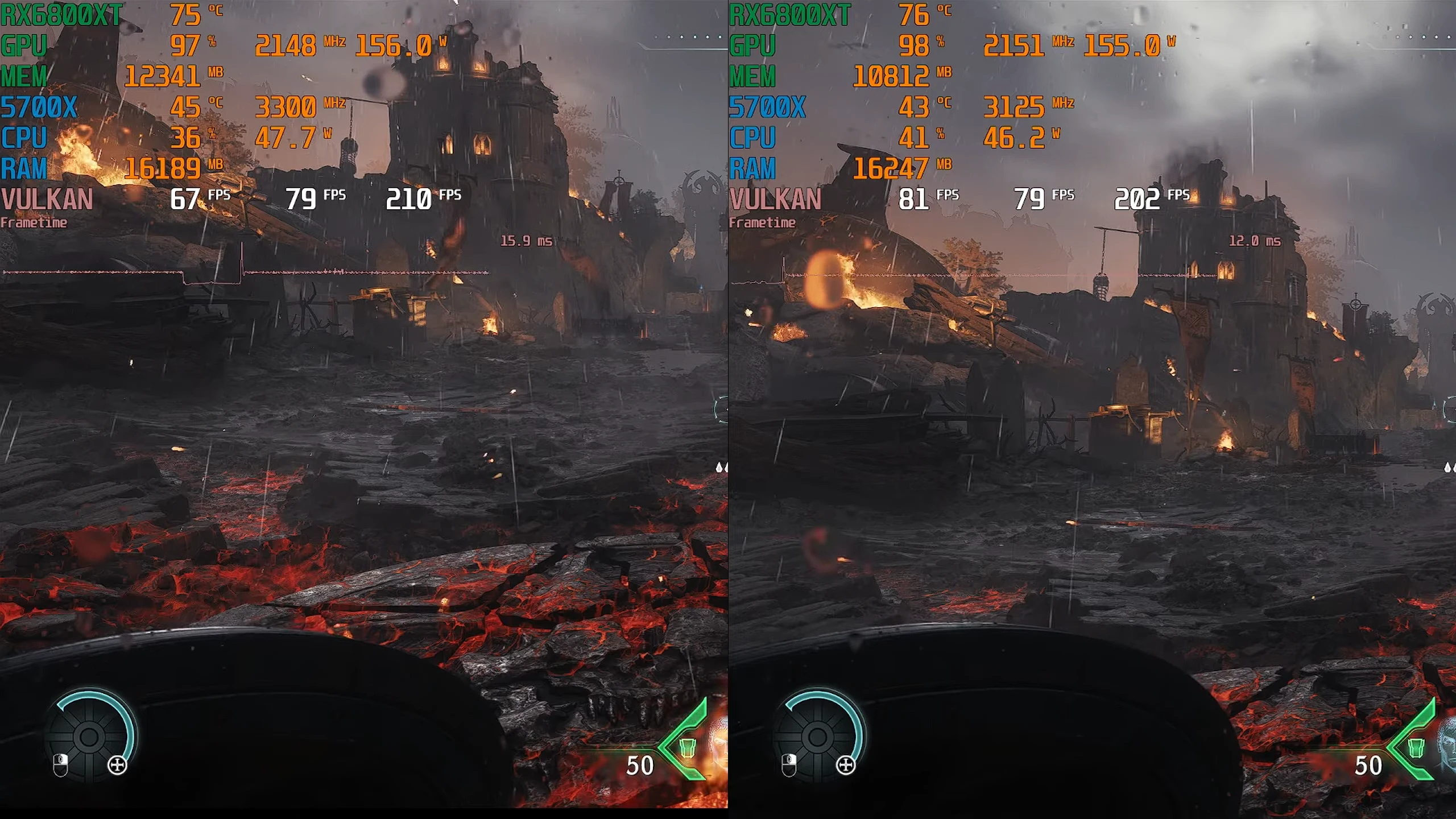
optimization for 4gb vram gpu and also preset for top of the line model, several optimizations available
In DOOM TDA, Ray Tracing significantly enhances visual effects, especially realistic reflections and shadows, but it consumes a lot of VRAM and performance. Adjusting the RT and VRAM commands allows you to optimize the game for your specific hardware, especially if your GPU has between 6GB and 12GB of VRAM.
Step 1: Download and Choose the Preset
Step 3: Open the Game and Activate the Console
You might see “invalid command” messages or similar warnings. This happens because the presets were created anticipating future updates with advanced features, so depending on the date you downloaded it, this message might appear or not.
3. Customizing Ray Tracing (RT)Main RT Commands for DOOM TDACommandFunctionCommon ValuesEffect in Game
RT Customization Recommendations
Copy Edit
Copy Edit
4. Customizing VRAM (Memory Management)Main VRAM Commands for DOOM TDACommandFunctionCommon ValuesAdjustment Tip
VRAM Customization Recommendations
Copy Edit
5. Full Example of a Balanced Custom
Copy Edit
6. Final Tips
I added another option to help with optimization and help you create a preset for your PC.
You can use the PC optimized version to further improve the fps
🎯 Goal:Preset "Quality + Performance" – for those who want high FPS while maintaining great visuals (ideal for 1080p and 1440p)
Preset "Visual Quality Only" – for users with 8 GB of VRAM, prioritizing beautiful graphics without stuttering.
🔍 Understanding:This limit controls how much VRAM will be reserved exclusively for textures.
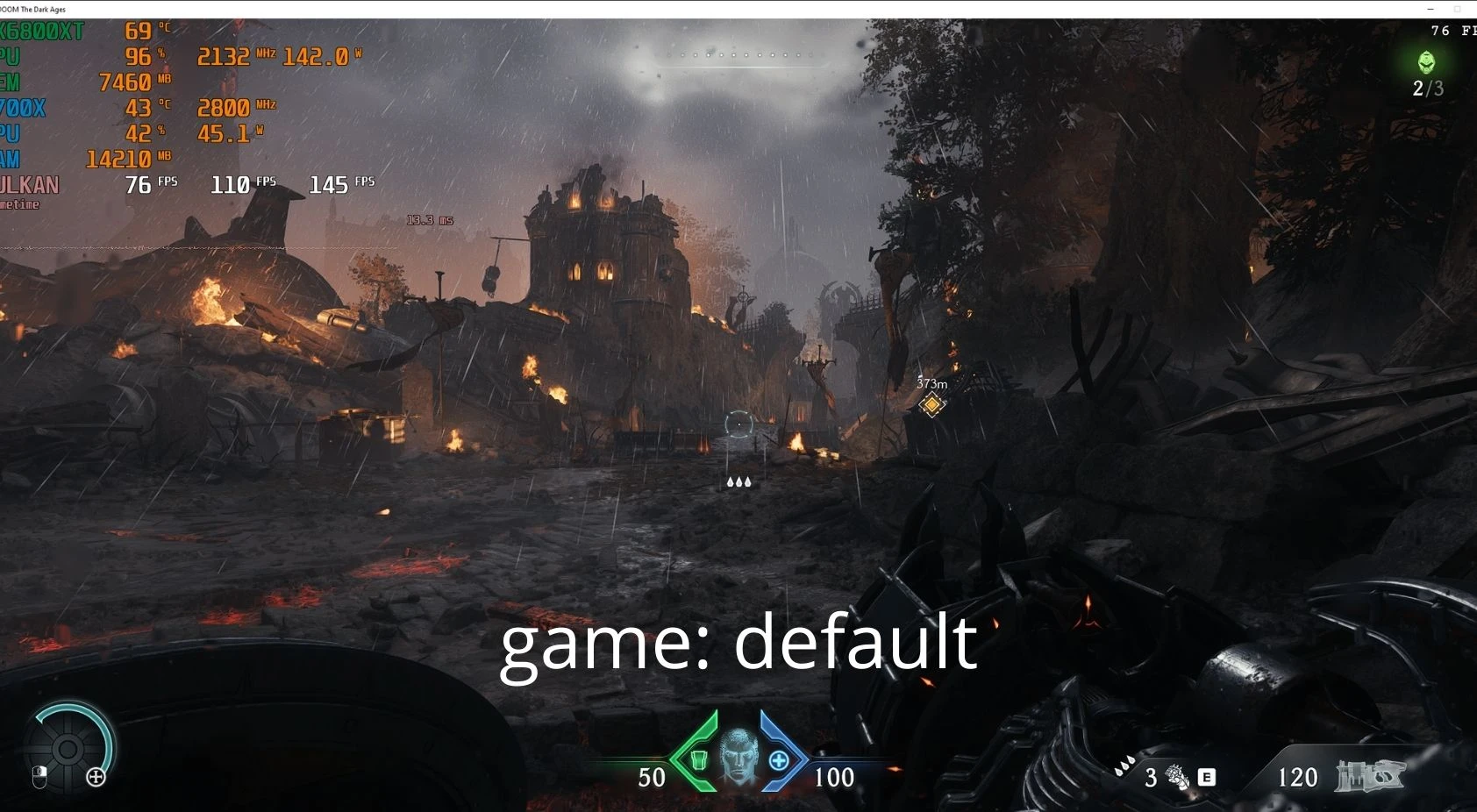
In the screenshot, current usage is 8809 MiB / 14076 MiB, meaning ~62% of VRAM is already in use.
For those with 8 GB of VRAM, capping this value is essential to avoid FPS drops, stuttering, and crashes.
🎮 Updated Preset: Quality + Performance (Balanced)💡 Recommended for GPUs with 10 to 12 GB of VRAM
Setting Suggested Value PC otimised High
Quality Slider Custom
Texture Memory Usage Limit4096 MiB
Shadow Quality Very High high
Reflection Quality High high
Lighting Quality High high
Motion Blur Off (💡 improves clarity and performance)
Motion Blur Amount-
Motion Blur Quality-
Texture Filter Nightmare (Ultra) ultra
Geometry Quality Very High Nightmare (Ultra)
Volumetrics Medium medium
Water Quality High high
Decals/Particles Quality High Nightmare (Ultra)
Ambient Occlusion On medium
🧠 Updated Preset: Visual Quality Only (for 8 GB VRAM)💡 Focused on great visuals without stuttering, optimized to use ~7.5 GB of VRAM max
Setting Suggested Value PC otimised Low
Quality Slider Custom
Texture Memory Usage Limit 3072 MiB
Shadow Quality
Reflection Quality
Lighting Quality High high
Motion Blur Off
Texture Filter Very High high
Geometry Quality High low
Volumetrics Medium low
Water Quality Medium low
Decals/Particles Quality High Nightmare (Ultra)
Ambient Occlusion On low
This guide will help you configure your game and also updates and other improvements.
video on how to use this available mod
video on how to use this available mod
- reshader for Doom The Dark Ages
-
- you need to update the game upscaler to FSR 3.1.4 or use a newer or older version of DLSS dlss-swapper
If this mod helped you in any way, support me, it encourages me to continue.
Tips: I made a video tutorial to help you better.
Do the optimization through the console first.
If the console optimization doesn't work correctly for you, do it this way.
Do it from the game menu first and then from the console. This will work better. For some people, just the console works, and for others (like me) you need to do it from the game menu + console
.1. IntroductionDo the optimization through the console first.
If the console optimization doesn't work correctly for you, do it this way.
Do it from the game menu first and then from the console. This will work better. For some people, just the console works, and for others (like me) you need to do it from the game menu + console
In DOOM TDA, Ray Tracing significantly enhances visual effects, especially realistic reflections and shadows, but it consumes a lot of VRAM and performance. Adjusting the RT and VRAM commands allows you to optimize the game for your specific hardware, especially if your GPU has between 6GB and 12GB of VRAM.
Step 1: Download and Choose the Preset
- Download the Preset you want to use.
- Choose which Preset you want to apply in your game.
- Steam, copy the Preset file to this path:
C:\Users\profile\Saved Games\id Software\DOOMTheDarkAges\base - For Game Pass, copy the Preset file to the path:
Bash Copy Edit\id Software\DOOMTheDarkAges\base (or something similar)
Step 3: Open the Game and Activate the Console
- Open your game normally.
- Press the ~ (tilde) key to open the console.
- Use the command to activate the Preset in the console.
- The command is based on the name of the Preset file you placed in the base folder.
- Check the Preset file name in the folder to know which command to type.
- All Preset commands are:
exec 4GB.cfgexec 6GB.cfgexec 8GB.cfgexec 10-12GB.cfgexec Q+O.cfgorexec Quality.cfg - If you have doubts about the command, use:
exec (name of the preset you placed in the base folder)For example:exec 10-12GB.cfg
- If you did everything right, you will see a message like:
exercing
You might see “invalid command” messages or similar warnings. This happens because the presets were created anticipating future updates with advanced features, so depending on the date you downloaded it, this message might appear or not.
3. Customizing Ray Tracing (RT)Main RT Commands for DOOM TDACommandFunctionCommon ValuesEffect in Game
RT Customization Recommendations
- Maximum Visual Quality:
Copy Edit
r_raytracedReflectionsWater 1
r_raytracedReflectionsTemporalUpscaleQuality 2
R _ SSR 1
R _ ssdo 1
- Performance/Quality Balance:
R _ SSR 1
R _ ssdo 0
R _ SSAO 1
- Maximum Performance (turn almost everything off):
Copy Edit
r_raytracedReflectionsWater 0
r_raytracedReflectionsTemporalUpscaleQuality 0
R _ SSR 0
R _ ssdo 0
R _ ssao 0
4. Customizing VRAM (Memory Management)Main VRAM Commands for DOOM TDACommandFunctionCommon ValuesAdjustment Tip
VRAM Customization Recommendations
- 6-8 GB VRAM, use moderate values to avoid crashes:
Copy Edit
R _ TexturePoolSizeMB 3584
Is _ poolsizemin 96
Is _ poolsize 96
r_shadowAtlasTileSize 256
R _ ShadowAtLasWidth 512
r_shadowAtlasHeight 512
- For GPUs with 8 GB or more, you can increase to maximum quality:
R _ TexturePoolSizeMB 6144
Is _ poolsizemin 256
Is _ poolsize 256
r_shadowAtlasTileSize 1024
R _ shadowatlaswidth 2048
r_shadowAtlasHeight 2048
5. Full Example of a Balanced Custom
autoexec.cfg for RT + VRAMcfgCopy Edit
// DOOM TDA – Balanced Custom RT + VRAM Configuration// Ray Tracing
r_raytracedReflectionsWater 1
r_raytracedReflectionsTemporalUpscaleQuality 1
R _ SSR 1
R _ ssdo 0
R _ SSAO 1

// VRAM / Memory
R _ TexturePoolSizeMB 3584
Is _ poolsizemin 96
Is _ poolsize 96
r_shadowAtlasTileSize 256
R _ ShadowAtLasWidth 512
r_shadowAtlasHeight 512
6. Final Tips
- Always run small tests after changing commands to ensure stability and good performance.
- Adjust VRAM values according to your GPU's available memory (remember other applications also use VRAM).
- Turning off RT and heavy effects improves FPS but reduces visual quality.
- Update your GPU drivers to ensure RT support and optimizations.
- Use the command
exec name the preset.cfg
to quickly apply your settings anytime.
I added another option to help with optimization and help you create a preset for your PC.
You can use the PC optimized version to further improve the fps
🎯 Goal:Preset "Quality + Performance" – for those who want high FPS while maintaining great visuals (ideal for 1080p and 1440p)
Preset "Visual Quality Only" – for users with 8 GB of VRAM, prioritizing beautiful graphics without stuttering.
🔍 Understanding:This limit controls how much VRAM will be reserved exclusively for textures.
In the screenshot, current usage is 8809 MiB / 14076 MiB, meaning ~62% of VRAM is already in use.
For those with 8 GB of VRAM, capping this value is essential to avoid FPS drops, stuttering, and crashes.
game menu
🎮 Updated Preset: Quality + Performance (Balanced)💡 Recommended for GPUs with 10 to 12 GB of VRAM
Setting Suggested Value PC otimised High
Quality Slider Custom
Texture Memory Usage Limit4096 MiB
Shadow Quality Very High high
Reflection Quality High high
Lighting Quality High high
Motion Blur Off (💡 improves clarity and performance)
Motion Blur Amount-
Motion Blur Quality-
Texture Filter Nightmare (Ultra) ultra
Geometry Quality Very High Nightmare (Ultra)
Volumetrics Medium medium
Water Quality High high
Decals/Particles Quality High Nightmare (Ultra)
Ambient Occlusion On medium
🧠 Updated Preset: Visual Quality Only (for 8 GB VRAM)💡 Focused on great visuals without stuttering, optimized to use ~7.5 GB of VRAM max
game menu
Setting Suggested Value PC otimised Low
Quality Slider Custom
Texture Memory Usage Limit 3072 MiB
Shadow Quality
Reflection Quality
Lighting Quality High high
Motion Blur Off
Texture Filter Very High high
Geometry Quality High low
Volumetrics Medium low
Water Quality Medium low
Decals/Particles Quality High Nightmare (Ultra)
Ambient Occlusion On low
Now you have two optimization options for the game menu and game console, see which one is better for you and easier, any questions leave in the comments section.
This tool is provided by the third party [bufftool]

Download Mods For Free
Install LagoFast, start DOOM: The Dark Ages and play with the mods you love.
We use cookies to make interactions with our websites andservices easy and meaningful. For more information aboutthe cookies we use or to find out how you can disable cookies, click here.