
WUCHANG: Fallen Feathers is shaping up to be one of the most anticipated action RPGs of 2025, set during the chaos of the late Ming Dynasty. With its dark soulslike atmosphere, beautifully decaying ruins, and powerful storyline centered around the mysterious pirate warrior Wuchang, the game promises to deliver a memorable experience for fans of punishing combat and grim storytelling.
However, some players have already encountered an unfortunate side effect: crashing, freezing, or the game not starting up properly. If you're experiencing these frustrating issues with WUCHANG: Fallen Feathers, you’re not alone.
In this comprehensive guide, we’ll dive deep into what causes these technical problems and, more importantly, how to fix them with practical, step-by-step solutions. Whether your game freezes on launch, crashes mid-battle, or never opens at all, this article will help you restore stability and enjoy the haunting world of Shu the way it was meant to be played.

Part 1: Why Does WUCHANG: Fallen Feathers Keep Crashing?
Part 2: How to Fix WUCHANG: Fallen Feathers Crashing?
Part 1: Why Does WUCHANG: Fallen Feathers Keep Crashing?
Crashes in games like WUCHANG: Fallen Feathers usually stem from system incompatibility, corrupted game files, outdated drivers, or software conflicts. Let’s break down some of the most common causes:
Incompatible Hardware or Drivers
Even though the game recommends modern CPUs and GPUs like the Intel i5-12600KF or RTX 3070, many players attempt to run it on older machines. If your graphics driver or Windows version isn’t up to date, the game may fail to launch or crash during loading.
Third-party Software Conflicts
Overlays, recording tools, or third-party launchers can sometimes interfere with WUCHANG's performance. Tools like MSI Afterburner or even Discord's in-game overlay may be causing crashes or freezing.
Corrupted Game Files
During installation or updates, some files may become corrupted. This can result in crashes during startup or transitions between areas.
DirectX or Unreal Engine Glitches
As a game built on Unreal Engine, WUCHANG depends heavily on DirectX 12 support. If your system doesn’t fully support this or there’s a bug in the rendering pipeline, crashes are likely.
Overheating or Memory Limitations
The game requires at least 16GB of RAM and prefers SSD storage. Systems with poor cooling or hard disk installations may stutter or freeze.
Now that you understand the common causes, let’s fix them step by step.
Part 2: How to Fix WUCHANG: Fallen Feathers Crashing?
Best Solution: Use LagoFast Game Booster
If you’re looking to enhance your WUCHANG: Fallen Feathers experience with mods, LagoFast is your ultimate tool. It not only lets you explore and enjoy a wide range of mod-supported games directly within the platform but also boosts performance and fixes crashing or freezing in seconds. Designed to reduce latency, eliminate background conflicts, and stabilize CPU/GPU usage, LagoFast ensures a smoother, more immersive experience for demanding titles like WUCHANG: Fallen Feathers.
Key Features of LagoFast:
- Real-time crash fix and FPS boost
- Game-specific optimization modes for titles like WUCHANG
- Easy one-click acceleration
- Smart routing for lower ping and fewer disconnects
- Advanced CPU and memory optimization tools
If your WUCHANG experience is plagued by freezing or random shutdowns, LagoFast can restore smooth performance in just one launch.
Tutorial to Use LagoFast to Fix WUCHANG: Fallen Feathers Crashing on PC:
Step 1: Click the Free Trial button to download and install LagoFast.
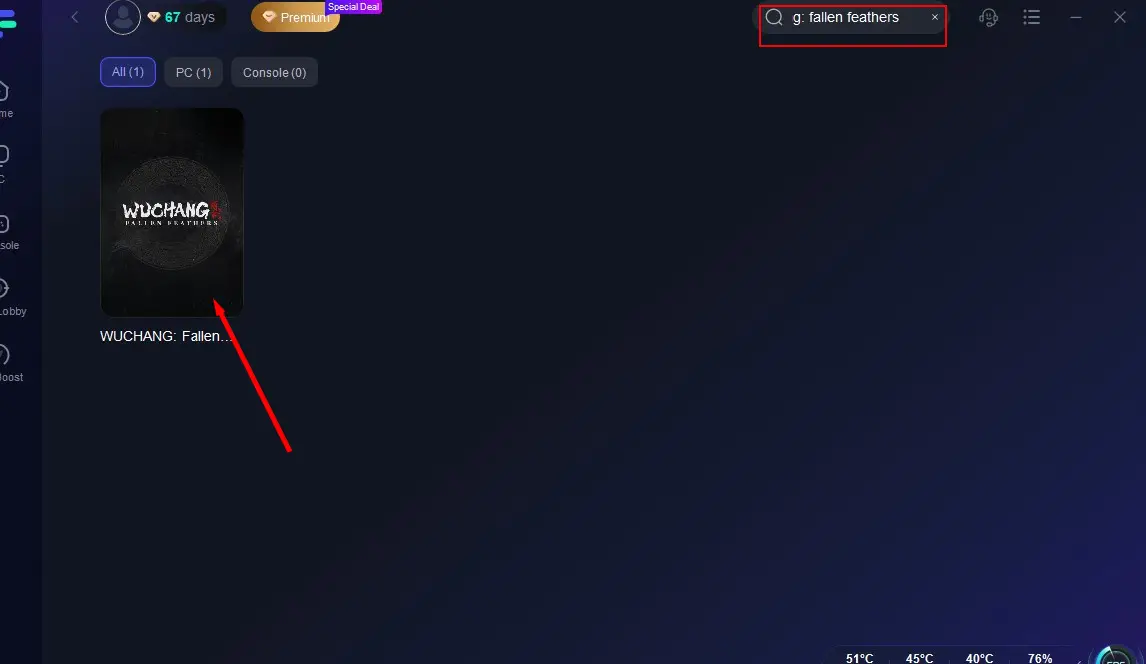
Step 2: Open LagoFast, then click the PC button on the left and search WUCHANG: Fallen Feathers in the search bar, click it after it appears.
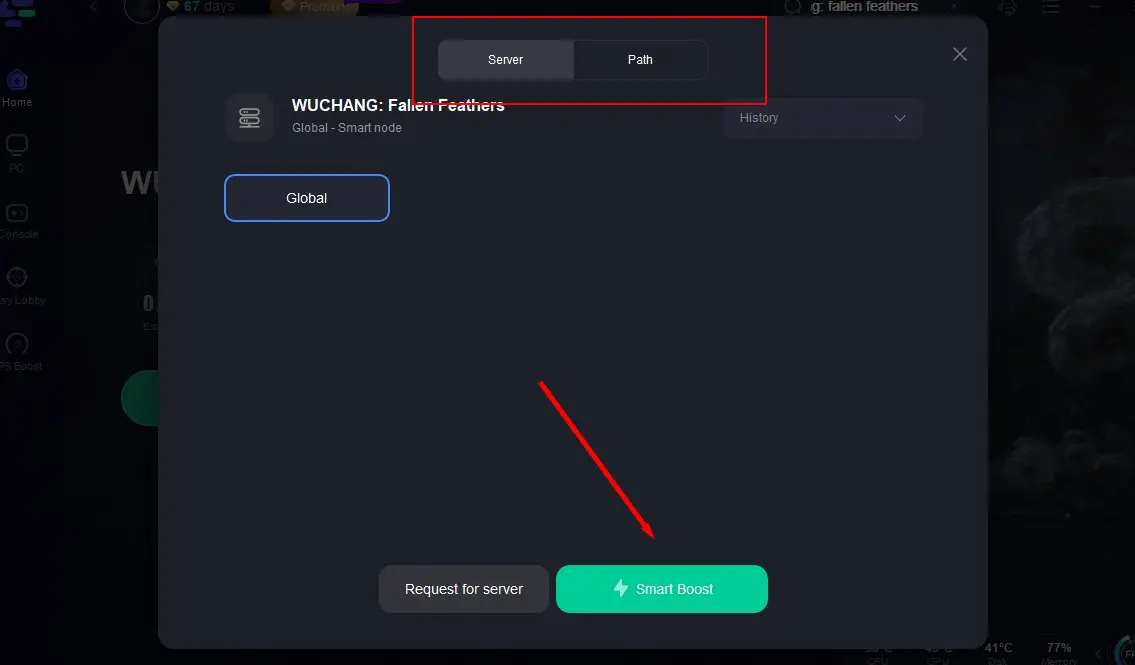
Step 3: Click on “Server” to change to a better server that fixes lag and ensures the gaming experience, then click on “Smart Boost”.
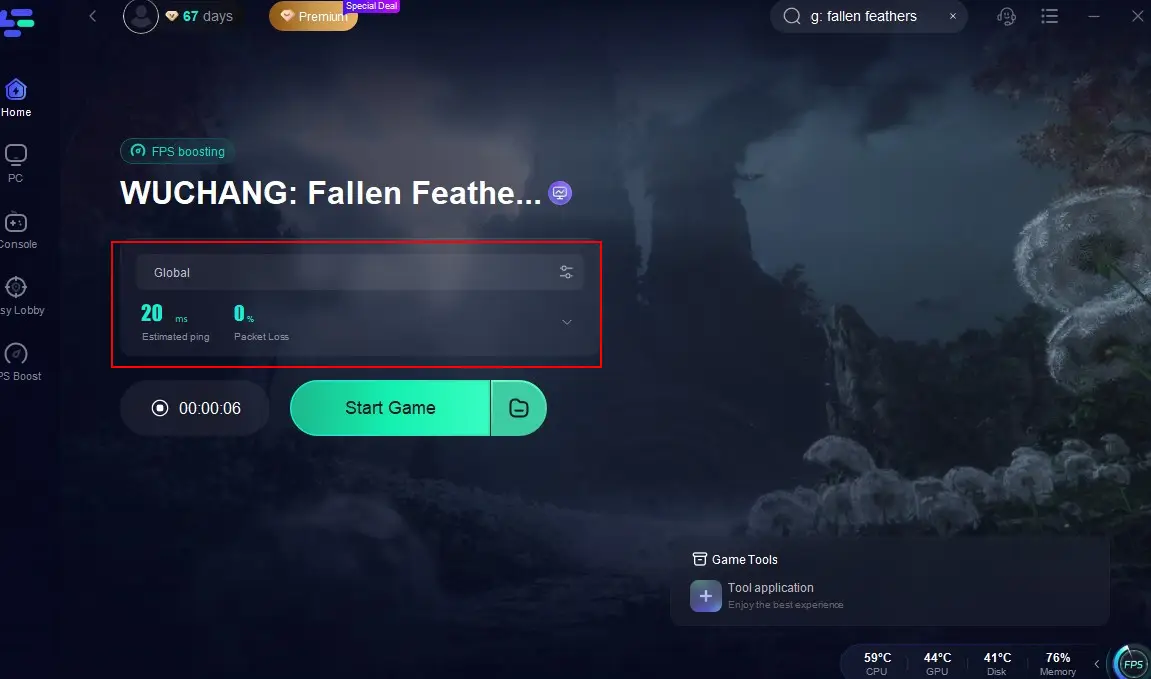
Step 4: Check the specific game ping, packet loss, and multiple path connection on the right side. Finally, click the “Start Game” to play the game.
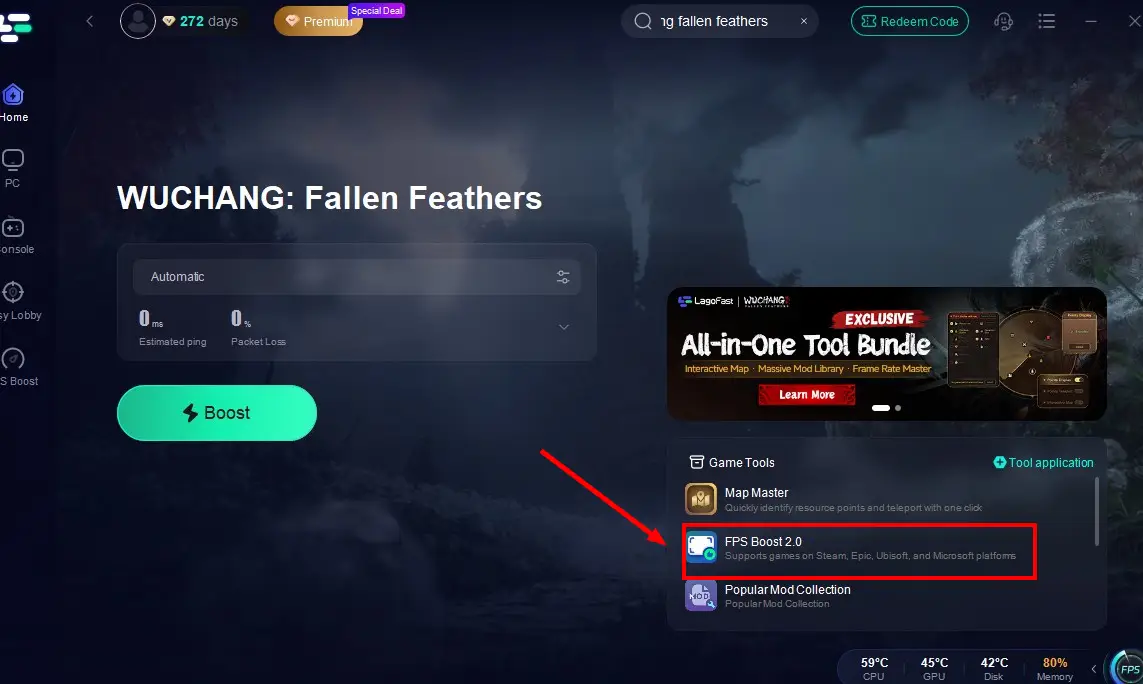
FPS Boost
To boost frame rates and maximize visual enjoyment in WUCHANG: Fallen Feathers, don't miss out on LagoFast's FPS tool:
Map Master
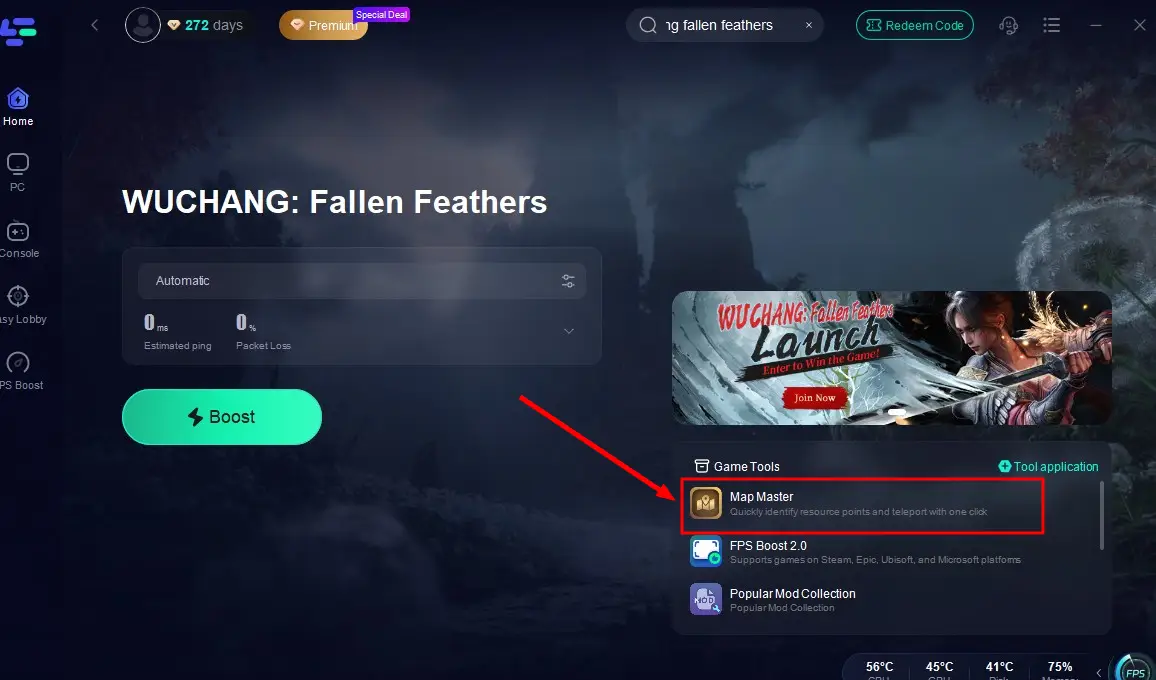
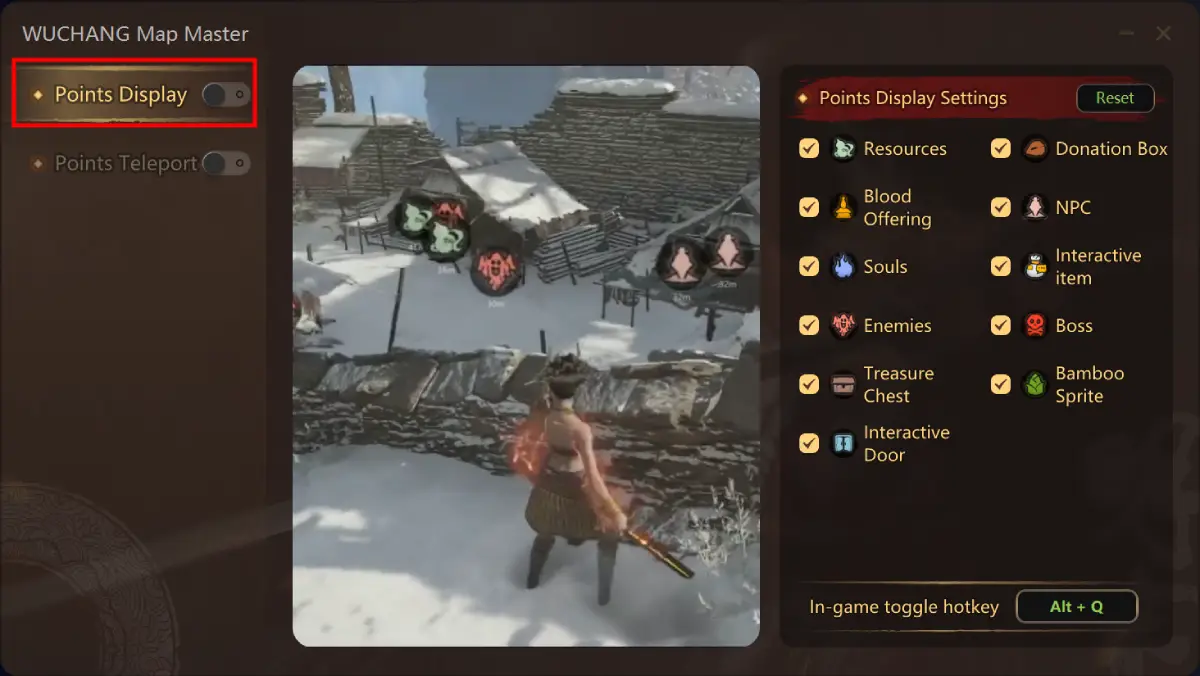
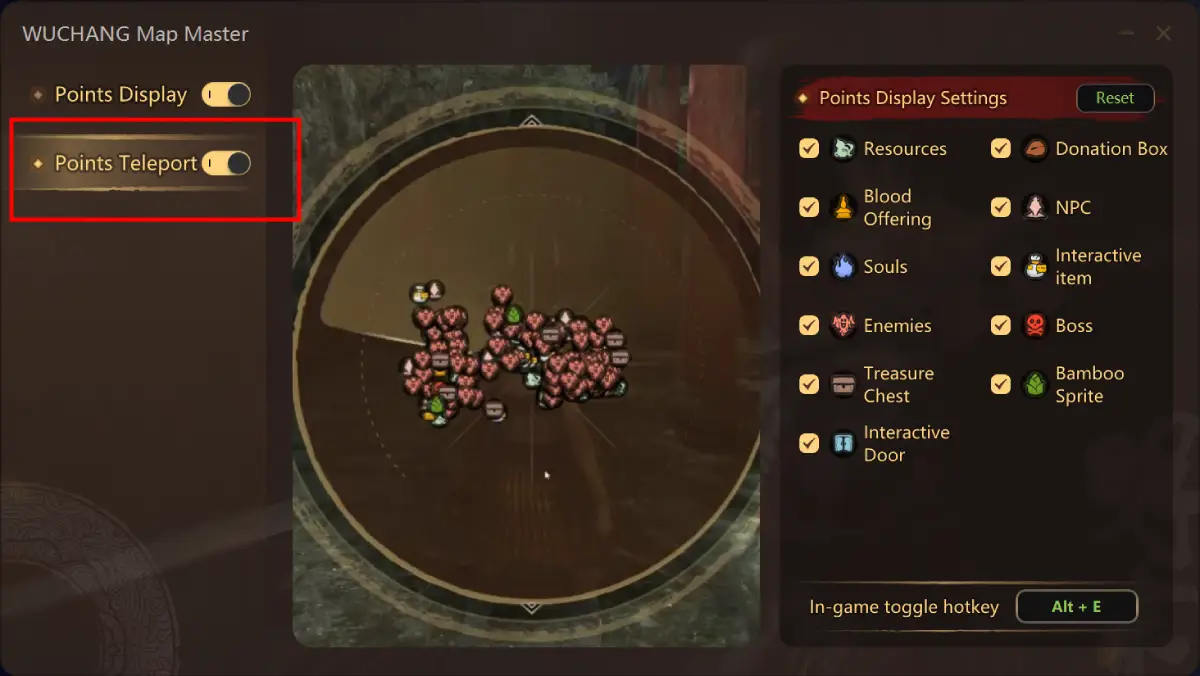
Since WUCHANG: Fallen Feathers lacks a built-in map, players must rely solely on a compass for exploration, greatly limiting navigation. LagoFast’s WUCHANG: Fallen Feathers Map Master solves this by enabling one-click point display and seamless point switching:
Click the Map Master tool in the bottom-right corner.
Configure Point Display and Point Teleport settings to navigate freely in-game.
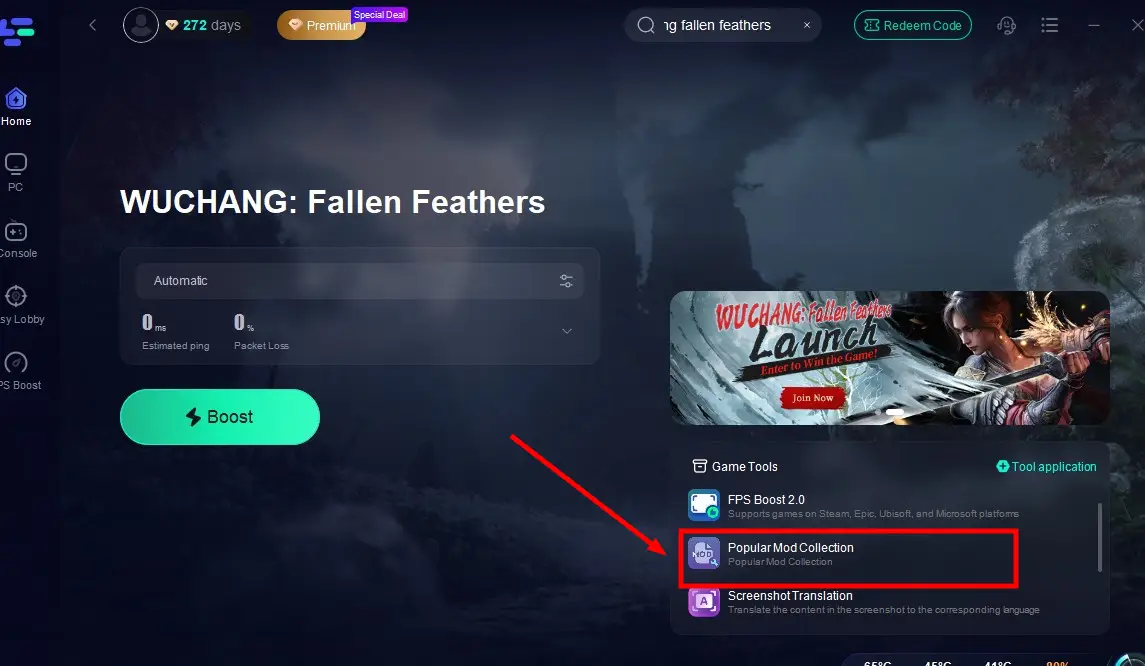
Popular Mod Collection Tool
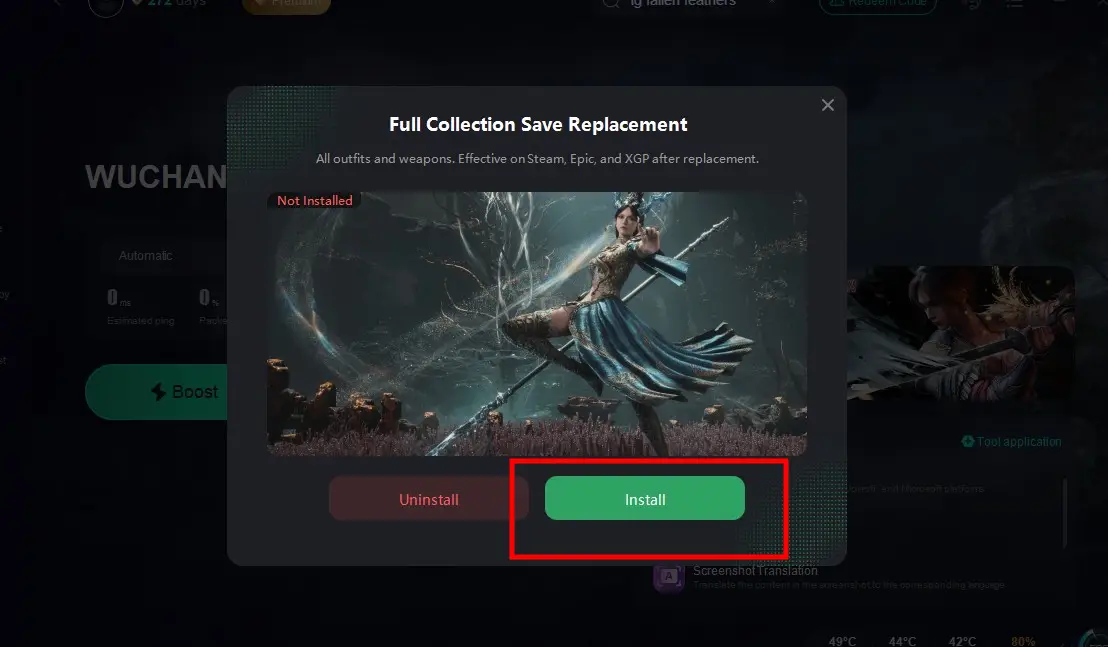
Many players spend significant time and effort searching for and installing mods to enhance their WUCHANG: Fallen Feathers experience, which often reduces gameplay enjoyment and sense of accomplishment. To streamline this process, LagoFast offers a WUCHANG: Fallen Feathers Popular Mod Collection tool, providing a one-stop solution for various mods and eliminating the need for manual searches:
Click the Popular Mod Collection tool in the bottom-right corner.
Select your desired mods, install them, and launch WUCHANG: Fallen Feathers to play with your new additions.
Update Graphics Drivers and Windows OS
An outdated GPU driver or Windows version is a leading cause of crashes in modern PC games.
Steps:
Step 1: Press Win + X, select Device Manager.
Step 2: Expand Display adapters, right-click your GPU, and select Update driver.

Step 3: Choose Search automatically and let Windows find the latest driver.
Step 4: Visit your GPU manufacturer’s website (NVIDIA/AMD) for a manual update if needed.
Step 5: Go to Settings and select Windows Update, and check for OS updates.
Step 6: Restart your PC after updating and re-launch the game.
Verify and Repair Game Files
Corrupted or missing files can cause your game to crash right on startup.
Steps:
Step 1: Open your Epic Games Launcher.
Step 2: Go to Library, locate WUCHANG: Fallen Feathers.
Step 3: Click on the three dots (...) next to the title.
Step 4: Select Manage, then choose Verify Files.

Step 5: Wait for the verification to complete.
Step 6: Relaunch the game to test stability.
Disable Overlays and Background Apps
Game overlays often clash with Unreal Engine titles.
Steps:
Step 1: Disable the Steam overlay by going to Steam, clicking Settings, clicking In-Game, and selecting Uncheck “Enable Steam Overlay.”

Step 2: Close Discord, NVIDIA GeForce Experience, or other overlay software.
Step 3: Press Ctrl + Shift + Esc to open Task Manager.
Step 4: End unnecessary background apps like Chrome, Adobe, or recording tools.
Step 5: Go to Startup tab and disable non-essential auto-launch software.
Step 6: Reboot your PC before trying again.
Adjust In-Game Settings to Reduce Load
High settings on low-spec machines may cause system overload and crashes.
Steps:
Step 1: Launch WUCHANG and go to Settings, and select Video.
Step 2: Set Graphics Quality to Low or Medium.
Step 3: Disable V-Sync and Motion Blur.
Step 4: Reduce the resolution scale to 85% or lower.
Step 5: Turn off Ray Tracing, if available.
Step 6: Apply changes and restart the game.
Check for DirectX and Visual C++ Runtime Issues
Missing runtime libraries can crash the game before it even starts.
Steps:
Step 1: Download the latest DirectX Runtime Installer from Microsoft.
Step 2: Install all required components.
Step 3: Go to Control Panel, and click Programs, then select Uninstall a Program.
Step 4: Look for Microsoft Visual C++ Redistributables and update them.
Step 5: If needed, download the latest versions from Microsoft’s official site.
Step 6: Restart your system.
Run the Game as Administrator and in Compatibility Mode
Permissions or OS version conflicts can cause launch failures.
Steps:
Step 1: Right-click on the WUCHANG .exe file or shortcut.
Step 2: Choose the Properties and click the Compatibility tab.
Step 3: Check Run this program as an administrator.

Step 4: Check Run in compatibility mode for Windows 10.
Step 5: Click Apply, then OK.
Step 6: Double-click the game to launch.
Hot Related: Grounded 2 Game Translation Tool: Enhancing Your Suburban Survival Adventure
Conclusion
WUCHANG: Fallen Feathers is a haunting and visually stunning journey through a mythical, war-torn land. But crashes, freezing, or startup issues can turn that journey into a nightmare. Fortunately, these problems are often tied to simple system conflicts or software bugs, and each one has a clear fix. Whether you choose to fine-tune the settings manually or go with a smarter solution like LagoFast, you’re now equipped with everything needed to tackle performance issues head-on. This way, you can get back to uncovering Wuchang’s past, mastering Red Mercury powers, and battling the grotesque horrors that plague Shu without worrying about a crash ruining your progress.
Boost Your Game with LagoFast for Epic Speed
Play harder, faster. LagoFast game booster eliminates stutter and lags on PC, mobile, or Mac—win every match!
Quickly Reduce Game Lag and Ping!
Boost FPS for Smoother Gameplay!