
The long-anticipated Rematch, a fresh take on skill-based street soccer video games, has finally launched across PC, PlayStation, and Xbox platforms. Boasting a no-foul, fast-paced multiplayer mode and intuitive player control, Rematch brings a bold alternative to traditional football games. But as with most new releases, many players have encountered frustrating issues, ranging from the game not launching to DLSS bugs or online functionality simply not working. If you're wondering why Rematch doesn't work for you, you're not alone. This article explores the most common Rematch errors, what causes them, and how to fix them through a comprehensive step-by-step guide.

- ✅ Reduce Lag and High Ping.
✅ Boost FPS at the Same Time.
✅ Support 2000+ Online Games
✅ Change Server Without Latency.
✅ Multiplatform: PC, Console, Mobile.
✅ End Stuck, Connection & Crashing Issues
Part 1: Why Rematch Doesn’t Work?
Part 2: Rematch Not Working: Common Errors
Part 3: What to Do If the Rematch Does Not Start
Part 1: Why Rematch Doesn’t Work?
Whether you’re trying to launch the game, play online, or enable graphical features like DLSS, Rematch can stop working for multiple reasons:
- Incomplete installation or corrupted files
- Graphics driver incompatibility
- DLSS conflicts on unsupported GPUs
- Server outages or regional restrictions
- Software conflicts with overlays
- Platform-specific bugs (Steam, Xbox, PlayStation)
Understanding the specific issue is key to applying the right fix. Let’s dive deeper into each type of error and how it manifests in the game.
Part 2: Rematch Not Working: Common Errors
Rematch Not Working Online
One of the biggest draws of Rematch is its real-time multiplayer action. However, players often report being unable to access online matches due to:
- Authentication errors
- Endless matchmaking loops
- Server disconnections
- Account region mismatches
What’s likely causing it:
Server-side issues, unstable internet, outdated NAT settings, or interference from firewalls and background apps.
Rematch Not Working with DLSS
DLSS is designed to enhance performance by upscaling lower-resolution graphics. But some players experience crashes, black screens, or visual bugs when DLSS is turned on.
What’s likely causing it:
Unsupported GPU, outdated NVIDIA drivers, or corrupted DLSS integration in the game’s engine.
Rematch Does Not Launch into the Game
Some players can’t even get past the initial splash screen. Double-clicking the game icon does nothing, or the game crashes right after launching.
What’s likely causing it:
- Missing DirectX or Visual C++ runtime
- Incompatible system requirements
- Antivirus blocking executable files
- Steam or Xbox app errors
Part 3: What to Do If the Rematch Does Not Start
Fixing Rematch involves identifying which type of failure you’re facing and then applying targeted troubleshooting steps. Let’s begin with one of the easiest and most effective fixes.
1. LagoFast - The Best Solution to Fix “Rematch Doesn’t Work”
When it comes to fixing Rematch not working, one of the most efficient and beginner-friendly solutions is using LagoFast. It’s a game booster and lag reducer trusted by thousands of players, offering low-latency gameplay and automatic game optimization.
Why LagoFast stands out:
- Real-time ping acceleration to reduce lag and prevent disconnects.
- One-click FPS boost for smoother performance in demanding scenes.
- Cross-platform support across PC, Xbox, and PlayStation.
- Automatic route optimization for stable multiplayer sessions.
- No need for technical skills, just install, select Rematch, and click Start.
If you're facing online connectivity issues, DLSS crashes, or launch failures, LagoFast could be the ultimate plug-and-play fix.
Tutorial to use LagoFast to Fix “Rematch Doesn’t Work” on PC:
Step 1: Click the Free Trial button to download and install LagoFast.
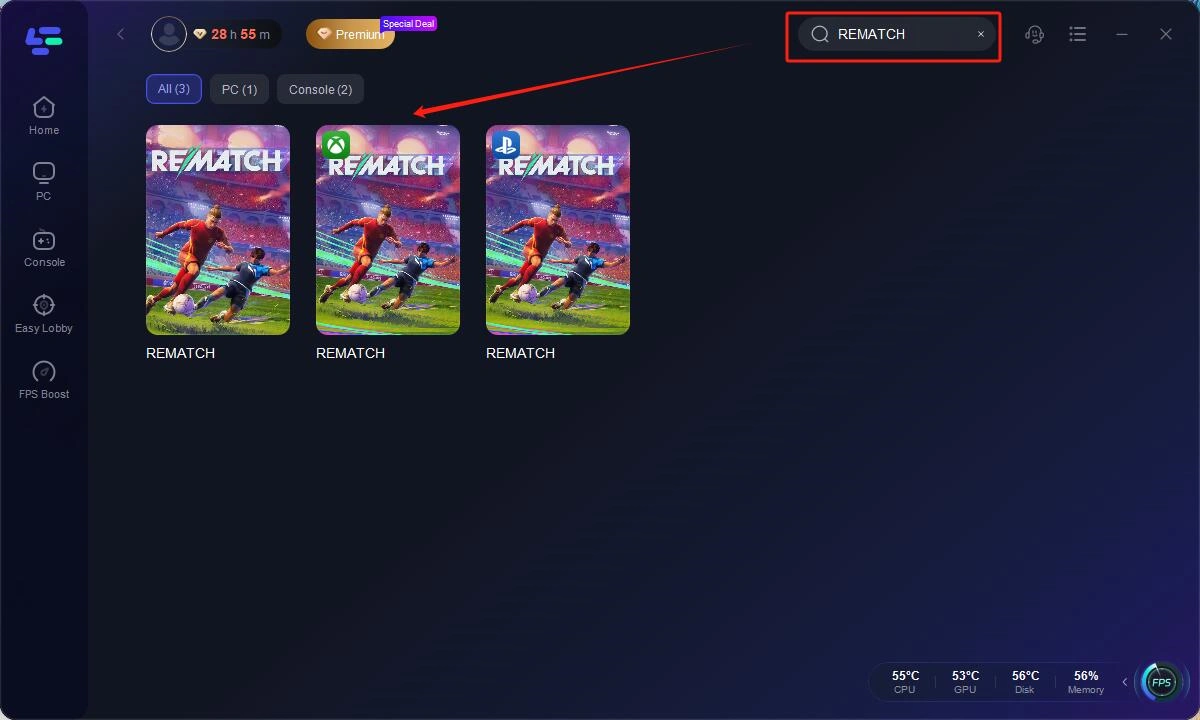
Step 2: Open LagoFast, then click the PC button on the left and search REMATCH in the search bar, click it after it appears.
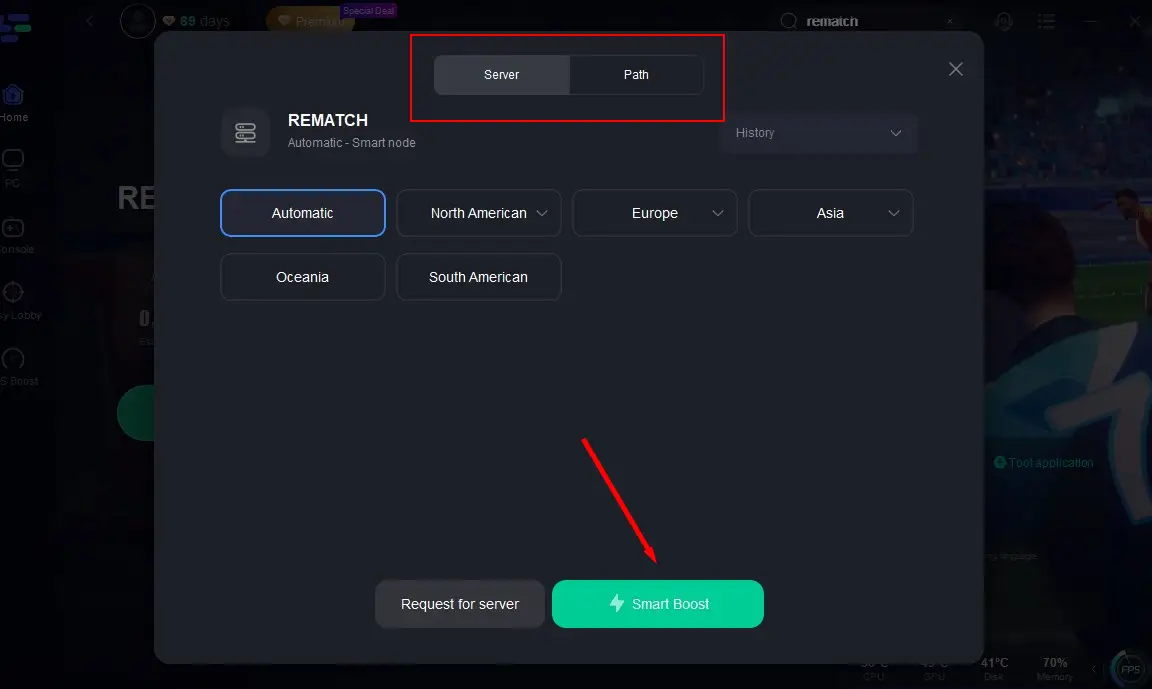
Step 3: Click on "Server" to change to a better server that ensures the gaming experience, then click on "Smart Boost".
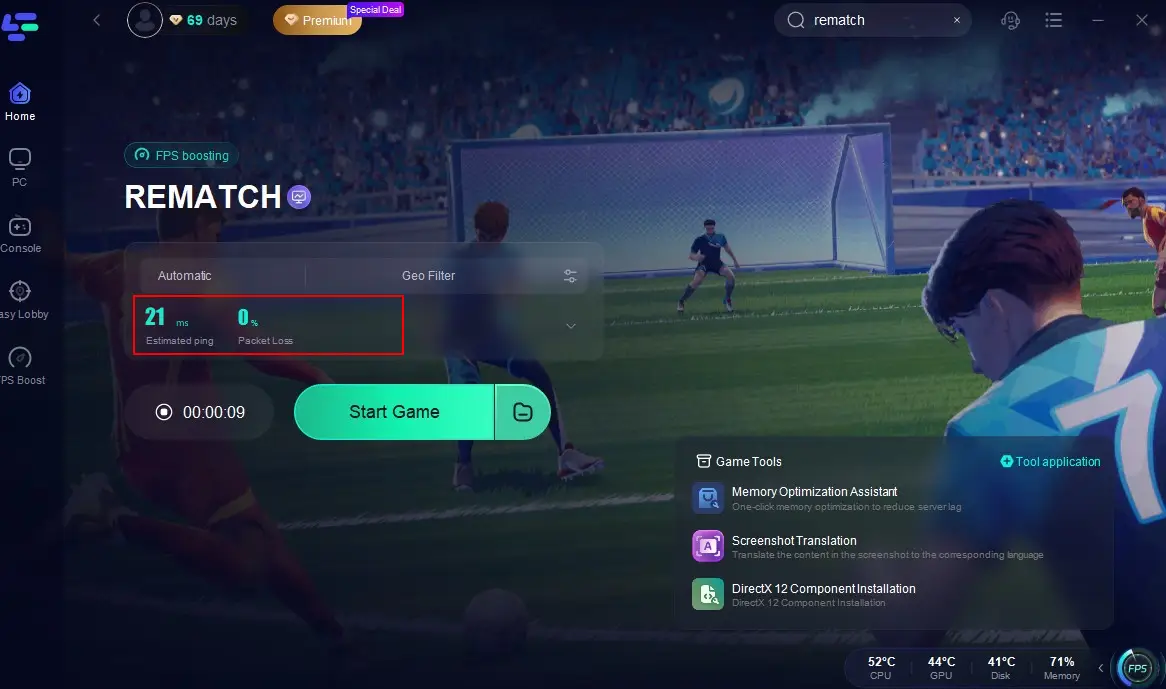
Step 4: Check the specific game ping, packet loss, and multiple path connection on the right side. Finally, click the "Start Game" to play the game.
Tutorial to use LagoFast Box to enhance your console gaming experience:
Step 1: Download the LagoFast Console App on your phone to control the LagoFast Box.

Step 2: Establish a connection between your LagoFast Box, router, and console, choosing between a wired or wireless connection.

Step 3: Launch the LagoFast Console App and boost REMATCH. Once you have completed the binding process with the LagoFast Box, proceed to boost this game within the LagoFast Console App.

2. Verify Game Files Integrity
This solution is ideal if your game won’t start or crashes unexpectedly.
Step 1: Open Steam (or Epic/Xbox app)
Step 2: Right-click on Rematch in your Library
Step 3: Choose “Properties”

Step 4: Navigate to the “Installed Files” tab
Step 5: Click on “Verify Integrity of Game Files”

Step 6: Wait for the scan and redownload any missing files
3. Update Graphics Drivers
DLSS and in-game performance heavily rely on updated GPU drivers.
Step 1: Open NVIDIA GeForce Experience or AMD Adrenalin
Step 2: Navigate to “Drivers”
Step 3: Click on “Check for updates.”

Step 4: Download and install the latest driver
Step 5: Restart your PC after installation
Step 6: Launch Rematch again with DLSS turned on
4. Disable Incompatible Overlays and Background Software
Programs like Discord, MSI Afterburner, and even Steam overlays may conflict.
Step 1: Close Rematch
Step 2: Open Task Manager (Ctrl+Shift+Esc)
Step 3: End processes like Discord, Overwolf, and MSI Afterburner
Step 4: Go to Steam, select Settings, and click In-Game
Step 5: Uncheck “Enable the Steam Overlay while in-game.”

Step 6: Relaunch the game
5. Reinstall Visual C++ and DirectX Runtimes
Missing dependencies can block game launch.
Step 1: Download Visual C++ Redistributables from Microsoft’s official site
Step 2: Install both x64 and x86 versions
Step 3: Go to C:\Windows\System32 and ensure “d3d12.dll” is present
Step 4: If not, reinstall DirectX End-User Runtime
Step 5: Reboot your system
Step 6: Try launching Rematch again
6. Change DNS and Reset Network Settings
Perfect if you’re facing online mode errors or server timeouts.
Step 1: Go to Control Panel, select Network and Internet, and click Change Adapter Settings
Step 2: Right-click on your active connection and click “Properties.”
Step 3: Select “Internet Protocol Version 4 (TCP/IPv4)”

Step 4: Set DNS to 8.8.8.8 and 8.8.4.4 (Google’s DNS)

Step 5: Click OK and close
Step 6: Restart your router and PC
7. Uninstall and Clean Reinstall the Game
If nothing else works, a full reinstall might be needed.
Step 1: Uninstall Rematch via your launcher (Steam, Xbox, etc.)
Step 2: Go to your game installation folder and delete the remaining files
Step 3: Clear your cache folder (C:\Users[Name]\AppData\Local\Rematch)
Step 4: Restart your PC
Step 5: Redownload the game
Step 6: Install on a different drive, if available
Conclusion
Rematch’s intense 5v5 showdowns and quick‑play modes promise a fresh, skill‑driven twist on football gaming, but launch bugs, DLSS glitches, and online failures can spoil the fun; fortunately, solutions abound from the effortless, cross‑platform acceleration of LagoFast to practical step‑by‑step fixes like verifying game files, updating drivers, and adjusting network settings, so stay current with patches, consult community forums, and give LagoFast a try to get back on the virtual pitch without a hitch.
Boost Your Game with LagoFast for Epic Speed
Play harder, faster. LagoFast game booster eliminates stutter and lags on PC, mobile, or Mac—win every match!
Quickly Reduce Game Lag and Ping!
Boost FPS for Smoother Gameplay!